

A still image can become a moving scene with a voice, music, or sound effects. These image-to-video AI tools with audio vary in how much they generate at once, so start with the kind of clip you need.
We analyzed 35 YouTube comments about image to Video AI with Audio and found that 17% mentioned hardware requirements and generation speed.
Here are six options alongside Veo Studio, with notes on audio, access, and output limits to help you choose.
1. Veo Studio
Veo Studio is an independent, browser-based AI video creation tool powered by Google's Veo 3.1 models. It turns a prompt or reference image into a video with synchronized sound and dialogue, plus character consistency, first- and last-frame control, scene extension, and output up to 4K on paid plans.
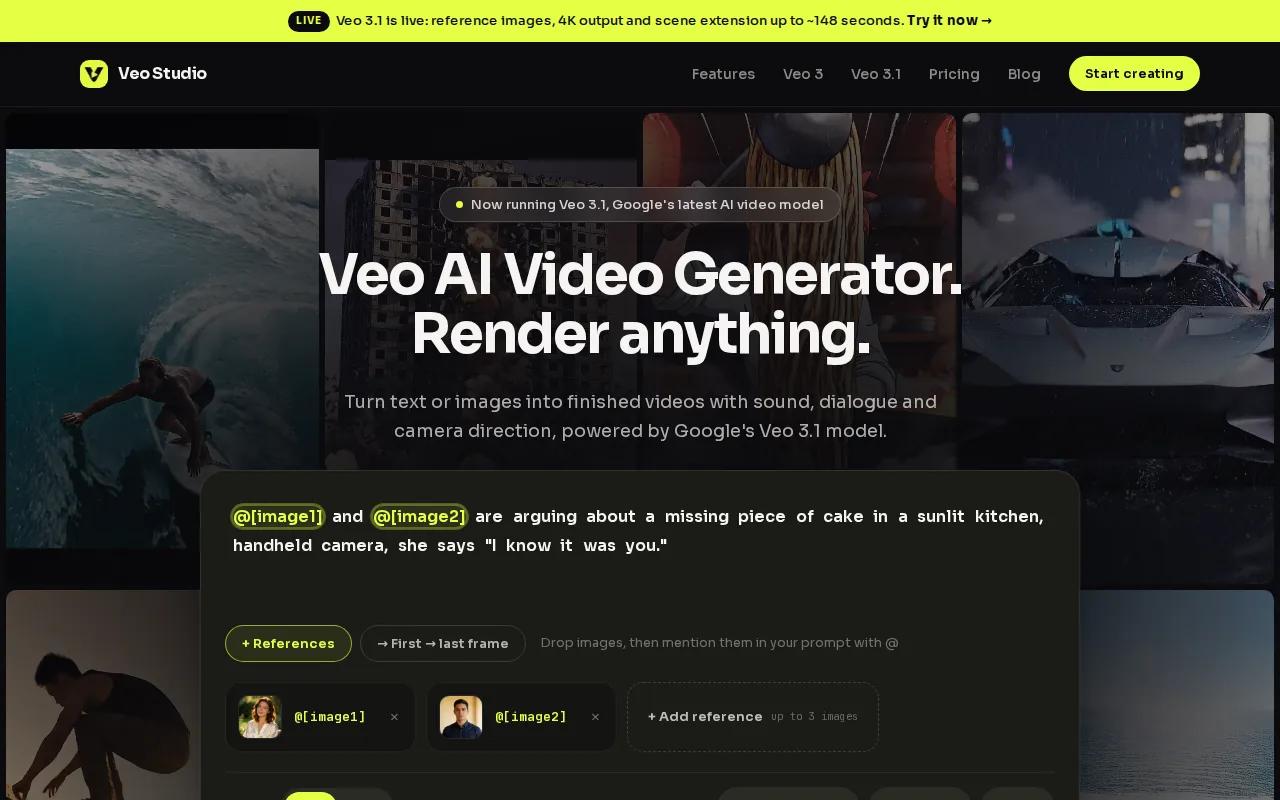
For a product clip, upload a photo and describe the action: a slow turn, a close camera move, then a short spoken line. Veo 3.1 supports 4-, 6-, or 8-second clips. You can attach up to three reference images to guide a subject's appearance, or provide a first and last frame to shape the transition. Scene extension can add time to supported clips.
Veo Studio's free plan includes a couple of 720p videos a month without a card; paid plans start at $14 per month.
If you want to animate a portrait or product photo, this photo-to-video workflow can help you plan the motion prompt. Veo Studio suits creators who want image guidance and sound in one browser-based workflow, rather than building every sound cue later.
2. Vidu Q3: dialogue and sound effects in one generation
Vidu Q3 generates video with dialogue or voiceover, sound effects, and music in one pass. Its clips can run up to 16 seconds, which gives a short scene more room for a spoken exchange or a clear beginning and end.
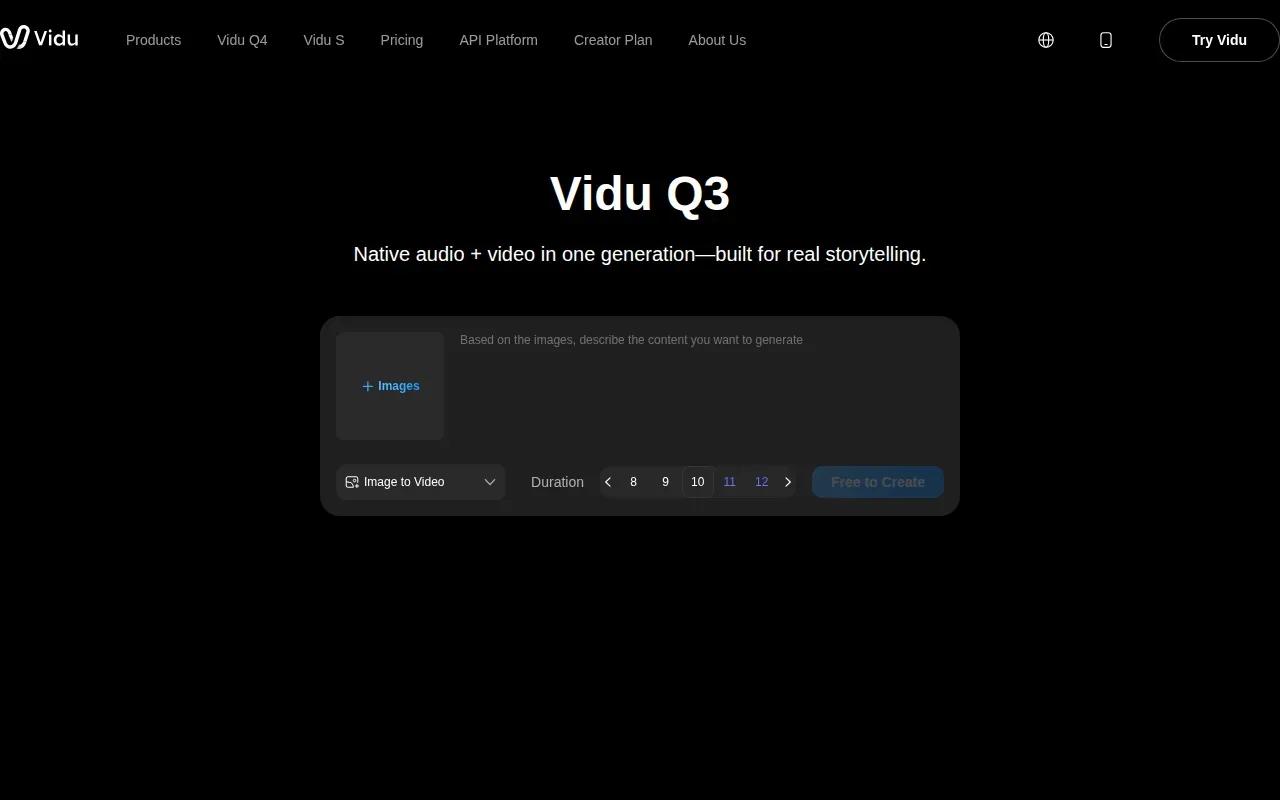
That makes it a fit for story clips where the audio is part of the action. A character can speak while the scene includes matching effects or music, instead of leaving the creator with a silent export. Vidu Q3 also supports natural multi-person conversations and camera direction, useful when a scene needs more than one line or a defined camera move.
The free tier uses signup bonus credits and daily-login credits. The trade-off is that free output is watermarked, limited to 720p, and for personal use only. If you’re making dialogue-led clips, compare the finished speech and timing with your brief before building the rest of a campaign around it.
For more on tools focused on spoken scenes, see this comparison of AI talking video generators. Audio features differ: generated speech, voiceover, music, and effects aren’t interchangeable needs.
3. OpenArt: a broad creative suite with music and dialogue
OpenArt brings image, video, audio, character generation, story video, and 3D world tools into one creative suite. Its audio features include music and dialogue, so it can suit creators who want to build scenes and related assets in the same workspace.
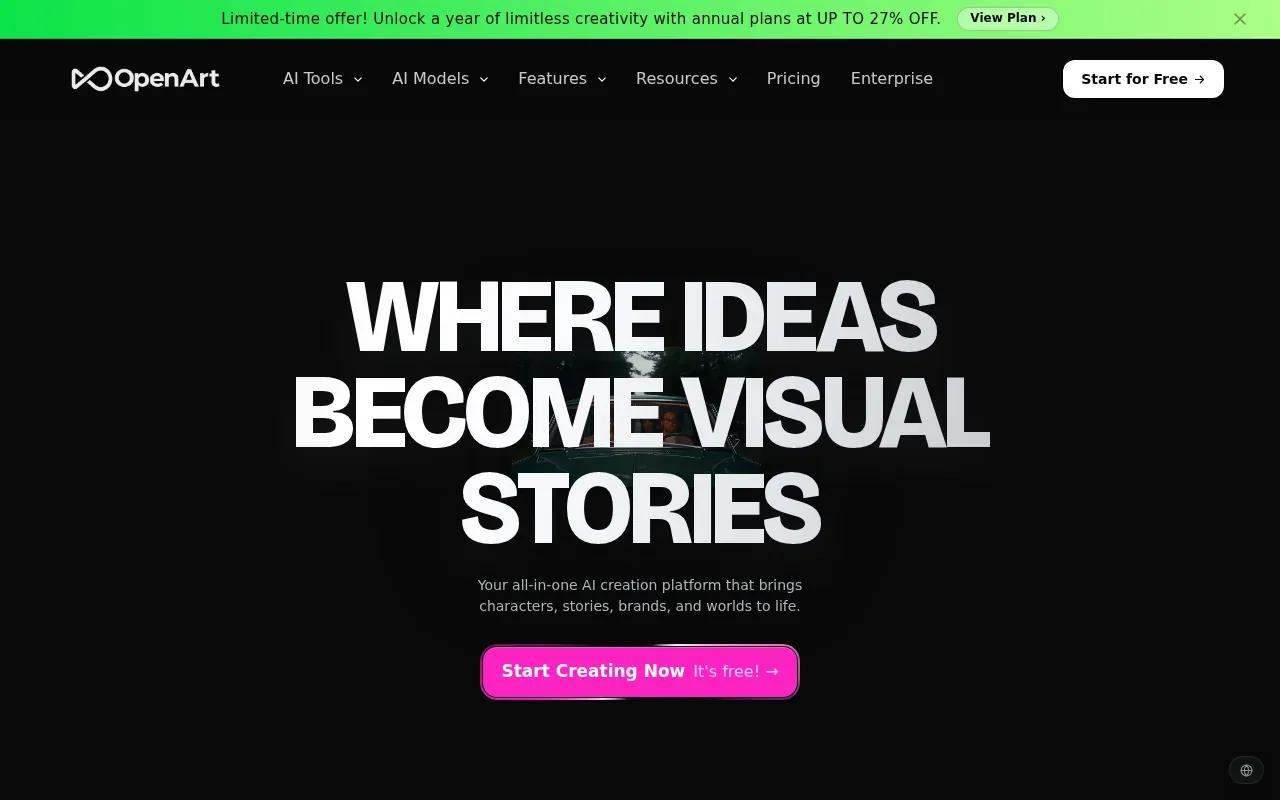
For an illustrated social clip, you could start with a still image, animate it, then work on the sound in the same broader suite. OpenArt also supports character generation and story-video workflows, which may help when a project needs a recurring visual character. OpenArt has a free tier, and its 4K credits start at $7.
That range of tools is useful if your work moves between still images and video. But a broad set of features can take time to learn. Check that the sound options match the specific clip you need, especially if dialogue timing matters more than music.
4. Higgsfield: multiple video models and camera controls
Higgsfield brings multiple video models, camera presets, lip sync, identity tools, and editing surfaces into one dashboard. Its audio sync capability centers on dialogue lip sync, so it may suit a clip where a visible speaker needs to match spoken content.
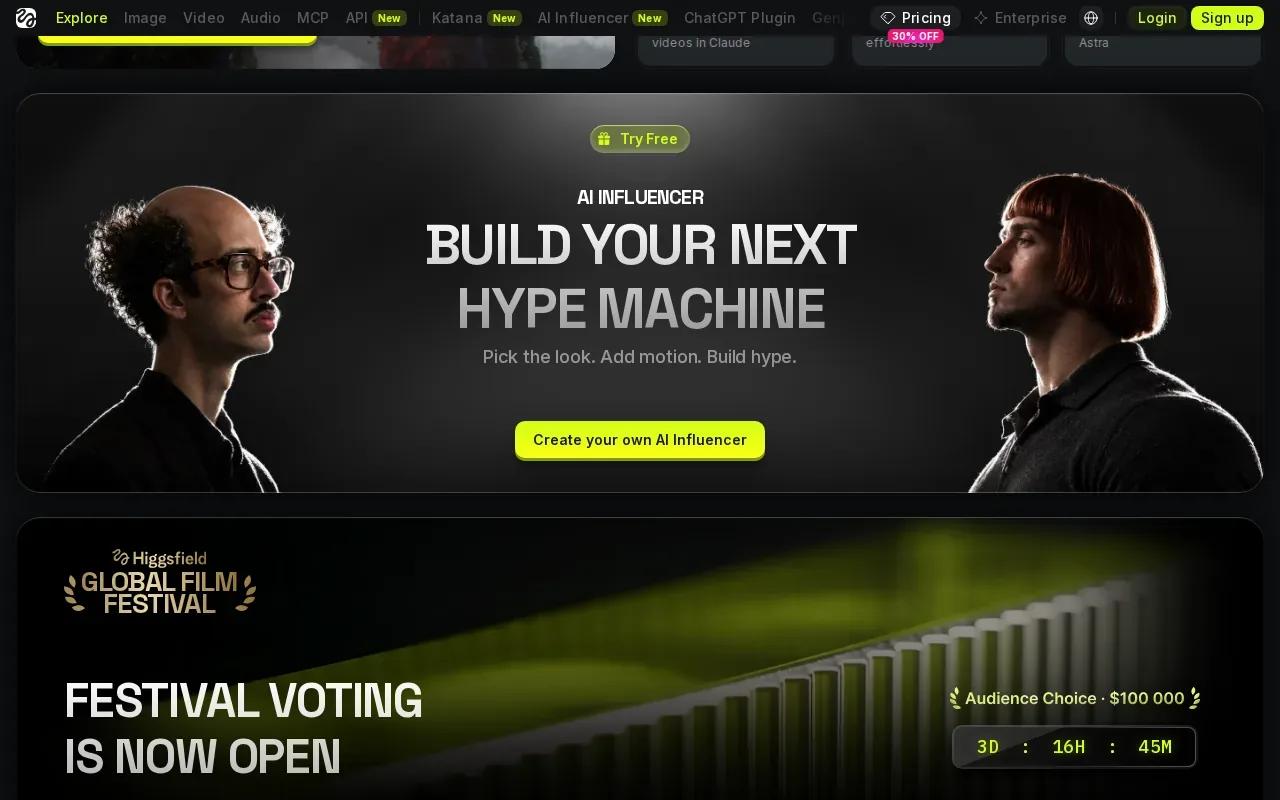
Camera presets give you a way to guide how a shot moves. Identity tools can also matter when a campaign needs a recognizable subject across its creative workflow. Higgsfield has free access for limited testing, which lets you try the setup before deciding whether it fits ongoing production.
The model determines clip length, cost, and audio behavior. That means the dashboard alone won’t tell you how every generation will work. Choose the specific model first, then test the shot and lip sync with an image close to your final asset.
5. TryVeo3.ai: a no-sign-up way to test a Veo 3.1 generator
TryVeo3.ai provides free access to a Veo 3.1 video generator without sign-up. You can use it to test an idea from an image or text prompt before setting up an account elsewhere.
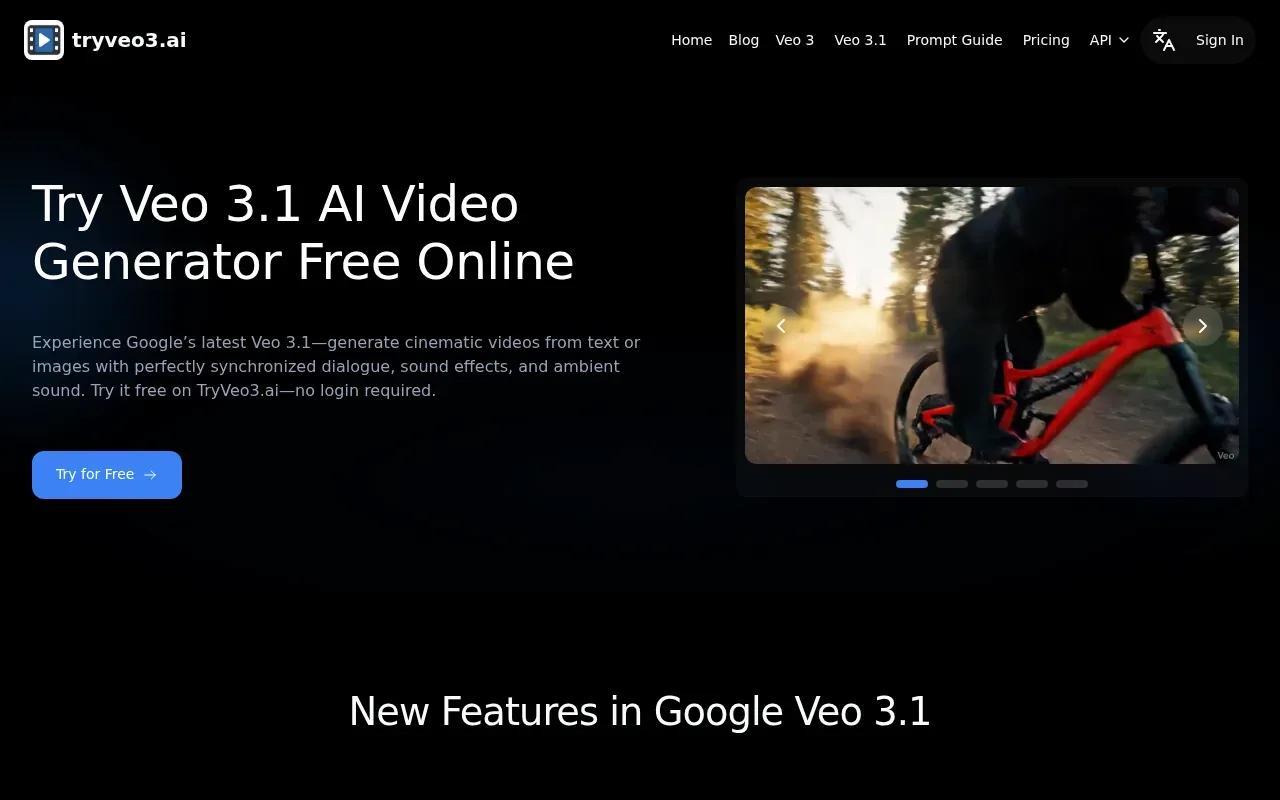
That low-friction start may help when you need to check whether a simple concept works: upload an image, describe the motion, and see what the generator returns. The site describes synchronized dialogue, sound effects, and ambient sound as part of its video workflow. It also describes first- and last-frame inputs and reference images for guiding a scene.
TryVeo3.ai is a separate service from Veo Studio. If you’re comparing options, keep access method and ongoing workflow in mind alongside the clip itself. A no-sign-up test is handy for a quick experiment; a repeat project may need a more structured creation and account setup.
6. Veo 3 AI: a 4K and native-audio-focused option
Veo 3 AI describes itself as a tool for generating 4K videos from text prompts, with realistic physics and native audio. It may appeal if resolution and sound generated with the video are central to your brief.
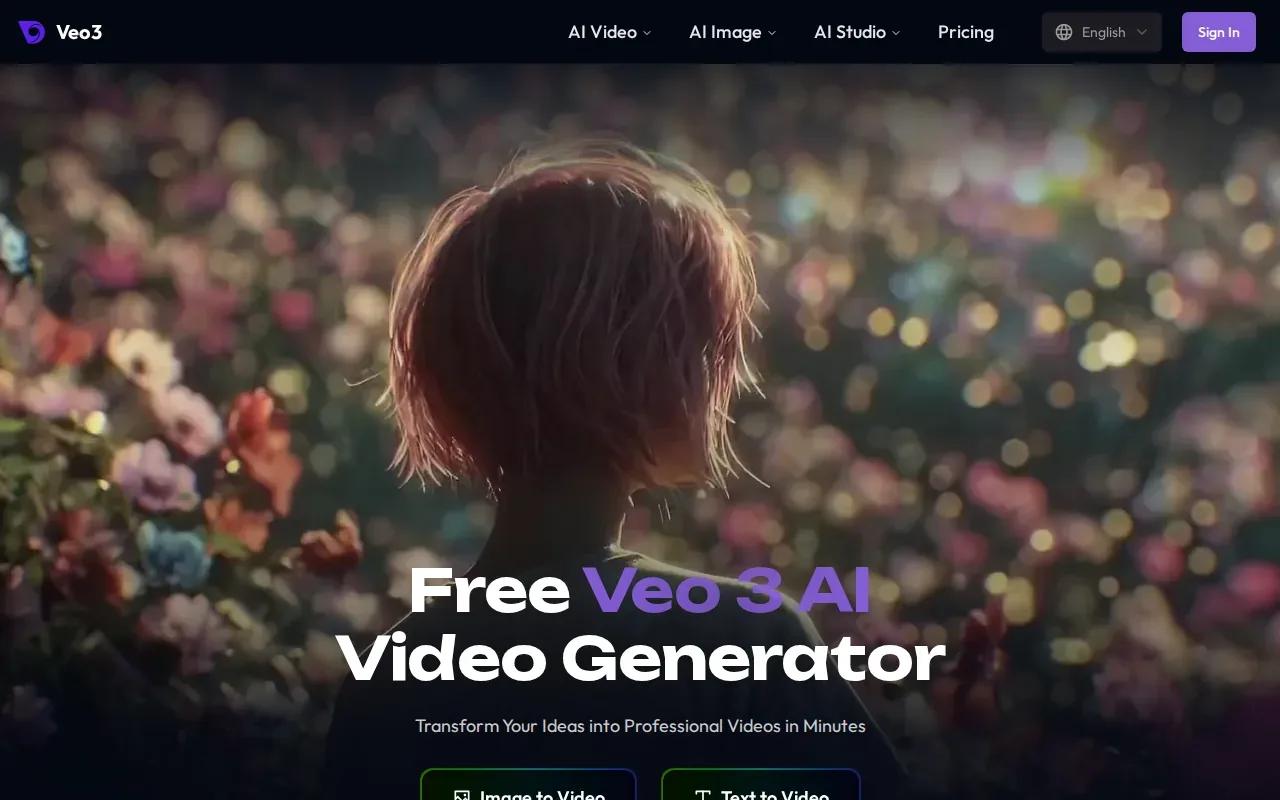
For example, a marketer might want a product scene with movement and sound in the same generated clip. The listed description focuses on text prompts, so plan your test around the workflow and input type you need rather than assuming every image-led control is available.
Veo 3 AI says you can start free. Before relying on it for a scheduled project, try a short test using your own prompt and listen for whether the sound fits the action. That simple check can catch a mismatch before you build other edits around the clip.
Ready to turn a still image into a voiced clip?Veo Studio
7. Pika: a credit-based option for short, low-resolution tests
Pika’s free text-to-video and image-to-video generations use a monthly credit allowance. The listed free tier has 80 monthly credits, and the listed generation costs are 12 credits for five seconds or 24 credits for ten seconds at 480p.
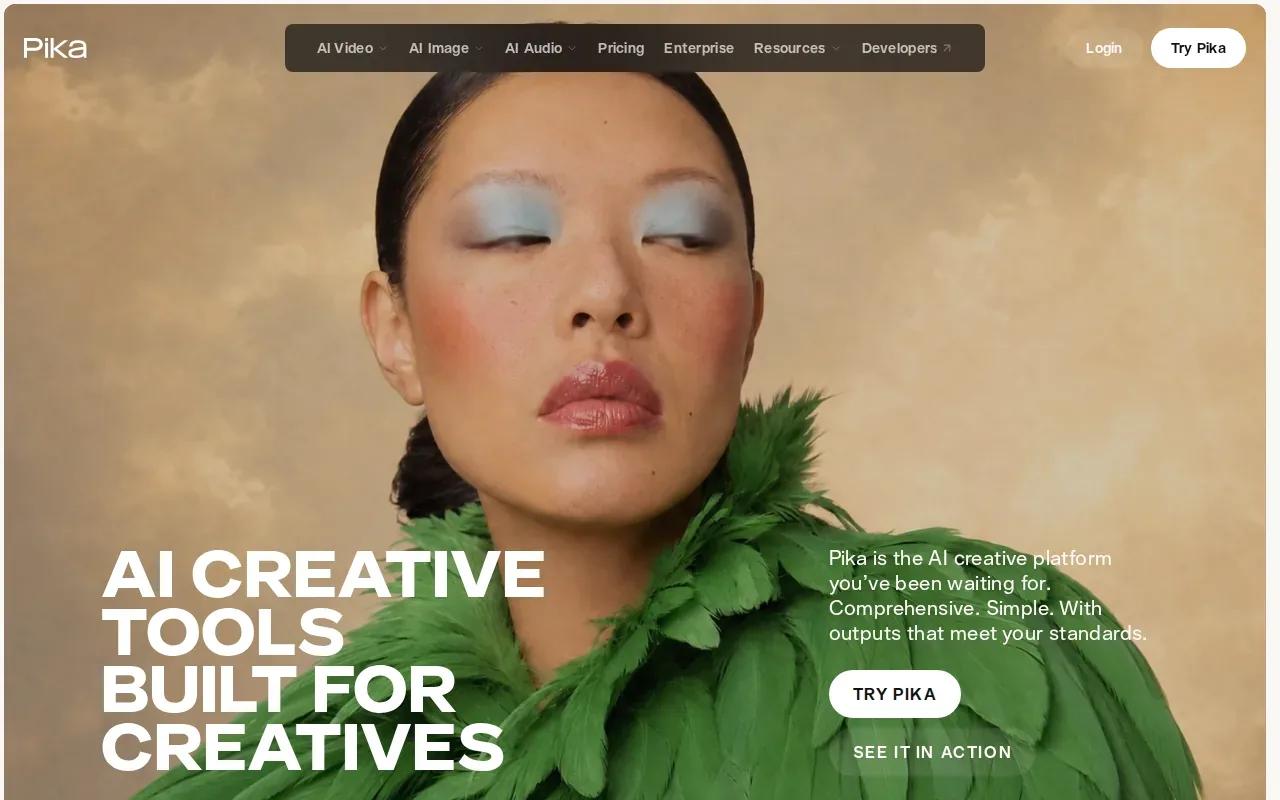
That makes Pika a possible fit for testing a short, low-resolution motion idea when you want to track credit use. The 480p cap is the key trade-off. It may be enough to review rough movement, but don’t treat that draft as a high-resolution final export.
| Decision point | What the listed details say | What to check in your test |
|---|---|---|
| Free allowance | 80 monthly credits | How many attempts your prompt needs |
| Clip cost | 12 credits for five seconds; 24 for ten seconds | Whether the longer clip earns its extra credits |
| Output size | 480p | Whether the draft is only for review or for publishing |
For a final social post or ad, judge the output at the size your audience will see. A low-resolution test can answer a motion question, but it won’t show how a larger export will look.
FAQ
What is image-to-video AI with audio?
Image-to-video AI with audio turns a still image into a moving video and generates or syncs sound as part of the workflow. The sound may be dialogue, music, ambience, or effects, depending on the tool. Before choosing one, decide what your clip needs to say or sound like, then test whether the output matches that brief.
How do I make a video from an image with sound?
Upload a clear image, then describe the movement you want, such as a camera pan or a person turning toward the camera. Add any spoken line or sound cue your tool supports, and generate a short draft. Review the motion and audio together. If the scene drifts from your idea, simplify the action and try again.
How do the tools’ access terms differ?
Their terms and limits differ, so check the details before planning a regular production schedule.
Can I generate videos from images through an API?
Some tools may support programmatic access, but availability and request flows vary. Check a provider’s current documentation for supported inputs and outputs.
Conclusion
If synchronized sound, reference-image control, and room to extend a scene matter, start with Veo Studio. Create a free account, upload a still, and test one short prompt before choosing a paid plan. That gives you a direct read on the motion, dialogue, and output quality your project needs.


