A single product photo can be the start of a finished ad, not another shoot request. The right ecommerce video maker can turn your product images, links, or prompts into video. Here are six tools, with a clear view of the work each one fits.
1. Veo Studio
Veo Studio is an independent, browser-based AI video creation tool powered by Google’s Veo 3.1 models. It suits marketers and small-business advertisers who want to shape a product scene with a prompt or reference images.
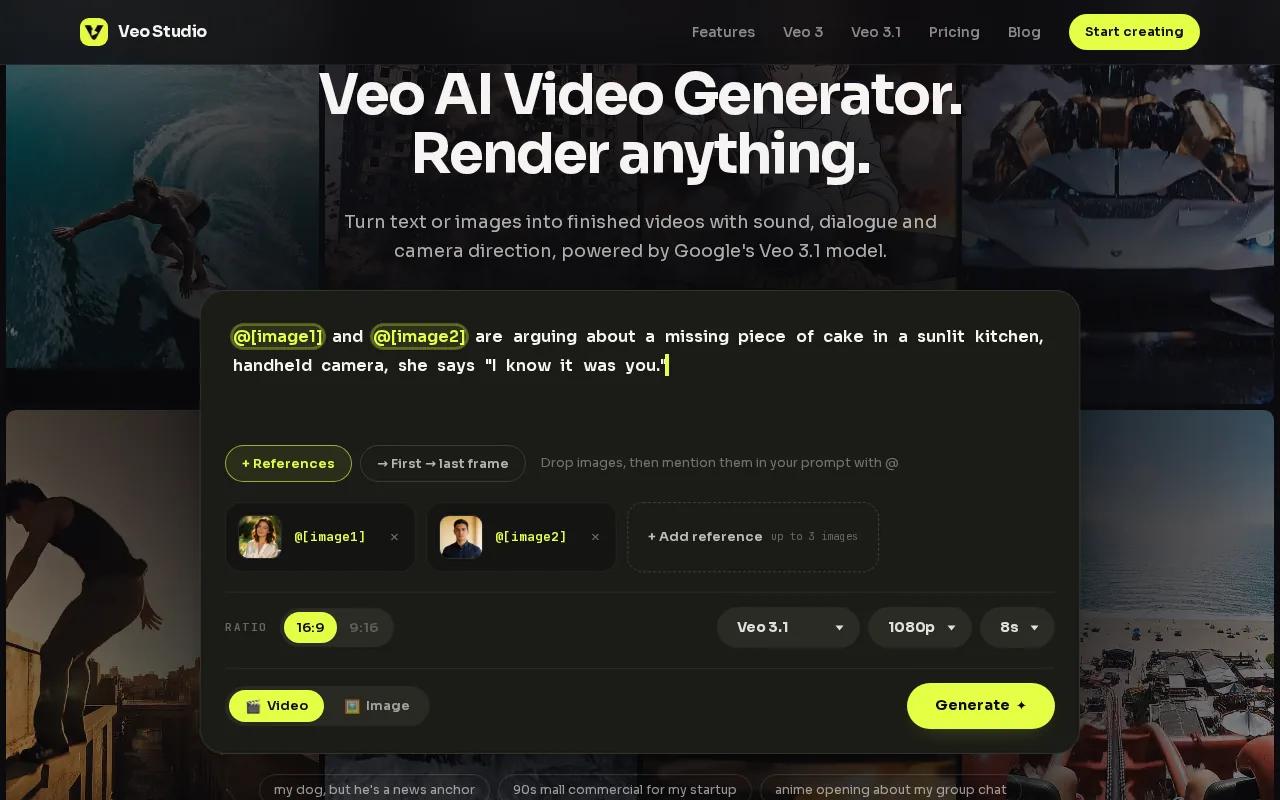
Describe the shot you want, then attach a product photo as a reference. Veo Studio generates video with synchronized sound and dialogue. You can guide a camera move in plain language, keep a character consistent, or use first- and last-frame control to shape a transition.
That makes it a fit for a short product story, rather than a simple animated catalog image. For example, you could describe a close-up that widens into a lifestyle scene, then include a line of dialogue. Scene extension can add footage to a finished clip, while output can reach 4K on paid plans.
The free plan gives you a couple of 720p videos each month, with no card required. Paid plans start at $14 per month and add more videos and higher resolutions. Every plan includes a commercial license, which helps when you’re making ads for a business.
If you’re weighing prompt-led scenes against other marketing workflows, this overview of AI video generators for marketing can help you choose the kind of starting input that suits your brief.
2. Pippit: Product-link videos for TikTok
Pippit, from the CapCut family, turns a product link, file, or media into a TikTok-native product video. Its Video Agent uses your input and a prompt to return a video, making it a natural fit when the product page is already the starting point.
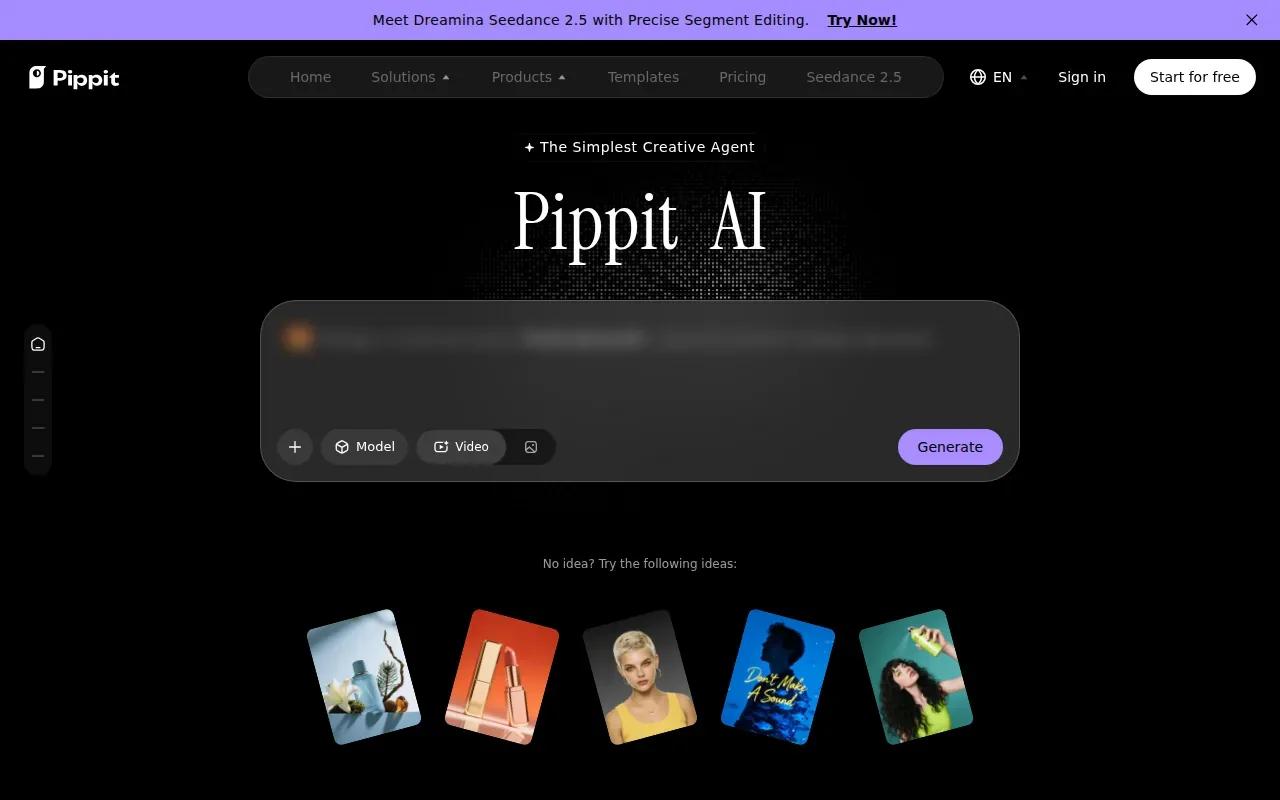
You can begin with a link or upload images and footage. After the first draft, adjust the script, aspect ratio, or duration, then refine the edit. That route can help a seller get a first social ad on screen without setting up a camera or building an edit from scratch.
For a product launch, try giving the tool a product link and a prompt focused on one clear selling point. Review the result before publishing, especially if the product page has details that must appear accurately. Pippit can export in 4K, and its free tier lets you start without paying.
The format is useful for short-form work, but it still pays to check the story and the product details. A generated clip is a draft, not a substitute for confirming that the item looks right and the claims match your listing.
For a broader look at how different tools start from a product page, product photo, or prompt, see these ecommerce video creator tools.
Pick Pippit when your workflow starts with a product URL and your main destination is TikTok-style content.
3. Photoroom Video Ad Maker: Ads from product photos
Photoroom Video Ad Maker turns existing product photos into video ads. It suits sellers who already have product images and want to make social or listing videos without arranging a new shoot.
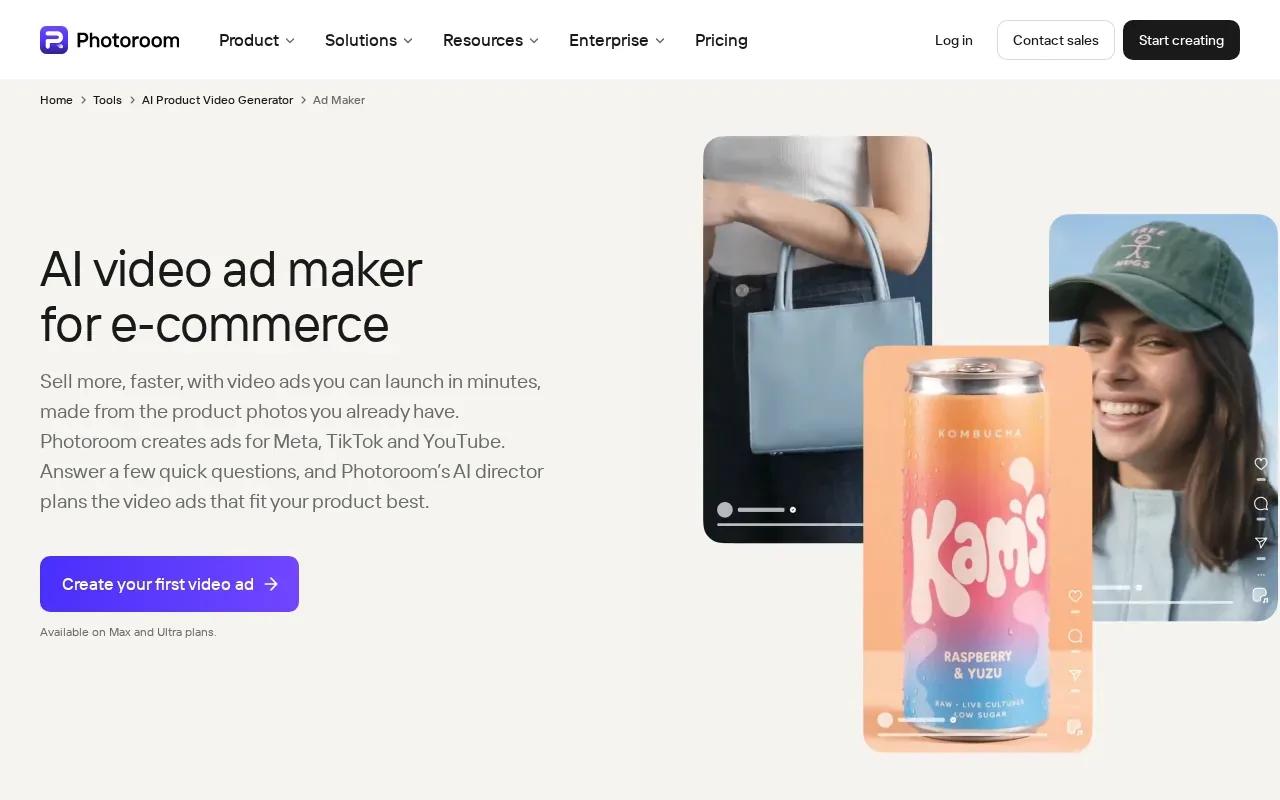
Upload one or more photos, choose a format, and answer the AI director’s questions about the video. You can review the suggested plan and script before generating. The tool can build scenes around your product, with options for voice-over, music, language, and character.
This helps when you need several ad angles from the same image set. Change the hook or scene plan, then make another version for a different offer. Photoroom names TikTok, Instagram Reels, YouTube Shorts, YouTube, LinkedIn, websites, and marketplaces as destinations for its video ads.
The tool also supports product-page and listing clips through templates. You can choose a format for a channel, generate the video, then download it for your store or social account.
Photoroom’s flow is especially helpful when the product photography is approved and ready to reuse. For ad planning beyond photo-based clips, this guide to ecommerce video ad tools covers other starting points too.
Use it when your existing product photos are the asset you want to build around.
4. CapCut: Free templates and short-form editing
CapCut is a free template editor for short-form video. It suits sellers who have footage or a draft and want to trim it, add captions, and shape it for a social feed.
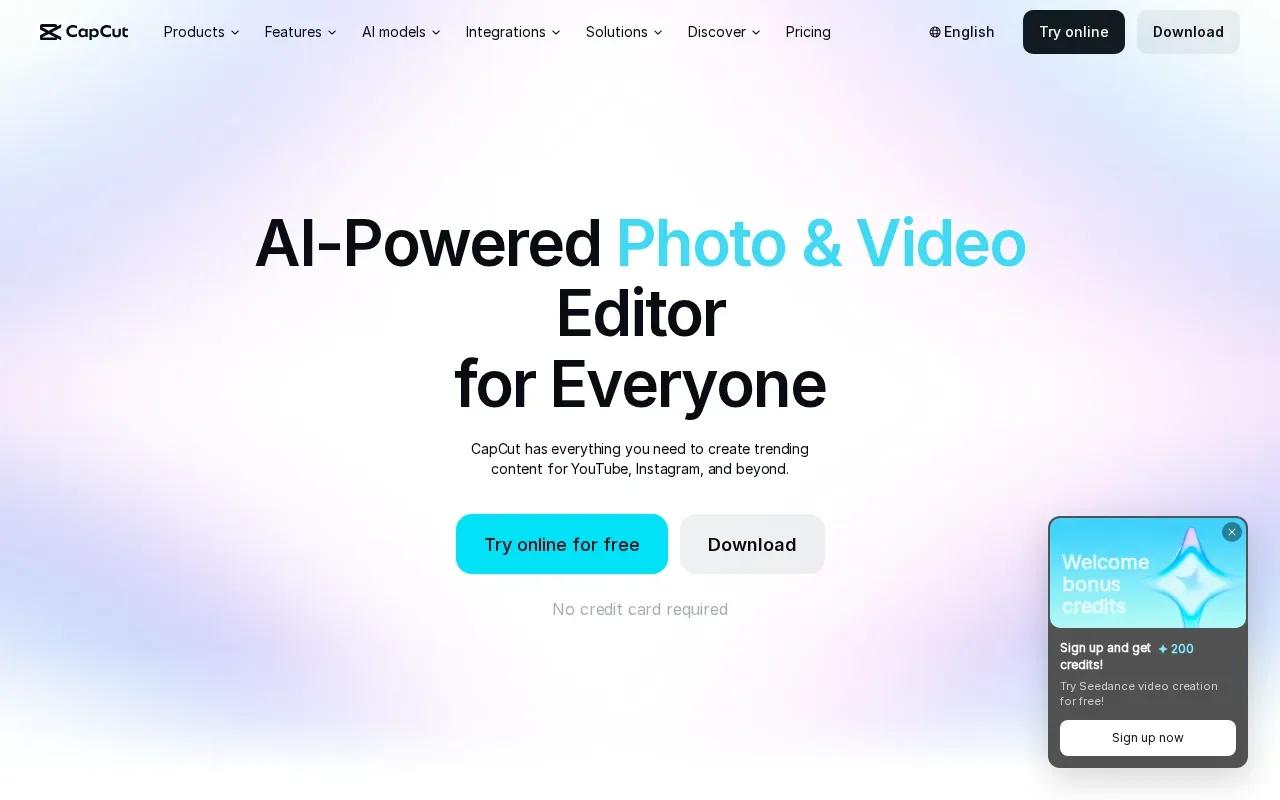
Start with a template or import your own media into a project. Then replace the sample elements, trim the footage, add text, and adjust the transitions. The timeline gives you control over the order and length of each shot, which helps when a product clip needs a tighter opening.
Auto-captions can add subtitles for viewers watching with sound off. Check the text before export, since product names and technical terms may need a fix. You can also choose export settings such as resolution and frame rate, then save the video or share it to supported social platforms.
Templates can help a small team keep a recurring format for new launches. For example, save a short structure with an opening hook, a product detail, and a final offer. Swap in the next item’s footage and copy, then edit the captions and timing rather than rebuilding every post.
CapCut’s free plan is useful when the job is editing and packaging footage you already have. It’s less suited to a workflow where the main need is a directed scene generated from a product prompt.
5. Higgsfield: Short ads from product URLs
Higgsfield’s URL-to-video workflow takes a product page, website, or social profile and builds a short ad. It suits teams that want to turn a live product page into a first video draft without writing a full script.
The tool uses the link as its source, then creates an ad in a selected format. Higgsfield describes outputs of 12 to 15 seconds. The workflow can include an avatar, product visuals, and pacing shaped around the product details pulled from the page.
Once the draft is ready, you can adapt the format for vertical, square, or landscape use. Higgsfield also describes dubbing into 18 languages with lip sync. Its upscale tool can take video output up to 4K.
That setup can save time when you need a starting point for several product pages. Still, review the generated details before an ad goes live. Check that the item shown matches the page and that the scenes support the message you intend to make.
Higgsfield is a sensible fit when speed from product link to ad draft matters most. For campaigns where every visual beat needs hands-on direction, a prompt-based scene tool may give you a different kind of control.
6. HeyGen: Avatar-led product presentations
HeyGen makes avatar-presented product videos and can translate them into 175+ languages with lip sync. It fits teams that want a presenter to explain a product without filming a spokesperson for each version.
You can start with product details or a photo, then build scenes around a script. For a presenter-led version, use an avatar. HeyGen’s instant avatar cloning can make a digital double from a short recorded clip, with synced lip movement. Its caption tool can add subtitles, which helps keep the message readable in a sound-off feed.
The same format can work across a product catalog. Keep the script structure steady, then update the item details for each listing. When you need another language, use the translation workflow rather than recording the whole presentation again.
| What you need | HeyGen workflow | What to check |
|---|---|---|
| A presenter without a new shoot | Use an avatar or create a digital double from a short clip | Make sure the script sounds natural for the audience |
| One video for more markets | Translate the presentation with lip sync | Review the translated product terms and captions |
| More than one catalog video | Reuse a script structure and update product details | Confirm each version matches its listing |
HeyGen’s free plan includes three videos a month, with a watermark. If a clean, presenter-led explanation is central to your ad, test a short version first and check the avatar and voice against your brand style.
FAQ
Can I make product videos without filming?
Yes, several tools here can make a video without a new shoot. Photoroom starts from product photos, while Pippit and Higgsfield can start from a product link. Veo Studio uses prompts or reference images to shape a scene. Review every result to confirm the product and its details look right.
How do I turn product photos into a video?
Choose a tool that accepts image input, upload clear photos, and select the format you need. Photoroom can plan an ad from product photos, while Veo Studio uses reference images to guide a generated scene. Review the first draft, make edits where the tool allows them, then export a version for your store or social channel.
Which tool adds captions to product videos?
CapCut has auto-captions, and HeyGen’s product video workflow includes subtitles. Check the text before publishing, especially product names and feature terms. Captions should match the spoken audio and remain on screen long enough to read on a phone.
Can I make video ads for more than one sales channel?
Yes. Several tools support formats for social platforms, and Photoroom lists multiple social destinations plus websites and marketplaces. CapCut lets you set export options and share to social platforms. Check each channel’s format needs, then export a separate version when the same cut doesn’t fit every placement.
Can I use one workflow across a whole product catalog?
Yes, you can reuse a format or script structure and swap in the next product’s details. HeyGen describes creating videos across a catalog from one script, while photo-led and link-led tools let you start each draft from its product assets. Keep a review step so every clip matches its listing.
Conclusion
Choose the tool based on what you already have: a prompt, product link, photos, footage, or a presenter script. Veo Studio can create a directed scene with synchronized sound and dialogue, using prompts or reference images.