Text to video with voice can mean a character speaking in a scene or a narrator reading over visuals. Those workflows aren't the same. Here are six tools, starting with Veo Studio, and the kind of video each is built to make.
1. Veo Studio: synced sound and dialogue with creative control
Veo Studio is an independent, browser-based AI video tool powered by Google’s Veo 3.1 models. You can describe a scene or upload reference images, then generate video with sound and dialogue made alongside the visuals.
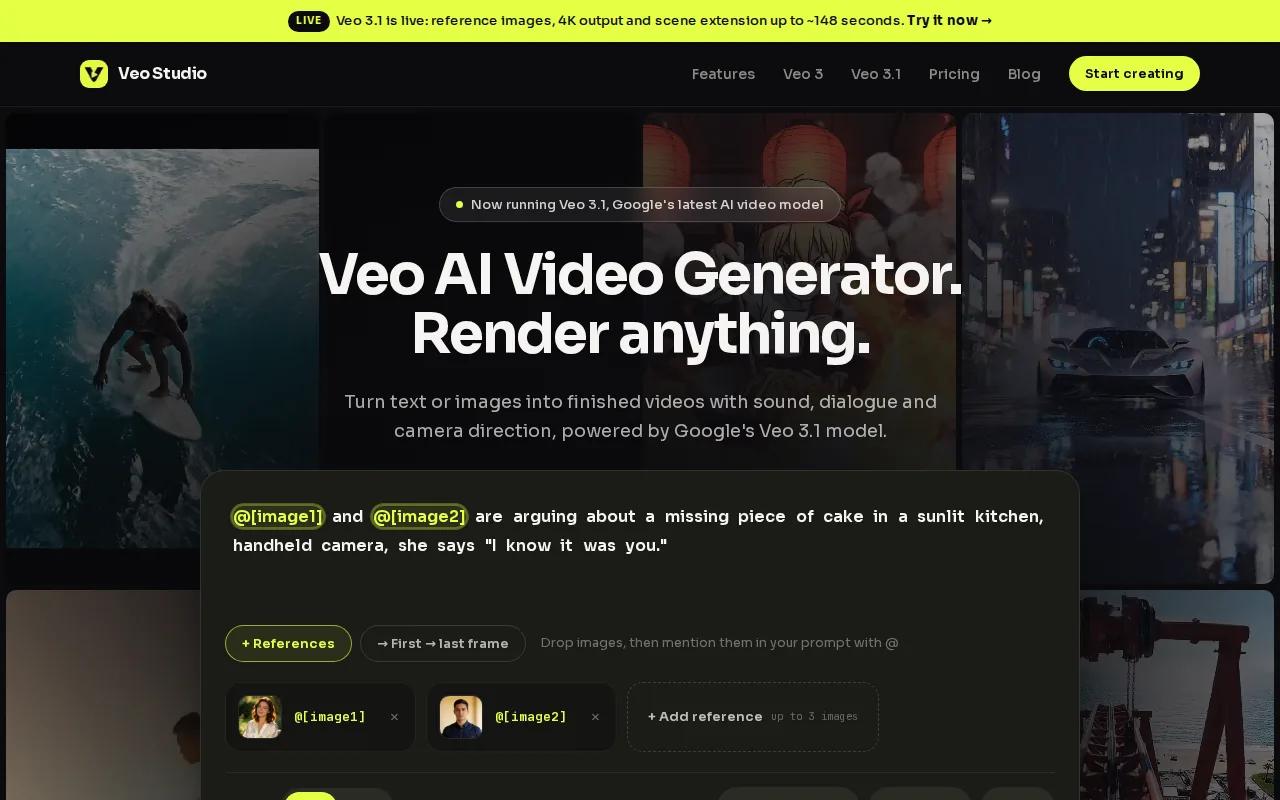
It suits creators who need the speaker's mouth to match a line, not just a voice track under the picture. That can help with a short film scene, a product character speaking in an ad, or a vertical social clip where the dialogue is part of the action.
Veo Studio supports character consistency, first- and last-frame control, scene extension, and output up to 4K on supported settings. For example, attach a reference image to guide a character, then describe a camera move and a short line of dialogue. You can also use a start and end frame to guide how a shot changes.
In Veo Studio, a free plan includes a couple of 720p videos per month with no card required. Paid plans start at $14 per month and include higher resolutions, including 4K on supported settings.
For longer scenes, extend a finished clip in steps instead of asking one prompt to carry the whole story. If you're still deciding between a scene with dialogue and a presenter-led format, this comparison of AI talking video tools can help clarify the difference.
2. Google Flow: Veo realism with generated audio
Google Flow is a filmmaking tool for making and developing AI-generated scenes. It suits creators who want generated sound inside a scene, then want to arrange or extend clips as part of a larger sequence.
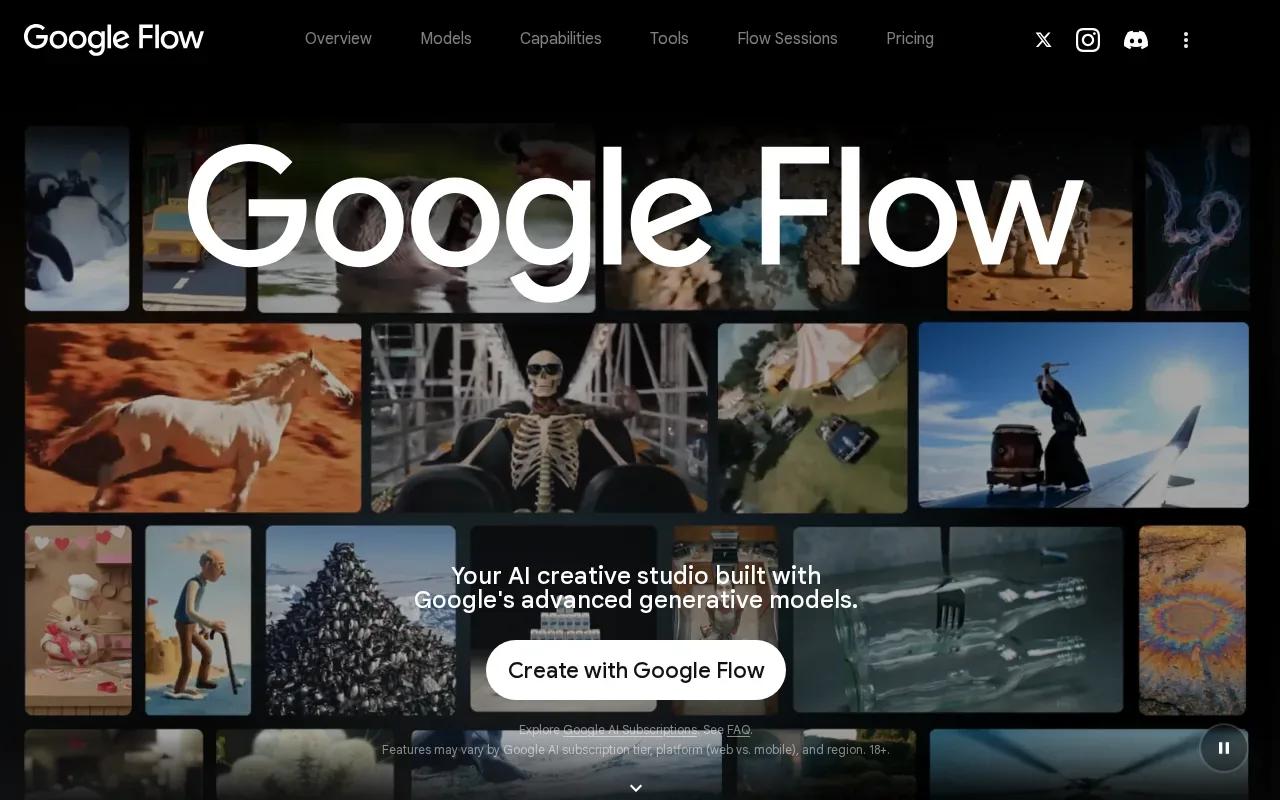
Flow generates native audio, including voice-over within scenes. That makes it useful when sound belongs to the shot, such as a character speaking while the camera follows them, rather than a narrator explaining a list of points over stock visuals.
Flow also supports scene extension, so you can continue a clip into a longer sequence.
For a simple scene, describe one visible action and the sound tied to it. A prompt might ask for a baker setting a tray down while saying one short line, with kitchen noise in the background. Keeping the action focused makes it easier to judge whether the image and audio fit together.
Flow's appeal is the generated-scene workflow. If your main goal is a finished narrated explainer with repeated brand visuals, a script-to-video editor may be a closer match.
3. HeyGen: avatar-led marketing and sales videos
HeyGen turns scripts into videos with an avatar voice and dialogue. It suits marketing, sales-enablement, and customer-education teams that need a presenter to deliver a planned message.
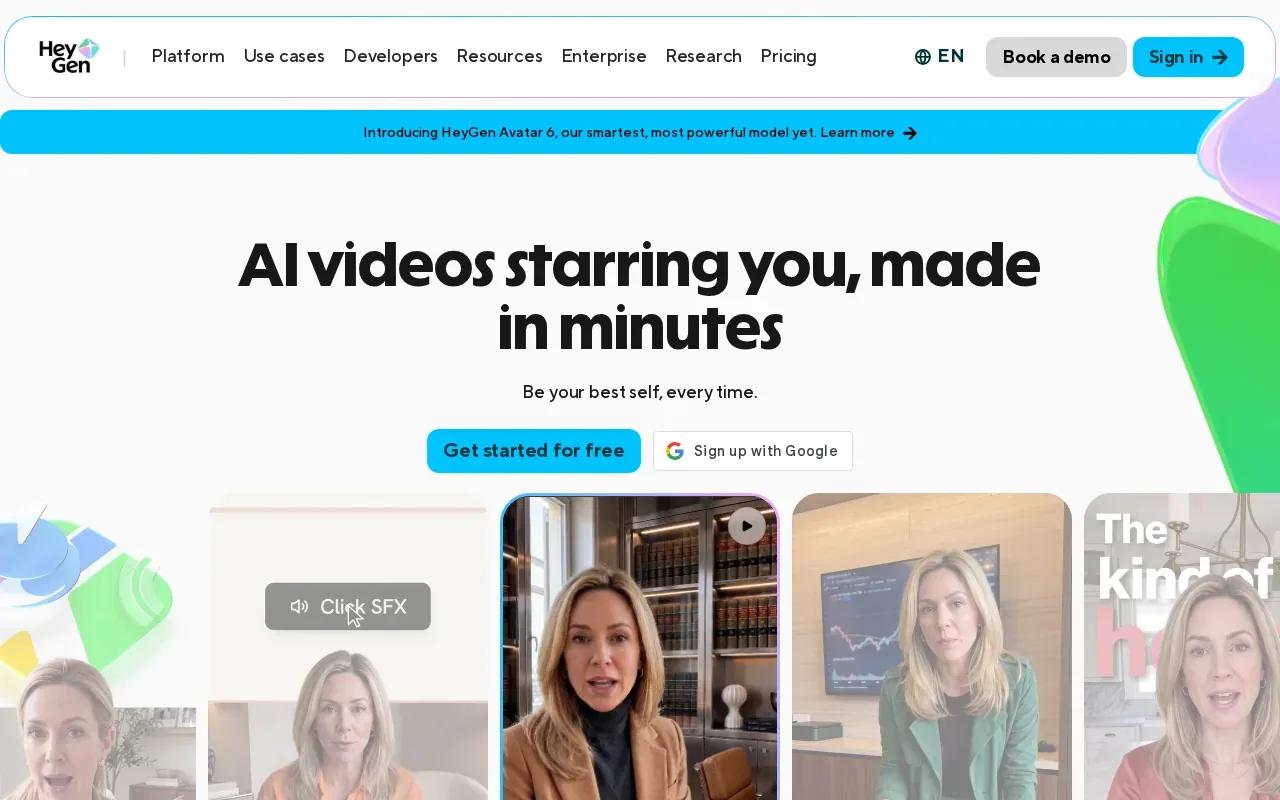
Pick an avatar and voice, then build the video around a script. HeyGen supports multiple languages and voices, which can help a team prepare versions of the same core message for different audiences. The avatar can stay consistent across clips, so a series of short lessons or product updates can keep the same on-screen presenter.
This is a different kind of voice sync from generating a person speaking naturally inside a new scene. HeyGen's value here is a presenter-led delivery: the avatar says the script, while the video is shaped around that message. That works well for onboarding, a product walkthrough, or a sales update where clarity matters more than cinematic scene changes.
Before producing a batch, test a short script that includes your product name and any terms that need a specific pronunciation. Then review the spoken line and avatar delivery before applying the format to the rest of the campaign. If your project is more about a visual story with generated dialogue, compare that need with Veo Studio's scene-led controls.
HeyGen is the fit when a recognizable presenter needs to carry the message across several clips or language versions.
4. InVideo AI: script-to-video with stock footage and voiceover
InVideo AI takes a prompt or full script and assembles stock footage, voice-over, music, and captions. It's suited to people who already know what they want to say and need a first video cut built around that script.
Think of a short explainer for a service. The script can guide the narration, while stock clips provide visual support and captions keep the spoken words visible. InVideo AI's voice-over comes from text, so the voice sits over the footage rather than being generated as dialogue from a character in the scene.
That distinction changes how you plan the edit. With a narrator-led video, check whether each stock shot matches the sentence it sits under. A clip of a busy shop might work for a line about daily operations, but it can distract if the narration is making a different point.
Character continuity across scenes isn't guaranteed, so don't build the plan around the same generated person appearing in every shot.
For campaign work, first decide if the script needs a narrator or if a person in the scene must speak. That choice helps you avoid rebuilding a stock-based draft when you wanted acted dialogue. Veo Studio's marketing video workflow guide covers a different route, using prompts or reference images for product scenes, with synchronized sound and dialogue.
5. Fliki: text-to-video with a large voice library
Fliki is built for text-to-video with a large voice library. It's a fit for budget-conscious creators who need narrated clips, especially when the same message must reach people in more than one language.
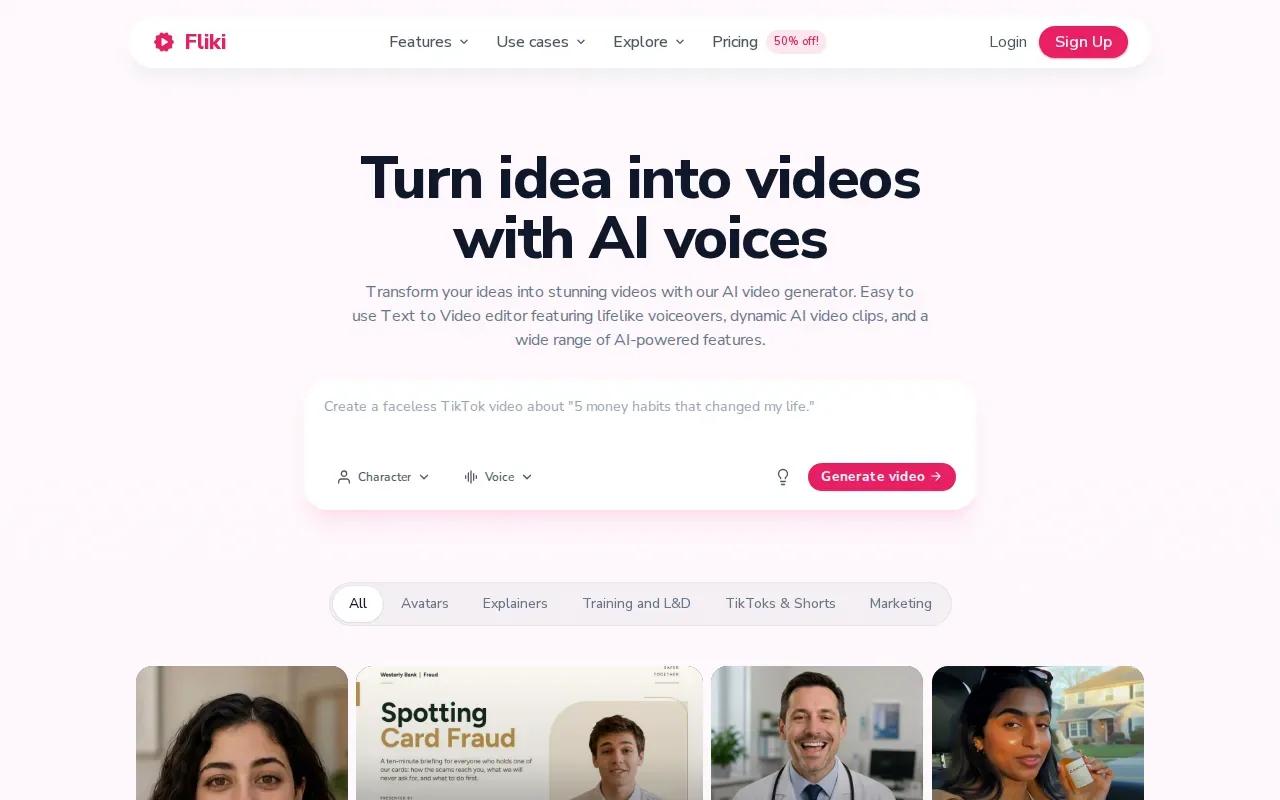
Fliki generates voice-over from text and includes more than 2,000 neural voices across 80-plus languages. It can also clone a voice from a 30-second sample. If a creator has a regular narration style, voice cloning can help keep that voice present across new scripts without recording every line again.
Fliki's character consistency means the same face and voice can appear across scenes. That can help with a recurring presenter in a run of short explainers. Still, voice-over and character dialogue are different production choices: narration can explain what's on screen, while lip-synced dialogue makes the character part of the action.
For a weekly social series, start with one short script and check the voice pace against the scene changes. Then review each visual against the words being spoken. That small check catches a common mismatch: a suitable voice track paired with footage that doesn't support the message.
Pick Fliki when voice choice and multilingual narration are the main needs. Pick a scene-generation workflow when the spoken words must feel like they come from someone inside the shot.
6. Runway: a versatile workflow for creative teams
Runway is a video creation and editing workspace for independent creative teams. It suits projects where the first generated shot is only the start, and the team expects to revise footage or connect different creative steps.
Runway supports text, image, video, or audio inputs for video generation. Its product workflow also includes tools to change lighting, adjust a background, or add and remove elements from footage. Runway's maximum resolution is 4K.
Use this decision view to see where Runway fits:
| Production need | Runway fit | Voice implication |
|---|---|---|
| Generate a shot from a prompt or image | Supports text and image inputs | Plan for voice separately if the scene needs speech |
| Revise footage after generation | Includes tools for lighting and object edits | Editing the image doesn't add synchronized voice |
| Deliver high-resolution footage | Maximum output is 4K | Check the audio workflow as a separate production need |
Runway can also connect creative workflows and support custom node-based processes. That makes it worth considering when a team wants more than a single prompt box. But if a character must speak with synchronized mouth movement, check Runway’s current audio options before you plan the shot.
FAQ
What is text to video with voice?
Text to video with voice turns written prompts or scripts into video with spoken audio. Some tools generate a character's dialogue with the scene, while others add a narrator's voice over stock or generated visuals. Decide which type of speech your video needs before choosing a tool, since the two approaches produce different results.
Which tool makes dialogue that matches a character's mouth?
Veo Studio is built for generated scenes with synchronized sound and dialogue, including lip-synced speech. The key difference is that the character speaks within the scene instead of a narrator simply reading over it. Use a short line when testing a prompt, then check both the words and the mouth movement in the result.
What tool should I use for a script-led marketing video?
HeyGen is suited to scripts delivered by an avatar, while InVideo AI assembles scripts with stock footage and voice-over. Fliki is another fit when voice options and multilingual narration are important. Choose based on who should deliver the message: an on-screen presenter, a narrator, or a character in a generated scene.
Can these tools make longer videos?
Some tools support building beyond a single short clip, but the workflow differs. Google Flow has a scene-extension capability, and Veo Studio supports extending eligible clips in steps. Script-to-video tools can assemble multiple scenes around narration. Check the exact limits and output settings for your intended project before planning a long cut.
Do I need 4K for social videos?
No, 4K isn't a requirement for every social video. The right resolution depends on where the clip will appear and how you plan to crop or reuse it. If you want room for high-resolution exports, Veo Studio and Runway list output up to 4K on supported settings. Check the output mode before building the full project.
Conclusion
If your video needs a character to speak within the scene, start with Veo Studio and test a short prompt with one clear action and one line. If you need a presenter or a narrated script instead, compare the avatar and voice-over workflows above, then make a short draft before committing to a full series.