Turning a still photo into a moving clip can take a few prompts, but choosing a tool depends on the shot you need. This shortlist covers an image-to-video AI generator for several workflows, including product ads, presenter videos, and stylized social clips.
We analyzed 47 YouTube comments about image to video AI generators and found that 32% mentioned free credit limits and watermark restrictions.
1. Veo Studio
Veo Studio is an independent, browser-based video creation tool powered by Google's Veo 3.1 models. It turns prompts and reference images into clips with synchronized sound and dialogue, character consistency, first and last frame control, scene extension, and output up to 4K.
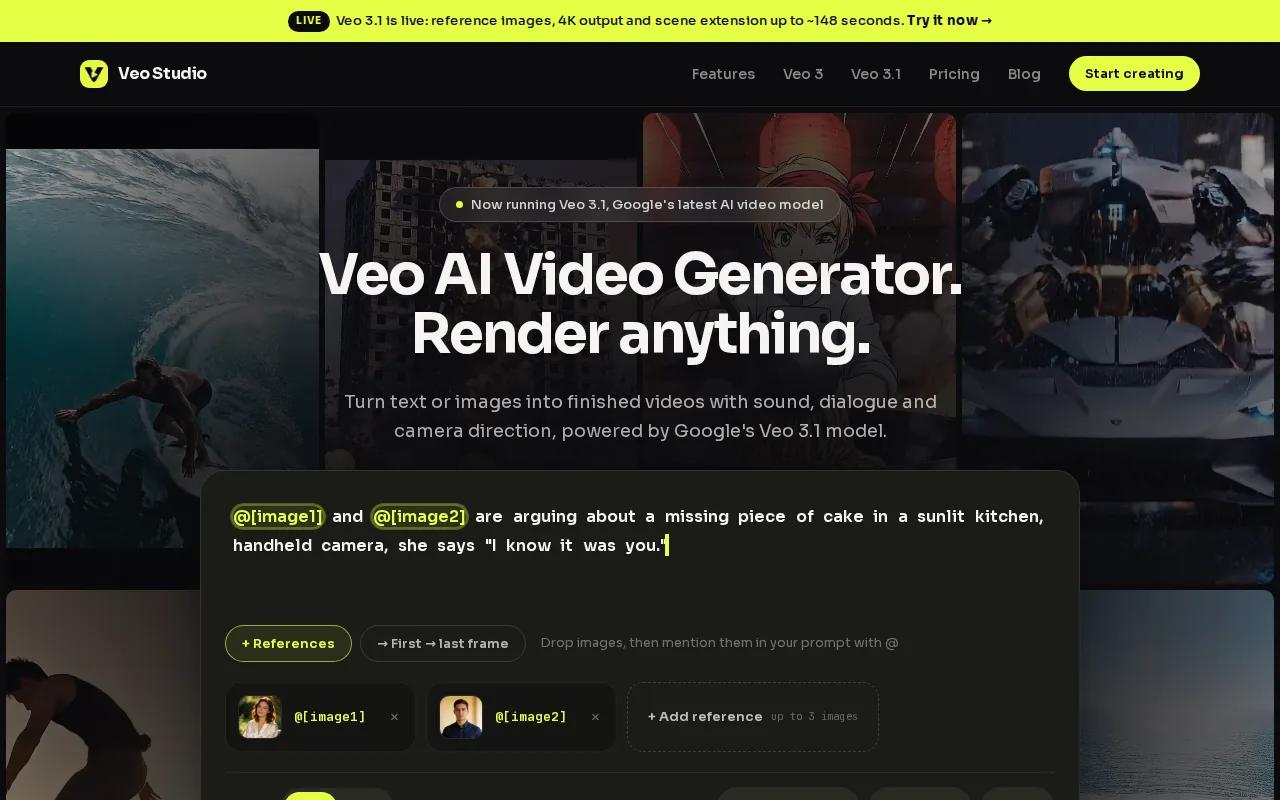
It fits creators who need an image to do more than move. Upload a reference image, describe the action and camera move, then set the aspect ratio and duration. For a short product spot, you could start with a product photo, describe a slow camera push, and add a spoken line in quotes. Veo Studio can generate the picture and synced dialogue together.
Use up to three reference images to guide a clip. First and last frame controls help shape a transition between two stills. Scene extension adds seven seconds per step to supported 720p clips, up to roughly 148 seconds. If you're building a longer story, the AI scene-extension workflow can help you plan each continuation.
Veo Studio has a free plan with a couple of 720p videos per month and no card required. Paid plans start at $14 per month, include a commercial licence, and add higher resolutions and more video volume. The free plan is a useful way to test a prompt before planning a campaign.
2. Runway: creative control for filmmakers and ad teams
Runway is aimed at filmmakers, agencies, and creative teams. It suits work where you want to direct a visual idea and refine a clip as part of a broader production process.
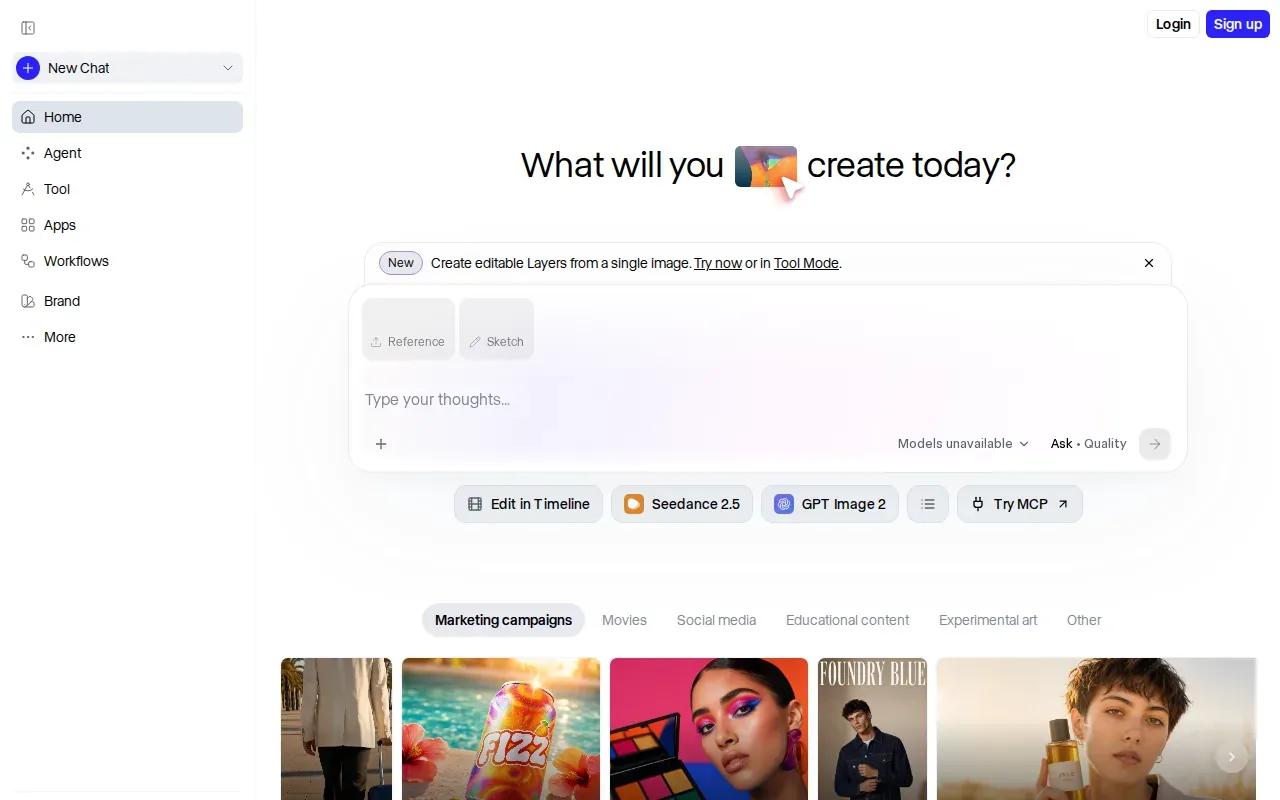
Think of a short ad with a clear shot list: a close view of a product, a wider scene, then a final frame for the message. A creative team can use a generated shot as a starting point and judge whether its motion and framing fit the edit. Runway is a reasonable option to assess for that kind of visual work.
One distinction matters when sound is part of the brief. The verified feature notes say Runway does not provide synchronized sound dialogue. If your concept depends on spoken words matching a character's mouth, plan to handle that need separately or choose a tool with that capability.
For a silent mood clip or a sequence meant to receive its sound in editing, that limitation may not affect the workflow. For dialogue-led scenes, it can change how many tools and steps you need.
3. Higgsfield: product-photo ads for ecommerce teams
Higgsfield is suited to ecommerce and performance marketing teams that want to build ad creative from product photos. It can create images, videos, and voice content from text prompts or references. Its tools also include media editing and upscaling, plus an AI agent for automating creative workflows.
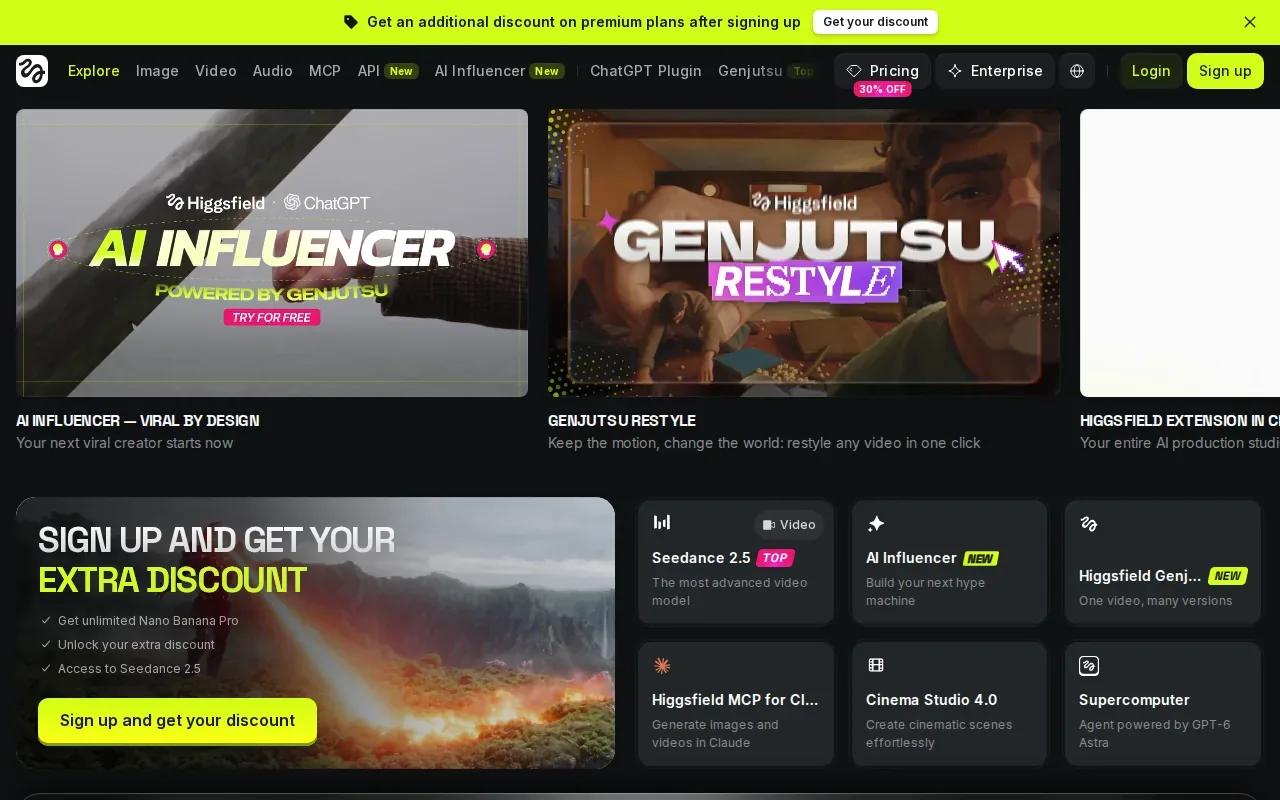
For a product ad, consistency is the detail to watch. Higgsfield holds a product's exact shape, label, and color from frame to frame. That can help when a package moves through a scene and needs to remain recognizable, rather than changing as the camera moves.
Its web and mobile access gives teams more than one place to work. A marketer might prepare a product image, describe the scene, then review the generated clip before sharing it with the ad team. Keep the source photo clear and well lit so the product's shape and label are easy to follow.
Higgsfield's strengths center on product-focused creative and its generation and editing workflow. If a campaign needs a talking presenter or a character to speak with synced dialogue, compare that need against the features of the other tools before you commit.
4. HeyGen: presenter-led videos and product placements
HeyGen is a fit for videos with a presenter or a product placed into a generated scene. Its image-to-video tool lets you upload an image, add motion, and add voice. A script can guide speech and lip movement, which makes it useful for a short explainer or a product message delivered by a presenter.
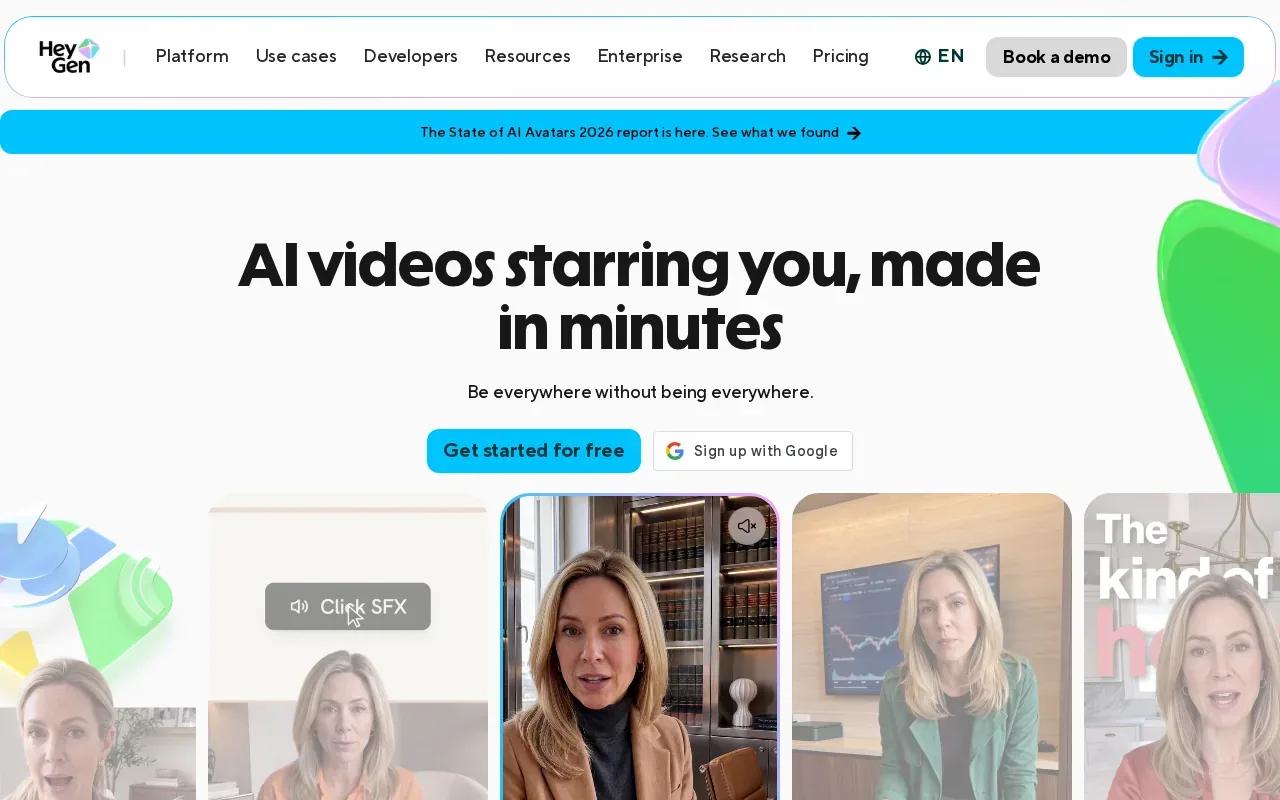
That workflow differs from animating scenery alone. Start with an image, write the words the presenter should say, then check whether the voice and motion match the intended tone.
HeyGen's listed maximum resolution is 4K. Its product placement is described as integrating products into scenes at the pixel level. For a branded clip, review the finished frame carefully and make sure the product remains clear where it appears.
It also has uses beyond a single social post. A presenter-led clip can explain a product feature, introduce a service, or add a voice to a visual slide. The right fit depends on whether your message needs a person on screen, rather than only motion in an image.
5. Pika: stylized transformations and playful social clips
Pika is aimed at creative effects, stylized transformations, and playful social content. Choose it when the point of the clip is a noticeable visual change, not a steady product shot or a spoken presentation.
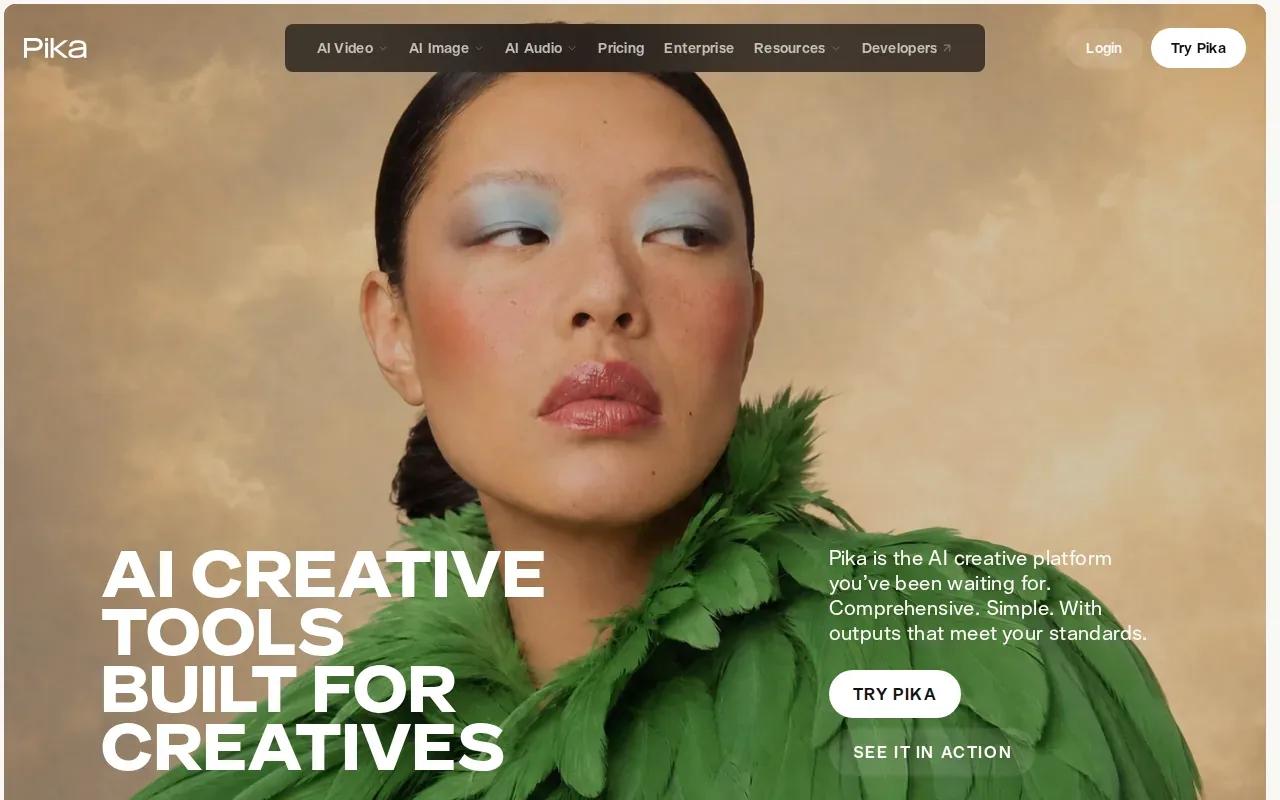
For example, a creator might want a portrait to shift into a surreal scene or a still image to take on a more graphic, energetic feel. That kind of brief gives style and effect more weight than faithful product detail. Keep your prompt focused on the main movement and the look you want, then judge the result against the original image.
The verified feature notes say Pika does not provide synchronized sound dialogue. If a clip needs a spoken line with matching lip motion, that is a reason to consider another option. For silent social clips or visuals that will receive sound during editing, its creative-effects focus may suit the job.
For a wider look at tools aimed at short vertical posts, this comparison of AI Reels generators covers social-video workflows and sound choices. Keep the platform and final placement in mind while shaping your prompt.
Quick comparison: which image-to-video AI generator fits your project?
Pick based on the job the clip must do. Resolution alone won't tell you if a tool can keep a product steady or make dialogue feel tied to the scene.
| Tool | Good fit for | Useful capability | Check before you start |
|---|---|---|---|
| Veo Studio | Dialogue-led scenes, social clips, and ads | Synced sound, references, frame control, scene extension, up to 4K | Free output is 720p; paid plans start at $14 per month |
| Runway | Filmmakers and creative teams | Creative control for visual work | It doesn't provide synchronized sound dialogue |
| Higgsfield | Ecommerce ad creative | Product consistency across frames | Check whether its product-ad focus matches your brief |
| HeyGen | Presenter videos and product placement | Image motion with voice and script | Best fit when a presenter or spoken message is central |
| Pika | Stylized social clips | Creative effects and transformations | It doesn't provide synchronized sound dialogue |
For social reels, use a vertical frame when the tool supports it. For ads, make sure the product stays easy to recognize. For a presenter, write the script before generation so the words and motion have a clear purpose.
Veo Studio includes commercial licensing on every plan. For any tool, check the license tied to the plan you use before running paid ads or delivering client work. Also check the export settings for resolution, aspect ratio, clip length, and watermark treatment. A free credit balance can be useful for tests, but plan limits and credit rules differ across services.
FAQ
Which image-to-video AI generator makes videos with dialogue?
Veo Studio is one option for image-to-video clips with synchronized sound and dialogue. You can add reference images and describe the scene, including a spoken line. HeyGen also supports adding voice and a script to image animation. Choose based on whether you want generated scene action or a presenter-led message.
Can I make image-to-video clips for free?
Yes, Veo Studio has a free plan that includes a couple of 720p videos per month, with no card required. Other services may use their own free credits or plan limits, so check the current terms before you begin. Save a test prompt for a short clip first, then use the result to decide if you need a paid plan.
What settings should I check before generating a video?
Check the aspect ratio, resolution, clip duration, and any reference-image or frame controls. Match the aspect ratio to where the clip will appear. A vertical format can suit short-form social posts, while a landscape frame may fit a presentation or a wider scene. Confirm that your chosen plan allows the output quality you need.
Can I use AI-generated videos in ads?
Commercial use depends on the service and plan. Veo Studio says every plan includes a commercial licence. Before publishing an ad made with another tool, review its license terms and confirm they cover your use. Also make sure you have permission to use any uploaded image, voice, or likeness in the video.
How do I keep a product or character consistent?
Use a clear reference image and choose a tool with stated consistency controls. Veo Studio supports reference images for character consistency. Higgsfield keeps a product's shape, label, and color stable across frames. After generation, review the full clip for changes that could make a product or person look different.
Conclusion
If your project needs image references, consistent characters, synced dialogue, and scene extension, start with Veo Studio. Visit Veo Studio to begin creating or review its paid options when you need more volume or higher resolution.