An AI talking video generator can turn a portrait or prompt into a person speaking on screen. The hard part is choosing the right workflow: a scripted presenter, a moving character, or a clip you can edit after generation.
We analyzed 55 comments and questions from YouTube, Reddit and Quora about AI video generators and found that 31% mentioned simple workflows.
Here are ten tools to consider, starting with Veo Studio, an independent browser-based tool for creators who want synchronized sound and dialogue, character consistency, first/last-frame control, and scene extension.
1. Veo Studio
Veo Studio is an independent, browser-based AI video creation tool powered by Google's Veo 3.1 models. It turns prompts or reference images into short videos with synchronized sound and dialogue.
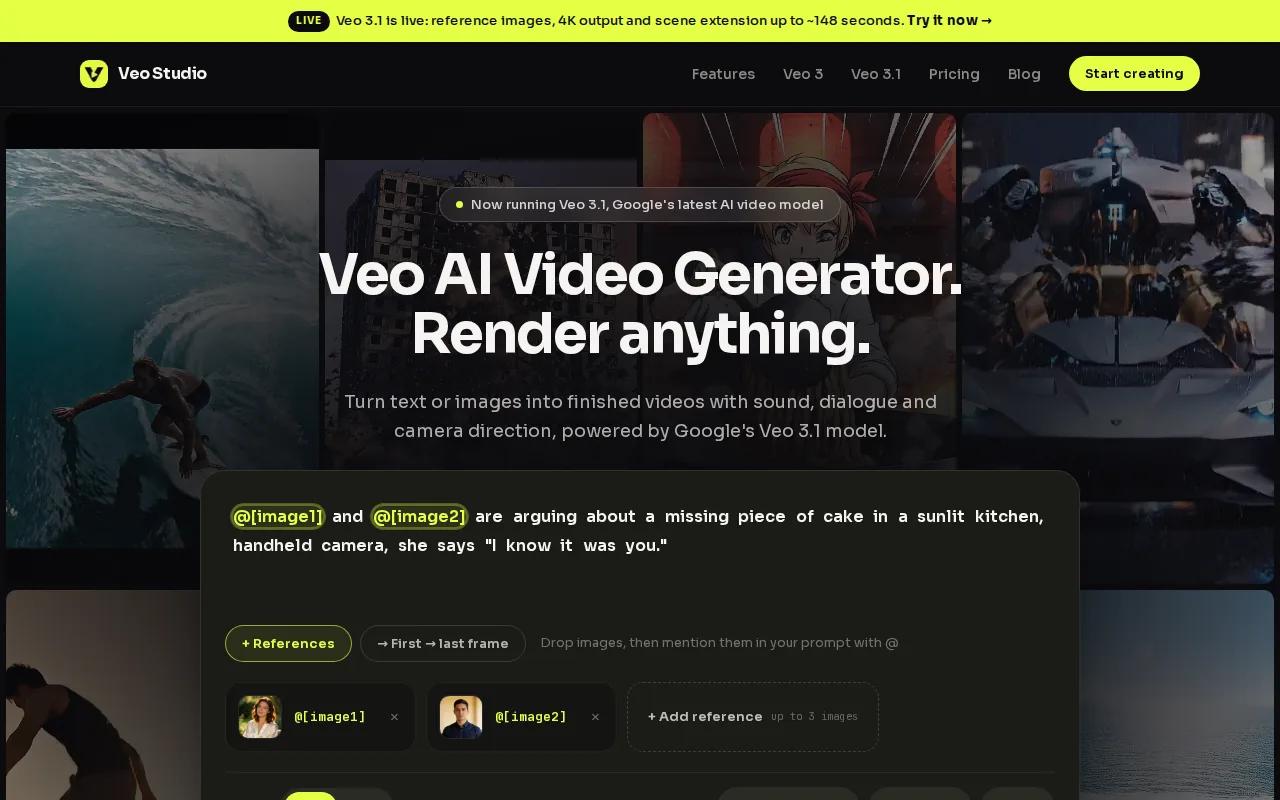
Choose it when you want to direct a scene instead of placing a talking head over a script. You can attach reference images to help keep a character consistent, set first and last frames to guide the motion between them, and extend a clip by adding to its scene. For an ad, that means you can start with a product photo, define the camera move, then build out a longer sequence from the finished clip.
Veo Studio supports up to 4K output. Its free plan includes a couple of 720p videos each month without a card, while paid plans start at $14 per month. The right setting depends on the shot: a short social clip may need less resolution than a campaign master.
2. Synthesia: polished training videos for teams
Synthesia is an AI video platform built for teams that need repeatable training and business content. It’s a fit when a manager needs to update onboarding or explain a policy without arranging another shoot.
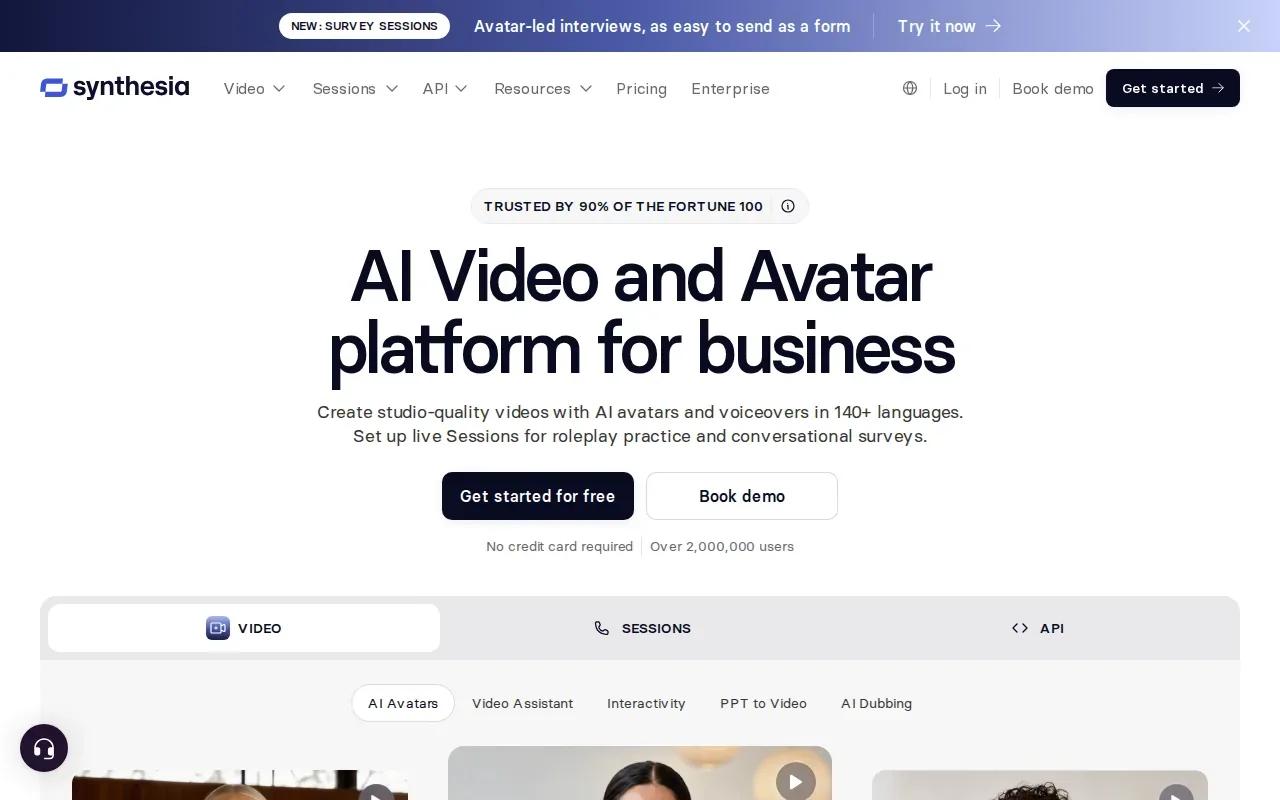
Its workflow can start with a prompt, link, or file. Teams can turn a presentation into a narrated video, then adjust the script and brand style in the editor. That helps when a process changes and the training clip needs a new line or updated visual treatment.
Synthesia supports synchronized dialogue. Its free plan includes three minutes per month. Check the plan terms before building a recurring training schedule around a monthly limit.
3. HeyGen: presenter-led videos without repeated filming
HeyGen is an AI avatar platform for presenter-led videos, so you can record a message once as a script rather than repeatedly filming the presenter. It’s a natural fit for a founder update, product explainer, or short lesson that needs a familiar face.
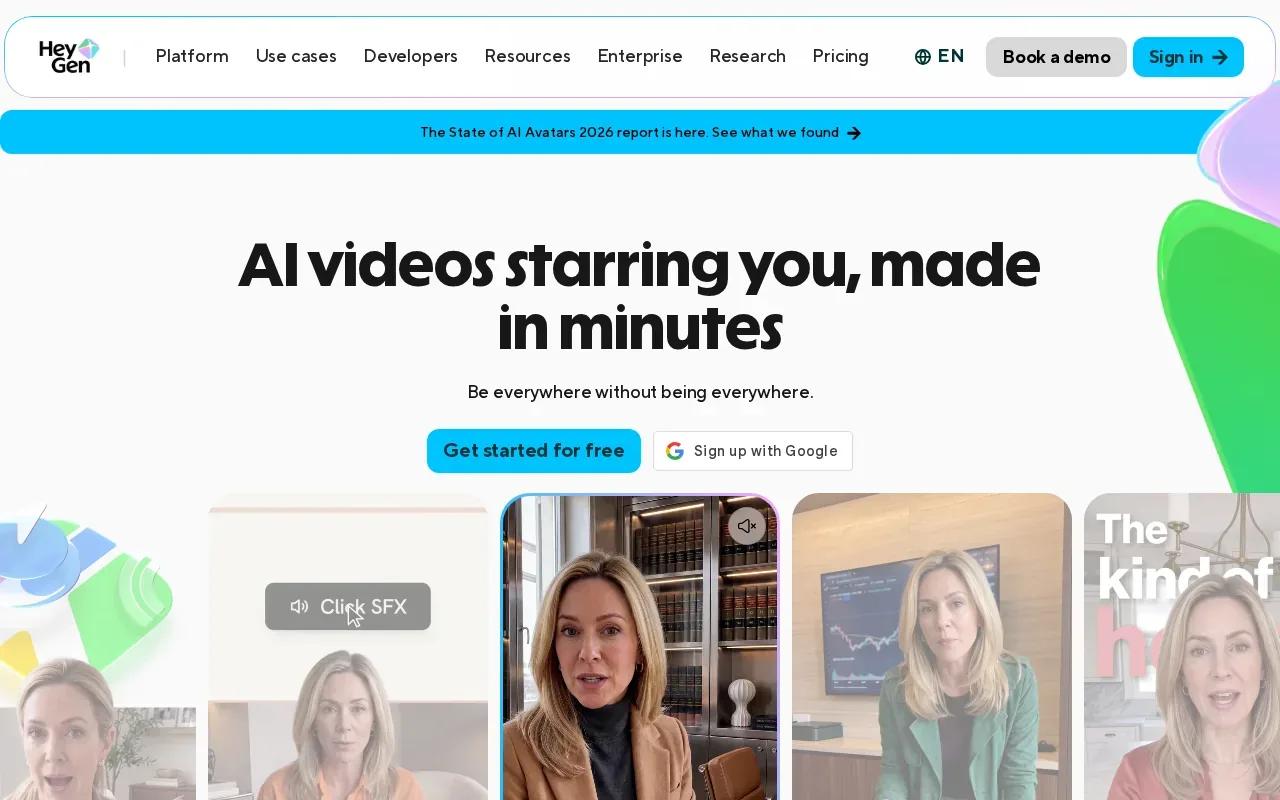
HeyGen supports synchronized dialogue, character consistency, and output up to 4K. Those details matter when a presenter needs to stay recognizable across multiple clips. For example, a team can plan a series with the same avatar, then check the face and dialogue in each draft before publishing.
To judge the result, watch the mouth during quick speech and emotional lines. Lip sync can look fine in a still preview, then feel off once the character smiles or turns. HeyGen is worth testing with the actual pace and tone of your script.
4. D-ID: animate a photo with a script or audio
D-ID turns a forward-facing photo into a speaking presenter. Upload the image, add a script or audio file, then generate the video. That direct path suits a simple announcement when you already have a suitable portrait.
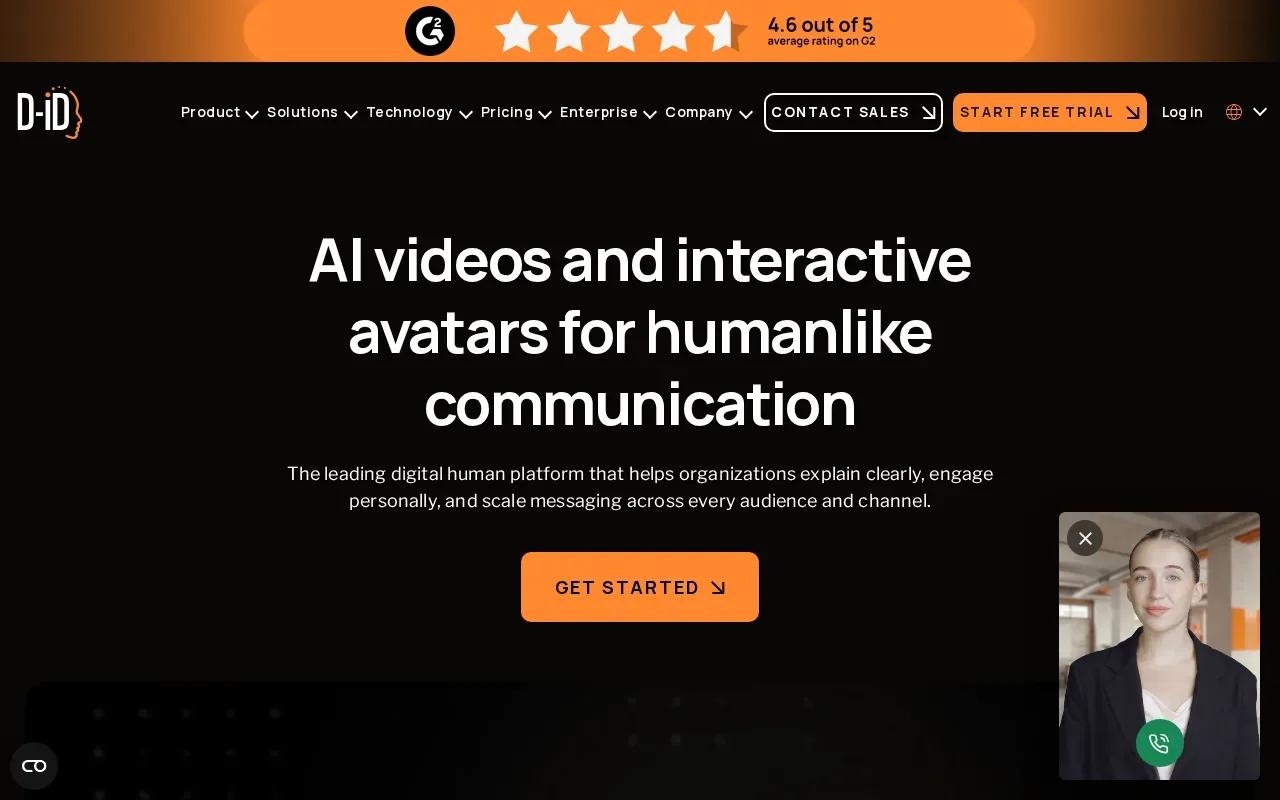
It supports synchronized dialogue and has a maximum resolution of 1280 × 1280. A square format can work for a profile-style post, while a more detailed scene may call for a different tool. D-ID’s supplied free-tier detail is a 14-day unlimited free trial, which gives you a set period to test the photo and voice workflow.
For a cleaner result, start with a face that looks toward the camera and has even light. Check the finished clip for mouth movement and expression before using it in a public-facing message.
5. Kling AI: natural movement and speaking
Kling AI creates AI videos and images from text, images, and references. It works best when a video depends on a person moving or speaking naturally, rather than staying framed as a still presenter.
Kling AI supports synchronized dialogue. This can make it a fit for a scene built around a person speaking or moving naturally. When evaluating it, consider whether those qualities suit the kind of video you want to create.
6. AKOOL: personalized visual marketing
AKOOL is a generative AI platform for personalized visual marketing and advertising. It’s worth considering when a campaign needs image-led content or a talking photo that can carry a brand message.
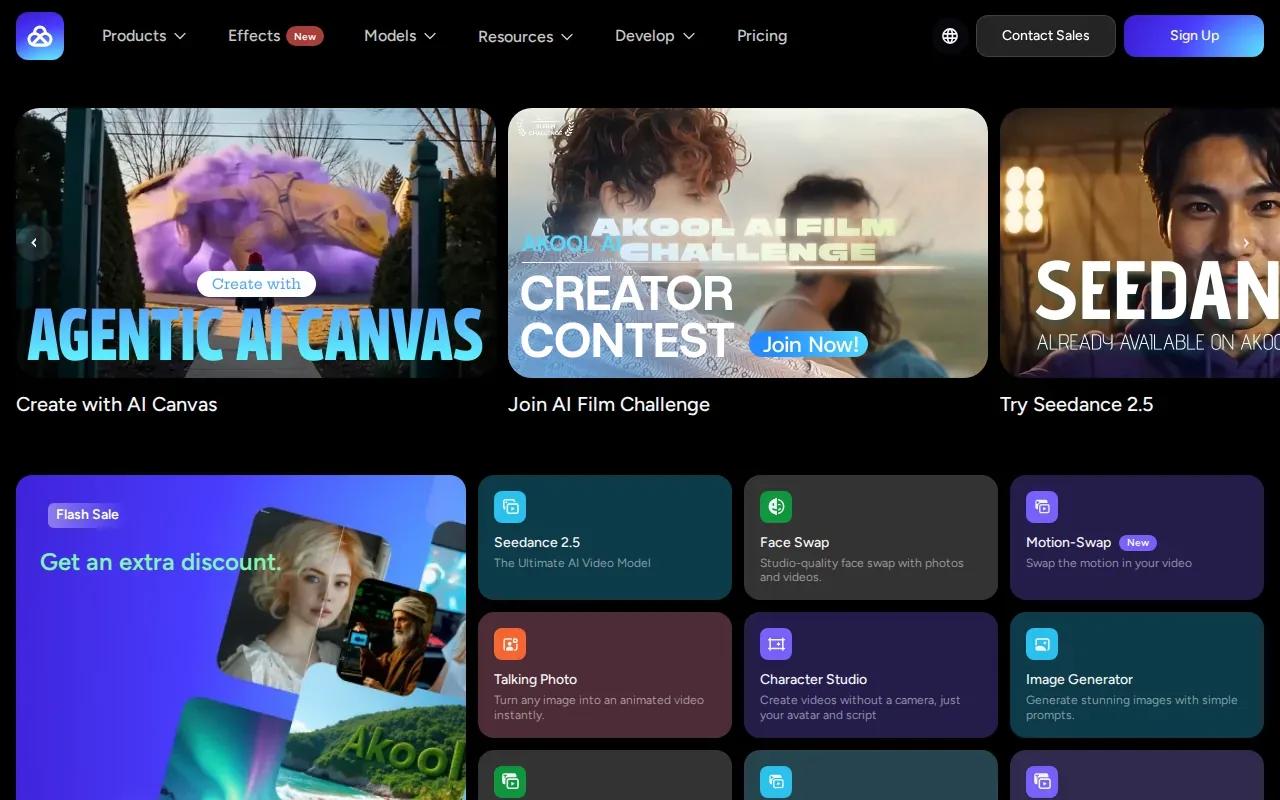
Its image-to-video workflow starts with an uploaded image and a prompt. AKOOL offers 4K video generation and temporal consistency for character identity. Those features can help when the same face needs to remain recognizable as the scene changes, though you should review each output before using it in a campaign.
AKOOL’s tools include Avatar Video. For a small-business ad, you might begin with a product image and describe the person’s gesture, the light, and the camera move. Keep the script short enough to fit the visual idea.
7. ImagineArt: a broader creative suite for short-form content
ImagineArt is a creative suite that makes images, videos, shorts, and voice from text prompts. It may suit a creator who wants to develop several parts of a short-form project in one place.
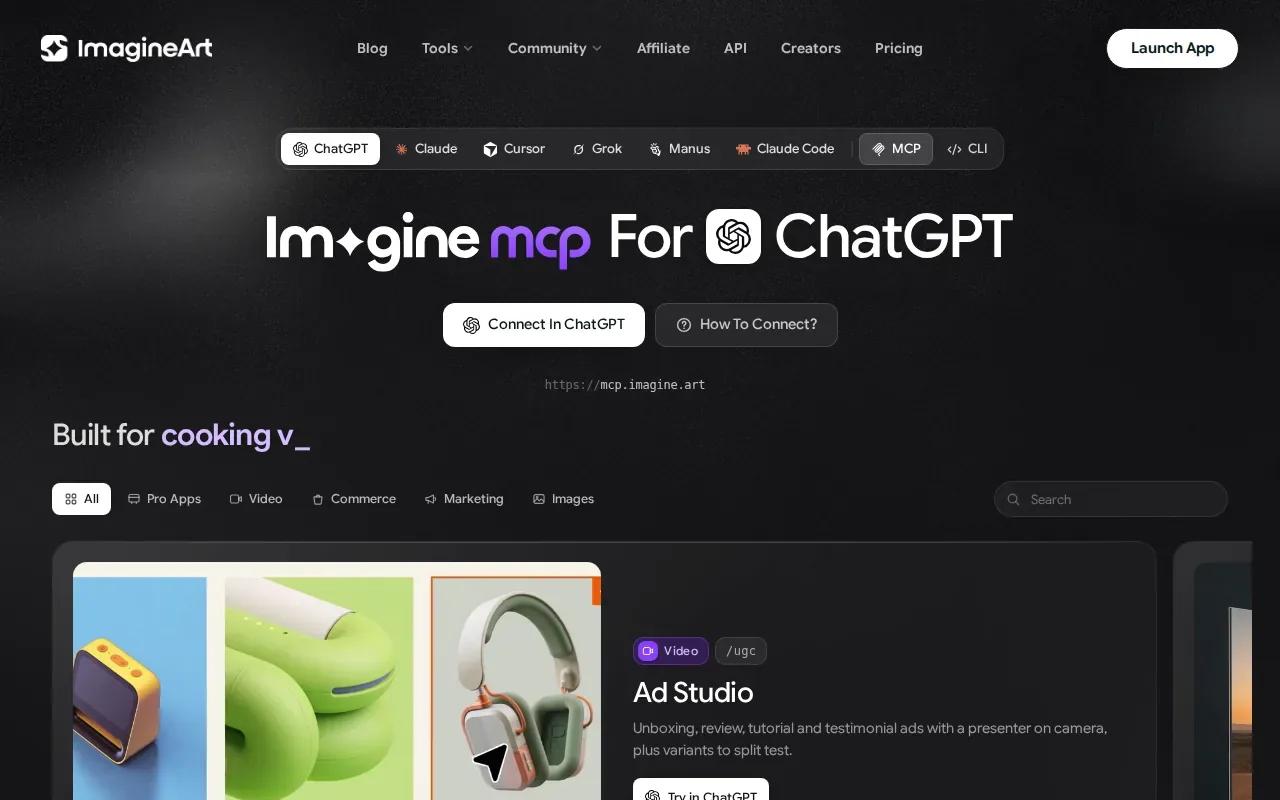
ImagineArt includes editing tools, background removal, an upscaler, and custom models. That broader set can help when a talking clip needs a supporting visual or a final adjustment before it’s ready for a social feed. Draft the voice and scene prompt first, then check whether the generated footage matches the message you want to deliver.
ImagineArt can be useful for testing different visual directions around one short script. Keep your review focused on the speaking face, scene lighting, and whether the voice fits the character. Don’t assume a polished still frame means the full motion will look equally natural.
8. Kapwing: prompt-based video projects with editing
Kapwing can turn a prompt into a video project with layers, timing, sound, and more. It’s a useful fit when you want to generate a draft, then make edits in the same browser-based workspace.
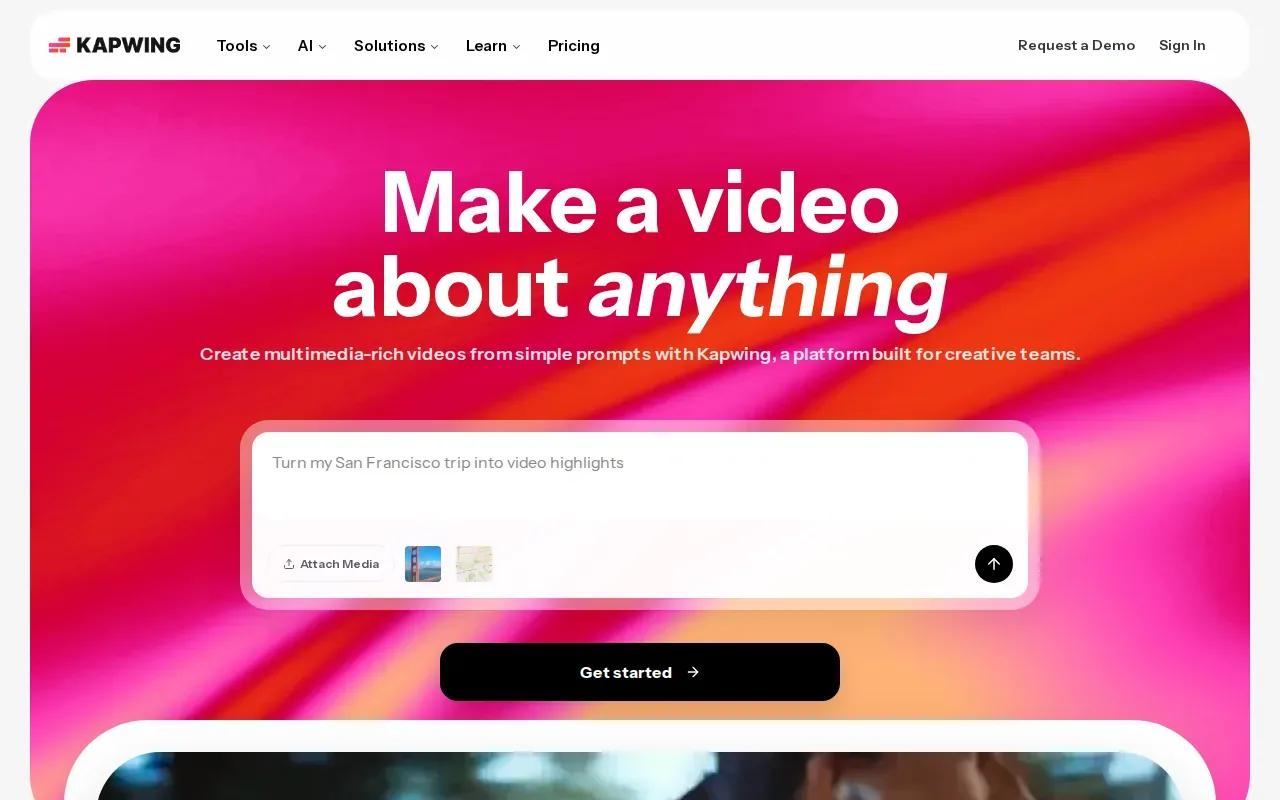
The prompt workflow can include voiceover, visuals, subtitles, music, and characters. Its drag-and-drop timeline lets you trim or combine clips and add overlays. That gives an editor room to fix pacing after generation, such as shortening the gap before a presenter speaks or placing a caption over a key point.
Kapwing also supports collaborative editing. A team can share a project for feedback instead of passing around separate exports. If the final video depends on precise facial motion, inspect the avatar itself; editing tools won’t fix a weak lip-sync result.
9. CapCut: an editing-focused option for social videos
CapCut is an editing-focused option for social video, with AI features for generating and adjusting content. It’s a fit when you want to shape a clip for YouTube, Instagram, or TikTok after making it.
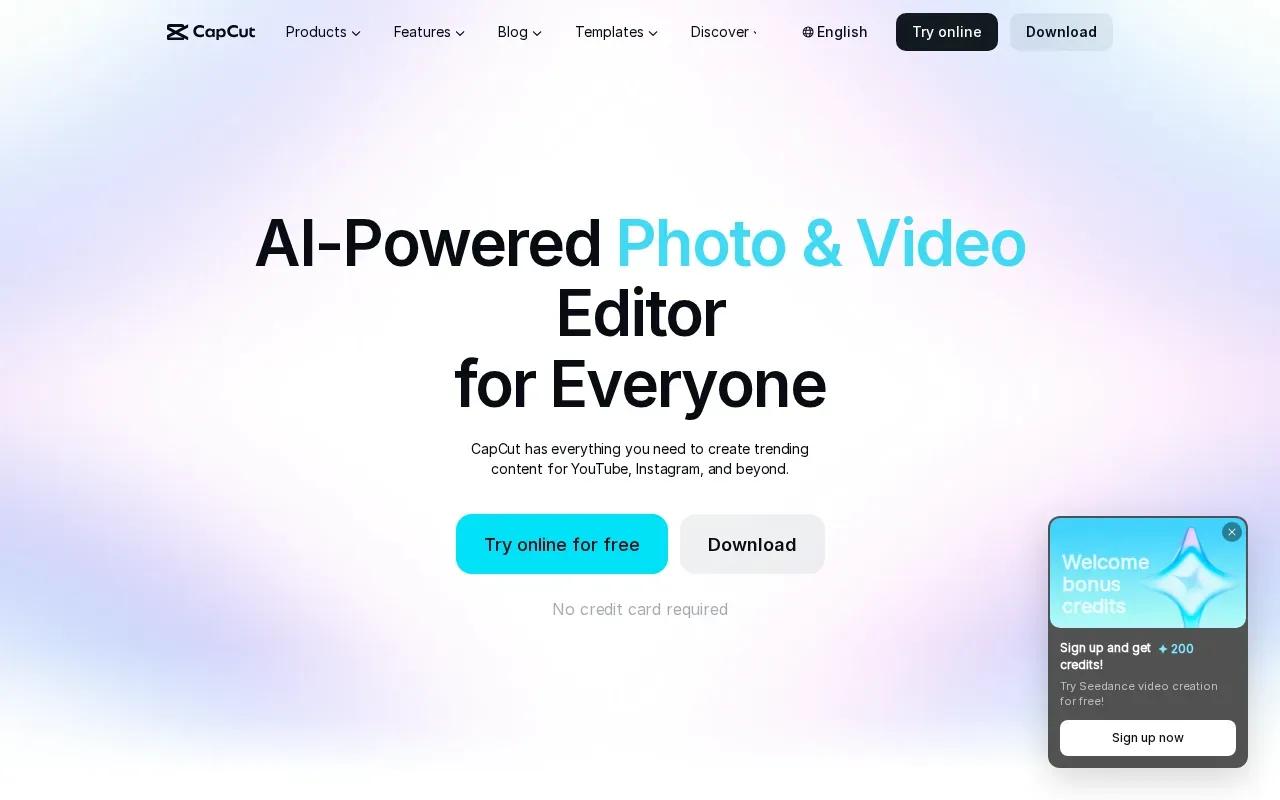
CapCut includes text-to-speech, automatic subtitles, and video creation from text, images, or keyframes. The editor can also trim footage and add transitions. That helps when your talking clip needs a quick opening, captions, or a tighter ending before it goes live.
Use it when post-generation editing is a large part of the job. If the core requirement is a consistent character speaking across several scenes, verify that part of the workflow first. A strong edit can improve pacing, but it can’t replace a convincing performance.
10. Runway: a flexible option for creative video work
Runway is a flexible option for creative video work. It may suit filmmakers or designers who want room to experiment with generated footage as part of a larger project.
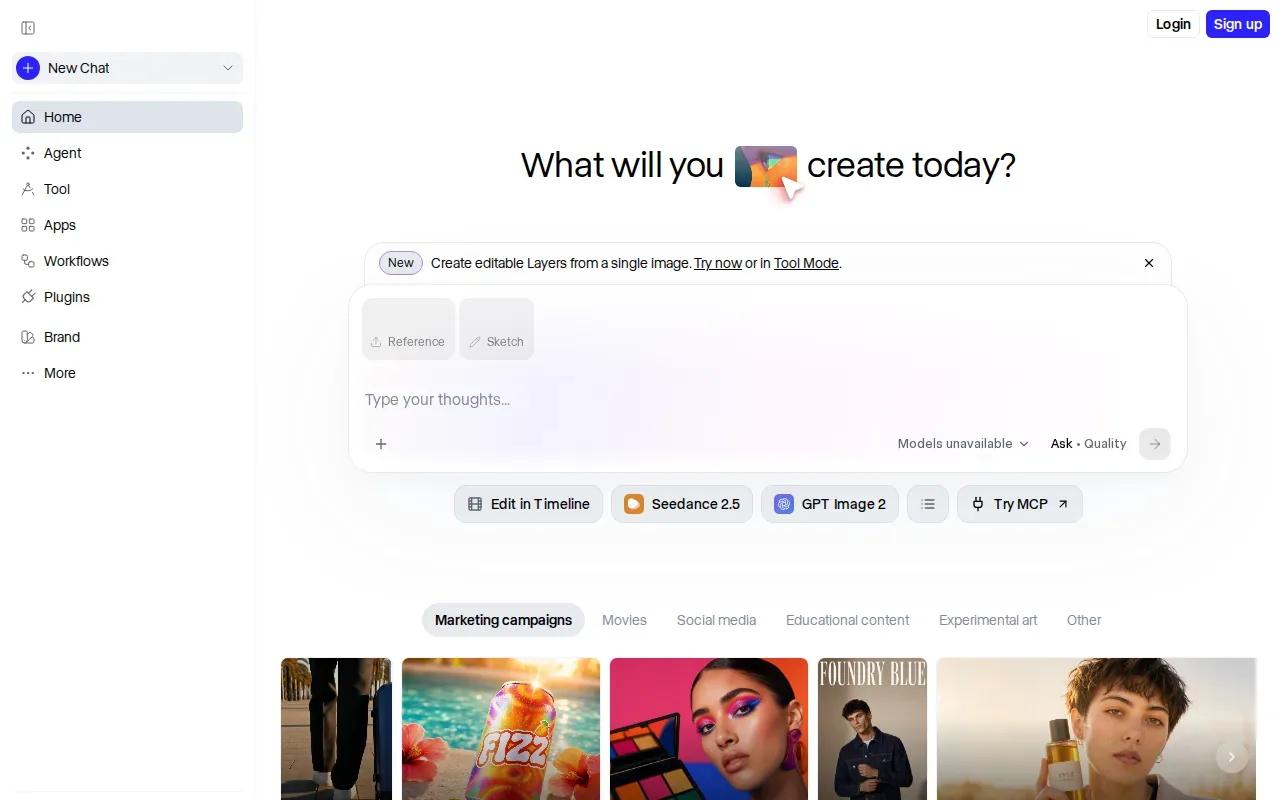
The available product description is broad, so treat your own test as the deciding factor. Start with the shot you actually need: a speaking character, a close-up, or a camera move. Then check whether the result gives you the control and visual style your edit calls for.
For a talking scene, review the sound and mouth movement together. Also look for changes in the character’s face between cuts. If the scene needs a fixed opening and ending frame, compare the tool’s controls with that requirement before you build the rest of the sequence.
AI Talking Video Generator Comparison: Features and Fit
Use this quick comparison to narrow the list by the job you need done. The “workflow fit” column describes the clearest use supported by the product details above, not a promise that every output will suit every project.
| Tool | Workflow fit | Detail to check |
|---|---|---|
| Veo Studio | Prompt- or reference-led scenes | Synced sound, frame control, scene extension, up to 4K |
| Synthesia | Team training and business videos | Monthly video minutes and brand edits |
| HeyGen | Presenter-led clips | Consistent avatar and 4K output |
| D-ID | Speaking photo from script or audio | 1280 × 1280 maximum resolution |
| Kling AI | Moving characters and short scenes | Synchronized dialogue and natural movement |
| AKOOL | Personalized visual marketing | Image-to-video workflow |
| ImagineArt | Short-form work across creative formats | Editing tools and custom models |
| Kapwing | Prompt-to-project editing | Layers, timeline, and collaboration |
| CapCut | Social edits and captions | Text-to-speech and editing needs |
| Runway | Creative video work | Test the controls against your shot |
For scenes built around a start frame, an end frame, or a longer continuous shot, Veo Studio’s Veo 3.1 features and access explain how those controls fit into the workflow. For a simple talking portrait, a tool built around photo animation may be quicker to test.
Frequently Asked Questions
What is an AI talking video generator?
An AI talking video generator makes a video of a person or character speaking from a script, audio file, image, or prompt. Some tools focus on presenter-style clips, while others build a full scene with movement and sound. Before choosing one, check whether you need a fixed avatar, an animated photo, or control over the whole shot.
How do you make an AI photo talk?
Start with a clear, forward-facing portrait, then upload it to a tool that supports talking photos. Add a short script or audio file and generate a preview. Check the face during speech, not only in the opening frame. If the mouth movement feels out of time, try a shorter line or a different source image.
Can AI talking videos include lip-synced dialogue?
Yes. Several tools in this comparison support synchronized dialogue, and some generate speech with the video. The result still needs a visual check. Watch the mouth during fast words and changes in expression, then listen for whether the voice fits the scene. For a short clip, one clear line is often easier to review than a long script.
Which tools have free plans or trials?
Some tools include a free plan or trial, but the allowance varies. Veo Studio’s free plan includes a couple of 720p videos per month without a card. Synthesia’s verified free plan includes three minutes per month, while D-ID’s supplied free option is a 14-day unlimited trial. Check the current terms before planning regular output.
What should I check before uploading a person’s photo or voice?
Make sure you have permission to use the person’s image and voice. Check the tool’s rules for consent, storage, and deletion before uploading sensitive material. For public content, consider making it clear that the speaker is AI-generated when viewers could mistake the clip for real footage. Keep the source image and script within your rights to use.
Conclusion
If you need more than a talking portrait, Veo Studio is a strong place to start because it combines synchronized dialogue with character references, frame control, scene extension, and up to 4K output. Make one short test clip first, then learn how to extend a video with AI if your scene needs more time.