
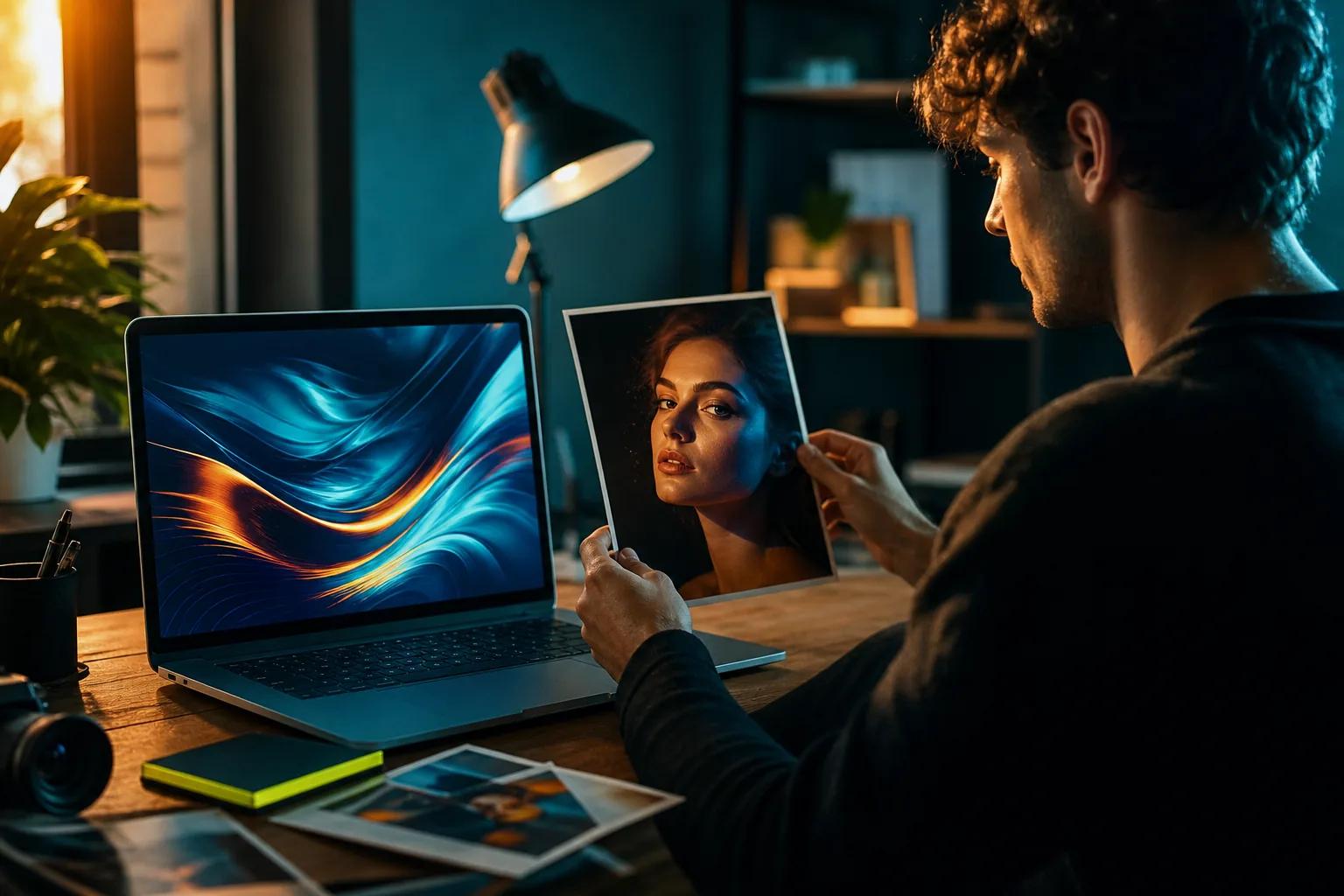
A still photo can become a scene with one clear motion prompt. These AI image-to-video prompts give you a place to start, with copy-ready ideas for social posts, product clips, stories, and lessons.
AI Image-to-Video Prompt Starter Library
Image-to-video AI uses a still image as a visual starting point, then generates new frames to show what happens next. Your source image already sets the subject, color, and layout. So your prompt can focus on movement, camera direction, and mood.
Start with one visible action. If your photo shows a person beside a window, ask for a slow turn toward the light. If it shows a lake, ask for ripples and drifting clouds. Too many actions can make a short clip feel muddled.
Try these templates. Replace the bracketed details, then adjust the motion to suit your image.
- Portrait: “The person slowly turns toward the camera and smiles. A light breeze moves their hair. Slow camera push-in, soft afternoon light.”
- Product: “The [product] stays in place as the camera makes a slow close-up move. Reflections shift across the surface. Clean, warm shop lighting.”
- Landscape: “Clouds drift above the [place]. Grass moves gently in the wind. Wide shot, slow forward camera movement, calm natural light.”
- Food: “Steam rises from the [dish]. A spoon enters the frame and lifts one bite. Close-up, warm window light, steady camera.”
Think of the picture as the opening frame, not a full script. You don't need to describe every object again. Name what should move, how it should move, and what the camera should do.
Veo Studio is an independent, browser-based AI video tool powered by Google's Veo 3.1 models. It accepts prompts with reference images, and supports synchronized sound and dialogue, frame control, scene extension, and output up to 4K. Its image-to-video workflow can help when a still needs to become a directed shot rather than a simple zoom.
Copy-Ready Prompts for Social, Marketing, Storytelling, and Education
A good prompt gives the model a clear job. Name the action first, then add camera movement, light, and sound if you need it. These examples are starting points, not fixed recipes. Match them to the image you upload.
Social clip
“The cyclist glances toward the camera, then rides past. The camera follows for a moment. Bright morning light, lively pace, vertical framing. Street sounds in the background.”
Use one visual beat for a short vertical post. Leave room in the frame for captions you plan to add later. A clear first moment helps viewers understand the clip before they scroll away.
Product marketing
“A close-up of the [item] on a kitchen counter. The camera slowly moves toward it as sunlight crosses the surface. A hand enters and picks it up. Soft room tone, no spoken words.”
Keep the product's key shape and details visible in the source image. After generation, check the label and edges frame by frame. AI can alter small details as it invents the next moment. For a fuller product-video workflow, see AI product video generator options.
Story scene
“A young traveler pauses at a rainy train platform and looks down the track. Slow dolly-in, cool evening light, rain on the roof. The traveler whispers, ‘I thought you’d be here.’ A train rumbles in the distance.”
Keep dialogue short so the scene has room for the action. Veo Studio supports synchronized sound and dialogue, including quoted speech with lip movement. You can also use reference images to guide character consistency across a clip.
Education
“A paper boat floats across a shallow stream. The camera follows it past a leaf, then slows near the bank. Clear daylight, gentle water movement, no text.”
This kind of visual can introduce a lesson about currents or motion. Add labels and facts during editing, where you can check that each term is correct. For a broader production path, use the AI video creation guide to plan a shot from prompt through publishing.
Before you publish, make sure you have permission to use the source image and any recognizable person shown in it. If the scene implies a real person said or did something they didn't, don't present it as real footage.
Advanced Prompt Tweaks and Fixes for Common Video Problems
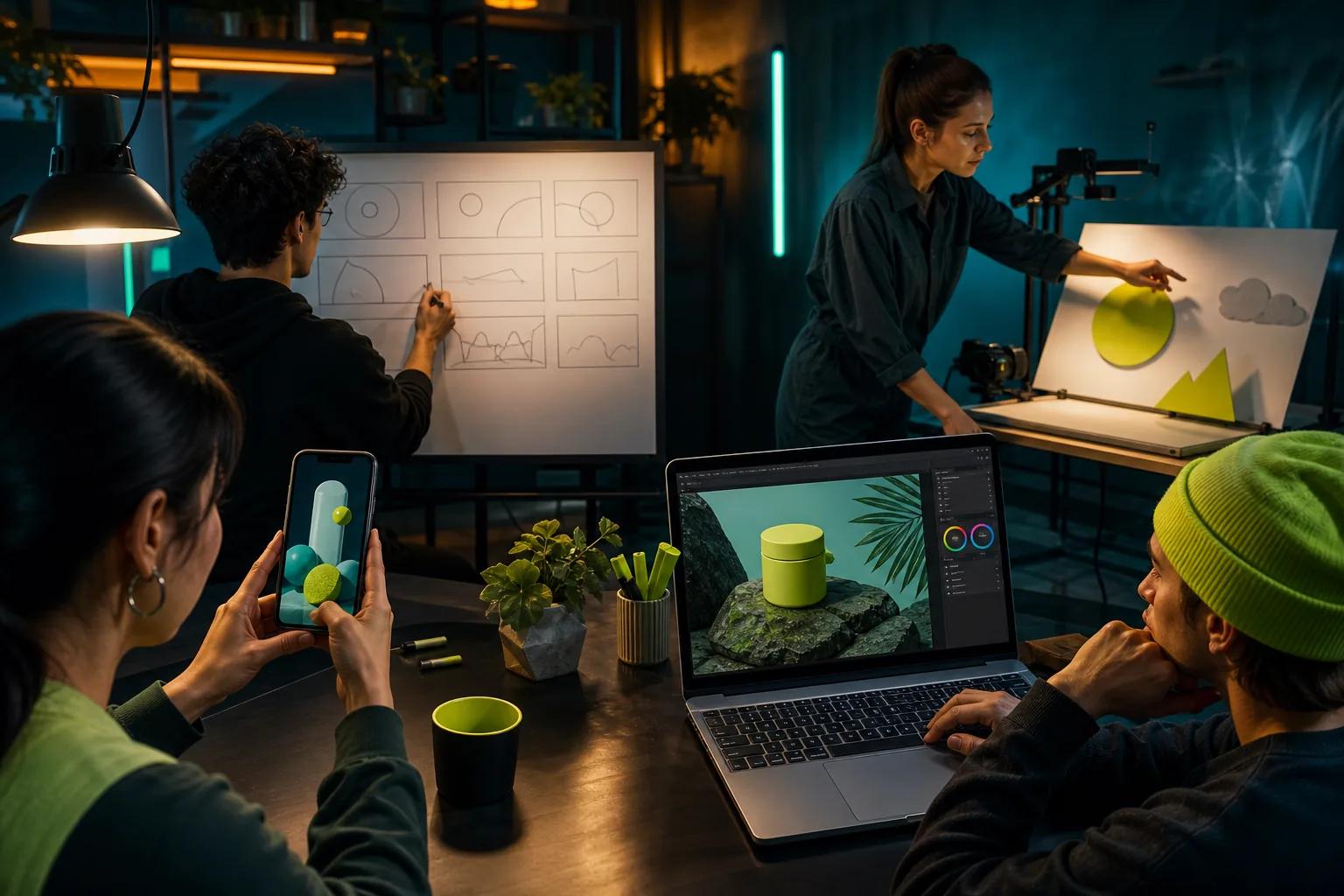
When a render misses, change one instruction at a time. If you change the movement, camera, and mood all at once, you won't know which edit helped.
Blurry or unstable details
Choose a source image where the main subject is easy to see. Then reduce the amount of movement near fine details, such as small text or a patterned edge. A slow push-in is often easier to inspect than a fast orbit around the subject.
Motion goes the wrong way
Use plain, directional language. “The camera tracks left as the dog walks toward the gate” is clearer than “dynamic cinematic movement.” If the subject should stay still, say so directly and describe only the background motion.
Several actions turn into a jumble
Give each clip one main action, with perhaps one small follow-up. A person can open a door and look inside. If the scene also needs them to cross a room and pick up an object, split it into shots and join those shots in your editor.
Sound or dialogue feels off
State who speaks and put the exact words in quotation marks. Keep the line short. For a quiet scene, specify the sound you want, such as “soft rain and distant traffic, no dialogue.” Veo Studio supports generated synchronized sound and dialogue, but you should still review the finished clip before posting.
Negative prompts can help exclude unwanted elements when a tool supports them. Try a short list such as “no extra people, no added text, no camera shake.” Some tools also expose seed controls, which can help keep test runs closer together. Those controls vary by tool, so use them only when available.
If a clip needs to continue, plan the next action as a direct follow-on. Veo Studio can extend supported clips in seven-second steps. The scene extension guide explains how to prompt the continuation and review the join.
AI Image-to-Video Tools and Publishing Resources
Choose a tool by the job your clip needs to do. A simple motion test has different needs from a dialogue scene or a product ad. The table below compares supported workflows using the details available for each option.
| Resource | Useful when you need | Details to weigh |
|---|---|---|
| Veo Studio | Prompting with reference images, synchronized sound, frame control, or scene extension | Browser-based; up to 4K output. Free access includes a couple of 720p videos per month without a card. |
| OpenArt Director | Image and text prompts with character consistency | Its listed free access includes 40 credits over seven days, plus ongoing daily credits for basic image generations. |
| Google Flow | High-resolution clips and scene extension | Google Flow offers output up to 4K and 50 daily credits. |
| CapCut | A browser-based starting point for image and text input | Its online option is listed as free with no credit card required. |
| Media.io | Image and text prompts with character consistency | Its listed free access has no sign-in and no daily cap. |
Veo Studio's paid plans start at $14 per month. The free plan gives you a couple of 720p videos each month without a card, and each plan includes a commercial license. Check the Veo Studio plan details before building a recurring workflow, since video volume and output needs can affect which plan fits.
For social publishing, make a vertical version when the clip is meant for TikTok, Reels, or Shorts. Keep key action near the center so interface elements don't cover it. Add captions in your editor if viewers need context without sound, then watch the export on a phone before you post.
For longer edits, treat generated shots as footage rather than a finished story. Download the clips, arrange them in your editing timeline, and add titles or transitions where needed. Check cuts for changes in faces, product shape, or lighting. Those details can stand out more when two AI-generated shots appear side by side.
FAQ
What makes a good image-to-video prompt?
A good image-to-video prompt names one clear action and a camera move. Add a lighting or mood note only if it helps guide the shot. Since the uploaded still already sets the subject and layout, you usually don't need to describe every visible detail again. Generate a short test, inspect it, then refine one part.
How do I stop an AI video from changing the subject?
Use a clear source image and ask for restrained movement around the details you need to preserve. If the tool supports reference images, attach images that show the same character or product. Review the result closely, especially around faces, hands, labels, and edges. No prompt can replace checking the finished clip.
Can an image-to-video prompt generate dialogue and sound?
Some tools generate sound with the video, while others focus on motion alone. Veo Studio supports synchronized sound and dialogue. Put the spoken line in quotation marks and name the speaker. Keep it brief, then check that the voice and mouth movement fit the scene before you share it.
What image should I use for image-to-video AI?
Choose an image with a clear main subject and a visible area you want to move. A single person, car, animal, or large building is easier to direct than a crowded scene with several competing subjects. Use an image you have permission to animate, and check small details after generation.
Conclusion
Start with one still and one action, then judge the motion before adding more instructions. Try a template above with an image you have permission to use, and explore Veo Studio's reference-image controls if your shot needs sound, character continuity, or a planned transition.


