
A vertical video generator can do more than fit a clip into a 9:16 frame. The right tool can also shape a scene, keep a character consistent, or add sound that matches the action. Here are five options, starting with Veo Studio, and the work each one suits.
We analyzed 47 YouTube comments about vertical video generators and found that 21% mentioned realism and video quality.
1. Veo Studio
Veo Studio is an independent, browser-based AI video tool powered by Google’s Veo 3.1 models. It turns text prompts or reference images into video, with native 9:16 output for vertical posts.
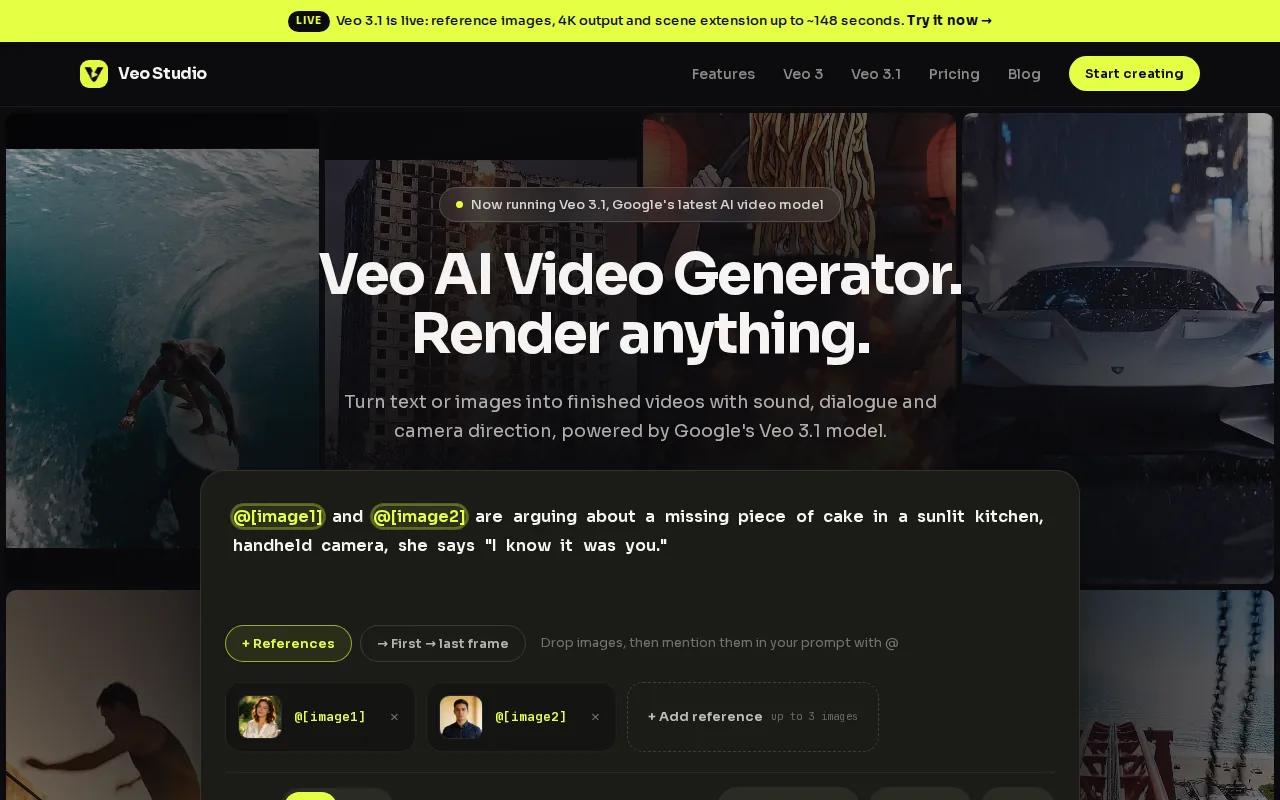
It fits creators who want to direct a new scene rather than only resize footage they already shot. For example, a small business can attach a product photo, describe a slow camera move, and ask for a short spoken line. Veo 3.1 can generate synchronized sound and dialogue with the video, while reference images help keep a character or product consistent.
Frame controls add more direction. You can provide first and last frames and have the model generate the transition between them. If a short clip needs more time, scene extension adds seven seconds per step to supported Veo 3.1 clips at 720p, up to roughly 148 seconds of continuous video. Supported settings also allow output up to 4K.
For a social post, choose 9:16 before generation. Then describe one main action, the camera move, and any dialogue. That gives the model a clear shot to build, instead of asking one prompt to tell an entire story.
If TikTok is your main channel, this TikTok video generator comparison covers how prompt-led tools differ in sound and control. Veo Studio has a free plan with a couple of 720p videos a month, and no card is needed to try it. Paid plans start at $14 per month.
2. AIVeed: Native 9:16 videos for full-screen social posts
AIVeed generates native 9:16 video rather than cropping a horizontal clip. That makes it a fit for creators who want a full-screen vertical frame from the start.
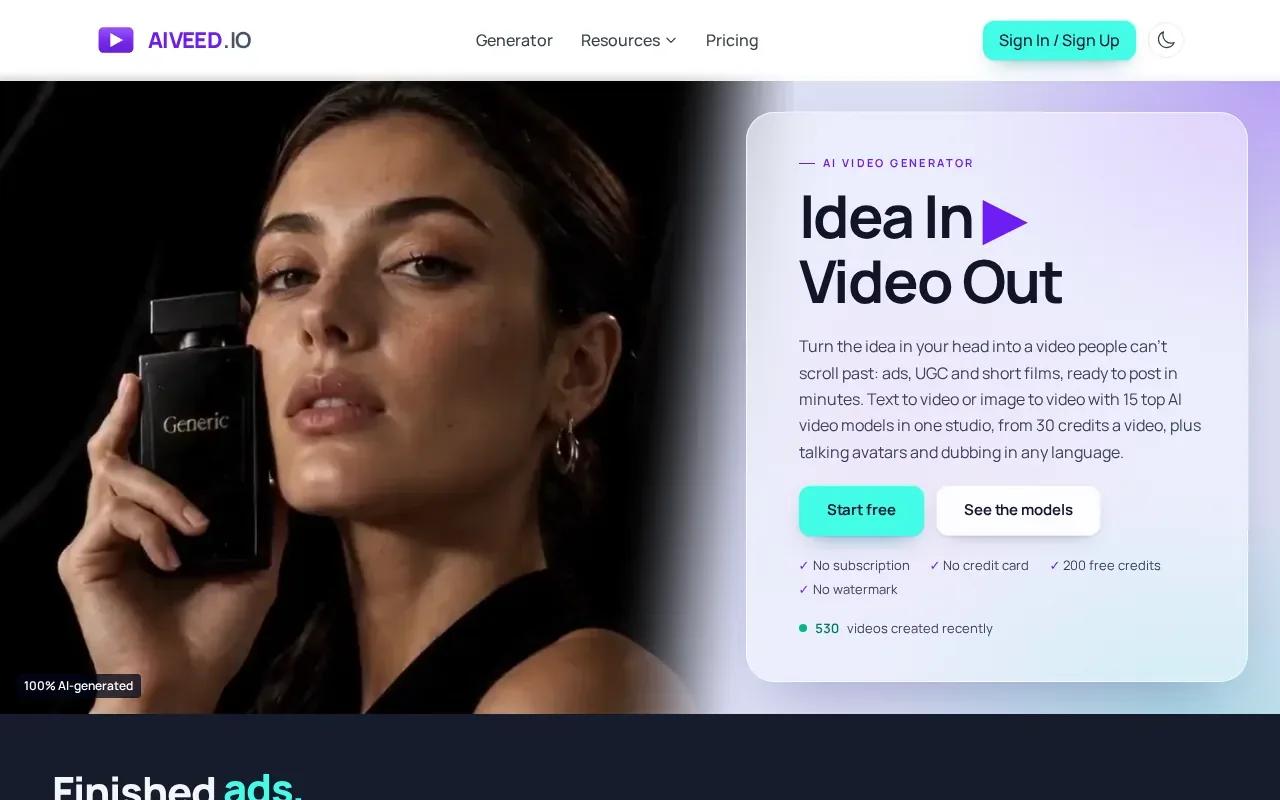
Native framing matters when the subject sits near the edge of a wide shot. A crop has to discard part of the original frame, which can cut off a face or product. A natively vertical scene starts with the proportions of a phone screen, so you can describe the composition for that space instead.
AIVeed is a straightforward option to consider when your main goal is a vertical post for TikTok or YouTube Shorts.
For a simple visual post, write a prompt that names the subject and one action. Then specify that the shot should be composed vertically. Keep the main subject near the center of the frame, where platform buttons and captions are less likely to cover it.
Pick AIVeed when native framing is your main need.
3. HeyGen: AI avatar videos for presenter-led Shorts
HeyGen makes AI avatar videos, including vertical videos for short-form social posts. It suits creators who want a presenter to deliver a script without filming a person for each clip.

That format works well for a short lesson, product explanation, or channel update where the spoken message carries the post. For more information, visit the product page.
For Shorts, the key benefit is having a presenter-led format that can be generated in a vertical layout. A consistent spokesperson can make a set of short explainers feel connected, even when you make them at different times.
Before you draft a long script, write the first sentence as a hook. A vertical video gives you little time to explain why a viewer should stay. Keep each scene focused on one point, then check the result for pacing and caption placement before publishing.
HeyGen is the fit when an AI presenter is the main visual. It serves a different job from a prompt-led scene generator: the presenter delivers the message, while the script shapes the video. Creators focused on YouTube can also compare other AI tools for making YouTube Shorts.
4. Runway: Reframe existing footage for vertical platforms
Runway can convert horizontal footage to a vertical 9:16 frame with its Expand Video feature. It suits creators who have a wide clip and want to adapt it for a phone-first feed.
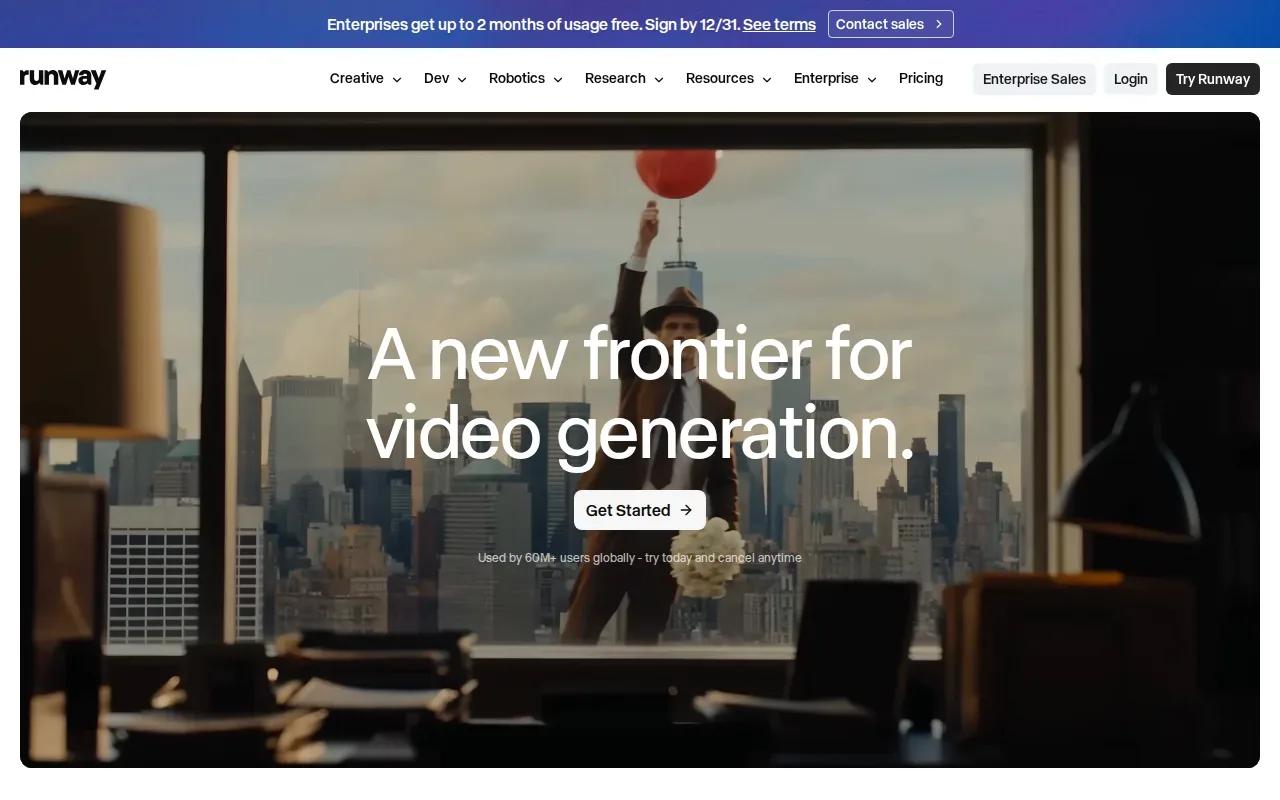
There are two different ways to make a wide clip vertical. Cropping keeps a selected portion of the existing image. Expansion uses AI to generate the parts of the scene that fall outside the original frame. That can preserve more of a wide shot when a tight crop would remove a person or key detail.
Think of a two-person interview shot in landscape. A center crop may leave one speaker out. An expanded frame can add space above or below the original image, so both speakers have a better chance of staying in view. The result still needs review, especially around faces, moving objects, and the edges of the original footage.
Runway’s latest generation model offers industry-leading video quality with an Expand Video feature that can convert horizontal videos to vertical 9:16 format.
Choose expansion when cropping would remove information you need. If the subject already fits inside a narrow crop, a basic reframe may be enough. No AI fill can replace checking the finished vertical cut on a phone.
5. OpenArt: Vertical formats with synchronized sound
OpenArt supports vertical exports for TikTok, Reels, and Shorts. Its video tools also support synchronized sound dialogue and consistent character faces across videos.
That mix suits creators building a recurring character or a short sequence with spoken lines. You can reuse a character’s look across clips, then make dialogue part of the scene instead of treating audio as a separate step.
OpenArt also brings multiple AI models into its video workflow. That can help when you want to try different model outputs for a similar idea. Keep your prompt and reference material steady while you compare results, or it will be hard to tell which change affected the video.
For a vertical story, first define the character and the setting. Then write a short action with one line of dialogue. If the character needs to look the same in a later clip, reuse the same saved character reference and keep the description consistent.
OpenArt is worth considering when character continuity and audio belong in the same short-form workflow. A single vertical export is one task; keeping the same face and voice across a run of posts is another. Make a short test before you build a series around a particular model or style.
Compare These Vertical Video Generators
Each tool takes a different route to a vertical post. Use the table to match the starting point to the work you need done.
| Tool | Best fit | Vertical approach | Sound and continuity |
|---|---|---|---|
| Veo Studio | Prompt-led scenes with generated dialogue | Native 9:16 output | Synced sound, reference-based character consistency, and scene extension |
| AIVeed | Full-screen vertical scenes | Native 9:16 output | Scene extension up to two minutes |
| HeyGen | Presenter-led scripts | Avatar-based vertical video | AI avatars with lip-synced speech |
| Runway | Adapting horizontal footage | Expand footage to 9:16 | AI-generated space beyond the original frame |
| OpenArt | Character-led vertical clips | Vertical exports for social platforms | Synced dialogue and consistent character faces |
For a new scene with spoken dialogue, start with Veo Studio or OpenArt. For a presenter reading a script, consider HeyGen. AIVeed suits native vertical generation, while Runway is the reframing choice when you already have wide footage.
Format alone is a weak way to choose. A 9:16 export can still need a new shot, a clearer voice track, or a better crop. If your focus is Instagram, this comparison of AI Reels generator workflows adds more context on prompt-led video and editing needs.
Frequently Asked Questions
What is a vertical video generator?
A vertical video generator makes or adapts video for a portrait-shaped frame, often in a 9:16 ratio. Some tools generate a new scene in that shape. Others reframe existing footage, use an AI presenter, or expand a wide shot. Check which workflow a tool supports before choosing it for a specific post.
Which tool makes native 9:16 video?
Veo Studio and AIVeed support native 9:16 video, while OpenArt supports vertical exports for social platforms. HeyGen supports avatar-based vertical video. Runway’s described approach expands horizontal footage into a vertical frame. Choose native generation for a new scene, and frame expansion when you need to adapt a wide clip.
Can I turn horizontal video into a vertical video?
Yes. Runway’s Expand Video feature can convert horizontal footage to 9:16 by generating parts of the frame outside the original image. A crop is another option when the subject fits in the smaller view. Review the result carefully, since either method can affect how much of the original scene remains visible.
Which tool is suited to talking-head Shorts?
HeyGen is suited to presenter-led Shorts because it generates presenters and AI avatars. Veo Studio and OpenArt are other options when you want synchronized sound and dialogue. Decide whether you need a presenter to explain a topic or a character to act within a scene.
Can a vertical video generator make sound too?
Some can. Veo Studio supports synchronized sound and dialogue, and OpenArt supports synchronized sound dialogue. If the sound must match a spoken line or scene action, check that capability before you make the full video.
Conclusion
Start with Veo Studio if your clip needs native vertical framing plus synchronized sound, character consistency, or scene extension.


