

An AI YouTube Shorts maker can help turn a prompt, a script, or existing footage into a vertical video. The right fit depends on what you’re starting with: a scene you want to direct, a topic to turn into a full Short, or a long recording to cut down.
We analyzed 58 comments and questions from Reddit, YouTube and Quora about AI YouTube Shorts makers and found that 29% mentioned batch workflow automation.
These five tools take different routes. Veo Studio is built around generated scenes; the others focus on scripted videos, editing, or scheduled faceless posts.
1. Veo Studio
Veo Studio is an independent, browser-based AI video creation tool powered by Google's Veo 3.1 models. It’s for creators who want to describe a scene or start with reference images, rather than assemble every shot from stock clips.
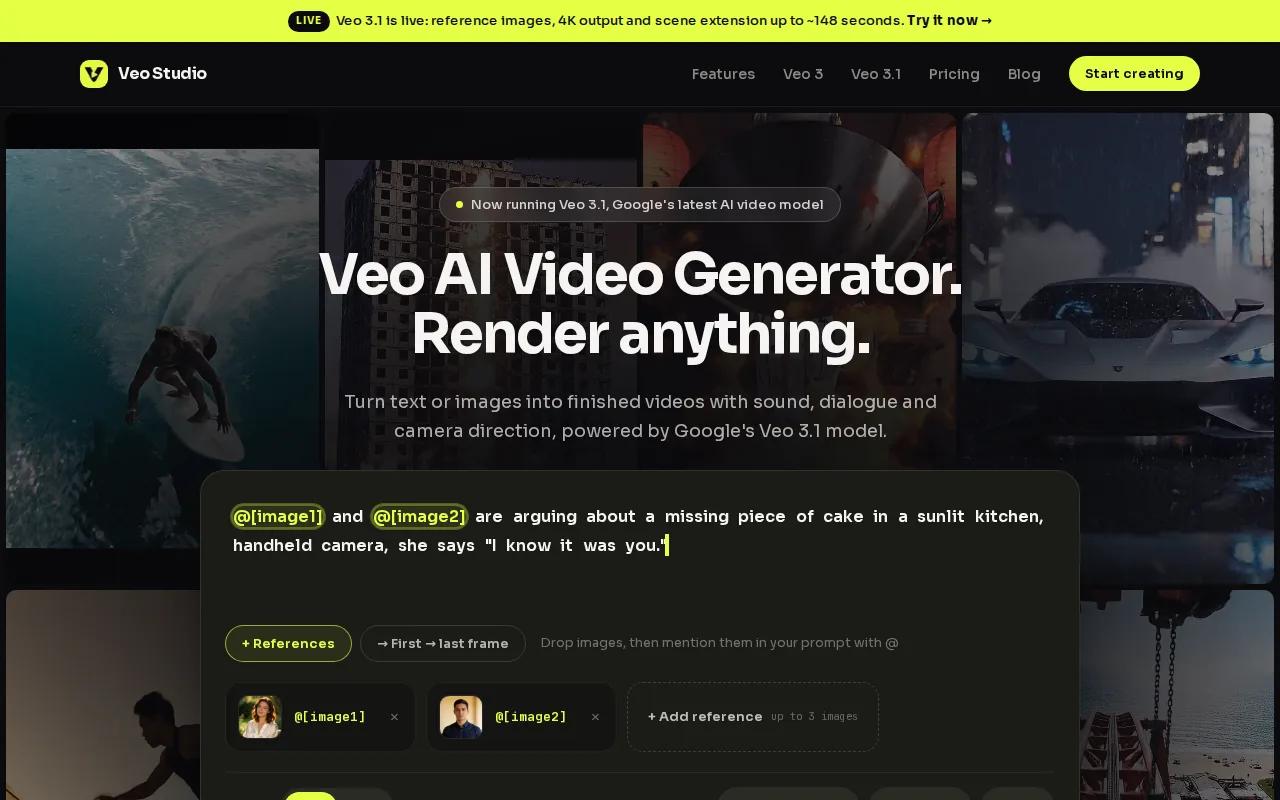
Write a prompt with the action, camera move, and any spoken line. Veo Studio can generate video with synchronized sound and dialogue. Add reference images when you want a character or product to keep a consistent look. First- and last-frame controls help guide how a shot begins and ends.
That control can help when a Short needs a clear visual beat, such as a product coming into view before a character speaks. You can generate vertical video for Shorts, then use scene extension on supported clips when a moment needs more time. Output goes up to 4K on supported models.
The free plan includes a couple of 720p videos per month, with no card required. Paid plans start at $14 per month; higher resolutions and more video capacity are available on paid plans.
Try Veo Studio when the scene itself is the main creative choice, especially if you need generated dialogue or a consistent character.
2. FlowShorts: For turning a topic or script into a complete Short
FlowShorts generates complete YouTube Shorts from a topic or script. It’s aimed at creators who want the tool to handle the main pieces of a faceless video, including scriptwriting, AI voiceover, visuals, and captions.
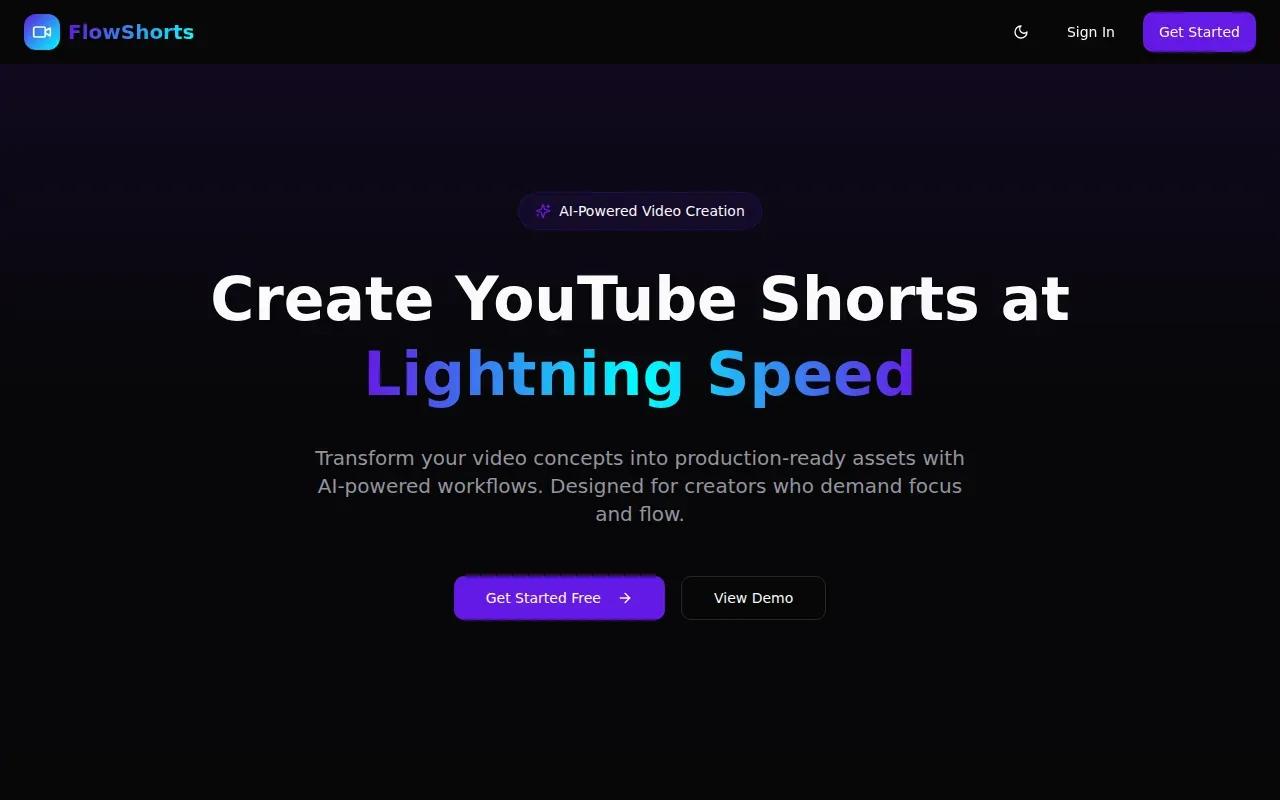
That makes it a different starting point from a scene generator. Give it a subject or a prepared script, then review the assembled Short. It can suit a repeatable format, such as short explainers where each post follows the same general pattern.
If you’re repurposing a podcast or a longer video, start with a transcript or pick one complete idea from the recording. Then shape that idea into a Short-sized script instead of asking the tool to squeeze in the full conversation. For a related reference, see this guide on how to make YouTube Shorts with AI.
Choose FlowShorts when you want a complete topic-led draft. Read the script and check the captions before you post; an automated first pass still needs your review.
3. CapCut: For hands-on editing with built-in AI
CapCut is a free video editor with built-in AI features, including auto-captions and text-to-speech. It suits creators who want to make edits themselves and add AI help where it saves time.
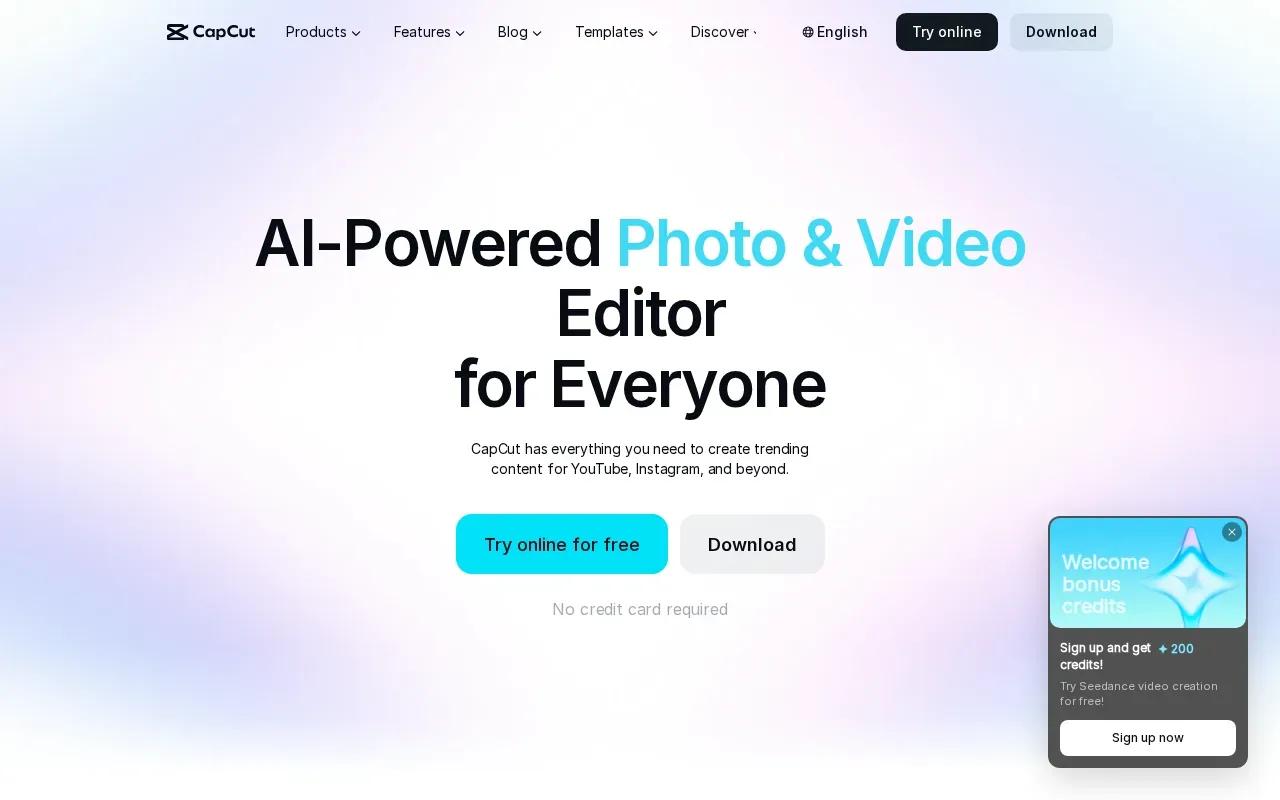
For a Short, you can start with your own footage or a script-based draft, then work through the edit. Captions can help viewers follow speech with the sound off. Text-to-speech gives you a way to add narration without recording a voice track yourself.
CapCut’s AI video workflow can also start from a script or reference image. You can review the generated result and edit before export. That’s useful when the first draft has the right idea but needs a new caption, a tighter shot, or a different pace.
CapCut has a free tier, and a Pro plan adds advanced exports and team features. If you already have a long recording, look for the moment that makes sense on its own, then trim around that thought rather than cutting at a random timestamp.
CapCut makes sense when you want control over the finishing work. Plan time to watch the exported Short on a phone and check that captions don’t cover the subject.
4. InVideo AI: For prompt-led video creation
InVideo AI turns a prompt into a video draft. It’s for creators who want to describe the topic and audience, then refine a generated script, scenes, voiceover, and captions.
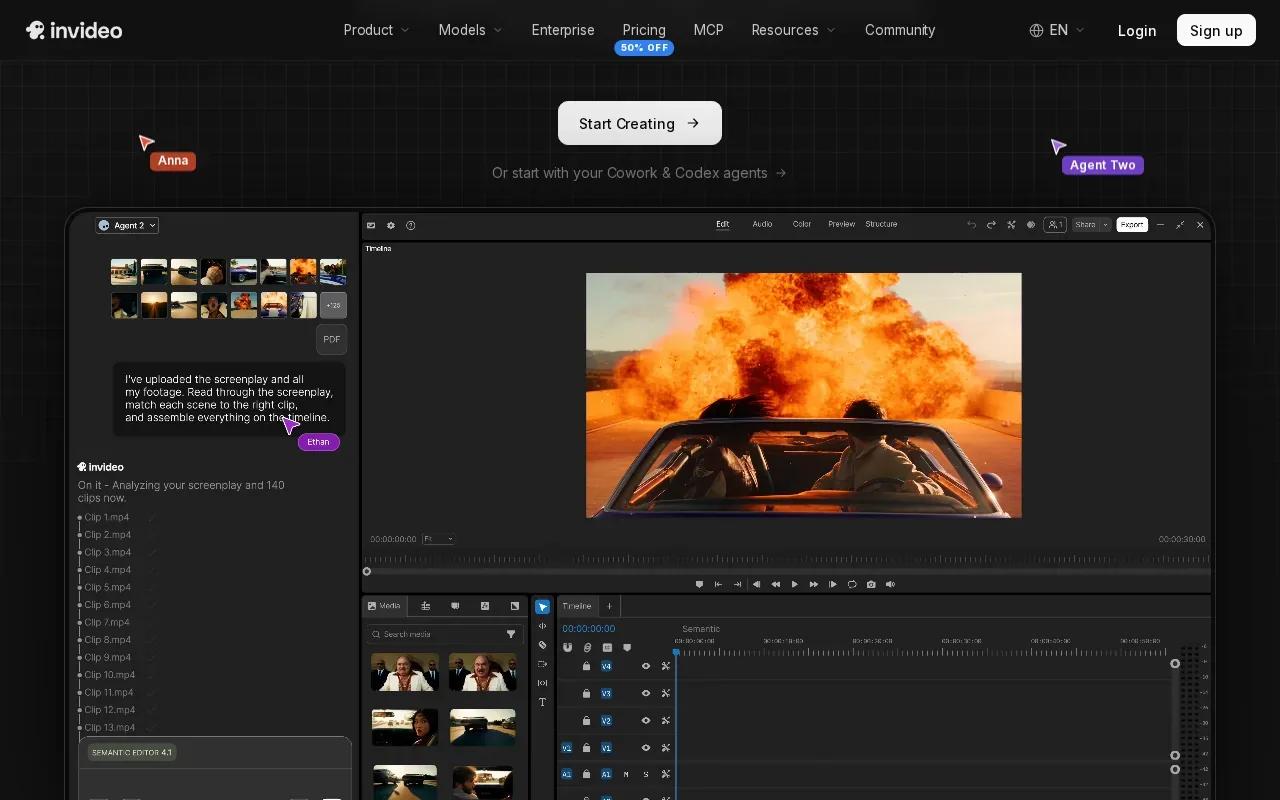
You can also bring your own script or footage into the process. After generation, adjust the shots, edit narration, and change caption placement on the timeline. That makes it a fit for a narrated explainer or a product Short where you want a draft assembled quickly but still plan to make editorial choices.
For an existing video, point out the lines or moments that matter and review the sequence it builds. Then watch the full Short with sound on and muted. Check that the visuals match the narration and that the ending doesn’t cut off the point.
Paid plans start with Starter at $20 a month, or $10 a month billed annually, with 400 credits a month. If you’re building a recurring series, check how much of the structure you can reuse across episodes.
Pick InVideo AI when your prompt or script should guide the whole draft, with editing left in your hands before you download and upload the finished video.
5. AutoShorts.ai: For recurring faceless video production and posting
AutoShorts.ai is organized around recurring automated posting, rather than making a single video at a time. It suits creators planning a faceless series and wanting video creation tied to a posting schedule.
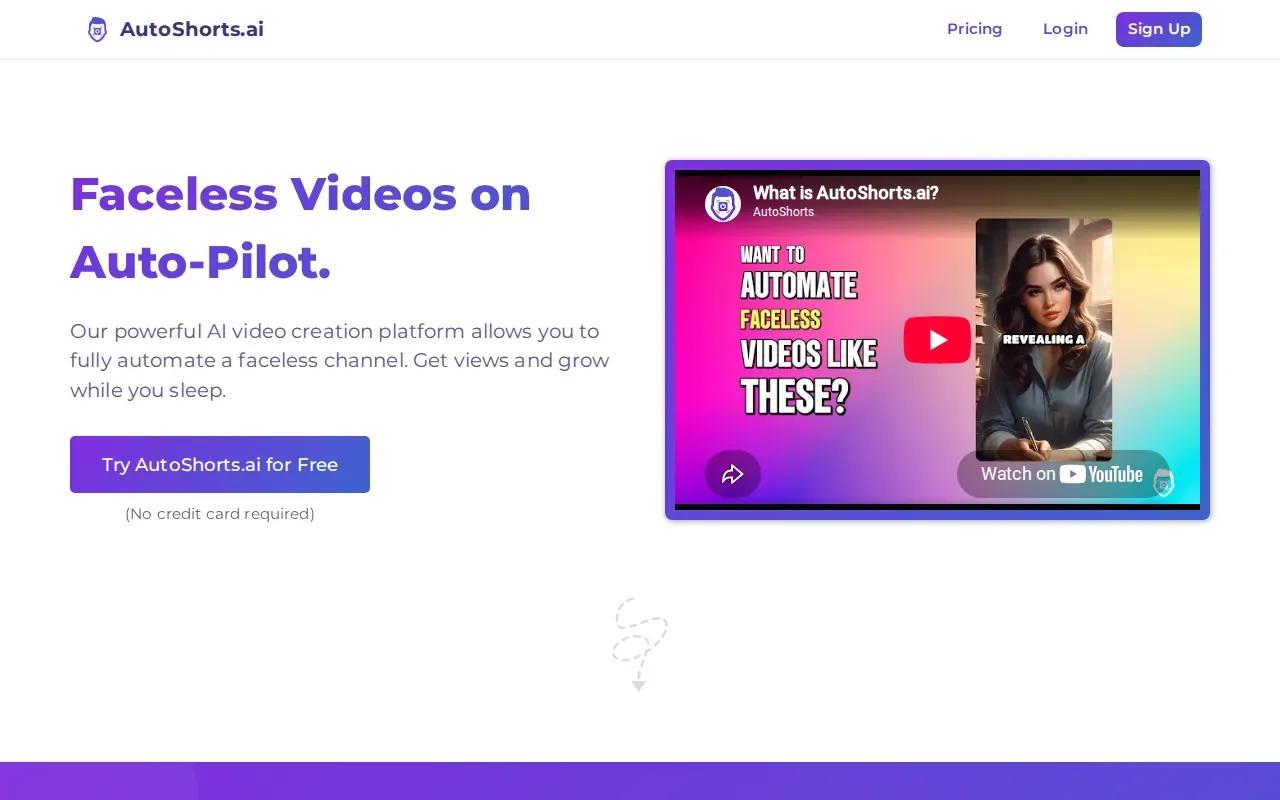
Choose a topic for the series, using a preset or a custom prompt. Review each generated video before it posts. The tool lets you edit the script, title, images, or background music, so you can check the draft instead of treating the schedule as permission to publish without review.
Once you connect channels and set a schedule, AutoShorts.ai handles ongoing creation and posting. The starting price is $19 a month.
This kind of workflow is most useful when you’ve settled on a clear topic and format. If every post needs a different visual style or detailed scene direction, a scheduled series may feel less flexible than making each clip as a separate project.
Use AutoShorts.ai when consistency of publishing is the main need. Keep a human review step for script accuracy and whether each post still fits the channel.
Quick comparison: Which AI YouTube Shorts maker fits your workflow?
Start with the material you already have. A prompt-led scene, a long video, and a recurring faceless series call for different workflows. The table below compares these tools by the job they’re set up to handle.
| Tool | Useful starting point | How much you shape the result | Pricing detail |
|---|---|---|---|
| Veo Studio | Prompt or reference images | Direct the scene with frame controls and references | Free plan; paid plans from $14/month |
| FlowShorts | Topic or script | Review a complete generated Short | See website |
| CapCut | Footage, script, or reference image | Hands-on editing with AI features | Free tier; Pro for advanced exports and team features |
| InVideo AI | Prompt, script, or footage | Edit the generated draft on a timeline | Starter from $20/month ($10/month billed annually) |
| AutoShorts.ai | Recurring topic or custom prompt | Review and edit scheduled videos | From $19/month |
For long-form content, first decide whether you want a tool to find short moments or to build a new Short from a script. A transcript can help you spot a complete thought, but it won’t tell you whether the clip has a strong visual start. Check the opening and ending before export.
For a posting plan beyond YouTube, consider where the same clip will go next. For a related overview, see these AI video generators for TikTok. If you publish to more than one platform, check the crop and captions in each app’s preview.
Frequently asked questions
Can AI make a YouTube Short from a long video?
Yes, some workflows can help turn long content into Shorts, but the process depends on the tool. Start with a transcript or a clear moment from a podcast, interview, or lesson. Then make sure the selected clip has a complete point and works in a vertical frame. Review the cut before publishing.
Can I make YouTube Shorts with AI for free?
Yes, some tools in this shortlist have free access. Veo Studio’s free plan includes a couple of 720p videos per month, and CapCut has a free tier. Check each tool’s current plan details before planning a larger batch.
Which tool should I use for a faceless Shorts channel?
FlowShorts and AutoShorts.ai are the clearest fits here for faceless content. FlowShorts turns a topic or script into a complete Short. AutoShorts.ai centers on recurring faceless video production and scheduled posting. Choose based on whether you need individual video drafts or a repeatable posting routine.
Do AI-made Shorts need editing before I post them?
Yes, review the finished Short before posting. Check that the opening makes sense, the visuals fit the words, and captions match the spoken audio. Also watch with sound off to check readability. Automated generation can save production time, but your review helps keep the final video on topic and in your voice.
Can I use one Short on TikTok and YouTube?
Often, a vertical clip can be prepared for more than one short-form platform, but check its crop and presentation in each app. Make sure captions stay clear and that key details aren’t hidden by interface elements. AutoShorts.ai can post to your connected channels on a schedule, while other tools may leave publishing to you.
Conclusion
Choose the tool that matches your starting material: Veo Studio for directed AI scenes, CapCut for hands-on edits, or AutoShorts.ai for a scheduled faceless series. If you’re weighing options, make one test Short from a real idea and review the export on your phone before building a full workflow.


