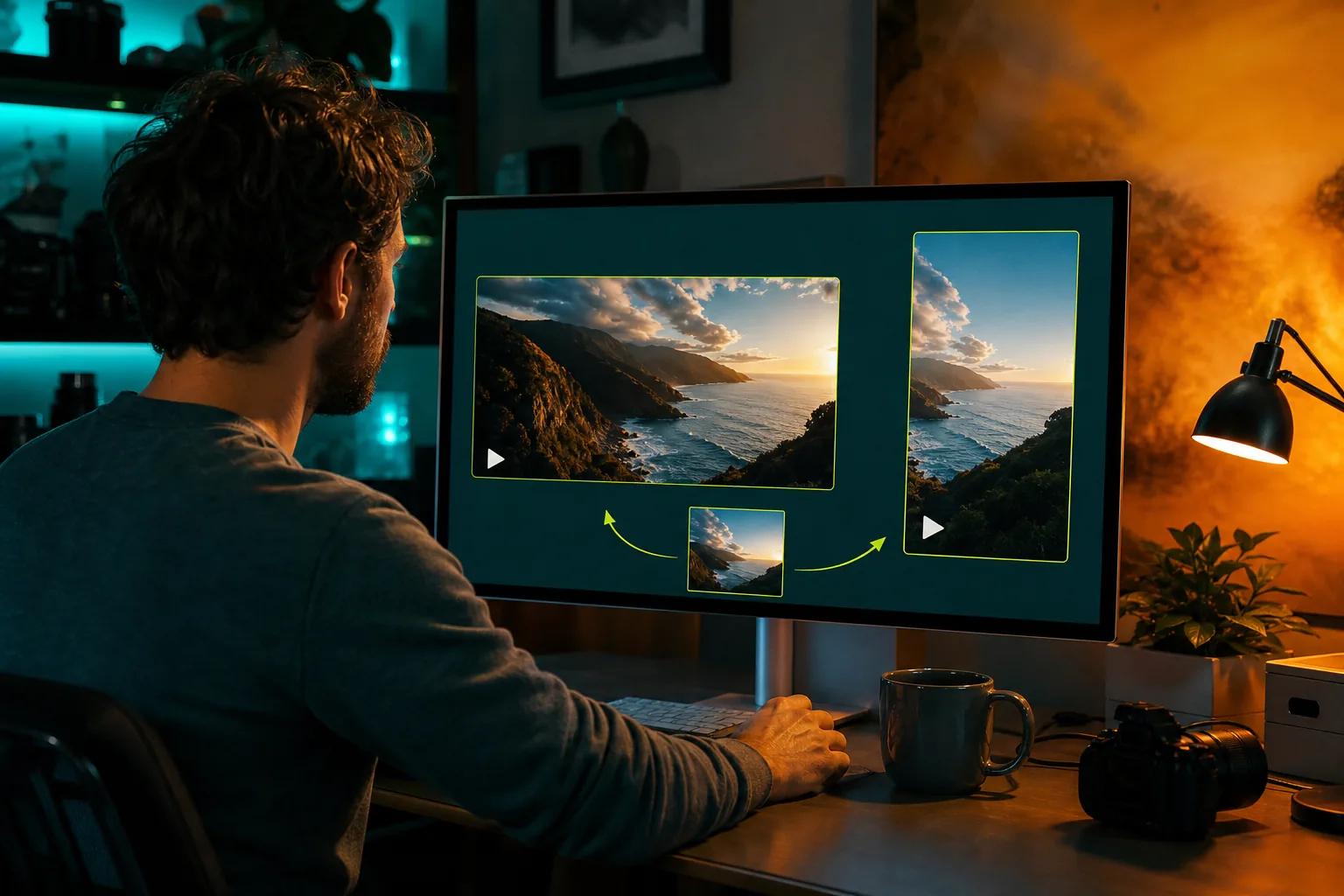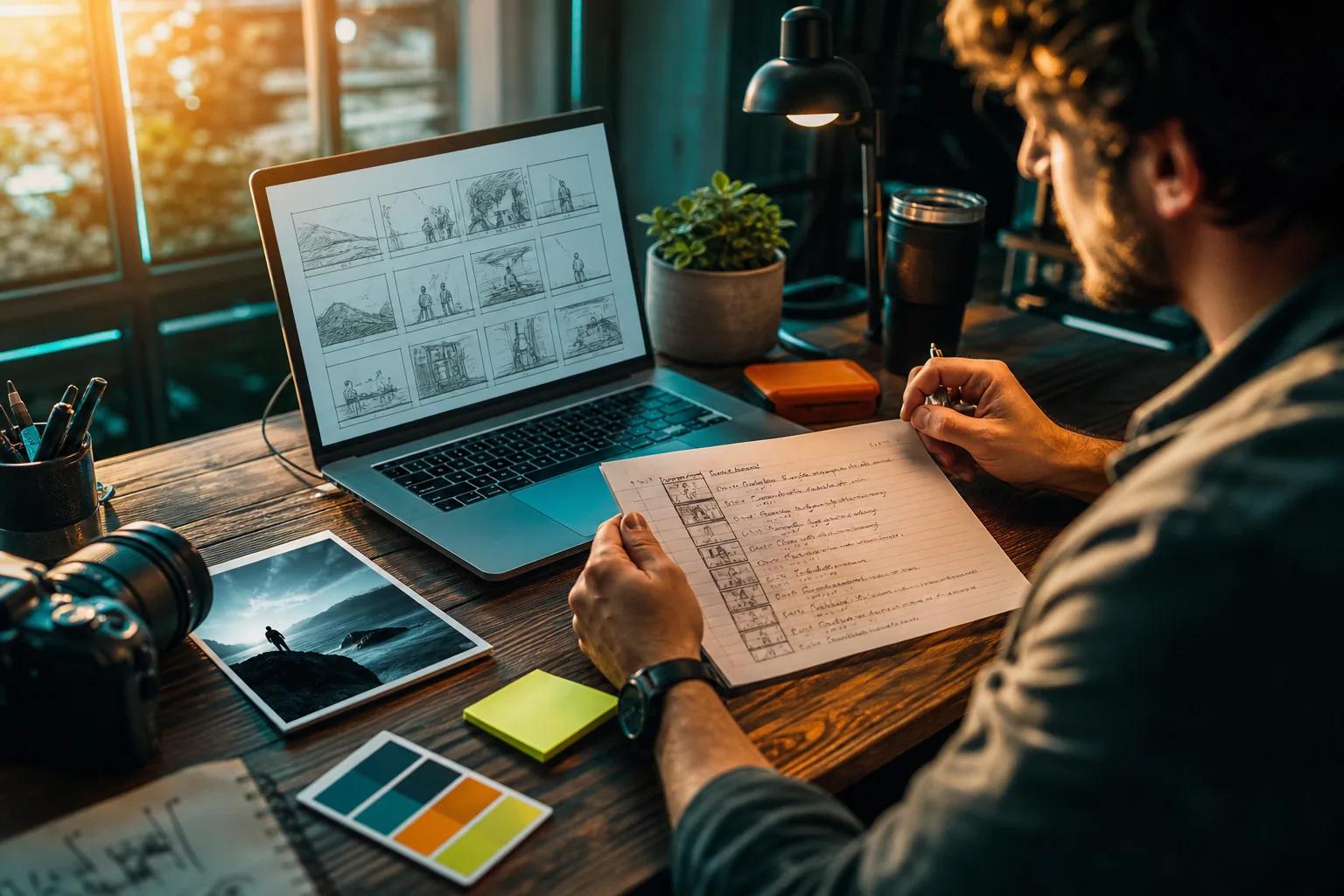
Making a Reel can start with a sentence, a product photo, or a shot you want to bring to life. The hard part is getting a clip that fits your style and is ready to edit. Here are nine AI Reels generator options, with Veo Studio first and a clear look at what each tool is suited to.
We analyzed 45 comments and questions from Reddit, YouTube and Quora about AI reel generators and found that 20% asked about free generation options.
1. Veo Studio
Veo Studio is an independent, browser-based AI video creation tool powered by Google's Veo 3.1 models. It turns text prompts and reference images into short videos with synchronized sound and dialogue, character consistency, first- and last-frame control, scene extension, and output up to 4K.
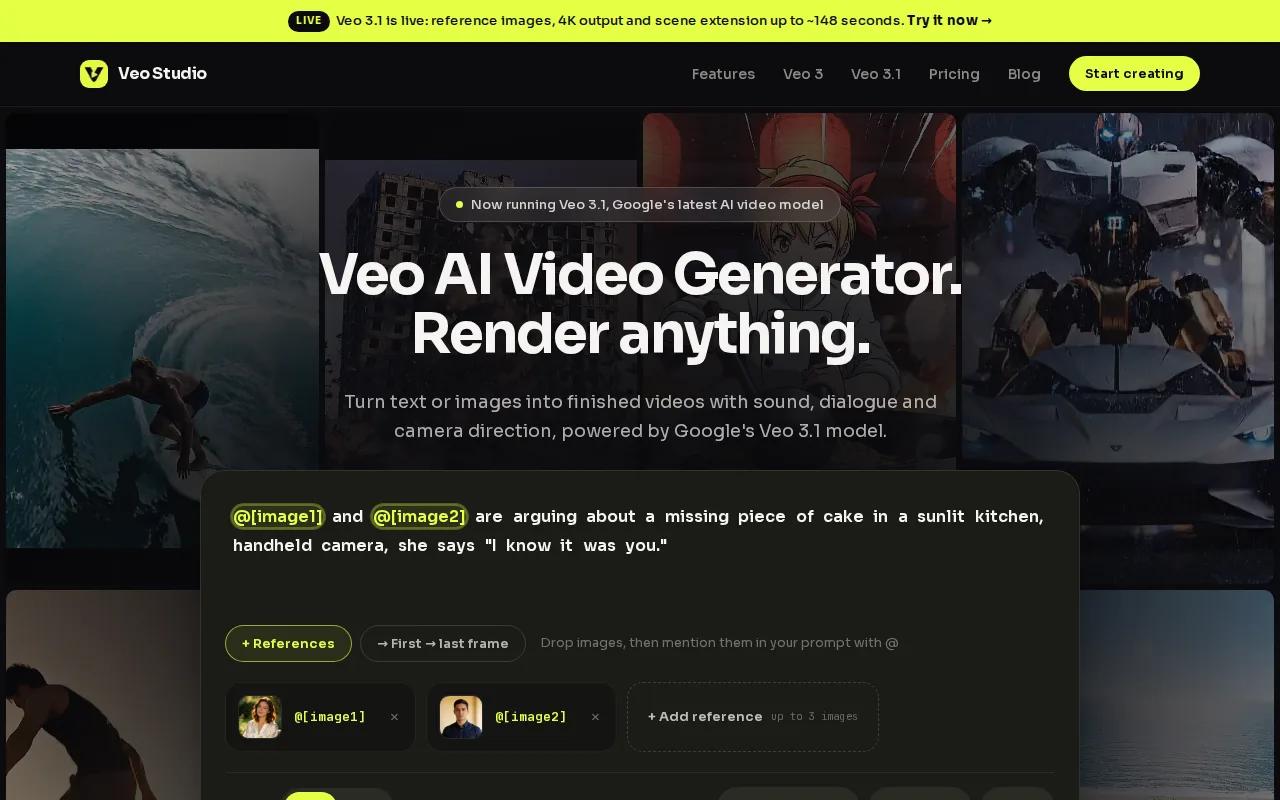
That mix suits creators who need a specific character or product to stay recognizable across a short story. Add up to three reference images to guide a clip, or provide a start and end frame to shape its change. The free plan includes a couple of 720p videos each month without a card; paid plans start at $14 per month.
For a vertical ad, you could attach a product image, describe one clear action, then add spoken dialogue in the prompt. Learn more about the Veo Studio video workspace.
2. Veo3 AI: text-to-video with native audio
Veo3 AI generates videos from text prompts and includes native audio. It suits creators who want a clip with sound effects, ambience, or dialogue included in the generation instead of adding all audio later.
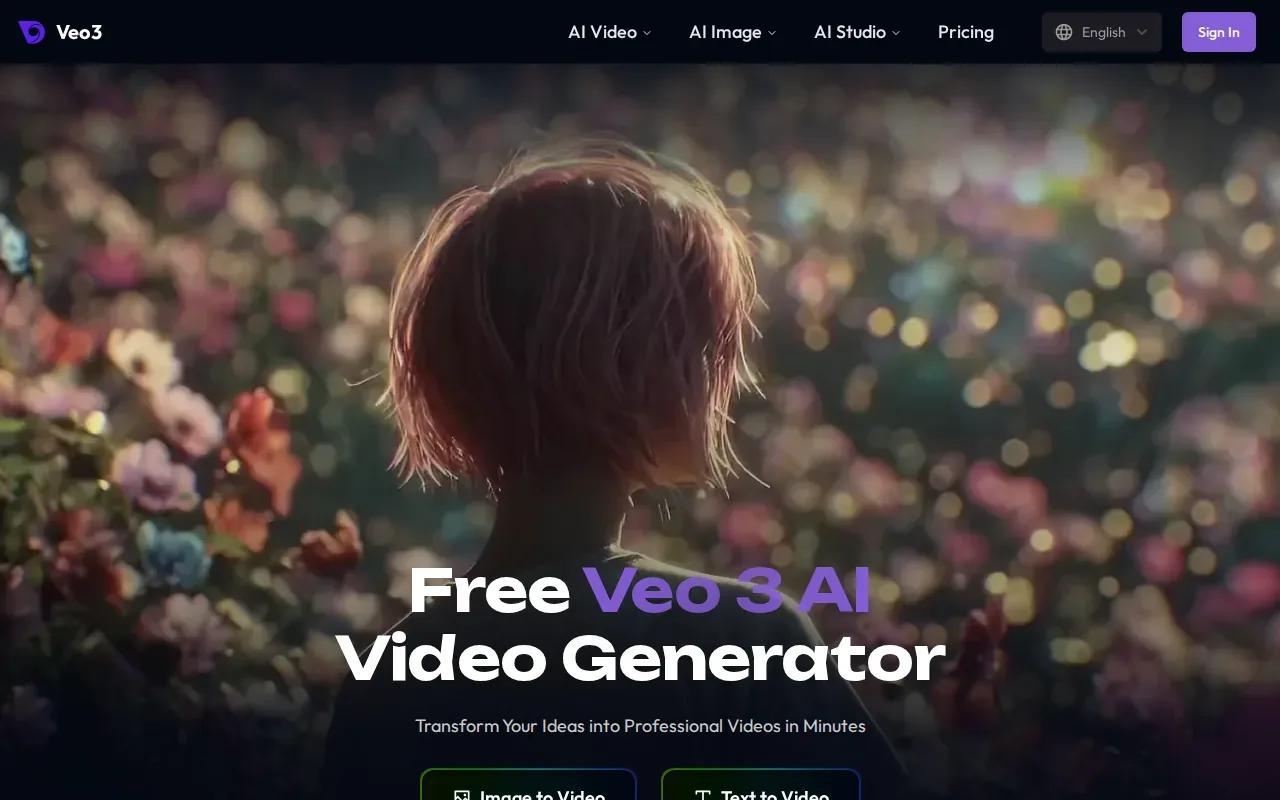
Veo3 AI offers 9:16 vertical output and resolutions up to 4K. You can prompt for a specific subject, camera move, and mood, then use the result as a Reel shot or as footage in a larger edit. Keep the prompt focused on one moment so the clip has a clear purpose.
It’s a separate service from Veo Studio, even though both relate to Veo models. Check the exact model and output settings in the tool before building a repeatable workflow around it.
3. PhotoGPT: short clips from product visuals
PhotoGPT turns product visuals into short video clips for Reels, TikTok, product pages, or YouTube Shorts. It’s a fit for a shop or brand that already has good still images and wants to add motion without planning a full shoot.
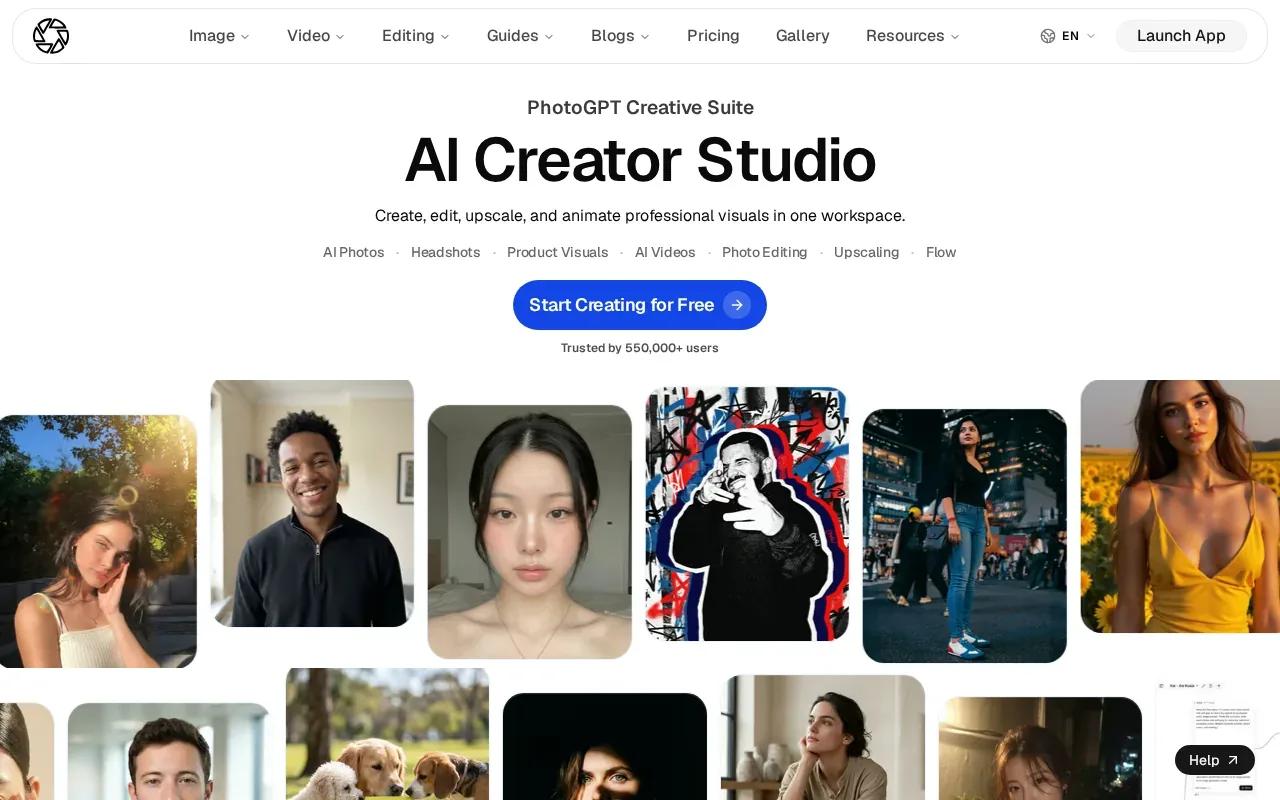
The listed maximum resolution is up to 4K, and paid plans start at $10 per month. Start with a clean product image and describe the movement you want, such as a slow turn or a close-up reveal. Then review the result for changes to the product’s shape or details before posting.
A still image can provide a clear visual anchor. Keep any claims about product benefits accurate in the caption and the final edit.
4. Runway: creative controls for professional video
Runway is one of the best AI video generators for professionals. Its maximum resolution is 1080p, and paid plans start at $15 per month.
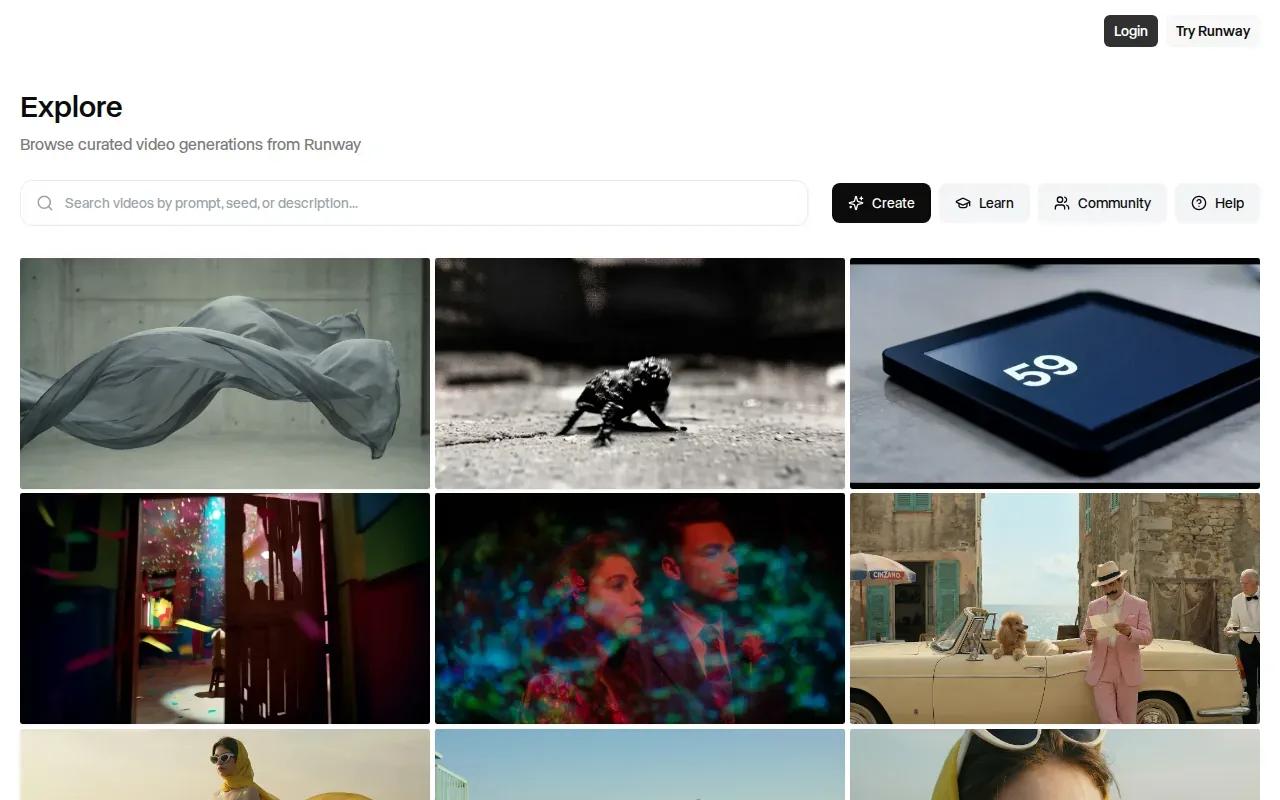
That can make it an option for a team evaluating video tools for a campaign. Compare its maximum export resolution with the campaign’s needs before creating several versions.
When choosing a tool, consider how it fits your project and export requirements.
5. InVideo AI: prompt-led videos with stock footage
InVideo AI builds a video draft from a prompt, using stock footage alongside voiceover and subtitles. It suits marketers making explainers or social posts where narration and supporting visuals matter more than a single original cinematic shot.
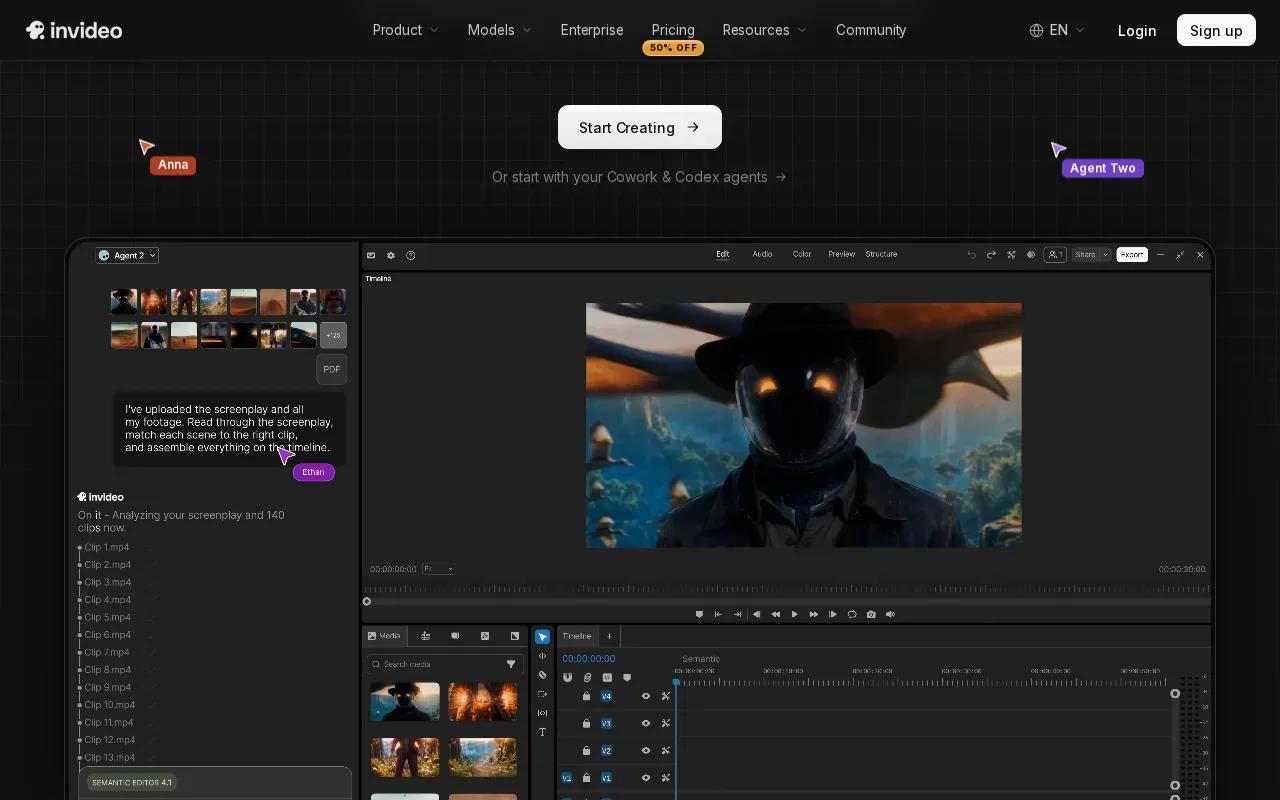
Give it the topic, audience, and intended platform. Then read the script before export. A script-led workflow can save setup time, but the final cut still needs a human check for repeated phrasing, awkward timing, or a visual that doesn’t match the words.
InVideo AI's paid plans start at around $20 per month. Use this option when you want a structured first draft and plan to edit it before posting.
6. CapCut AI Video Editor: generation plus social editing
CapCut AI Video Editor combines AI video work with a social-focused editing workflow. It may suit creators who want to build a clip, add captions, and adjust its framing before publishing.
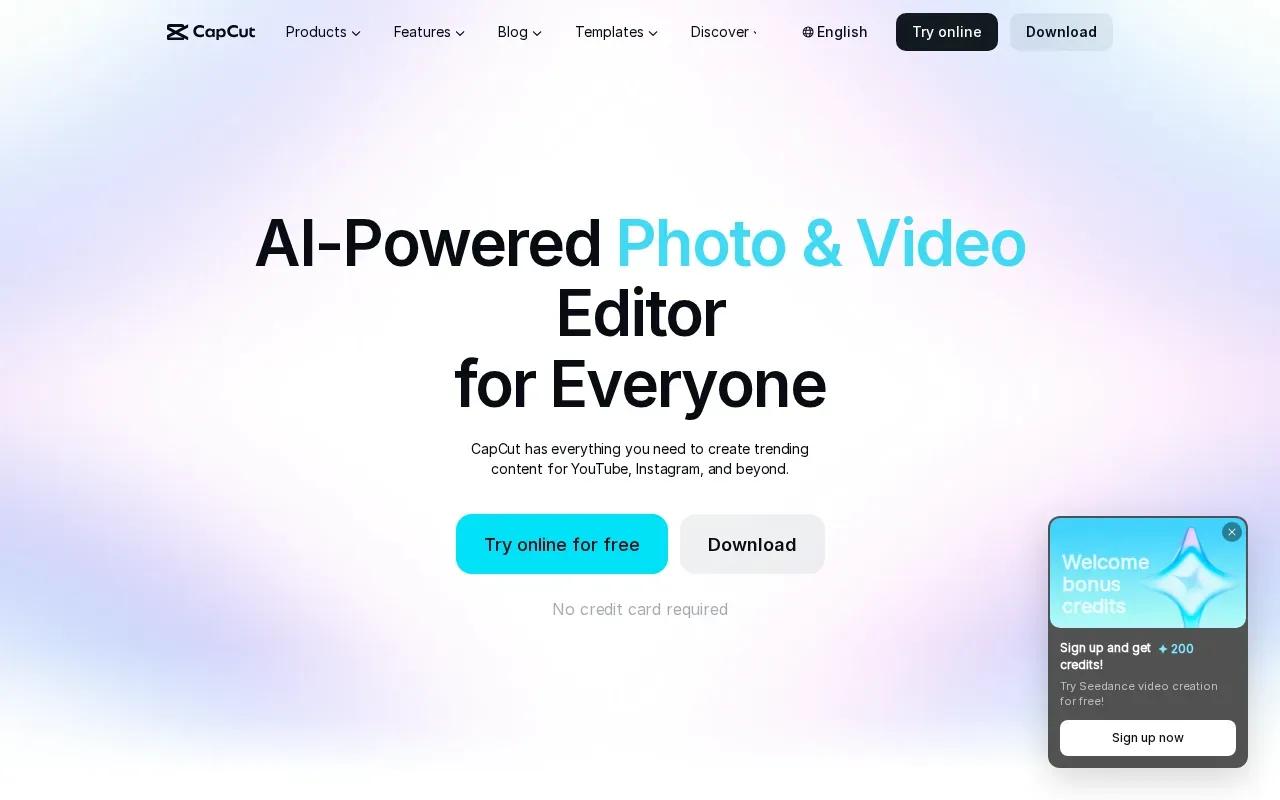
Start the project in a vertical 9:16 canvas when the final destination is Reels. Review the crop after replacing template media, since the original framing may not fit your subject. Check caption placement too: Instagram’s interface can cover parts of the lower and right sides of a video.
Export a clean copy, then preview it in the Instagram posting flow. A template can save time, but it still needs a check for text that sits under interface controls.
7. Higgsfield AI: prompt and reference-led creation
Higgsfield AI can create images, videos, and voice content from text prompts or references. It also supports editing and upscaling media, with web and mobile access.
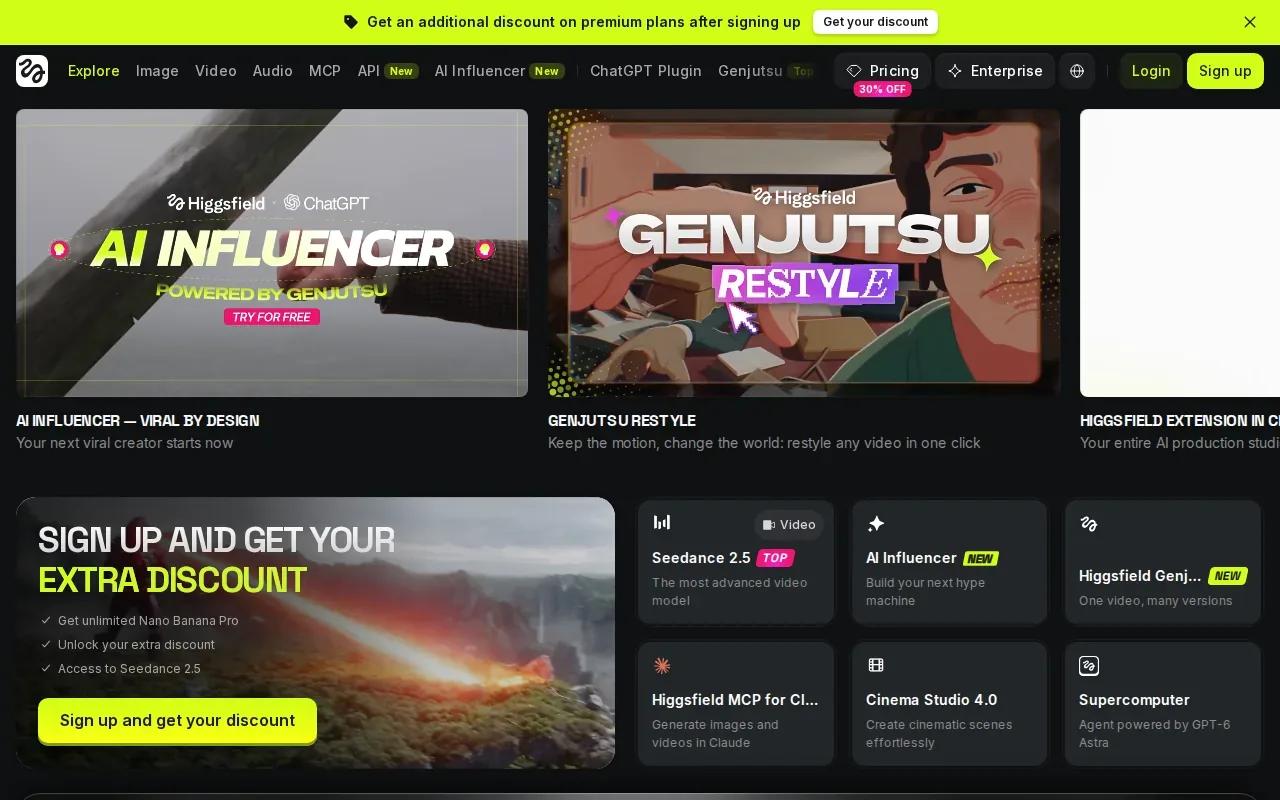
This range may fit a creator who wants to begin with a visual reference, then adjust the result or use an AI agent to automate parts of a creative workflow. For recurring content, keep the prompt structure steady and change only the subject or action you’re testing. That makes it easier to spot which creative choice changed the result.
Before you plan a batch, make one test clip and check its look, framing, and voice output against your needs.
8. Kapwing: prompt-to-video projects for social channels
Kapwing can turn a prompt into a video project in a browser. It suits social teams that want to generate scenes and keep editing them in the same workspace.
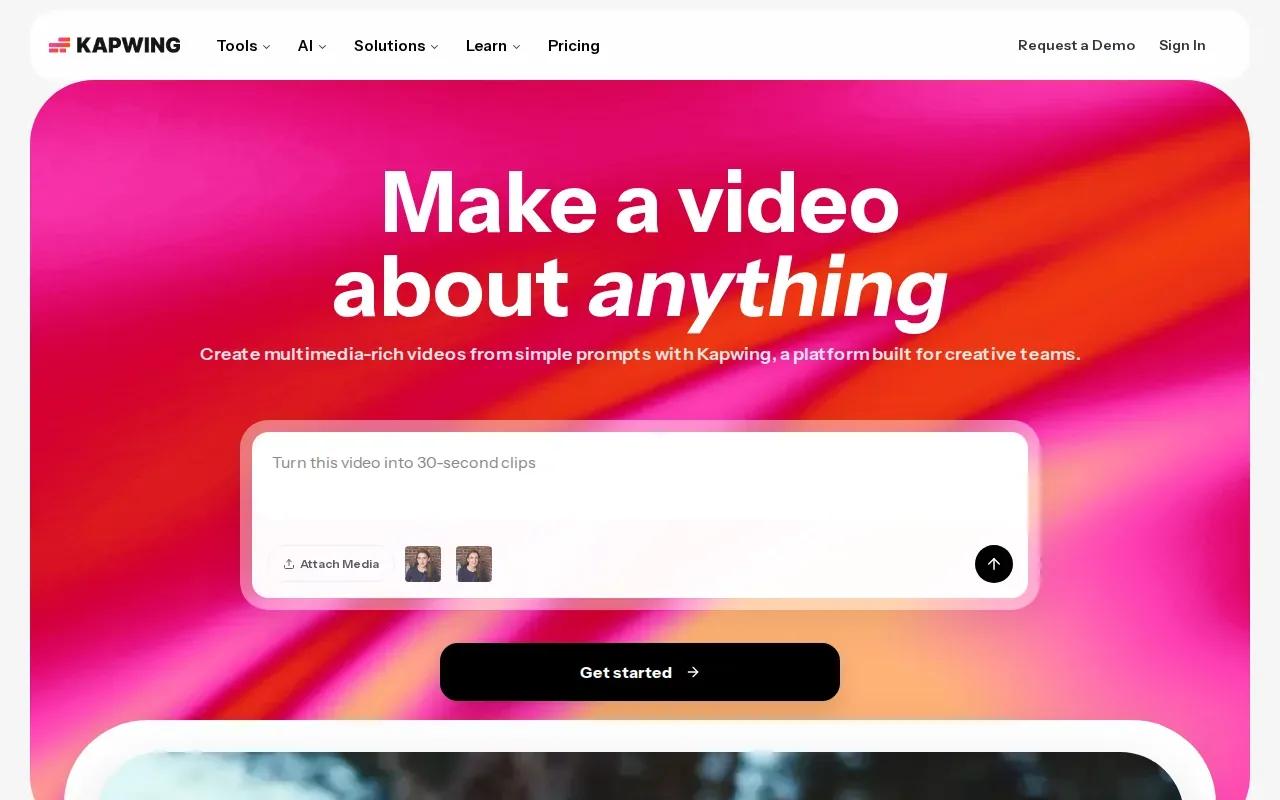
Its AI video workflow can start from a prompt, image, script, article, or PDF. You can choose a 9:16 aspect ratio, review a storyboard, and keep editing on a timeline. For Reels, that means you can shape the plan first, then revise scenes or add subtitles before export.
Use references when a product or character needs a closer visual match. A prompt alone may leave too much room for the model to invent details.
9. Veo 3.1 Video Generator by TryVeo3.ai: a browser-based option
Veo 3.1 Video Generator by TryVeo3.ai offers a way to try the VEO 3.1 video generator for free, with no sign-up needed.
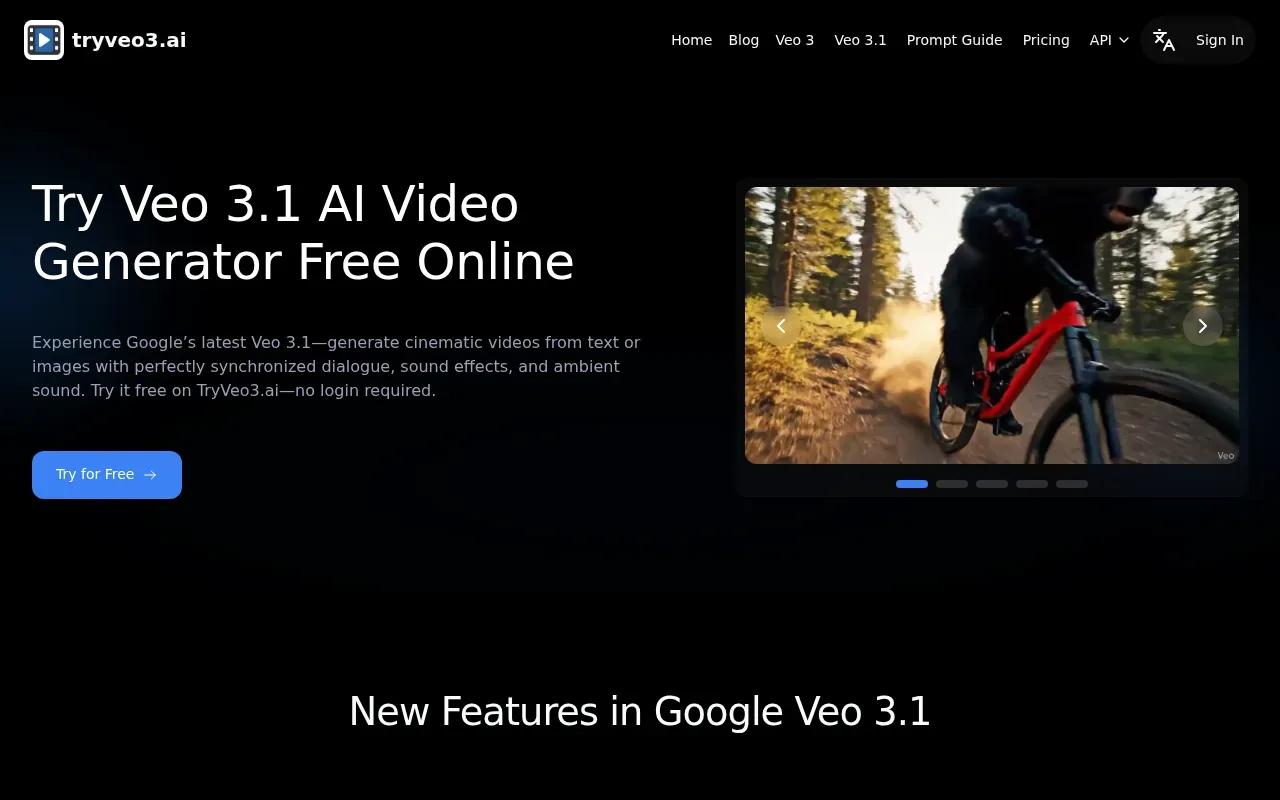
Try an initial test to assess whether the available results fit your workflow.
Review the generated clip and its available output settings before using it in a larger production.
10. Pika: short-form video generation on a credit plan
Pika is a short-form video generator with paid plans starting at $8 per month for 700 credits and watermark-free downloads. Pika's maximum resolution is 480p.
That resolution may suit a rough concept test, where the goal is to check an idea before spending time on a polished edit. If your Reel needs a sharper final export, confirm that the output quality works for your publishing needs before you commit to a workflow.
Credit plans make it useful to think in terms of test generations. Try one representative prompt and check how far the included credits go for your intended clip length.
AI Reels generator comparison: features and best-fit use cases
Choose based on the part of production that takes you longest. If it’s sound and continuity, Veo Studio’s native audio, reference images, and scene extension matter. If you need a narrated explainer, a script-led tool may save more time than a cinematic generator.
| Tool | Useful starting point | Known output or price detail | Consider it when… |
|---|---|---|---|
| Veo Studio | Text prompts or reference images | Free plan; paid from $14/month; up to 4K | You need synchronized sound or character continuity |
| Veo3 AI | Text prompts | 9:16; up to 4K | Built-in sound is part of the brief |
| PhotoGPT | Product visuals | Up to 4K; paid from $10/month | You’re animating product stills |
| Runway | Text, image, video, or audio | Up to 1080p; paid from $15/month | You need editing and generation controls |
| InVideo AI | Prompt and script | Paid plans start around $20/month | You want stock footage with narration |
| CapCut AI Video Editor | Social editing workflow | — | You need to frame and caption a Reel |
| Higgsfield AI | Prompts or references | — | You want creation and editing in one workflow |
| Kapwing | Prompt, image, or script | Free to start in a browser | You want an editable video project |
| Veo 3.1 Video Generator by TryVeo3.ai | Text or images | Free to try without login | You want to test guided frames and extensions |
| Pika | Short-form generation | $8/month for 700 credits; up to 480p | You’re testing a rough concept |
For a wider look at tools for social clips, ads, and film-style scenes, compare the options in AI video generators for creators before you choose a paid plan.
From prompt to publish: Reels workflow, specs, and usable tips
An AI Reels generator turns a prompt, script, or image into video footage. Some tools build a whole narrated draft; others focus on a short generated scene. Start by deciding which job you need the tool to do.
- Write the point first. Name the viewer, the hook, and one thing the video should show. For a product Reel, use a real product photo as a reference if the tool supports it.
- Direct one short scene. Describe the subject, action, camera move, and setting. Ask for vertical 9:16 output when available. Keep the main subject near the center and leave clear space for captions.
- Review before editing. Check the face, hands, product details, and any generated speech. If a character needs to look the same in later shots, reuse reference images or frame controls where supported.
- Finish for Instagram. Add readable captions and a cover, then preview the export in the app. Check current upload requirements for your publishing route.
Use 9:16 as the starting format for a full-screen vertical Reel. A 1080 × 1920 export is a common working size. File-size limits can vary by publishing route, so check the current upload limit before exporting a large batch. Keep the clip as short as the idea allows; the first moment should show the subject or action, not a long lead-in.
Write captions in plain language and correct any transcript errors by hand. Choose a few hashtags that describe the topic or audience instead of adding a long string of broad tags. Before posting, check that the caption and cover remain readable around Instagram’s interface.
For repeat work, save a prompt pattern and change one element at a time, such as the opening action or camera move. A post-production editor can still be useful for timing, captions, or brand assets. If you’re considering tools beyond video, explore this resource.
For monetized posts, treat generated scenes as creative material, not proof of a product claim. Use content and assets you have permission to publish. Don’t try to evade platform checks; follow the platform’s current rules and make sponsored or affiliate relationships clear to viewers.
Frequently asked questions
What is an AI Reels generator?
An AI Reels generator is a tool that turns prompts, scripts, or images into short videos for Instagram Reels. Some tools focus on generating original scenes, while others assemble narration and stock footage into a draft. You’ll still need to review the result, set captions, and check the final vertical crop before posting.
What aspect ratio should I use for Instagram Reels?
Use a vertical 9:16 canvas for a full-screen Reel. A 1080 × 1920 export is a common working size for that format. Keep key visuals and captions away from the edges, then preview the finished clip in Instagram because interface elements can cover parts of the frame.
How long should an AI-generated Reel be?
Make it only as long as the idea needs. A product reveal may need just a few moments, while a short explanation needs enough time for its point to land. Put the subject or action near the start, then remove pauses that don’t add meaning. Check Instagram’s current limits before publishing longer video.
Can AI video tools add sound and dialogue?
Some can. Veo Studio generates synchronized sound and dialogue with its video output, and Veo3 AI is also described as including native audio. Other tools may focus on scripts, stock footage, or editing. Check whether a tool generates sound in the same pass or expects you to add it later.
How do I make AI Reels look more consistent?
Use reference images when the tool supports them, and describe the subject’s key visual details in each prompt. Keep the camera direction and setting steady if you’re making connected shots. Veo Studio also supports character consistency and first- and last-frame control, which can help guide a sequence across a clip.
Conclusion
If sound, character continuity, and vertical video matter to your workflow, start by testing Veo Studio’s free plan with one focused prompt and a reference image. Preview the 720p result in Instagram, then decide whether a paid plan fits your production needs.