

A social media video generator can turn a prompt or a photo into a clip for your next post. Veo Studio is an independent browser-based tool for making directed scenes with synchronized sound and dialogue, while others focus on editing, recurring characters, or stylized effects.
1. Veo Studio
Veo Studio is an independent, browser-based AI video creation tool powered by Google’s Veo 3.1 models. It turns text prompts or reference images into short videos with synchronized sound and dialogue.
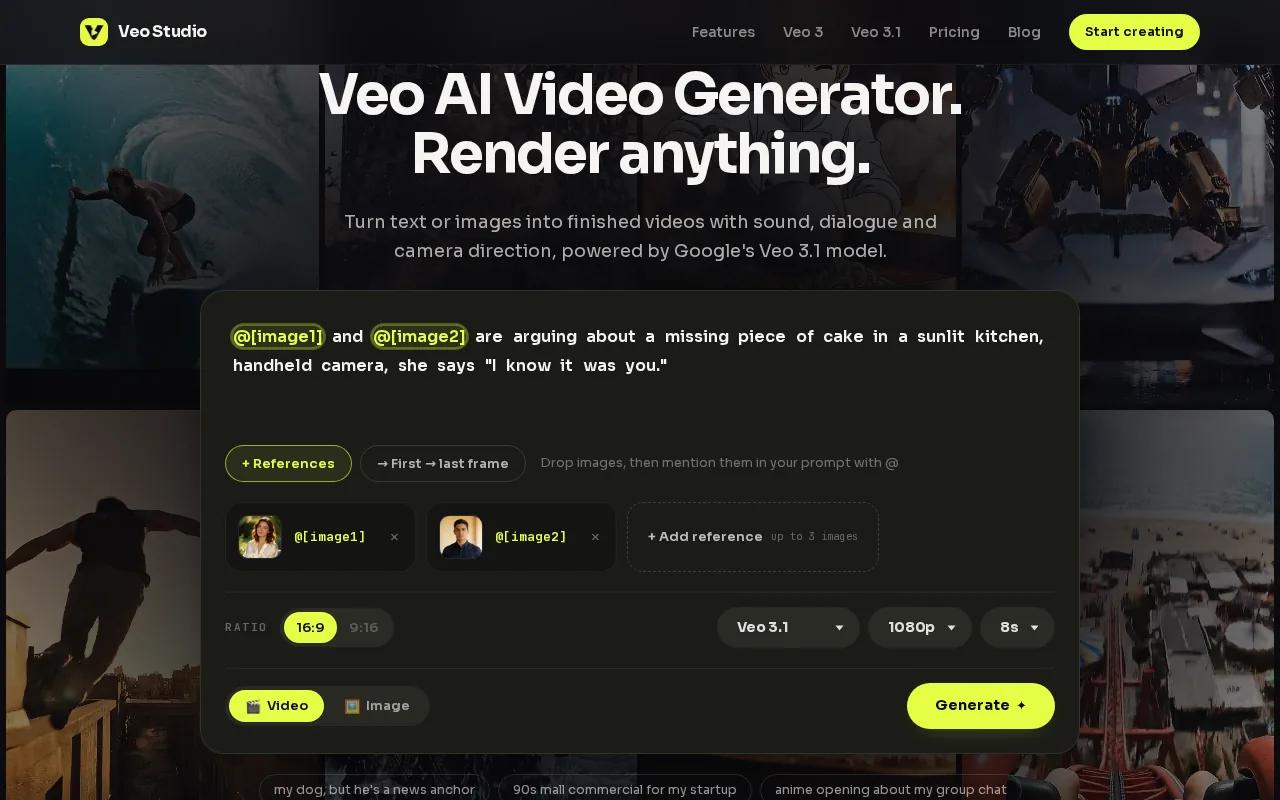
It suits creators who want to direct a scene rather than assemble one from stock clips. Describe the subject, action, camera move, lighting, and spoken line. Or upload a reference image to guide the look of a character or product.
In Veo Studio, the workflow includes first- and last-frame control, character consistency, scene extension, and output up to 4K on supported settings. Native sound is generated with the video, so a quoted line can be rendered as lip-synced dialogue.
For a product post, you could upload a product photo, describe a slow camera move, then review the generated clip before adding any required brand text in an editor. Vertical output fits TikTok, Reels, and YouTube Shorts. Scene extension can add length to supported clips when a single short shot isn’t enough.
The free plan includes a couple of 720p videos each month without a card. Paid plans start at $14 per month and add more video volume and higher resolutions, including 4K. See the comparison of AI video generators for creators if you’re weighing scene generation against other workflows.
One detail to keep in mind: a generated scene is a starting point, not a finished social post. Check the crop, listen to the dialogue, and add any must-read on-screen text after generation.
2. OpenArt: Consistent characters across clips
OpenArt is an AI video creation and editing platform with saved characters and chat-based video planning. It suits creators making a series where the same character needs to appear in more than one setting.
Saved characters are designed to hold the same face and style across clips. That can help with a recurring social character, such as a host who introduces a new product each week. You can change the scene while keeping the character as the visual anchor.
OpenArt’s Director tool plans videos shot by shot through chat. Instead of asking for a whole story in one vague prompt, you can shape a sequence of shots and refine the plan as you go. The tool also supports background swaps, which can help when the same character needs to move between locations.
OpenArt also lists YouTube, TikTok, Reels, and Instagram integrations, so the platform connections may suit creators who plan around those channels.
There’s a tradeoff to consider. A tool with many creative workflows may ask you to make more choices before you settle on a repeatable format. Keep a note of the character reference and shot plan that produced the look you want, then use that as a guide for later posts.
Choose OpenArt when character reuse and shot-by-shot planning matter more than getting a single clip out with minimal setup.
3. CapCut AI Video Editor: AI-assisted creation and editing
CapCut AI Video Editor brings AI-assisted video creation together with a timeline editor. It suits creators who want to make a draft, then work on captions, music, and pacing before export.
CapCut’s AI workflow can turn a script or reference image into an editable draft. That distinction matters. If the opening feels slow or a caption needs a change, you can work on the draft instead of treating the generated clip as a fixed file.
For short-form posts, set the frame to vertical before generation. Then check that captions are easy to read on a phone and that the spoken line fits the scene.
CapCut notes that available features can vary by region or account. Review the full exported file before you post, especially if you’ve used templates or premium assets.
A simple repeatable workflow is prompt, review, edit, export. For a closer look at planning and captioning a post, use this social media video creation walkthrough as a companion to your editing process.
CapCut is a useful fit when editing is part of the job, not an afterthought. If your main goal is a newly generated scene with tightly directed motion, compare that need against a prompt-led tool before you start.
4. Higgsfield AI: Viral shorts and cinematic looks
Higgsfield AI is designed for creating viral short videos and cinematic content. It can make new viral shorts or recreate videos that are already trending, with your character, voice, and style. It suits creators who want a hook-first short or a cinematic look built for a social feed.
When recreating a trending video, you can use your character, voice, and style to make the result your own. Consider which elements of the trend fit your intended post, and review the finished video to make sure the character and style feel consistent.
Higgsfield AI supports a maximum resolution of 4K. That can matter if your project calls for higher-resolution output, but the framing still deserves a close check. Keep faces and key text clear of the edges, especially in a social post.
Use Higgsfield when you want to create a viral short or recreate a video that is already trending with your character, voice, and style. Its focus on short videos and cinematic content may suit creators looking for either of those approaches.
5. Kapwing: Prompt-to-video projects for multiple channels
Kapwing can generate a full video project from a prompt in a browser, then let you edit scenes on a timeline. It suits social teams that need to make a draft and keep shaping it for more than one channel.
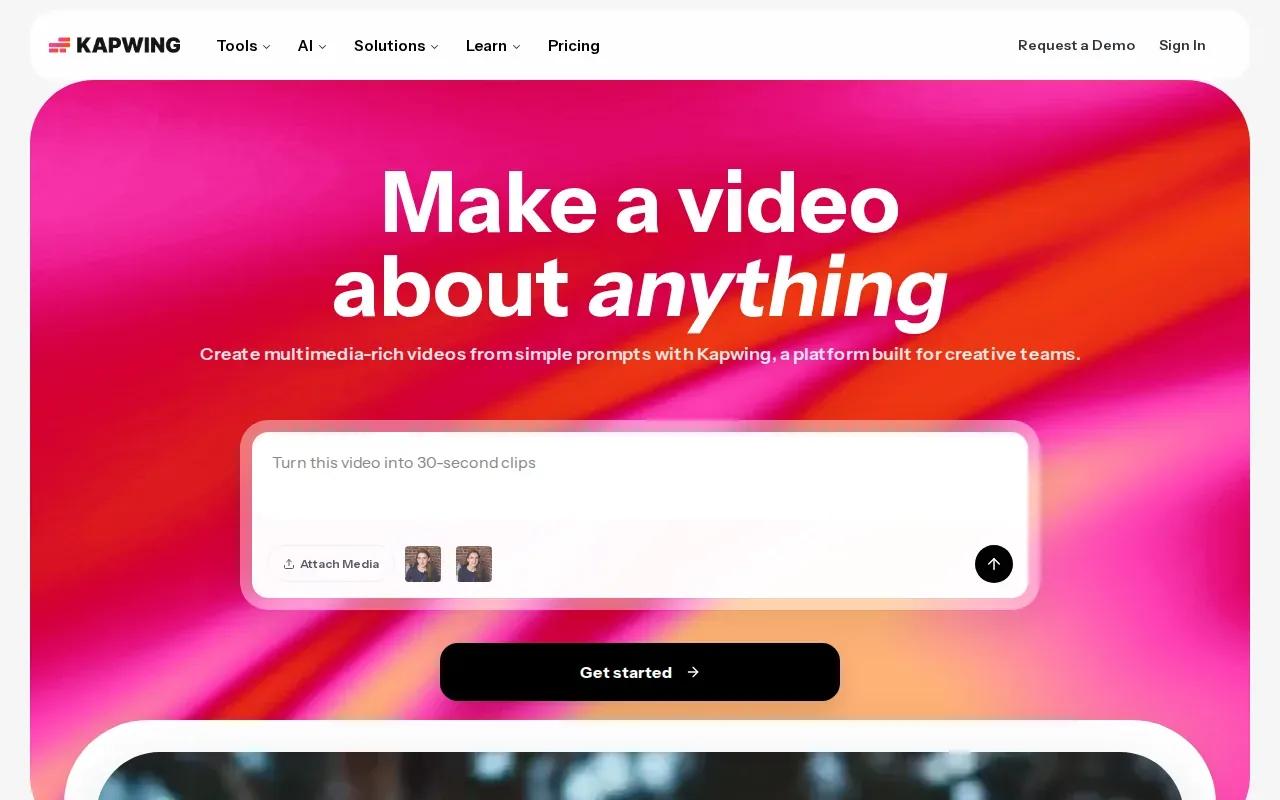
Kapwing can help you start with a prompt rather than describing every visual detail from scratch. You can also add reference media such as a product photo or character sheet. That makes it easier to begin with something specific instead of describing every visual detail from scratch.
The project workflow supports different aspect ratios, including vertical for TikTok, square for Instagram, and landscape for YouTube. You can keep editing in the timeline after generation, then add subtitles, voiceover, transitions, or brand assets before export.
For a product clip, upload the product image as a reference and describe what should move. Review the generated scene before adding a callout or subtitle in the editor. This keeps the product image as the visual guide while leaving important text under your control.
Kapwing is a good match when the deliverable is a multi-scene project rather than one isolated shot. Its browser-based workflow can also help when you want to keep generation and editing in the same workspace.
6. Pika: Stylized short clips and visual effects
Pika focuses on generative video and visual effects for short, attention-grabbing clips. It suits social creators who want a stylized transformation rather than a natural-looking scene.
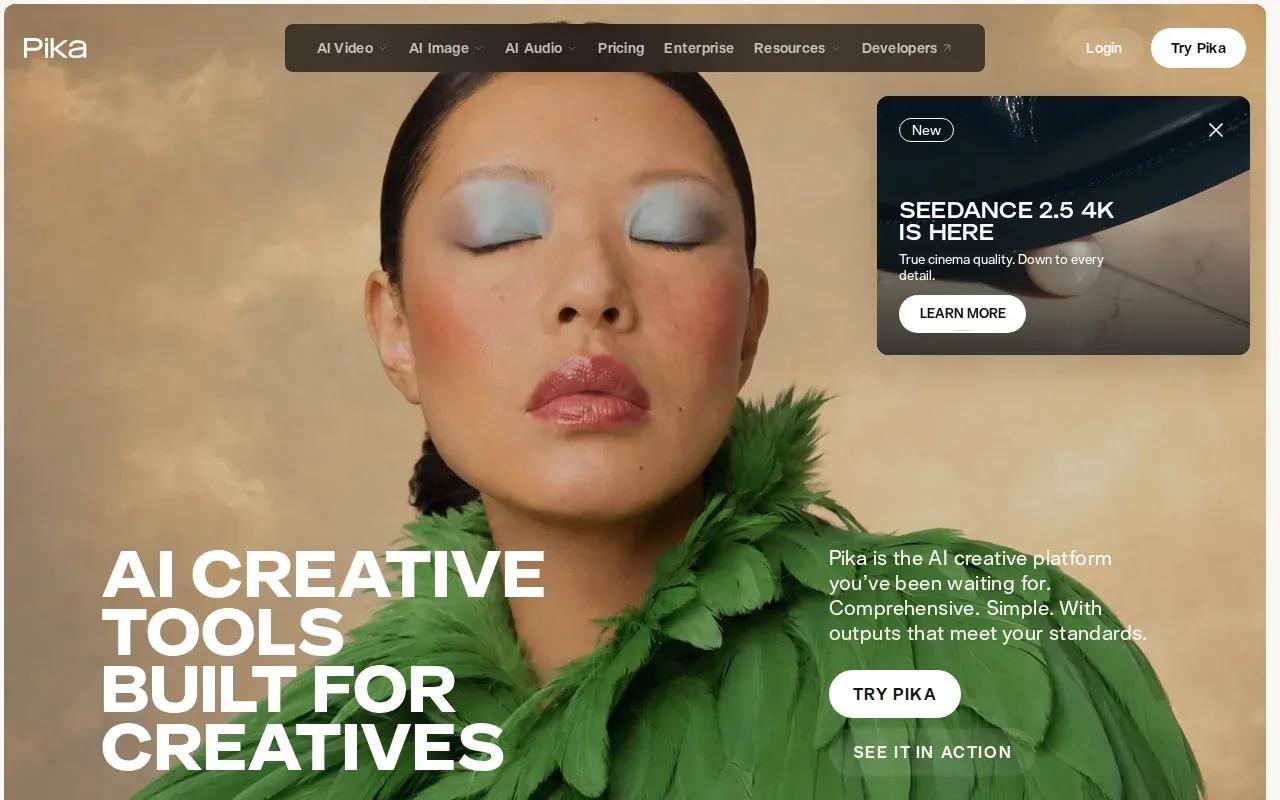
Pika supports text-to-video and image-to-video. Start with a written idea for a new clip, or upload a still and ask for motion. Its visual effects can change how an object behaves on screen, which may work well for a quick reveal or a playful post.
That style is a choice, not a default for every brand. An impossible transformation can catch the eye, but it may not suit a product demo where viewers need to judge the item’s shape or use. Match the effect to the point of the post.
Pika’s free access uses credit packs rather than a monthly credit allowance. If you plan to make a series, try a sample clip first and see how the effect fits your format before building it into a recurring content plan.
| What you need | Tool to consider | Useful check before posting |
|---|---|---|
| A directed scene with synced dialogue | Veo Studio | Listen for timing and check the character’s mouth movement. |
| The same character across a series | OpenArt | Reuse the saved character reference and review each new scene. |
| A draft you can edit on a timeline | CapCut AI Video Editor or Kapwing | Check captions, pace, and frame shape in the final export. |
| A highlight cut from a longer YouTube video | Higgsfield AI | Review the selected moment and make sure the hook starts early. |
| A stylized visual transformation | Pika | Make sure the effect supports the message of the post. |
The right choice depends on what happens after the first generation. If you need careful scene direction, start with a prompt-led workflow. If captions and timing are the main work, choose a tool with a timeline.
Frequently Asked Questions
What is a social media video generator?
A social media video generator is a tool that helps make video content from a prompt, script, image, or existing footage. Some tools generate new scenes, while others help edit a draft for a social feed. Check the tool’s output and editing workflow against what you need to publish.
Can I turn a photo into a social media video?
Yes, some AI video tools can use a photo as a reference or starting frame for a moving clip. Describe the motion you want, such as a slow camera push toward a product. Then check that key details stay clear and that the crop fits your platform.
Which tool is good for adding captions to AI video?
For caption workflows, compare CapCut AI Video Editor and Kapwing’s available editing features. Some video generators may also offer subtitle features, so check whether the format you need is supported. Check the exported video on a phone to make sure captions are readable and don’t cover the main action.
How do I make one video work for TikTok, Reels, and Shorts?
Start with a vertical frame, then keep the main subject and any text away from the edges. Review the export in each app’s preview before posting, since captions or interface elements can cover parts of the image. A comparison of AI Reels tools can help if Instagram is your main channel.
Conclusion
For directed social clips with synchronized sound, dialogue, character consistency, frame control, and up to 4K output on supported settings, start with Veo Studio. Its free plan includes a couple of 720p videos each month with no card required. Veo Studio’s official site explains the tool and its plans. Try one short prompt or reference image, then review the result in your target platform’s frame.


