
AI video demos can look polished, but the right tool depends on what you need the finished clip to do. These AI video generators suit different jobs, from quick social edits to narrated videos and longer scene work.
We analyzed 61 reviews, comments and questions from Trustpilot, YouTube and Quora about AI video generators and found that 13% mentioned poor video quality.
Veo Studio leads this shortlist for creators who want synchronized sound and dialogue, character consistency, scene extension, and up to 4K output in a browser-based workflow.
1. Veo Studio
Veo Studio is an independent, browser-based video tool powered by Google’s Veo 3.1 models. It turns a text prompt or reference images into video with synchronized sound and dialogue, plus options for character consistency, first and last frame control, scene extension, and up to 4K output.
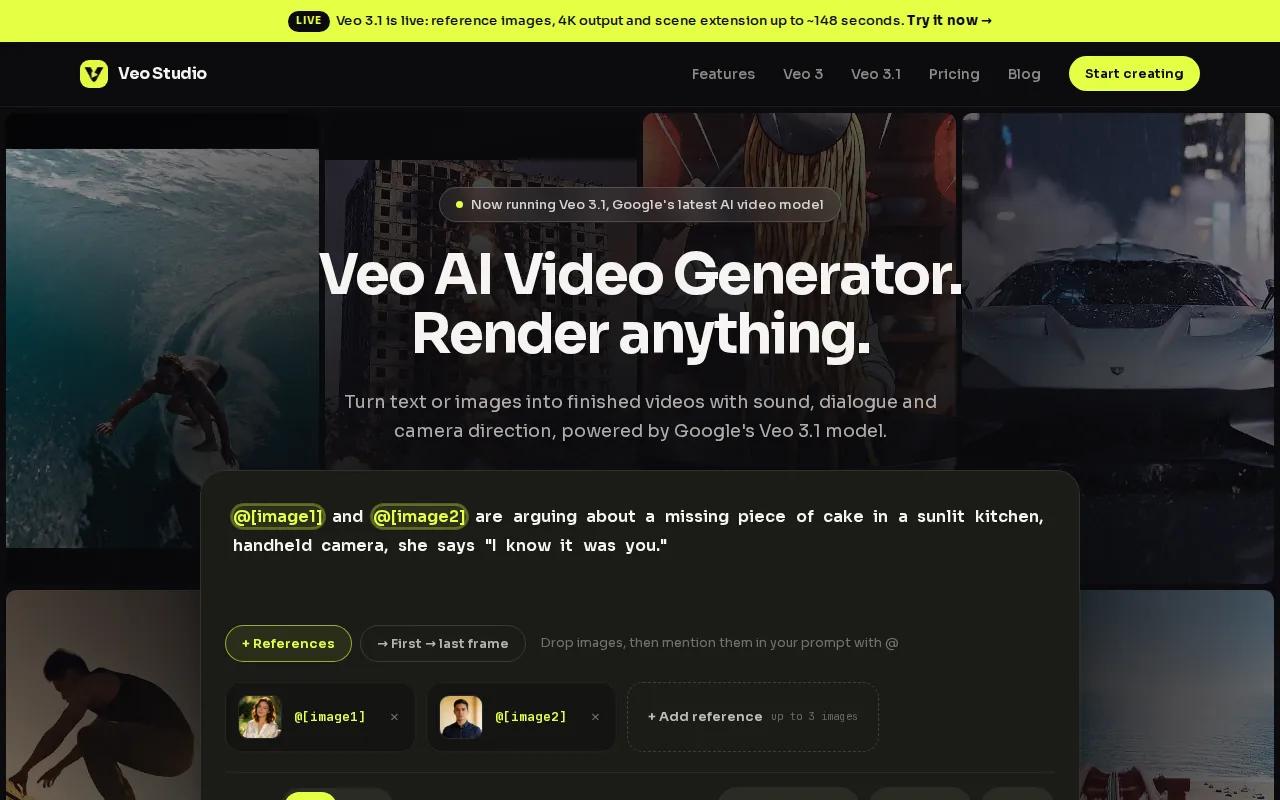
It fits social creators making vertical clips, small businesses turning product photos into ads, and filmmakers building dialogue-driven scenes. You can set a camera move in plain language, attach up to three reference images for supported generations, or provide the first and last frames to shape a transition.
The sound comes with the video. That can save a separate voice-over step when a character needs to speak, or when a scene needs music and sound effects. For dialogue, put the words you want spoken in quotation marks. The output includes lip-synced speech, and reference images can help keep a character or product steady within a clip.
Scenes can start at four, six, or eight seconds. On supported Veo 3.1 and Veo 3.1 Fast clips at 720p, scene extension adds seven seconds at a time, up to roughly 148 seconds of continuous video. That gives a short scene room to grow without treating every extension as a new unrelated shot.
Veo Studio has a free plan with a couple of 720p videos per month and no card required. Paid plans start at $14 a month, and the pricing page describes the plans and included volume in more detail. If you need higher resolution, 1080p and 4K require a paid plan.
For a product ad, start with a clean reference photo, then describe the shot, lighting, and movement you want. For a short film, write the dialogue as spoken lines and guide the camera in the prompt. The Veo Studio video generator keeps those controls in the browser, so you can test a scene without installing editing software.
One detail worth planning for: generation uses credits. Shorter clips use fewer credits, and the cost changes with the selected model and resolution. Check the cost shown on the Generate button before you render several versions.
2. Pika (by Pika Labs): Fast generations and pre-built motion styles
Pika is a browser-based generator focused on speed and ease of use. Its core capabilities include 10-to-20-second videos with pre-built motion styles such as crumbling.
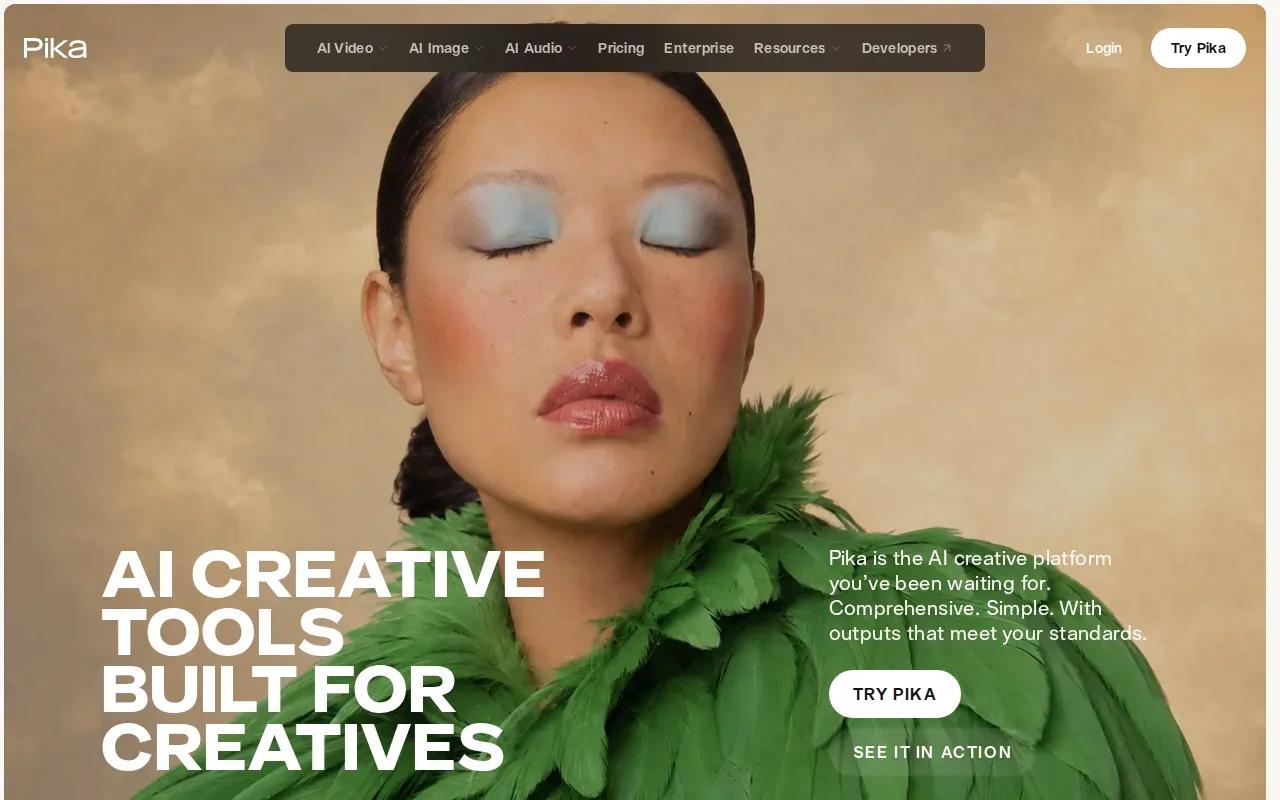
That makes Pika a fit for a creator who wants a quick visual beat rather than a fully planned sequence. A crumbling effect can add motion to a title card or a simple scene. The pre-built style gives you a starting point when you don’t want to spell out every movement in a prompt.
Generation times average 10 to 20 seconds. That can be useful when you want to explore a visual idea quickly, rather than build a longer sequence. Consider the subject and message before choosing a motion style, so the movement supports what you want viewers to notice.
For a small campaign, make the visual match the crop you plan to publish. Then choose a motion style that supports the message. A fast effect can draw attention, but it can also distract if the product or subject needs to stay clear.
Pika is worth considering when motion style and speed matter more than directing a long scene.
3. Veo3 AI: Text-to-video with realistic physics and native audio
Veo3 AI generates professional videos from text prompts, with realistic physics, native audio, and 4K output. Users can start free.
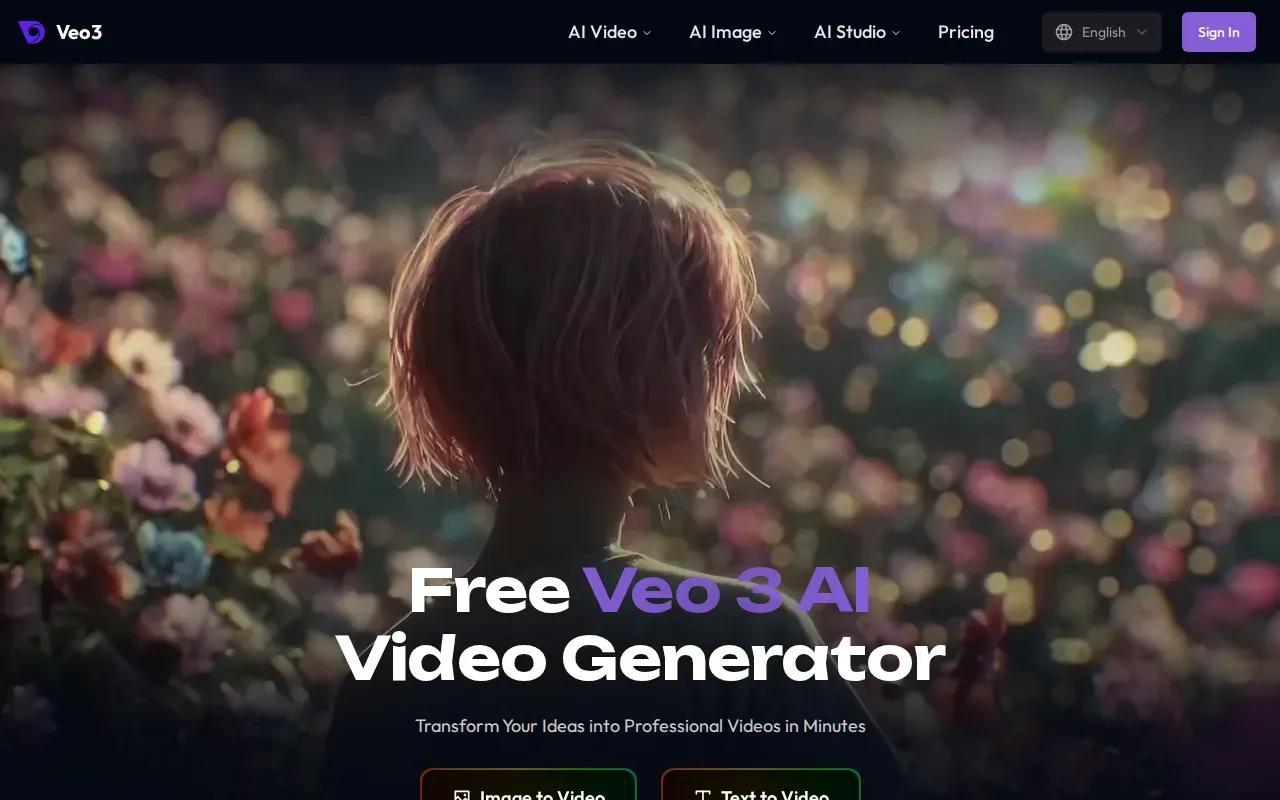
This makes it a candidate for prompt-led scenes where motion and sound both matter. You might describe a ball rolling across a table, then add the sound you want in the same generation. The stated 4K output may suit projects that need more detail than a small social preview, though the final result still needs a quality check at its intended size.
Prompt adherence is worth testing before you build a full project around any text-to-video tool. Give it one clear action, a setting, and a camera direction. Check whether the subject moves as asked and whether the audio fits the scene. If the first render misses, simplify the prompt rather than adding several new instructions at once.
Veo3 AI and Veo Studio are separate products. Veo Studio is an independent browser-based tool powered by Google’s Veo 3.1 models. Its supported workflow includes reference images, synchronized dialogue, character consistency, scene extension, and up to 4K output. Those details give creators a specific set of controls to test when they need continuity across a scene.
Veo3 AI offers text-to-video, realistic physics, native audio, and 4K. For a decision beyond those claims, test the same short prompt you plan to use in production and inspect the motion, sound, and framing yourself.
4. CapCut AI Video Editor: AI generation within an editing workflow
CapCut AI Video Editor combines AI generation with tools for editing social and marketing content. When comparing video generators, consider whether you need a generated clip, an edit-ready project, or a finished post, and decide which parts of that workflow matter most to you.
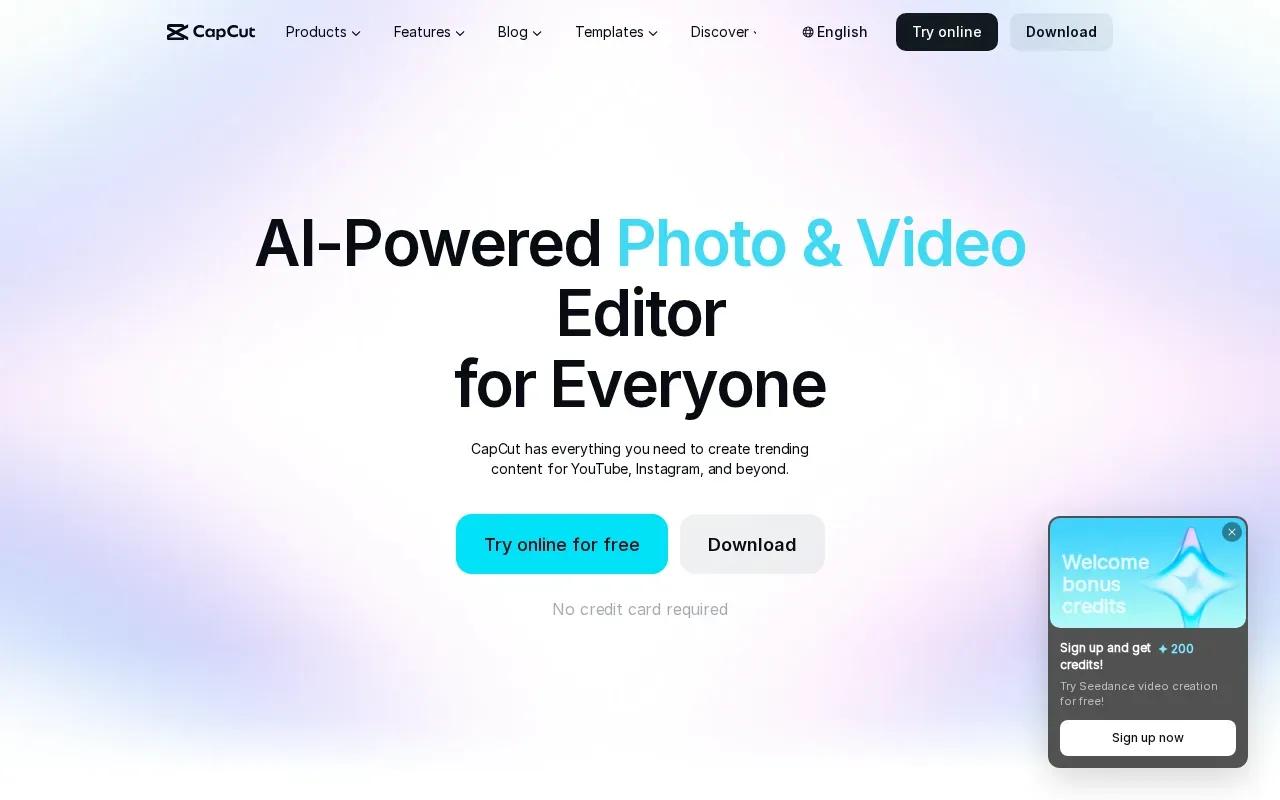
Before choosing a tool, think about the format and destination for your video, the amount of editing you expect to do, and whether you need captions or other finishing touches. These priorities can help you compare options without assuming that every tool includes the same capabilities or export conditions.
For a short product spot, you might plan the visual, voice-over, and captions before generating or editing the video. Check the result at the size where people will watch it, and make sure the words are readable and the final presentation fits your intended use.
Choose CapCut AI Video Editor if it fits your workflow. For a cinematic scene with ongoing dialogue or continuity between scenes, compare its output against a tool built around those specific controls.
5. Higgsfield AI: A multi-format creative workflow
Higgsfield AI supports image, video, and voice content from text prompts or references. Its capabilities include editing and upscaling media, generating content on web and mobile, and using an AI agent to automate creative workflows.
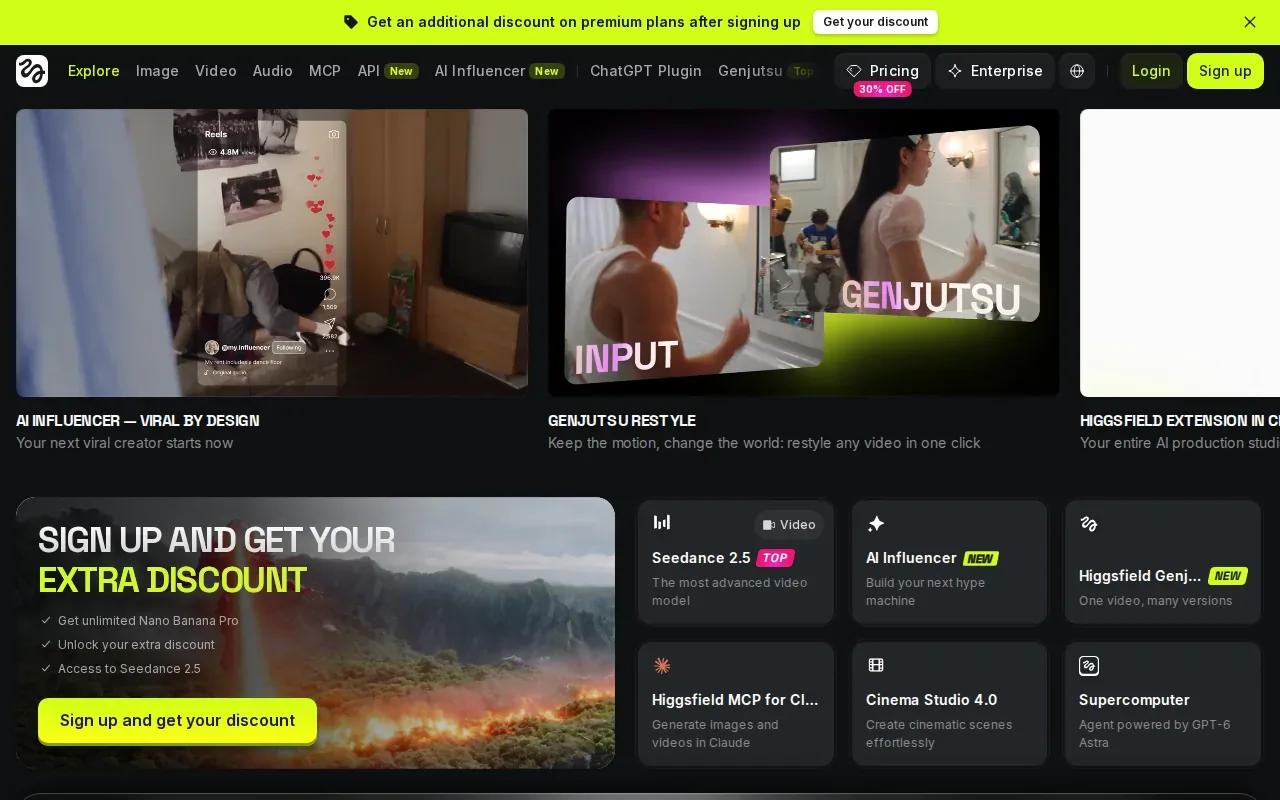
The range can help when one campaign needs several kinds of assets. A marketer could start with a product idea, make an image, then work toward a video version. Consider which formats your campaign needs and whether creating them together fits your workflow.
Before choosing a multi-format platform, map the work you actually repeat. If the weekly task is producing several ad openings, define the assets you need and assess whether the available image, video, and voice capabilities fit. If you mainly need one finished clip, test that exact job instead of judging the tool by the size of its feature set. A focused test can help you compare the workflow with your requirements.
Higgsfield is a reasonable option to assess when you want image, video, and voice work together. Consider how its supported capabilities fit your regular tasks, and review the current workflow and account terms before choosing.
6. Kapwing: Prompt-to-project creation and channel-ready editing
Kapwing can generate full video projects from a single prompt. That makes it a possible starting point when you want a complete project to begin from an idea expressed in text, rather than assembling the project from scratch.
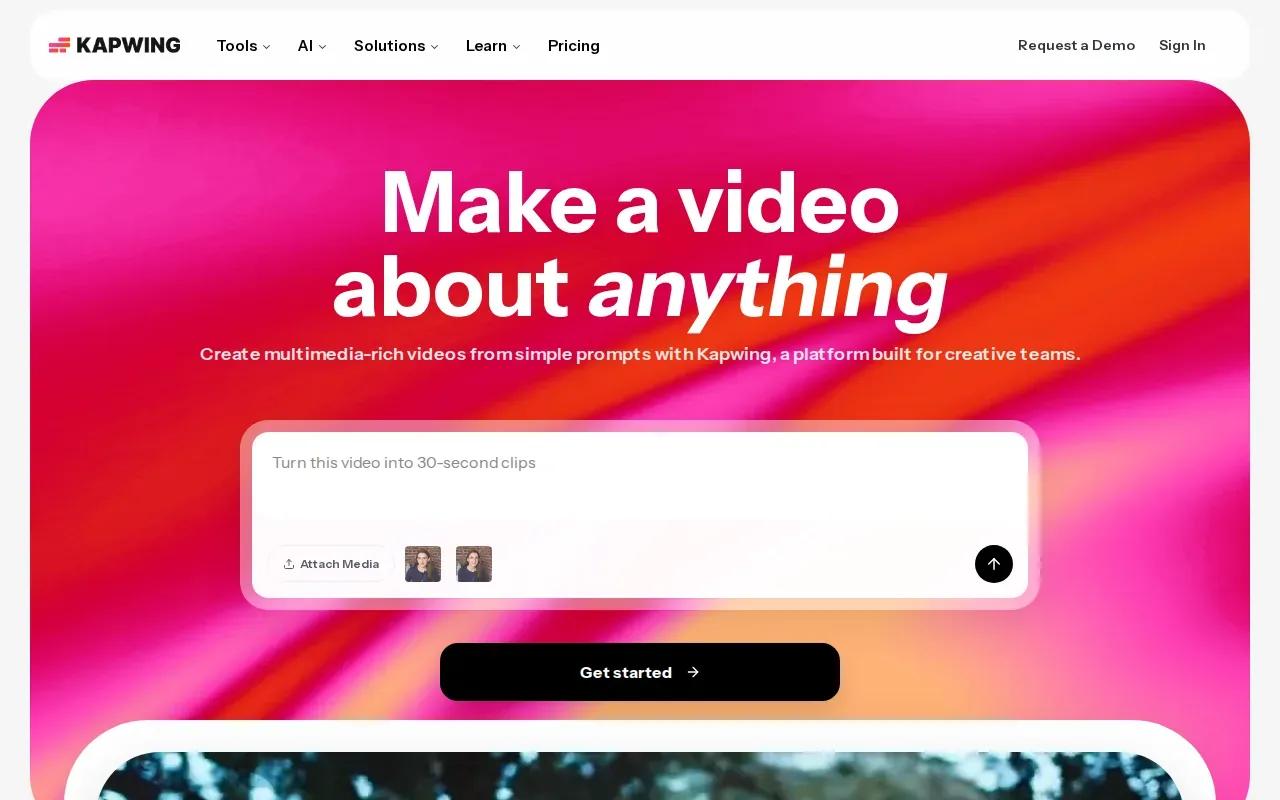
The resulting project can serve as a draft to assess against your goals; whether this prompt-based approach is a good fit depends on the work you need to do. Kapwing describes itself as a way to create, edit, and grow content on every channel, and says over 30 million modern creators trust it.
For teams or individual creators comparing tools, its central point of distinction is generating full video projects from one prompt. Kapwing fits people looking for a prompt-to-project starting point. Consider whether that approach matches your needs before choosing it.
7. Arcads: AI UGC-style creative for marketing teams
Arcads generates AI UGC-style videos and images for marketing teams.
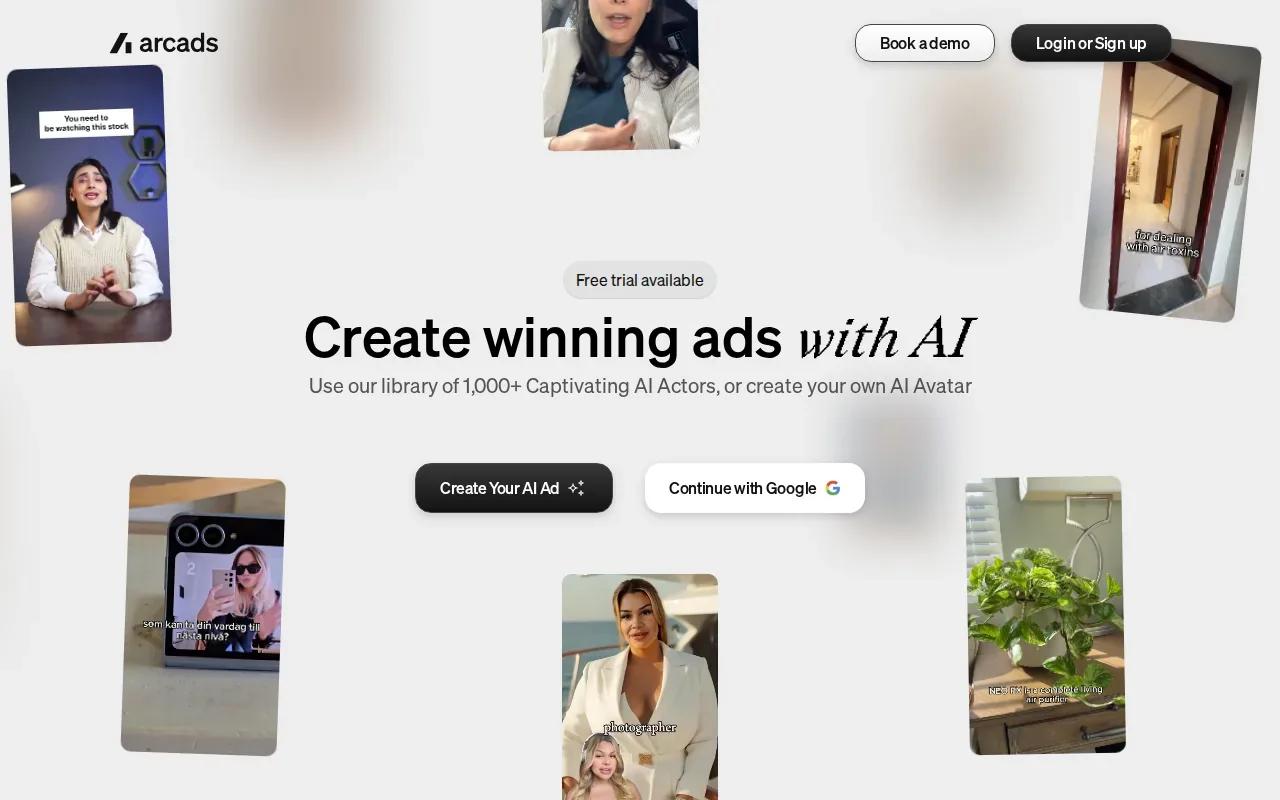
UGC-style creative is often used to make a product message feel like a direct recommendation or demonstration. In that context, the brief matters: decide what the person in the video should say, what claim the ad can support, and what the viewer should do next. Keep the script specific enough that the finished creative has one clear point.
Arcads may suit a team testing multiple ad concepts, especially when the goal is a creator-style look rather than a cinematic story. Make a short test around one product benefit. Then review the words and visuals together to make sure the generated asset matches the brand’s claims and ad rules.
Before setting a production schedule, check pricing, export resolution, and voice and editing controls against your campaign needs.
For a brand team, the key test is whether the video delivers the intended message in a format you can use. Don’t judge an ad solely by how natural the presenter looks. The script, product view, and call to action have to work together.
8. HeyGen: Narrated videos from text, images, or audio
HeyGen turns text, images, or audio into narrated videos. Its described tools can add visuals, captions, animation, and an AI presenter, making it a fit for explainers, training, and business updates.
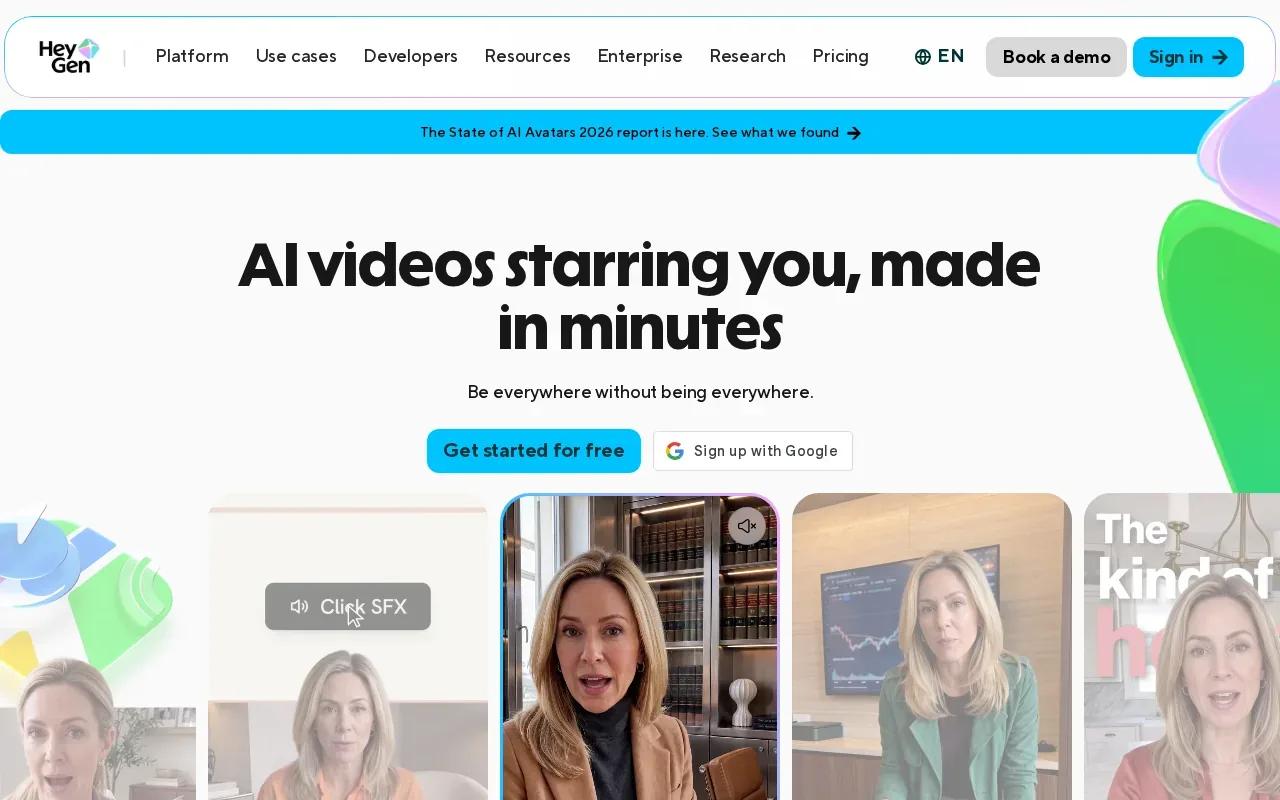
If you have a script but no camera footage, you can use text-to-video to build a narrated draft. If you already recorded a podcast or voice-over, the audio-to-video workflow can pair it with an avatar, subtitles, and visual elements. A slide deck can also become a scene-based video with an avatar and voice-over.
It also describes translation and lip-sync tools for more than 175 languages and dialects. That can help a team prepare a version of an existing video for another language without filming the speaker again.
HeyGen states that it has a free plan for text-to-video and AI-generated video. Paid plans include more advanced creation and editing features, with availability depending on the product and model. Check the plan details for the format and workflow you need before you start a large batch.
Pick HeyGen when the person speaking is central to the video. For scenes that depend on a natural environment, moving camera, or spoken dialogue inside a fictional moment, compare it with a video generator designed around scene creation.
9. OpenArt: A broad creative toolkit with multiple models
OpenArt offers AI art, images, videos, and music online for free. Its broad scope brings several creative formats together in one place for people exploring AI video generators alongside other kinds of AI creation.
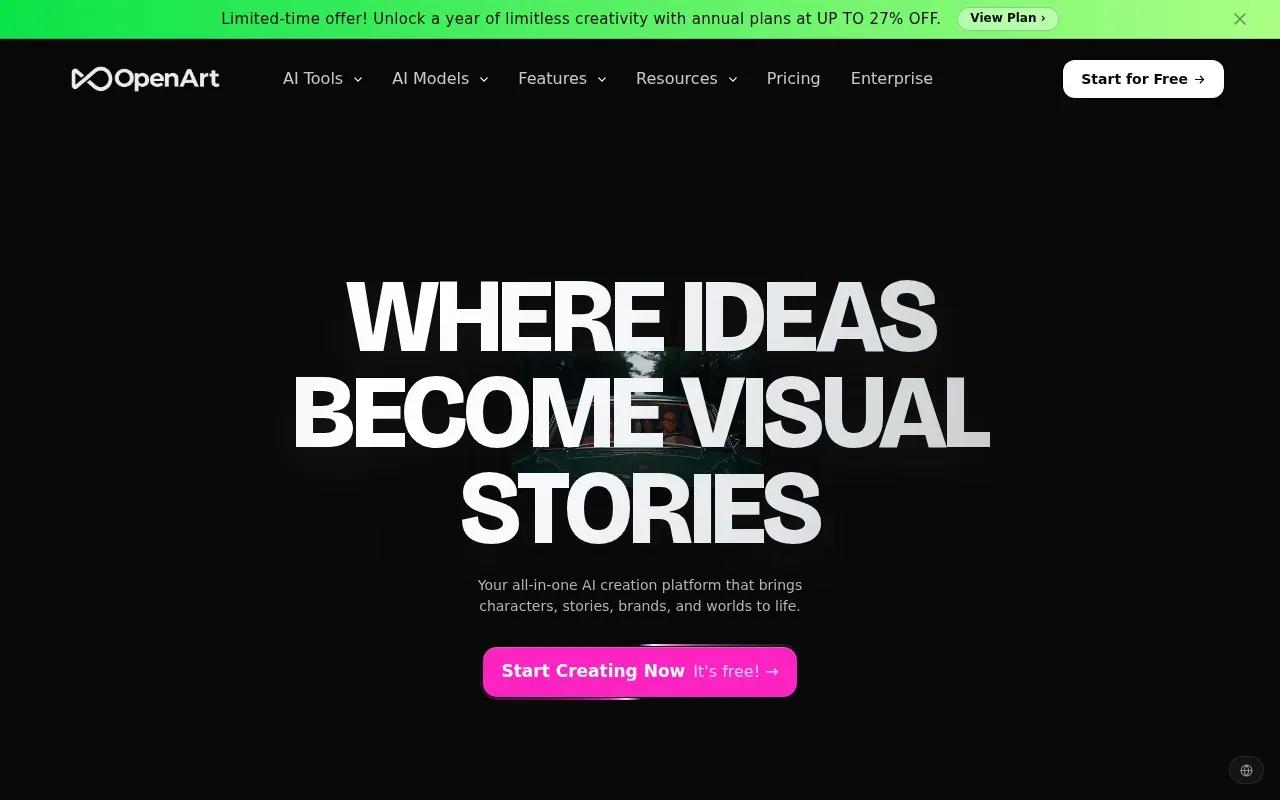
The platform includes more than 100 models from Google, OpenAI, Seedance, and more. This gives users a broad set of models to explore in one place, with video creation included among OpenArt’s listed offerings.
For a project that calls for more than video, OpenArt’s stated range also includes AI art, images, and music. Its selection of formats and models may make it worth considering when comparing creative tools.
OpenArt says it is trusted by more than 8 million creators. With over 100 models available in one place, the platform offers a wide range of options to explore for AI-generated content.
OpenArt describes its service as free to use online. Check the current account terms and generation limits before planning recurring work around it.
Compare AI Video Generators by Features, Use Case, and Cost
A useful comparison starts with the finished job, not the longest feature list. For a cinematic scene, check whether motion follows the prompt and whether the dialogue matches the action. For social clips, look at aspect ratio, captions, editing, and how quickly you can revise a draft.
Resolution alone doesn’t tell you whether a clip is ready to publish. Review face and hand movement, product shape, camera direction, and any on-screen text. Then listen to the audio. When lip-sync matters, check the mouth movement against the spoken words rather than assuming that a voice track is aligned.
| Tool | Good fit | Notable workflow | Pricing detail in provided information |
|---|---|---|---|
| Veo Studio | Dialogue-led scenes, ads, and social clips | Reference images, synchronized sound, scene extension, up to 4K | Free plan; paid plans start at $14/month |
| Pika | Short, stylized clips | Pre-built motion styles | — |
| Veo3 AI | Prompt-led scenes with sound | Text-to-video, 4K output, and native audio | Free start |
| Higgsfield AI | Multi-format creative and ad work | Image, video, voice, editing, and upscaling | — |
| Kapwing | Video projects and channel-ready edits | Generate full video projects from a prompt | — |
| Arcads | Marketing creative in a UGC style | AI UGC-style video and image generation | — |
| HeyGen | Narrated videos | Text, image, or audio input with narration and captions | — |
| OpenArt | Creators who want multiple models and media types | — | Free online creation described |
Veo Studio combines synchronized dialogue, character consistency, scene extension, and 4K output. For a creator who needs all four in one browser-based workflow, that combination makes it the clearest fit in this shortlist. Other tools may be a better match when the job is a template edit, a narrated video, or an ad variation.
Keep a small prompt test before you pay for a recurring plan. Use the same scene description in the tools you’re considering, then judge the motion, prompt match, audio, and editing effort. For Veo Studio, the current plan and credit options can help you estimate how many generations fit your workload.
Veo Studio supports scenes with synced sound and dialogue.
FAQ
Which AI video generator is best for realistic dialogue?
Veo Studio is a strong fit when you need generated dialogue synced to a scene. It creates sound with the video, and quoted lines can be spoken with matching lip movement. Test a short exchange first, since camera placement and delivery still depend on the prompt. If you need a presenter-led video instead, compare an avatar-focused workflow such as HeyGen.
Can I make AI videos for free?
Yes, some of these tools describe free access. Veo Studio’s free plan includes a couple of 720p videos per month and requires no card. CapCut describes a free online editor, while HeyGen and OpenArt also describe free access. Free terms vary, so check generation limits and export rules before planning regular production.
Which AI video tools can turn text into a complete video?
Kapwing describes turning a prompt into a video project with a script, voice-over, visuals, and subtitles. HeyGen can generate narrated videos from text, and Veo3 AI describes text-to-video with native audio. The workflows differ, so decide whether you need an editable project, a presenter, or a generated scene.
How do I keep a character consistent in AI video?
Use reference images or a saved character feature when the tool supports it. Veo Studio accepts reference images for character consistency within supported generations. OpenArt describes reusable characters built from reference images or a text brief. Keep the same visual details in your prompts, then check the face and clothing across each shot.
What should I check before paying for an AI video tool?
Check the output limits that affect your project: resolution, clip length, watermark rules, and commercial use terms. Then test prompt adherence, motion, and audio with a scene you might actually publish. If you plan to make many versions, look at credit use or plan volume as well. A polished demo alone can’t answer those questions.
Conclusion
For creators who need synchronized sound, dialogue, character consistency, scene extension, and up to 4K output, Veo Studio is the clearest fit in this shortlist. Start with its free plan, try one short prompt, and check the result before moving to a paid plan.