
One product photo can become a moving ad, a short demo, or a scene with spoken dialogue. A product video creator helps turn prompts, images, or scripts into video drafts, but each tool handles a different part of the job.
We analyzed 30 YouTube comments about product video creation tools and found that 23% mentioned low-quality AI-generated visuals.
Here are five named options, starting with Veo Studio, and the work each one suits. The right pick depends on whether you need generated scenes, a presenter, playful effects, or hands-on editing.
1. Veo Studio
Veo Studio is an independent, browser-based AI video creation tool powered by Google’s Veo 3.1 models. It turns text prompts and reference images into short videos with synchronized sound and dialogue, character consistency, first- and last-frame control, scene extension, and output up to 4K.
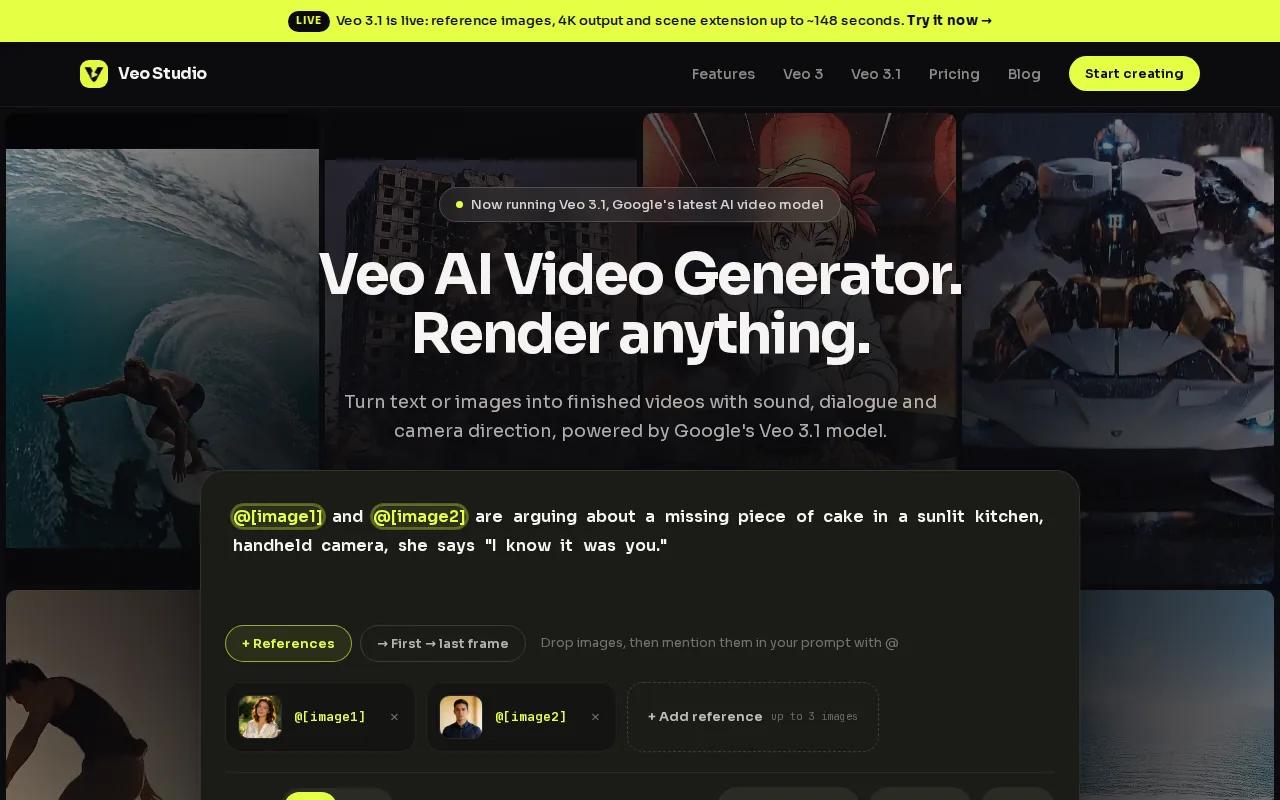
For a product spot, start with a reference image and describe the shot, camera move, and sound. You could ask for a slow push toward a product detail, then add a spoken line in quotation marks. Veo Studio generates the picture and synced audio together, so the dialogue can match the scene rather than being added as a separate voice track.
Reference images can guide the look of a product or character. First- and last-frame control gives you a way to set the opening and ending images, with the model generating the motion between them. For supported 720p clips, scene extension adds seven seconds at a time, up to roughly 148 seconds of continuous video.
That control can help when a short social clip needs a clear opening and closing shot, or when a character speaks on camera. Veo Studio’s output can reach 4K on supported settings. Its free plan includes a couple of 720p videos per month without a card; paid plans start at $14 per month and include a commercial licence.
For product ads and campaign clips, Veo Studio suits teams that want generated visuals and sound in the same workflow. The AI-generated product spots and promotional assets guide covers more use cases for that kind of scene-led video.
One thing to check before publishing: generated footage still needs a close review. Confirm that the product’s shape, colour, and key details match the reference, then watch the complete clip with sound on.
2. InVideo: For template-led product promos
InVideo helps small businesses and marketers turn prompts, scripts, or blog posts into structured videos. It pairs AI agents and models with a full timeline editor, which makes it useful when you want a generated first cut and room to polish it.
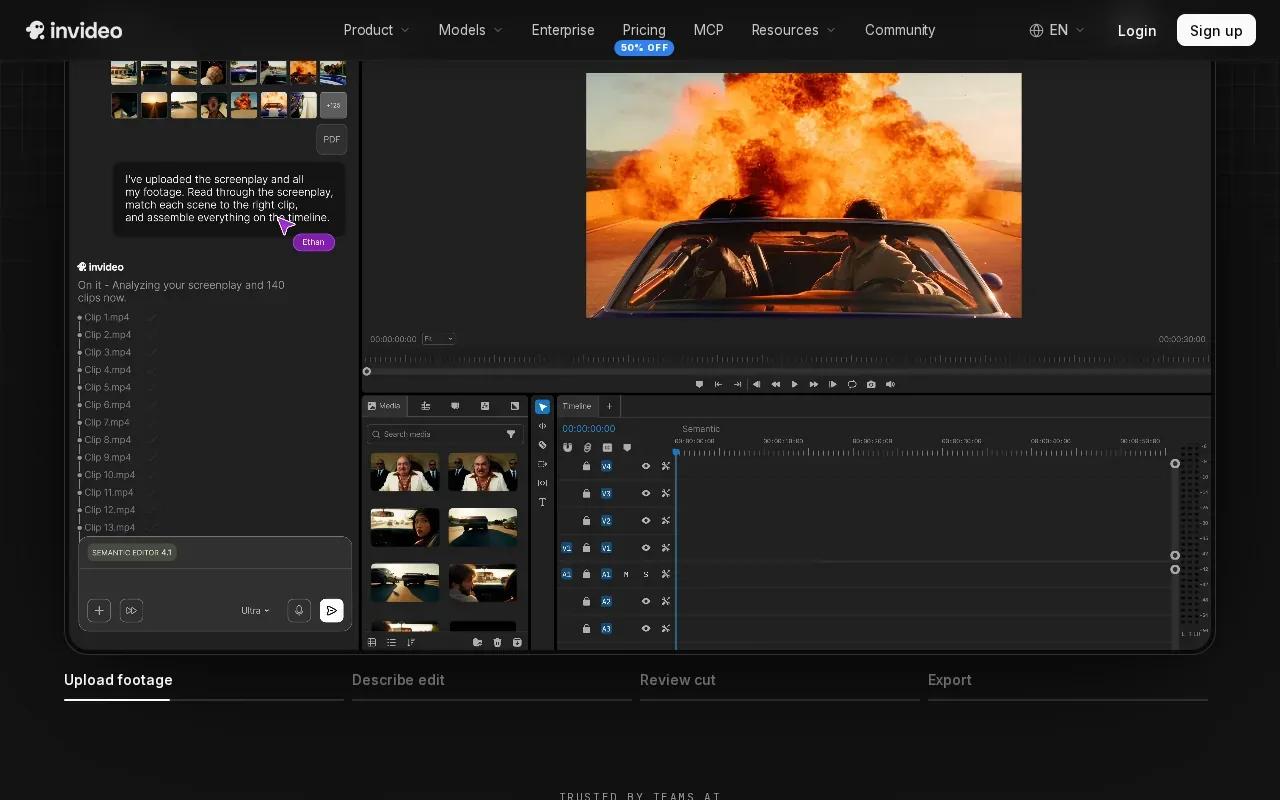
For a product promo, bring in product footage or reference images, then describe the audience, key selling point, and desired length. InVideo can arrange and trim clips, then place titles, captions, and audio on an editable multitrack timeline. You can reorder shots to lead with the product’s strongest detail, or trim a close-up so it lands on the feature you want viewers to notice.
A useful brief names the shot, not just the product. Ask for a clean opening view, a close-up on a material or feature, and a final frame with the campaign message. Review the generated shots before editing.
That review matters for packaging, labels, proportions, or any detail shoppers rely on. If exact appearance is essential, use real footage for that shot and mix it with generated scenes elsewhere.
Choose InVideo when the job is a structured promo with several parts and you want to edit the assembly in one app. It’s a different workflow from generating one cinematic scene with sound.
3. CapCut: For fast TikTok, Reels, and Shorts edits
CapCut is a mobile-first editing option for creators making TikTok, Reels, and YouTube Shorts. Its fit is strongest when speed matters and you want captions, templates, and effects in the editing flow.
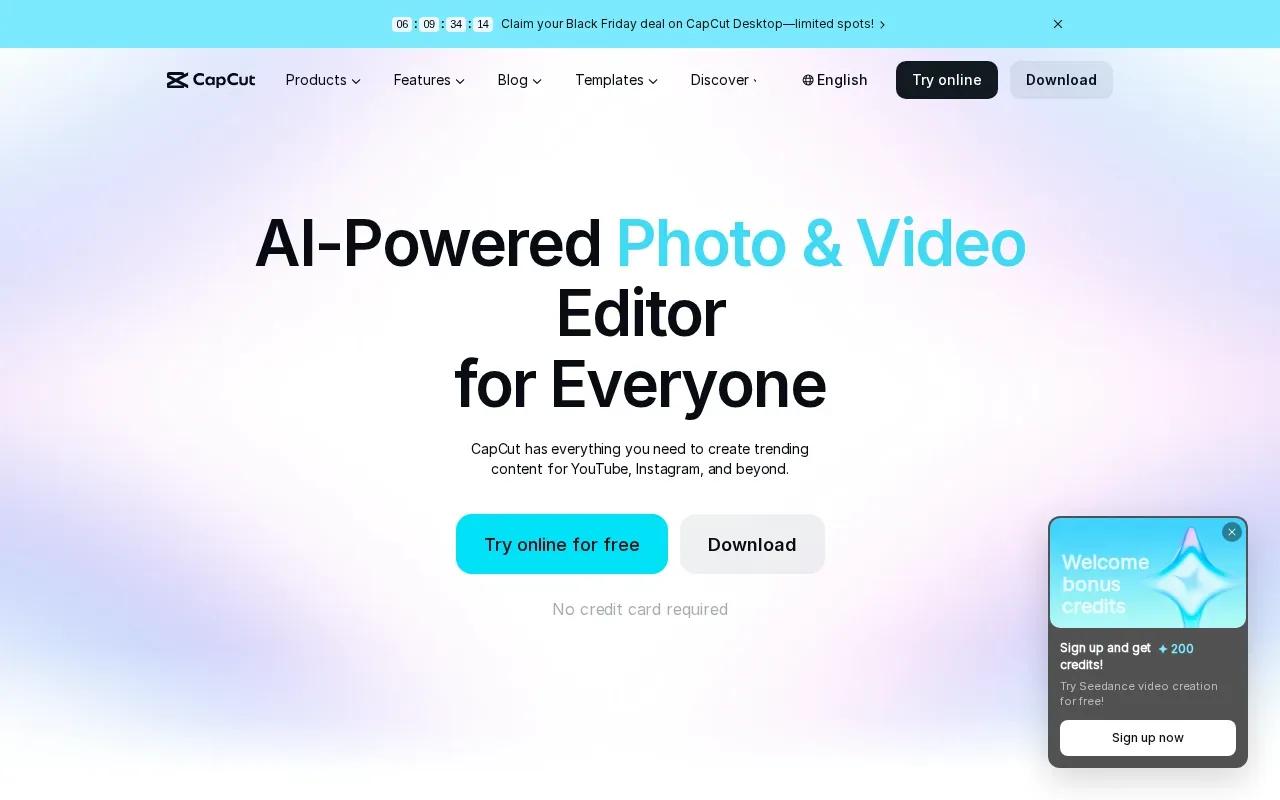
A template gives you a starting layout. Add your own clip or text, then preview the result before export. For a product post, that could mean choosing a template with a quick reveal, adding a short feature line, and trimming the footage so the main detail appears early.
Iteration can help a team test different hooks or change the pace of a social edit.
Templates can save setup time, but they don’t decide what the viewer should remember. Keep the message focused. If the item has one key benefit, put that benefit in the first line and make sure captions don’t cover the product on screen.
CapCut works well for finishing short social content or building an edit around a trend. If you need a product to stay visually consistent across generated shots, check each shot carefully before you post.
4. Pika: For playful, effect-driven product clips
Pika is suited to creators making playful social content with Pikaffects, Pikaswaps, and Pikaframes. It’s a fit when the creative idea depends on a bold visual change or an effect-led clip, rather than a straightforward presenter-led product explanation.
For a brand post, think of Pika as a way to test a visual hook. A product could appear in a surreal, stylized scene or transition through a playful effect. Keep the effect tied to the message. If the visual gag draws attention but hides the product, it may not help the ad do its job.
Pikaffects, Pikaswaps, and Pikaframes each point toward a different kind of visual play. Before making a batch of posts, try the effect on one short concept and see whether the item remains recognizable. Pika’s maximum resolution is 1080p.
That resolution may suit a quick social test, while a campaign that needs a larger output may call for a different tool. And for product accuracy, inspect the result frame by frame where the item’s shape or colour needs to stay true.
5. HeyGen: For avatar-led and multilingual product videos
HeyGen is built for companies and creators who need avatar videos, AI translation, voice cloning, and multilingual localization. It fits product messages where a presenter needs to explain a feature or speak directly to viewers.
Write or prepare the message, select an avatar, then generate a talking video. HeyGen supports text-to-speech with lip sync for avatar videos. That can help when a product announcement, sales explanation, or short feature walkthrough needs an on-screen speaker without filming a person for each version.
Localization is another clear use. HeyGen supports AI translation, voice cloning, and multilingual localization. A team can start from one approved script, then prepare versions for audiences in different markets. Review each version for meaning and pronunciation before distribution, especially when the script includes product terms or claims.
For a clip that depends on showing how an item moves or looks from several angles, an avatar alone may not be enough. Pair the presenter with footage or generated product scenes, then make sure the visual evidence supports what the speaker says.
If your main need is a repeatable presenter or localized spoken content, HeyGen belongs on the shortlist. For short visual scenes with synchronized sound and dialogue, Veo Studio is a closer fit.
Product Video Creator Tools Compared
Use the table to match the main job to the tool. These options don’t all solve the same production problem: some focus on generated scenes, while others help assemble or edit a finished social post.
| Tool | Useful fit | What to check before publishing |
|---|---|---|
| Veo Studio | Generated product scenes with synchronized sound, dialogue, and up to 4K output | Check product detail, sound, and the final scene transition |
| InVideo | Template-led promos assembled on an editable timeline | Check labels, proportions, captions, and audio levels |
| CapCut | Fast edits for TikTok, Reels, and Shorts | Check caption placement and whether the template fits the brand |
| Pika | Playful clips built around visual effects | Check product recognition and whether 1080p is enough |
| HeyGen | Avatar-led messages and localized talking videos | Check the spoken script, pronunciation, and lip sync |
For product storytelling, the choice often comes down to what the viewer needs to see. A scene-led ad needs strong visuals and sound. A feature explanation may need a presenter. A social post may need quick edits and readable captions.
For a broader look at related workflows, the AI product video generator comparison covers more options and the inputs they use.
FAQ: Product Video Creator Tools
What does a product video creator do?
A product video creator helps you make or edit videos that show, explain, or promote an item. Depending on the tool, you can start with a text prompt, an image, a script, or existing footage. Some tools generate scenes, while others focus on templates, avatars, captions, or editing. Review the finished video before publishing.
Can I make a product video from one photo?
Yes, some AI video tools can use a reference image to guide a generated clip. Describe the action and camera move you want, then check that the item still looks right in the result. A reference can guide the image, but generated footage may need review before you use it in an ad or product listing.
Which tool is suited to a product video with dialogue?
Veo Studio can generate synchronized sound and dialogue with the video. HeyGen is suited to avatar-led videos with text-to-speech and lip sync. Pick Veo Studio when you want dialogue within a generated scene; choose an avatar workflow when a presenter needs to deliver a clear script.
How do I keep a product video on brand?
Start with a clear brief that names the audience, key message, and visual style. Use reference images where the tool supports them, and check the item’s shape, colour, and labels in every generated shot. Then review captions, audio, and the closing message. Use real footage when exact product detail is essential.
What should I check before posting an AI product video?
Watch the full video with sound on and confirm that the product looks accurate. Check that the voice matches the script, captions are timed and readable, and the music doesn’t drown out speech. Make sure the final message is clear, then confirm the export suits the platform where you’ll post it.
Conclusion
Choose the tool around the job: Veo Studio for generated scenes with synced sound and frame control, InVideo for timeline-led promos, CapCut for social edits, Pika for playful effects, or HeyGen for avatar-led messages. To test a scene-led product ad, start with Veo Studio’s free plan and try one reference image with a short, specific prompt.


