
A product photo can become a moving ad before your coffee gets cold. An AI product video generator can start with a prompt, an image, or a ready-made template, then turn that input into a video draft.
We analyzed 59 comments and questions from Reddit, YouTube and Quora about AI product video generators and found that 14% mentioned inconsistent visual output.
Here are eight named tools for different jobs, starting with Veo Studio, an independent browser-based tool powered by Google’s Veo 3.1 models.
1. Veo Studio
Veo Studio turns text prompts and reference images into videos with synchronized sound and dialogue. It suits creators who want product visuals, a planned camera move, or a spoken line in the same clip.
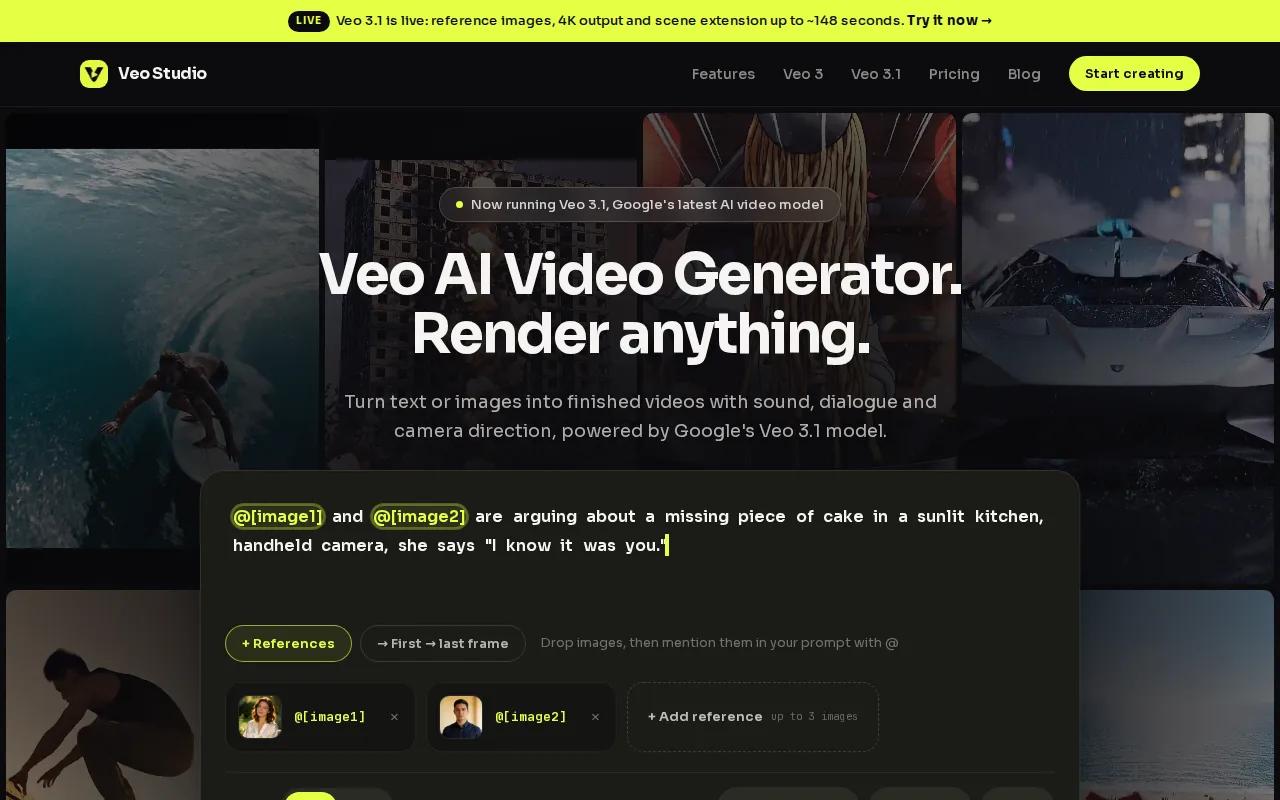
Attach up to three reference images to guide the product or visual style. First- and last-frame control can set the opening and ending image, while scene extension adds seven seconds at a time to a 720p clip. Output goes up to 4K on paid plans. Every plan includes a commercial licence; the free plan includes a couple of 720p videos a month without a card.
For a product reveal, you might attach a photo, set the first and last frames, then prompt a slow turn with a short spoken line. Reference and frame controls can help guide the clip. Veo Studio is an independent browser-based tool powered by Google’s Veo 3.1 models, not a Google service. Hosted video models can be grouped by their capabilities.
Veo Studio starts free. Paid plans begin at $14 per month, with higher video limits and resolution options.
2. Pika 2.5: Short-form videos with viral effects
Pika 2.5 is designed for short social clips with bold effects. It fits creators who want to test a visual hook or make a product shot feel less static.
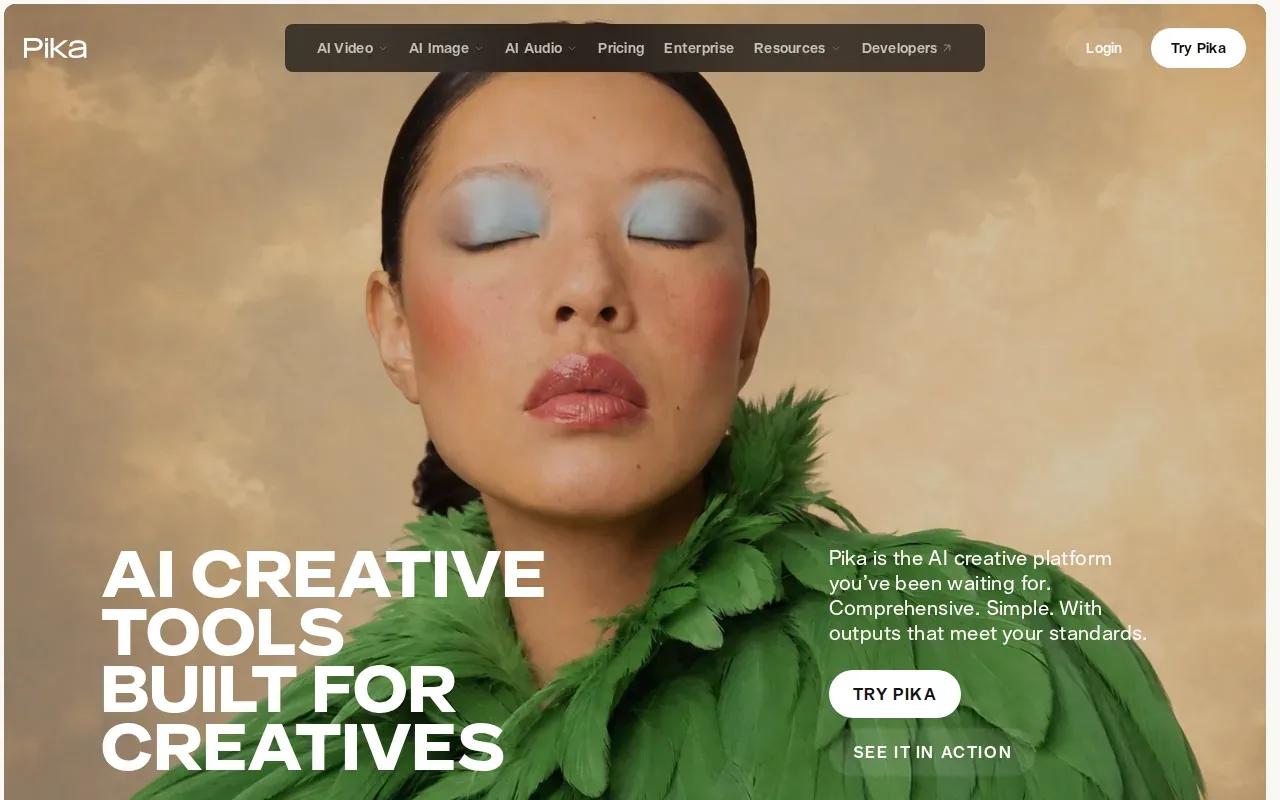
Reference-image guidance gives the model a visual starting point, while Pikaframes supports transitions between keyframes. That can help you sketch a product reveal: begin with a closed box, then guide the final frame toward the item in use. The focus here is effect-led social content, so it may fit a fast campaign concept better than a sequence that depends on the same character across several shots.
One caveat for multi-shot work: character consistency is not a listed strength, and identity drift can appear within five seconds. If your video relies on a recurring presenter or the same person across scenes, check each generated clip closely before editing the final cut.
3. InVideo AI: Prompt-to-video production with script and voiceover
InVideo AI starts with a prompt and drafts a script, visuals, and voiceover. It suits multi-scene videos where you want help shaping the idea into a narrated sequence.
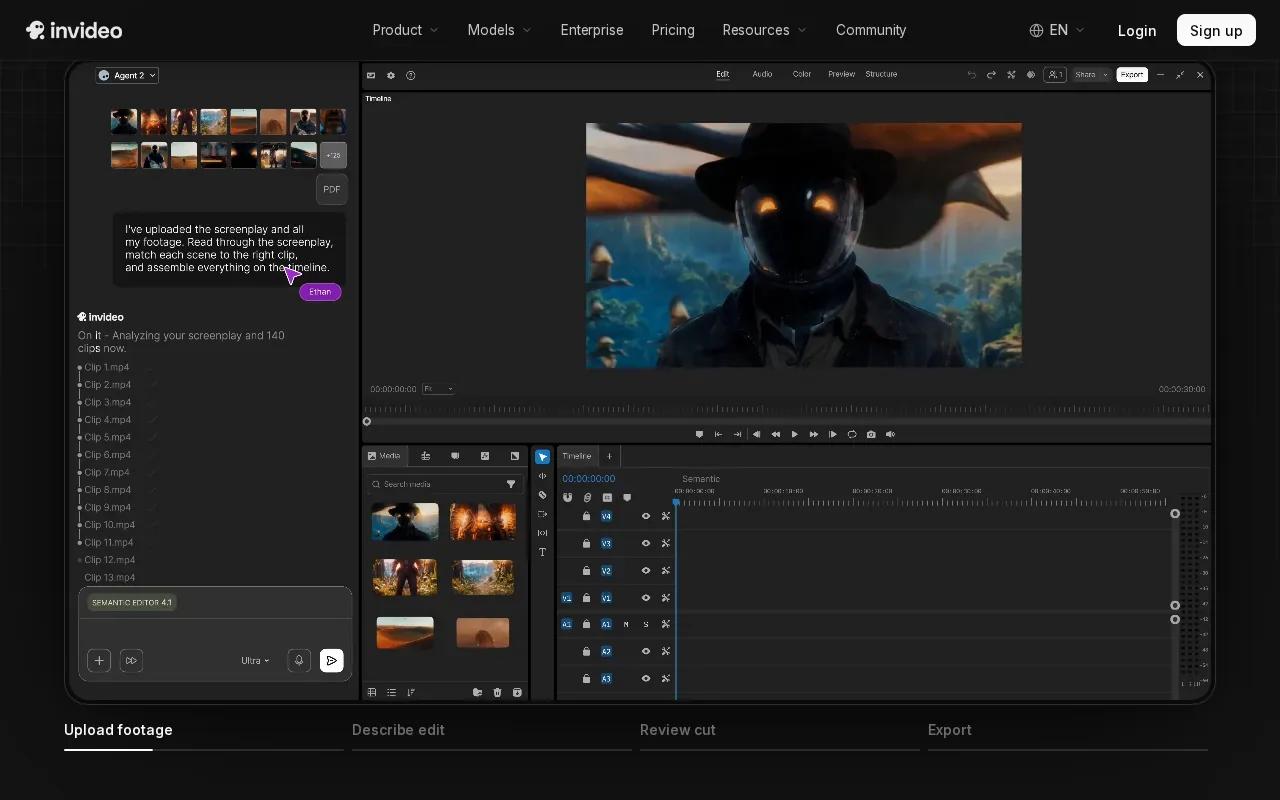
For a product demo, describe the audience and the key point the video should make. The generated script gives you a starting structure, while the voiceover can carry the message across scenes. That workflow can be useful when you have a product brief but no finished script yet. Review the claims and wording before export, especially if the video names features or makes promises to customers.
InVideo AI is built around script-led production, rather than only animating one still image. If you already have a detailed shot list and exact visual direction, compare the draft with your original brief before treating it as final.
4. Runway: Frame-level control for cinematic product ads
Runway is suited to cinematic ads where a person needs close control over the shot. It can fit an agency workflow or a client deliverable that needs deliberate visual direction.
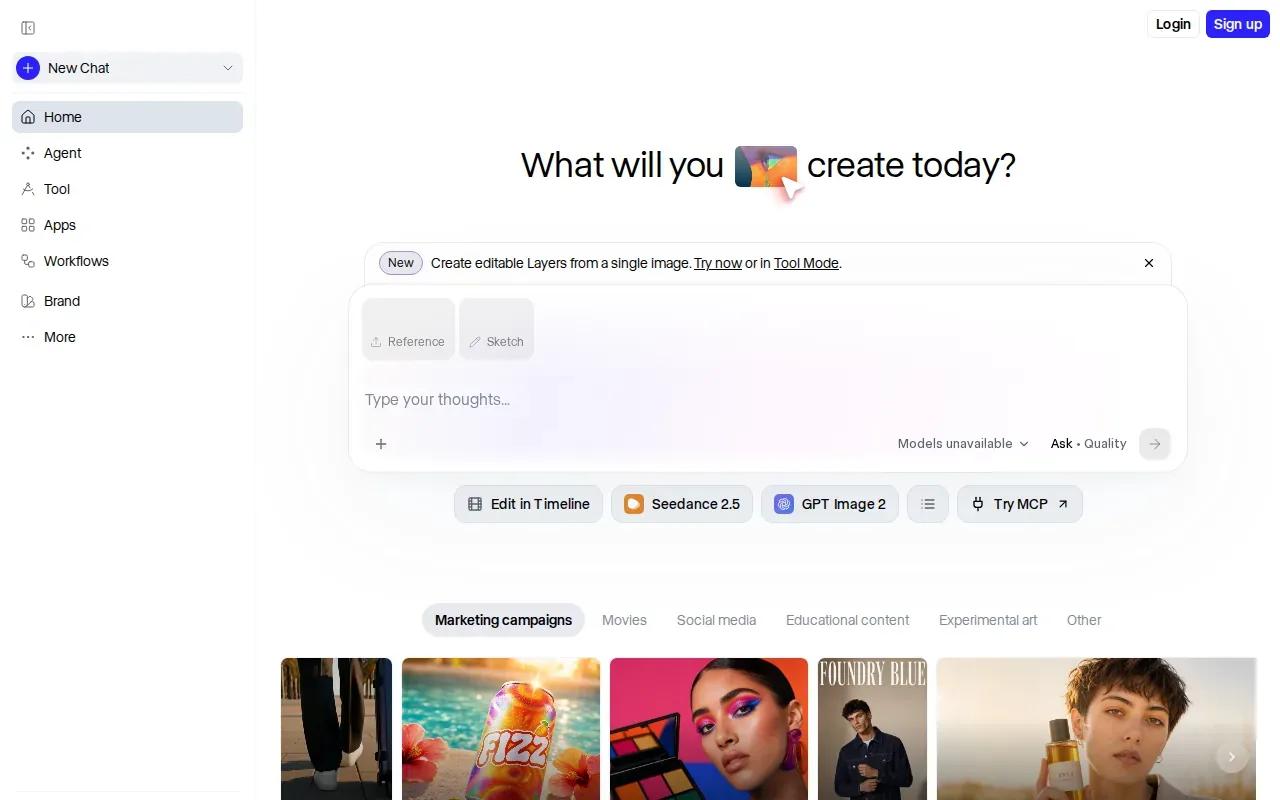
Use it when the camera move matters as much as the product itself. A slow push toward a watch face, for example, calls for a different feel than a quick reveal of a new item. Runway’s stated maximum resolution is 4K, which gives teams a high-resolution output option for their edit.
That added control is most useful when someone on the team can make shot decisions and review the result. Set the shot goal before generation, then judge the clip against the intended framing and motion.
5. CapCut AI Video Editor: Social-ready product clips
CapCut AI Video Editor is geared toward short social videos for YouTube, Instagram, and TikTok or Reels. It suits teams that want to generate or edit a clip and then shape it for a feed.
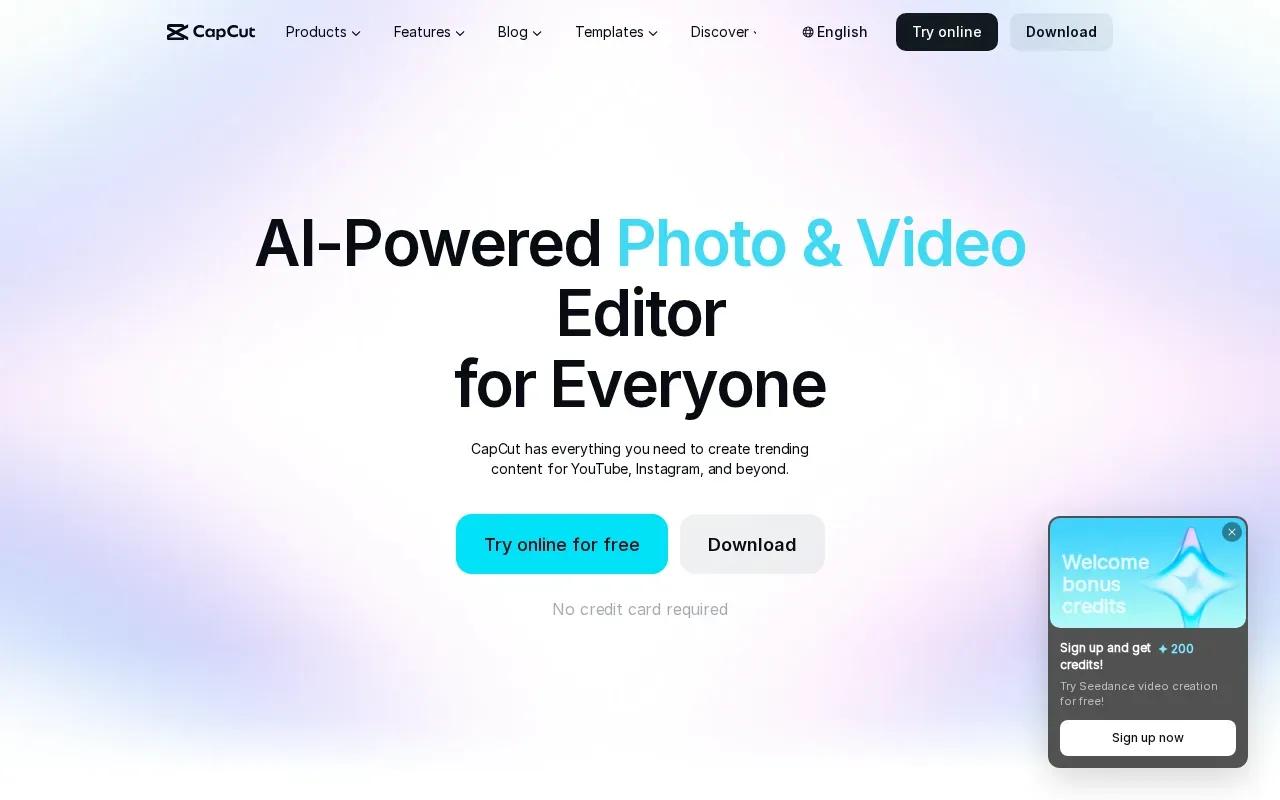
Its tools include text- or image-led video creation, templates, text-to-speech, and auto captions. Templates can give a product promo a quick structure, while captions help carry the message when viewers watch without sound. The editor also supports HD export, so check the final file against the needs of your campaign before publishing.
CapCut’s marketing video workflow includes trimming and splitting footage, adding transitions, and styling text or captions. If your goal is a short offer clip, keep the main product benefit visible and make the caption easy to read on a phone. For more ad-focused workflows, compare these steps with AI video ad generator tools.
6. Higgsfield AI: A flexible creation and editing suite
Higgsfield AI makes images, videos, and voice content from text prompts or references. It suits creators who want generation and editing tools in one place, with access on web and mobile.
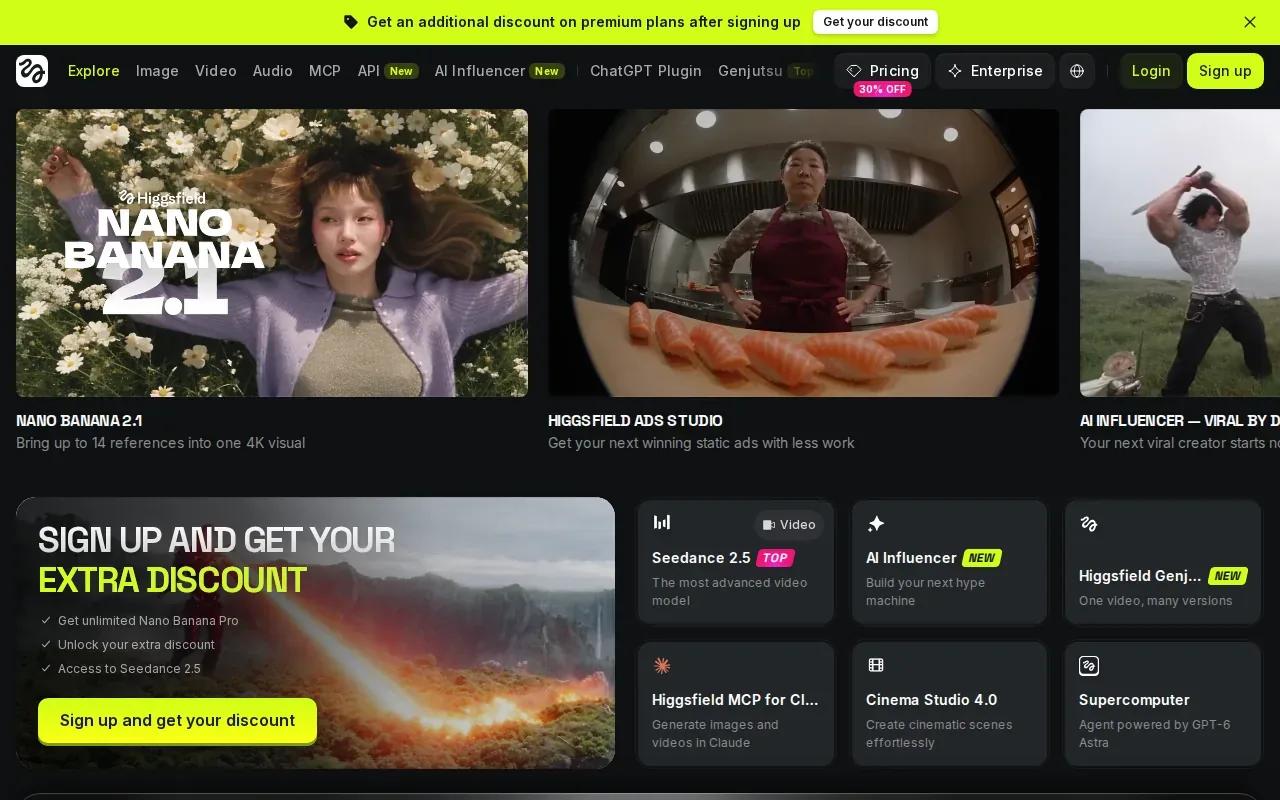
Its workflow includes editing and upscaling media, plus an AI agent that can automate creative workflows. For a product launch, you could start from a text brief or reference image, create a visual, then edit or upscale the result as needed. The tool’s range may help if your project needs still images alongside video assets.
Keep the brief specific. Name the product’s role in the scene and describe the motion you want, then review the result before using it in an ad. Its creation and editing tools can support product-launch workflows.
7. Fliki: Prompt-led videos with voiceover and captions
Fliki builds a video from a prompt, including a script, visuals, voiceover, music, and captions. It suits creators making short social content who want a narrated draft rather than a silent clip.
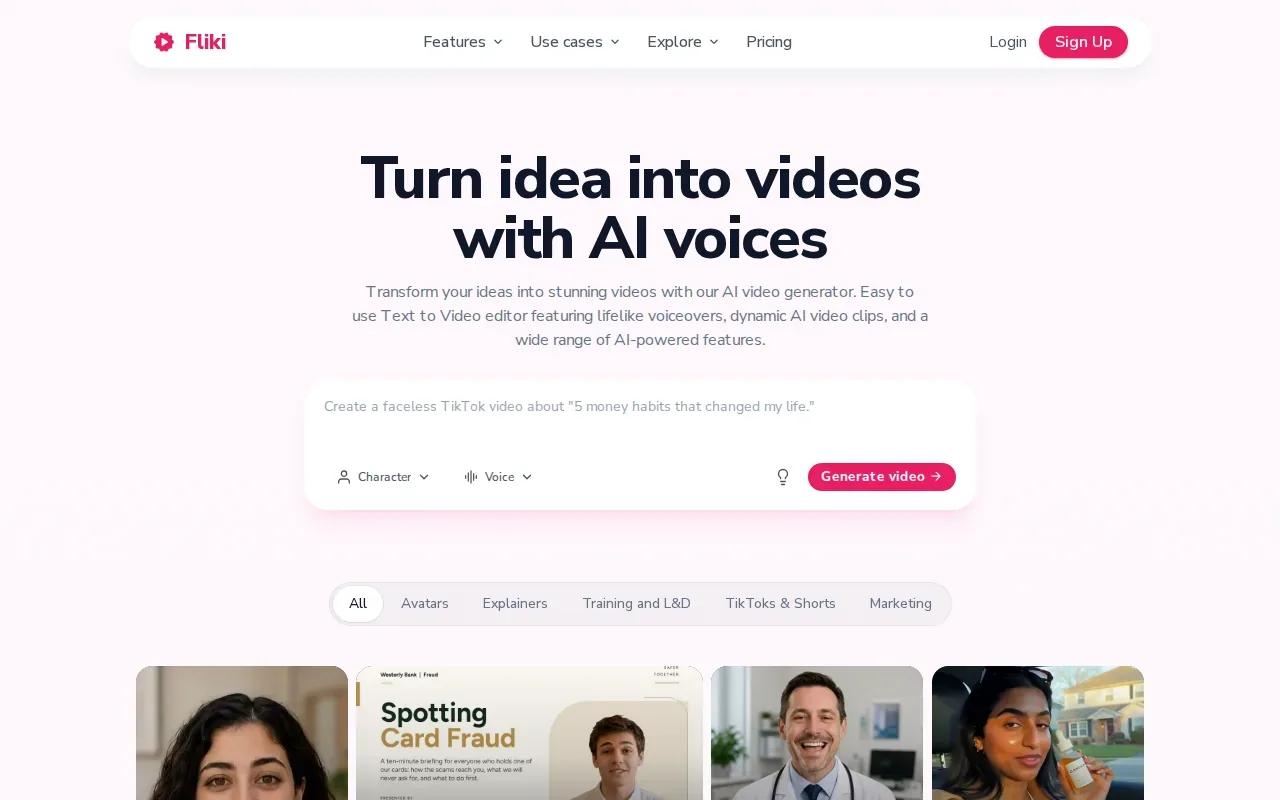
Fliki also supports a digital twin avatar that keeps the same face and voice across scenes. Its built-in AI voiceover syncs spoken audio to video. That can help when a product demo needs a presenter to explain the use of an item while the visuals change around them.
For an ecommerce clip, the prompt can set the product and the message, then you can check whether each scene supports that message. Captions give the video a text layer for silent viewing. If a precise product detail matters, review the generated visuals and narration before publishing.
8. ImagineArt: A creative suite for product visuals and video
ImagineArt is a creative suite for generating images, videos, shorts, and voice from text prompts. It suits creators who need both still visuals and video work in the same creative process.
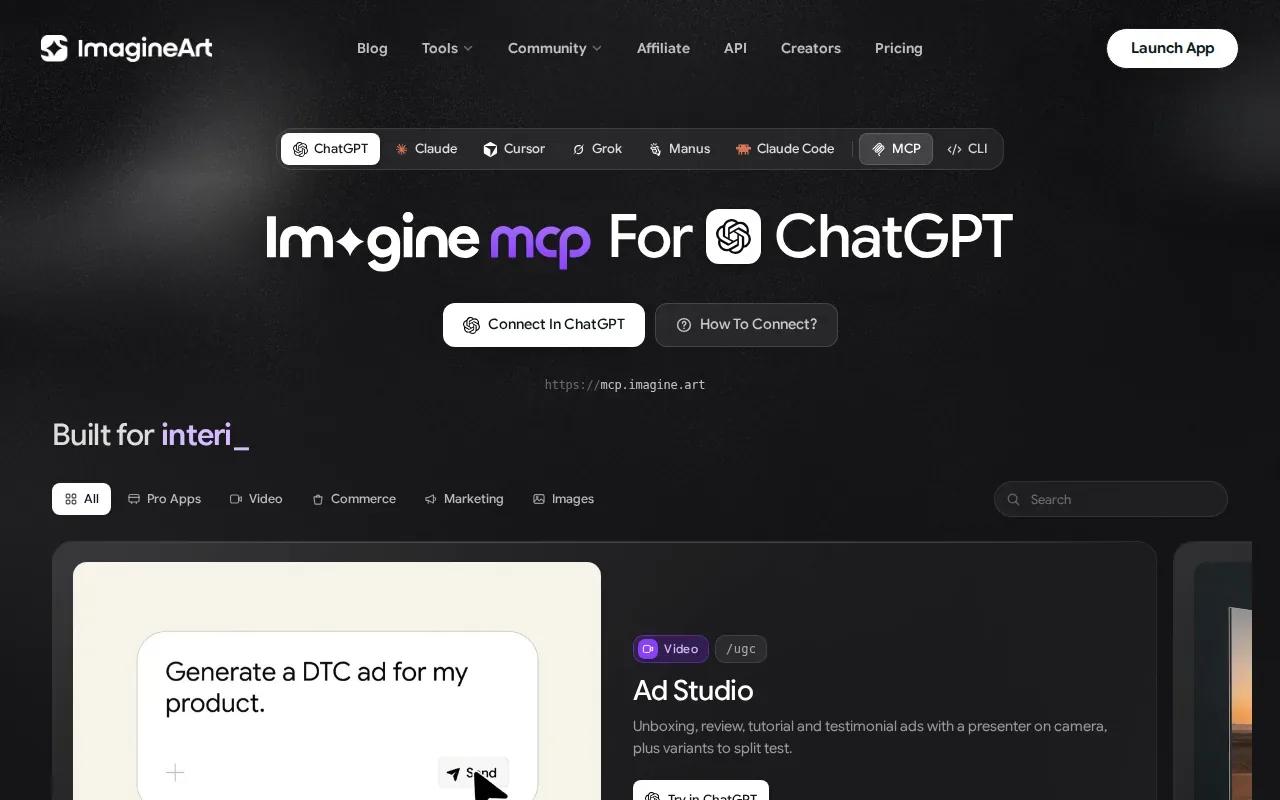
Its tools include advanced editing, background removal, an upscaler, and custom models. That combination can be useful when a campaign begins with a rough image that needs cleanup before it becomes part of a moving scene. ImagineArt can also produce short-form video, so it may fit teams building several kinds of visual content from one prompt-based workflow.
Think about the first asset you need. If it’s a clean product image, the editing tools may be the place to start. If it’s a short video, write the motion and setting into the prompt, then inspect the result for visual consistency.
| Choose ImagineArt when you need… | Useful listed capability |
|---|---|
| A still image prepared for video | Background removal or upscaling |
| Several visual formats from a prompt | Image, video, shorts, or voice generation |
| A more tailored generation workflow | Custom models |
A product-video workflow that keeps the brief in charge
The tool can speed up a draft, but your brief still sets the direction. Keep the first version simple and check each choice against the product and the channel.
- Pick one goal. Decide whether the clip should show how an item works, introduce a launch, or present one offer.
- Choose an input. Start with a prompt, a product photo, or a template if the selected tool supports it.
- Describe the shot. State what the camera sees, what moves, and what the viewer should notice. Add a spoken line only if narration helps explain the item.
- Review the draft. Check the product’s appearance, the words in the voiceover, and whether the motion supports the message.
- Export for the channel. Confirm the aspect ratio and resolution, then watch the full file before you post it.
For a product photo, a useful brief might say: show the item turning slowly in warm window light, then move closer to its main detail. Keep the prompt tied to what the photo actually shows.
Frequently asked questions
What is an AI product video generator?
An AI product video generator makes video from inputs such as a text prompt or an image. Depending on the tool, it may also draft a script, add voiceover, or place the clip in a template. You can use one to build a product ad, a short demo, or a social post, then review and edit the result.
Can I turn a product photo into a video?
Yes, tools in this shortlist support image-led video creation or reference-image guidance. Upload a suitable image when the tool allows it, then describe the motion and setting you want. Review the generated clip carefully so the item still looks like the source image and key details remain clear.
Which tool can generate voiceover with a product video?
InVideo AI drafts a voiceover as part of its prompt-to-video flow, while Fliki builds voiceover and captions into its prompt-led video process. CapCut AI Video Editor also lists text-to-speech tools. Choose based on how much you want the tool to write and narrate, then check the spoken copy before publishing.
How much does Veo Studio cost?
Veo Studio has a free plan with a couple of 720p videos each month and no card required. Paid plans start at $14 per month and include higher video limits, higher resolutions, and a commercial licence. Every plan includes AI videos and images, a media gallery, and a commercial licence.
Can AI-made product videos be used in ads?
Veo Studio states that every plan includes a commercial licence. For any tool, check the licence terms that apply to your account and the specific content you use. Then review the video for accurate product claims and brand fit before using it in paid advertising.
Conclusion
For product clips that need synchronized sound, reference-image guidance, frame control, scene extension, or up to 4K output, start with Veo Studio. Create a free account and test a product photo with one clear camera direction before moving to a paid plan.