
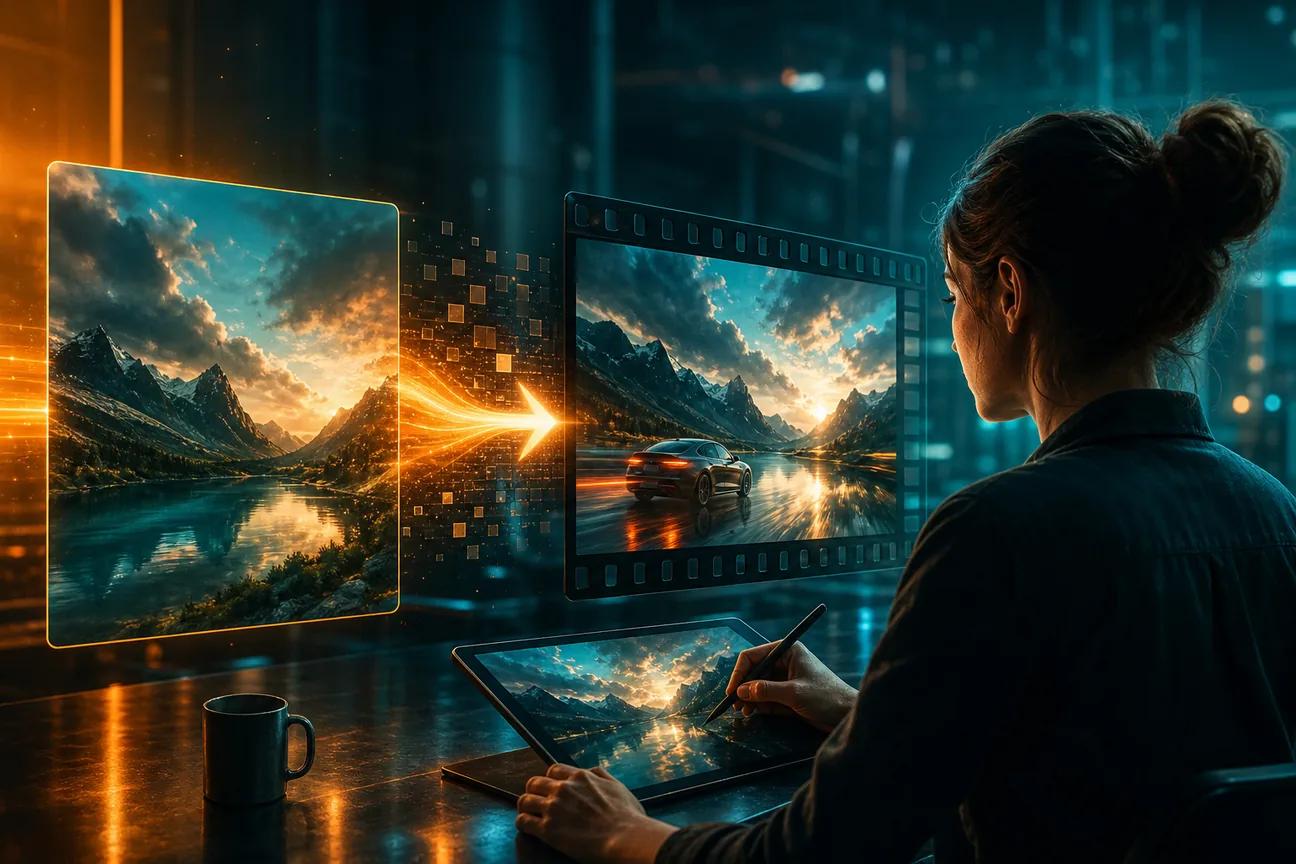
A still photo can become a moving clip with a prompt and a few settings. A picture-to-video generator can also add sound or help guide a character through a scene. Here are six named tools, starting with Veo Studio, with notes on free access and the kind of work each may suit.
We analyzed 47 YouTube comments about picture to video generators and found that 38% mentioned specific tool names and links.
1. Veo Studio
Veo Studio is an independent, browser-based AI video creation tool powered by Google's Veo 3.1 models. Upload a reference image, describe the movement, then set the shape and length of your clip. The result can include synchronized sound and dialogue.
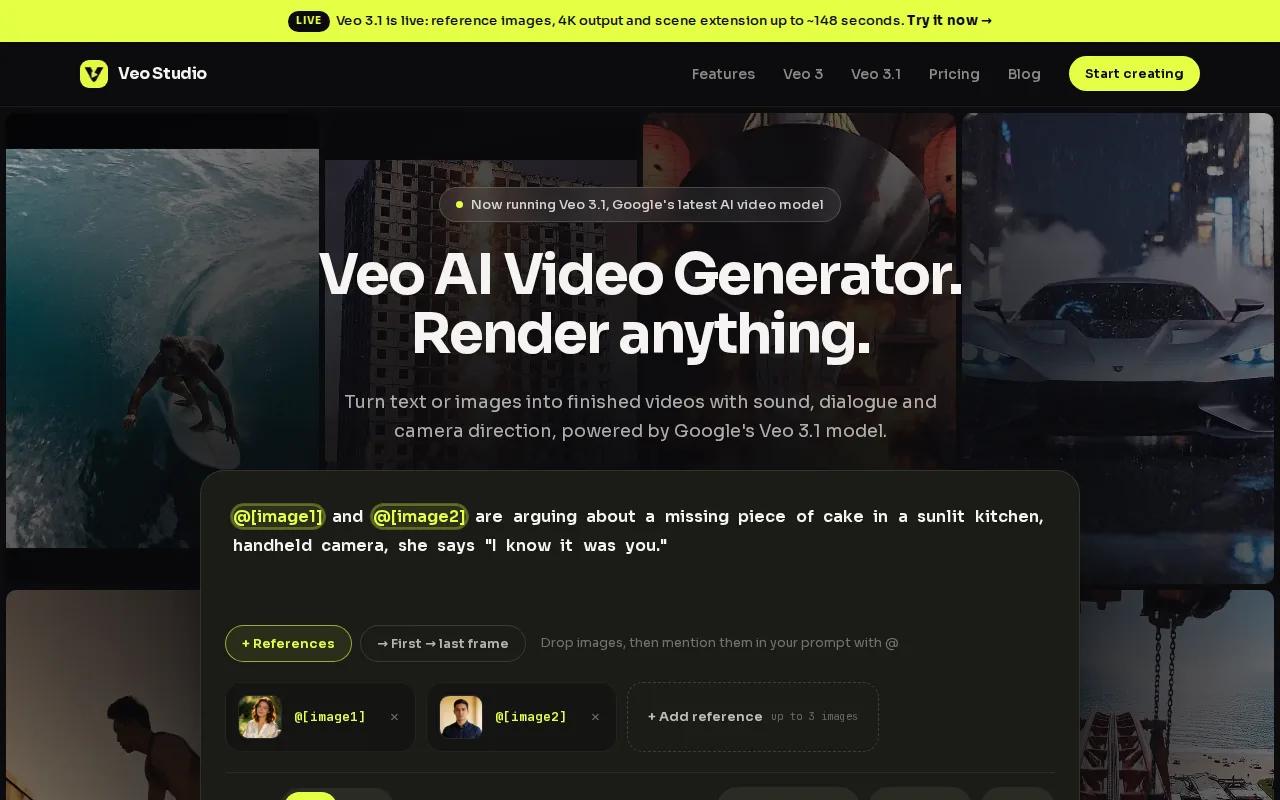
It suits social creators, small-business advertisers, brand marketers, and filmmakers who want more direction over a generated shot. For a product photo, you could ask for a slow camera push and a short spoken line. For a character scene, reference images can help keep the person recognizable. First- and last-frame controls can guide a transition between two stills.
Veo Studio supports 4-, 6-, or 8-second clips. Supported 720p clips can be extended in seven-second steps, up to roughly 148 seconds. Output can reach 4K on supported settings, while the free plan includes a couple of 720p videos each month without a card. Paid plans start at $14 per month and add higher resolutions and more video volume.
That combination suits a creator who needs more than a moving still, such as a scene with a spoken line or a planned final frame. For a product-focused workflow, see these AI product video generator tools and compare how they handle a photo-led ad.
2. Kling AI: A free starting point with high-resolution potential
Kling AI is an image and video generator with a free Basic tier and stated output potential up to 4K. It may suit creators who want to animate a portrait, product photo, or illustration and then adjust the movement with more than a single prompt.
For Kling 4.0, its picture-to-video workflow can start with an uploaded image. You describe how the subject moves and what the camera does, then set the video options before generating. Use the available controls to guide the clip toward the movement you want.
A clear source image can make the intended subject and setting easier to communicate. Keep prompts focused on the change you want to see.
The free Basic tier makes it a reasonable place to test a motion idea before paying. Keep in mind that the stated 4K maximum does not mean every setting or free generation will produce 4K output. Check the options shown for your account before you plan a delivery around a particular resolution.
If your shot has a clear beginning and end, frame controls can be more useful than a long prompt. Pick Kling when those guided changes matter to the scene.
3. Runway: A candidate for consistent characters and polished clips
Runway is a creative tool for generating and editing video, images, and audio. It may fit creators who want more control over a shot or need to edit a generated clip after the first result.
Runway supports character consistency. It also supports 4K upscaling. Those details may matter if you plan a series of related shots or want to raise the resolution of a finished video. A real person who needs frame-level control may also find the editing workflow relevant.
Runway’s range of generation and editing tasks can suit a creator who expects to revise a clip, not simply export the first render. But 4K upscaling is not the same as generating every shot natively at 4K. Check the output setting you need before committing to a delivery spec.
For dialogue-led character clips, compare how each tool handles voice and scene control in these AI talking video generator tools. That distinction matters when a person’s spoken line is part of the image-to-video brief.
4. Pika: A limited-free option for quick image-to-video experiments
Pika is an AI creative platform for video, images, and audio. Its free tier gives you 80 credits each month, with image-to-video output capped at 480p. That makes it a fit for testing a short social idea when you want to see how a still might move before planning a higher-resolution version elsewhere.
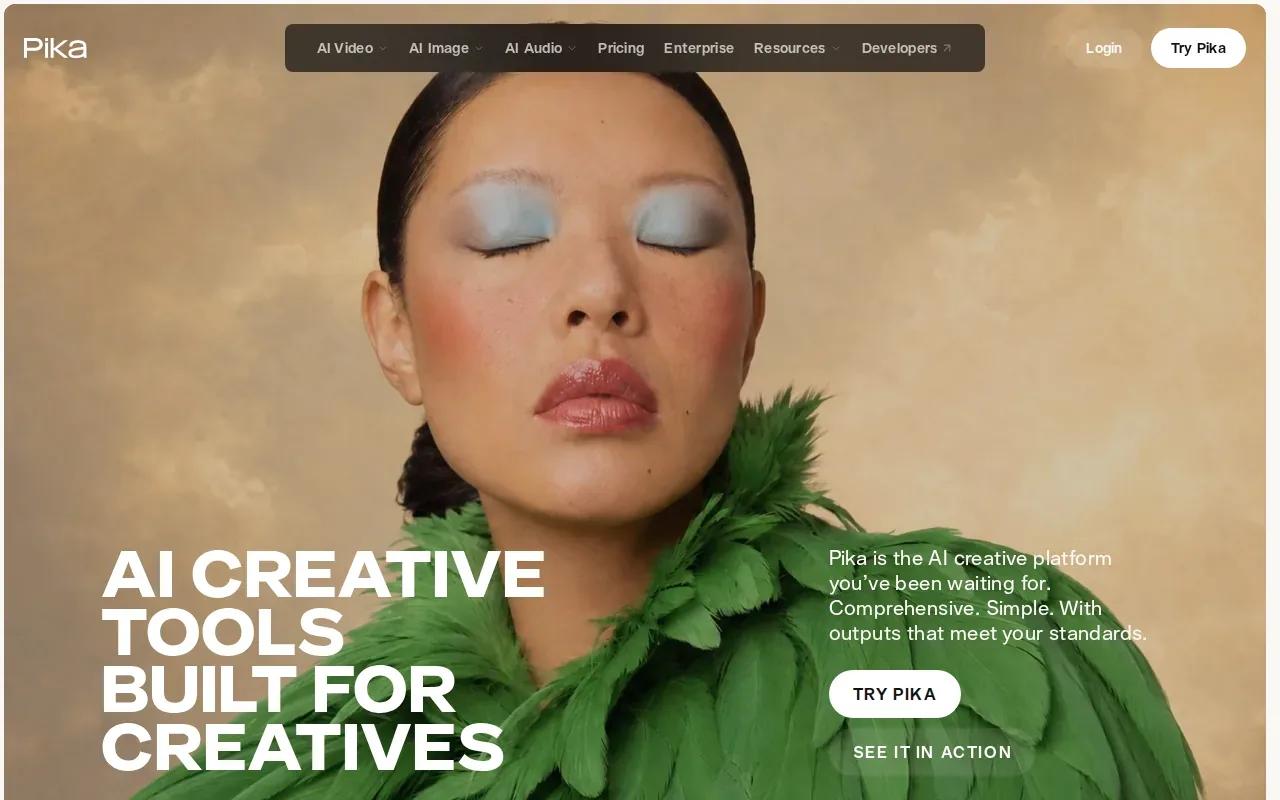
Start with a photo and describe the action you want to see. Keep the request focused: one subject action and one camera move are easier to judge than a prompt that asks for several scene changes at once. Then review the clip before you spend more credits. If the movement is wrong, change one part of the prompt rather than rewriting the whole brief.
The 480p cap is the key trade-off to keep in mind. It may be enough to judge whether an idea works on a small screen, but it is a limit to consider before using a free result in a campaign that calls for sharper output.
Pika also describes itself as a wider creative platform for video, images, and audio. If your immediate task is a quick image-led experiment, the monthly credits give you a defined allowance to try. If the final clip needs more detail, check the resolution available in your account before you build your workflow around it.
For short-form social work, these AI video generators for TikTok cover other ways to plan a clip for a vertical feed.
5. OpenArt: A free trial with daily credits to explore
OpenArt is an AI creation platform with video, image, voice, and audio tools. You can start with a free trial plan that has daily credits and does not require a credit card. It may suit creators who want to test image-to-video while also working with recurring characters.
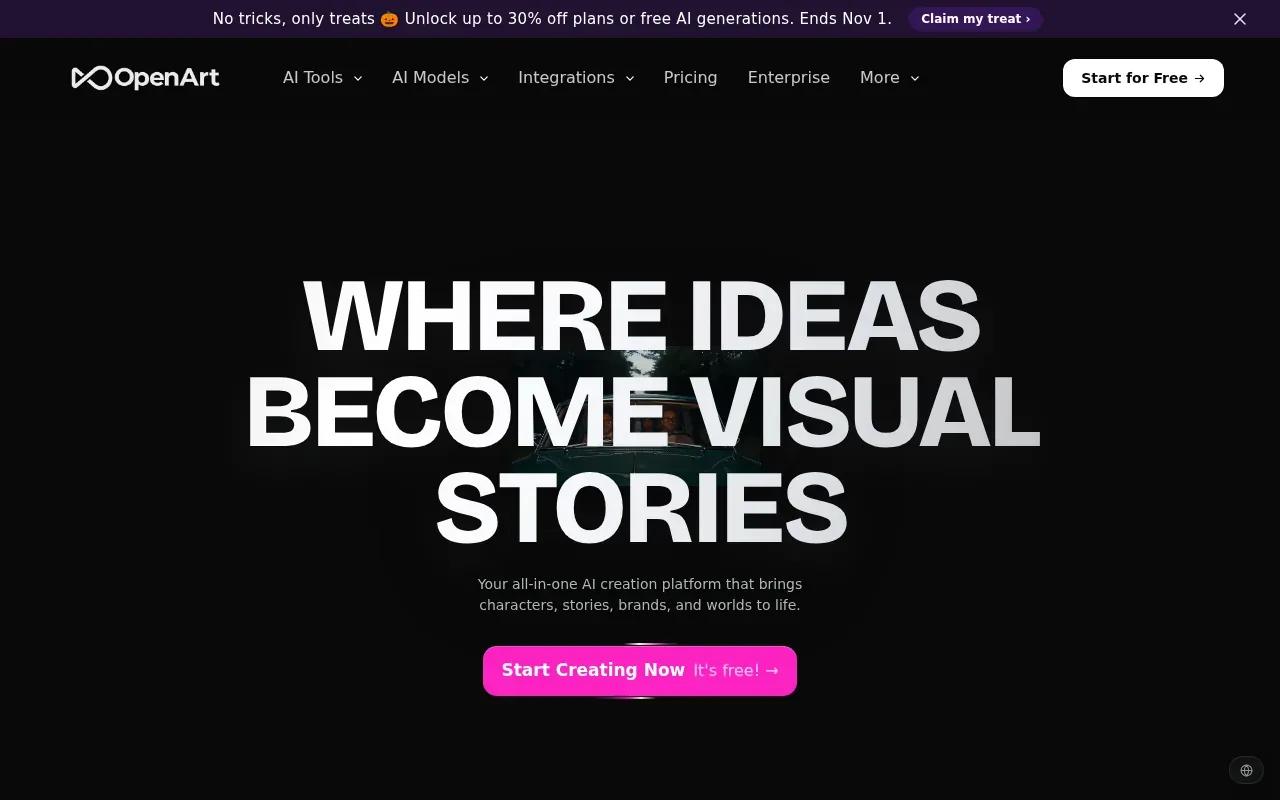
OpenArt says you can enter a prompt or add a reference image to make a video up to 15 seconds long, with output up to 4K. It also describes character creation: save a character, then reuse it in later generations to keep the face consistent. That can help when you are planning more than one shot with the same person or mascot.
Check the platform’s available controls when shaping a sequence. You can also choose among video models shown on the platform. Because the available models and settings can affect the result, check the generation panel before you settle on a resolution or clip length.
The useful fit here is a project that may move between image, video, and character work in one place. The free trial with daily credits gives you room to explore, while the no-card start lowers the friction of testing a reference photo. Keep track of the credits as you try different models and versions.
Choose OpenArt when reuse of a character or a storyboard-style workflow matters as much as animating one still.
6. Higgsfield AI: A broader creative suite with limited free use
Higgsfield AI supports image, video, and voice content made from text prompts or references. It also includes media editing and upscaling, plus an AI agent for creative workflow tasks. The service works on web and mobile.
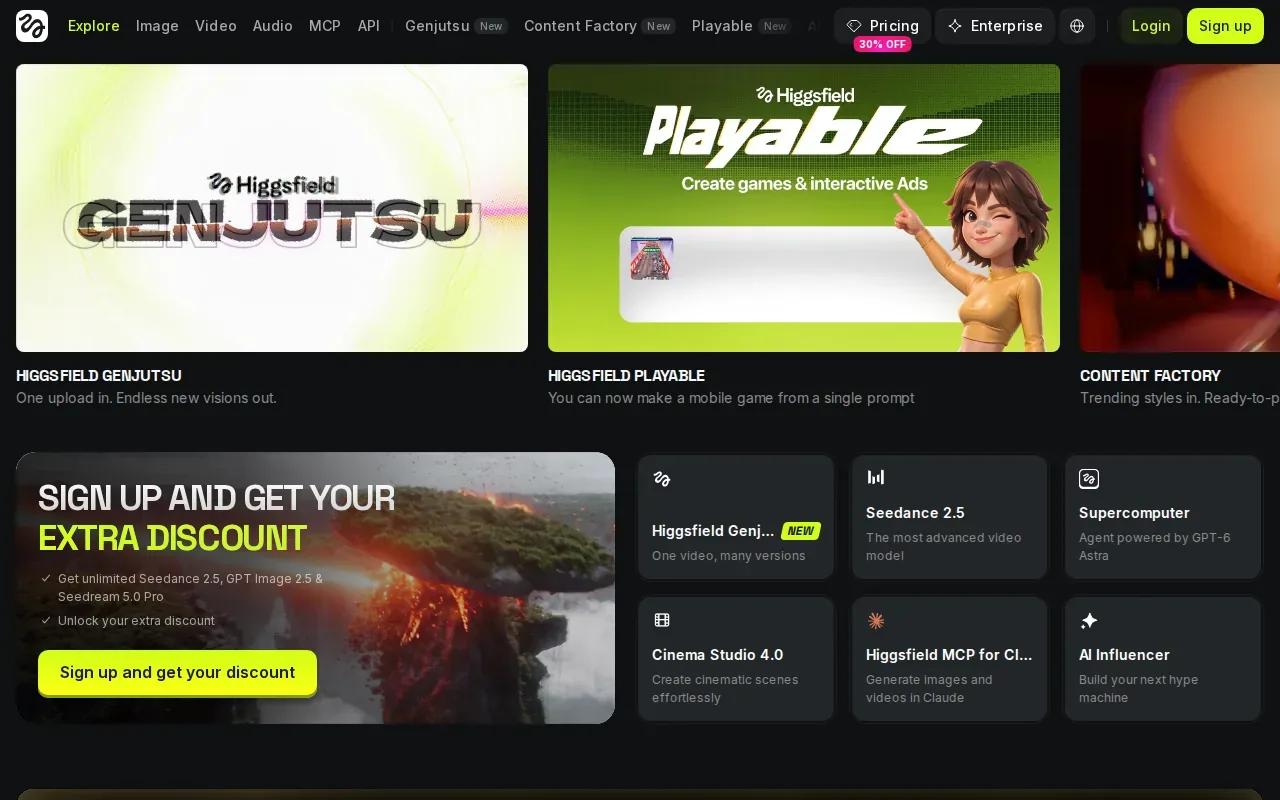
That wider scope may suit a creator who expects to move between still images, video, and voice content in a single creative process. For an image-to-video job, begin with the photo or reference and describe the motion you want. Then review the result before deciding whether to edit or upscale it.
Higgsfield has limited free use. The pricing details provided show paid plans at $19, $47, and $99 per month when billed annually. Treat the free access as a chance to test whether its workflow fits, rather than assuming it will cover a regular production schedule.
The product details also describe a set of models and creative tools, so check the current model and output settings for the specific task.
If you already have a product image, focus your first prompt on one visible change. That makes it easier to judge the generated motion before moving on to edits or other assets.
Picture-to-video generator comparison table
Use this table to narrow the shortlist by free access and the detail that most affects your output. A resolution cap can matter more than a long feature list when the clip is headed for a paid placement.
| Tool | Free access | Stated output or control | Consider it when |
|---|---|---|---|
| Veo Studio | A couple of 720p videos monthly | Up to 4K on supported settings; synced sound and scene extension | You need sound, frame guidance, or a longer supported scene |
| Kling AI | Basic is free | Up to 4K; keyframe controls in supported settings | You want to guide key moments in a clip |
| Runway | — | Character consistency; 4K upscaling | You expect to edit or refine generated footage |
| Pika | 80 credits monthly | Free image-to-video capped at 480p | You want to test a short social idea |
| OpenArt | Trial plan with daily credits | Up to 4K; reusable characters | You want character reuse or storyboard controls |
| Higgsfield AI | Limited free use | Image, video, and voice content; editing and upscaling | You want several media tasks in one creative suite |
Frequently asked questions
How do I turn a picture into a video with AI?
Upload a clear photo, describe the movement, choose the video settings, then generate and review the clip. Keep the first prompt focused on one action and one camera move. Set the aspect ratio for where you plan to post. When the result is ready, watch it through before downloading so you can check the motion and framing.
Can I use a picture-to-video generator for free?
Yes, several tools in this shortlist include some form of free access. Veo Studio’s free plan includes a couple of 720p videos per month without a card. Kling AI has a free Basic tier, while Pika gives 80 monthly credits with a 480p image-to-video cap. Free access varies, so check the allowance and output limits first.
What should I write in an image-to-video prompt?
Describe what should move and how the camera should behave. A prompt such as “the person turns toward the window as the camera slowly moves closer” gives a clear action and camera move. Add sound or dialogue only when it helps the scene. The reference photo already sets much of the subject’s look and composition.
Which video settings should I choose?
Choose the aspect ratio based on the destination, then set resolution and duration to match the job. Vertical framing suits a phone-first social post; landscape works for a wide video placement. If you are testing an idea, start with the lowest output setting that can answer your question. Check the tool’s current limits before planning a final export.
How long does image-to-video generation take?
Render time depends on the tool and the settings used. Veo Studio’s step-by-step guidance describes a render as usually taking a few minutes, with 4K taking longer. Leave room for a second attempt if the first motion does not match your prompt.
Can I download the finished video?
Yes, these workflows are built around generating video clips for review and export, though the exact controls depend on the tool. Before sharing, watch the downloaded file at its intended size and check that the subject, framing, and sound still look right.
Conclusion
For a still image that needs guided motion plus synchronized sound, dialogue, or a path into a longer scene, start with Veo Studio. Its free plan lets you test a couple of 720p videos each month without a card. Upload one clear image, write one focused motion prompt, and review the clip before you build a larger campaign around it.


