
Want to turn one photo into a moving clip with a few words? An AI image-to-video tool lets you guide the action with a prompt, but each tool gives you different control over sound, motion, and output size. Here are six options, starting with Veo Studio, an independent browser-based tool powered by Google's Veo 3.1 models, with synchronized sound and dialogue. Plus tips for picking the right workflow.
We analyzed 51 YouTube comments about image to video AI prompts and found that 18% mentioned simple, clear prompts.
1. Veo Studio: Browser-Based Image-to-Video With Sound
Veo Studio is an independent, browser-based AI video creation tool powered by Google's Veo 3.1 models. Add a prompt, upload reference images, or use both. The output can include synchronized sound and dialogue, character consistency, first- and last-frame control, scene extension, and up to 4K resolution.
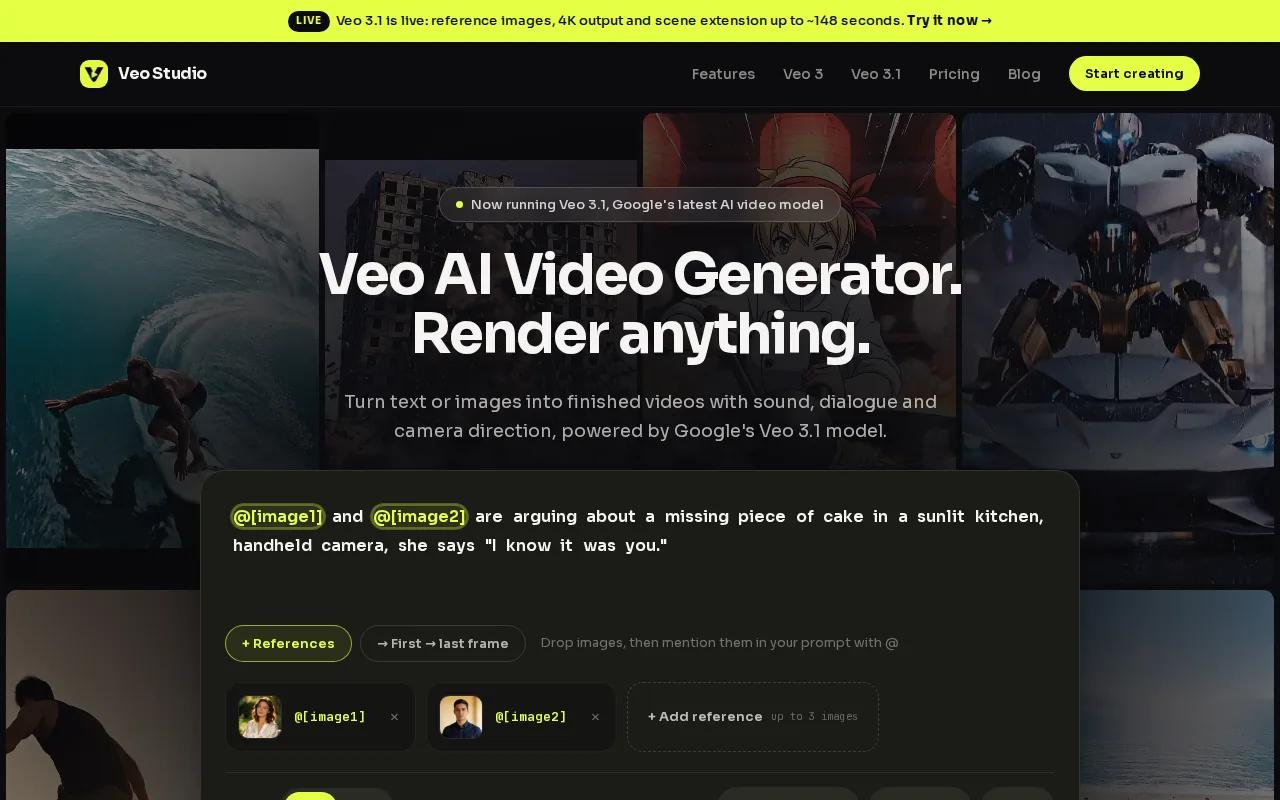
It suits social creators, brand marketers, small businesses, and filmmakers who want a photo to become more than a silent moving image. For a product spot, upload a clear product photo and describe a slow camera move. For a short scene, put spoken words in quotation marks to guide dialogue.
One image-to-video workflow is simple: sign in through a browser, add your image, describe the subject's motion and camera move, then choose the aspect ratio and output settings. Review the result before downloading. If the movement feels too busy, simplify the prompt and try again.
Veo Studio's free plan includes a couple of 720p videos each month without a card. Paid plans start at $14 per month and include higher resolutions. The Veo Studio video creation page explains the available ways to start.
For a stronger prompt, name one main action, one camera move, and the scene's feel. “A ceramic mug sits on a wooden counter” describes the image. “Slow push-in as steam curls upward, warm morning light” tells the model what should change.
Creators who need the shot to continue can extend supported 720p clips by seven seconds per step, up to roughly 148 seconds. That gives a short social clip room to grow into a longer sequence.
2. Runway: Prompt-Led Motion for Short Clips
Runway is a prompt-led option for turning a still into a moving shot. It may fit creators who want to test a camera direction or subject action in a short clip.
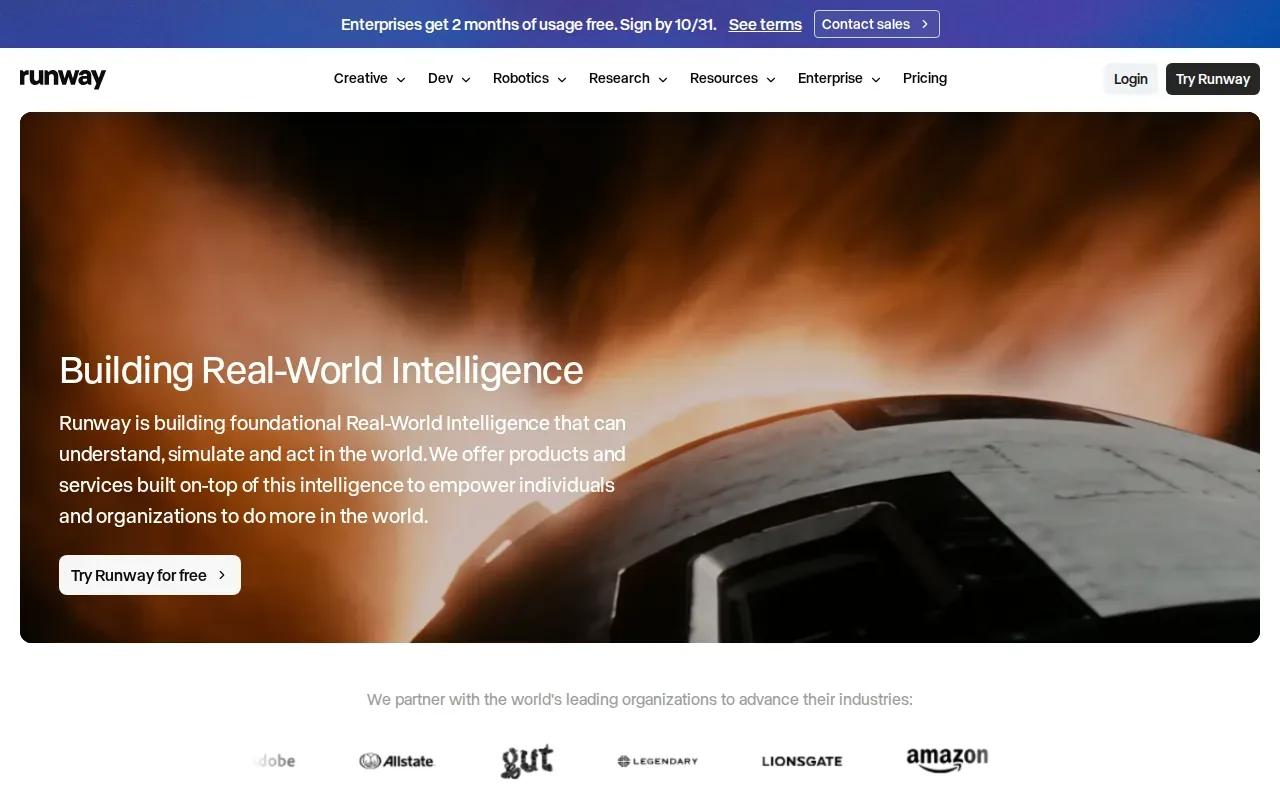
Runway's Standard plan costs $15 a month, or $12 a month when billed annually, and includes 4K upscaling.
Keep the prompt focused. Describe the subject's movement first, then add a camera instruction such as “slow pan left.” If the source image already has a strong composition, ask for subtle motion so the clip doesn't compete with its main subject.
For example, a travel creator could start with a still of a quiet street and prompt for drifting clouds with a gentle forward camera move. Check the generated clip for unwanted changes to the subject before using it in a post.
Runway's fit comes down to your clip needs. If you want a short prompted clip, its Standard plan gives you a clear cost to compare.
3. Pika 2.5: Dynamic Photo Animation at 1080p
Pika 2.5 is a video model tuned for crisp 1080p motion. Its image-to-video use case suits creators who want a still photo to move with energy, such as a stylized social clip or a quick visual beat.
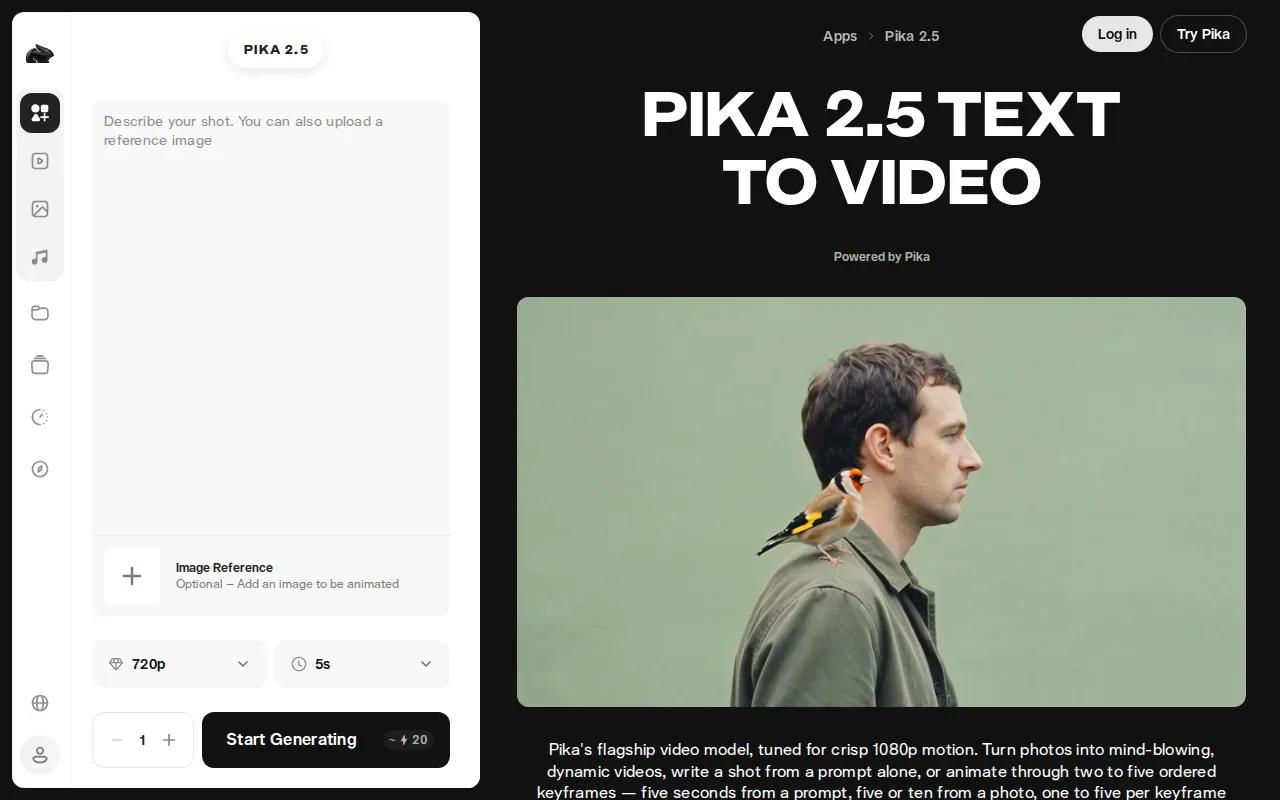
Pika's Starter plan costs $10 per month, or $8 per month when billed annually. Before you commit to a recurring plan, try a prompt with one visible action and one camera move. For instance: “A paper kite lifts into a light breeze, slow upward tilt, bright spring afternoon.”
Prompting works best when you separate what moves from what stays still. If you want a person to turn their head while the background remains calm, say both things plainly. This can help keep the intended action from spreading across the whole frame.
To plan variations for a campaign, change one prompt detail at a time. A new camera move is easier to judge when the subject action and overall scene stay the same. For more example wording, browse the AI image-to-video prompt templates for social posts, product videos, and stories.
4. DomoAI: Image-to-Video With a 4K Upscaling Option
DomoAI turns a photo or artwork into a short clip, with options for motion and camera direction. It fits users animating portraits, illustrations, or product shots who want to test a few kinds of movement.
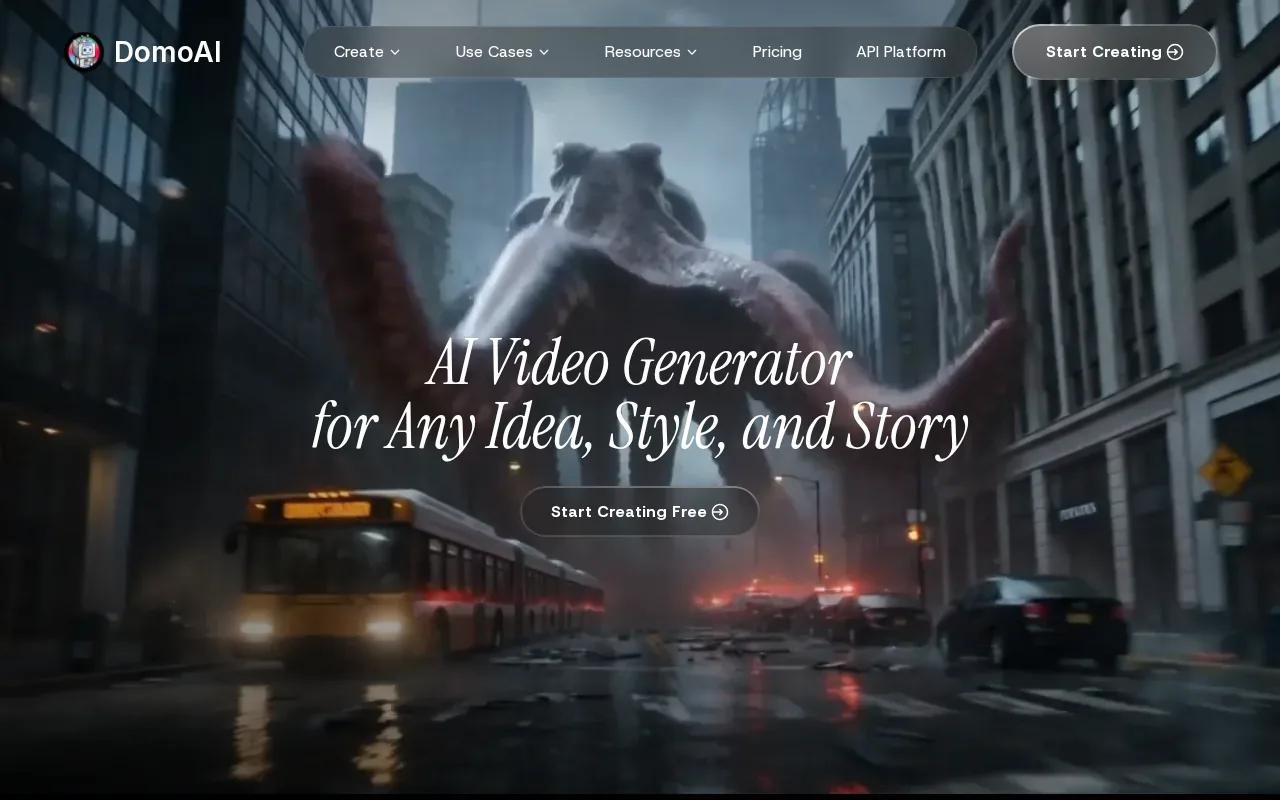
The web workflow supports 3- or 5-second clips in portrait, landscape, or square formats. You can describe motion, choose a preset effect, and select a Faster or Advanced model. Faster is suited to trying ideas; Advanced is intended for more precision with detailed scenes, faces, and close-ups.
DomoAI's listed Basic plan starts at $13 per month, or $9 per month billed annually. Its 4K option is through an upscaler, rather than the original animation output. That distinction matters if you need native high-resolution generation instead of an enlarged finished clip.
For a gentle portrait animation, a prompt might ask for a small blink, slight hair movement, and a slow camera push. Describe the motion rather than restating the image. Keep the motion subtle when facial detail needs to stay clear.
Try a lower-cost or faster draft before using a more detailed setting for a final clip. That way, you can judge the movement first and spend more effort only on a version that fits your shot.
For a step-by-step guide, see this photo-to-video guide.
5. Higgsfield AI: Reference-Driven Creative Workflows
Higgsfield AI can create images, videos, and voice content from text prompts or references. It also supports editing and upscaling media, and its AI agent can automate creative workflows. Access is available on web and mobile.
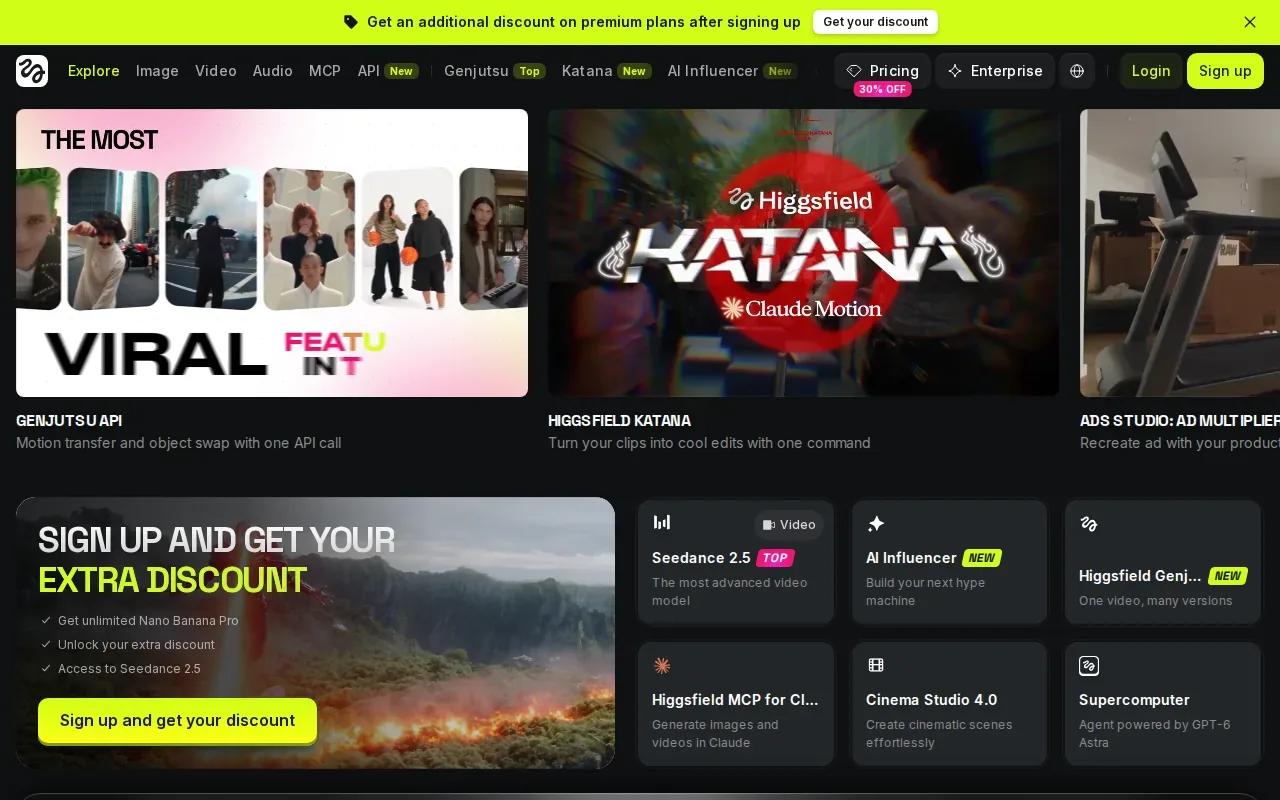
This combination may suit creators who want to move among different media tasks in one workflow. A marketer could begin with a reference image, generate a video draft, then edit or upscale media as part of the creative process. The reference-led starting point is useful when you want the output to follow a visual direction.
Keep your prompt clear about the role of each reference. Say which image sets the subject, which sets the style, and what action should happen. If the reference is a portrait, specify whether the person should blink, turn, or stay still while the camera moves.
Focus your test on the work you actually make, not on a feature list alone.
6. Vidu AI: Another Option for Prompted Image Animation
Vidu AI is another option to consider when exploring image-to-video tools. A prompt can describe a scene across timed shots, specifying subject details, camera angles, and sound.
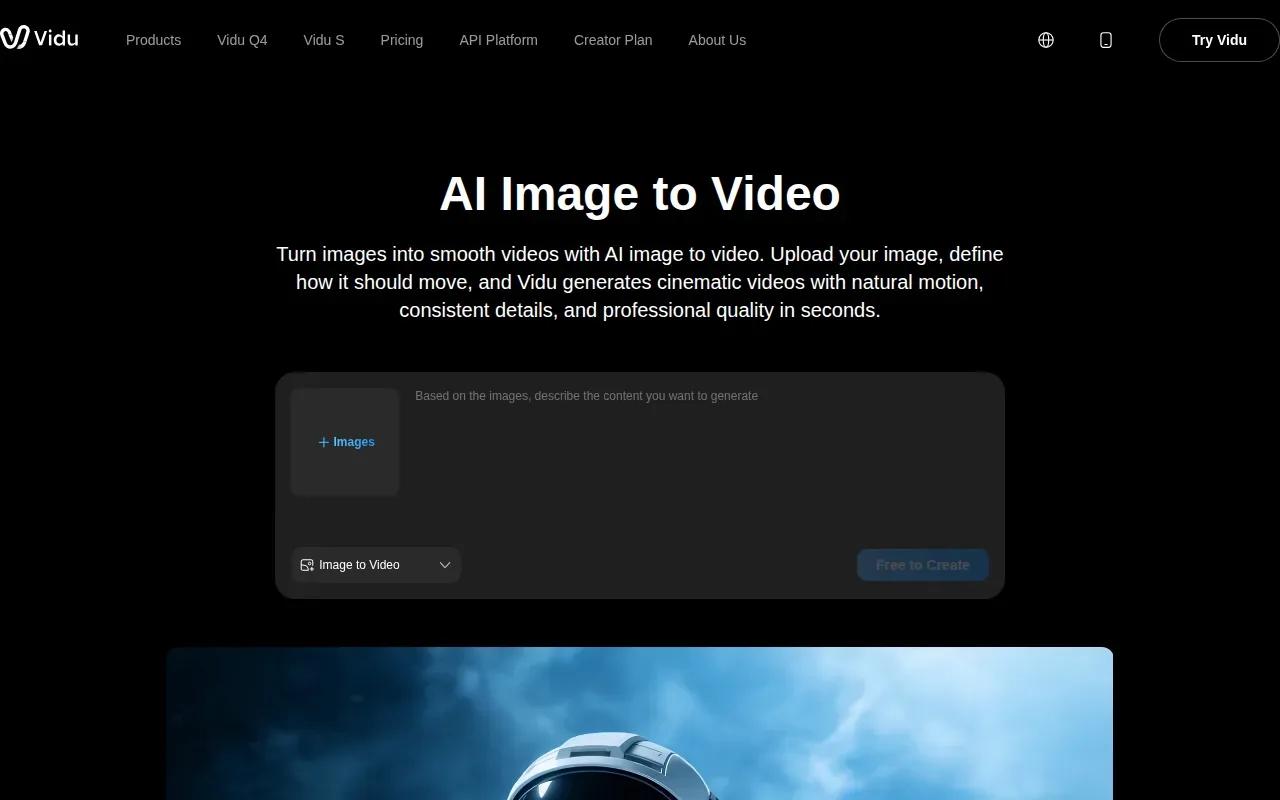
That structure can help make a prompt more controlled. Start with the subject and the details that must stay the same. Then describe each action in order, with a camera direction for each part. End by stating what sound belongs in the scene, if sound is part of the result you want.
For a product clip, that structure could look like this: keep the product's shape and label, show a slow turn toward the camera, then end on a close view. For a personal photo, you might keep the background still while the subject smiles and looks toward the lens.
Compare the Six Image-to-Video AI Tools
Start with the job the clip must do. A social post may need portrait framing and brief motion; a story scene may need dialogue or a way to continue beyond one short generation. Compare the tools by the feature that will affect your finished edit.
| Tool | Prompt and image workflow | Output details | May fit when you need |
|---|---|---|---|
| Veo Studio | Prompts, reference images, first and last frames | Up to 4K; synchronized sound and dialogue; scene extension | A clip with audio, character consistency, or a longer scene |
| Runway | Prompt-led motion | 4K upscaling on paid plans | A short prompted clip |
| Pika 2.5 | Animate a photo | Tuned for 1080p motion | Dynamic photo animation |
| DomoAI | Upload an image and describe or preset motion | 3- or 5-second web clips; 4K upscaling option | Short portrait, illustration, or product animation |
| Higgsfield AI | Text prompts or references | Editing, upscaling, and web or mobile access | A reference-based creative workflow |
| Vidu AI | Prompts | See website | A prompted scene |
Feature completeness can matter more than the largest resolution number. If a clip needs dialogue, consistent characters, and an extension, make those requirements part of your first test. Veo Studio connects those needs with up to 4K output, while the other picks suit different prompt and motion workflows.
How to Choose an Image-to-Video Tool
Before paying, test one representative image and prompt. Keep the first test small: one subject, one clear motion, and one camera direction. Then check whether the output preserves the details your audience needs to see.
- For spoken scenes: Confirm the tool supports synchronized sound and dialogue.
- For recurring characters: Check how it handles reference images and character consistency.
- For a clean export: Confirm whether the stated resolution is generated directly or reached through upscaling.
- For social content: Match the aspect ratio and clip length to the place you plan to post.
- For longer cuts: Check whether the tool can extend a scene or whether you'll need separate clips.
Prompt quality is only part of the result. A clear, well-lit source image gives the model a more useful starting point. If the motion looks odd, reduce the number of actions in the prompt before changing every setting at once.
Veo Studio supports synchronized sound and dialogue, character consistency, scene extension, and up to 4K output.
Frequently Asked Questions
How do I turn an image into a video with a prompt?
Upload a clear image, then describe what should move and how the camera should behave. Keep the prompt focused on one main action, such as a person turning toward the lens. Add lighting or mood only when it helps the shot. Generate a draft, review the subject's appearance, and simplify the prompt if the motion feels wrong.
What should I write in an image-to-video prompt?
Write what happens, what stays still, and how the camera moves. For example, ask for a slow push-in while steam rises from a cup and the table remains still. Avoid repeating details already clear in the image. If you need dialogue, include the exact words and check how the finished clip handles sound and lip movement.
Can an AI image-to-video tool add sound and dialogue?
Yes, Veo Studio supports synchronized sound and dialogue with generated video. Its capabilities include music, sound effects, and lip-synced speech. Other tools in this shortlist differ, so check the feature you need before choosing. If the clip will run silently on social media, sound may not be a deciding factor.
Does 4K upscaling mean a video was generated in 4K?
No. Upscaling enlarges a finished clip, while native 4K generation produces the video at that output size. DomoAI's 4K option is an upscaler. Veo Studio supports output up to 4K. Check this difference when fine detail or a large display matters to your project.
How can I keep a character consistent across AI video clips?
Use reference images when the tool supports them, and describe which details must stay the same. Veo Studio supports character consistency and reference images. Keep the prompt focused on the character's action instead of changing clothing, setting, and camera direction all at once. Review each clip before building a longer edit from several generations.
Conclusion
If your image-led clip needs synchronized dialogue, character consistency, scene extension, or up to 4K output, start with Veo Studio. Create a free account, upload one image, and test a short prompt with a single camera move before building the full scene.


