A still photo can become a moving shot with a short prompt, and you don't need animation skills to try it. These photo-to-video tools take different paths: some add sound or control the opening and ending frames, while others put the result straight into an editor.
We analyzed 51 YouTube comments about photo to animated video AI and found that 29% asked about usage instructions and workflow steps.
Here are six named options, starting with Veo Studio, and the kind of project each one fits.
1. Veo Studio
Veo Studio is an independent, browser-based AI video creation tool powered by Google's Veo 3.1 models. Upload a reference image, describe the action, and generate a short clip with synchronized sound and dialogue.
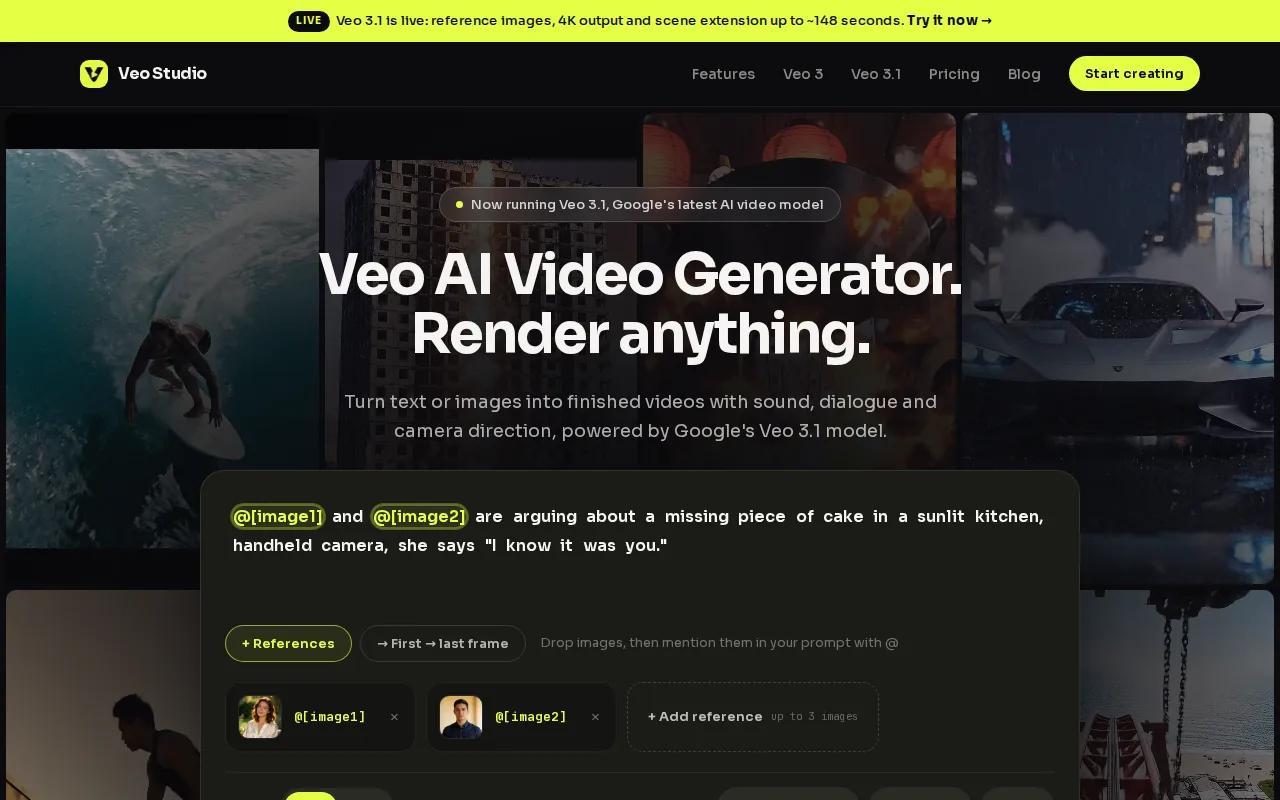
It suits creators who need a still image to become a directed scene, rather than a simple pan or zoom. You can guide a character or product with reference images, set a first and last frame, and extend a finished scene. Output can reach 4K on supported settings.
For example, start with a photo of a ceramic mug and prompt for a slow camera move as steam curls upward. Or use a portrait as a reference and describe a line of dialogue. The clip can include generated sound with the image, so the result doesn't have to be a silent animation waiting for a separate voice track.
The browser workflow is direct: add an image, write what should move, choose a frame shape and duration, then generate and review. If the first result misses the mark, adjust the action or camera direction in the prompt. A clear, single action is easier to direct than a long list of changes. For a step-by-step image-to-video workflow, see how to turn a picture into a video.
Veo Studio has a free plan with a couple of 720p videos per month and no card required. Paid plans start at $14 a month; plans include a commercial license. For a closer look at motion prompts and image references, see the AI photo animation generator comparison.
The key distinction is control: you can anchor the scene with still frames, then extend supported clips when the story needs more time.
For a quick look at an image-to-video workflow, watch this video:
2. Adobe Firefly: Short clips that fit Adobe projects
Adobe Firefly turns an uploaded photo or AI-made image into a short video clip. It suits agency teams and Adobe users who need an insert, transition, or B-roll shot to fit an existing edit.
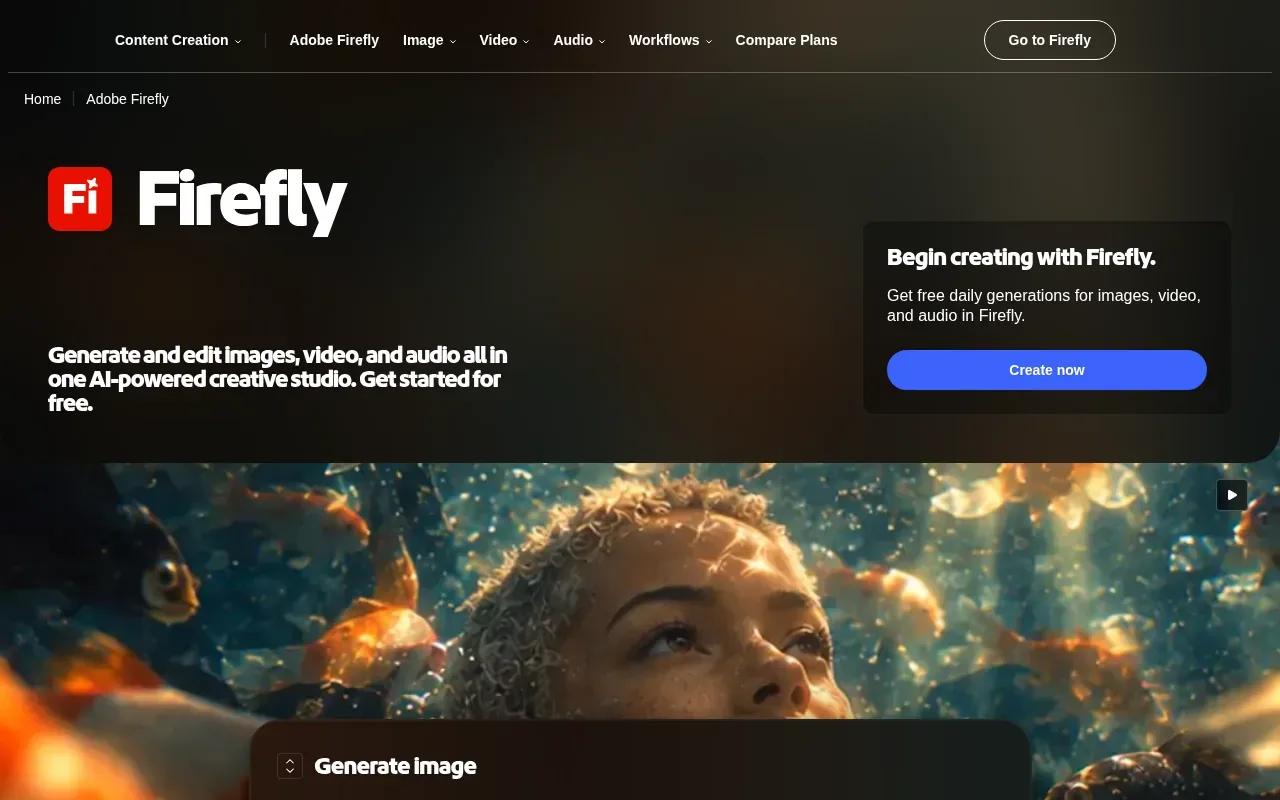
The image-to-video workflow lets you set a starting image and, optionally, an ending image. Those stills guide where the clip begins and finishes. Firefly Video clips are five seconds long and can reach 4K output. That makes it a focused choice for a short visual beat, not a long scene.
To make a product insert, upload the product photo and prompt for a camera move or a small change in the scene. You can set an aspect ratio and resolution, then review the result before downloading it. Firefly also has motion controls and preset styles for shaping the camera feel.
When the clip is ready, you can bring it into a video editor for further work. That handoff helps if the still needs to match footage already on your timeline.
Choose Firefly when a five-second clip is enough and you want to keep shaping the edit in Adobe tools. If your scene needs spoken dialogue generated with the picture, compare options built around that workflow instead.
3. Vidu: Semantic accuracy and consistent characters
Vidu is an AI video generation platform built around the Vidu model, with a focus on semantic accuracy. It suits creators who need a character or other subject to stay recognizable across multiple image-driven clips.
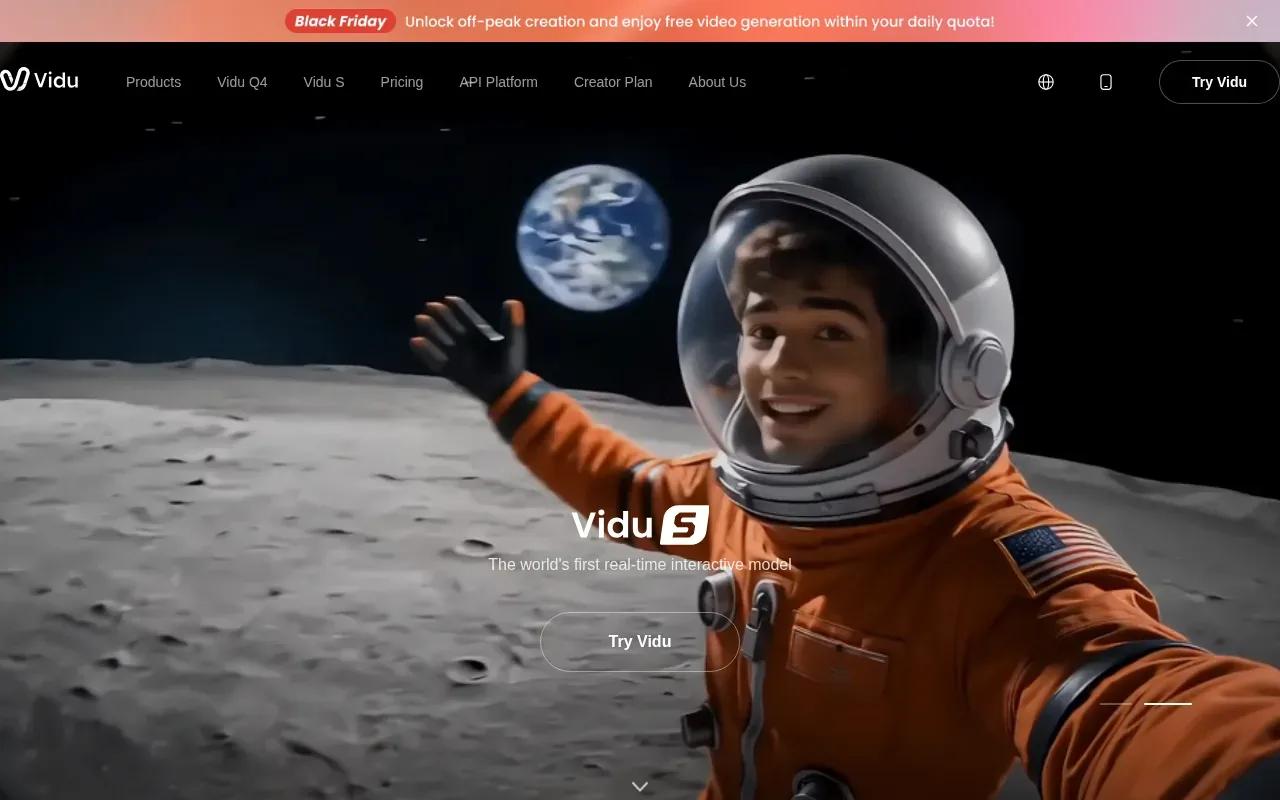
Its reference-subject system is designed to keep characters stable. You can also set a start frame and an end frame, which gives the model two visual points to work toward. That can help when a shot needs to begin with one pose and finish with another, rather than leaving both ends entirely to a text prompt.
Vidu lets you upload a photo with a description, choose image-to-video mode, and adjust duration, resolution, and movement amplitude. A product creator might use a reference image to keep a package's shape and color consistent, then set a gentle camera move. An illustrator could guide an animated character through a short scene using the same reference subject.
Vidu supports output up to 4K. Vidu offers 40 free credits per month and 720p output on its free plan. Those details may matter if you want to test a few image prompts before choosing a workflow for ongoing content.
Keep the prompt focused on what changes. If the source image already shows the subject clearly, spend your prompt on movement, framing, and the intended ending pose. That leaves less room for the generated clip to reinterpret the whole scene.
Vidu is a fit when subject continuity and frame direction matter more than building a full presenter-led edit in the same tool.
4. HeyGen: Turn a product image into a presenter-led video
HeyGen is suited to videos where a person should present the product. Its photo-avatar workflow can animate a still portrait, then pair it with a script, presenter voice, captions, and music.
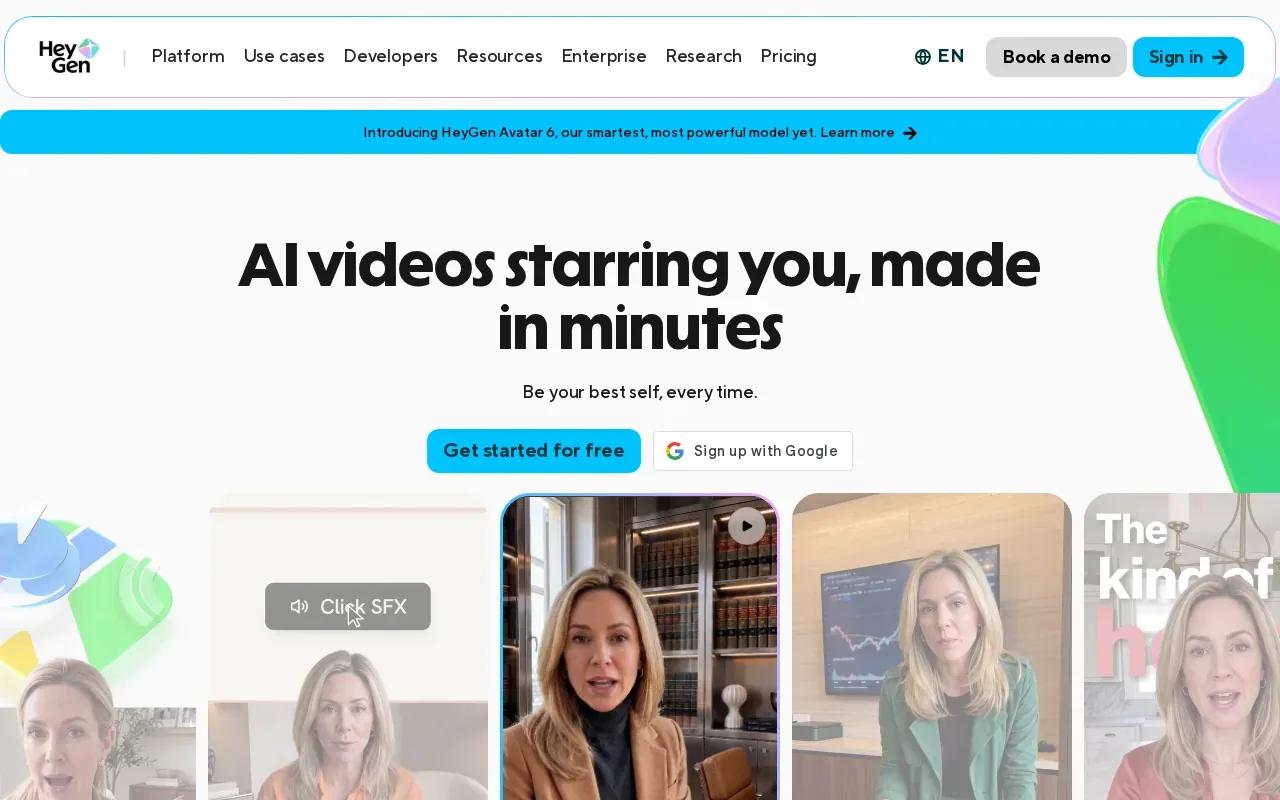
This is a different job from making a landscape photo drift or a product image rotate. A shop owner could use a presenter to explain a product detail, while a marketing team could build a short scripted explainer without filming a person on camera. The script sets the message; the avatar delivers it with lip-synced speech.
HeyGen's photo-avatar process starts with a photo avatar. From there, you can add a script or audio, choose a voice, and set the orientation to landscape or portrait. Presenter Mode focuses on speech and delivery. Cinematic Mode gives more direction over movement, camera behavior, and the scene.
For a simple product pitch, keep the script brief and use one key point per scene. Add the product image or supporting media where it helps explain the claim, then check that the spoken words match the visual. A presenter clip is most useful when viewers need context, not just motion.
Its photo-avatar approach is also a natural fit for a recurring spokesperson, since a script can be changed and regenerated when the product or offer changes.
Pick this option when the result should talk to the viewer. For a photo-led scene without a presenter, the other image-to-video tools may suit the brief better.
5. CapCut: Animate images inside a social video editor
CapCut has an image-to-video tool inside its desktop editor, alongside auto captions and music. It suits social creators who want to animate images and finish a post in a familiar editing workspace.
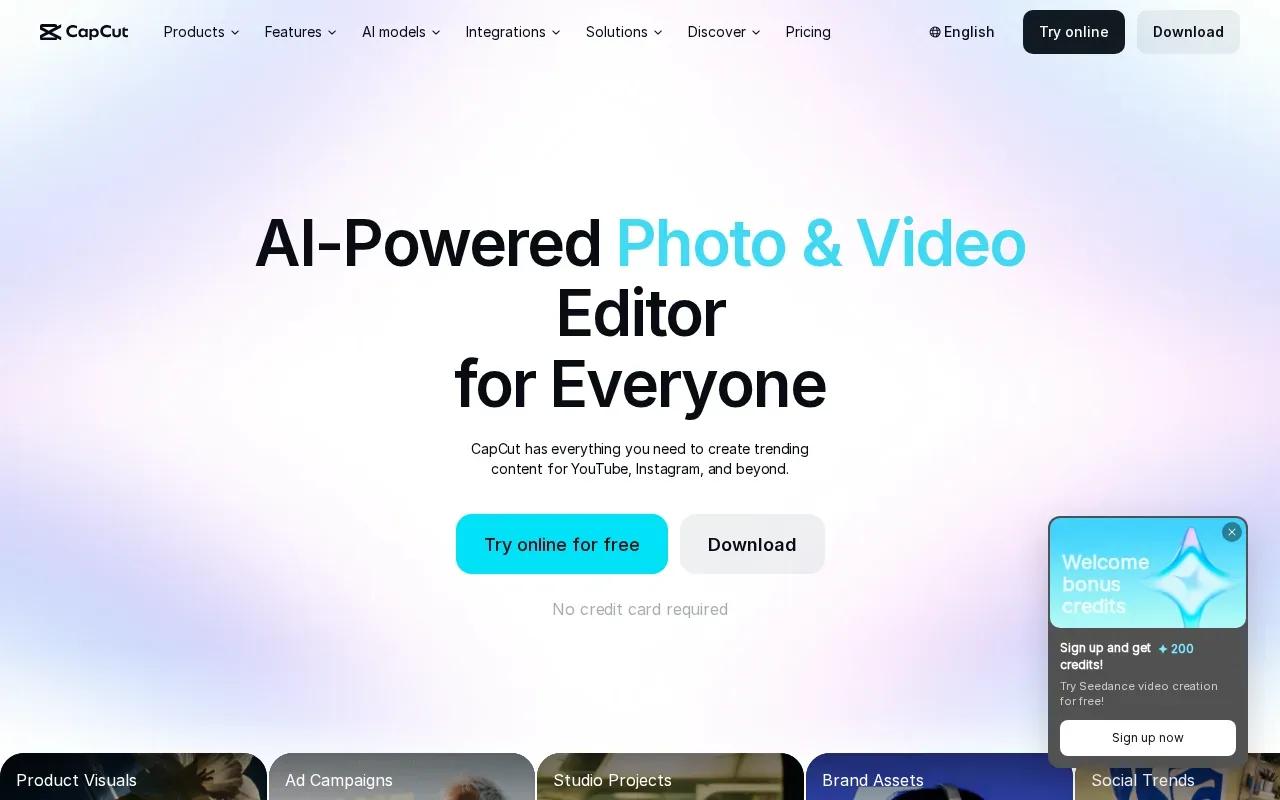
CapCut's image-to-video workflow can turn uploaded photos into a video with automated transitions, pacing, and layouts. Its web tool can also help draft a script from the images, or you can supply your own wording. After generation, refine the text, visuals, music, timing, and captions before export.
That can be useful for a short event recap. Put photos in a clear order, review the generated narration, then trim any transition that feels out of place. For a product post, use a small set of images and check that the script sticks to details you can verify. CapCut supports changes to export quality, resolution, and frame rate, with a maximum resolution of 720p.
CapCut's web generator is described as free, with browser access and no sign-up required. It can suit quick social posts, educational explainers, or a photo recap when you want captions and music in the same editing flow.
One thing to watch: a generated sequence built from several stills is closer to an edited photo story than a single photo animated into a continuous scene. Pick the workflow that matches your source material.
6. Kling AI: Direct longer scenes with frame control
Kling AI supports image-to-video clips from three to 30 seconds, with output up to 4K on Kling 4.0. It suits creators who want to direct a longer movement or guide how a shot changes over time.
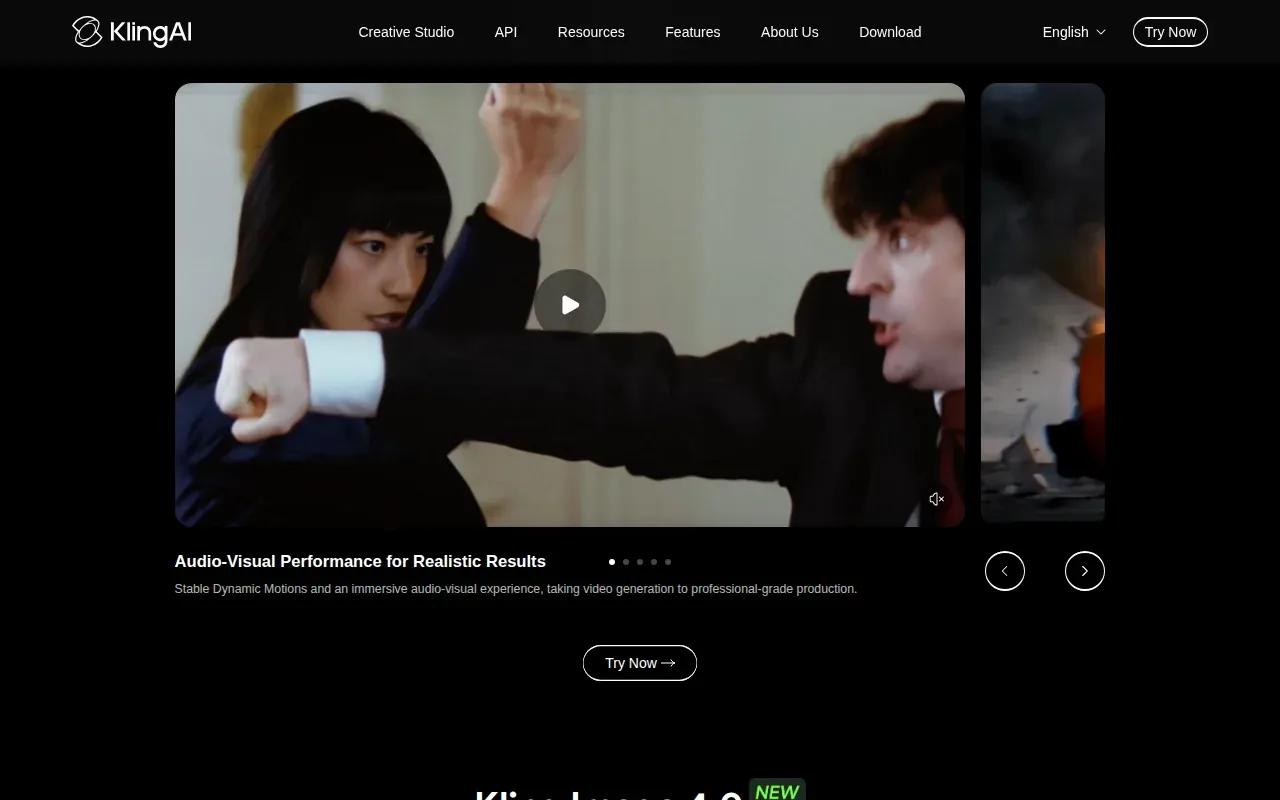
Start with a photo, then describe the subject's movement and the camera's path. Kling AI supports start and end frame control, plus additional keyframes to define compositions or scene changes. The model's reference inputs can guide the look of a character, product, or setting as motion develops.
For example, a travel creator could begin with a still of a trail and prompt for a slow tracking shot through the scene. A brand team could use a product image as the starting point and set an ending frame that matches a planned campaign layout. The longer clip range gives more room for movement than a brief loop, though a longer prompt still needs a clear order of events.
Use this quick comparison to match scene control to the job:
| Option | Useful fit | Control or output detail |
|---|---|---|
| Veo Studio | Image-led scenes with generated dialogue | Reference images, first and last frames, scene extension, up to 4K |
| Adobe Firefly | Short inserts for Adobe edits | Five-second clips, optional ending image, up to 4K |
| Vidu | Recurring subjects across clips | Reference-subject consistency, start and end frames, up to 4K |
| HeyGen | Presenter-led messages | Photo avatars with scripted, lip-synced speech |
| CapCut | Social edits with captions and music | Image-to-video workflow in an editor, up to 720p |
| Kling AI | Longer directed scenes | Three-to-30-second clips, start and end frames, up to 4K |
Kling AI is worth considering when the shot needs more duration or several visual anchors. If synchronized dialogue is a core part of the scene, compare that requirement before you commit to a workflow.
FAQ
Can AI turn a photo into an animated video for free?
Yes, some tools have free access or monthly credits. Veo Studio's free plan includes a couple of 720p videos per month with no card required. Vidu offers 40 free credits per month on its free plan. Check the plan terms and output limits before you build a recurring workflow around a free tier.
How do I make a video from a photo with AI?
Upload the image, describe the motion you want, then generate and preview the clip. A prompt such as “the camera slowly circles the cup as steam rises” gives the model a subject action and camera move. If the result feels off, simplify the prompt before changing the image.
Can AI add speech or music to an animated photo?
Yes, depending on the tool. Veo Studio can generate synchronized sound and dialogue with a scene. HeyGen can animate a photo avatar to deliver a script with lip-synced speech, captions, and music. CapCut includes music and auto captions in its editing workflow, while each tool handles sound in its own way.
Can I use an AI-animated photo in a social post or ad?
Yes, these clips can fit social posts, product promotions, explainers, and event recaps. Check the terms and license for the plan you use, especially for commercial work. Then match the frame shape and resolution to the destination, and review any generated words or product details before publishing.
Conclusion
Choose the tool by the job: Veo Studio for reference-led scenes with synchronized dialogue, HeyGen for a talking presenter, or CapCut for an edit with captions and music.