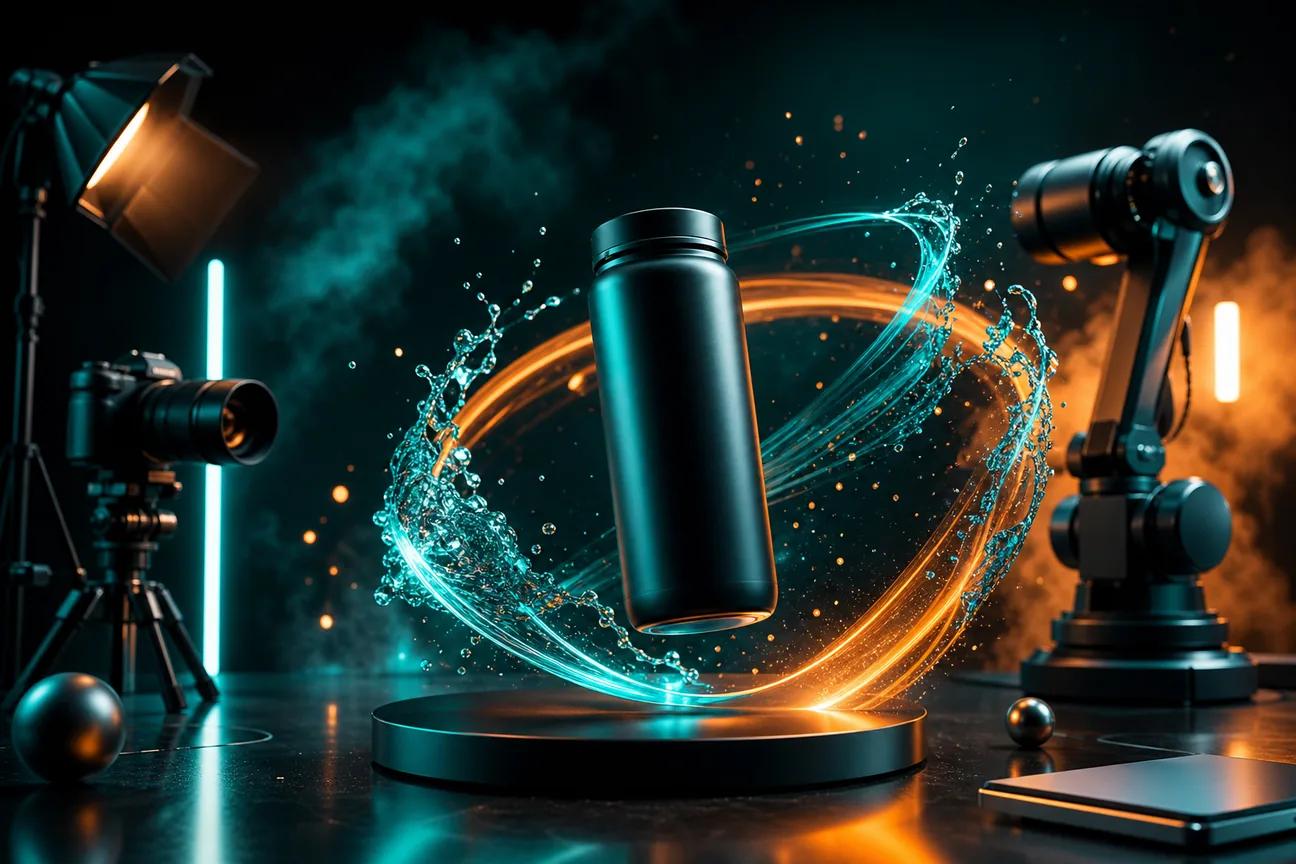
A still product photo can become a moving ad without a camera crew, but the result depends on your starting image and prompt. An AI product animation generator can add motion, shape a scene, or help assemble a full video project. Here are six named tools, with a closer look at what each one can do.
We analyzed 48 YouTube comments about AI product animation generators and found that 29% mentioned inconsistent visual quality.
1. Veo Studio — Browser-based product videos with synchronized sound
Veo Studio is an independent, browser-based AI video creation tool powered by Google's Veo 3.1 models. Upload a product photo or describe a scene, then prompt a camera move, such as a slow push toward a watch or a gentle turn around a shoe. You can also set first and last frames so the model generates motion between two chosen images.
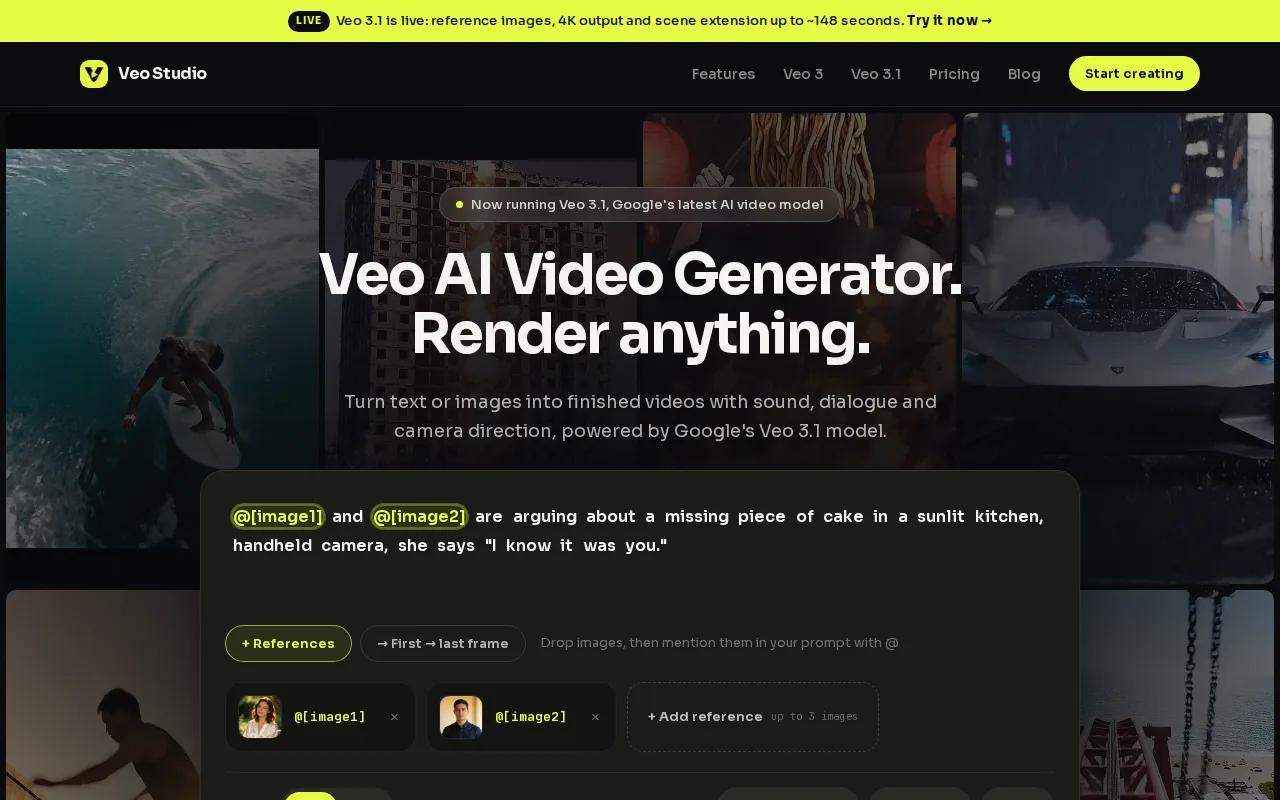
For a product ad, the useful difference is that sound and dialogue can come with the generated video. Add a quoted line to prompt lip-synced dialogue, or describe music and sound effects for the scene. Reference images can guide the product or visual style, while scene extension can add to a finished clip. Output can reach 4K on supported paid plans.
The free plan includes a couple of 720p videos a month, with no card required. Paid plans start at $14 per month and include a commercial licence. For a deeper look at turning a prompt or photo into a finished clip, see the AI product video generator tool comparison.
Keep the first test focused: attach one clear product image, describe one main movement, and name the shot’s lighting or setting. If the product has a label, inspect it frame by frame before using the clip in an ad. Generated motion can change small details, so keep claims and packaging accurate.
When you need a longer scene, scene extension adds to supported clips in seven-second steps, up to roughly 148 seconds under supported settings. That gives you a way to build beyond a short opening shot without stitching every extension in another editor.
2. Pippit: A social-commerce option for TikTok Shop sellers
Pippit suits social-commerce sellers who need campaign videos from product links or uploaded assets. Its Video Agent takes a link, media, or file as a reference, then uses a prompt to shape the result. You can set the aspect ratio, language, and duration before sending the request.
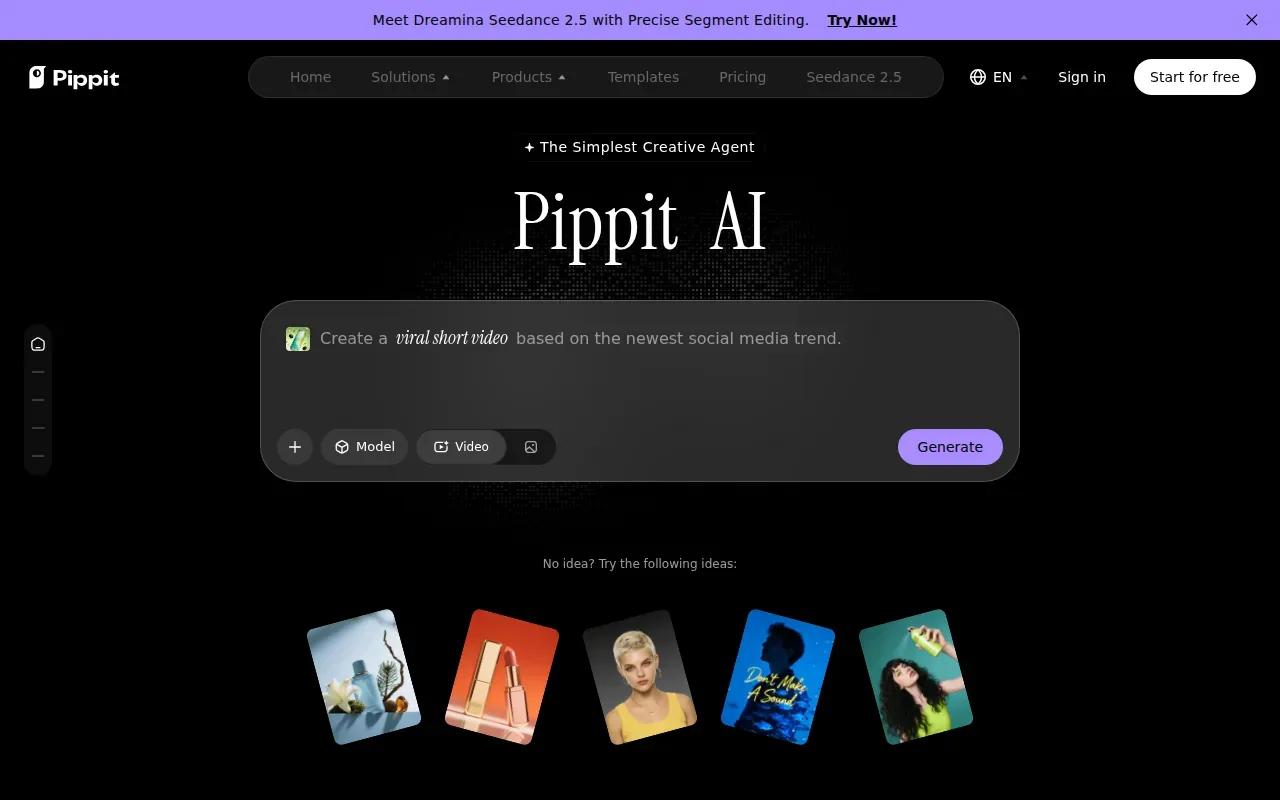
That link-based start can help when you’re making several ad concepts from an existing listing. Instead of rebuilding the brief from scratch, start with the listing or the product media you already have, then describe the scene or tone you want. The free tier provides access alongside paid credit plans, so you can try the workflow before deciding if it fits your content pace.
A clear prompt helps keep the output tied to the item. Describe the product’s role in the scene, the movement you want, and the intended format. For example, ask for a slow turn in a vertical frame, then check whether the generated video keeps the item’s shape and key visual details.
Pippit is a sensible fit when product-link or uploaded-asset input matters more than detailed control over individual frames. If you’re mainly making a cinematic shot from a still image, compare that workflow with Veo Studio’s reference-image and frame controls. If your priority is a social-commerce campaign brief, start with the product listing and test one short concept.
3. OpenArt: Saved characters and multiple models for stylized product scenes
OpenArt brings different image and video models into one creative workspace. It accepts prompts or reference images for video generation, and its saved characters let you reuse a character’s look in later generations. That can help if a product campaign uses a recurring host or mascot alongside the item.
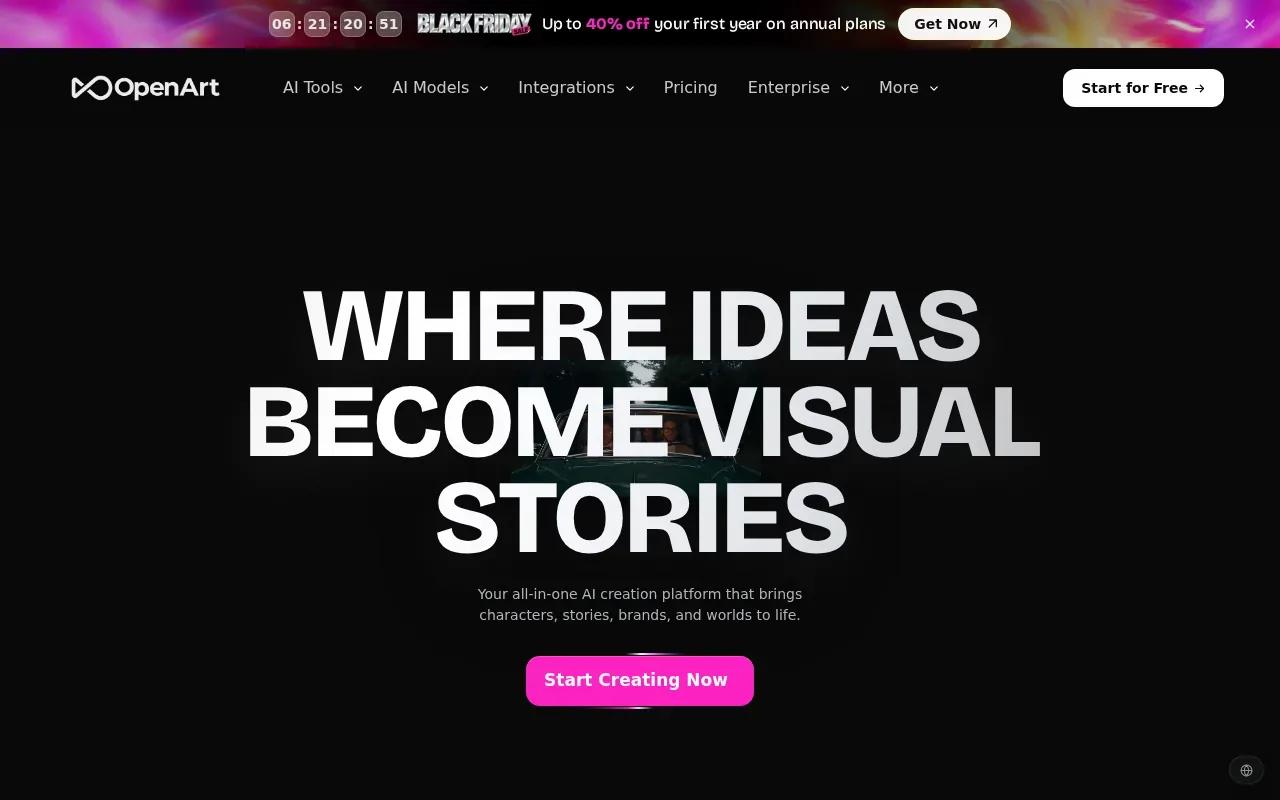
For scene planning, Director mode lets you lay out a storyboard and shape shots through chat. You can revise the sequence as the idea takes form, then choose among available models for different visual results. OpenArt also has lip-sync, music, and sound tools, which can reduce the need to move between separate apps when you’re making a character-led product clip.
Think of a skincare ad with a fictional on-screen guide. Save the character, reuse it in another scene, and check whether the product remains visually consistent across both shots. This workflow is built around creative direction and scene variation, rather than a single fixed product-photo animation.
A model choice doesn’t guarantee that packaging text or product details will stay exact. Review each generation before it goes live, especially if the clip shows a label close up. OpenArt makes sense when your brief has several shots or a recurring character and you want model options within the same workspace.
4. CapCut: A familiar editor for short-form product promos
CapCut is a familiar video editor for creators making content for YouTube, Instagram, and other social channels. Its free online editor includes AI tools, trimming, transitions, subtitles, and HD exports without a watermark. That makes it useful when you already have footage or a generated clip and want to shape it into a short promo.
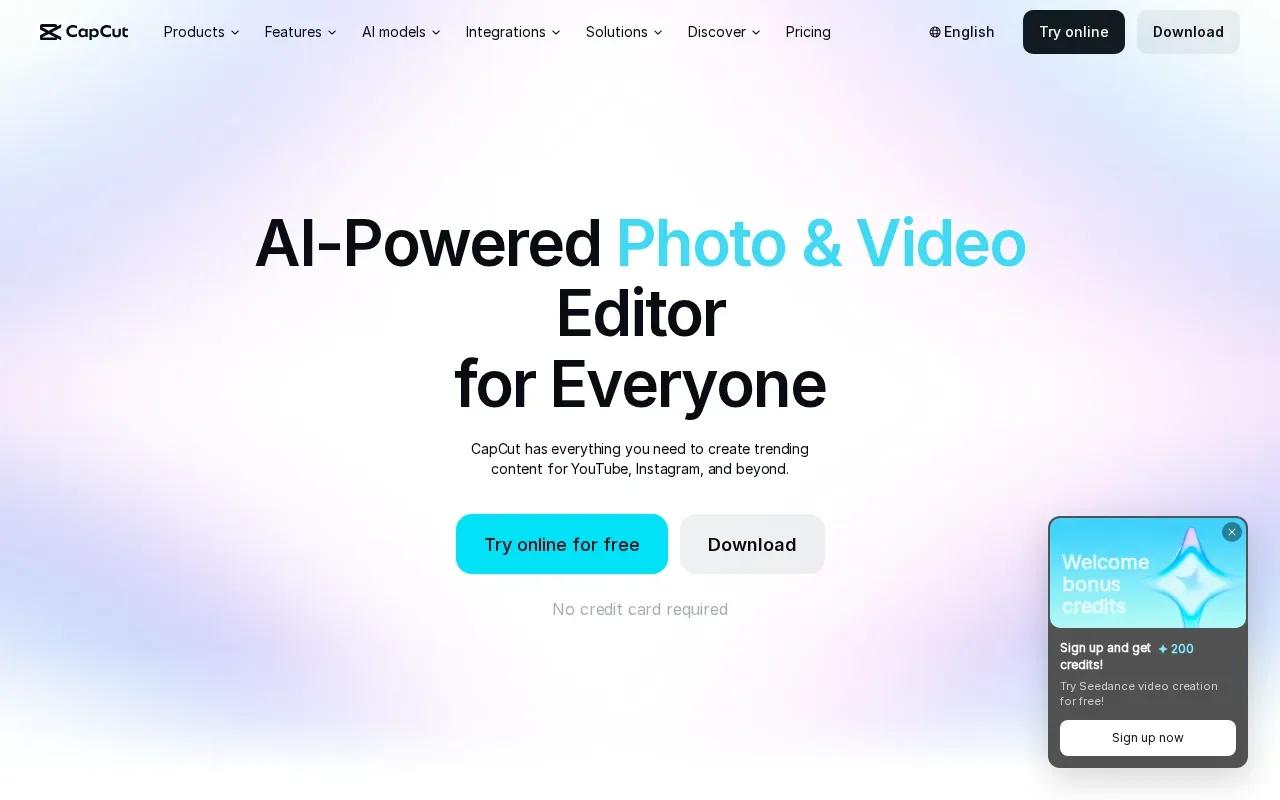
For a product animation workflow, treat CapCut as the editing stage: bring in a clip, cut it to the needed length, add captions, and adjust the pacing. A slow product reveal can work as the opening, followed by a quick benefit line and a final view of the item. Keep the captions short enough to read on a phone.
If you’re deciding whether to animate a still or edit a finished video, the AI image animation options overview explains the image-to-video side of that choice. A generator can make the motion; an editor helps you arrange the finished shot for a feed.
CapCut is a fit when hands-on editing is part of the job. Check the final export at the size and crop you’ll post, and review captions for errors. That last pass matters when an ad includes product names or claims that viewers need to read correctly.
5. Adobe Firefly: Product video exports with options up to 4K
Adobe Firefly can animate images or text prompts, with video formats for vertical social posts or horizontal presentations. Adobe Firefly offers resolution options up to 4K and lets you export the result. Its free plan includes daily generations with no watermark.
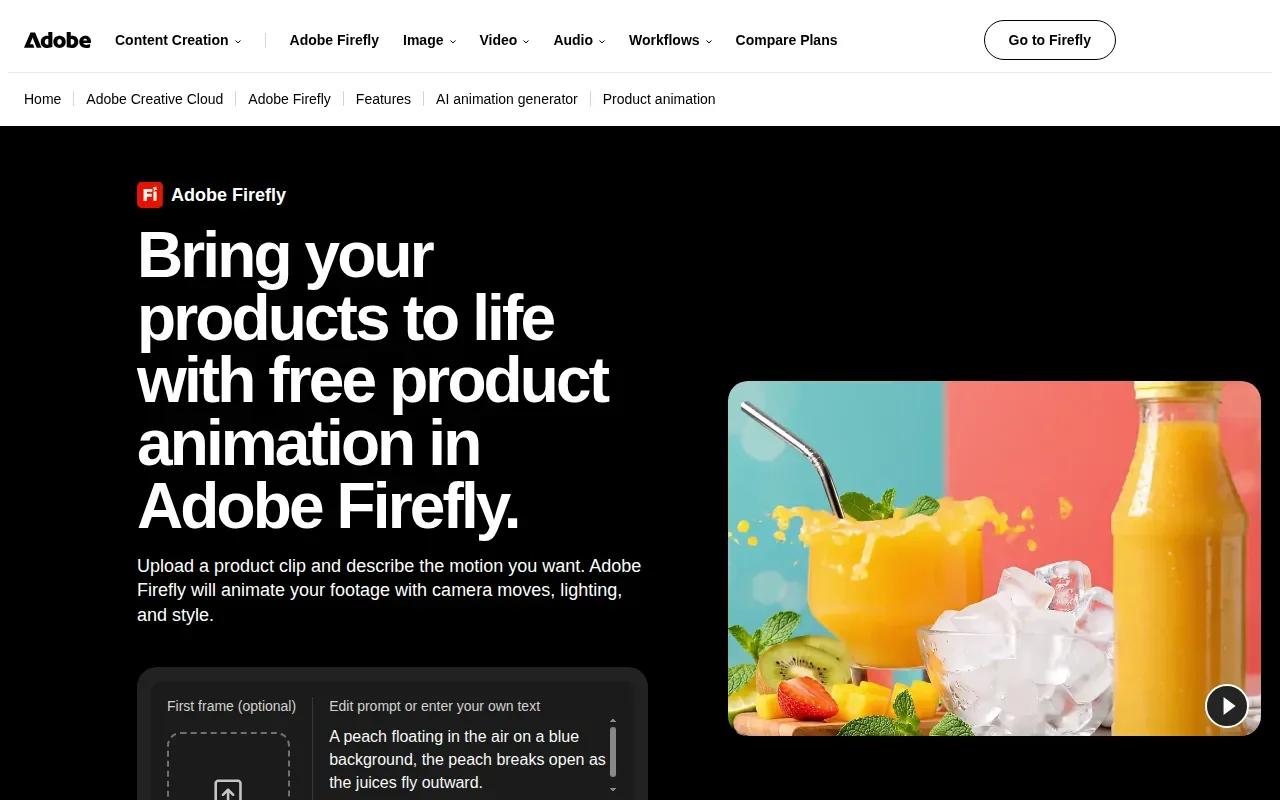
That format choice helps when one campaign needs both a vertical social cut and a horizontal presentation clip. Start with a product photo or prompt, generate a motion draft, and check how the product reads at the intended crop. Firefly also lets users switch between Adobe and partner video models, then compare variations with prompt changes.
When a clip needs more finishing, Firefly content can move into other editing tools. Choose Firefly if output format, model choice, and a path into your existing editing workflow match how your team already works.
6. Kapwing: Prompt-based video projects for marketing teams
Kapwing can turn a short prompt into a multimedia video project. Its AI can assemble visuals, voiceover, captions, music, characters, and a script that you can revise. The result is a project with layered tracks, timing, and sound, rather than only a single generated product shot.
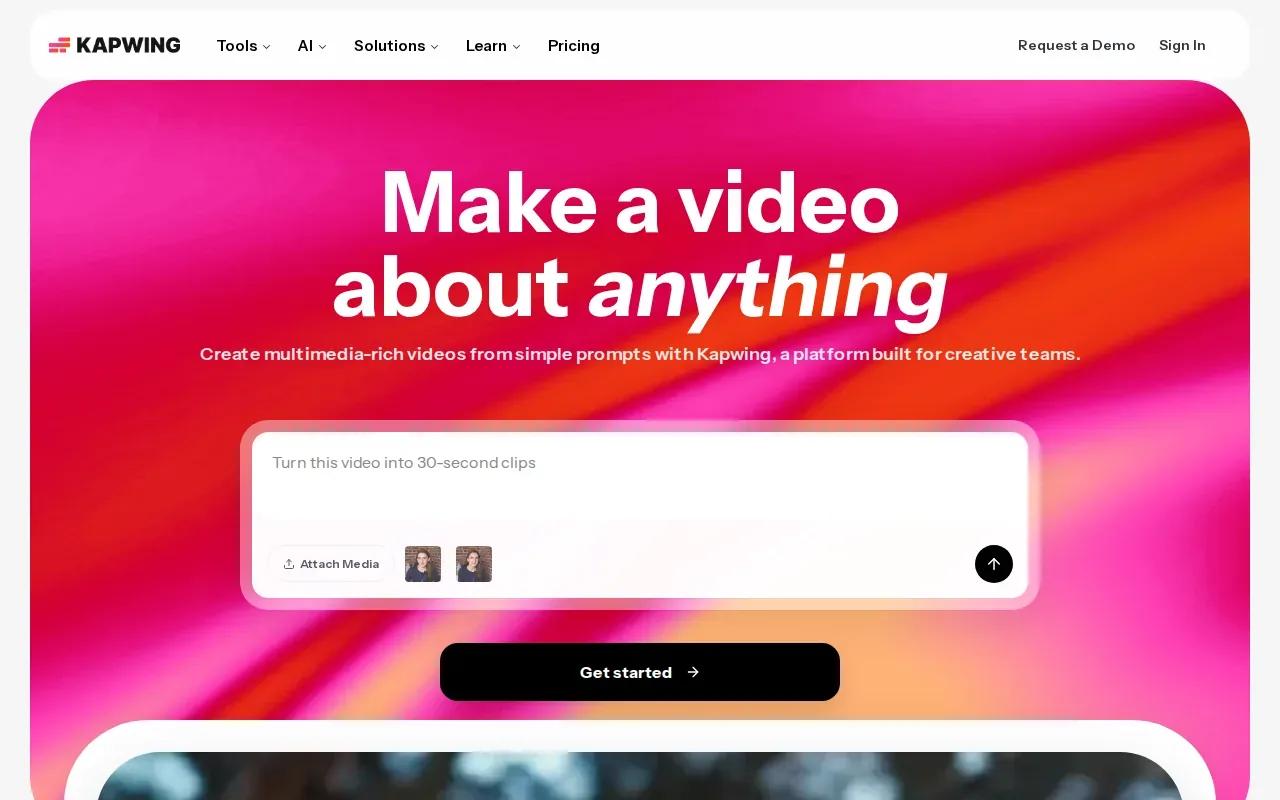
That makes Kapwing relevant when a marketing brief needs more than an animated photo. A team can start with a prompt, review the draft, then edit clips on a browser-based timeline. Teammates can comment on the project, while caption tools let you adjust the font and timing.
For a product launch, you could describe the audience and the main message, then check whether the script and visuals match the brief. Replace any scene that misrepresents how the item works. You can also tidy voice tracks or translate subtitles and voice for other audiences.
Kapwing is best matched to teams that need prompt-led projects with editing and feedback in the same workspace. If all you need is a short movement from one product photo, a focused image-to-video tool may be a simpler starting point.
Compare the AI product animation generators at a glance
The right fit depends on what you bring to the workflow. Start with the input you already have, then match it to the controls and editing help you need.
| Tool | Useful starting point | What stands out | Consider it when |
|---|---|---|---|
| Veo Studio | Prompt or reference images | Sound and dialogue, frame control, scene extension, output up to 4K | You want to direct a product shot or build beyond a short clip |
| Pippit | Link, media, or file | Video Agent with aspect ratio, language, and duration settings | Your campaign starts from a listing or uploaded asset |
| OpenArt | Prompt or reference image | Multiple models, saved characters, storyboard direction, lip-sync | Your concept has recurring characters or several planned shots |
| CapCut | Existing footage or generated clip | Editing tools, transitions, subtitles, HD export without a watermark on its free online editor | You want hands-on edits for social content |
| Adobe Firefly | Image or text prompt | Vertical or horizontal formats, options up to 4K, model switching | You need format choices or a path into further editing |
| Kapwing | Simple prompt | Generated project with tracks, voiceover, captions, and team comments | Your team needs to draft and edit a full video project |
For more on using a product photo as the starting asset, see the product video maker tool comparison. It’s a separate decision from choosing an editor: first decide how the motion gets made, then decide how much finishing work your team needs.
FAQ
How do I animate a product photo with AI?
Upload a clear product photo to a tool that accepts reference images, then describe one main action and the camera move. Generate a draft, preview it closely, and check the item’s shape, color, and label. If you need a planned start and end, use a tool with frame controls. Download the clip after you’ve checked its crop and quality.
Can AI keep product labels and text accurate?
AI can alter small label details during motion, so don’t assume the text will remain exact. Use a clear reference image and keep the requested motion simple. Preview the clip frame by frame around any close-up. If the label is wrong, regenerate or use a verified still in the final edit instead of publishing an inaccurate claim.
Can I make a product animation for TikTok or Reels?
Yes. Choose a vertical format when the tool supports it, and write the prompt for a clear subject that fits the frame. Keep the key product action near the center so it stays visible on a phone. After generation, check captions and crop in your editor before posting. Veo Studio and Firefly support vertical output options.
Do AI product animation tools have free plans?
Some tools provide free access with limits. Veo Studio’s free plan includes a couple of 720p videos per month without a card. Pippit also has free access alongside paid credit plans, while Firefly’s free plan includes daily generations. Check the current plan terms before relying on a free tier for regular campaign work.
What should I do if a video generation fails or looks wrong?
First, confirm the source image is clear and the prompt asks for one main movement. If the render fails, try again and check the tool’s current generation guidance. If the video completes but changes the product, simplify the action or adjust the reference image. Preview every export before use, especially when it includes readable packaging or product claims.
Conclusion
Choose Veo Studio when you want a product-photo starting point with synchronized sound, frame control, and scene extension in a browser-based workflow. Try one reference image with a simple camera move, then review the result before you build a full campaign around it.