
A generated shot can look polished, then lose its impact when the character changes or the dialogue falls out of sync. These AI filmmaking tools take different routes through that problem. Veo Studio is first on the list, followed by five options for motion, model choice, editing, and prompt-led video projects.
We analyzed 41 YouTube comments about AI filmmaking Tools and found that 17% mentioned fear of AI displacing creative work.
1. Veo Studio
Veo Studio is an independent, browser-based AI video tool powered by Google’s Veo 3.1 models. It turns a text prompt or reference images into video with synchronized sound and dialogue, character consistency, first- and last-frame control, scene extension, and output up to 4K on supported plans.
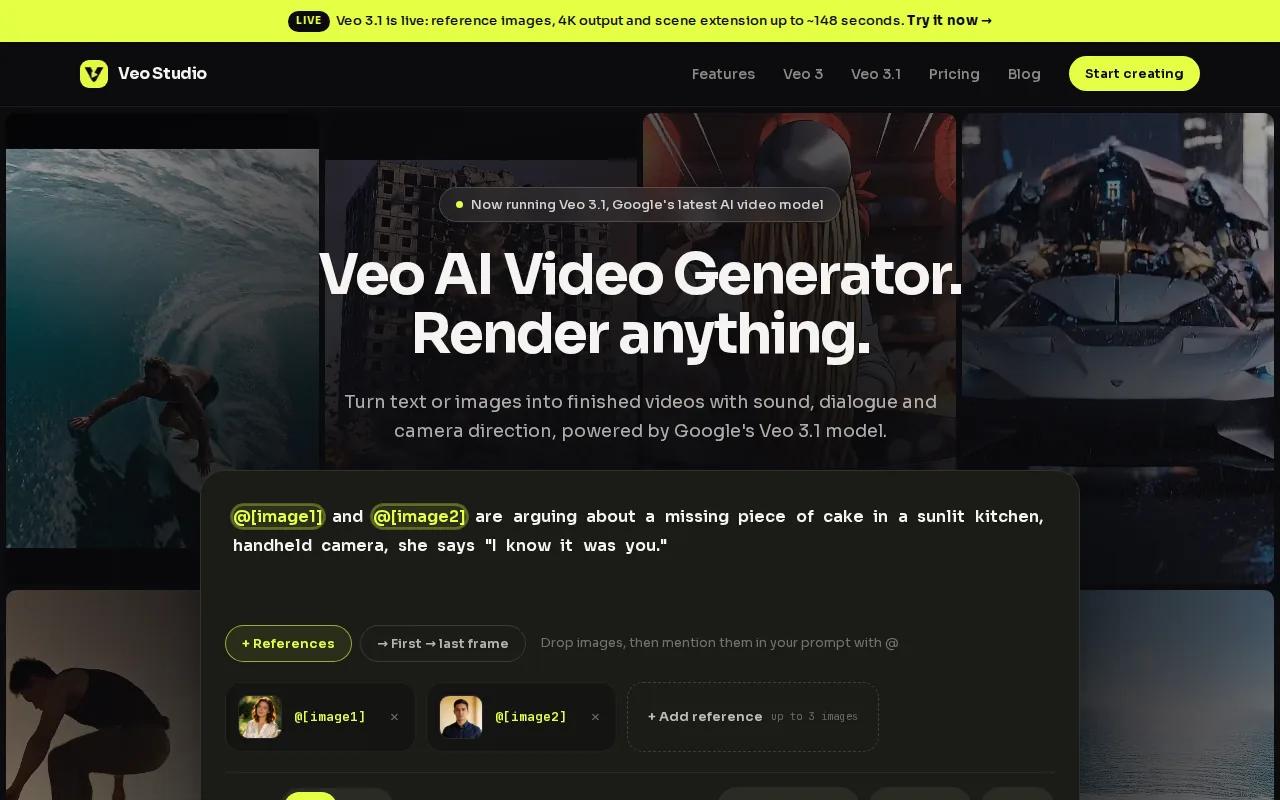
That mix suits a creator who needs more than a silent visual. For a short scene, describe the action and the camera move, then put spoken words in quotation marks. You can attach reference images to guide a character or product, or use first and last frames to shape how a shot begins and ends.
Veo Studio clips run for 4, 6, or 8 seconds. Scene extension adds time in 7-second steps to supported clips, so you can build a longer sequence without treating every shot as a fresh start. Output can reach 4K on supported settings. The free plan includes a couple of 720p videos a month, with no card required. Paid plans start at $14 a month and include a commercial licence.
Try one scene before you plan a full short film. Use the same reference image across shots, then check the face, spoken line, and sound before extending the scene. The free 720p allowance gives you a way to test that workflow. For a broader look at generation styles, see these AI video generators for creators.
2. Higgsfield: A motion-focused option for cinematic footage
Higgsfield is a video creation tool with a focus on how footage moves. Its character-consistency tools can help when you want a recurring subject, while its camera controls let you direct a shot’s movement rather than rely on a static frame.

That focus can help with a social clip that needs a bold move, such as a quick push toward a subject or a sweeping orbit around a product. You can combine motion directions in a shot prompt and set them in sequence.
Higgsfield also describes AI cast tools for defining an actor’s look and an option to share project assets with teammates. Those tools may suit a small remote crew developing shots together. Character consistency is part of the offer, but the footage still needs review across multiple cuts. Check the face, clothing, and scene details in each accepted take before you assemble a longer sequence.
A free tier has limited use of a few image models, and generations carry a watermark. The paid starting price is around $15 a month. That gives you a clear reason to test the motion workflow first: make a shot that depends on a specific camera move, then judge whether the result fits your cut.
3. OpenArt: Multiple video models in one interface
OpenArt puts a range of video models behind one interface. It also has a character builder for consistency and lip-sync capability, which makes it a useful fit when you want to test different generation styles without changing your whole creative setup.
Its video tools cover prompt-led generation as well as edits such as background replacement, relighting, and video extension. That range can help a marketer test a product clip, then adjust the background or look before choosing a final version. OpenArt’s AI video resolution can reach 4K on many models, though the model you select affects the output.
The character builder is useful when a scene calls for the same person more than once. Save a character reference, use it again, and inspect the face and clothing in each result. Lip sync can support dialogue-led clips, but you should review mouth movement against the line before you publish. A model menu gives you options; it doesn’t make every output behave the same way.
OpenArt may fit creators who like to compare visual approaches inside one workspace. Its breadth can also mean more choices to assess. Pick one sample scene and keep the prompt, character reference, and target aspect ratio fixed while you compare results. For story work, the related AI movie scene generator comparison looks at how scene controls fit different projects.
4. Runway: A flexible toolkit for text, image, and video inputs
Runway supports text-to-video, image-to-video, and video-to-video generation. That range makes it a fit when your starting point changes between a written brief, a still reference, and footage you want to alter.
Paid plans include access to video and image models, parallel generations, and 4K upscaling. The listed generation range is 768p to 1080p, with upscaling as a separate step. That distinction matters when you’re planning a final export: generation resolution and an upscaled file are not the same part of the process.
Runway can fit a team that needs to test several takes at once or bring generated footage into an existing post-production workflow. Runway also offers plugins for DaVinci Resolve. If your editor is already part of the handoff, confirm the specific workflow your team needs before you build a project around it.
Credits shape how much iteration a plan can cover. A few prompt changes or parallel tests can use more credits than a single clean render. Set aside time to test the shot and review the credit cost before a deadline. For a solo creator, this is especially useful when deciding whether Runway’s editing and generation tools belong in one recurring workflow.
5. Seedance 2.0 by ByteDance: Image-to-video with lip sync
Seedance 2.0 by ByteDance is an image-to-video option with lip-sync capability. It generates audio that matches mouth movements, which can help when a still reference needs to become a speaking character rather than a silent visual.
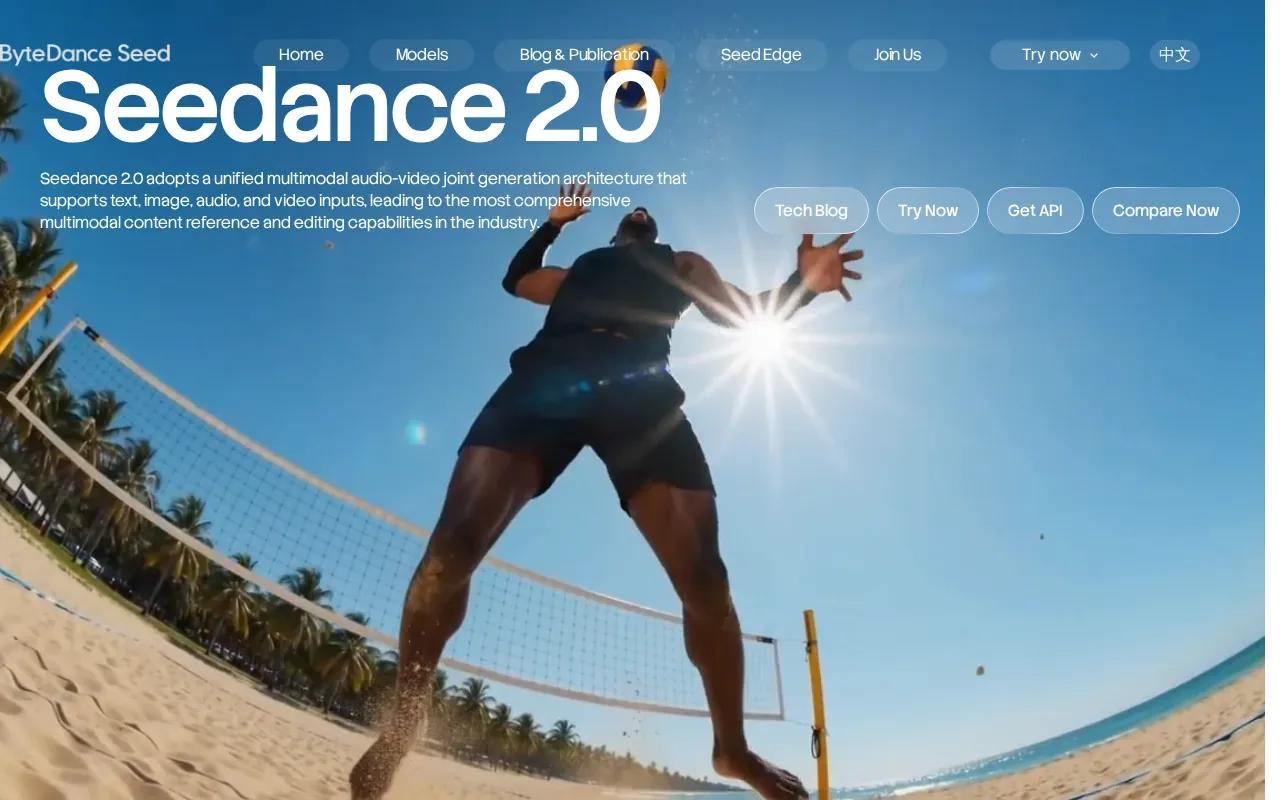
That workflow suits a storyboard frame, character image, or product still that already captures the look you want. Start with the image, describe the movement, and check whether the output keeps the key details intact. Seedance 2.0 is also described as supporting 4K video and multimodal references, including images, video, and audio.
For a dialogue scene, listen as well as watch. Confirm that the lip movement fits the spoken line and that the generated sound belongs in the scene. If you’re building a short film, use a small test shot before making several connected scenes. The short film tool comparison can help you think through recurring characters and dialogue as part of the wider workflow.
Seedance 2.0’s image-led approach gives you a clear starting point when a visual reference matters. It won’t remove the need to review transitions or continuity between shots. Keep the reference image and prompt notes with the accepted take, so you can repeat the setup if the scene needs another version.
6. Kapwing: Prompt-to-video projects with voiceover and subtitles
Kapwing can turn a text prompt into a video project with voiceover, visuals, subtitles, music, and characters. Its browser-based editing workflow suits social creators who want a draft they can keep shaping after generation.
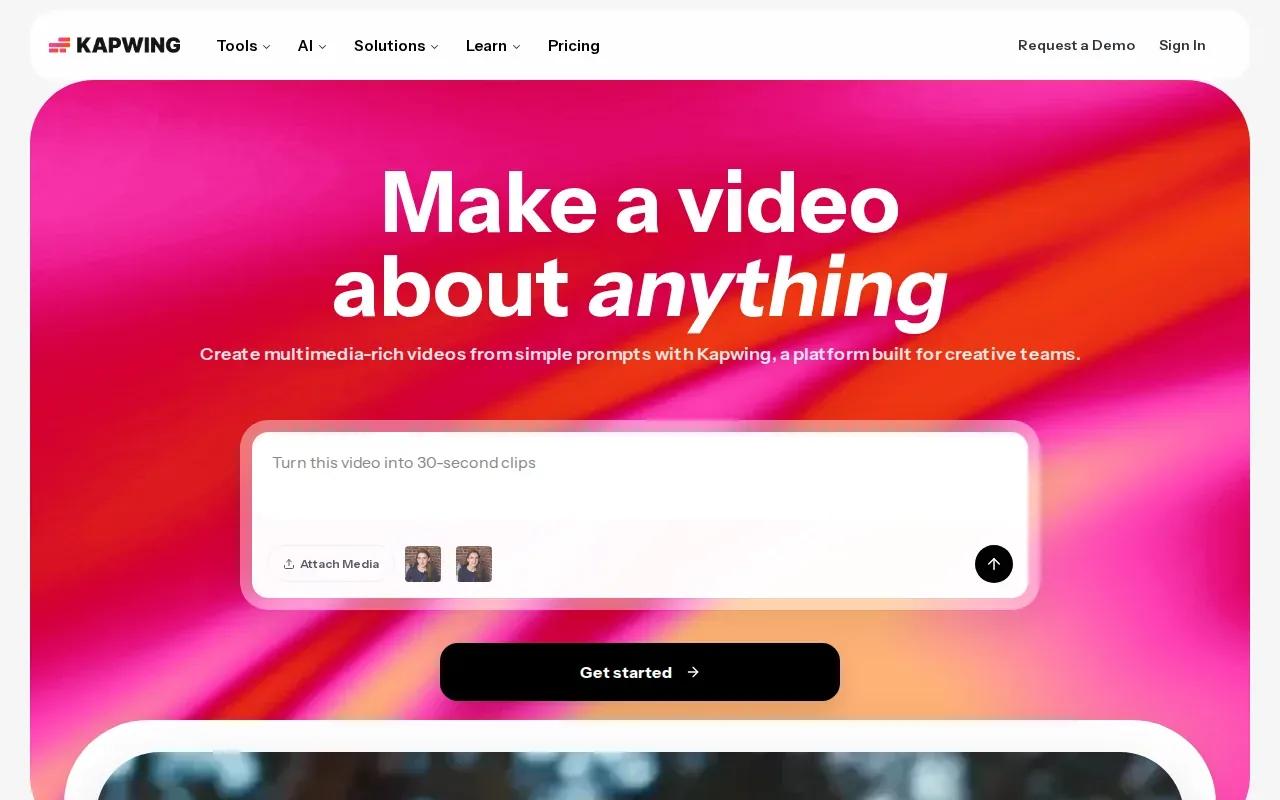
That makes it a different kind of starting point from a tool focused on generating one cinematic shot. You can begin with a prompt for a short explainer, then work with the voiceover and subtitles as part of the same project. For a small business, that may be useful when the goal is a clear product message for a social feed, rather than a dialogue-heavy film scene.
Kapwing’s editing tools include a timeline, subtitle editing, and shared workspaces. A team can review a draft together, while a solo creator can adjust the text and pacing before export. The free plan includes a watermark. Paid plans add watermark-free exports and 4K output, though plan details can change.
Use Kapwing when the job is to assemble a complete short video project around a prompt. If your priority is a character speaking with generated, synchronized dialogue, compare that need directly against tools with lip sync. If the priority is captions and a ready-to-edit draft, Kapwing’s all-in-one project flow may be a closer match.
Quick comparison: Which AI filmmaking tool fits your project?
Use the project’s hardest requirement to narrow the field. The table compares each tool by its strongest supported fit, not by an overall score.
| Tool | Fits when you need | Check before committing |
|---|---|---|
| Veo Studio | Synced sound, dialogue, character continuity, frame control, and up to 4K | Free output is 720p; extensions add time in steps |
| Higgsfield | Directed camera motion and character tools | Free image-model use is limited and watermarked |
| OpenArt | Several video models, character building, and lip sync | Resolution depends on the selected model |
| Runway | Text, image, or video inputs with editing and upscaling | Generation resolution differs from 4K upscaling |
| Seedance 2.0 by ByteDance | Image-to-video with matched lip-sync audio | Review the result’s motion and sound |
| Kapwing | A prompt-led project with voiceover and subtitles | Free exports have a watermark |
Before you upload a face, voice, song, or logo, confirm you have the right to use it. Copyright, trademark and likeness rights can all apply to these. Keep your source files and permissions with the project so a later edit doesn’t lose that context.
FAQs About AI Filmmaking Tools
Which AI filmmaking tool can generate dialogue with a video?
Veo Studio generates synchronized sound and dialogue with video. It also supports character consistency, reference images, and output up to 4K on supported settings. Seedance 2.0 by ByteDance has lip-sync capability, while OpenArt also supports lip sync. Test your exact dialogue and character reference before building a longer scene.
Can AI filmmaking tools keep a character consistent across shots?
Some tools include features for character consistency, including Veo Studio, Higgsfield, and OpenArt. A reference image or character builder can guide repeated shots, but you should still review each result. Check face, clothing, and other details before you place the shots together in a film or campaign.
Which AI filmmaking tools support 4K video?
Veo Studio supports up to 4K output on eligible settings, and OpenArt reaches 4K on many models. Seedance 2.0 is also described as supporting 4K. Runway includes 4K upscaling in paid plans, which is a separate step from its stated generation resolution.
Does Veo Studio have a free plan?
Veo Studio’s free plan includes a couple of 720p videos per month with no card required.
Conclusion
If your scenes need recurring characters and synchronized dialogue, start with Veo Studio’s free 720p allowance and test one shot. If the project instead centers on camera motion, model choice, or a captioned prompt-led edit, use the matching option above for a small trial before committing to a larger workflow.


