
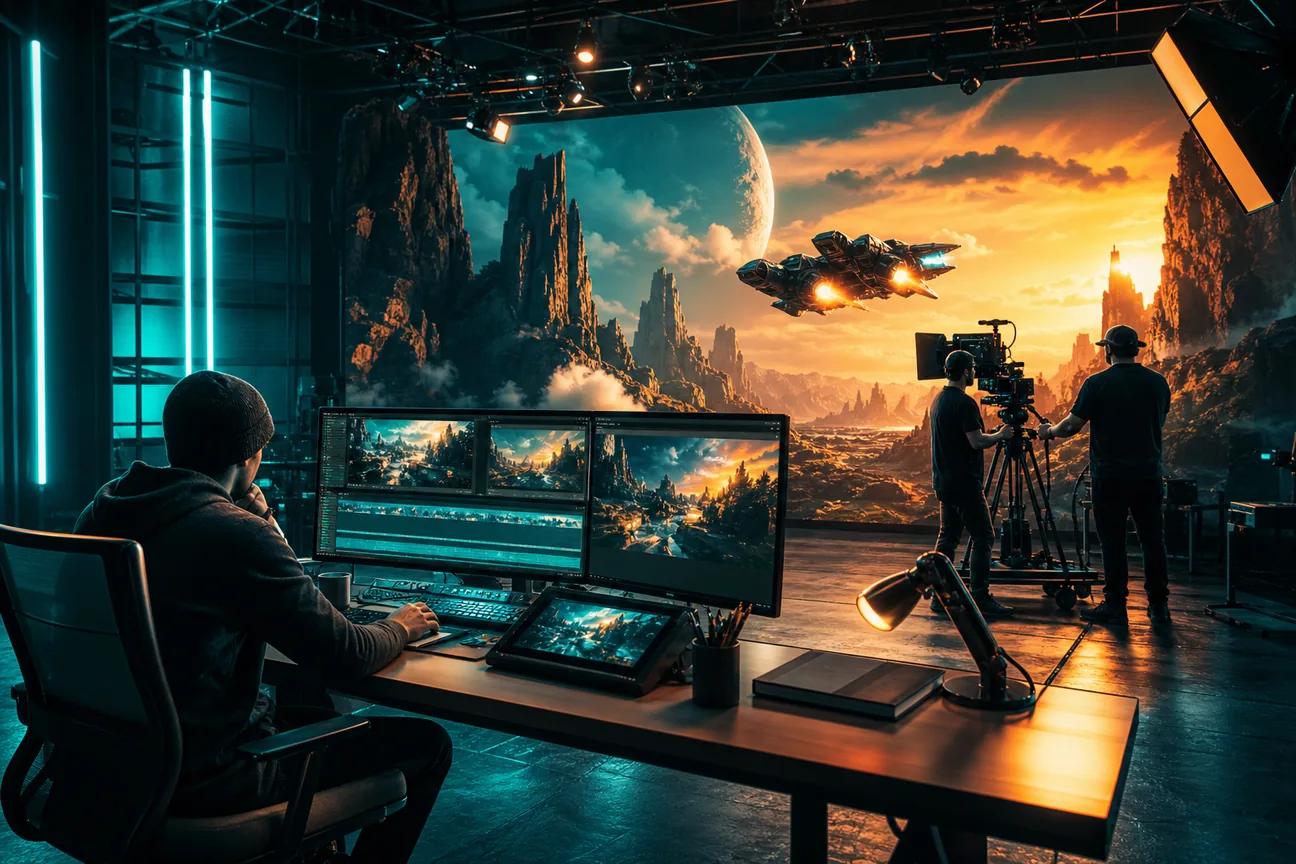
An AI movie scene generator can turn a written shot idea or reference image into a moving scene. The hard part is finding a tool that fits the way you want to work, especially when you need sound, recurring characters, or control over a shot’s start and finish. Here are five options, with a closer look at where each one fits.
We analyzed 62 comments and questions from Reddit, YouTube and Quora about AI Movie Scene generation and found that 37% mentioned realism and technical limitations.
1. Veo Studio — Browser-based scenes with synchronized sound and dialogue
Veo Studio is an independent, browser-based video creation tool powered by Google's Veo 3.1 models. Describe a shot in a prompt or add reference images, then generate a clip with synchronized sound and dialogue. It’s a fit for creators who want to shape a scene without installing desktop software.
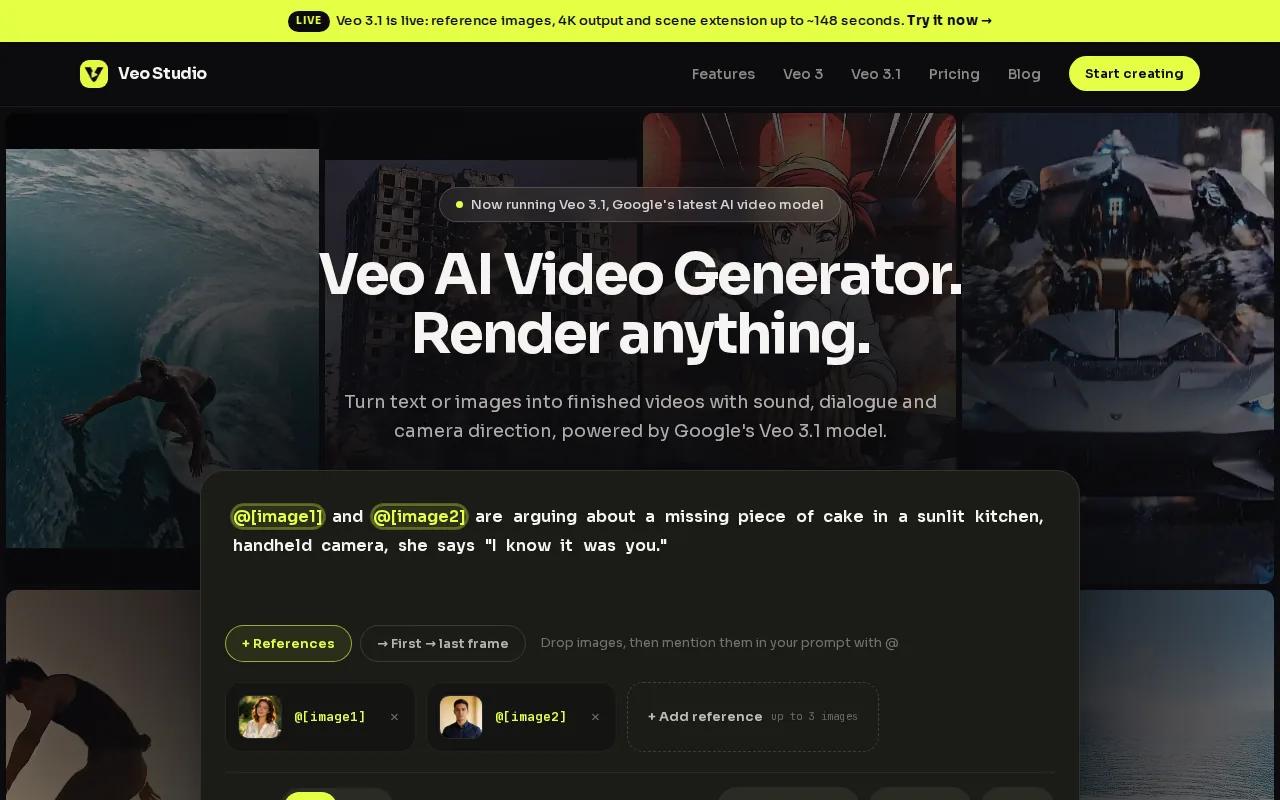
For a short film, you can describe the setting, character, camera move, and spoken line. Add reference images when you need a character or product to stay consistent. You can also set a first and last frame, so the generated video fills in the movement between two still images. That can help with a reveal, a transition, or a product shot with a planned ending.
Veo Studio supports 16:9 and 9:16 video. Depending on the model and settings, output can reach 4K. Its scene extension tool adds time to eligible clips, which gives you a way to carry a scene forward instead of treating each short generation as a separate shot. Veo Studio is independent and isn’t Google-owned.
If you’re new to the workflow, start with one clear shot rather than a whole screenplay. Write what’s visible, what changes, and how the camera moves. This AI video prompt examples and templates page can help you turn a loose idea into a focused prompt. Once you have a result, check the face, action, framing, and audio before you spend time building the next shot.
There’s a free plan with a couple of 720p videos each month and no card required. Paid plans start at $14 per month and include more video capacity, higher resolutions, and a commercial licence. Check the current plan details before you set a production budget.
For a dialogue-driven clip or a product scene that needs a defined opening and close, Veo Studio brings several shot controls into one browser workflow.
2. OpenArt: A story-first option for finished videos
OpenArt is an AI video generator with a multi-scene workflow for creators and marketing teams who need a more complete video. Its Director mode can take a prompt, reference photo, or uploaded song and build a story with multiple scenes, up to five minutes long.
The tool plans scenes and builds a storyboard. You can then refine parts by chatting, rather than stitching every generated clip together by hand. That workflow suits a product explainer, a short narrative, or a campaign concept where the viewer needs to follow a sequence instead of watching one isolated shot.
OpenArt’s capabilities include text-to-video, reference-image character consistency, and voice and music continuity. It also has a multi-model workspace, so creators can choose among supported generation models for different shots. In a small campaign, for example, you might plan one scene around a product close-up and another around a person speaking. A storyboard gives those shots a shared sequence before you polish them.
The trade-off is that a longer, multi-scene project asks more from the workflow than a single clip. You’ll need to review each scene for consistency and pacing, then check whether the complete cut says what you intended.
For your first test, keep the story brief. State the main subject and what changes over the scene. Then check whether the storyboard preserves the key idea before refining individual shots. That’s a useful way to judge if a story-first generator suits your project.
3. Runway: Hands-on shot shaping for directors and VFX artists
Runway suits directors and VFX artists who want to shape a shot by hand. It’s the option to consider when your main task is refining a visual moment, rather than asking a tool to assemble a long story from one prompt.
Think of a scene with a fixed subject and a specific camera direction. You may want to try different framings or adjust how a visual effect reads before choosing a version for a cut. A hands-on approach lets you focus on that shot-level work. It can fit a previsualization pass, a mood test, or a visual insert that will later sit in a larger edit.
Runway’s maximum resolution is 720p. That limit matters when you’re planning final delivery. If your project will be shown on a large screen, confirm that the output resolution suits the intended use before you build the rest of the edit around it.
For a storyboard, treat each generation as a draft shot. Write down the shot’s role in the sequence, then judge the result against that role. Does it establish the location? Does it reveal a character? Does it carry the action from the previous beat? That simple check keeps a striking image from distracting you from what the edit needs.
Runway is a focused fit when direct shot shaping matters more than built-in scene extension or a higher output resolution.
4. Higgsfield AI: Create and edit media across web and mobile
Higgsfield AI can create images, videos, and voice content from text prompts or references. It also supports editing and upscaling media, workflow automation with its AI agent, and content creation on web and mobile.
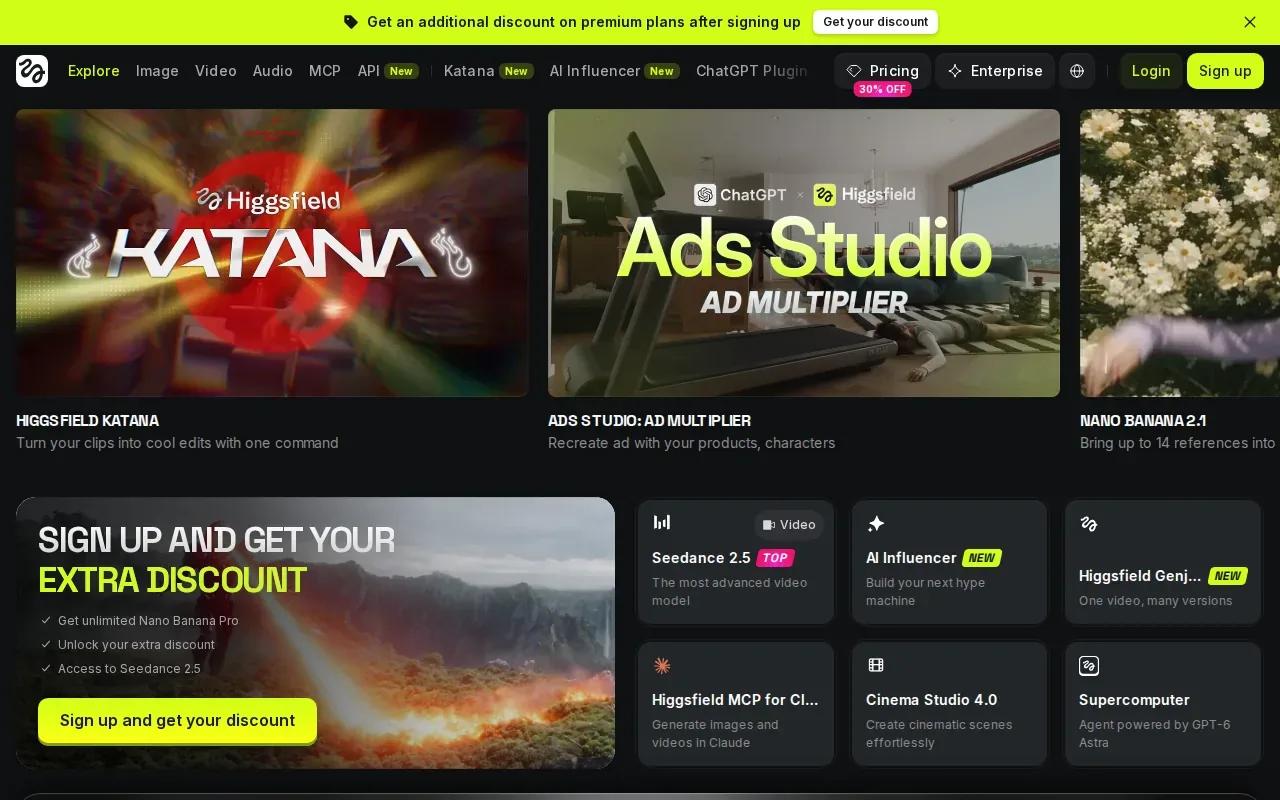
That mix can suit a creator who works across more than one media type. You might start with a written scene idea, use a reference to guide the look, and then edit or upscale the result as the project takes shape. Web and mobile access can also help when you need to work on a concept away from your main editing setup.
For a marketing team, the ability to make different kinds of media in one place can help during early concept work. A team could explore a still image first, then build a video direction around it. Voice content may also fit a project that needs spoken material. The exact fit depends on the features you need for the final shot, so test your core task rather than judging the tool by its full feature list.
Higgsfield AI’s capabilities don’t establish a scene-extension workflow or a maximum resolution. If a recurring character or a long continuous take is central to your film, verify that your planned workflow supports it before you commit. If your immediate need is to make and edit visual assets on web or mobile, its broader media scope may be more relevant.
When you test it, use the same prompt or reference you plan to use in your project. That gives you a clearer view of how the tool handles your actual subject and style.
5. ImagineArt: A creative suite for video, shorts, and voice
ImagineArt is a creative suite for generating images, videos, short-form clips, and voice from text prompts. Its tools include advanced editing, a background remover, an upscaler, and custom models.
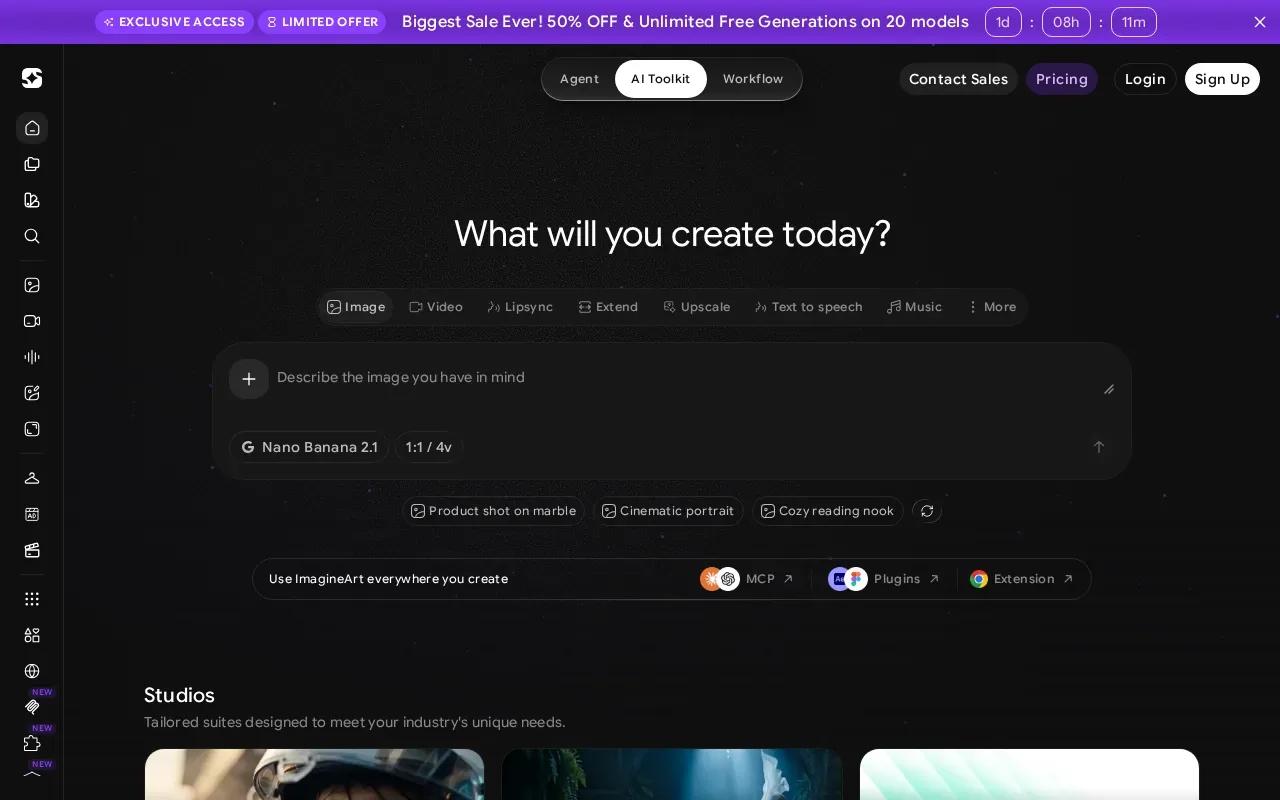
This breadth can help when one project needs different kinds of creative output. A marketer might draft a video concept, make a short social cut, then adjust an image asset for another placement. A filmmaker could use the image tools to explore a visual direction before working on a moving scene. The appeal is having several creative tasks under one roof.
ImagineArt is also a fit for creators who want to edit after generation. A background remover may help isolate a subject from an image, while an upscaler can help improve image output. Custom models give users another way to shape the result. Those features are useful for visual work, but they don’t by themselves tell you how the tool handles dialogue, character continuity, or longer connected scenes.
For a movie scene, test one shot with a clear subject and a single action. If you need dialogue, check the output for both the spoken line and its timing. If the scene depends on the same character appearing again, compare the result with your reference before building the next shot. That’s more revealing than a broad prompt that asks the tool to make an entire film at once.
ImagineArt makes sense when your work spans video and other creative media. For a scene that depends on a specific continuity feature, check that part of the workflow first.
How These AI Movie Scene Generators Compare for Real Projects
These tools approach scene-making in different ways. Some focus on shaping an individual shot. Others help plan a multi-scene story or cover several types of media in one workspace. Start with the job your next project needs done, not the longest feature list.
| Tool | Best fit for | Useful scene controls | Planning note |
|---|---|---|---|
| Veo Studio | Dialogue-led scenes and controlled clips | Synced sound, reference images, first and last frames, scene extension, up to 4K | Free plan includes a couple of monthly 720p videos; paid plans start at $14/month. |
| OpenArt | Creators and teams making a complete story | Multi-scene generation, storyboard, reference-based character consistency, voice and music continuity | Longer story work calls for a review of scene pacing and consistency. |
| Runway | Directors and VFX artists shaping shots by hand | Shot-level creative control | Runway’s maximum resolution is 720p. |
| Higgsfield AI | Creators making and editing media across web and mobile | Prompt or reference input, editing, upscaling, AI-agent workflow | Useful when a project includes images, video, and voice content. |
| ImagineArt | Creators working across video and other media | Editing, background removal, upscaling, custom models | Test continuity and dialogue needs directly with your planned prompt. |
Before generating a full sequence, make a short test. Give the tool one scene with a clear shot size, one camera move, and one action. If it’s a dialogue scene, include the line and check whether the audio fits the moment. If you have a character reference, compare the generated face and clothing with it.
Then decide how you’ll finish the clip. Download or share the result using the options in your chosen tool, and keep a copy of the prompt that produced it. If you plan to continue a supported clip in Veo Studio, review the guide to extending a video with AI before you start. It explains the clip requirements and how each extension adds to the scene.
Copyright and consent deserve a place in the plan, too. Use reference images and voices you have permission to use, especially for paid work. Check the tool’s terms and the rules for the platform where you plan to publish. A generated clip can still raise rights or likeness concerns if its inputs imitate a real person or use protected material.
Frequently Asked Questions
What is an AI movie scene generator?
An AI movie scene generator turns a written prompt, reference image, or both into a video scene. You describe what appears on screen and may be able to guide details such as camera movement, visual style, or sound. Some tools focus on a single clip, while others help plan a sequence of scenes for a more complete video.
Can AI scene generators make videos with dialogue?
Some can generate dialogue or other audio with the video, but their capabilities vary. Veo Studio supports synchronized sound and dialogue, including spoken lines, alongside its generated video. When dialogue matters, test a short line and check the timing, lip movement, and sound before you build the scene around it.
How do I get a more cinematic result?
Describe one shot at a time. Name the subject, the action, the setting, and one camera move. Add a lighting or mood detail if it matters to the scene. If the same character needs to appear again, use a reference image where supported. A focused prompt is easier to refine than a paragraph that asks for several unrelated events.
Can these tools make a full short film?
Some tools can help build multi-scene videos, while others are centered on individual clips. OpenArt’s listed Director mode supports multi-scene generation up to five minutes. Veo Studio can extend eligible clips in steps, which supports longer continuous scenes. For a short film, plan how you’ll connect scenes and review character continuity in the final edit.
Can I use AI-generated scenes in a marketing video?
You can use AI-generated scenes in marketing work when the tool’s terms and your project rights allow it. Veo Studio’s plans include a commercial licence. For any tool, review its current terms and check that you have permission to use reference images, voices, and other material included in your prompt.
Conclusion
If your scene needs synchronized sound, character references, first and last frame control, or scene extension, Veo Studio is a sensible place to start. Try a short prompt before planning a full sequence, then see whether the free plan fits your first test at Veo Studio.


