AI tools for making animated photos can add a gentle camera move, turn a portrait into a speaking clip, or build motion around a product shot. The key difference is what happens after you upload the still: how much control you get over movement, sound, and the final frame. Here are six named options, each suited to a different kind of video.
We analyzed 39 YouTube comments about animated photo maker AI and found that 33% mentioned customizable background and style options.
1. Veo Studio
Veo Studio is an independent, browser-based AI video creation tool powered by Google’s Veo 3.1 models. Add a prompt, upload a reference image, or use both to make a video with synchronized sound and dialogue. It suits creators who want to direct a short scene from a still, rather than add motion without much control.
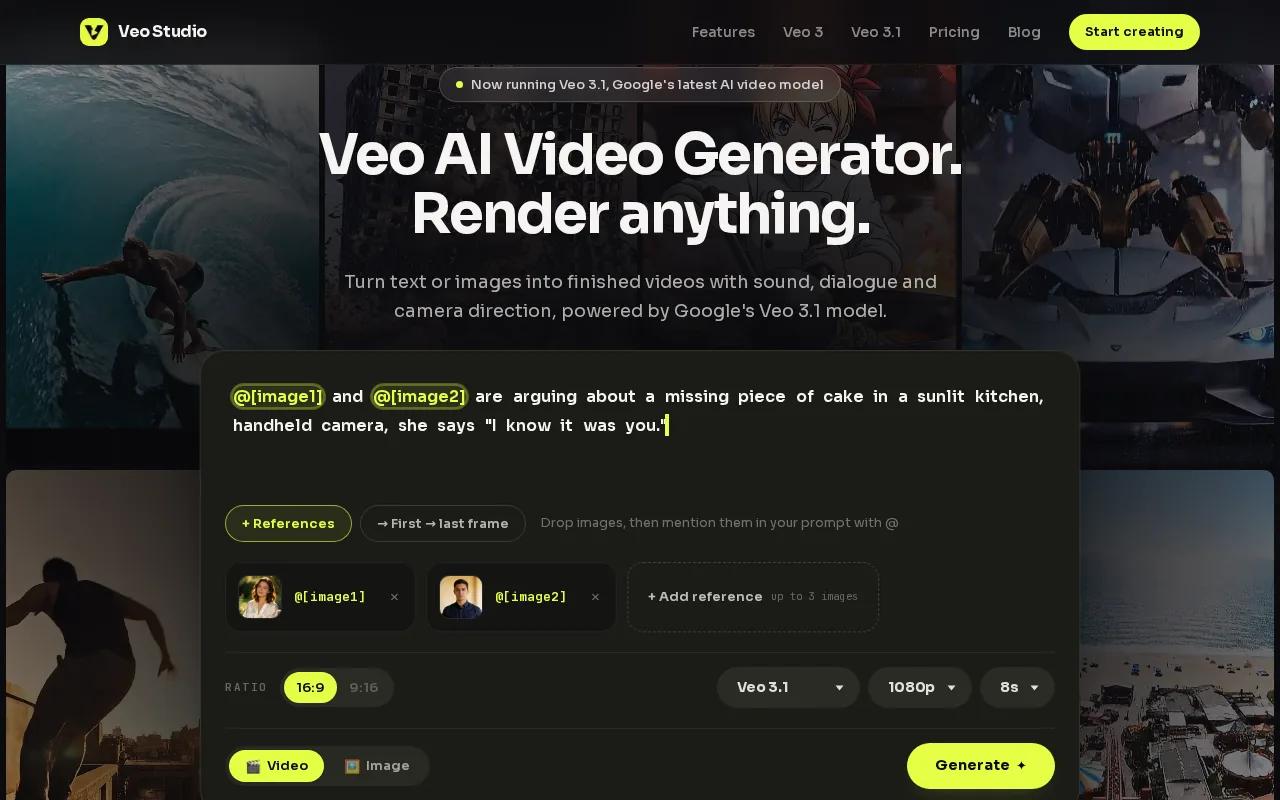
For a product photo, you might describe a slow camera push and a soft light moving across the object. For a character portrait, you can describe an action and include a line of dialogue. Veo Studio can generate synchronized audio with the video, and its reference images can help keep a character or product consistent within a clip.
Frame control gives you another way to guide the result. Supply a first and last still, and Veo 3.1 generates the transition between them. You can also extend supported clips, adding seven seconds per extension step at 720p. On supported settings, output can reach 4K.
The free plan includes a couple of 720p videos each month, with no card required. Paid plans start at $14 per month and include more video capacity, higher resolutions, and a commercial license. If you’re comparing AI photo animation tools with different levels of frame and sound control, check which ones can make the kind of scene your project needs.
Choose Veo Studio when your still needs to become a directed scene with sound, a defined transition, or room to extend the clip.
2. Kling AI: high-control photo-to-video creation
Kling AI turns an image into a video and gives you room to direct how the image moves. It fits creators who want more control over a shot, including a longer generation or a transition shaped with keyframes.
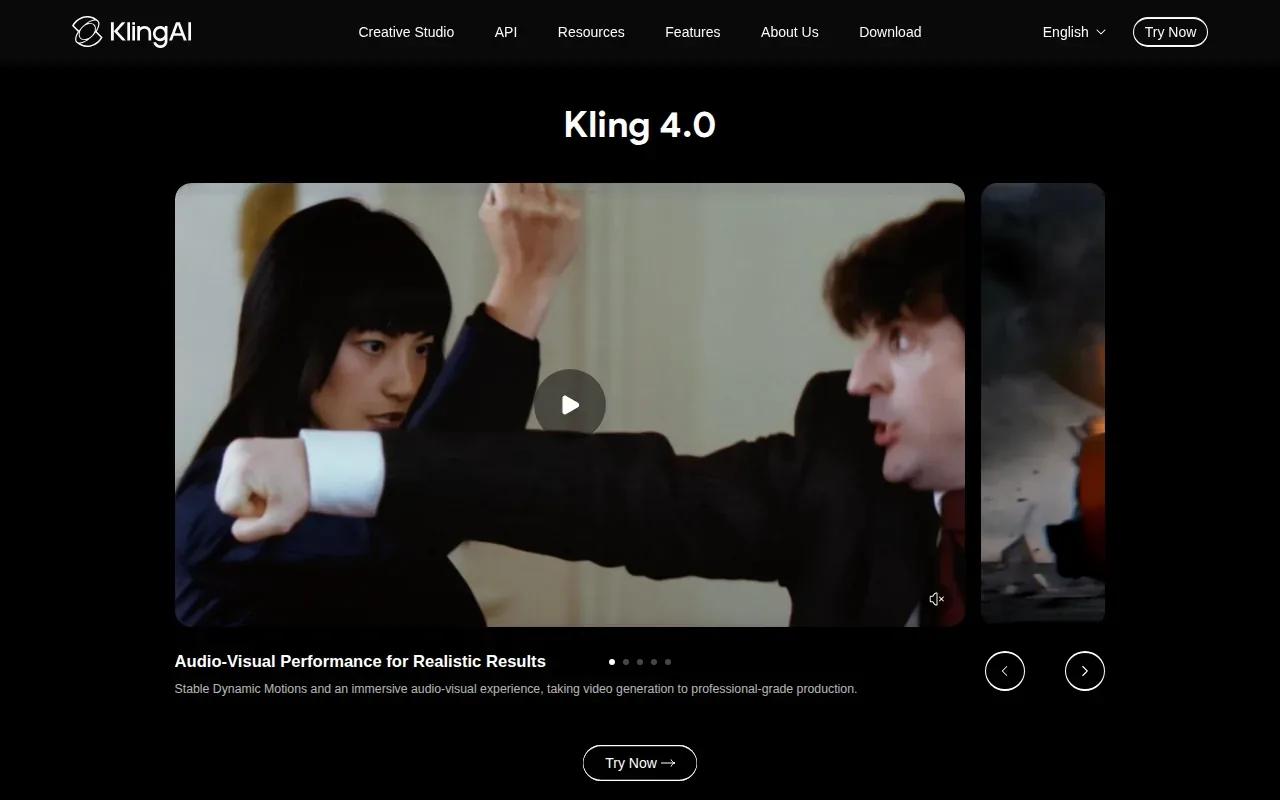
Its image-to-video workflow starts with a still and a text description. A useful prompt focuses on the subject’s action and, when needed, what changes in the background. For example, rather than asking only for a portrait to “come alive,” describe the person turning toward the light while their hair moves in a breeze.
That control is handy for creative work where the motion needs a clear purpose. A product shot might call for a slow orbit; a family portrait might need only a small smile or head turn. Keep the motion prompt focused on what should move, since the image already establishes the scene.
Kling AI is a fit when you want to shape the movement of a photo rather than rely on a preset effect.
3. Pika: effect-heavy, stylized photo animation
Pika is an AI media workspace for creators who want video generation, editing, and API access. For photo animation, it suits effect-heavy, stylized clips where the look itself is part of the idea.
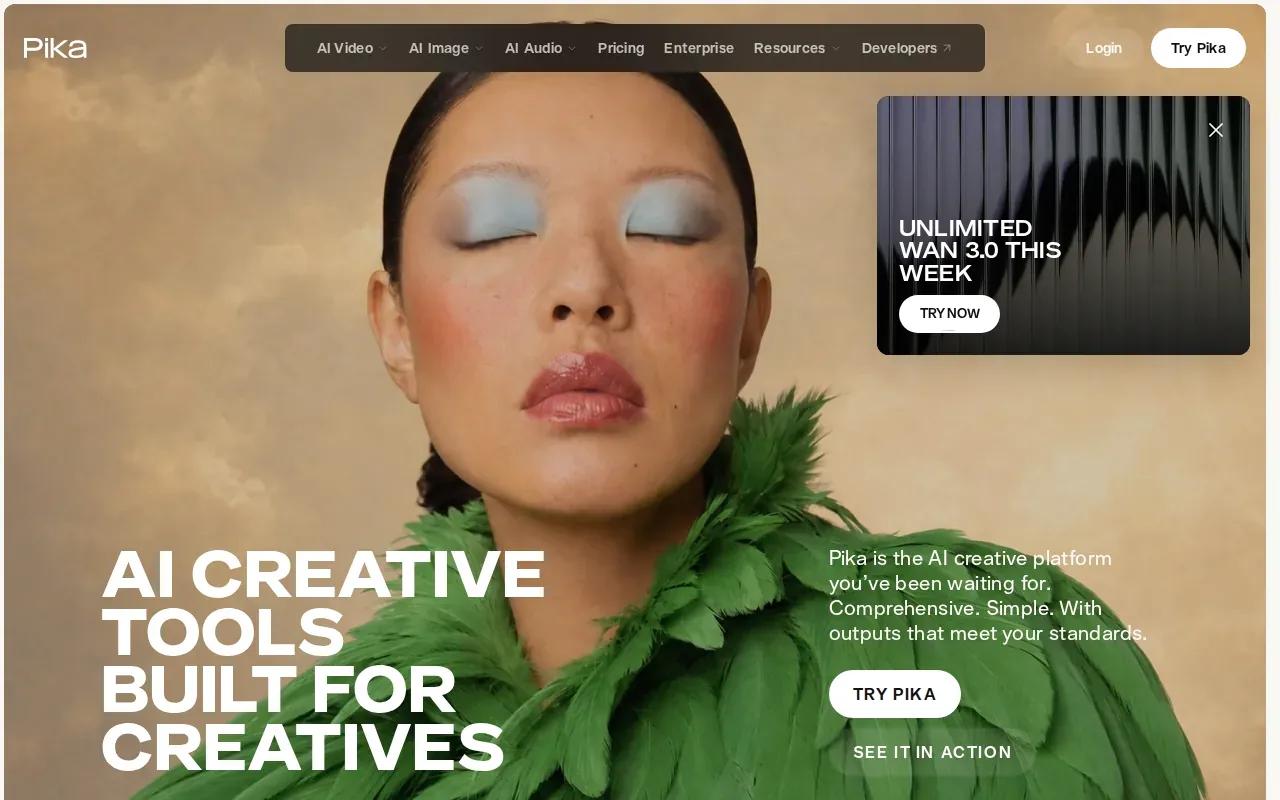
That makes it a sensible option for a surreal social post, a stylized portrait, or an image that needs a more dramatic visual treatment. Start with the effect or mood you want, then describe a small amount of motion. A portrait could turn slightly as the lighting shifts; an illustration could move in a more playful way.
Pika also offers frame-control features, which can help when timing or the transition between images matters, as well as scene extension. Those controls are useful when a short effect needs to fit into a specific sequence, rather than stand alone as a quick loop.
For a basic motion test, keep your first prompt plain. Name the main action, then decide whether the camera should hold still or move. If the first result feels too busy, change one direction at a time instead of rewriting the whole prompt.
If you’re weighing a stylized look against a more directed scene, this overview of AI photo animation options for creators covers other ways to approach portraits and moving shots.
4. D-ID: talking-head portraits from a photo
D-ID is built for turning a still portrait into a talking-head video. It suits creators who have a script or audio and want a face on screen without filming a presenter.
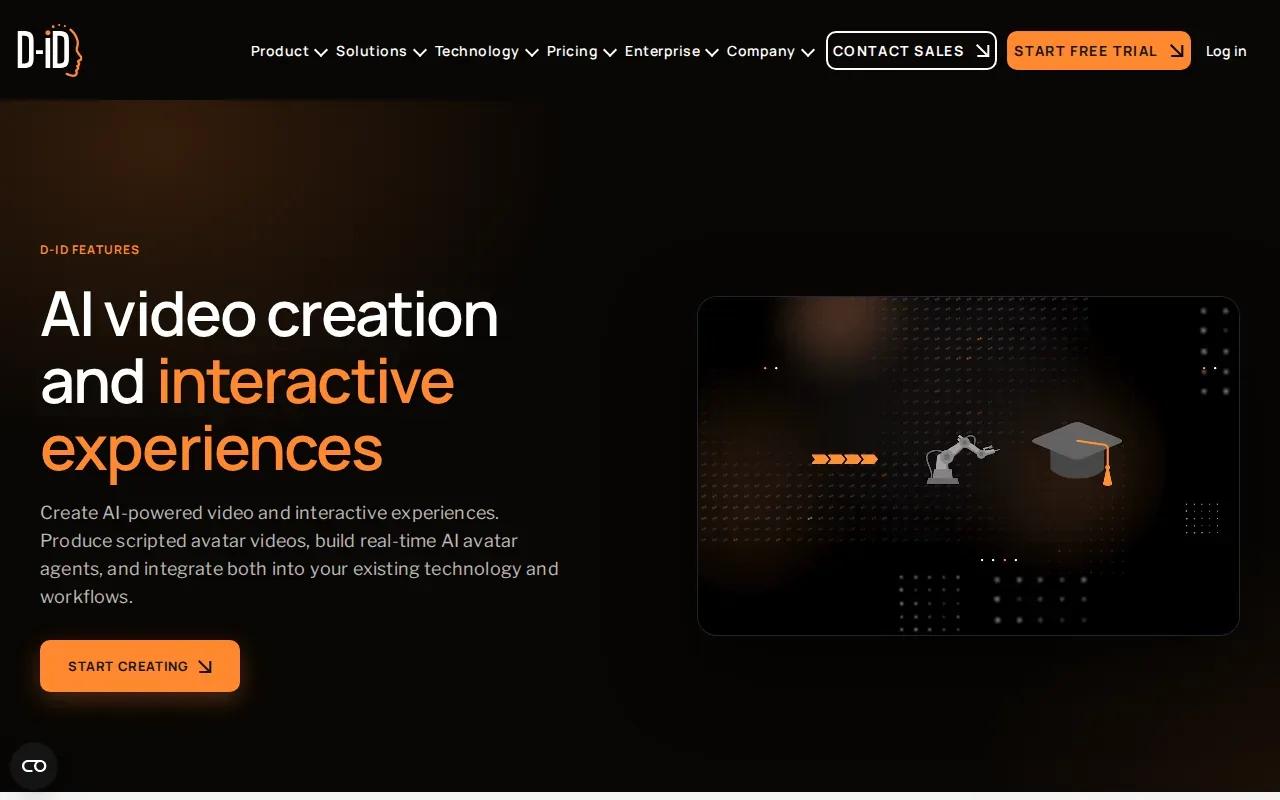
For a short lesson or announcement, the workflow is direct: choose a portrait, prepare the words, then generate a speaking clip. D-ID can animate a still photo with lip movement and facial motion. Its services include text-to-speech with multiple languages and voices, as well as the option to drive an animation with uploaded audio.
This is a different job from animating a landscape or adding movement to a product shot. The face carries the message, so the source image matters. A clear portrait with a visible face is a better starting point than a photo where the mouth is hidden or the face is hard to see.
Use D-ID when you need a talking portrait rather than a scene with a range of actions. The source photo can affect how naturally the face animates, and the free tier applies watermarks, so check the current plan terms before you make a clip for public use.
For longer narration or a scene built around a moving camera, compare this use case with photo animation apps for different kinds of moving images.
5. HeyGen: photo avatars that present a script
HeyGen turns a photo into an avatar that can present a script. It suits training videos and other spoken content where a consistent presenter needs to deliver prepared words.
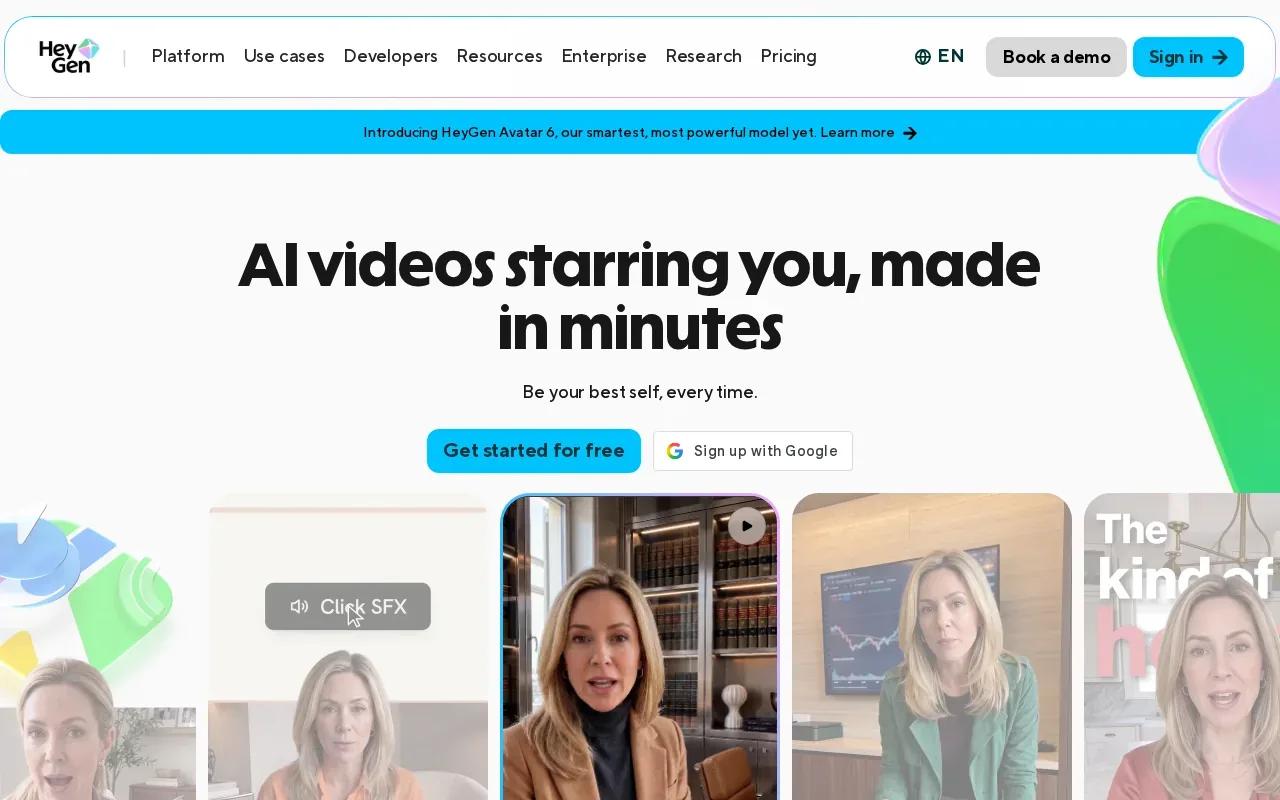
The core task is simple: upload a photo, add your script, and generate the speaking video.
This setup can help when a lesson needs an update. Change the script and generate a new version instead of arranging another on-camera recording. HeyGen also supports presenter videos in many languages, which can be useful when the same training message needs versions for different audiences.
Choose a photo with a clear, visible face. A heavily obscured or very stylized face may make lip movement harder to read.
HeyGen works best when the photo is there to deliver words. If you want an image-led scene with a camera move, a product reveal, or room to extend the action, a video-generation tool may suit the job better.
6. PixVerse: an easy starting point for photo-to-video
PixVerse is a general photo-animation option with a simple starting point: upload a photo and add a prompt. It suits creators who want to make a motion draft from an existing visual, such as a campaign still or a product image.
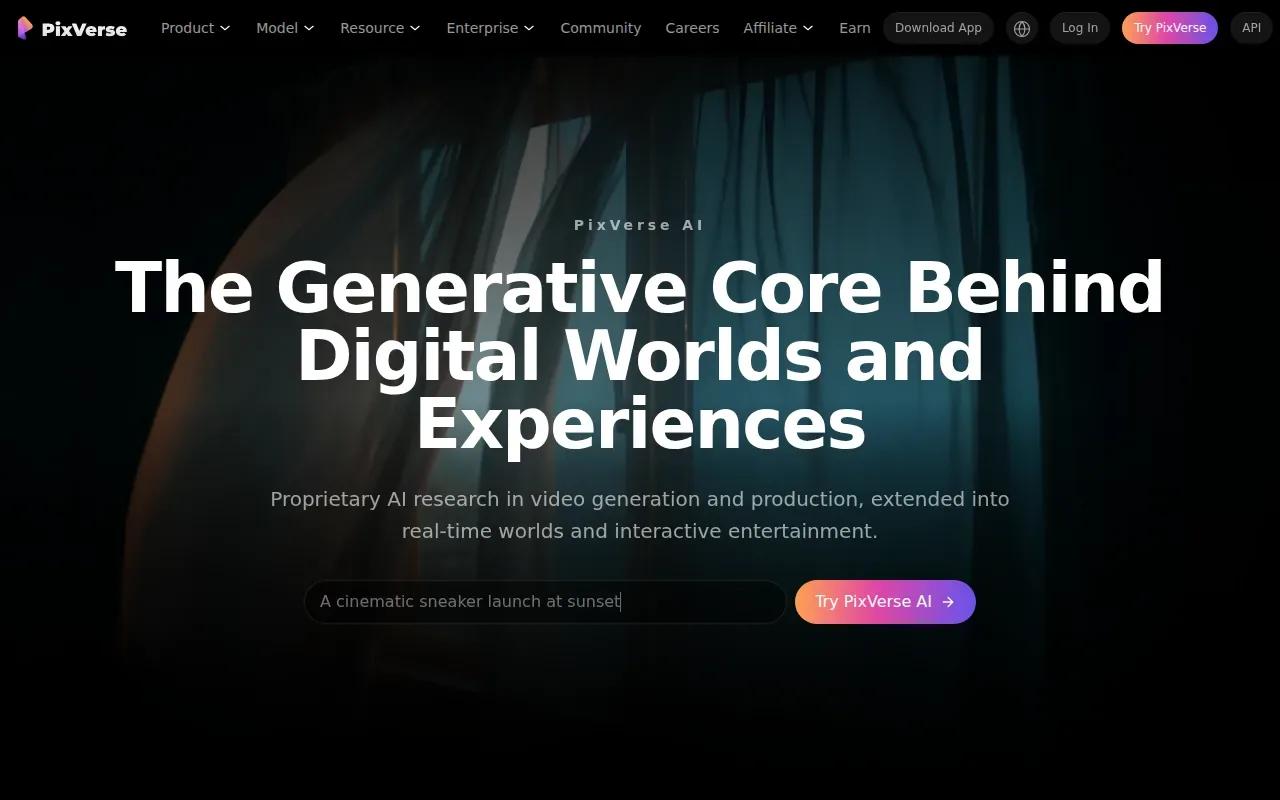
Keep the first prompt focused. Describe one action, such as a gentle push toward the subject, then compare the result with your original photo. That side-by-side check can show whether the key details stayed recognizable or whether the generated motion changed the scene too much.
PixVerse can be useful for testing several directions from the same image. Try a calm camera move first, then change the motion prompt for a more dramatic take. When you change one instruction at a time, it’s easier to tell what caused the difference.
A free tier with limited credits is available. Treat those credits as a chance to test a source image and prompt, then review the result before planning more generations.
| Starting point | Prompt focus | Review before using |
|---|---|---|
| Portrait or product photo | One main action or camera move | Check that the subject and key details remain recognizable |
| Campaign still or concept frame | Motion that fits the intended placement | Compare the clip with the source image |
| Several creative directions | Change one movement instruction per take | Choose the pace that fits the message |
PixVerse is a useful place to start when you already have an image and want to explore how a short motion treatment could change its feel.
Frequently Asked Questions
What is an AI photo animation tool?
An AI photo animation tool uses a still image as the starting point for a video clip. You provide a photo and, in many tools, a prompt that describes the movement. Depending on the tool, the result may be a moving scene, a stylized effect, or a portrait that speaks a script.
How do I choose an AI tool for animating photos?
Choose based on what the finished clip needs to do. For a directed scene with sound and frame control, look at Veo Studio. For a talking portrait, consider D-ID or HeyGen. Pika suits effect-heavy looks, while Kling AI and PixVerse can fit image-to-video motion tests.
Can I make a talking photo from a still image?
Yes. D-ID and HeyGen can turn a still photo into a speaking video with lip sync. Add a script or audio, then check that the portrait has a clear face and visible mouth. For a presenter-style video, HeyGen is suited to script delivery; D-ID is focused on talking-head portraits.
What makes a good photo for AI animation?
A clear image with an easy-to-see subject is a good place to start. For a talking portrait, choose a photo where the eyes and mouth are visible. For other scenes, use an image with room for the motion you want, then describe one main action rather than asking for several big changes at once.
Conclusion
For a photo that needs directed motion, synchronized sound, and control over its start and end frames, try Veo Studio first. Its free plan lets you test a couple of 720p videos each month without a card. Choose one image, write a short motion prompt, and review the result before building a larger clip.