
A still photo can become a moving shot, a speaking portrait, or a short scene. These AI photo animation tools suit different jobs, so start with the kind of motion and sound your project needs.
We analyzed 52 YouTube comments about photo animation AI tools and found that 25% mentioned watermark and policy restrictions.
1. Veo Studio
Veo Studio is an independent, browser-based AI video creation tool powered by Google's Veo 3.1 models. Upload a reference image, describe the camera move or action, then generate a clip with synchronized sound and dialogue. It suits creators who want to direct a scene, not only add a simple pan or zoom.
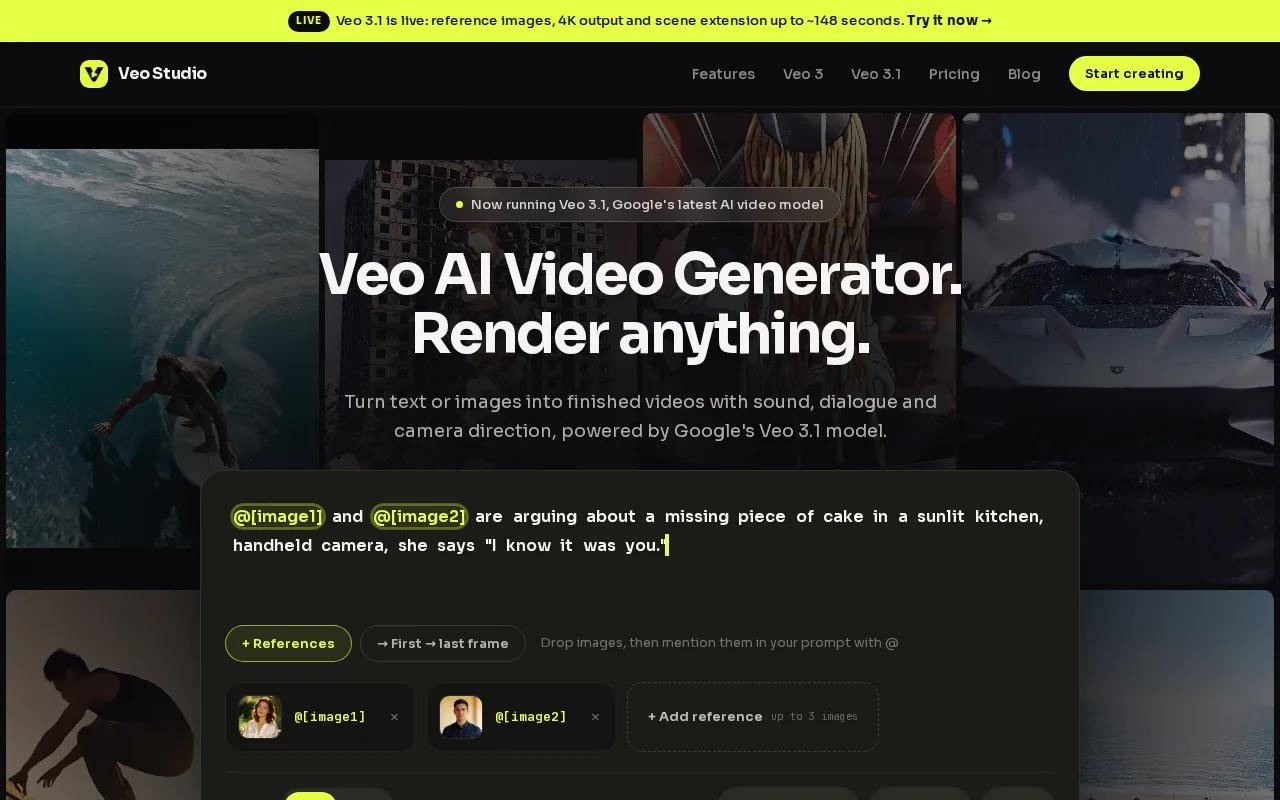
For a product photo, you might prompt a slow camera move toward the item while a voice line plays in sync. For a character shot, attach reference images to help keep the subject consistent. Veo Studio also supports first- and last-frame control, scene extension, and output up to 4K on supported settings. It’s an independent service, not Google or a Google-owned product.
The browser workflow keeps the setup simple: type a prompt or upload a still, choose the video settings, and generate. A free plan includes a couple of 720p videos a month with no card required. Paid plans start at $14 per month and include more video volume, higher resolutions, and a commercial licence. The Veo Studio site describes its current access and plan details.
If you’re planning several image-led clips, this overview of AI image animation tools can help you match the workflow to the shot. Veo Studio is a fit when the still needs directed motion plus synced sound, or when you may want to carry the scene beyond its first clip.
For a small shop, a product image can become a short promotional scene without arranging a new shoot. The clip can then sit alongside broader ecommerce store management services for product and listing work, where video is one part of the store’s content mix.
2. Pika: expressive motion for portraits and people
Pika is a choice for expressive motion, especially when you want a portrait or human subject to feel lively in a short social clip. A photo animation might add a gesture, an animated expression, or a playful shift in the scene. That makes it a natural option for a quick post or a looping visual, rather than a dialogue-led story that needs exact spoken words.
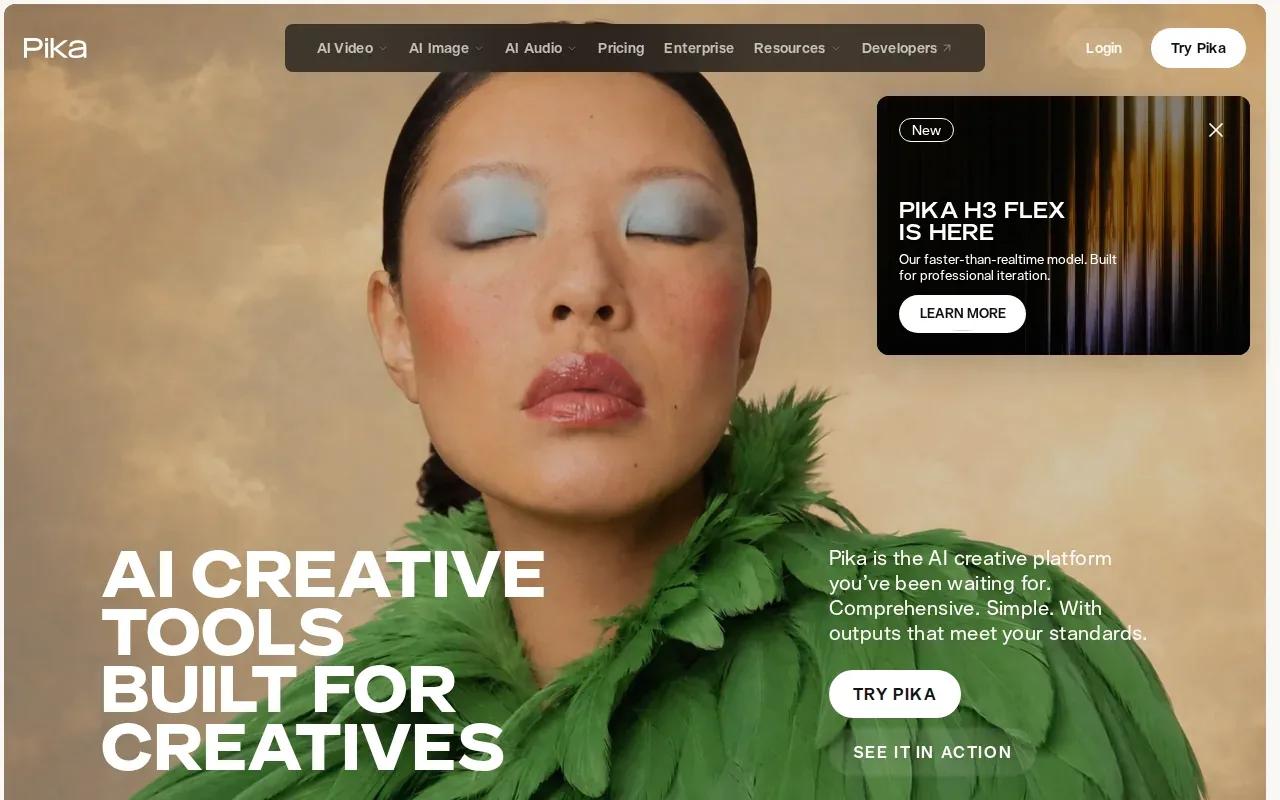
Pika has positioned itself specifically for character and portrait animation, with expressive motion for human subjects. That makes it a fit when you want personality and movement in a portrait or other human subject.
Keep the motion brief and specific. A portrait that turns its head or reacts with a smile gives the model one clear action to interpret. If the result is meant for a social post, check that the face still reads clearly after the motion starts. Expressive movement can catch the eye, but it doesn’t replace a clear message or a strong opening frame.
Photo animation turns a still image into new moving frames guided by an action or camera prompt. In practice, Pika fits creators whose first goal is a lively portrait effect, rather than a controlled speech performance.
Choose this style when personality and quick visual impact matter more than fine control over a longer scene. For speech or a recurring character across campaign clips, compare the next options instead.
3. D-ID: make a still photo speak
D-ID is suited to turning a still photo into a speaking avatar. You provide an image and the text you want the subject to say, then the service generates a video with speech and facial movement. It fits short messages where a face should deliver the words, such as a welcome or a brief announcement.
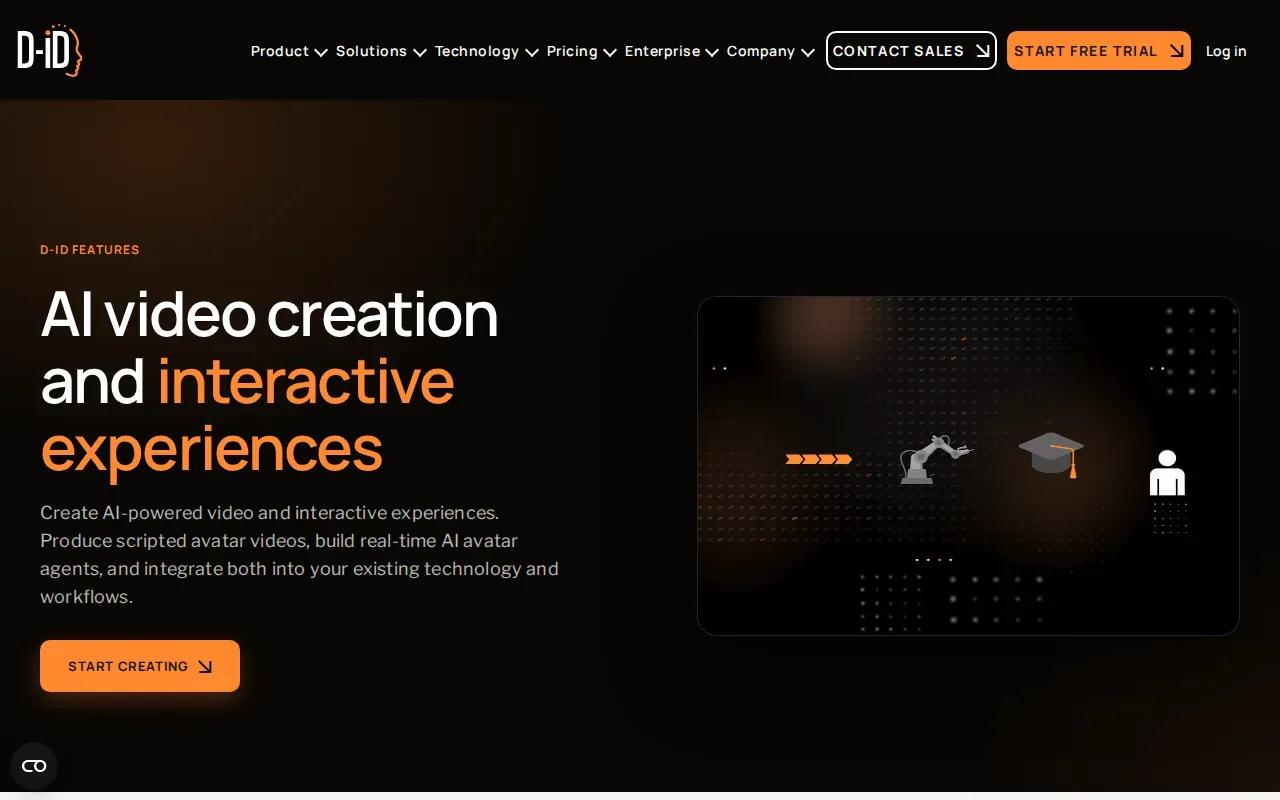
D-ID’s photo-avatar workflow is useful when you already have a portrait and a script. A clear, front-facing image gives the animation visible facial detail to work with. Before making a long piece, check a short sample for mouth timing and whether the face still looks like the source. Lip synchronization and a convincing performance are related, but they aren’t the same thing.
D-ID can keep a speaker identity consistent across languages and campaigns. Its photo-to-speech workflow is therefore worth considering when the same presenter needs to deliver localized messages. Review the translated script and voice delivery before publishing. Even when the mouth movement follows the audio, a line can still sound unnatural or carry the wrong emphasis.
Use this format for focused messages. A speaking portrait can explain one point, while separate visuals show a product or process. It’s a less direct fit for scenes that depend on a person handling objects or moving through a space. And if the photo shows a real person, get permission for the likeness and intended speech. A photo alone doesn’t mean the subject agreed to appear to say new words.
D-ID makes a still photo speak, while image-to-video tools can focus on broader scene motion.
4. HeyGen: speaking-photo videos with a consistent avatar
HeyGen is another option for a photo that needs to speak, with a focus on keeping an avatar identity coherent across videos. It suits creators producing presenter-style messages or repeated explainers with the same face. HeyGen can make a still photo speak with synchronized sound and dialogue.

HeyGen’s Avatar V maintains a single, coherent identity across videos. That makes HeyGen relevant when the same speaker identity matters across multiple speaking-photo videos. Its focus is not just making a still photo speak, but keeping the avatar recognizable from one video to the next.
When choosing a tool for a speaking-photo video, consider whether synchronized dialogue and continuity of the speaker identity are important to the task. HeyGen supports both: it makes a still photo speak, and Avatar V is designed to maintain a coherent identity across videos.
HeyGen is best suited to a speaking-photo use case where a consistent avatar is valuable. The key distinction is the combination of synchronized sound and dialogue with Avatar V’s single, coherent identity across videos.
Try HeyGen when the face is the message. If the photo needs to become a wider cinematic shot with sound generated as part of the scene, Veo Studio’s image-led workflow is aimed at that broader task.
5. Vidu: character consistency and 4K upscaling
Vidu supports character consistency and 4K output through upscaling. It suits creators who need a recurring character to remain recognizable, or who want a higher-resolution deliverable. A reference image can anchor the character while a prompt describes the movement.
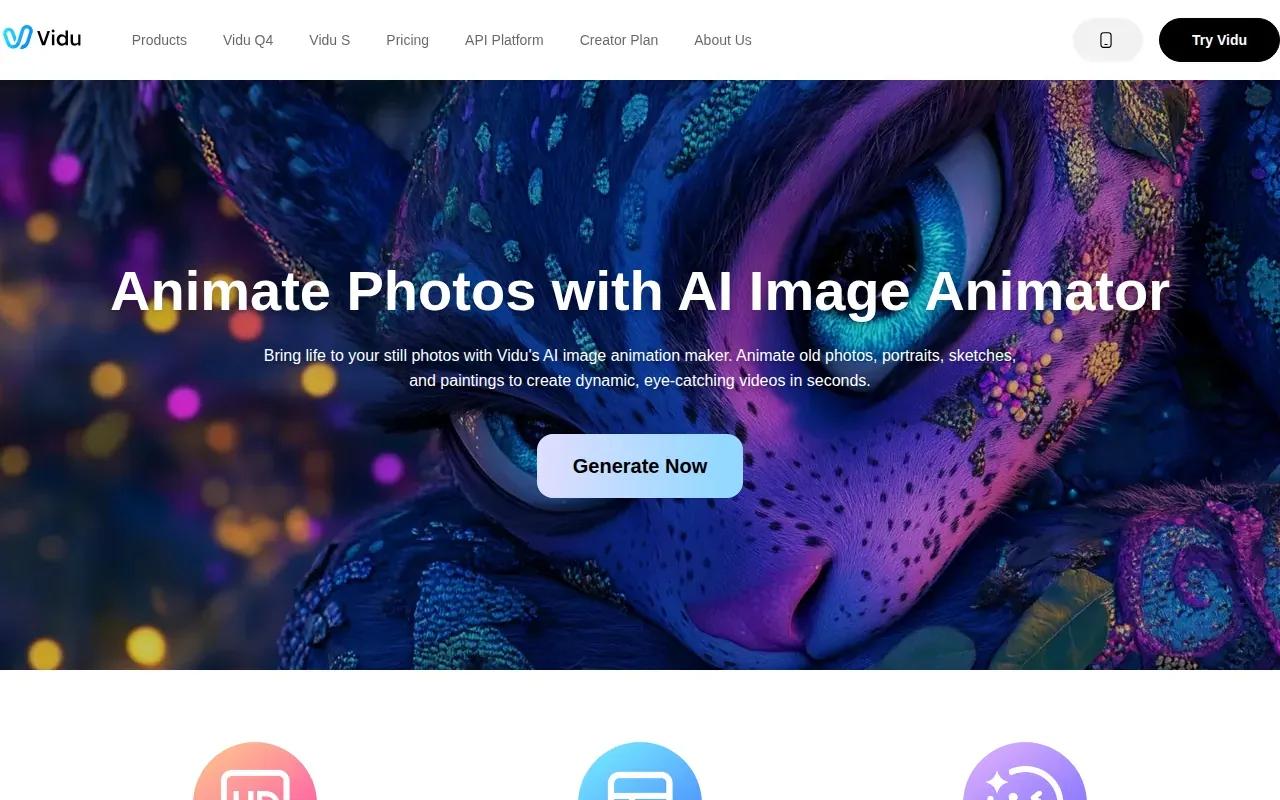
That reference-led setup is useful for a mascot or illustrated character that appears in more than one short clip. You can review whether the pose and expression still fit the character before building a larger sequence. Vidu also has a free tier, so creators can test its character workflow before deciding how it fits a production plan.
Resolution needs a bit of care. Vidu’s stated maximum is 4K through upscaling, which differs from generating every frame natively at that size. Check the result at its final viewing size. A high-resolution export can make an image larger, but it won’t fix motion that looks off or a character whose features shift.
For an early story or campaign test, animate one key pose first. Ask whether the character still feels recognizable once it moves, then decide if the direction is worth developing. That small test can help you avoid polishing a concept that doesn’t work in motion.
6. Runway: directed motion for cinematic photo animation
Runway is suited to cinematic motion when you want to direct what happens after the still image. Start with a photo that matters to the shot, then describe the action and camera move. It’s a useful fit for a product image, portrait, or location photo that should retain its visual starting point.
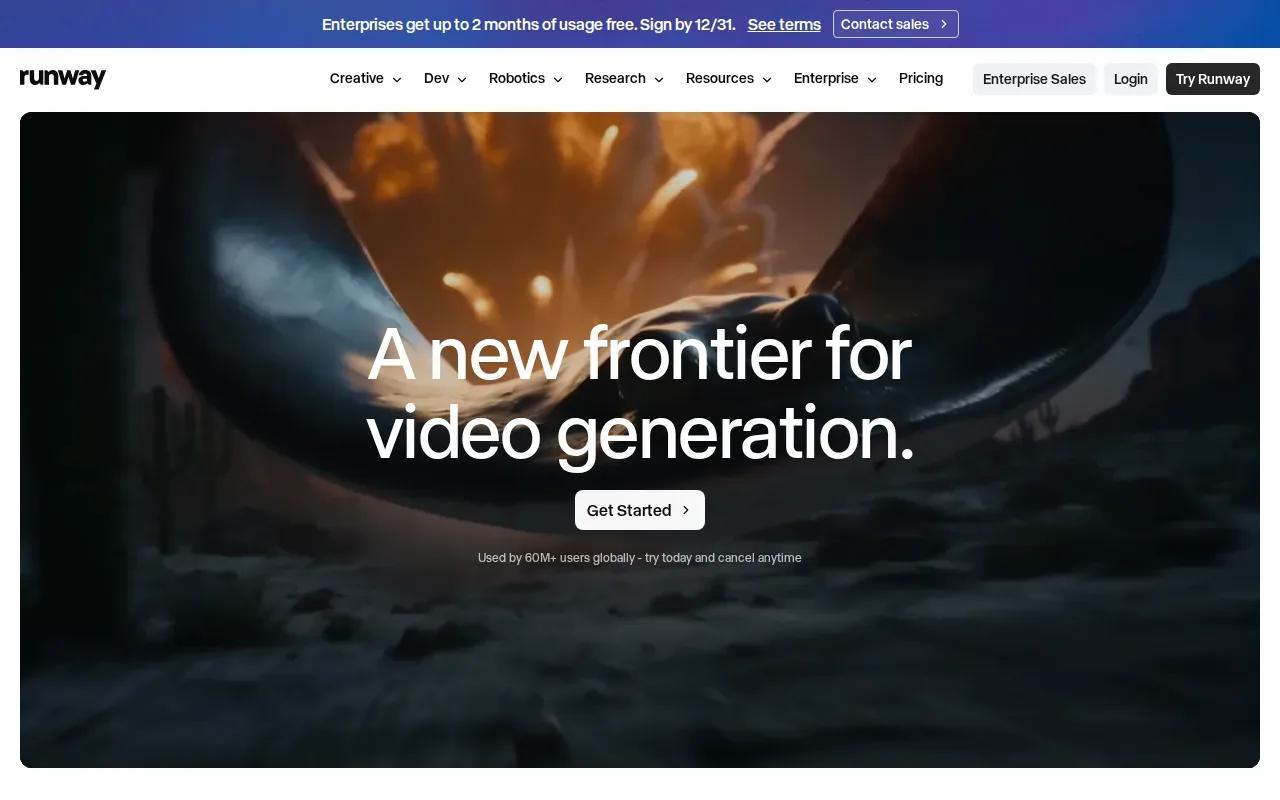
For image-to-video prompts, focus on what changes. A prompt such as “slow push-in as the subject turns toward the light” gives the model a motion and a camera cue without restating the entire photo. Runway also supports trimming or extending a clip within its editor, which can help when the shot needs a little more time.
Photo animation and a photo slideshow solve different problems. One still becomes a moving clip in image-to-video; a slideshow combines several photos into a longer sequence. Pick based on the asset you have and the final piece you need. In image-to-video, the still provides the visual starting point, so focus prompts on the motion that follows.
| What you need | Option to consider | Useful distinction |
|---|---|---|
| Synced dialogue and scene extension | Veo Studio | Reference-led video with sound, frame control, and extension |
| Expressive portrait motion | Pika | Short, effect-led human-subject animation |
| A speaking photo | D-ID or HeyGen | Portrait-led speech and avatar workflows |
| Recurring character identity | Vidu | Character consistency with 4K upscaling |
| A directed cinematic move | Runway | Prompt the motion and adjust clip length in the editor |
Use this as a first filter, not a promise that every render will behave the same way. Try the same source photo and a short prompt before committing to a larger batch. If audio, identity, and resolution all matter in one piece, compare the whole workflow rather than judging a tool by one attractive preview.
FAQ
What is AI photo animation?
AI photo animation turns a still image into a video by generating motion from the image and an instruction. That motion might be a camera push, a head turn, or speech. The photo anchors the scene, while the prompt tells the model what should happen next. Some tools focus on effects or movement; others make a portrait speak.
What kind of photo works for animation?
A clear image with a visible main subject is a good starting point. For a speaking portrait, choose a front-facing photo with the mouth unobstructed and enough light on the face. For a product or scene, leave room for the motion you want. Try a short sample before you build a full campaign around one image.
Can AI make a photo talk with synced dialogue?
Yes. D-ID and HeyGen are designed for speaking-photo workflows, while Veo Studio can generate synchronized sound and dialogue as part of a scene. Use a short script or audio sample first, then check whether the mouth movement matches the words. A synced clip can still need review for identity shifts or unnatural delivery.
Can I animate a photo in 4K?
Some tools support 4K output, but the method can differ. Veo Studio supports output up to 4K on supported settings, while Vidu uses upscaling for 4K output. Check the exported clip at its intended display size. More pixels won’t repair awkward movement or a face that changes during the shot.
How long should an AI photo animation be?
Keep the first test short enough to judge the motion before making a longer piece. A brief clip can show whether the face stays recognizable, the camera move feels right, and any speech is timed well. If the concept works, use a tool’s extension or editing features where available to build out the scene.
Conclusion
For a photo-led scene that needs synchronized dialogue, character consistency, frame control, or room to extend, start with Veo Studio. Try one reference image and a focused motion prompt, then review the sound and movement before making more clips. For a wider comparison of AI image animation tools, match each option to the specific shot you need.


