
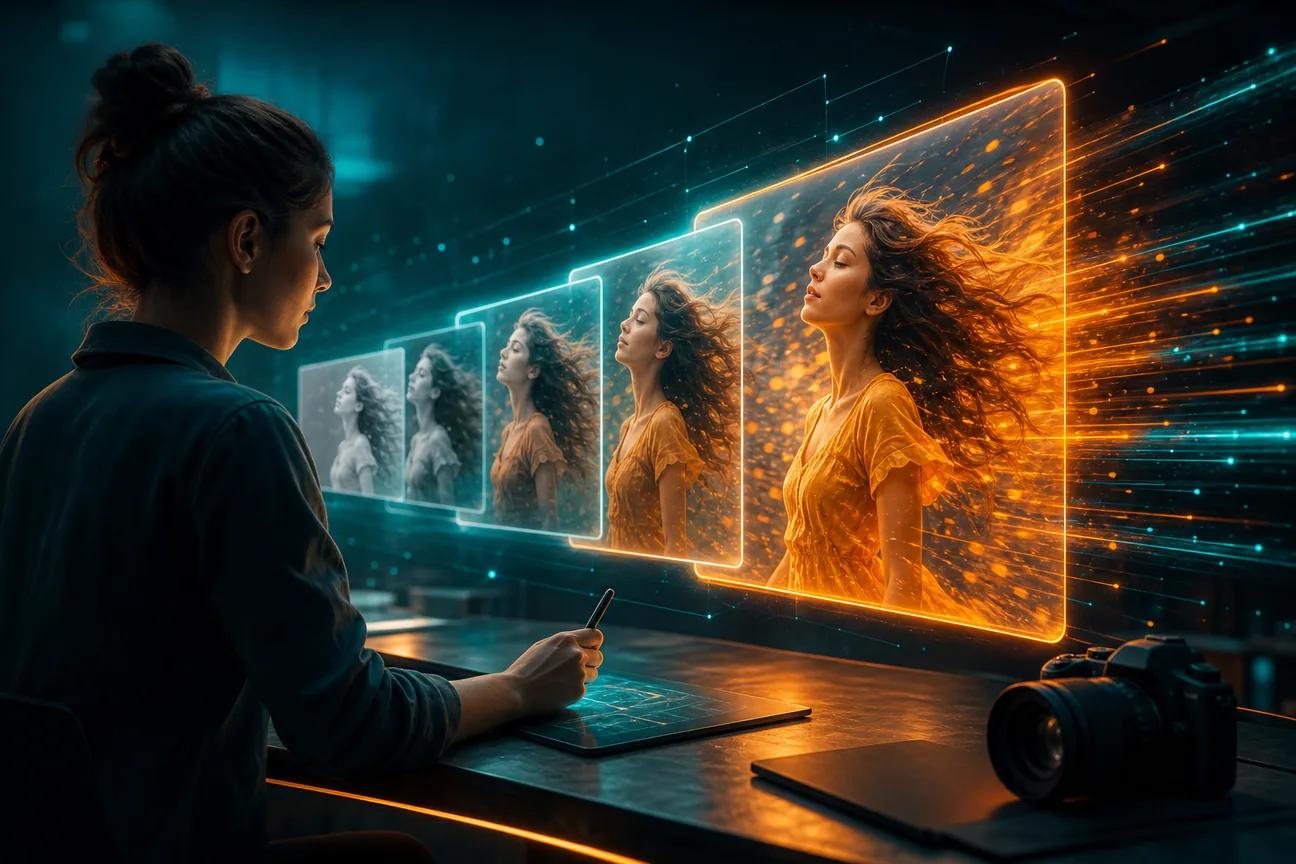
An AI photo animation generator can turn a still portrait or product shot into a moving video. The tools below suit different jobs, from scripted talking photos to shots with more control over frames and sound.
1. Veo Studio
Veo Studio is an independent, browser-based video creation tool powered by Google's Veo 3.1 models. Add a prompt, upload reference images, or use both to make a video with synchronized sound and dialogue. It suits social creators, brand marketers, small businesses, and filmmakers who want motion and audio in one generated clip.
For a product photo, describe the camera move and what should happen in the scene. For a portrait, you can describe an action or include a line of dialogue. The tool can generate speech with matching lip movement, along with sound effects or music. Add up to three reference images to guide a character, product, or visual style in supported generations.
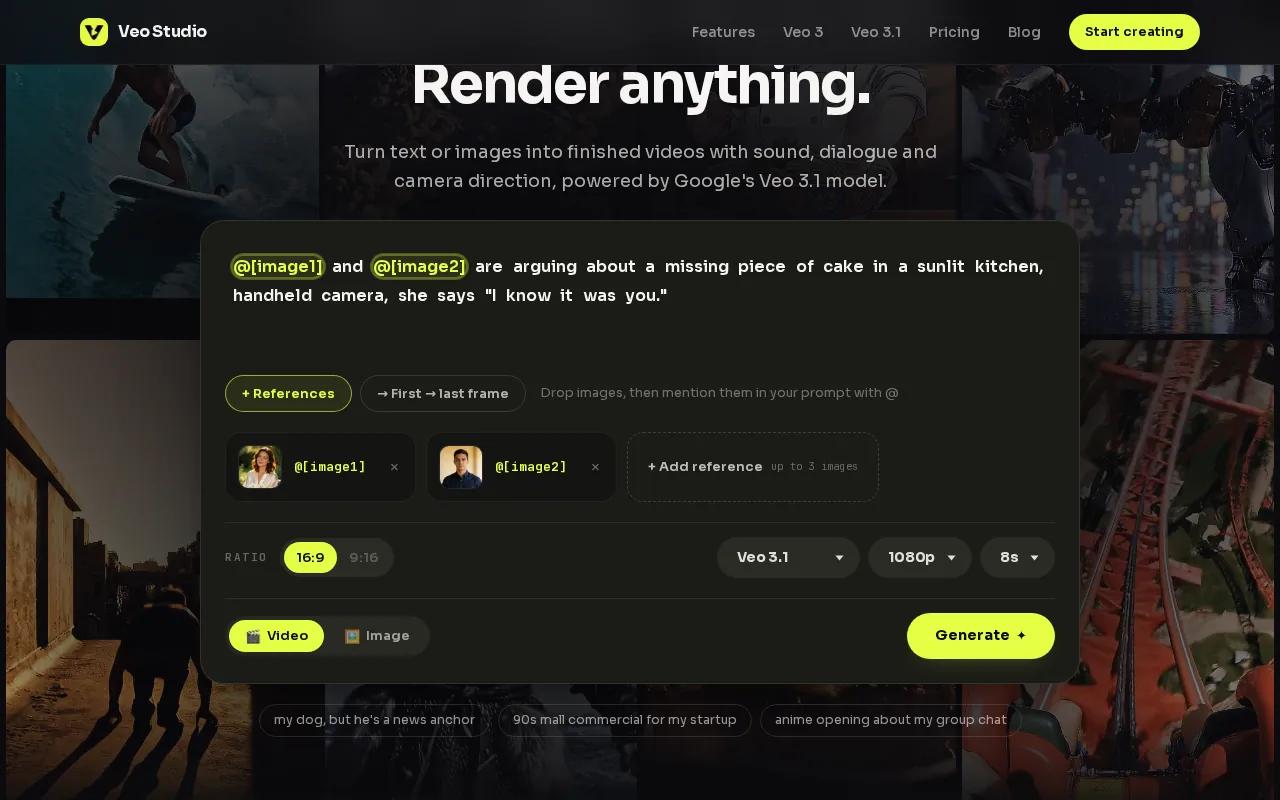
If you need a directed transition, provide a starting image and an ending image. The model generates the motion between them. You can also extend supported clips in seven-second steps, which can help when a short social post needs a longer scene. Output can reach 4K on supported settings and paid plans.
Veo Studio has a free plan with a couple of 720p videos each month, with no card required. Paid plans start at $14 per month, and every plan, free included, comes with a commercial license. The main draw is the mix of dialogue, reference images, frame control, scene extension, and high-resolution output in a browser workflow. For a closer look at still-image workflows, see these AI image animator options for photo-to-video.
2. HeyGen: talking portraits with script lip sync
HeyGen can turn a portrait into a video that speaks a script with lip sync. It’s a fit for explainers, course intros, and social videos where the speaker needs to deliver specific words. Instead of starting with a voice recording, you can paste a script and choose a voice.
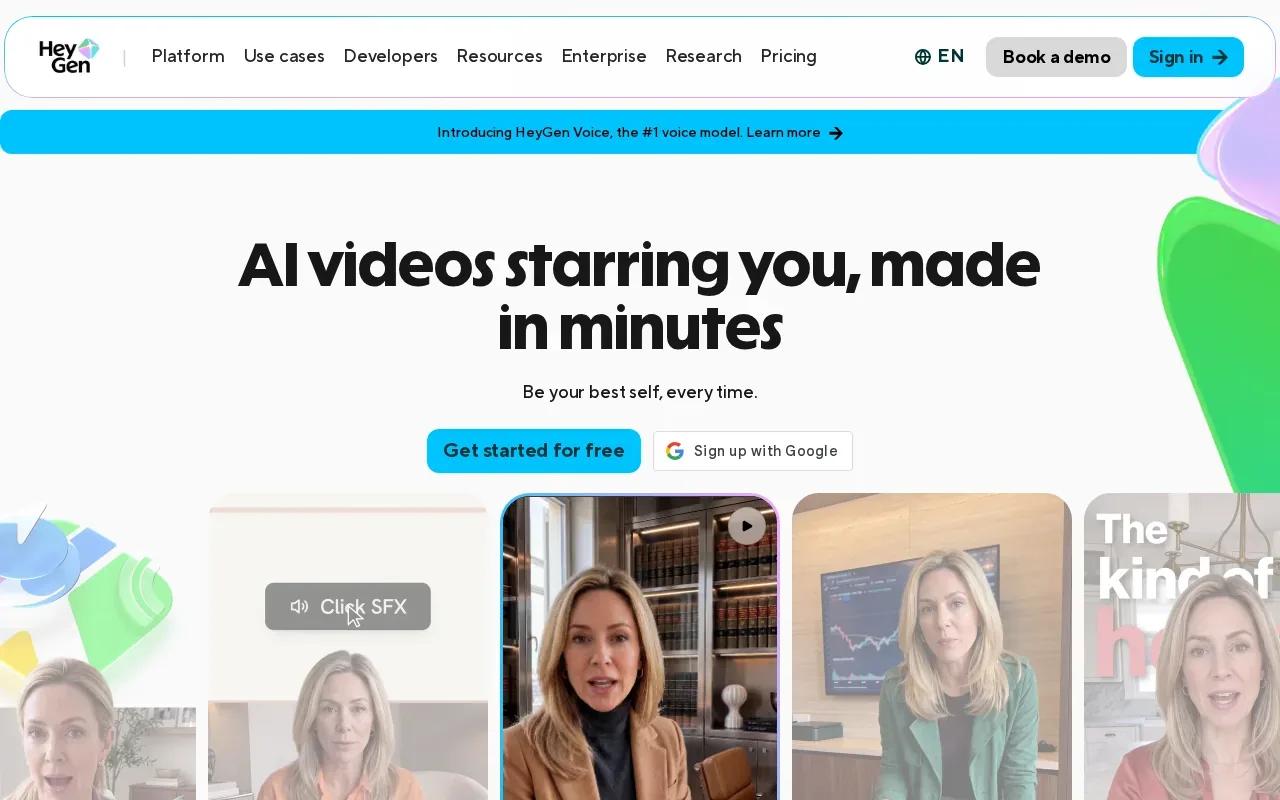
The image-to-video workflow also supports motion prompts. Describe a camera move or a small action, then review the generated clip. For a talking portrait, the script gives the animation clear speech to match. HeyGen supports synchronized sound and dialogue in more than 175 languages, which can help when you need versions for audiences who speak different languages.
For social publishing, the output can be set to vertical, square, or widescreen. The maximum export resolution is 4K. That gives you room to make a portrait clip for a phone feed or a wider video for a course page without changing the source photo.
HeyGen’s free tier includes three videos per month, each up to one minute, with a watermark and 720p export. That makes it useful for testing a short script before committing to a recurring workflow. If the goal is simply to make a photo move, a spoken script may add steps you don’t need. Choose it when the words matter as much as the face movement.
Good source material still matters. A clear face with visible eyes and mouth gives the animation useful visual cues. Keep the script focused, then check the mouth movement and expression before sharing the clip.
3. SadTalker by OpenTalker: animate a portrait to recorded audio
SadTalker by OpenTalker animates a portrait photo to match an audio file. Upload a headshot and voice recording, and it generates a speaking video with synchronized lip movement and head motion. It suits creators who already have narration, such as a podcaster making a visual clip or a teacher building an audio-led lesson.
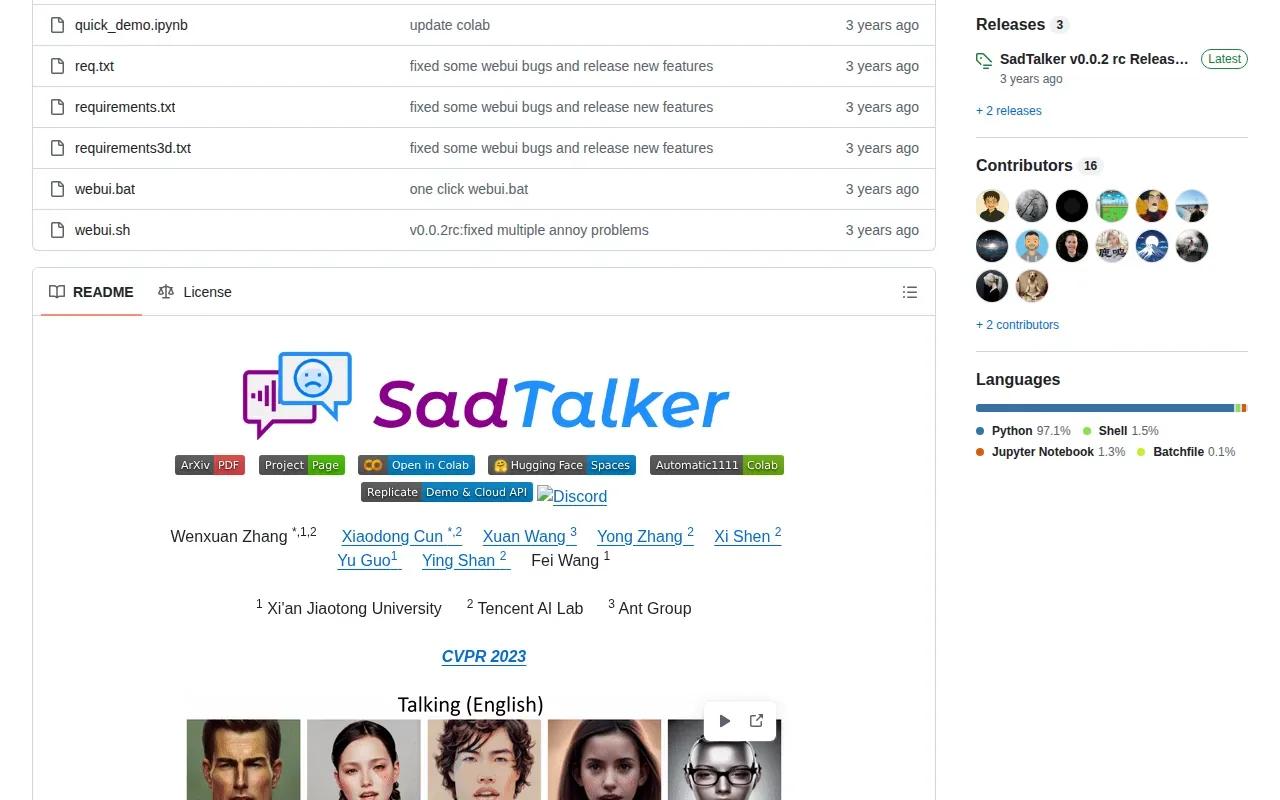
Because the audio drives the animation, you don’t need to write a script inside the tool. Record or select the voice track first. Then use the portrait as the visual base. SadTalker’s controls include pose style and face model resolution. Its resolution options include 256 for faster processing and 512 for higher detail.
It’s an open-source project with options that range from a browser demo to local installation. Local use may suit people who want more control over how they run the software, but it brings setup needs.
A clear, front-facing image with good light gives the tool a better view of the face. You can also adjust how much head movement you want. Lower pose-style values keep motion more subtle; higher values add more expression. That makes SadTalker a focused choice for short-form speaking avatars, podcast visuals, or educational clips built around an existing recording.
When comparing speaking-photo tools, keep the difference in mind: an audio-driven tool starts with your recorded voice, while a script-driven workflow can generate speech as part of the process. The AI talking video generator overview can help you think through that choice.
4. Vidu: keep reference characters consistent across frames
Vidu is an AI video generation platform built around the Vidu model, with a focus on semantic accuracy and consistency across multiple subjects. Its reference-subject system helps keep a character stable across separate image-to-video generations. That can suit creators working on a short story or a sequence of related social clips.
For example, you might use one character reference across several shots, then describe a different action in each prompt. Reference images help guide the subject’s appearance, while your directions shape what happens in the scene. This can be useful when a character needs to remain recognizable as the location or camera angle changes.
Vidu also has start- and end-frame control. Set the opening and closing images, then use the generated clip to connect them. This gives you a more direct way to plan the visual change than relying on a text prompt alone. If the last frame matters, such as a character landing in a pose or a product arriving at a set position, that control can help define the shot.
4K upscaling is available on higher plans. It’s an upscaling option, so treat it as a way to increase output size rather than a guarantee that every source detail will appear exactly as intended. Review faces, hands, and key objects before using a clip in a paid campaign.
Vidu fits projects where visual identity matters across generations. For a single portrait that needs to speak a fixed recording, an audio-led tool may be a more direct match. For a character sequence with reference images and a planned transition, Vidu’s reference and frame controls are the more relevant features.
5. Google Flow: animate images with start- and end-frame control
Google Flow lets users animate images, add reference material, and specify starting or ending frames. It suits creators who want to guide how a still changes into a later image, rather than leave the whole transition to a broad prompt.
Frame control can help when you already know how the shot should begin or finish. Set a starting frame to anchor the opening composition, or specify an ending frame when the final pose or product position matters. Add reference material when you want to give the generation more visual context. Starting- and ending-frame options let you guide how an image animation begins or ends.
Users without a subscription get 50 Flow credits per day. That gives you a way to test the image workflow before choosing a paid plan. Since credit use can depend on the generation, check the current interface before planning a batch of clips.
Use this quick comparison to match a tool to the job, rather than treating every feature as equally important:
| Tool | Choose it when | Useful control |
|---|---|---|
| Veo Studio | You want a generated clip with sound and dialogue | Reference images, first and last frames, scene extension, up to 4K on supported plans |
| HeyGen | A portrait needs to speak a script | Lip sync in 175+ languages, with export up to 4K |
| SadTalker by OpenTalker | You already have an audio recording | Audio-driven lip movement and head motion |
| Vidu | A character should stay recognizable across generations | Reference subjects and start- or end-frame control |
| Google Flow | You want to specify an opening or closing frame | Starting- or ending-frame input, plus reference material |
Veo Studio is a strong fit when the shot needs sound, consistent references, and a clear frame plan in one browser tool. For a narrower job, choose the feature you’ll use most. A talking portrait, a pre-recorded voice track, and a controlled character sequence are different production tasks.
If you’re moving from a still image into a clip, the AI photo animator comparison covers more image-led workflows. Keep the source image clear, give the model one main action, then preview the result before you export.
FAQ
Do I need to write a prompt to animate a photo?
No, not always. A prompt helps when you want to describe a camera move or the subject’s action, as with image-to-video tools. SadTalker instead uses an uploaded audio file to drive facial motion. For a talking portrait made from a script, HeyGen lets you provide the words. Match your input to the tool’s workflow.
How long does it take to animate a photo?
It depends on the tool, clip length, and generation settings. Render times vary, so leave room to preview and revise your output. If you’re making several versions, test one short clip first. That will help you judge the workflow before you plan a larger batch.
What kind of photo works well for animation?
A clear image with a visible subject is a good starting point. For a speaking portrait, choose a well-lit, front-facing face with visible eyes and mouth. For a product or scene, use an image where the main subject is easy to distinguish. A focused source image gives you a clearer result to review.
Can I use AI-animated photos for commercial videos?
Check the tool’s license and plan terms before using a clip in an ad or other paid work. Every Veo Studio plan includes a commercial license, including its free plan. For the other tools in this list, review each plan's terms before publishing commercially.
Conclusion
If you need a still image to become a clip with synchronized sound, dialogue, reference consistency, and frame control, start with Veo Studio. Try a short generation using one clear image and a focused prompt, then review the motion and audio before building the full sequence.


