
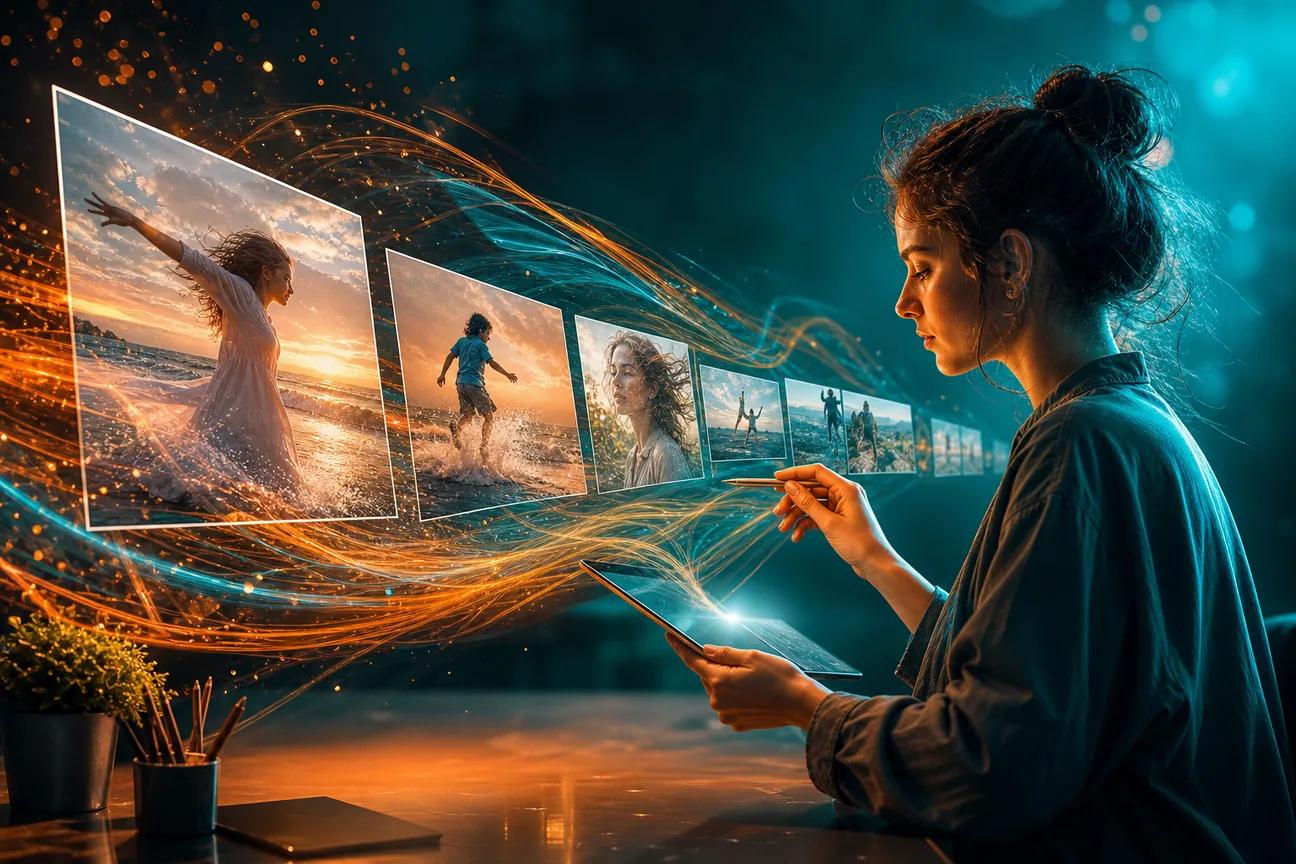
A still photo can become a moving scene with a short prompt, but the tools differ in what they can do next. This shortlist of AI photo animation app options covers speaking portraits, scene control, editing, and ways to start free.
We analyzed 40 comments from YouTube and Reddit about AI photo animation apps and found that 20% mentioned unrealistic animation results.
1. Veo Studio
Veo Studio is an independent, browser-based AI video creation tool powered by Google's Veo 3.1 models. Add a reference image, describe the action, and generate a clip with synchronized sound and dialogue. It's a fit when you want the photo to become a directed shot, rather than a simple zoom effect.
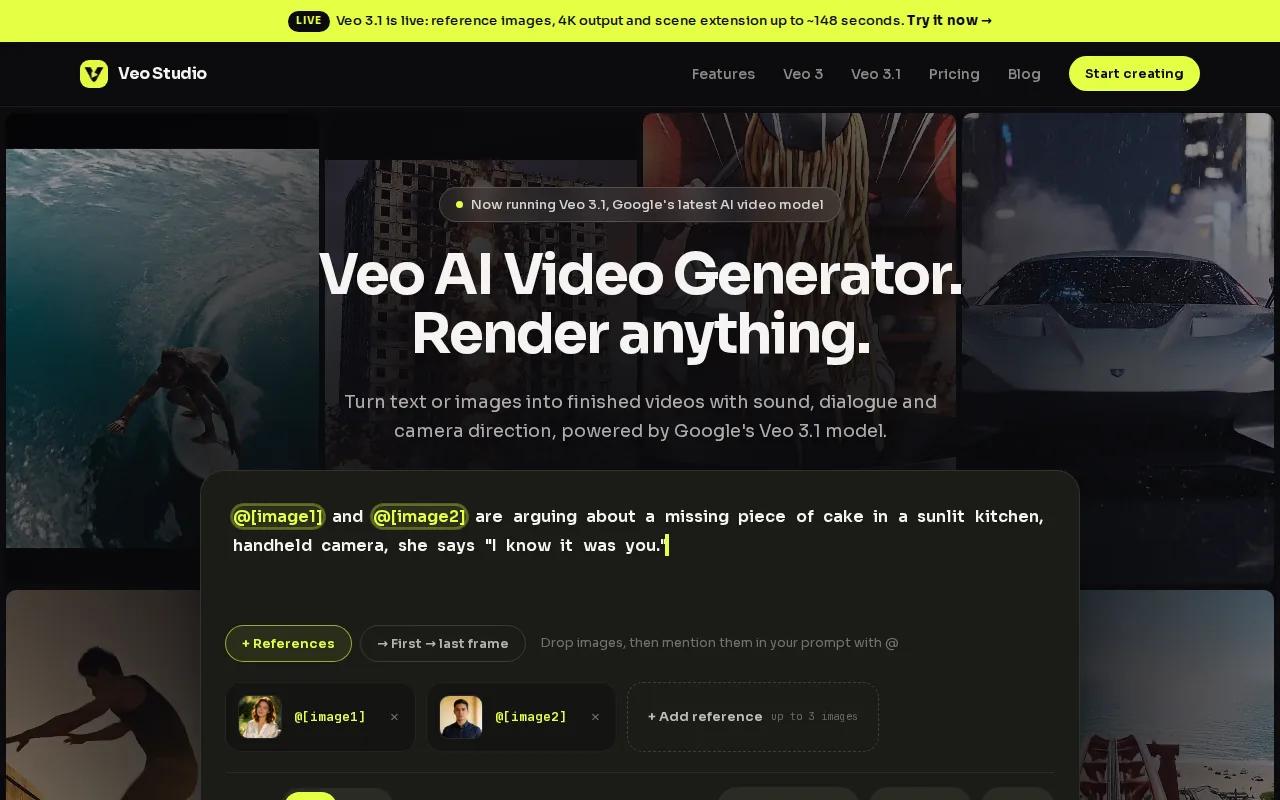
Reference images can help keep a person or product consistent. You can also set a first and last frame, then have the model generate the motion between them. For a social clip, describe a small movement and a camera move. For a product spot, tell it how the camera should pass the item and what sound should accompany the scene.
Veo Studio supports output up to 4K on supported settings. A finished scene can also be extended, so a short starting clip can continue rather than ending at its first few seconds. The browser-based workflow needs no app download, and the free plan includes a couple of 720p videos each month without a card. Paid plans start at $14 a month.
For more guidance on turning a still into a generated scene, see this image to video AI generator overview.
Keep the first test simple: one subject, one clear action, and one camera direction. Add dialogue only when a spoken line is part of the idea.
2. OpenArt: For consistent characters and speaking portraits
OpenArt can make videos where characters speak with synced lip movements, and it can add original AI-generated music. Its reference-based character feature is aimed at keeping the same face across videos, which can help when you need a recurring character in several short scenes.
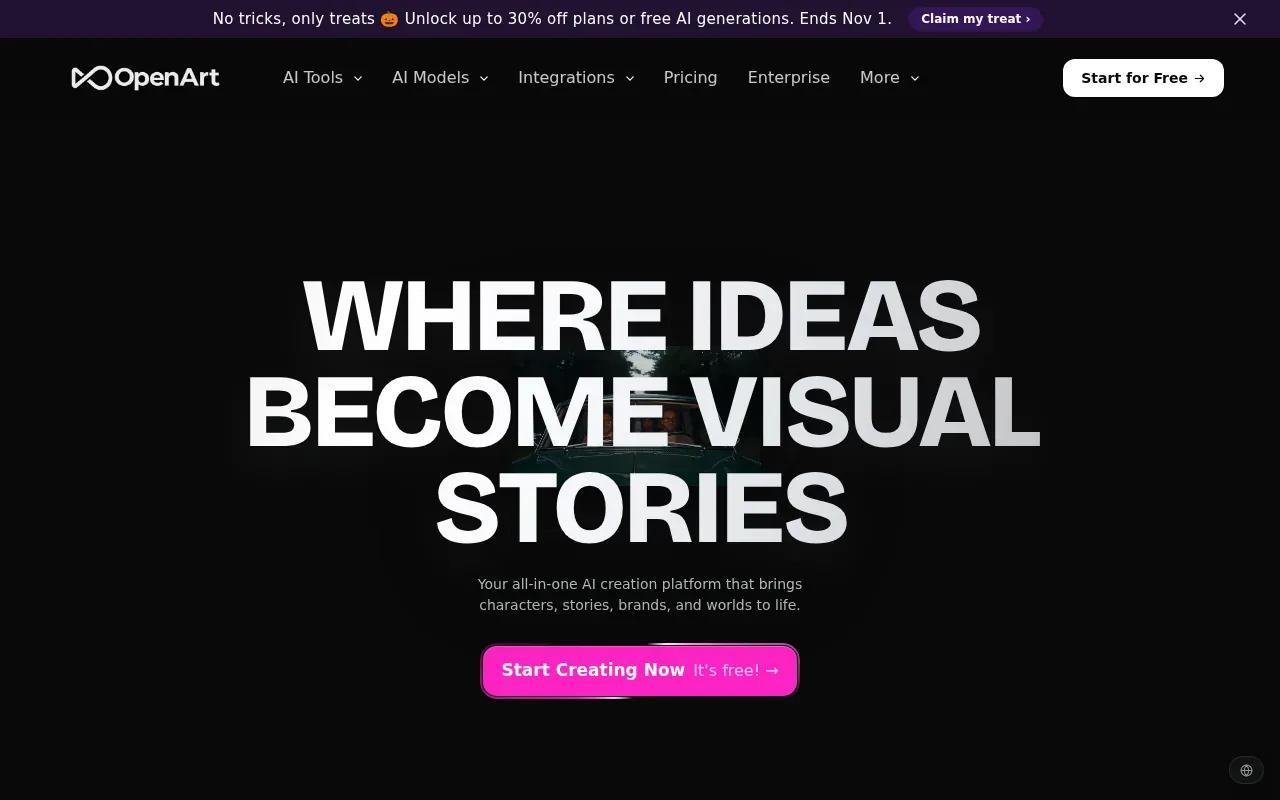
The combination suits a creator building a sequence around one portrait or character. Use a reference image to guide identity, then add the spoken line or music as part of the scene. OpenArt's maximum output resolution is 4K, useful when a clip needs to hold up on a larger screen or in a high-resolution edit.
OpenArt has a free trial with daily credits and no card required. That gives you a way to test a portrait and motion prompt before planning a larger set of clips. It may be a better fit for a character-led idea than for a workflow focused mainly on editing a finished video.
For a recurring host, mascot, or story character, identity across separate videos is the key detail to check.
3. Higgsfield: For creating and editing visual content across devices
Higgsfield can create images, videos, and voice content from text prompts or reference material. It also supports editing and upscaling, with content generation on web and mobile. That mix can suit a creator who wants to start with a still image and keep working on the visual asset in the same service.
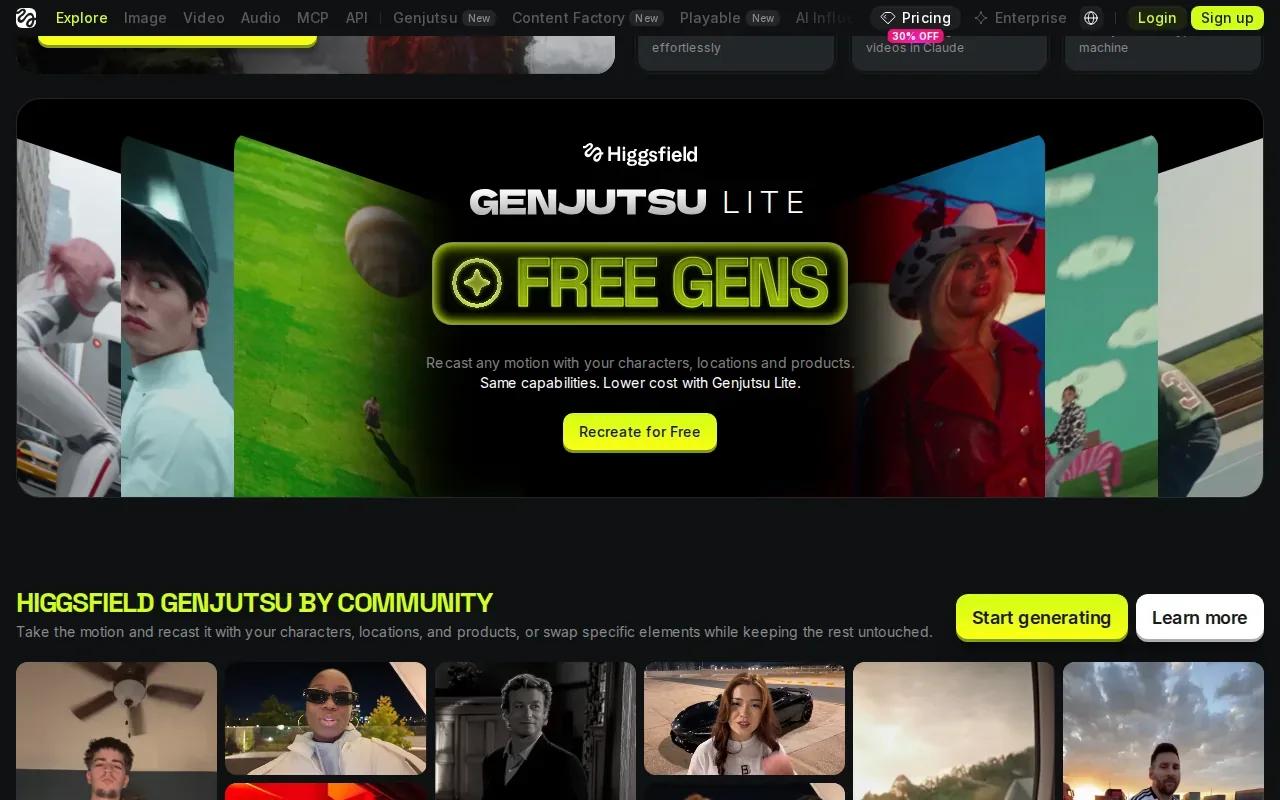
Its AI agent can automate creative workflows. For example, a team may use references to guide a visual, edit or upscale the media, then use the agent for repeat creative tasks.
Higgsfield's web and mobile access matters if your source photos or review process move between devices. A browser session may suit desk-based work, while mobile access can help when you need to check a visual away from your workstation. Those access options are supported, but the exact steps may depend on what you're making.
Pick it when you value a broader create-and-edit workflow across devices. If the job hinges on a specific kind of frame control, synced dialogue, or scene extension, compare that requirement against the tool's available settings first.
4. Fliki: For multilingual voiceovers and lip-synced animation
Fliki can turn text, scripts, and blog posts into videos with AI voices. It also translates video into more than 80 languages with voiceover, lip-synced mouth movement, and translated captions. That makes it a natural option when a speaking portrait or narrated clip needs versions for different language audiences.
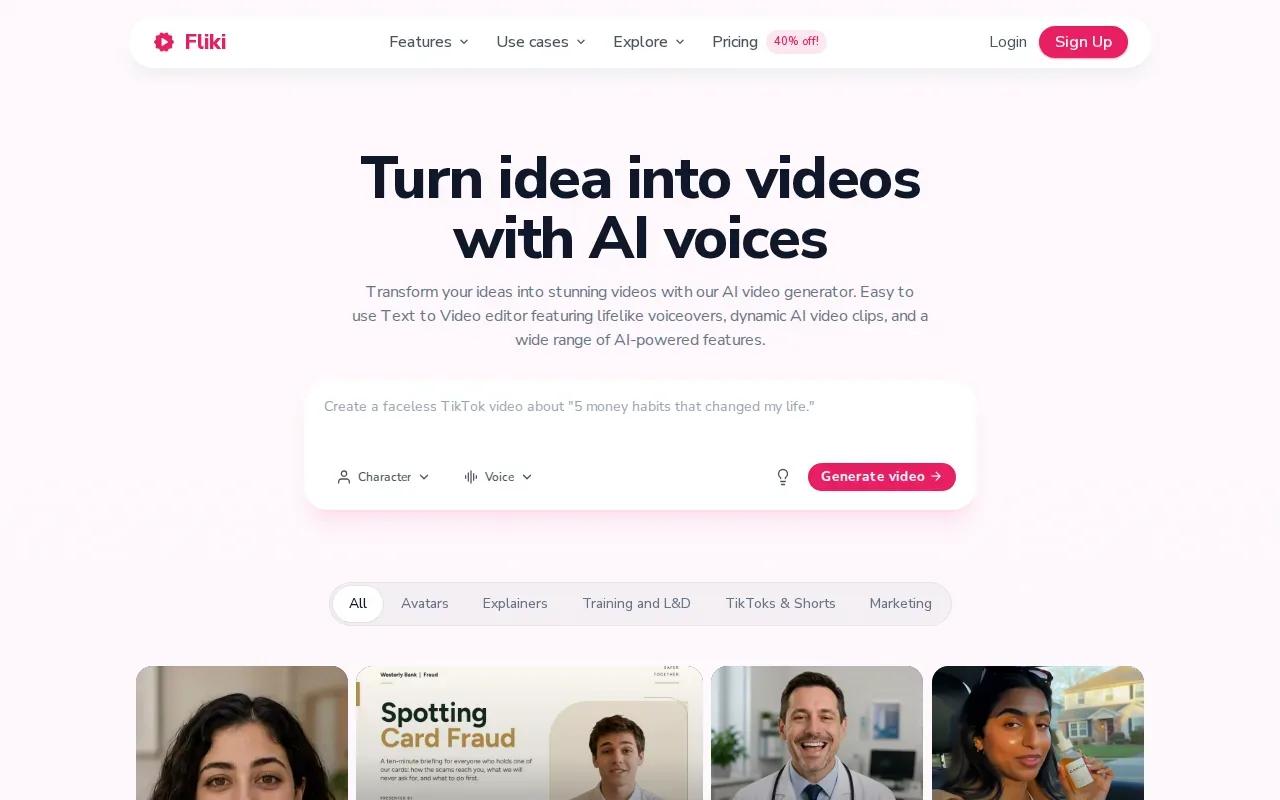
For a photo-based video, start with the still or a script-led idea, then decide whether the main job is a spoken message or a moving scene. Fliki offers more than 2,000 AI voices in over 80 languages. A free-forever plan is available, so you can test a short piece before making it part of a regular publishing routine.
Translation is useful for a product explainer or social post that needs to reach viewers in several languages. Check the translated captions alongside the voice track. A line that reads well on screen may need a different rhythm when spoken aloud.
Fliki is a good fit when voice and language versions are the main work. If the image needs a longer, evolving scene, compare that need with its voice-focused workflow.
5. Kapwing: For turning a prompt into an editable video project
Kapwing can generate a full video project from a single prompt. It also supports content creation and editing for different channels, which can help if you want to go beyond animating one still and continue shaping the video project.
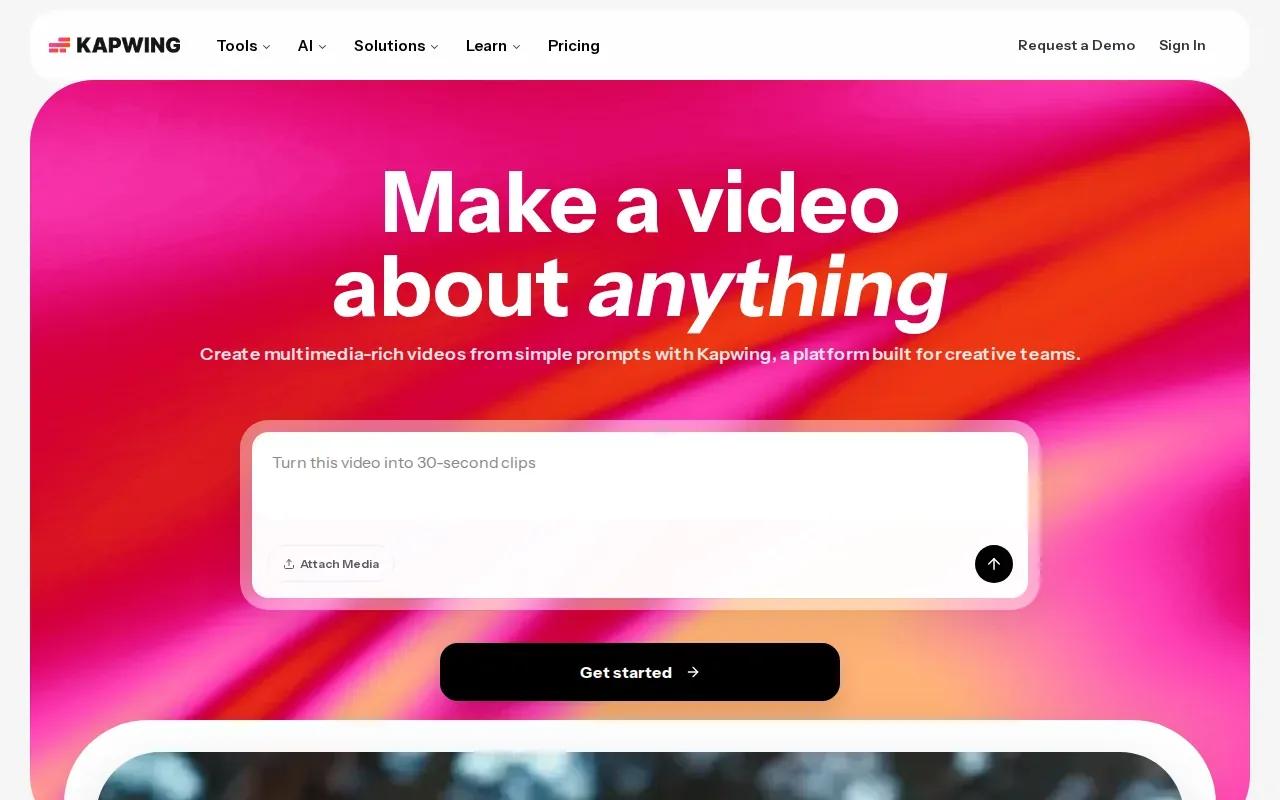
Think about the end product before you write the prompt. A single moving portrait may need only one clear action. A larger project could begin with a broader description, then move into editing so you can shape the piece for a specific channel. More than 30 million creators use Kapwing, but the project details that matter most are the prompt output and editing steps available to you.
When you animate a photo, keep the motion request narrow. Describe what should move and how the camera should behave, then review the first result before adding extra actions. That makes it easier to spot whether the image itself supports the idea.
Kapwing suits a prompt-led project that needs follow-up editing. If the main requirement is a consistent speaking character or a scene that can be extended, compare those specific capabilities before choosing.
6. AKOOL: For personalized visual marketing
AKOOL is a generative AI platform for personalized visual marketing and advertising. Its talking-avatar workflow can start with text, an image, or video, and it supports online edits after generation. That points to a use case such as a branded spokesperson or a set of video ads shaped around different messages.
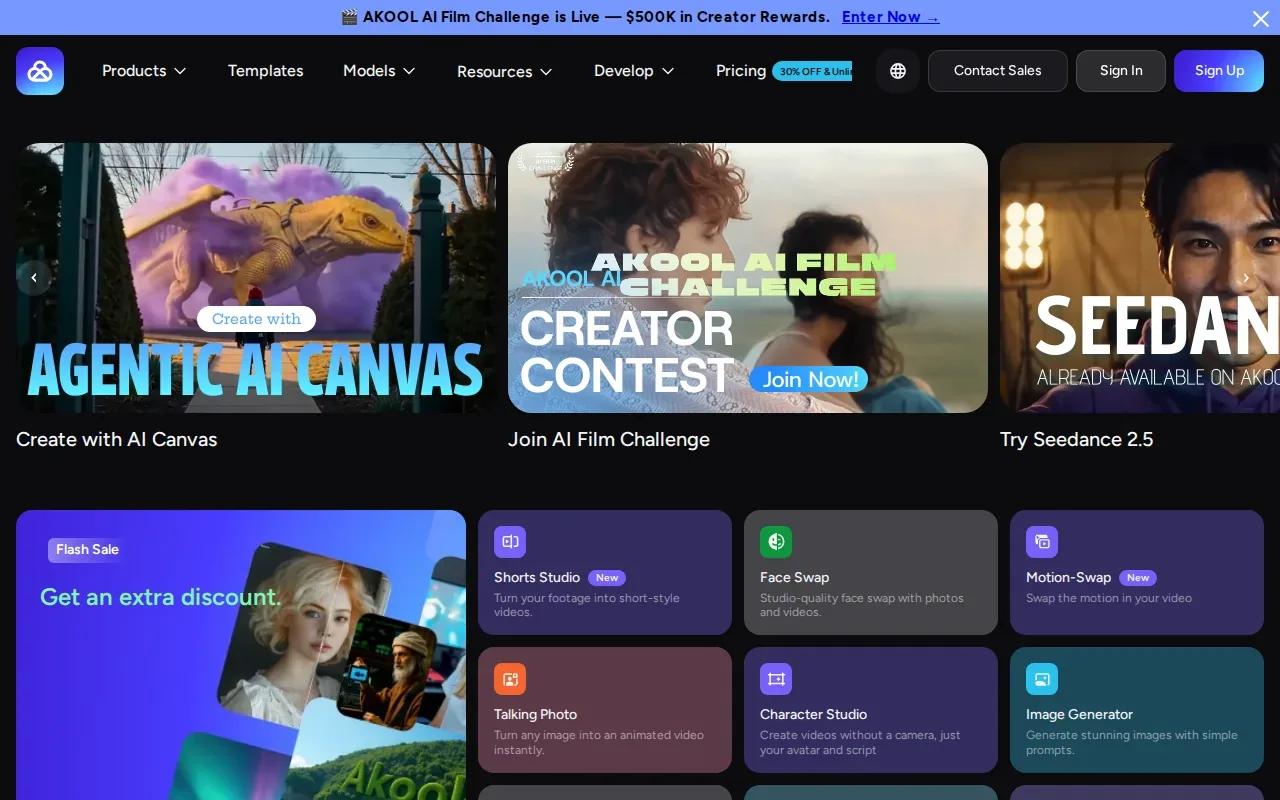
AKOOL builds avatars from custom or library-based digital humans. Its tools include voice choices, text-to-speaking avatars, and lip-to-speech synchronization. The platform also offers 4K output, which may matter when a campaign needs a speaking face across several markets.
For marketing teams, the useful question is how much of the spokesperson needs to be personalized. If you need a custom avatar or a branded talking video, AKOOL's focus is relevant. If the task is simply to animate a product still with camera motion, a scene-generation workflow may be a closer match.
Use a clear script and review the lip movement before adapting the same message for more audiences. Personalization works best when the visual and spoken line both fit the campaign.
AI Photo Animation Apps Compared: Features, Access, and Best Uses
The right choice depends on what your still photo needs to become. This comparison focuses on the workflow each option supports, not on a single overall score.
| Option | Useful for | Distinct capability or access detail |
|---|---|---|
| Veo Studio | Directed image-to-video scenes | Synced sound and dialogue, references, frame control, scene extension, up to 4K; browser-based |
| OpenArt | Recurring speaking characters | Reference-based face consistency, synced lip movement, up to 4K |
| Higgsfield | Creating and editing across devices | Web and mobile access, editing, upscaling, workflow automation |
| Fliki | Voice-led content for multiple languages | Voiceover, lip sync, translated captions, free-forever plan |
| Kapwing | Prompt-led video projects | Generate a full project from one prompt, then edit |
| AKOOL | Personalized avatar marketing | Talking avatars, voice choices, online editing, 4K output |
For a simple motion test, upload a photo, describe one action, and generate a short draft. Then check the face, hands, background, and motion direction. If you spot a visual error, simplify the prompt or change the requested movement before building a full campaign.
Prompt detail helps, but more words don't always help. Name the subject, then state one action and one camera move. Add a style or mood only when it changes the result you want. A portrait might need a slow turn toward the light; a product still might need a gentle camera push while the item stays fixed.
Before uploading a personal photo, consider who can access the account and the service's privacy terms. For brand work, also confirm that your chosen plan and use case allow the intended commercial use. Veo Studio's paid plans list a commercial licence; check the free plan's terms before commercial use.
If you want to make a video from a still photo, this AI video from photo guide covers the image-led process. For a quick Veo Studio test, start with a photo where the main subject is easy to see.
Frequently Asked Questions
What does an AI photo animation app do?
An AI photo animation app uses a still image as the starting point for a moving video. You upload a photo and describe the motion or scene you want. Depending on the tool, the result may include camera movement, a speaking portrait, voiceover, or a longer generated scene. Review the clip before sharing it, since generated motion can change details.
How do you animate a photo with AI?
Upload a clear photo, write a short prompt describing one action, and generate a draft. For example, describe a portrait turning toward a window or a product slowly rotating. Watch the result, then adjust the prompt if the movement feels wrong. Add extra actions only after the basic motion works.
Can AI photo animation apps make a person speak?
Yes, some can animate a portrait with speech and lip movement. OpenArt supports speaking characters with synced lip movements, while Fliki includes AI voiceover and lip-synced mouth movement. Veo Studio supports synchronized sound and dialogue. If the spoken words matter, check the mouth movement and listen to the full clip before publishing.
Are there free AI photo animation options?
Yes. Veo Studio has a free plan with a couple of 720p videos each month and no card required. OpenArt provides a free trial with daily credits, and Fliki has a free-forever plan. Free access can have usage limits, so test the type of image and output you need before planning a larger batch.
Conclusion
For a still photo that needs sound, dialogue, frame control, or room to continue as a scene, start with Veo Studio. Upload one clear reference image and test a short prompt.


