

Some thumbnail tools generate fresh images, while others help you judge a design you already made. An AI video thumbnail generator can speed up the work, but it won’t guarantee more clicks. Here are five thumbnail tools, plus Veo Studio for creators who also want to make the video itself.
We analyzed 29 YouTube comments about AI video thumbnail generators and found that 24% mentioned tutorials and additional features.
1. Veo Studio
Veo Studio is an independent, browser-based AI video creation tool powered by Google’s Veo 3.1 models. It generates videos and still images, so it’s a fit if your thumbnail work sits alongside making new video scenes.
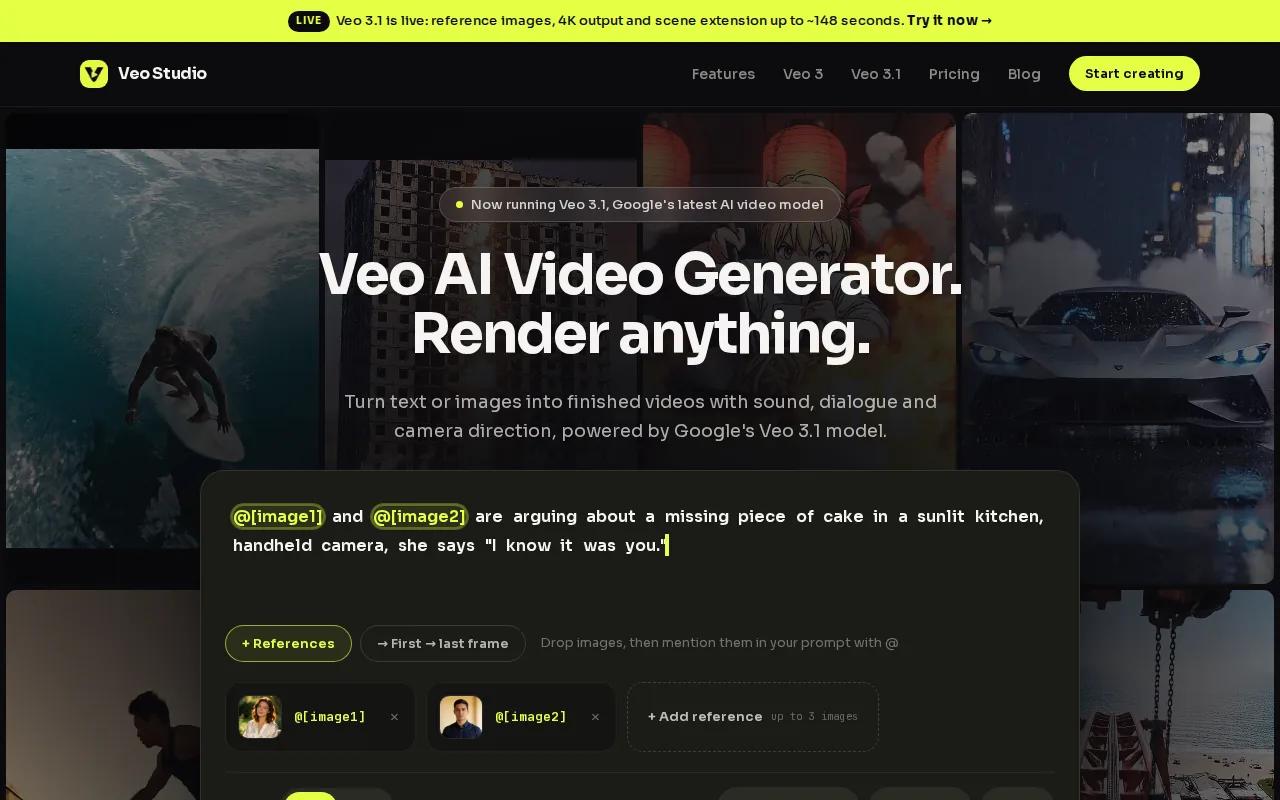
Start with a prompt or reference image. Veo Studio can generate a clip with synchronized sound and dialogue, guide a character with reference images, and shape a transition with first- and last-frame control. Supported settings can produce up to 4K output, and scene extension can add to a finished clip.
That broader workflow may help when your cover image needs to match a scene you’re making. You can plan a product shot, set a camera move, and generate a video with the same visual direction. For a closer look at the video tools, see AI video generators for creators.
Veo Studio isn’t a dedicated thumbnail editor. Its role is broader: prompt-led video and image creation in a browser. A free plan includes a couple of 720p videos a month, with no card required. Paid plans start at $14 per month and include more videos, higher resolutions, and a commercial license.
If you’re building the full clip as well as its cover, Veo Studio can be a starting point for the video side of the job.
2. Pikzels: Generates thumbnail variants with face consistency
Pikzels is a YouTube packaging tool for generating and testing thumbnail ideas. It suits face-forward creators, agencies with several channels, and anyone who wants multiple versions for an upload.

Upload three photos once to set up a Persona, then reuse your face across thumbnails. That can save time when you publish a series and want your face to stay recognizable, even as the scene, expression, or layout changes. Pikzels also supports bulk variants, so you can compare distinct cover directions rather than tweaking one design endlessly.
The tool also gives thumbnails and titles a score based on packaging feedback. That can help you spot issues before publishing, but a score isn’t a promise of clicks. Treat it as a second opinion, then use your channel’s own testing where available.
Pikzels is more focused on YouTube packaging than general image creation. That focus may suit creators who need repeatable cover concepts and want feedback in the same workflow. It’s less useful if you only need to make a still image once in a while.
Use it when the host’s face is part of your channel identity and you want options to compare for each upload.
3. ThumbnailAI: Rates thumbnails and suggests alternatives
ThumbnailAI reviews an uploaded thumbnail and gives a rating with feedback. It fits small channels that already design in Canva and want another opinion before publishing.

Instead of beginning with a blank prompt, you bring a design you’ve made. The tool assesses its visual choices, points to areas to improve, and can suggest alternatives. On Pro, it can generate alternative designs as well. That makes it useful late in the workflow, after you’ve settled on the video’s main idea.
Say your draft has a clear face but a crowded background. Feedback can give you a reason to make a cleaner second version and compare the two. Keep the change focused. If you change the image, headline, and color at once, you won’t know which edit improved the design.
There’s an important limit to AI scoring: it reflects general patterns, not the tastes of your specific audience. A high score is not the same as a proven result on your channel. Use the rating to find questions worth testing, then check performance in your own channel tools.
For creators who want help reviewing their own work rather than starting with a generated image, ThumbnailAI fills a different role from a full design tool.
4. Ideogram 4.5: Designed for readable text and consistent faces
Ideogram 4.5 is an image model built for layouts with readable text. It suits creators whose headline does much of the work in a thumbnail.
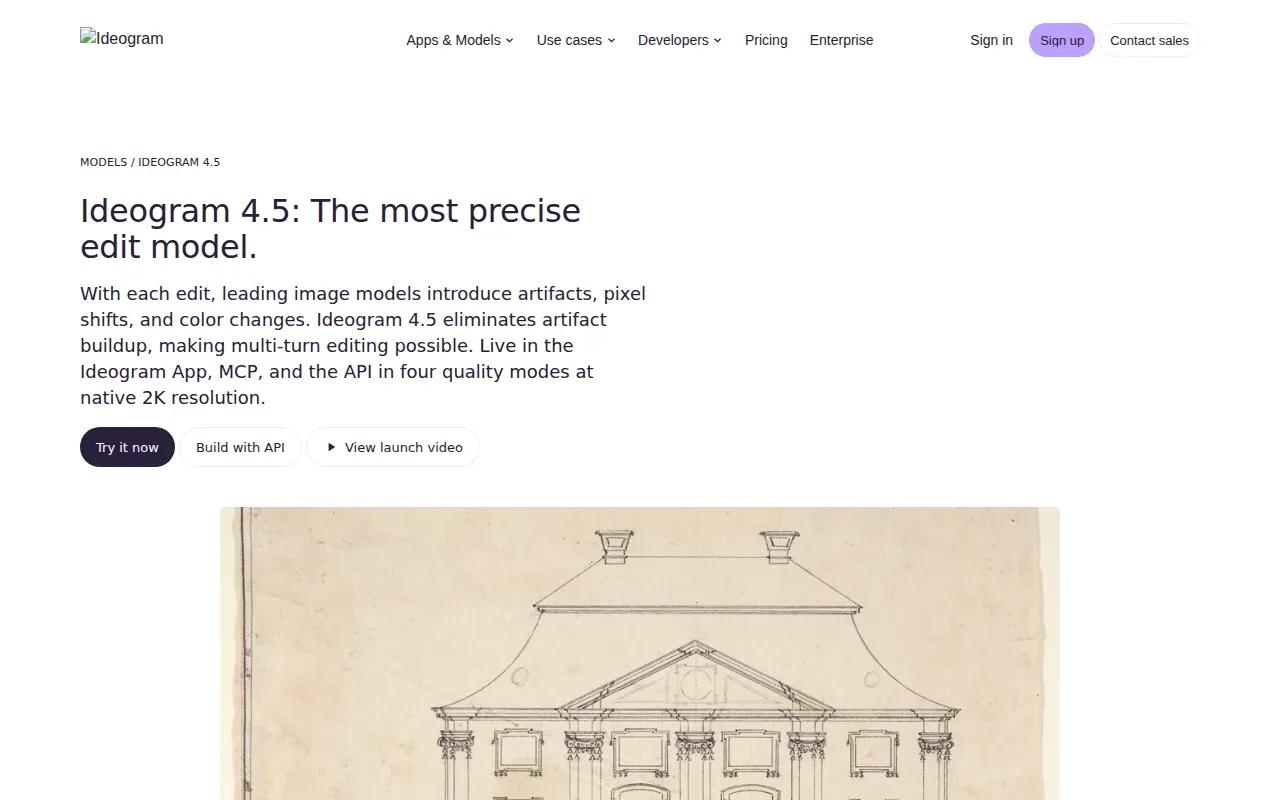
Its reference-image controls can help keep a face consistent across designs. Ideogram 4.5 can use one to five reference images, which gives you a way to guide the person shown in a generated scene. You can use that for a recurring host, while changing the background or visual idea around them.
That matters when your concept depends on a short phrase. If the headline is hard to read at phone size, the image may lose its point in a crowded feed. Start with a few words and a clear focal subject, then inspect the output at the size viewers are likely to see it.
Ideogram’s strength here is text-led imagery, not a promise that every generated design will be ready to publish. Review spelling, face details, and contrast before you use a result. A reference image can help guide identity, but you should still check each version.
If the headline carries the hook, Ideogram 4.5 is worth considering. If you want feedback on an existing layout instead, ThumbnailAI is more directly aimed at that task.
Creators making a full scene from a still image may also find this image-to-video tool comparison useful when choosing a separate video workflow.
5. Mage: Keeps recurring characters consistent
Mage is an image generator with a saved Characters feature for keeping a person’s face consistent across thumbnail concepts. It suits creators who appear in their own covers and want to test several versions.
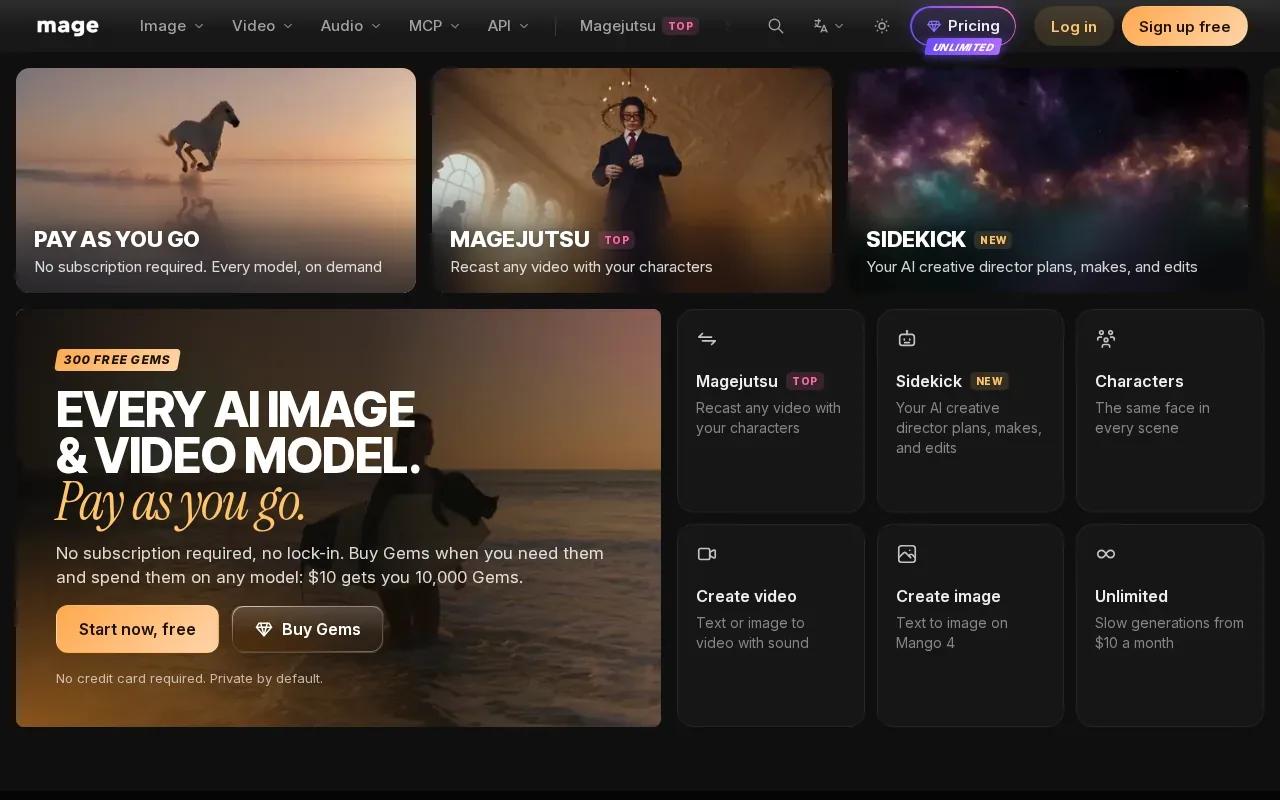
Save a character from a portrait, then refer to that character as you describe a new scene. You can ask for a different expression, outfit, or setting while keeping the same host. That can help a channel maintain a familiar face across a run of videos without rebuilding the identity from scratch each time.
Mage also supports prompts for short headlines and has image tools for edits such as changing light or fixing part of a result. A creator might keep the pose and headline steady while testing a different background, then compare the images side by side. Changing one element at a time makes the test easier to read.
Only use faces you have permission to use, such as your own or a co-host who agreed.
Mage is a fit when face consistency and variation matter more than reviewing an existing thumbnail. Check the final image closely before publishing, especially if the headline contains exact wording.
6. CapCut: Turns video frames into short-form-ready thumbnails
CapCut is a video editor with thumbnail tools that can use frames from a video. It suits creators who already edit in CapCut and want to handle a cover without switching tools.
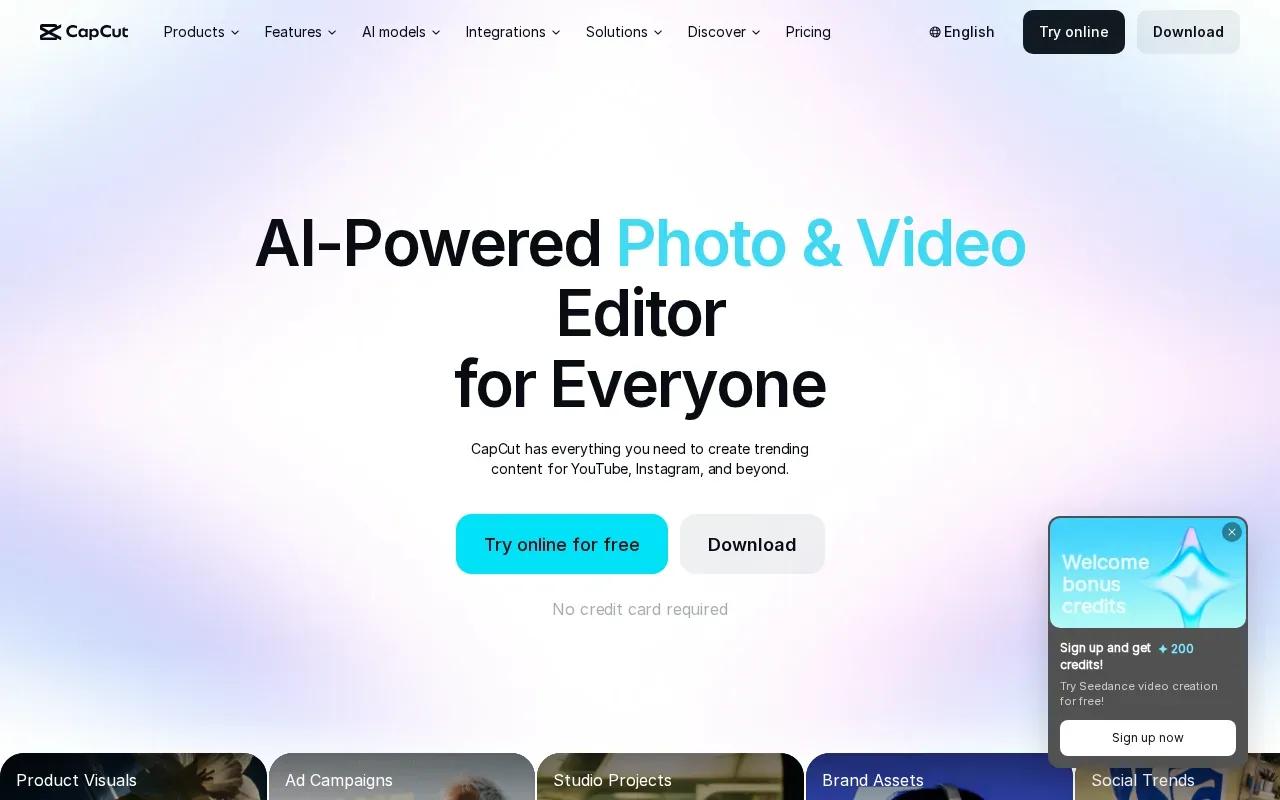
You can start with a frame from your footage, generate an AI background, and add auto-styled text. That gives you a direct route from a short-form edit to a cover concept. It’s especially handy when a strong expression or product moment already appears in the clip.
The key is to choose a frame that matches the video. A dramatic image may grab attention, but it can mislead viewers if the clip doesn’t deliver what the cover suggests. Keep the title short, make the subject easy to see, and check the image at a small size before export.
| Tool | Start with | Useful when |
|---|---|---|
| Veo Studio | A prompt or reference image | You’re making video scenes and still images together |
| Pikzels | A thumbnail idea and face photos | You need repeated face-led variations |
| ThumbnailAI | An existing thumbnail | You want feedback before upload |
| Ideogram 4.5 | A text-led image prompt | The cover depends on readable words |
| Mage | A saved character and scene prompt | You want a recurring host across concepts |
| CapCut | A frame from your video | You want to keep editing and thumbnail work together |
CapCut’s main appeal is the existing edit workflow. If your footage already sits there, pull a frame and test a few text or background changes before settling on the cover. It’s a straightforward choice for creators who value fewer app changes over specialized scoring.
FAQ
What does an AI video thumbnail generator do?
An AI video thumbnail generator helps make or review the image that represents a video. Depending on the tool, you can generate a new scene, keep a face consistent, assess an existing design, or build a cover from a video frame. The result still needs a human check for clear text, accurate details, and a promise the video can meet.
Can AI thumbnail tools help improve click-through rate?
They can help you make more versions and review design choices, but no tool can guarantee a higher click-through rate. A score is general feedback, not a read on your specific audience. Compare designs through your channel’s available testing tools, and keep the image honest about what viewers will find in the video.
Which tool can keep my face consistent?
Pikzels, Ideogram 4.5, and Mage all have face-consistency features. Pikzels offers face consistency, Ideogram can use reference images, and Mage has saved Characters. Review each generated image, since guidance from a reference doesn’t remove the need to check the result.
How should I make a thumbnail easier to read?
Keep one clear subject and use a short headline with strong contrast. Then view the image at a small size, such as on your phone, before publishing. If the words or face blend into the background, reduce clutter or change the contrast. Make one change at a time so you can see what helped.
Conclusion
Choose the tool around the work you need: Pikzels or Mage for recurring faces, ThumbnailAI for feedback, Ideogram 4.5 for text-led images, or CapCut for covers from your edits. If you’re also making the video, Veo Studio can create clips with synchronized sound and dialogue. Follow a simple AI video workflow to shape your first scene.


