

An AI video maker for business can turn a prompt, script, or existing clip into content for ads, social feeds, product demos, or team updates. The right tool depends on how much control you need over the scene, the voice, and the final edit. Here are six options, starting with Veo Studio.
We analyzed 40 YouTube comments about AI video makers for business and found that 28% mentioned a simple beginner-friendly workflow.
1. Veo Studio
Veo Studio is an independent, browser-based AI video creation tool powered by Google’s Veo 3.1 models. You can start with a text prompt or reference images, then generate video with synchronized sound and dialogue.
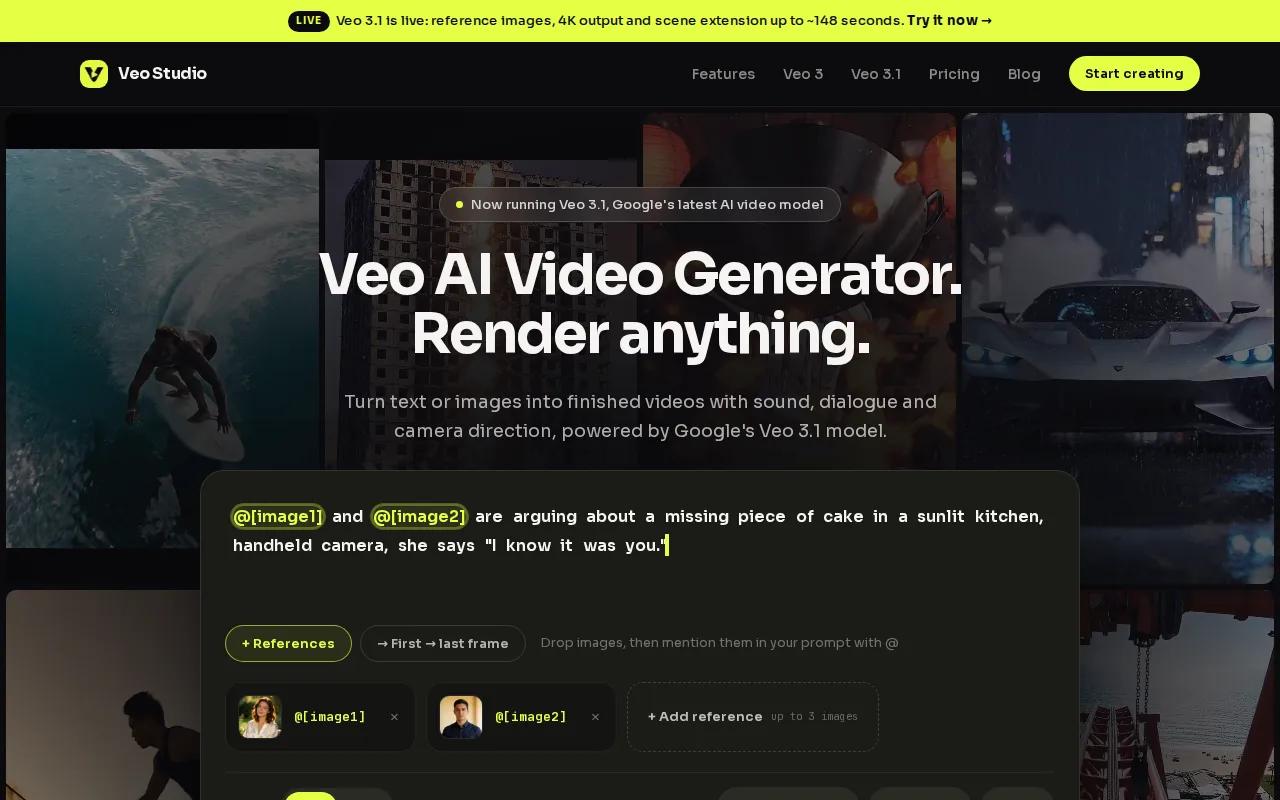
It suits marketers who want to direct a scene rather than build one from stock clips. Add a product photo as a reference, describe a camera move, or write a line of dialogue in quotes. Veo 3.1 can generate the picture and sound together, while reference images help keep a character or product consistent.
For a product spot, you might describe a close-up of a coffee maker on a kitchen counter, with a slow camera push and a short spoken line. First- and last-frame control lets you guide the opening and ending images. Scene extension can add length to a clip, and supported settings reach up to 4K output.
The free plan includes a couple of 720p videos each month, with no card required. Paid plans start at $14 per month and include a commercial licence. If your brief is a promotion, these promotional video maker options can help you think through the input and format you need.
A simple first-project flow is enough: write the message, attach a reference image if product or character consistency matters, then describe the shot and sound. Generate a short draft and adjust the prompt or frames before extending the scene. That keeps the work focused on the parts viewers will notice.
2. Runway: Frame-level control for polished business shots
Runway is a fit when you need close control over a shot, including edits to existing footage. Its AI video editor supports changes such as swapping a product colorway, changing a backdrop, or adjusting lighting with plain-language directions.
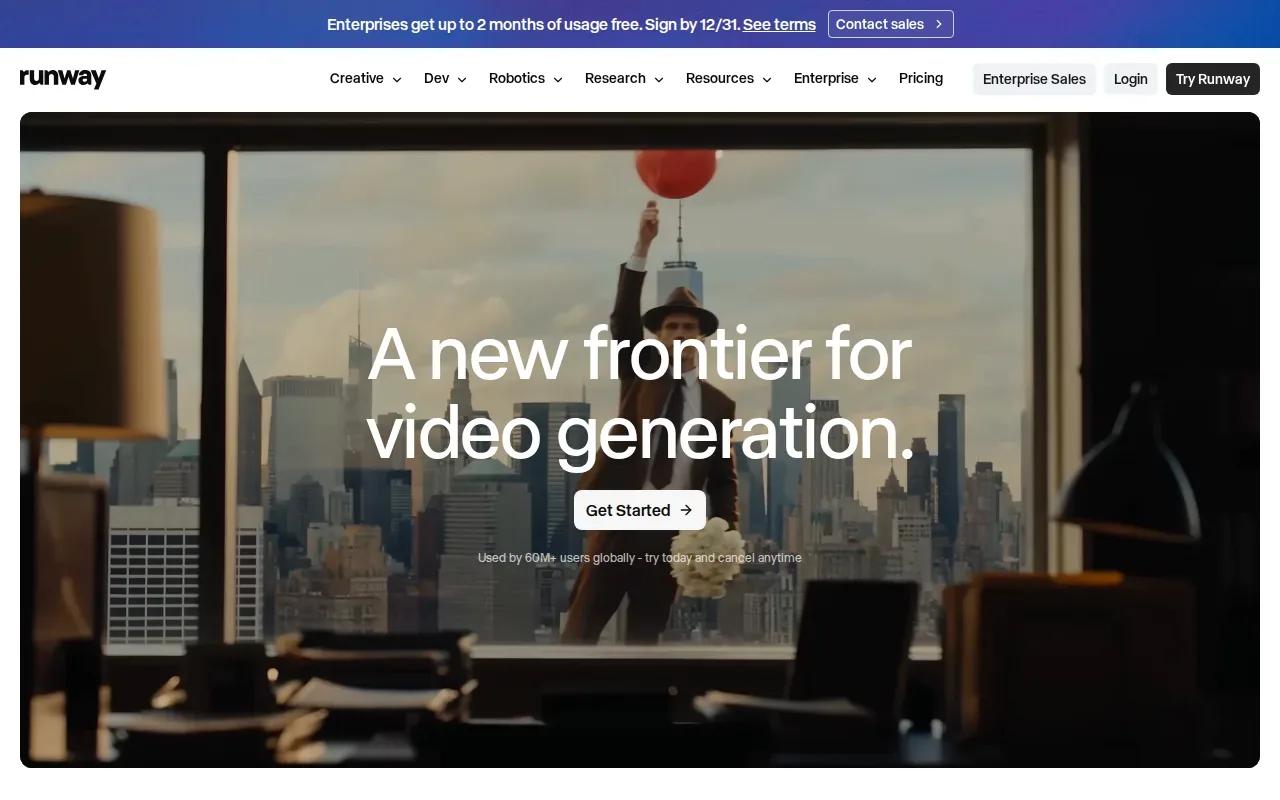
That kind of control helps when a campaign is nearly ready but one visual detail needs to change. You can ask for a different setting while keeping the rest of the shot intact. Runway also supports 4K upscaling, which may matter when the final asset needs more detail.
For a product ad, start with real reference images instead of relying on a text description alone. Once the composition and product look right, movement becomes the main thing left to adjust.
Runway’s free tier includes 125 one-time credits. That makes it useful for a small test, though the credits are a fixed starting allowance rather than a monthly grant. It is a reasonable choice when shot control and editing matter more than generating synchronized dialogue inside the same workflow.
If you’re planning a campaign asset, this overview of commercial video maker tools for ads can help clarify whether the job calls for a generated scene or a more edit-led approach.
3. HeyGen: Avatar videos for multilingual business communication
HeyGen makes videos built around an on-screen avatar delivering a script. It suits teams that need a spokesperson for product explainers, staff training, or messages adapted for different language markets.
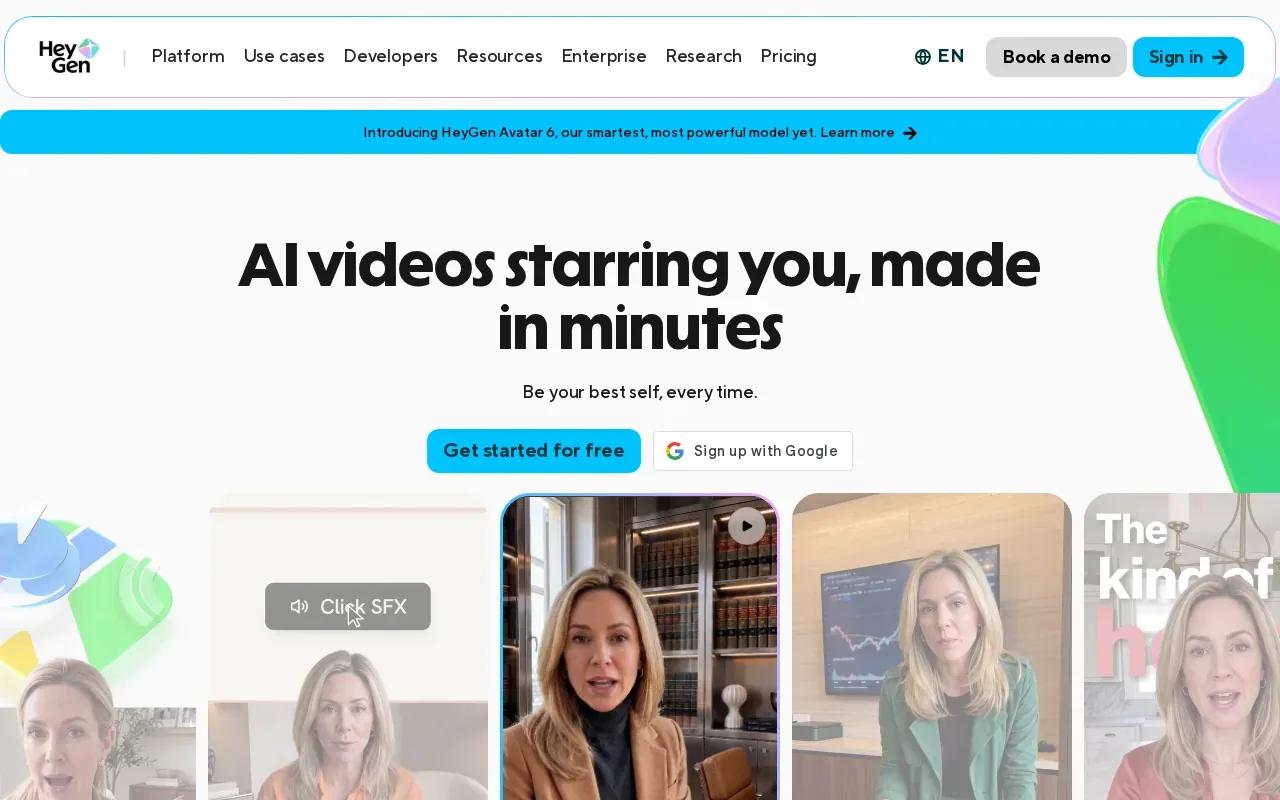
You can choose a stock avatar or make a custom twin, then use a script to produce a speaking video. HeyGen supports more than 175 languages and voice cloning. That can help a team prepare localized versions without filming a new presenter for every market.
For example, a company could draft a short onboarding message once, then prepare localized versions for employees in different regions. The avatar-led format keeps the speaker on screen, while the script gives the team a clear place to make updates when a policy or product detail changes.
The free tier allows three one-minute videos a month with one custom twin. Paid plans start with Creator at $29 per month for 600 credits; Pro is $49 per month. Business is $149 per month, plus $20 per seat. Check how many versions your team expects to make before choosing a plan.
Choose HeyGen when a person speaking directly to the viewer is central to the message. If your video needs a product to move through a scene, rather than a presenter to explain it, a prompt-led generator may fit better.
4. Pika: Fast, punchy clips for social campaigns
Pika is aimed at short generated clips with a social-first feel. It works well when you need a quick visual for a post or campaign and don’t need a long, tightly scripted business film.
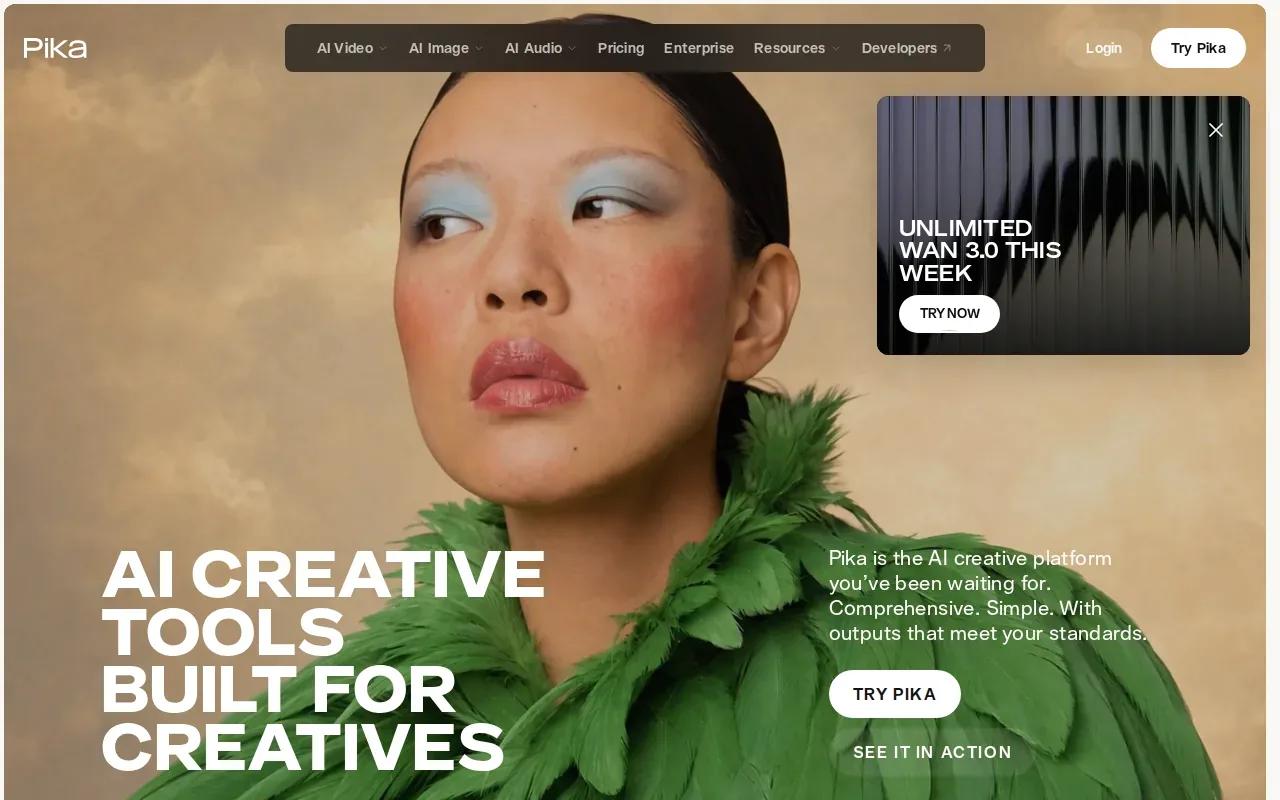
The platform describes tools for generating short clips, extending footage, and changing the look of an image or video. It can also score a clip to picture with music, ambience, or effects. For a social post, that means you can start with a scene idea or an image, then shape the motion and mood around the format.
Pika’s free tier gives you 80 credits a month, but it caps output at 480p and supports image-to-video only. The Standard plan is $8 per month for 700 monthly credits. These limits make the free tier better for testing short ideas than for producing a final asset that needs higher resolution.
Think of Pika when speed and short-form impact are the main goals. A quick clip can add a visual hook to a campaign, while a more detailed product story may need stronger frame direction or a separate editing pass. Keep the message simple so the clip has one clear job in the feed.
5. CapCut AI Video Editor: AI-assisted editing for social content
CapCut AI Video Editor combines AI-assisted creation with hands-on editing. It suits teams that already have footage, or need to turn a script into a social-ready draft and then refine it.
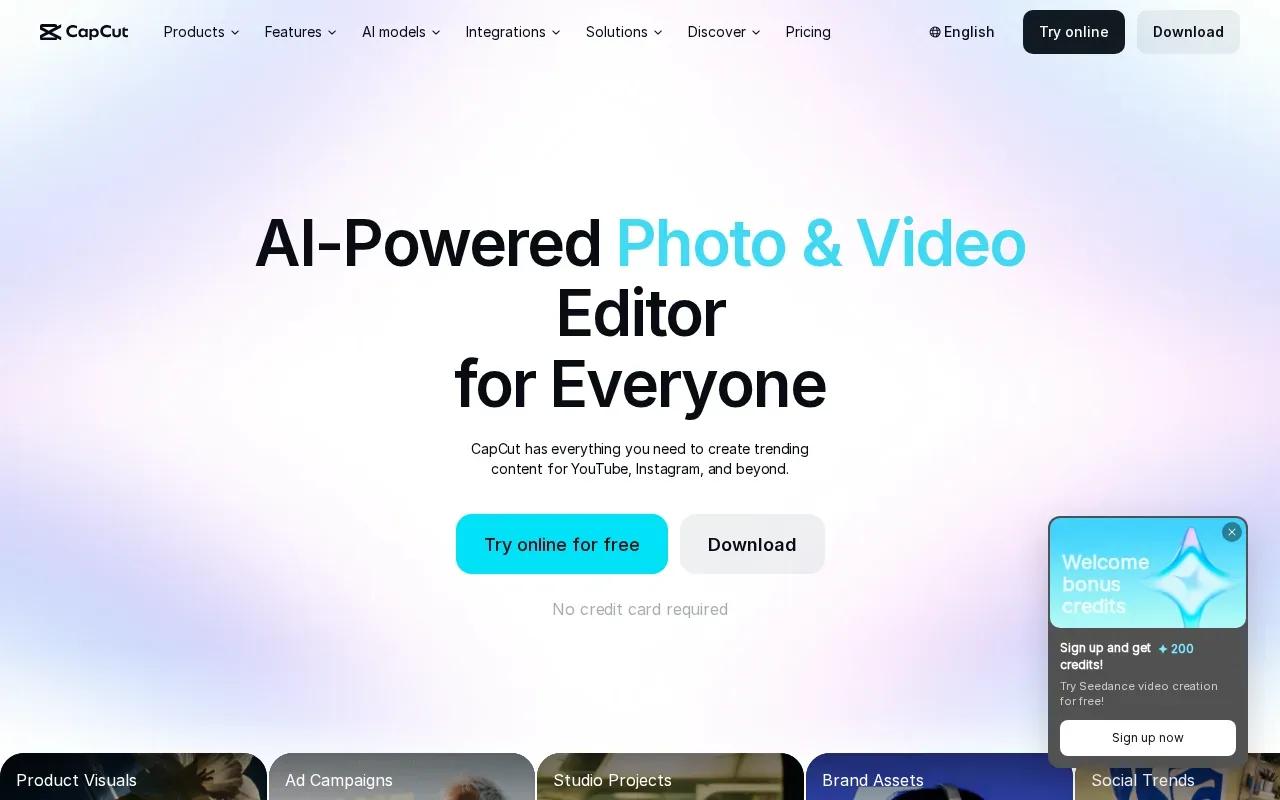
Its tools include script-to-video, text-to-speech, custom voices, auto-captions, video translation, and reframing long videos into shorter clips. You can also edit by transcript, which helps when a speaker’s wording needs a quick cut without hunting through the full timeline.
Imagine your team records a product demo for a longer video. You can use captions for viewers watching without sound, then make a shorter version for a social feed. Auto reframe can help adapt the clip to a different format, while manual edits let you check the crop and timing before export.
CapCut also has AI text templates and stickers for adding visual elements. Some features are only available in certain regions, so check that the tools your team plans to use are available where you work. Its mix of automation and manual editing makes it a useful pick when you want to polish source footage, not only generate a scene from scratch.
For social content, keep the edit tied to the platform and the message. Captions should make the spoken point easy to follow, and a short version should still make sense without the longer cut.
6. Fliki: Text-to-video and text-to-speech in one workflow
Fliki brings text-to-video and text-to-speech into one workflow. It suits teams with a script, blog post, or slide deck that needs to become a narrated video without recording a presenter.
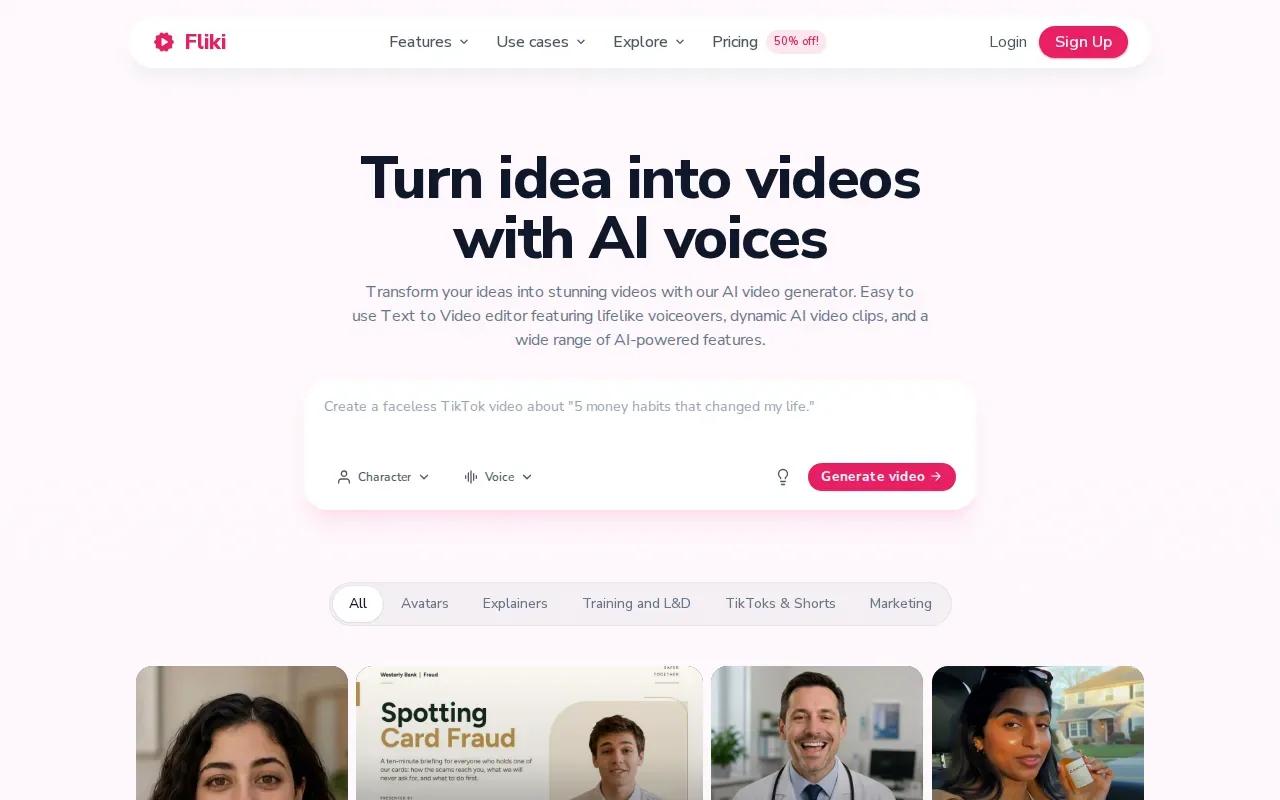
Start with text or a blog URL, then build a video with voice-over, visuals, music, and captions. Fliki also supports turning presentation slides into narrated scenes. That can be useful for training or onboarding when the content already exists in a deck and needs a voice track.
Its free tier gives you five minutes per month at 720p and includes a Fliki watermark. The maximum output resolution is 1080p. Those details make it worth checking the length and resolution you need before you plan a batch of videos.
| Workflow need | Fliki fit | Check before publishing |
|---|---|---|
| Turn a written script into a narrated video | Text-to-video with AI voice-over and visuals | Review the selected visuals and narration against the script |
| Repurpose a blog post | Blog-to-video workflow | Confirm the short version keeps the main point |
| Explain a slide deck | Presentation slides to narrated scenes | Check captions, slide order, and voice timing |
Fliki is a natural fit when the spoken message leads and visuals support it. If your brief depends on a directed scene with camera movement, dialogue, or frame transitions, compare that need with a generator built around shot control.
Frequently Asked Questions
What is an AI video maker for business?
An AI video maker for business is a tool that helps turn prompts, scripts, images, or footage into video content. Depending on the tool, it may generate scenes, add a speaking avatar, make narration, or help edit existing clips. Businesses use these tools for ads, product demos, social posts, and internal messages.
Which tool should I use for a product video?
Choose based on what the product video needs to show. Veo Studio can generate a prompted scene with synchronized sound and reference-image support. Runway is a fit for frame-level control and edits to footage. CapCut can help polish recorded clips, while Fliki can turn a written product script into narration-led video.
Can AI video makers create videos with dialogue?
Yes, some tools support dialogue or spoken scripts, but the workflow differs. Veo Studio can generate synchronized sound and dialogue with the video. HeyGen and Fliki focus on scripted voice delivery through avatars or voice-over. Check a sample output before production to make sure the voice and timing suit your message.
Can I use AI-generated videos for business?
Often, but check the tool’s licence and terms before you publish. Veo Studio says every plan includes a commercial licence. You should also have the right to use any images, music, logos, or identifiable people you provide, and review the finished video for accuracy before it goes live.
Conclusion
For a business video that needs generated scenes, synchronized dialogue, reference-image consistency, or output up to 4K, start by testing Veo Studio’s free plan. Write a short brief, add a reference image if needed, and make one draft before committing to a paid plan. Use this step-by-step AI video creation guide to plan the first version.


