A plain room can become a bright studio or a night-time city without a set or green screen. The right AI video background generator depends on whether you need a fresh moving backdrop or want to change the setting in footage you already shot.
We analyzed 47 comments from YouTube and Reddit about AI video background generators and found that 17% mentioned longer looping animated background options.
Here are five named tools for those jobs, starting with Veo Studio for making video scenes with synced sound and dialogue.
1. Veo Studio
Veo Studio is an independent, browser-based AI video creation tool powered by Google’s Veo 3.1 models. It turns prompts and reference images into video with synchronized sound and dialogue, consistent characters, frame control, scene extension, and output up to 4K on supported paid plans.
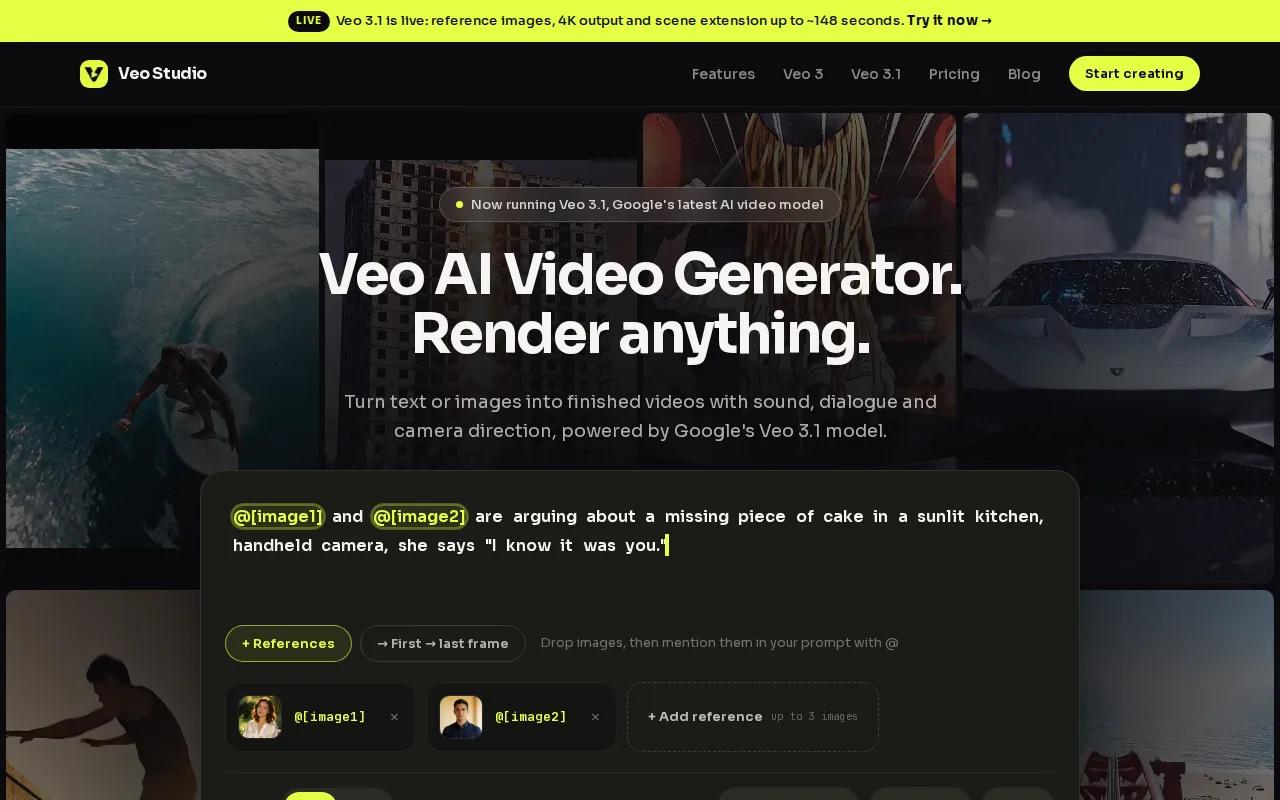
Use it when you need a new scene or visual backdrop, rather than a one-click mask that replaces the background in existing footage. Describe the room, landscape, or product setting in your prompt. Add reference images to guide the look, then generate a clip to use on its own or composite behind a subject in your editor. For an ad workflow, AI-generated product spots and promotional assets can build on the same prompt-and-reference approach.
Veo Studio can also generate dialogue with matching lip movement. If your clip needs the same person across the scene, reference images can help guide character consistency. First- and last-frame controls let you define the opening and end image, while scene extension can continue a supported clip in seven-second increments. That gives you more room to shape a story than a short, standalone background loop.
The free plan includes a couple of 720p videos each month and doesn’t require a card. Paid plans start at $14 per month and include higher resolutions, more videos, and a commercial licence. A useful first test is a short vertical scene for Reels or TikTok, then a landscape version for a product page or YouTube ad.
Veo Studio generates scenes, not a subject cutout for existing footage. If you filmed a presenter and only want to swap the room behind them, choose a background-changer tool or make the composite in an editor.
2. AI Background Video Generator by Higgsfield AI
AI Background Video Generator by Higgsfield AI makes looping motion backgrounds from a text prompt or an image. It suits streamers, presenters, educators, and marketers who need a moving backdrop for a stream, website, slide deck, or event screen.
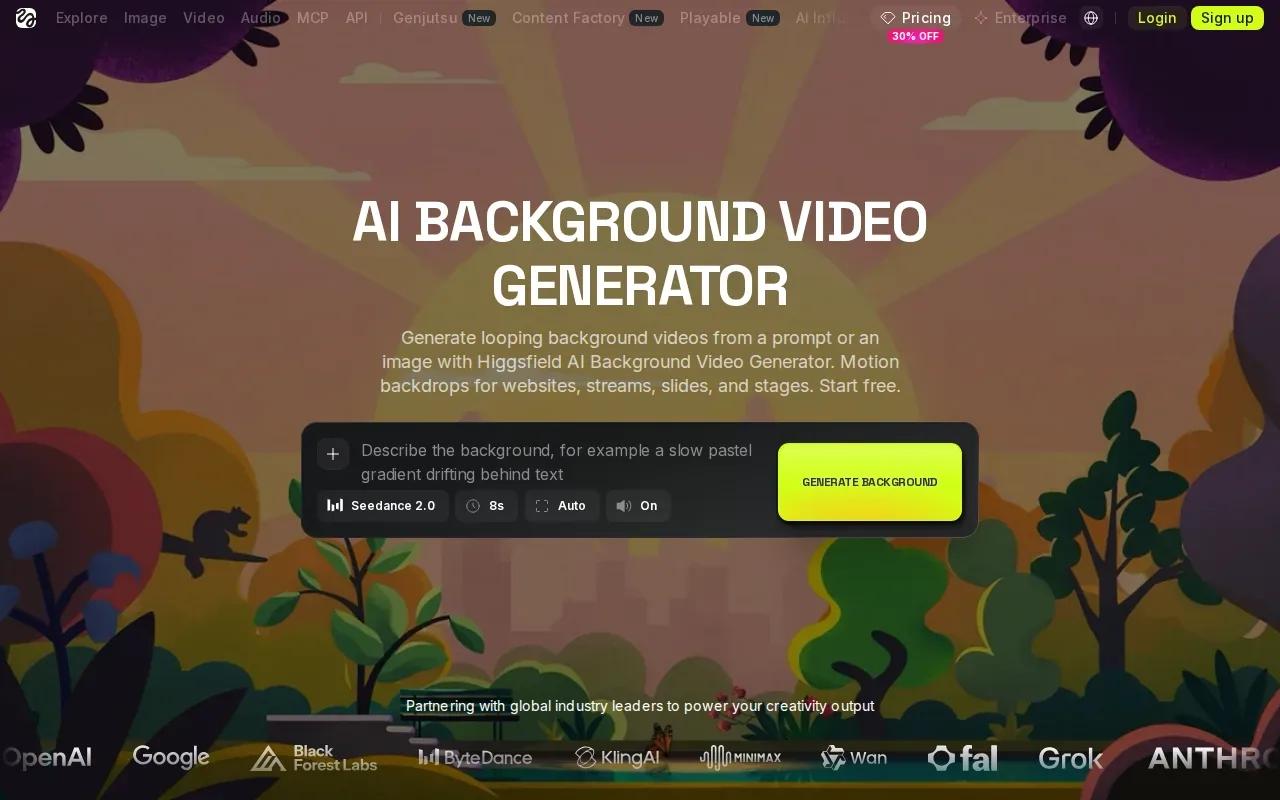
Describe the scene and motion you want. For instance, a prompt can call for a soft gradient with slow movement, or an image can guide an animated painted sky. The tool supports a range of aspect ratios depending on the selected model, including 16:9, 9:16, and 1:1. You can name colors in the prompt or start with a brand visual.
For a loop, use the same image as the start and end frame on models that support that control. Ask for subtle motion so the backdrop doesn’t pull attention away from a speaker or headline. Generate a few takes and check the loop point before placing the clip in a stream scene or a slide.
This tool is aimed at making a new background video. It’s a different job from replacing the setting in footage with a person already in frame. If you’re making a product campaign, plan the backdrop around the item’s color and the space where copy will sit. An empty area at one side can keep text clear.
3. Runway
Runway is a multi-model video platform with an editor for making changes to existing footage. It suits teams that need a new setting for a recorded clip, or several backdrop versions of the same campaign shot.
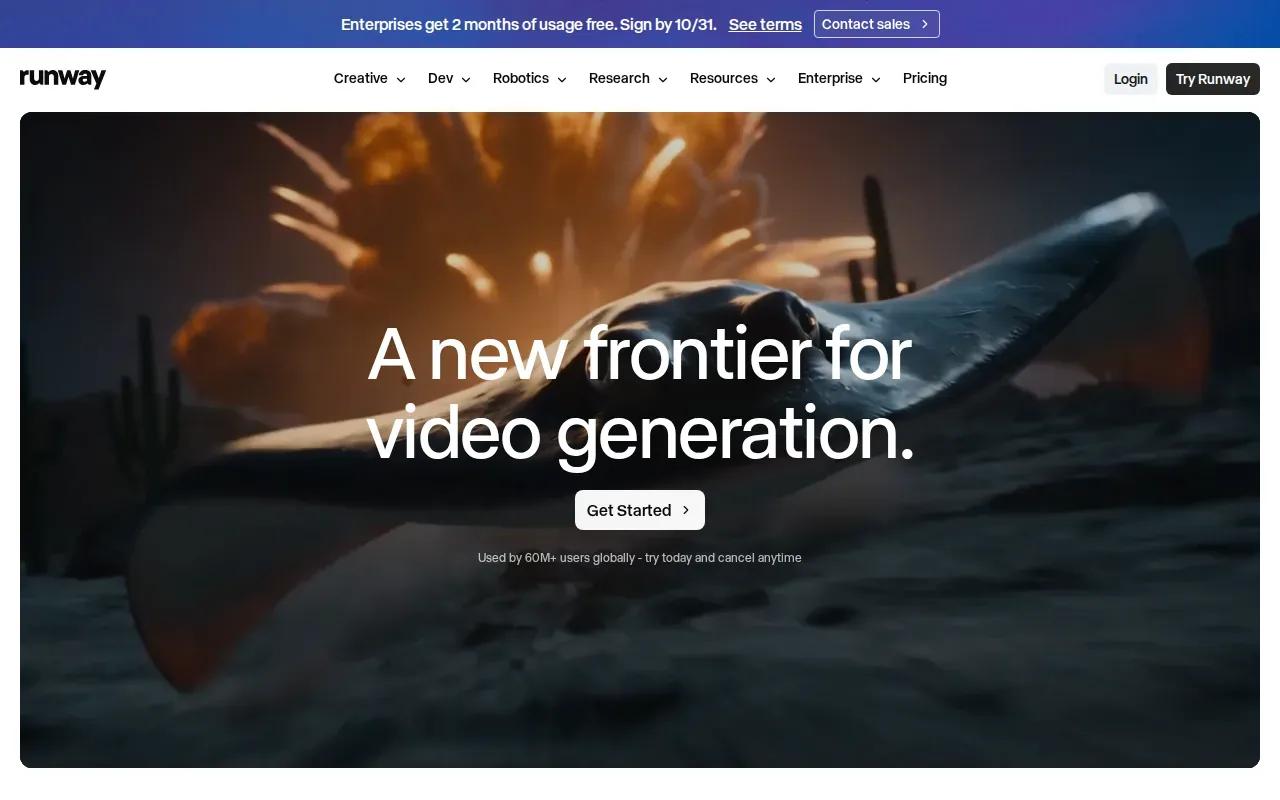
Its editor can change a backdrop using plain-language instructions. It can also restyle footage or update lighting. Before generating the edit, you can review a reference frame and refine the change. For a longer sequence, review each shot and scene transition to check that the change remains consistent.
That workflow helps when the performance is right but the location needs to change. A marketer could start with one product clip, test a different setting for a seasonal campaign, then review whether the lighting and product appearance still fit. Runway’s Standard plan starts at $12 per month when billed annually, or $15 month to month. It includes 625 monthly credits and 4K upscaling.
Keep the requested edit narrow. Ask for the setting or light change you need, then inspect the subject’s edges and movement across the clip.
If you’re choosing between a generated scene and an edit to footage, Runway fits the second task. For other ad-focused workflows, AI video tools for ads can help you compare how prompt-led scenes fit a campaign brief.
4. Pika
Pika is an effects-first video platform for creators who want short clips with a noticeable visual treatment. It may fit a social post where the background is part of the hook, rather than a quiet setting behind a presenter.
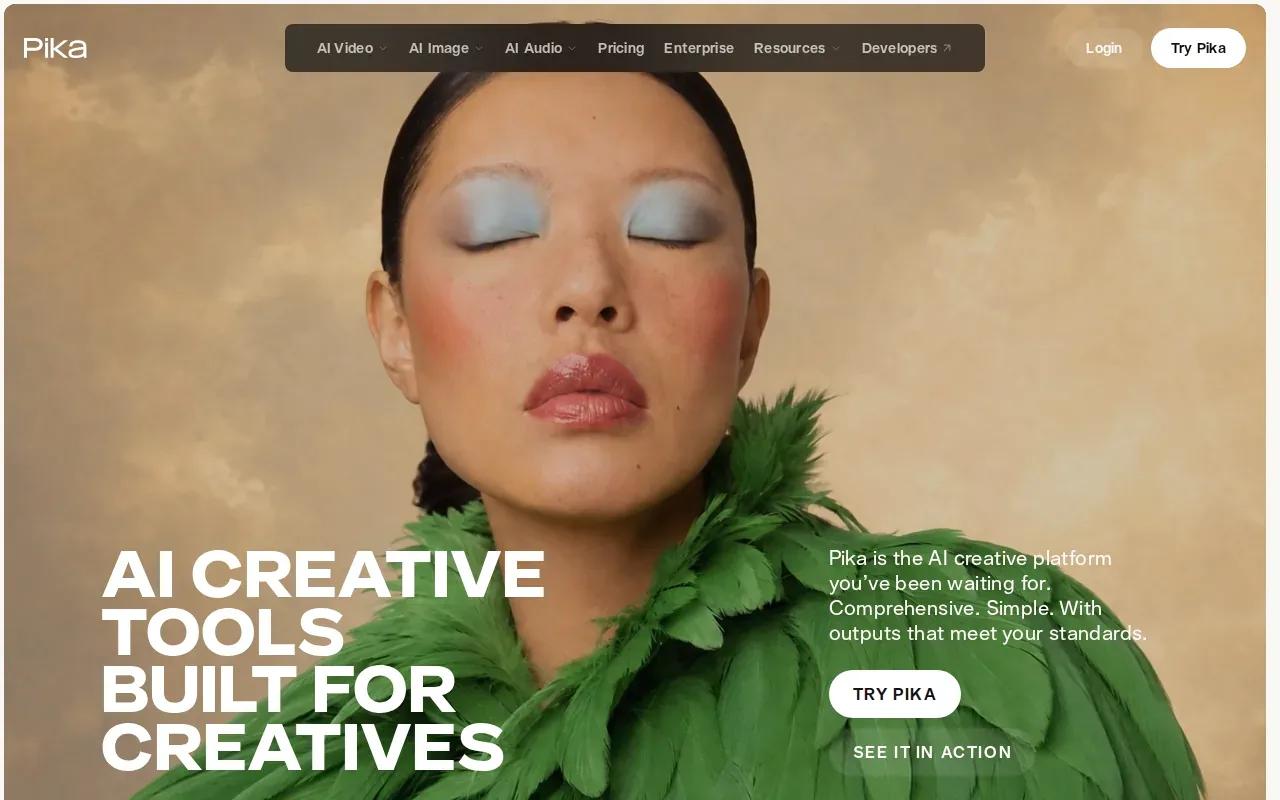
Pika’s Starter plan costs $10 per month and includes 900 monthly credits, all models and a commercial license. That can suit short-form work where the effect matters more than producing a high-resolution background plate for a large display.
Try the effect on a short clip first. Watch the edges around hair, hands, and moving objects, especially if your subject crosses in front of a detailed background. Don’t assume a person or object will look identical across separate generations.
That makes Pika a fit for a one-off effect or a quick visual experiment. If your campaign needs the same subject in a series of scenes, test continuity before building the full set of posts.
5. Video Background Changer by OpenArt
Video Background Changer by OpenArt detects the subject in an uploaded video and replaces the background. It’s suited to creators who have footage ready and want to change its setting without filming against a green screen.
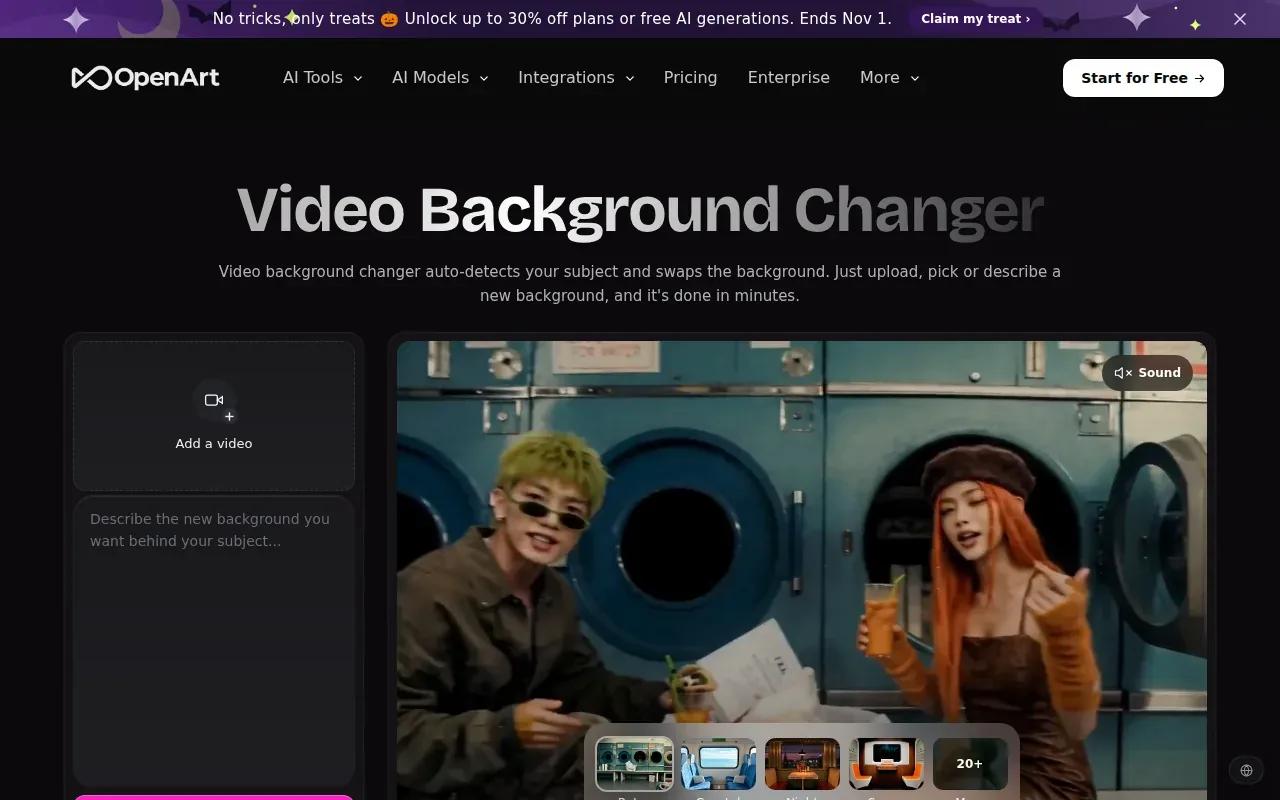
Upload a video in MP4 or MOV format. Then choose a preset background, provide a reference image, or generate a new scene with a prompt. The tool isolates the subject frame by frame, so you don’t have to key or mask the subject by hand in an editor.
The workflow can help when one recording needs several looks. A podcaster could try a clean studio setting, while a product seller could test a branded environment using the same clip. Before using the result, check the outline around hair and clothing, along with any shadows that should match the new scene.
Good compositing still depends on the footage. Keep your subject well lit and avoid a background that shares the same color as their clothes. Then choose a replacement with a light direction and camera perspective that make sense beside the original subject.
FAQ: AI Video Background Generators
Can AI replace a video background without a green screen?
Yes, some background-changing tools can detect a subject and replace the setting without a green screen. Upload your clip, choose or describe the new background, then review the edges around hair, clothing, and movement. Results depend on the footage, so even lighting and a clear subject outline can help the replacement look more natural.
Can I generate a moving video background from a prompt?
Yes, some tools make animated backgrounds from text prompts or reference images. Describe the setting, color, and type of motion you want. If you need a loop, check whether the chosen model supports matching start and end frames, then review the seam before using the clip in a stream or presentation.
How do I make an AI background look realistic?
Match the background’s lighting and camera perspective to your original footage. Keep the subject well lit while recording, use a steady camera when possible, and avoid strong movement across the frame if you plan to composite later. Then inspect the subject’s outline and shadows in the finished clip. Small mismatches are easiest to spot on hair and hands.
Can Veo Studio replace the background in footage I already recorded?
Veo Studio creates videos from prompts and reference images, with synchronized sound and dialogue, character consistency, frame controls, scene extension, and up to 4K output on supported paid plans. It isn’t described as an automatic background-removal tool for an existing clip. Generate a background scene with Veo Studio, then use a video editor or background changer to composite it with recorded footage.
What aspect ratio should I use for a video background?
Choose the format that matches where the video will appear. Portrait framing fits TikTok, Reels, and Shorts, while landscape framing suits many YouTube videos, websites, and slides. Keep important details away from the area where a presenter or text will sit, and preview the background in the final frame before publishing.
Conclusion
For a prompt-made scene with synced sound, dialogue, and room to extend the shot, start with Veo Studio. Its synchronized sound and dialogue, character consistency, scene extension, and up-to-4K output support this kind of scene-making workflow.