
An AI demo video generator can turn a product image, screen capture, or short brief into a video draft. The right fit depends on whether you need a generated scene, a guided walkthrough, or a presenter explaining the product.
We analyzed 38 comments and questions from YouTube and Quora about AI demo video generators and found that 21% mentioned more video and format options.
Veo Studio is an independent, browser-based tool powered by Google's Veo 3.1 models. Here are six options, starting with Veo Studio, and the workflows each one suits.
1. Veo Studio
Veo Studio is an independent browser-based tool powered by Google's Veo 3.1 models. It turns text prompts and reference images into short videos with synchronized sound and dialogue. It suits creators who want to direct a scene, show a product in motion, or build a dialogue-led promo without leaving a browser.
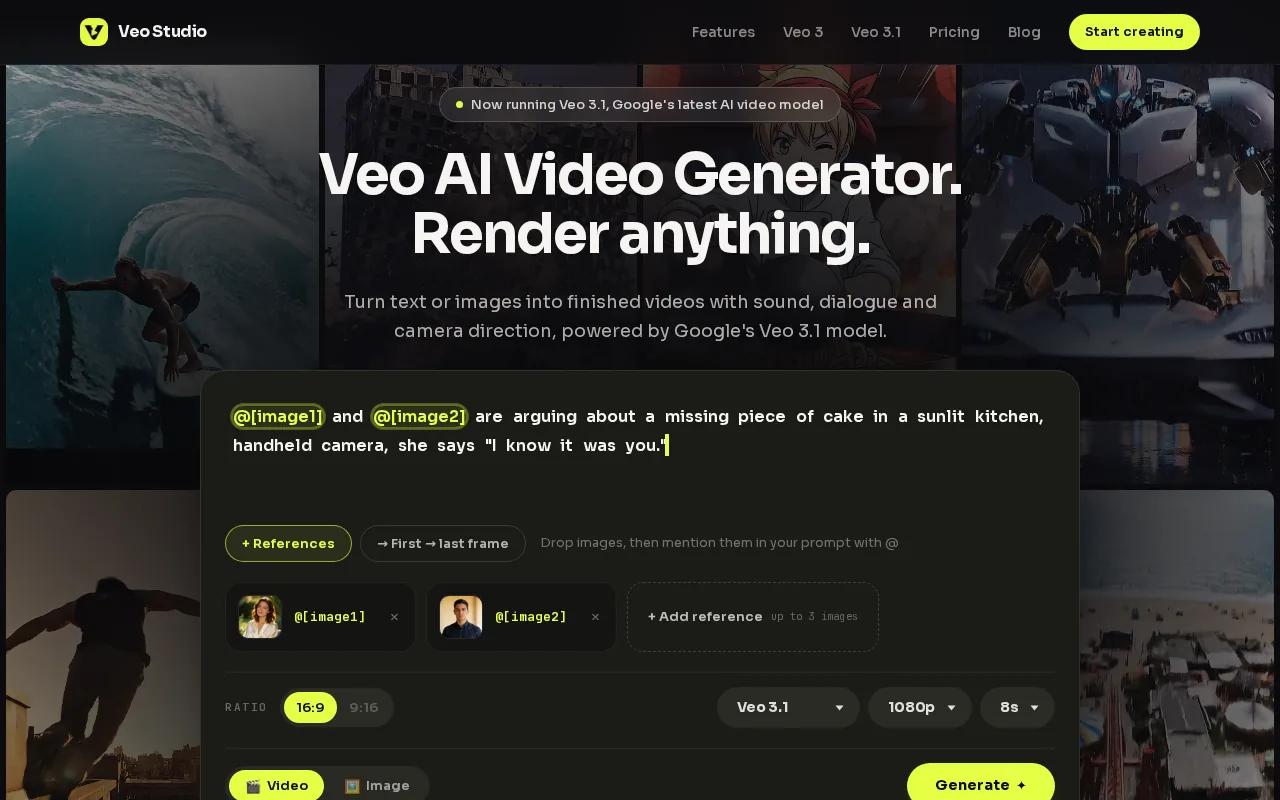
Attach up to three reference images to guide a product, character, or visual style. You can also set the first and last frames, then ask Veo 3.1 to generate the motion between them. Supported clips can extend in seven-second steps, while output can reach 4K on supported settings.
For a product spot, start with a clean photo, describe the camera move, then add a spoken line in quotation marks if a character should speak. The image and sound are generated together, including lip-synced dialogue. Veo Studio's free plan includes a couple of 720p videos per month with no card required. Paid plans start at $14 per month and include higher resolutions and a commercial licence.
A simple demo workflow looks like this:
- Choose one product feature or customer task to show.
- Upload a reference image or write a prompt that describes the scene.
- Set the aspect ratio and, when useful, the first and last frames.
- Review the clip's product details, spoken line, and sound.
- Extend or export the clip once the scene works for your channel.
That process works well for a short product reveal or a social ad. For a screen-by-screen software tutorial, use real interface captures rather than asking a generated scene to depict exact UI steps. For more ideas on making product ads and promotional videos, keep the core message focused on one benefit.
2. Arcade: For interactive product walkthroughs and marketing demos
Arcade is an AI video platform for marketing teams. It can turn an idea into a launch video, tutorial, or social clip, and its product workflow can start from a text brief or screen capture.
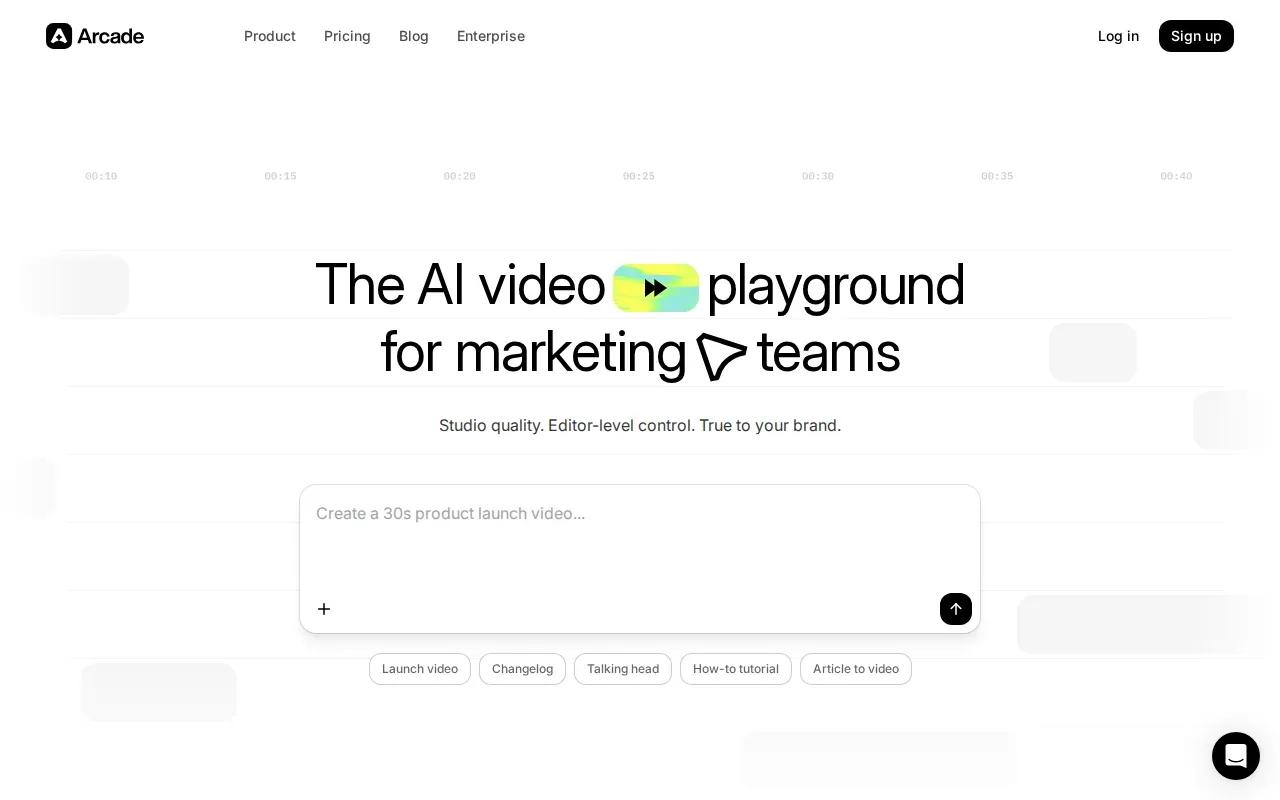
That makes it a fit when your demo needs to show how a real software flow works. A screen capture can keep the interface accurate, while an AI-generated video can give a launch page or campaign a more polished opening. Product demos can take the form of video, interactive click-throughs, or a mix of both.
Think about the viewer's task before recording. If a prospect needs to see how a feature works, capture that flow. If a first-time visitor needs the value in a few seconds, lead with a short video instead. A single product capture can support more than one format, so teams can adapt the story to the page or campaign.
The key choice is between a visual scene and a guided walkthrough. A generated scene can set mood; a screen-based demo can show the actual clicks a buyer needs to understand.
For a SaaS launch, Arcade suits teams that want marketing clips and guided product tours to share a source capture. Keep each walkthrough narrow. A short path through one workflow is easier to follow than a tour of every menu.
3. HeyGen: For avatar-led product explanations and translated demos
HeyGen makes avatar-led videos from scripts and product screenshots. It fits teams that want a person on screen to explain a feature, especially when the same demo needs versions for different language markets.
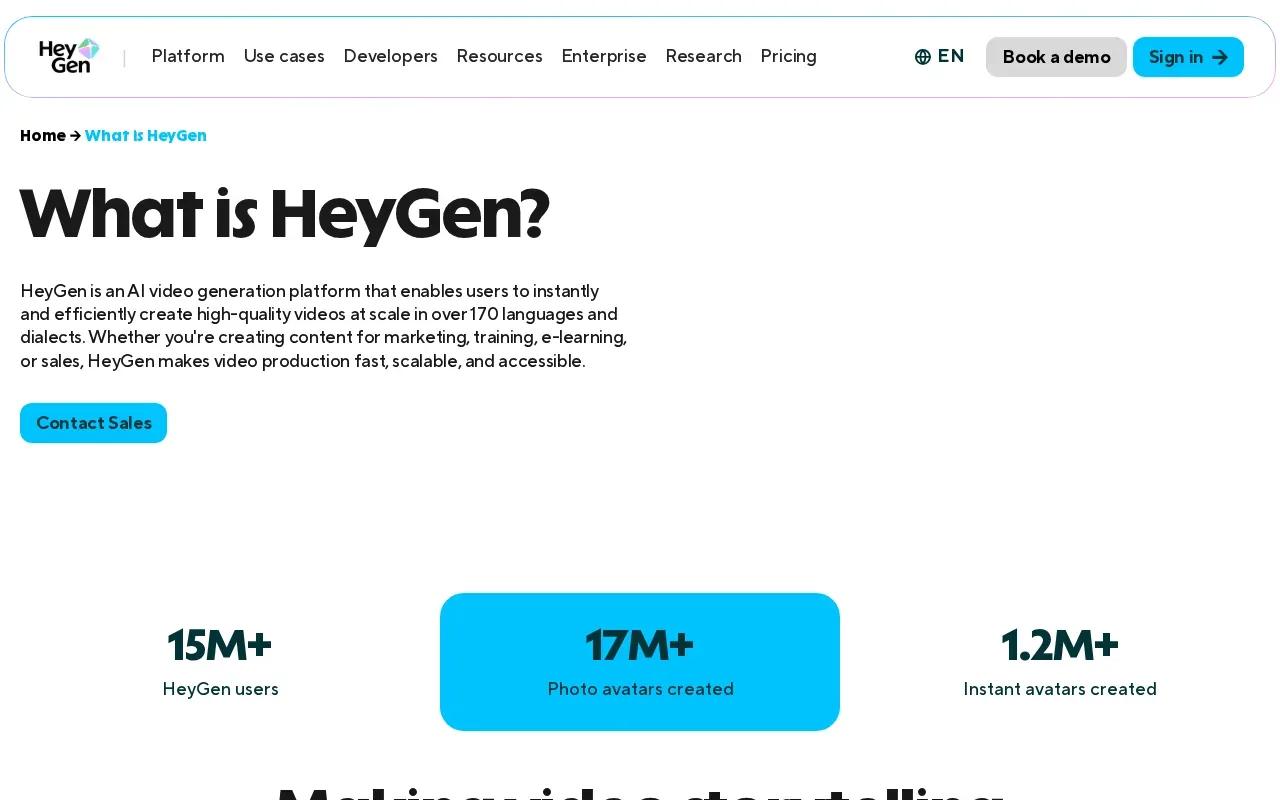
Its product demo workflow starts with screenshots and feature notes. The Video Agent uses those inputs to draft a narrated walkthrough with an avatar presenter. When the interface changes, the team can capture updated screenshots and run the process again. That can be easier than filming a new presenter each time a button or dashboard shifts.
HeyGen's avatars include natural facial movement, eye movement, and lip sync. The platform also offers translation features, which can help when the speaker should remain visible across localized versions.
Use a feature-by-feature brief rather than a broad product overview. Name the screen, say what the viewer should notice, then explain why that feature helps. For example, a demo about a dashboard should describe the key view and its use, not merely say “here's the dashboard.” The source screenshots give the video team clear visual cues.
Avatar-led narration isn't the same as a direct screen recording. Review the generated script against the current interface, and make sure the avatar's explanation matches what appears on screen. HeyGen is a sensible fit when the presenter and localization are central to the demo.
For a demo with synchronized dialogue, explore Veo Studio, which supports synchronized sound and dialogue. Test a short prompt before planning a full campaign.
4. InVideo AI: For assembling polished demos from scripts and stock footage
InVideo AI is an AI-assisted video assembler. It suits teams that want to turn a script or prompt into a sequence with visuals, rather than generate every shot from scratch.
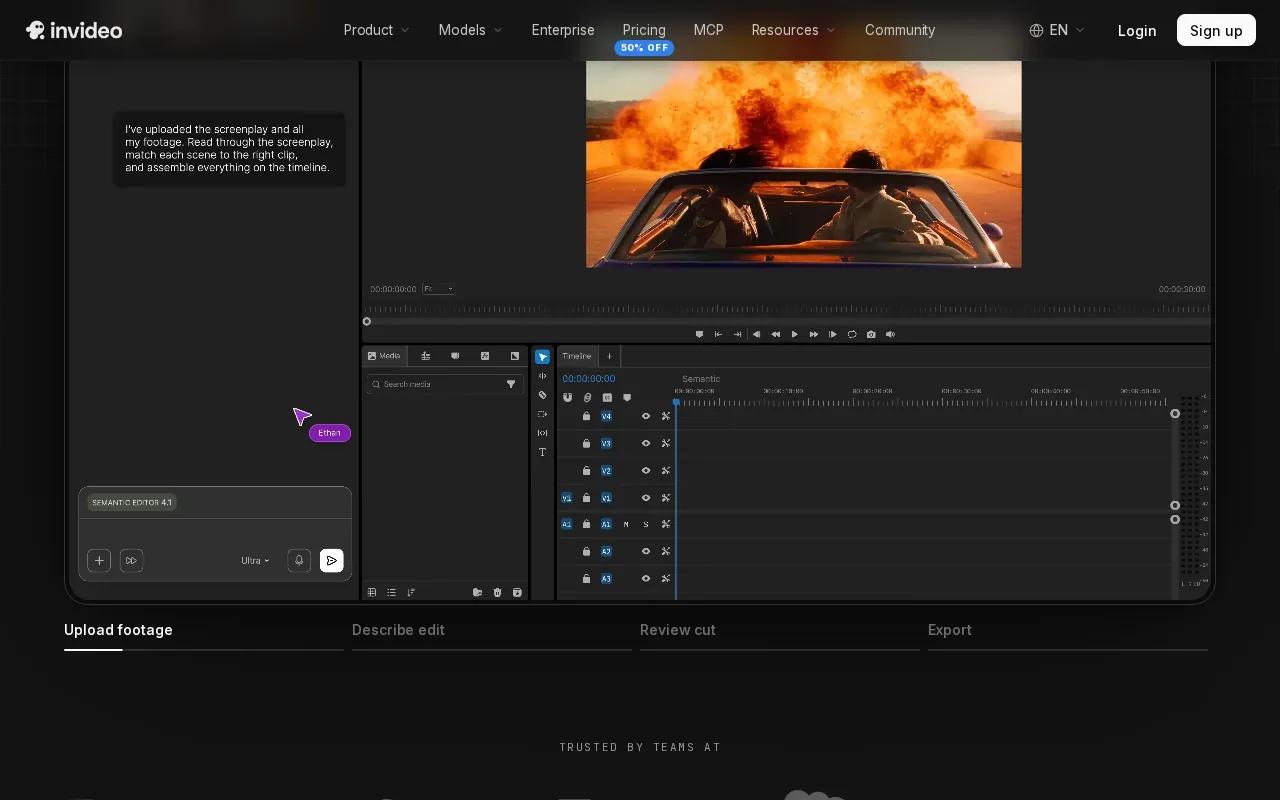
Its workflow starts with a prompt, then drafts a script and selects relevant material from a stock library of more than 16 million photos and videos.
A repeatable script-and-assembly process can make it easier to produce variations for different products or audiences. The trade-off is creative control: stock footage can illustrate a general point, but it may not show your exact product or software interface.
When the demo is for an e-commerce item, use genuine product footage where shape, color, or packaging must be exact. For a general explainer, stock scenes can fill gaps while narration carries the details. Review the script and selected visuals before export, especially if the video describes a product feature or claim.
InVideo AI is worth considering when the team can work within an assembly-based format.
5. CapCut: For fast, trend-aware social demo videos
CapCut is a social video editor with AI generation tools. It fits creators making short product clips for platforms such as YouTube, Instagram, and TikTok, especially when speed and a familiar editing workflow matter.
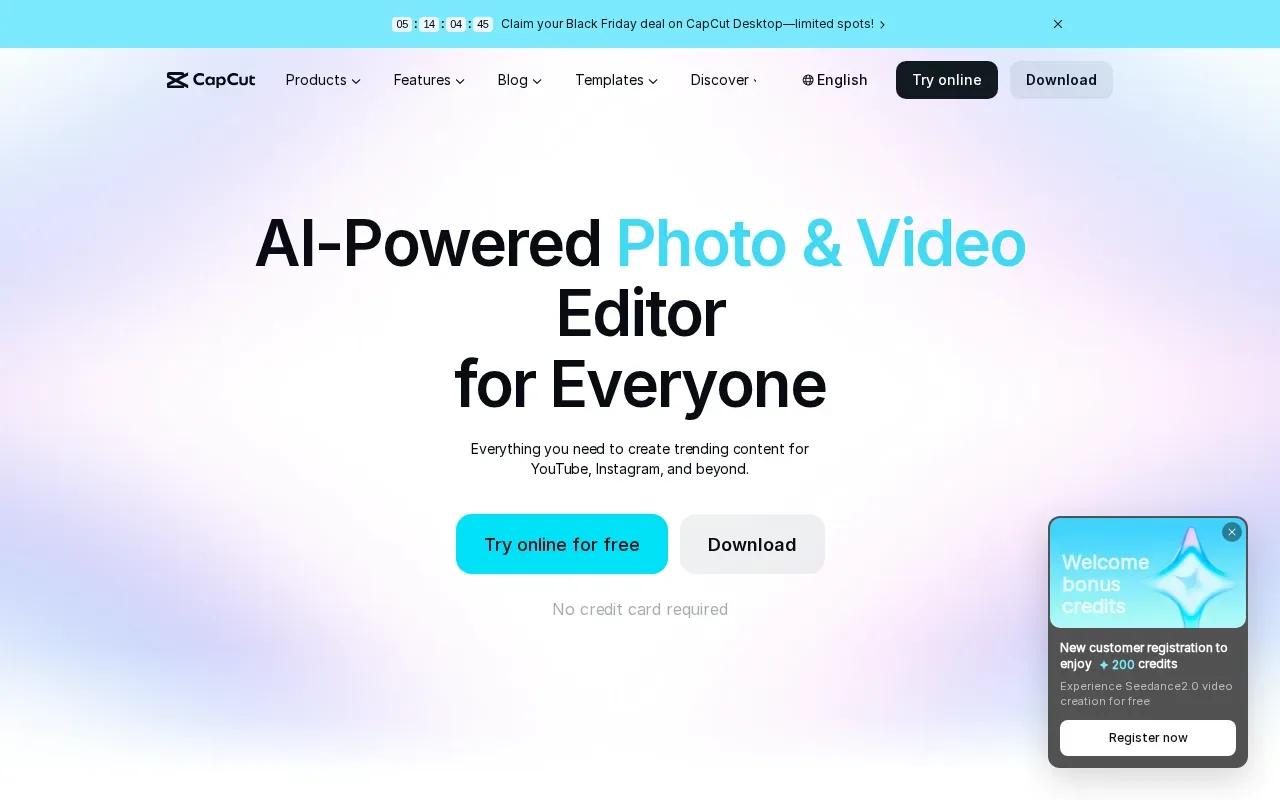
Its AI tools can build a video from a prompt, text, images, or keyframes. CapCut also has AI text-to-speech and editing tools for text, audio, and video. For a quick demo, you might animate a product photo, add a short voice line, then edit the pacing before export.
Vertical output fits Reels and TikTok, while a 16:9 version can work for YouTube or a site page. Its quick-chat editor can also build a draft with a style and avatar, giving you a starting point before you refine the cut.
CapCut suits trend-aware social work more than a long, detailed software tour. Use it to test a hook or turn an existing product image into a short promotional clip. Then check captions, timing, and product details before posting. A fast workflow still needs a human review.
If you want to compare social-first workflows with prompt-led video creation, the product demo video maker options cover more ways to start from a product image or brief.
6. Kapwing: For prompt-generated demos with voiceover and subtitles
Kapwing can turn a text prompt, image, script, or document into a video project. It suits marketers, educators, HR teams, and global marketing groups that want to start with an idea, then edit the generated scenes in a browser.
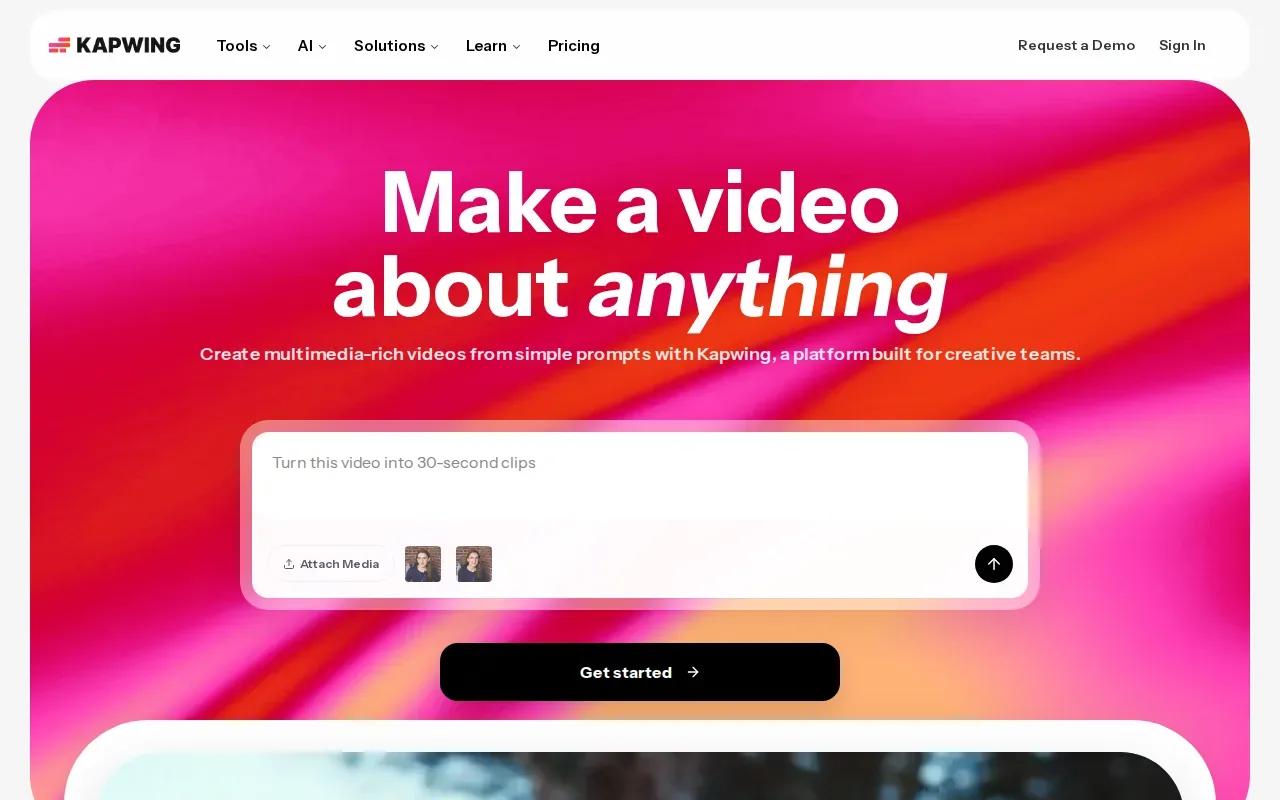
Its AI can draft visuals and narration, add subtitles, music, and scene layers, then send the project to a drag-and-drop editor. You can adjust scenes and timing before export. That matters when a first draft gets the story mostly right but needs a tighter opening or a clearer caption.
Kapwing can also use reference images or start and end frames to guide a generated shot. Its editing tools let you add brand assets and voiceover in the same project. For a demo, a product photo can guide a short visual, while a script can shape a longer explanation with several scenes.
| Demo need | Kapwing workflow | Review before export |
|---|---|---|
| Start from an idea | Prompt with the subject, action, and style | Check that the scenes match the brief |
| Use a real product image | Add it as reference media | Confirm the generated product details |
| Explain a feature | Add narration and subtitles | Check caption wording and timing |
| Fit a channel | Choose an aspect ratio before generation | Watch the full export at the target size |
Kapwing is useful when you want generation and editing in one workspace. If your demo depends on precise software steps, keep the screen capture or screenshots as the visual source, then use prompts to shape supporting scenes rather than inventing the interface.
Frequently Asked Questions
What is an AI demo video generator?
An AI demo video generator makes a video draft from inputs such as a prompt, product image, screenshot, or script. Depending on the tool, it may generate scenes, assemble stock visuals, add a voiceover, or animate an avatar. Review the result before publishing, especially when the demo describes a real product feature.
Can AI make a product demo from screenshots?
Yes, some tools use screenshots as visual references for narrated walkthroughs or generated scenes. HeyGen's product demo workflow uses screenshots and feature notes to draft an avatar-led explanation. For exact software steps, use current screenshots or a real screen capture and check that the narration matches the interface.
Can AI sync voiceover with video automatically?
Many tools can place generated narration alongside video, while some generate dialogue with the picture and sync a character's lip movements. The exact workflow differs. Check the script, subtitle timing, and the match between what the viewer sees and hears before exporting a final demo.
Which tool should I use for a short social demo?
For a prompt-led scene with synchronized dialogue, test Veo Studio. CapCut suits quick, social-first edits, while InVideo AI can assemble scripts with stock footage and narration. Pick based on your source material and the finished format, then make a short draft to see how much editing it needs.
Can I use one demo across several platforms?
Often, but you may need to resize or edit the video for each channel. A vertical cut suits short-form social feeds, while a landscape version may fit a website or YouTube. Check captions, framing, and voice levels after each resize so key product details stay visible.
Conclusion
For a prompt-led demo that needs synchronized sound, dialogue, frame control, or up to 4K output, start with Veo Studio. Try one focused product prompt, and review the clip before you build the rest of your campaign.


