An AI image animator can turn a still photo into a moving shot, but the tools differ in how much control you get over sound, frames, and clip length. Veo Studio is an independent browser-based tool powered by Google’s Veo 3.1 models. Here are five options, starting with Veo Studio, and the kind of project each one fits.
1. Veo Studio
Veo Studio turns prompts and reference images into video with synchronized sound and dialogue. It’s an independent browser-based tool powered by Google’s Veo 3.1 models, not a Google-owned service. It suits creators who want a photo to become part of a fuller scene, with camera direction, sound, and room to continue the shot.
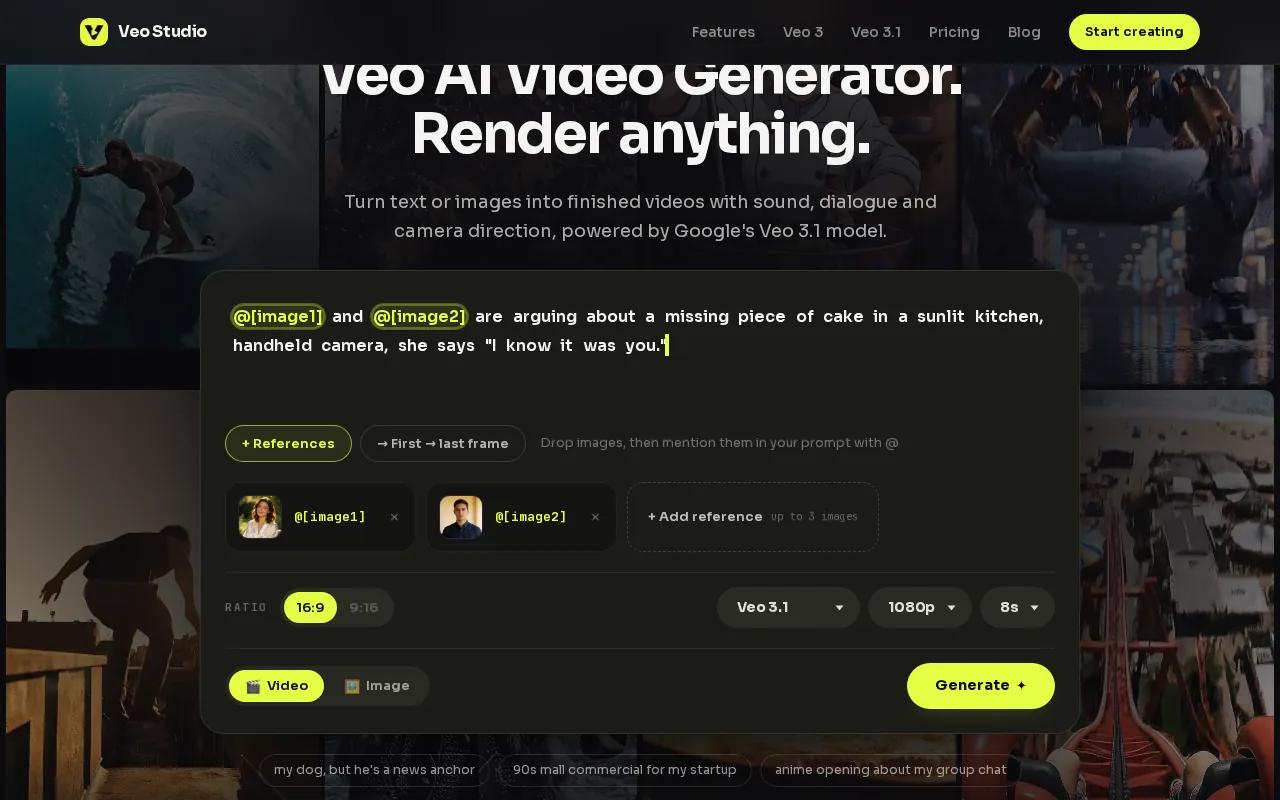
Upload an image and describe the action you want. You can also attach up to three reference images for supported generations, which helps keep a character, product, or visual style consistent within a clip. For a more directed transition, supply a first and last frame. Veo 3.1 generates the motion between them.
Sound is made with the video. A prompt can include music, effects, or a line of dialogue in quotes for lip-synced speech. That’s useful when a short product scene or character moment needs more than silent movement.
Veo 3.1 supports output up to 4K on paid plans. Its scene extension tool can add seven seconds at a time to supported 720p clips, up to roughly 148 seconds. That gives you a way to carry a scene forward instead of stitching together unrelated shots.
The free plan includes a couple of 720p videos each month and doesn’t require a card. Paid plans start at $14 per month. If your work needs a linked chain of shots, sound, and a high-resolution export, Veo Studio is a strong fit in this shortlist.
For a more detailed look at turning reference images into clips, see Image-to-Video creation. You can also try Veo Studio in your browser and test the free plan before choosing a paid tier.
2. Dreamina by CapCut
Dreamina by CapCut turns an image into a video and supports editing or extending a generated clip. It’s a fit when your main task is to animate an existing visual, then adjust the result rather than treating the first render as final.
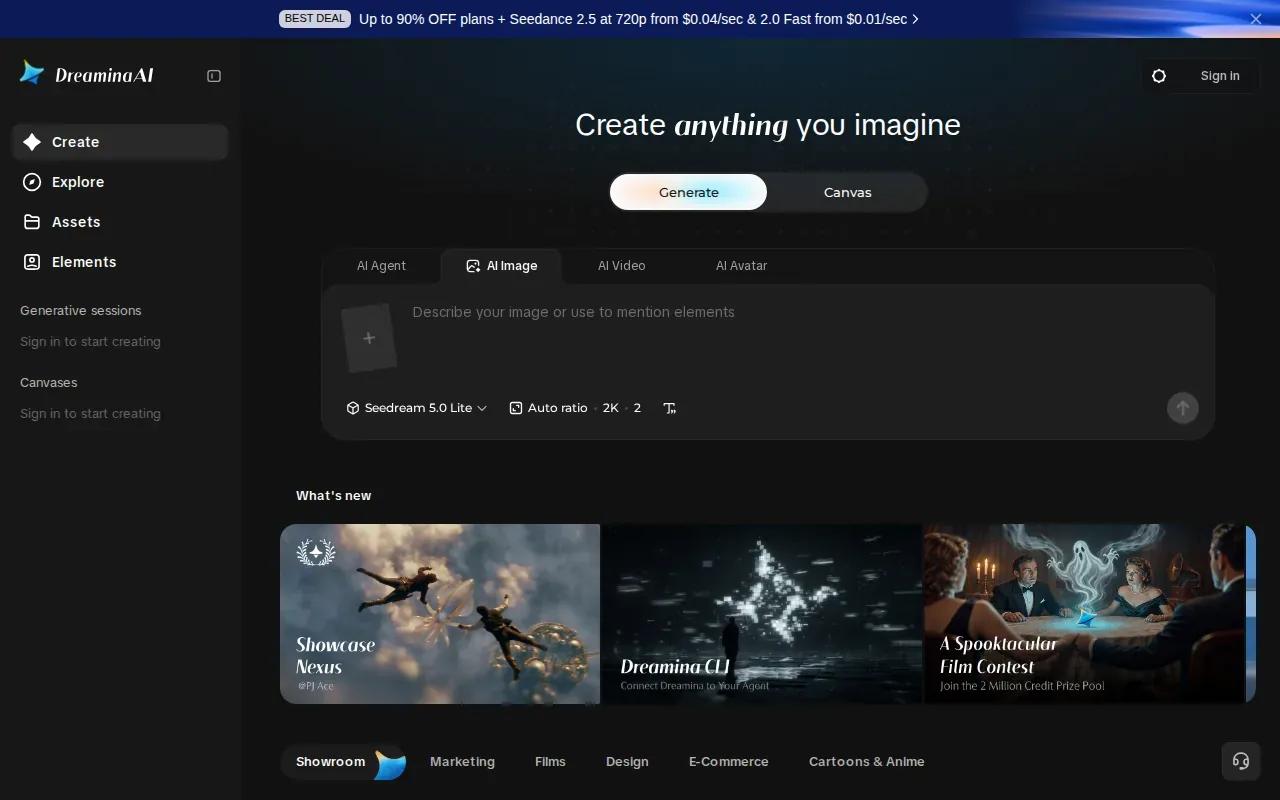
Dreamina’s image-to-video workflow is built around a source image and a motion direction. That can be a gentle camera push on a product photo, a moving subject in a portrait, or a change in the scene’s mood. It can also use reference inputs to guide movement and keep visual elements consistent.
Clip extension can help when the generated action ends too soon for the beat you need. For example, you might want a product reveal to hold for another moment, or a character’s movement to carry into the next part of a scene. Dreamina gives free daily credits for images and videos.
Before you render, decide what must stay fixed in the image and what should move. A clear direction such as “keep the bottle still while the camera slowly pushes in” gives the animation a defined job.
Use this option when the ability to revise or extend the generated clip matters more than exporting at a higher resolution. Keep the motion prompt focused on one main action for a first pass.
3. PixVerse
PixVerse turns a single still into a short, stylized clip and includes start and end frame control. It suits projects where you already know how the shot should begin and where you want it to land.
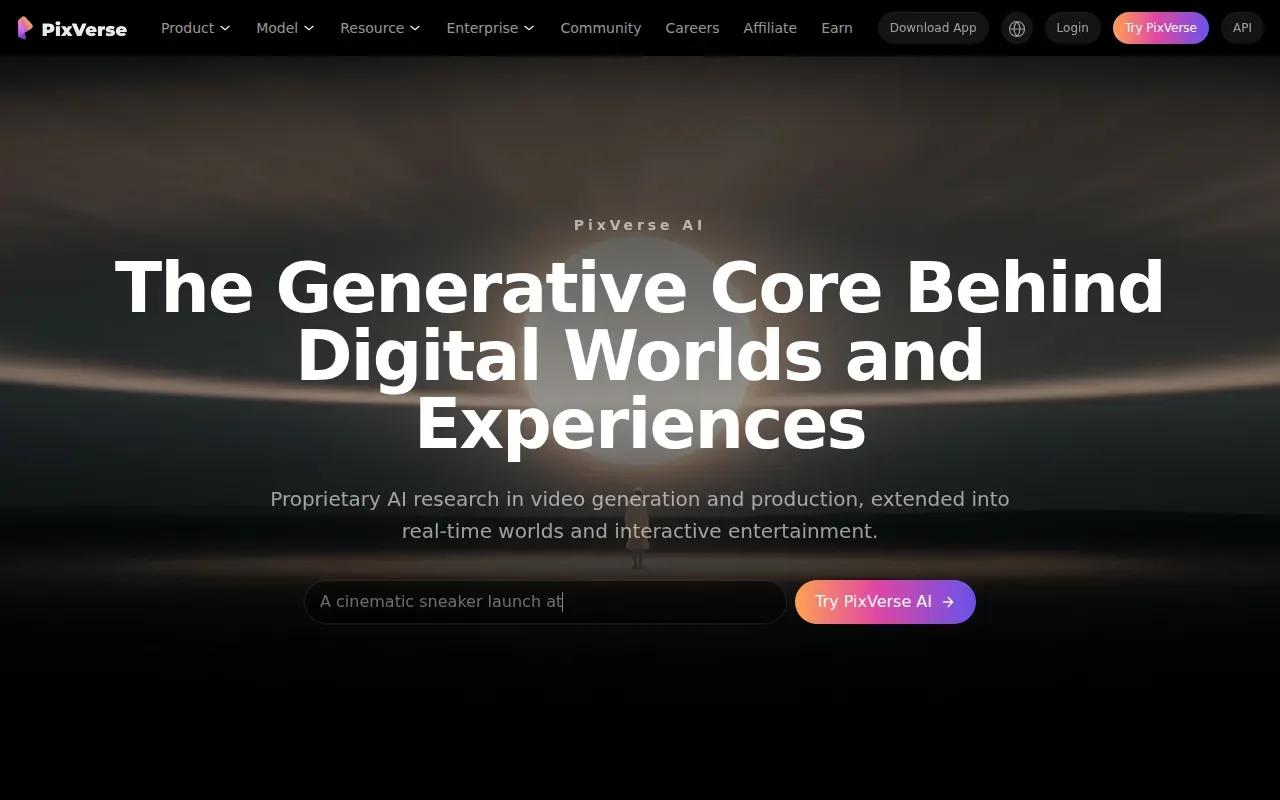
Set the first frame with your source image, then use the end frame to steer the destination. The tool generates motion between those key points. This can help with a reveal, a change in camera position, or a visual transition that would be hard to describe with one general prompt.
PixVerse can also turn a product photo, campaign still, portrait, or concept image into a motion draft. You can explore camera movement and atmosphere from the same visual, then comparing takes. That makes it useful when you want to see a few directions before settling on one.
A free trial plan includes daily credits. If you’re animating a campaign image, keep the frame’s subject and layout clear in the source. Then describe one change at a time, such as a slow push toward the subject. That makes it easier to judge whether the keyframes guide the shot you had in mind.
Pick PixVerse when the start and end of a short motion are more important than dialogue or a longer continuous scene.
4. HeyGen
HeyGen is suited to talking-photo videos with lip-synced speech. Use it when the person in a still needs to deliver a line, rather than when the image needs a broad cinematic camera move.
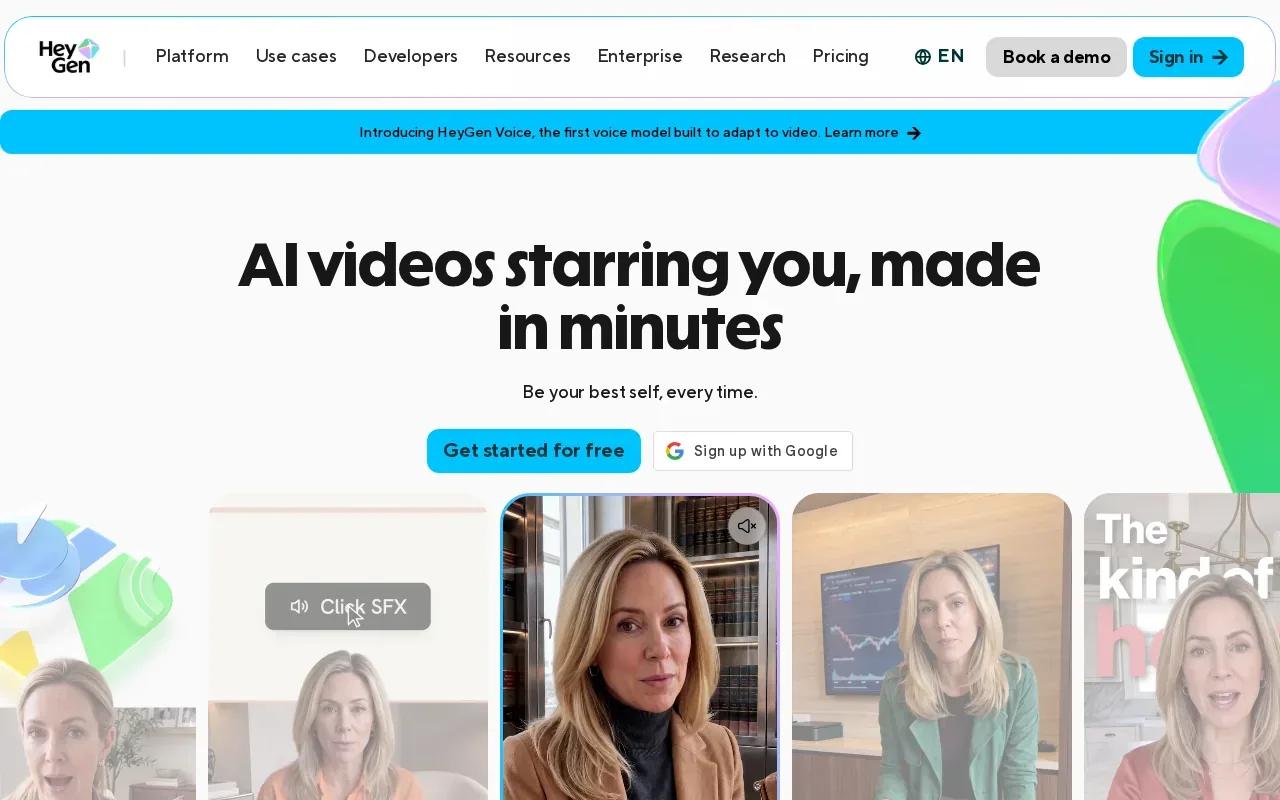
HeyGen’s instant avatar workflow pairs a face with a selectable voice and synchronized speech. That makes it relevant for a presenter-style clip, a short announcement, or a message built around one speaking person. Its maximum output resolution is 4K.
The free plan includes three videos per month. The Creator plan costs $29 per month, while the Pro plan costs $49 per month and adds 4K export. Those plan details make it easier to compare the cost against how often you need a talking portrait.
For a clean result, start with a clear portrait and keep the script short enough to fit the clip. If your idea needs dialogue from a character inside a changing scene, compare that workflow with Veo Studio’s scene generation and extension. If the goal is simply a face delivering a prepared message, HeyGen’s focus is a closer match.
5. Kaiber
Kaiber is a fit for animating images to a music track. Its music sync matches animation motion to an uploaded song’s tempo and beats, which makes it useful when the track should shape the pacing.
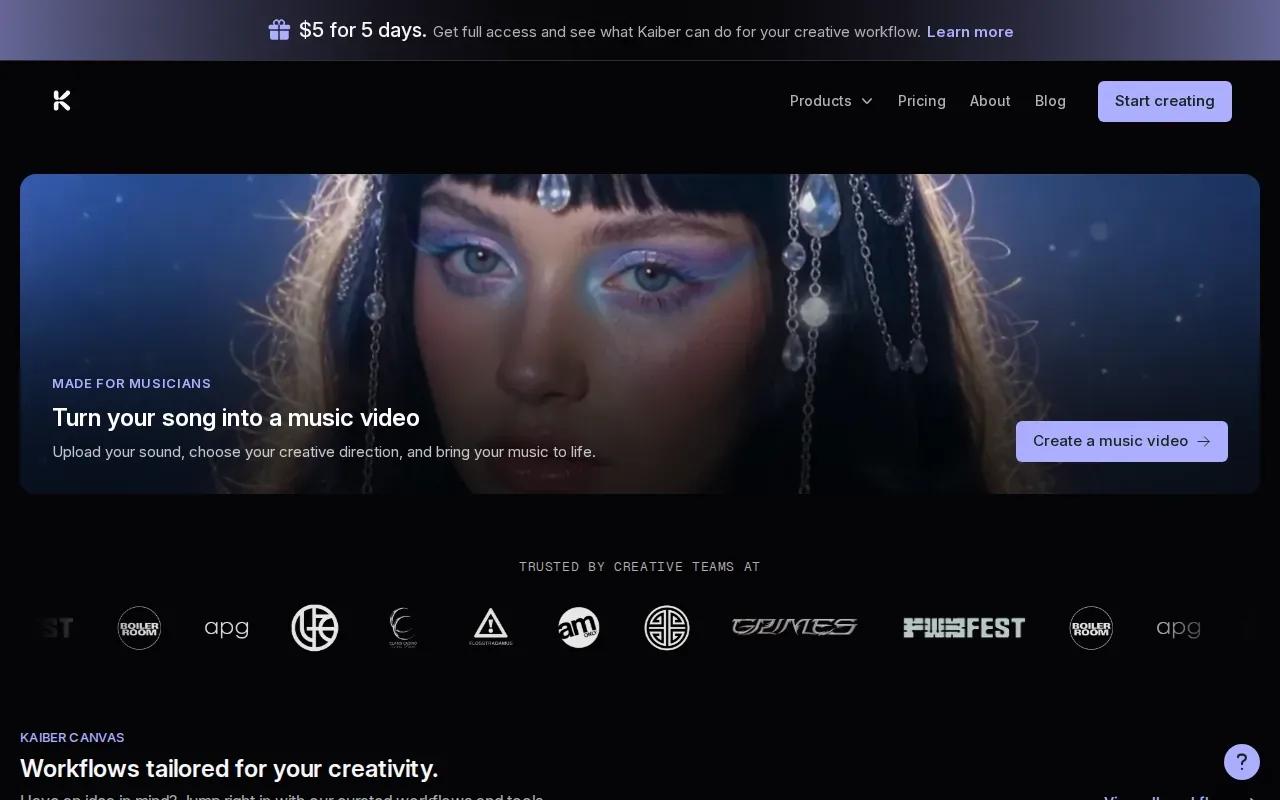
That workflow suits a music-led visual, an artist’s short promo, or an image sequence where the beat should affect how the motion feels. Start with the song you plan to use, then shape the animation around its rhythm. The music-sync feature is distinct from lip-synced dialogue: one follows the beat, while the other matches spoken words to a face.
Choose Kaiber when the soundtrack is the anchor for the animation. If the image needs a spoken character, consider a tool with dialogue support instead. And if you need a larger export, check the output limit before building the rest of your workflow around the clip.
AI image animator comparison table
Use this table to narrow the shortlist by the job your still needs to do. Resolution and sound can shape your choice as much as the animation itself.
| Tool | Good fit for | Sound or motion control | Resolution or free plan detail |
|---|---|---|---|
| Veo Studio | Image-to-video scenes with sound and frame direction | Synchronized sound and dialogue, reference images, first and last frame, scene extension | Up to 4K on paid plans; free plan has a couple of 720p videos per month |
| Dreamina by CapCut | Editing or extending generated clips | Image-to-video with motion direction | Free daily credits |
| PixVerse | Guiding a short clip between keyframes | Start and end frame control | Free trial plan with daily credits |
| HeyGen | Talking-photo videos | Lip-synced speech with selectable voice | Up to 4K; free plan has three videos per month |
| Kaiber | Motion shaped by a music track | Music sync | See website |
Ready to turn a still photo into a scene with sound and frame control? Explore the AI image animation generator workflow.
FAQ
What is an AI image animator?
An AI image animator turns a still image into a video with generated motion. Depending on the tool, you may guide a camera move, animate a face to speak, or set start and end frames. The right pick depends on what needs to move and whether the clip also needs dialogue, music sync, or a longer scene.
Which tool can animate a photo with dialogue?
Veo Studio and HeyGen support lip-synced speech, but their workflows differ. Veo Studio generates dialogue with a broader video scene and can use reference images or frame controls. HeyGen focuses on talking-photo and avatar-style videos, with a selectable voice. Choose based on whether you need a speaking portrait or a scene around the speaker.
Can an AI image animator extend a generated clip?
Yes. Veo Studio supports scene extension for eligible Veo 3.1 clips, adding seven seconds per extension step at 720p. Dreamina by CapCut also supports editing or extending generated clips.
Which option syncs animation to music?
Kaiber’s music-sync feature matches animation motion to an uploaded song’s tempo and beats. That’s useful when the track sets the pace of the visual. It differs from dialogue lip sync, which matches mouth movement to speech. If you need both types of sound in a video, check the tool’s specific audio workflow before you start.
Conclusion
For a still that needs synchronized sound, frame control, and room to extend the scene, start with Veo Studio. Upload one reference image, describe a single camera move, and test the free plan at Veo Studio.