
A still photo can become a moving scene with a prompt and a few minutes of rendering. To turn an image into a video with AI, upload your image, describe the motion, generate a draft, then preview and download the clip. These five tools suit different creative needs, from dialogue-led scenes to quick social posts.
We analyzed 46 YouTube comments about AI image-to-Video tools and found that 22% mentioned content and feature limitations.
1. Veo Studio
Veo Studio is an independent, browser-based AI video creation tool powered by Google’s Veo 3.1 models. Upload a reference image and describe the action, or combine an image with a prompt to shape the shot. It suits social creators, marketers, small businesses, and filmmakers who want an image-led clip with more than basic movement.
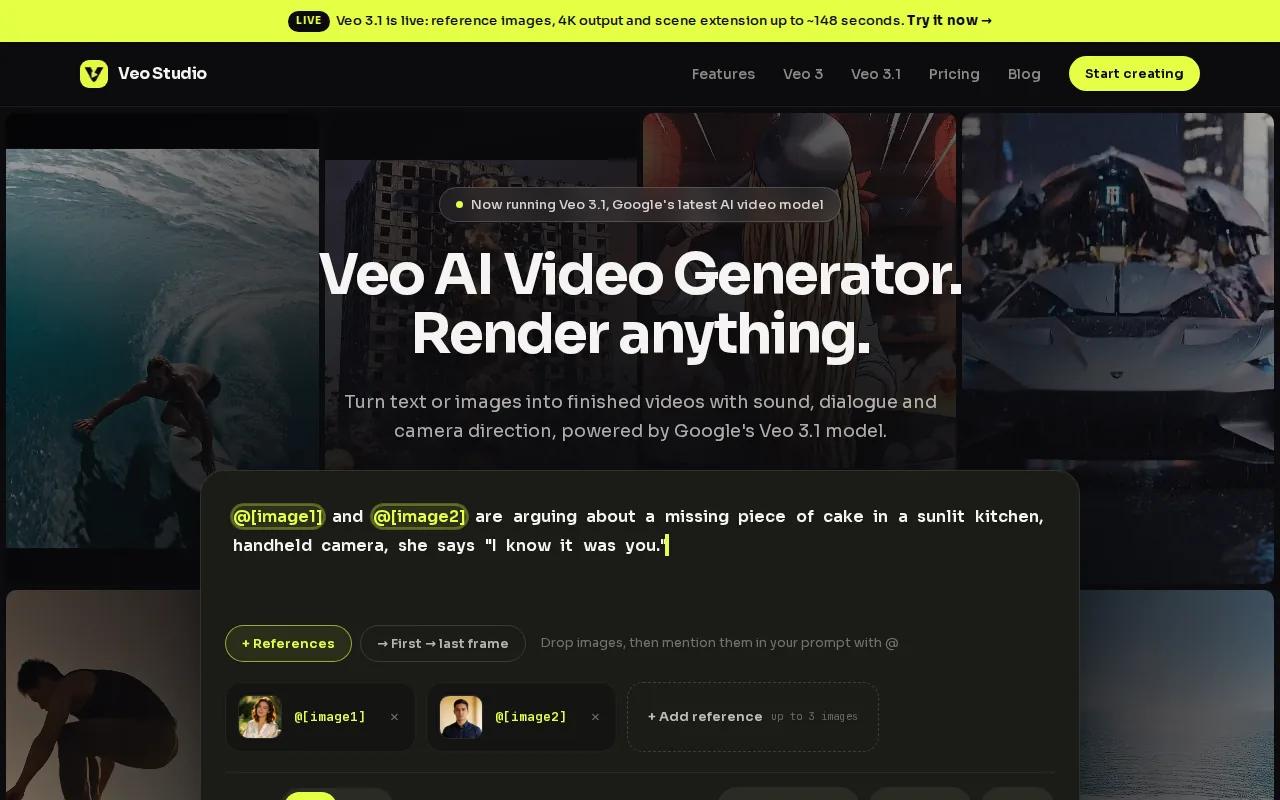
The useful difference is how much you can direct in one generation. Veo Studio can create video with synchronized sound and dialogue, keep a character consistent with reference images, and use first- and last-frame control to guide a transition. You can also extend supported clips, with output up to 4K on supported settings. For a product photo, that could mean asking for a slow camera move, then adding a short spoken line for the finished scene.
Veo Studio runs in a browser, so there’s nothing to install. Its free plan includes a couple of 720p videos a month without a card. Paid plans start at $14 per month and include more video capacity, higher resolutions, and a commercial licence. The image-to-video workflow for product photos and still images can help you plan the source image and motion prompt before generating.
For a transition between two specific compositions, provide a start image and an end image. Veo can generate the movement between them. That gives you more direction over the opening and finish than a single reference image alone.
2. Pika: Short, punchy clips for social
Pika is an image-to-video option for creators who want short, punchy generated clips for social. Its tools are built around self-contained creative tasks, so it can suit a creator testing a visual idea without needing a large production setup.
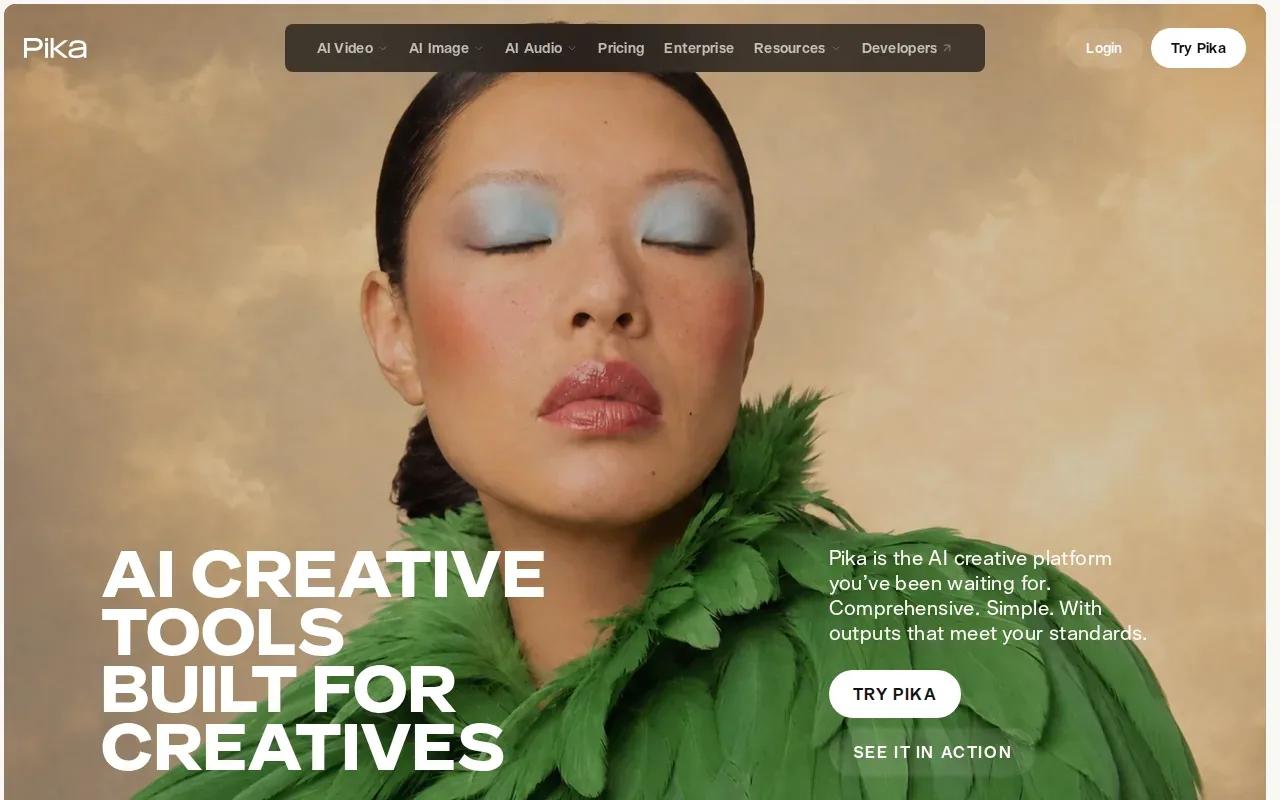
Start with a still image, then write a prompt that names the main movement. A portrait might call for a brief head turn, while a food image could use steam or a slow camera push. Generate a version, preview the motion, and adjust the prompt if the subject moves too much or the shot misses its intended feel.
Pika's free plan includes no monthly credits (credit packs only), and paid plans start at $10 a month, so check the output resolution your plan gives before you build a full campaign around it. For a quick social concept or a low-resolution draft, Pika may be a useful fit. If the deliverable needs sharper output, compare resolution needs before choosing a tool.
3. Vidu: Image animation with a focus on semantic accuracy
Vidu is an AI video generation platform built around the Vidu model, with a focus on semantic accuracy. It supports image-to-video generation and may suit creators who want a prompt to preserve the meaning and key details of the source image as the scene moves.
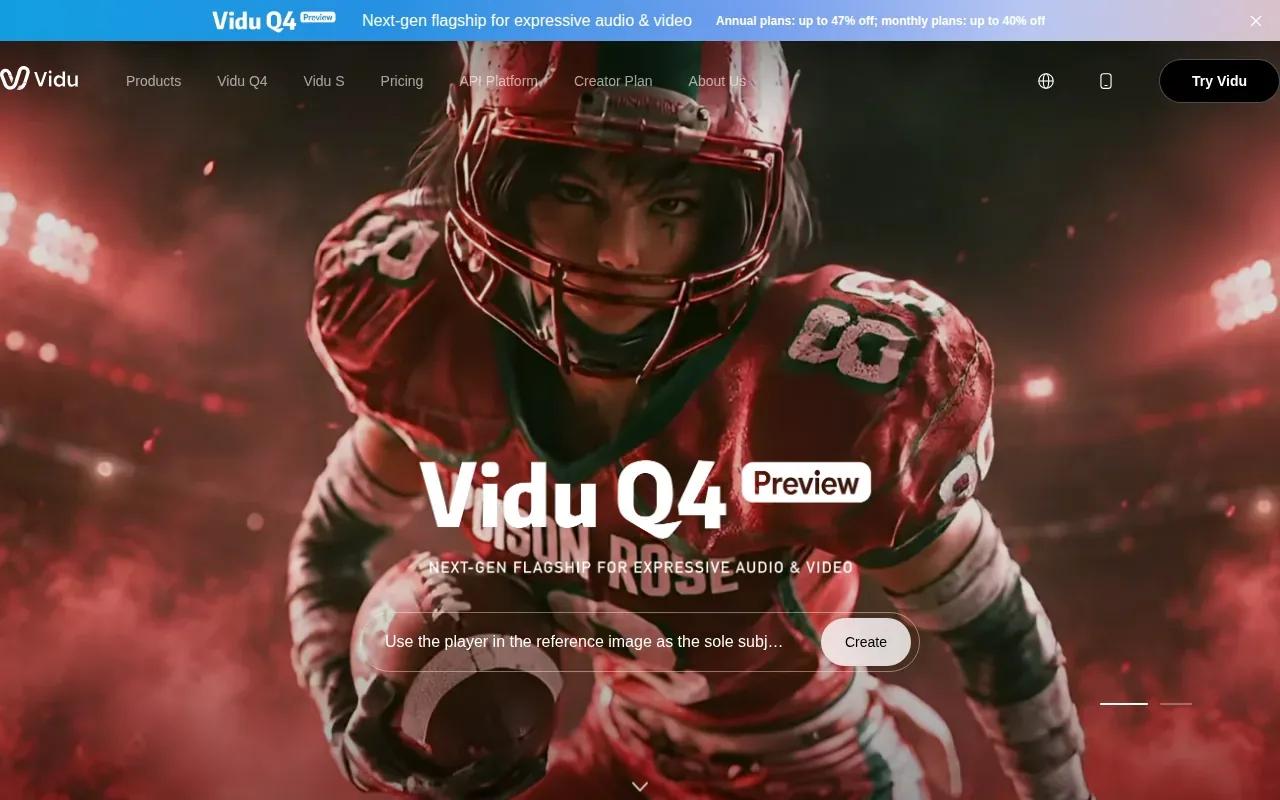
For example, a sports image can name the player as the sole subject, then describe a camera shift and a short action. Vidu’s reference subject system is designed to keep characters stable across multiple image-to-video generations. That can help when you’re making more than one clip featuring the same character, rather than treating every render as a fresh visual.
Vidu also has 4K upscaling on higher plans. Keep that qualifier in mind when you plan the final file: the availability of upscaling depends on the plan. A sound first test is to upload a representative image, describe one action, and review whether the subject remains recognizable throughout the result.
When you’re weighing whether an image-led workflow needs dialogue or sound as well as motion, Veo Studio’s browser-based video generator is another option to test. It pairs reference images with synchronized sound and dialogue, plus first- and last-frame control for a more directed transition.
4. Pollo.ai: Access multiple video models in one platform
Pollo.ai is a multi-model AI creation platform that gives users access to video models in one place. Its image-to-video workflow can start with a portrait, product photo, illustration, or concept frame. It may suit a team that wants to try different model choices without shifting between separate creative tools.
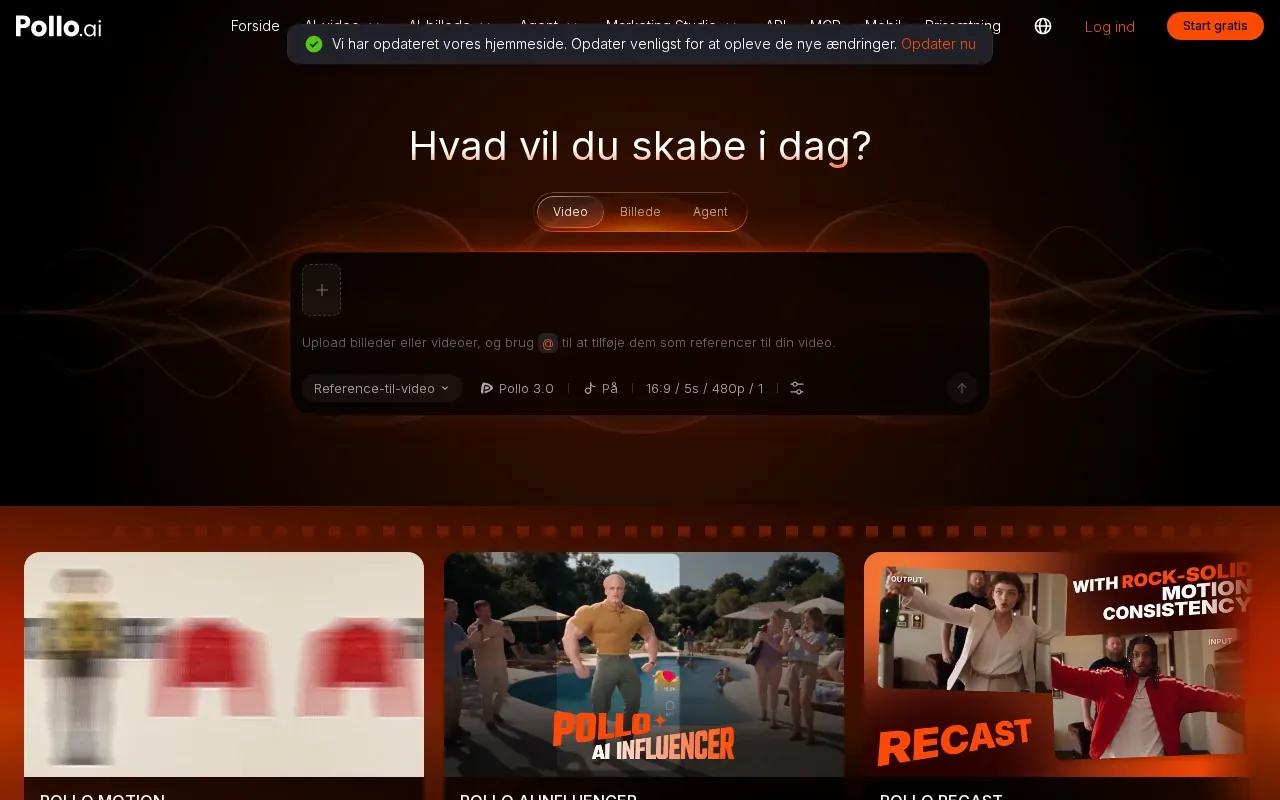
The model selection spans several third-party video models, and the list changes as new models arrive. That range matters when your source image varies by project. You can choose a model for the shot you’re making, then describe the desired motion and mood in the prompt.
The workflow is direct: upload one or more images, describe what should happen, generate the clip, then review and download the version you want. Before making several campaign variations, test one image with a focused prompt. That first render will show whether the selected model handles the subject and movement the way your brief needs.
5. Krea: A unified workspace for image and video models
Krea is a unified AI creative workspace that brings image and video models together. It supports image-to-video generation and may fit creators who want to work across still images and moving scenes in one creative workspace.
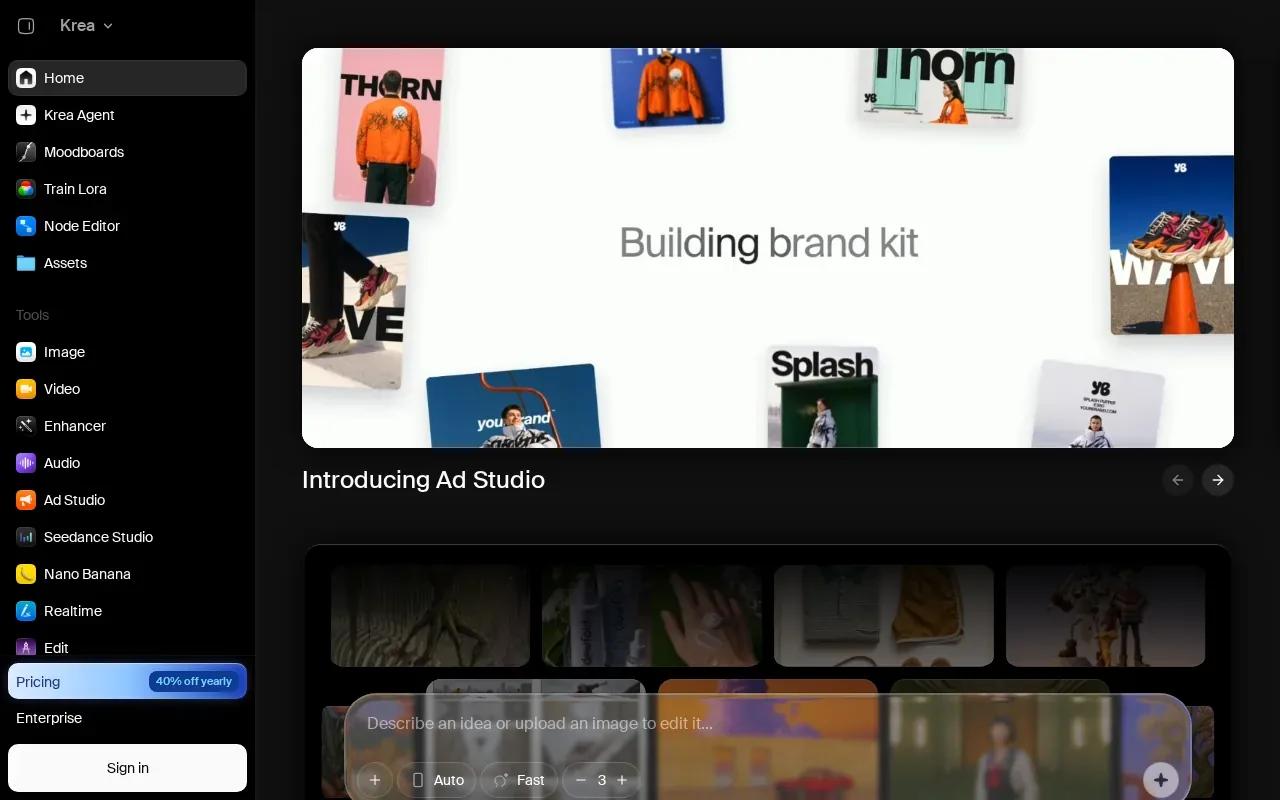
Krea’s model lineup includes video options with different controls, such as native audio on some models and start- and end-frame support on some models. Those capabilities depend on the model you select, so check its controls before building a shot around a specific feature. Krea also supports LoRA training for character consistency across image-to-video sequences.
That character workflow can help when a recurring subject needs to stay recognizable across several shots. Krea also offers image upscaling up to 22K. Because model features vary, treat the workspace as a place to compare available options, then confirm the chosen model’s resolution and frame controls before rendering the final version.
If you’re comparing free access before committing to a workflow, the free AI image-to-video generator options page covers another useful part of the decision: how to test an image animation before paying for more output.
Image-to-video AI tools compared
Choose based on the job the clip must do, not only the source photo. A social draft may need a fast, short motion test. A product spot may need a stable subject, planned sound, or a clear start and end.
| Tool | Useful fit | Standout detail | Resolution detail |
|---|---|---|---|
| Veo Studio | Dialogue-led clips and planned transitions | Synchronized sound, character consistency, frame control, and scene extension | Up to 4K on supported settings |
| Pika | Short social concepts | Short, punchy generated clips for social | Depends on plan and model |
| Vidu | Images with a recurring character | Reference subject system for character consistency | 4K upscaling on higher plans |
| Pollo.ai | Trying several video models in one platform | Access to flagship video models | See website |
| Krea | Image and video work in one workspace | LoRA training for character consistency | Image upscaling up to 22K |
For a straightforward test, use the same source image and describe one clear action in each tool. Then check whether the main subject stays recognizable, whether the motion follows your prompt, and whether the output fits your channel. The same source image and action make results from different tools easier to compare.
FAQ
How do I turn an image into a video with AI?
Upload a still image to an image-to-video tool, then describe the motion you want. Keep the first prompt focused on one action, such as a person turning toward the camera or a product slowly rotating. Generate a draft and preview the full clip. If the movement or framing feels off, make one change to the prompt and render again.
Can AI turn a photo into a video with sound?
Yes, some image-to-video tools can generate sound with the video. Veo Studio supports synchronized sound and dialogue, including lip-synced speech. Describe the sound or spoken line as part of your direction, then review the audio with the finished clip. Other tools may handle sound in a different way, so check the selected model’s controls before you start.
Can I use two images to guide the video?
Yes, Veo Studio supports first- and last-frame control, which lets you provide two stills and generate the transition between them. This can help when you have a specific opening and ending in mind, such as a product in its original position and then revealed from another angle. Describe the motion between the frames in your prompt.
Which AI image-to-video tool is right for social clips?
The right choice depends on the clip’s needs. Pika is an option for short, punchy social clips, while Veo Studio supports vertical output and synchronized sound and dialogue. If you need a recurring character across several clips, Vidu and Krea also offer character-consistency features. Test with your own image before settling on a workflow.
Conclusion
For an image-led clip that may need synced dialogue, character consistency, frame control, scene extension, or up to 4K output, start with Veo Studio. Upload one reference image and test a focused motion prompt.


