
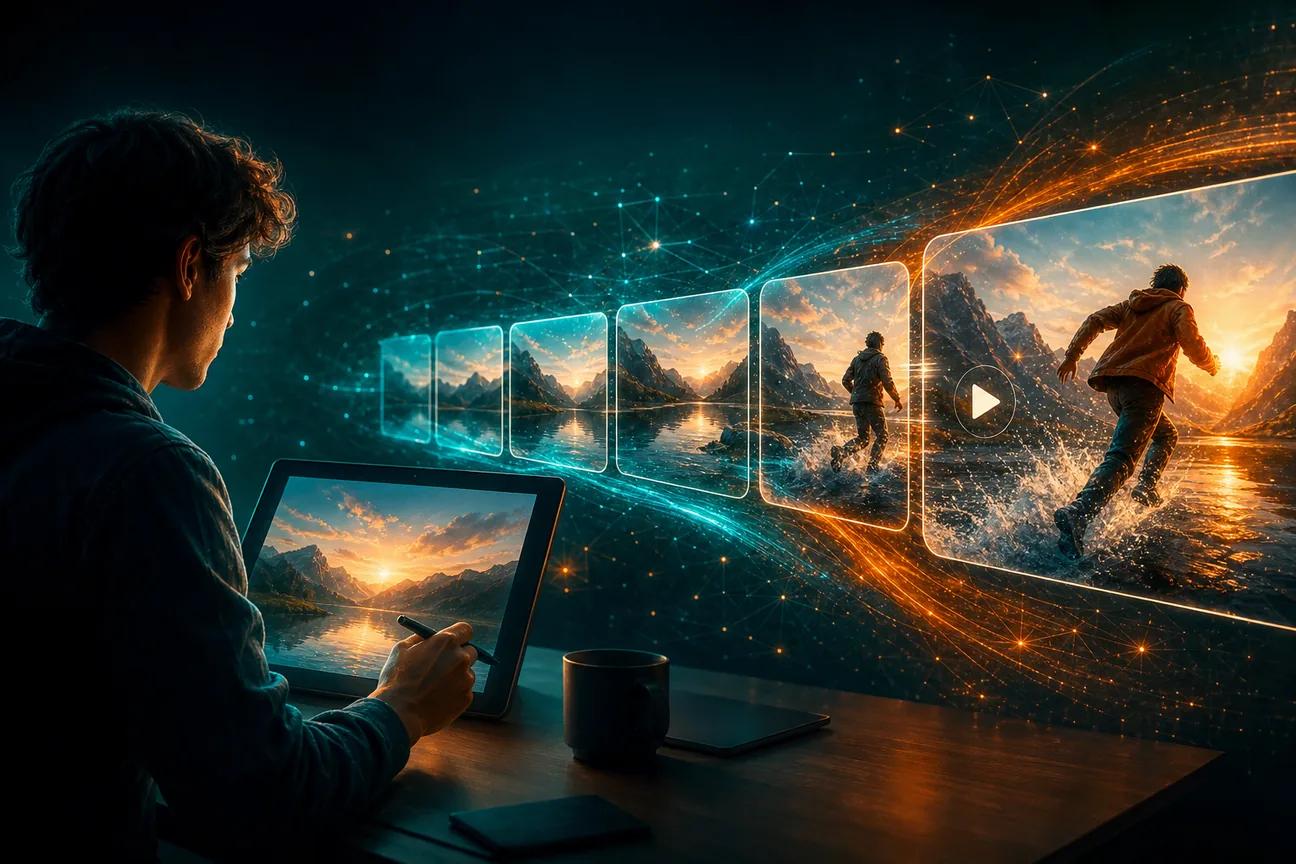
A free AI image-to-video generator can turn a still photo into a moving clip, but free access comes with different limits. Here are four named tools to consider, starting with Veo Studio, plus the details that affect whether a clip is ready to share.
1. Veo Studio
Veo Studio is an independent, browser-based AI video creation tool powered by Google's Veo 3.1 models. It’s a fit when your image needs more than a basic camera move, such as a product shot with sound or a character scene with dialogue.
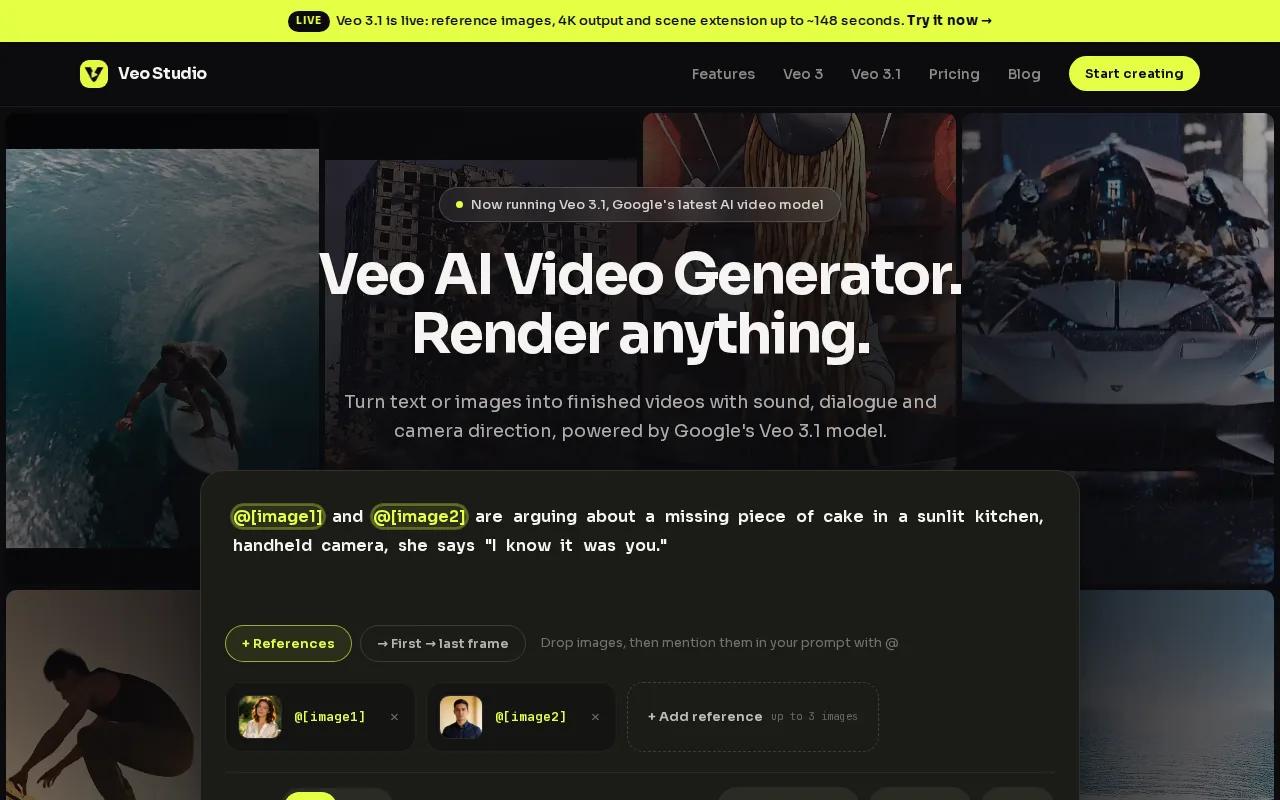
Upload a reference image and describe what should happen next. The tool can keep visual details consistent using reference images, generate synchronized sound and dialogue, and control a transition with first and last frames. For a longer scene, supported 720p clips can be extended in seven-second steps, up to roughly 148 seconds.
The free plan includes a couple of 720p videos each month, with no card required. There’s no visible watermark on Veo Studio’s output. Paid plans from $14 a month add a commercial licence, and 1080p and 4K output require a paid plan.
That smaller monthly allowance makes sense for testing a specific shot, not producing a full content calendar for free. If you already have a product photo or still image, the image-to-video guide for creating clips from still images can help you shape the motion prompt before you spend a generation.
Choose Veo Studio when the scene needs sound, dialogue, or more control over how it begins and ends. You can try the workflow in your browser without installing an app.
2. PixVerse
PixVerse is a text- and image-led video tool with workflows for exploring short-form creative ideas. It may suit a creator who wants to test a visual hook or a marketer comparing rough ad concepts before settling on a direction.
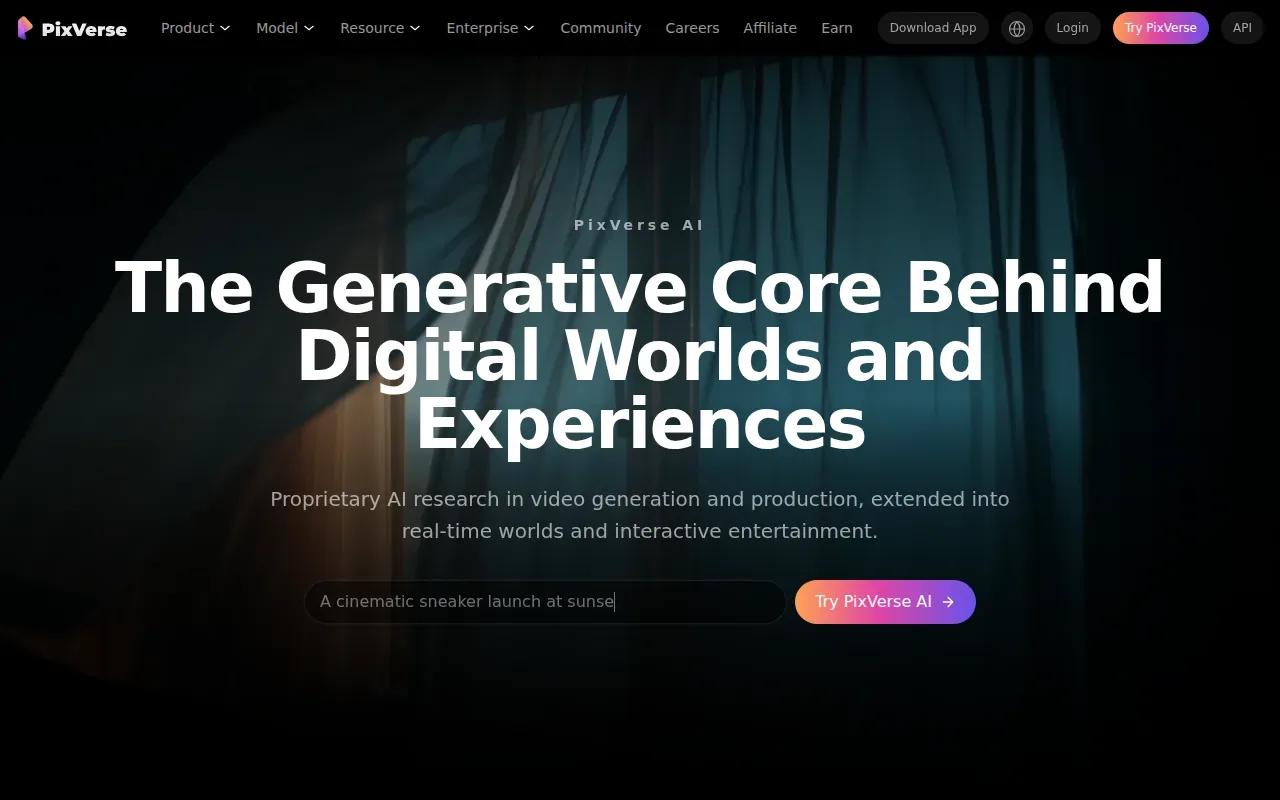
Its free tier uses daily credits. That gives you a recurring allowance rather than a one-time signup balance. Free downloads carry a watermark, so account for that before planning a clip for a client or a polished brand post.
PixVerse V6 includes AI effects, templates, and tools for vertical video generation. Those options can help when the goal is a social-first draft. Start with one main movement, such as a slow push-in, then judge whether the subject stays clear.
For example, a small shop could test a product reveal from one still image, then compare the pace and visual style before choosing a final direction. Keep the prompt focused. Several unrelated actions or camera moves can make it harder to tell which part of the idea worked.
PixVerse is worth considering when you want recurring free credits for visual experiments. Check the watermark on the export before you build it into a publishing workflow.
3. Runway
Runway is an AI video generation and editing tool that can start with an image, an existing video, or a text prompt. Runway gives 125 free credits at signup, enough for a few test clips.
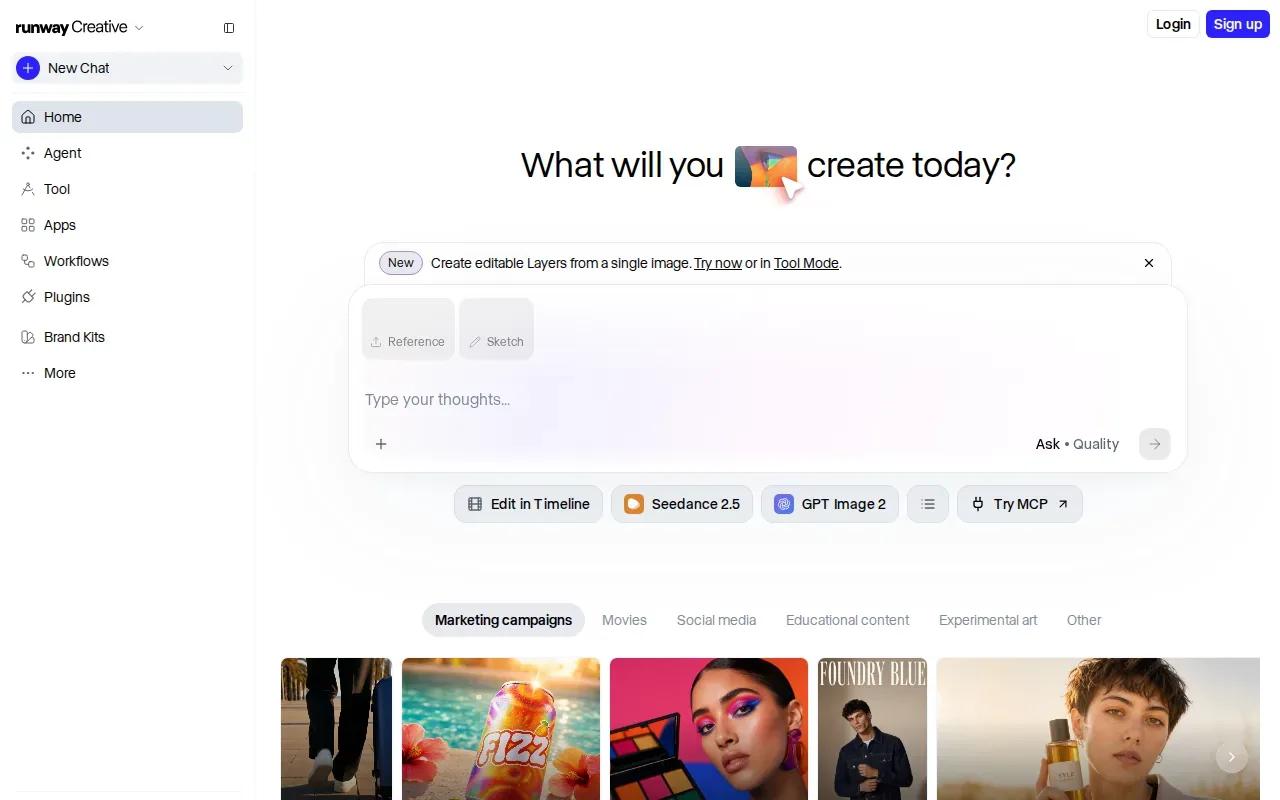
The free downloads carry a watermark. Keep that in mind if you’re preparing a client preview or a clip intended for a brand account. The credits are useful for checking how an image animates.
Runway’s broader workflow includes editing as well as generation. It also supports image references for keeping a character’s look more consistent across generated shots.
That mix can help if you’re already working with video and need to make a specific change after generating a scene. For instance, you might test a camera move on a still, then make a separate edit to existing footage. These are different tasks, so decide which one you need before spending credits.
Plan a small test set and save a credit for a second attempt if the first motion prompt misses the mark.
4. Vidu
Vidu is an AI video generator for text prompts and images, with workflows aimed at social content, ads, and storytelling. It may fit a creator who wants to move quickly from a reference image to a short scene.
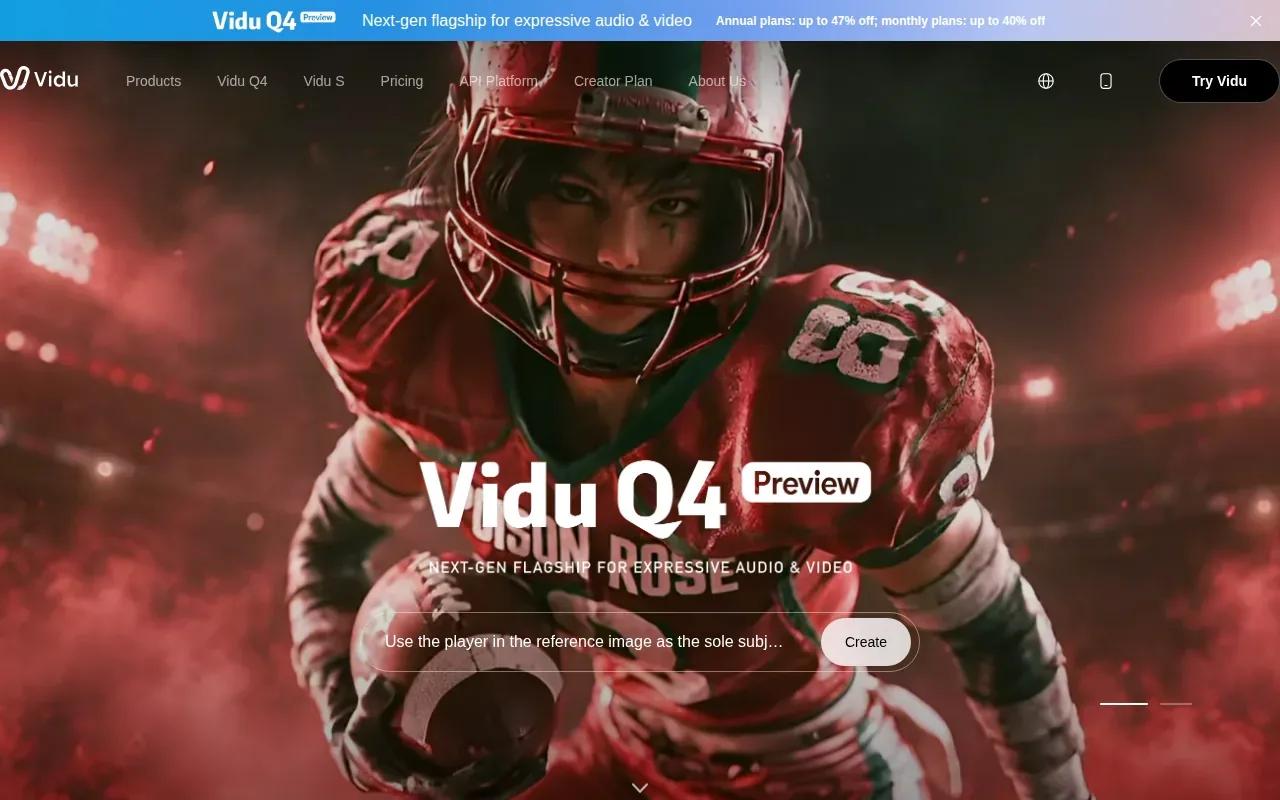
Free downloads carry a watermark. That’s a key export detail if the clip needs to look like finished brand content. Review the downloaded file before sharing it beyond a private draft or a test channel.
For a short social ad, describe the subject, action, and camera movement in the prompt.
Keep the shot description easy to follow. Name the subject first, then state one action. If the scene needs a particular mood, describe the light or setting without adding several competing directions.
Vidu’s fast workflows make it a candidate for rough social or ad concepts. Before planning a public export, remember that the free download includes a watermark.
Ready to test an image-led scene with synchronized sound or dialogue? Veo Studio’s plan includes a couple of 720p videos per month and doesn’t require a card.
Free AI Image-to-Video Generators Compared
The useful comparison isn’t simply how many free generations you get. Match the access type to the job, then check the export itself. A watermark can change whether a draft is fit for a public post, while a short clip limit can shape the idea before you start.
| Tool | Free access detail | Useful fit | Export or length detail |
|---|---|---|---|
| Veo Studio | A couple of videos monthly | Reference-led scenes with sound or dialogue | 720p free output; no visible watermark |
| PixVerse | Daily free credits | Short-form effects and vertical video ideas | Watermark on free downloads |
| Runway | 125 credits once at signup | Testing generation and video edits | Watermark on free downloads |
| Vidu | Free-tier access | Social content, ads, and storytelling | Watermark on free downloads |
For recurring tests, PixVerse’s daily credit reset differs from Runway’s one-time grant. For a small monthly allowance with sound and frame controls, Veo Studio has a different trade-off: fewer free videos, with more direction available in each supported generation.
FAQ
Can I turn a photo into a video for free?
Yes, some tools let you make image-to-video clips with free access. The limits differ: Veo Studio includes a couple of 720p videos each month, PixVerse uses daily credits, and Runway gives 125 credits once at signup. Check the downloaded file for a watermark before using it in a public post.
Which free AI video tools add a watermark?
PixVerse, Runway, and Vidu put a watermark on free downloads. Veo Studio’s free output has no visible watermark, though its free plan is limited to a couple of 720p videos per month.
How do I write an image-to-video prompt?
Describe what should move, then add one camera direction and any sound or dialogue the scene needs. If you’ve uploaded a reference image, it already sets the subject and composition, so focus the prompt on what happens next. A simple direction, such as a slow push-in while a subject turns, is easier to assess than several actions at once.
Can I use free AI-generated videos for commercial work?
Check the tool’s licence before using a clip in an ad or other commercial project. Veo Studio’s paid plans, from $14 a month, include a commercial licence; the free plan is for trying it out. That permission doesn’t remove creative or legal review needs, so make sure the image, prompt, and final scene are suitable for your intended use.
Conclusion
For image-led clips that need synchronized sound, dialogue, or frame control, start with Veo Studio and test the free 720p plan on one reference image. Create a free account in your browser, upload the still, and write one clear motion prompt.


