

A social media video maker can turn a prompt, script, or rough clip into a post you can share. The hard part is choosing a tool that fits your workflow, especially when you need sound, consistent characters, or more control over a scene. Here are six options, with Veo Studio first, and what each is suited to.
We analyzed 54 comments from Reddit and YouTube about social media video makers and found that 33% mentioned a single master edit.
1. Veo Studio
Veo Studio is an independent, browser-based AI video creation tool powered by Google's Veo 3.1 models. It turns text prompts and reference images into short videos, with synchronized sound and dialogue, character consistency, frame control, scene extension, and output up to 4K.
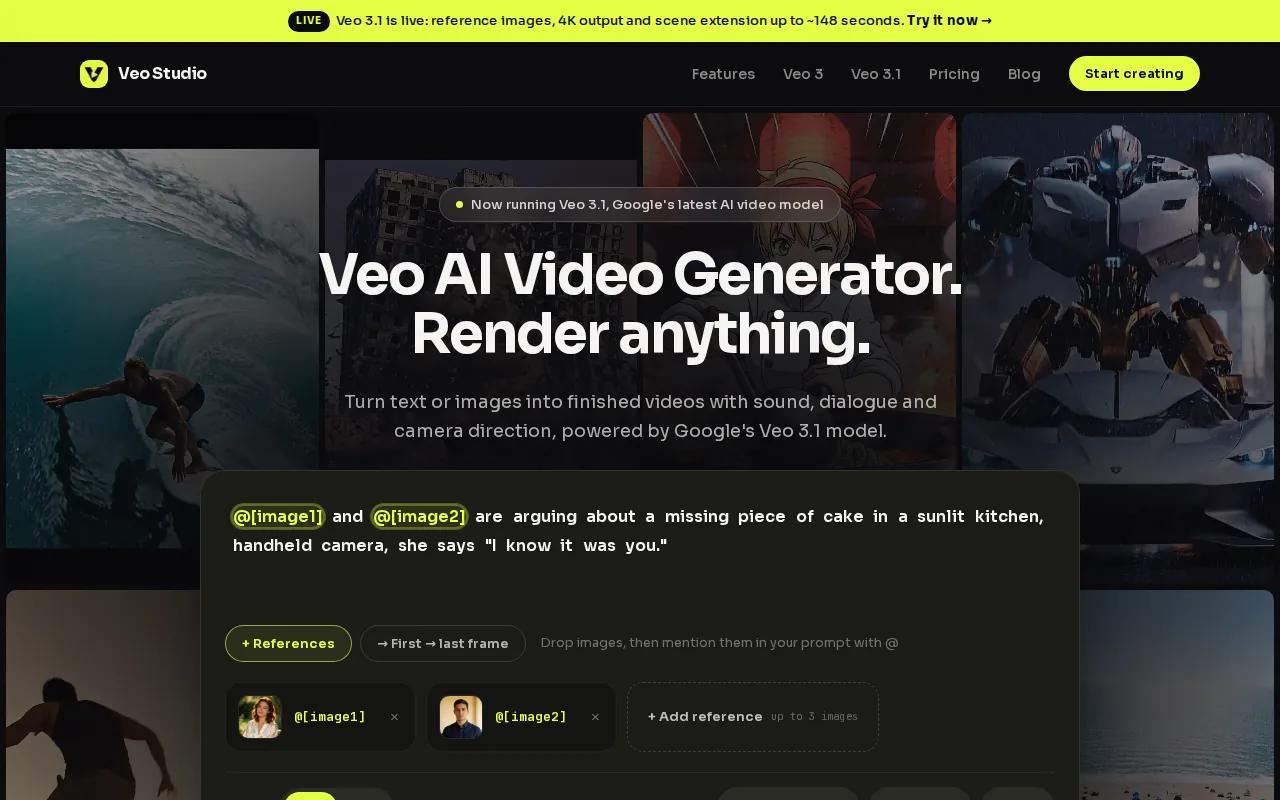
It fits creators making vertical clips for TikTok, Reels, or YouTube Shorts, as well as small businesses turning product photos into ads. Add up to three reference images when you want the same character, product, or visual style to carry through a clip. First- and last-frame control lets you supply two stills and generate the transition between them.
Sound comes with the video. You can describe music or effects, or put dialogue in quotation marks for lip-synced speech. Standard generations run 4, 6, or 8 seconds; supported 720p clips can be extended in 7-second steps. That gives you a way to build a longer scene instead of stitching unrelated clips together.
The free plan includes a couple of 720p videos each month and doesn’t require a card. Paid plans start at $14 per month, with higher resolutions and a commercial license. You can try Veo Studio in your browser before choosing a paid plan.
2. InVideo: Fast social videos for busy creators
InVideo is suited to social media managers, small business owners, and solo creators who need a quick video draft. Its key draw is one-click, platform-focused video generation that can bring together a script, voiceover, stock footage, captions, and music.
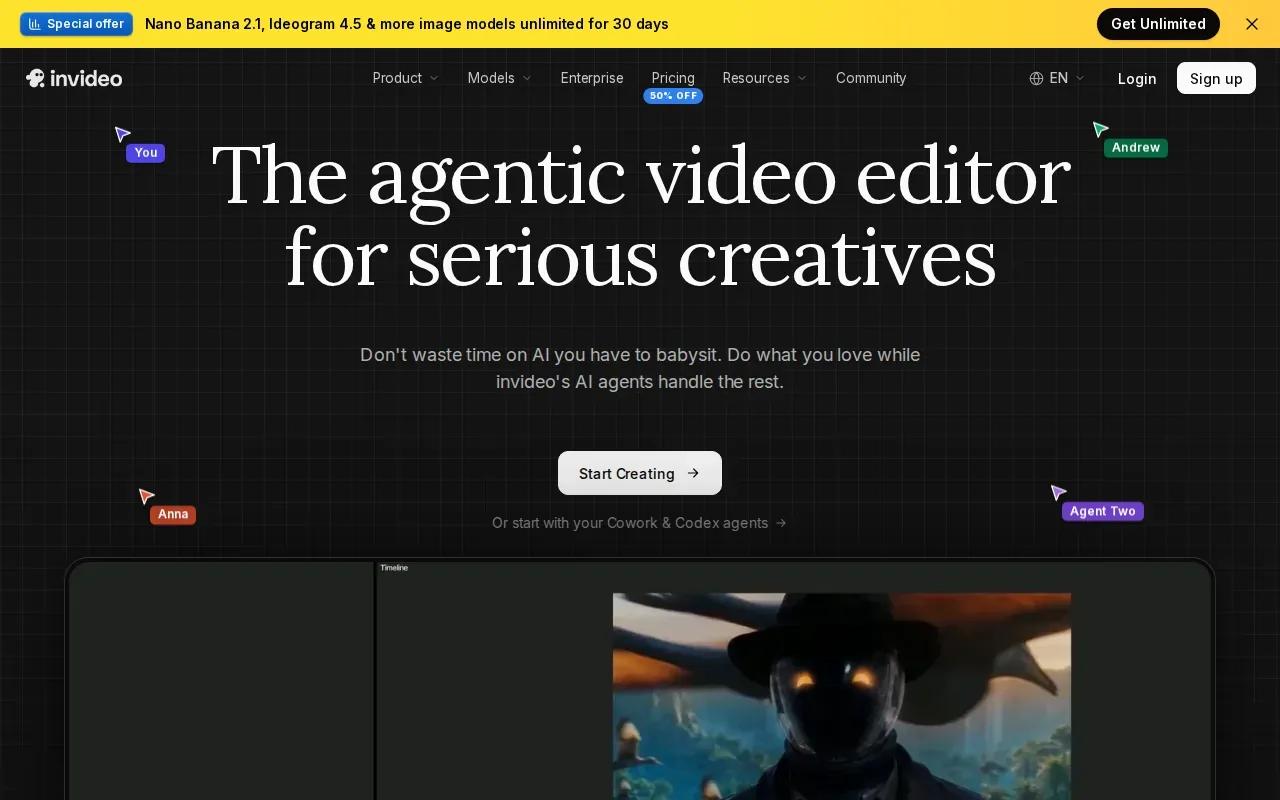
That can help when you have a clear post idea but no time to shoot every shot. For example, you might start with a short product announcement, then review the generated script and visuals before sharing. Check the opening line closely. A fast first draft still needs a hook that gives viewers a reason to keep watching.
AI assembly can save time, but it doesn’t replace a final edit. Read the captions for errors, check that the voiceover matches your brand, and swap out any stock shot that feels too broad for your message. If you’re making a series, keep the same tone and visual rules across each post so the clips feel like part of one campaign.
Pick InVideo when speed matters more than directing every shot yourself. If your idea depends on a specific character or a carefully controlled opening and closing frame, compare that need with Veo Studio’s generation controls before settling on a workflow.
3. VEED: Short-form editing with hands-on control
VEED suits people who want to edit short clips for social posts rather than rely on a single generated result. Its position in this shortlist is editing control: you can work on a clip and adjust the result to fit the post you have in mind.
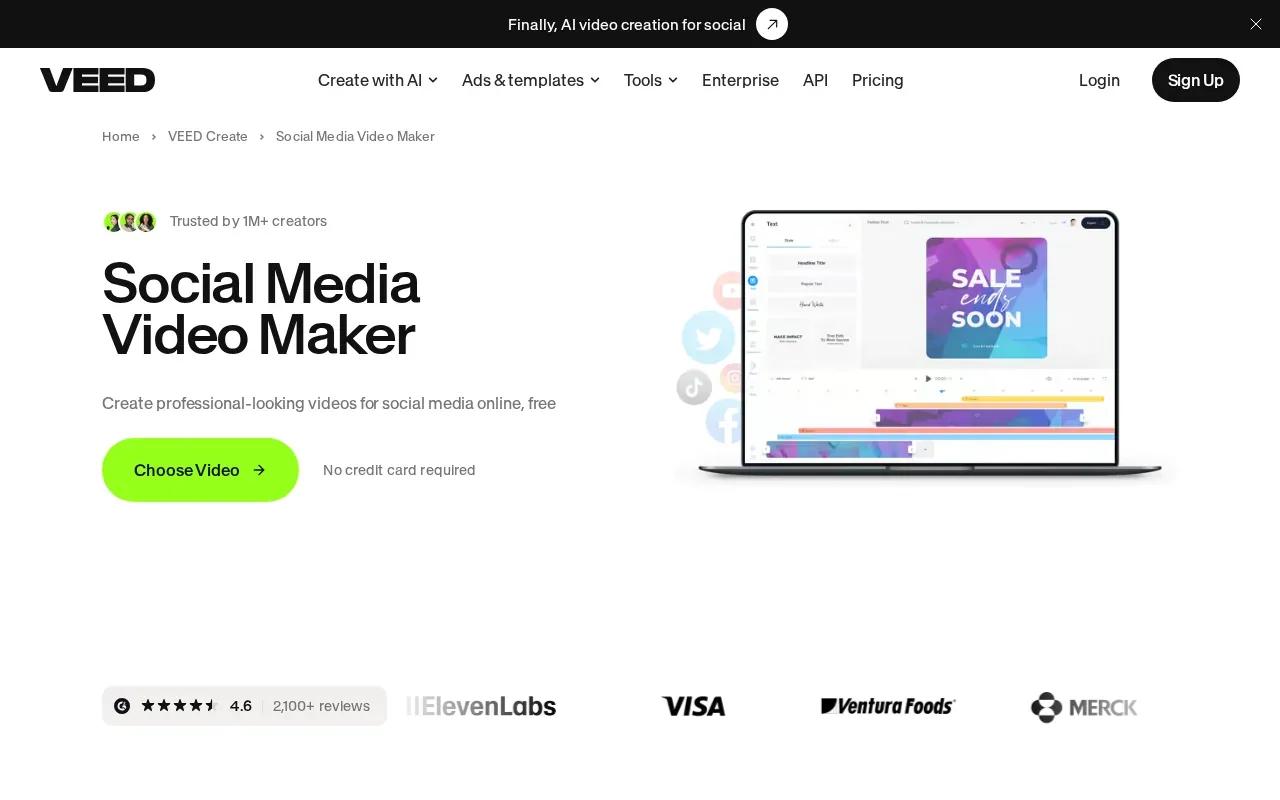
That distinction matters when you already have footage. You might trim a long recording into a short segment, add captions, then shape the pacing around the main point. Keep the first moments focused. A viewer should understand the subject before they scroll past.
VEED’s maximum resolution is 1080p. If your job is to refine existing footage, those details may not matter. But if you need to direct the exact first and last frame of a generated scene, that is a useful point to weigh against a tool built around generation controls.
For the full edit, check the exported video on a phone. Captions should be easy to read and placed where interface buttons won’t cover them. A social video workflow for filming, editing, captions, and export can help you plan those checks before you post.
4. Kapwing: Collaborative browser editing and subtitles
Kapwing is suited to collaborative browser editing. Its strengths include silence removal, reframing, and subtitles, while its AI can start a video project from a prompt.
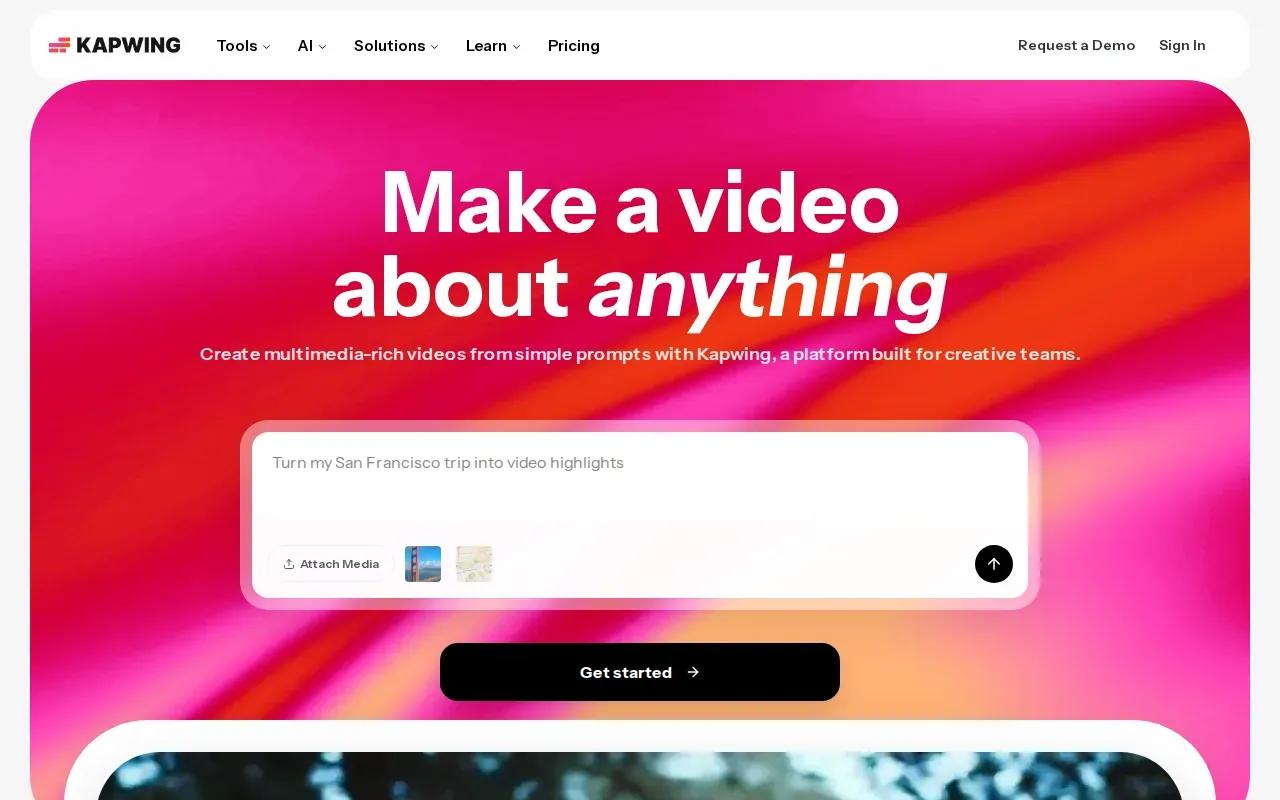
Those tools fit a team that shares edits. One person can shape the draft, while another checks the framing and captions before the post goes out. Silence removal can help tighten a talking clip; reframing is useful when the source video needs to fit a different screen shape.
Start with the channel you plan to publish on. A vertical crop is a natural fit for TikTok, Reels, or Shorts, while a landscape post needs room across the frame. After reframing, check that faces, products, and key words still sit inside the visible area. An automatic crop can’t know which detail matters most to your message.
Kapwing makes sense when the edit and review process matter as much as the first draft. It’s a different job from generating a short scene with sound and controlled frames. Choose based on where your team spends its time: making the initial video, or refining and approving it.
5. Fliki: Prompt-based videos for TikTok, Reels, and Shorts
Fliki is designed for short-form social videos. Its AI video generator can build a draft from one prompt, including a script, visuals, voiceover, music, and captions. That makes it a fit when you want a narrated post without recording each part yourself.
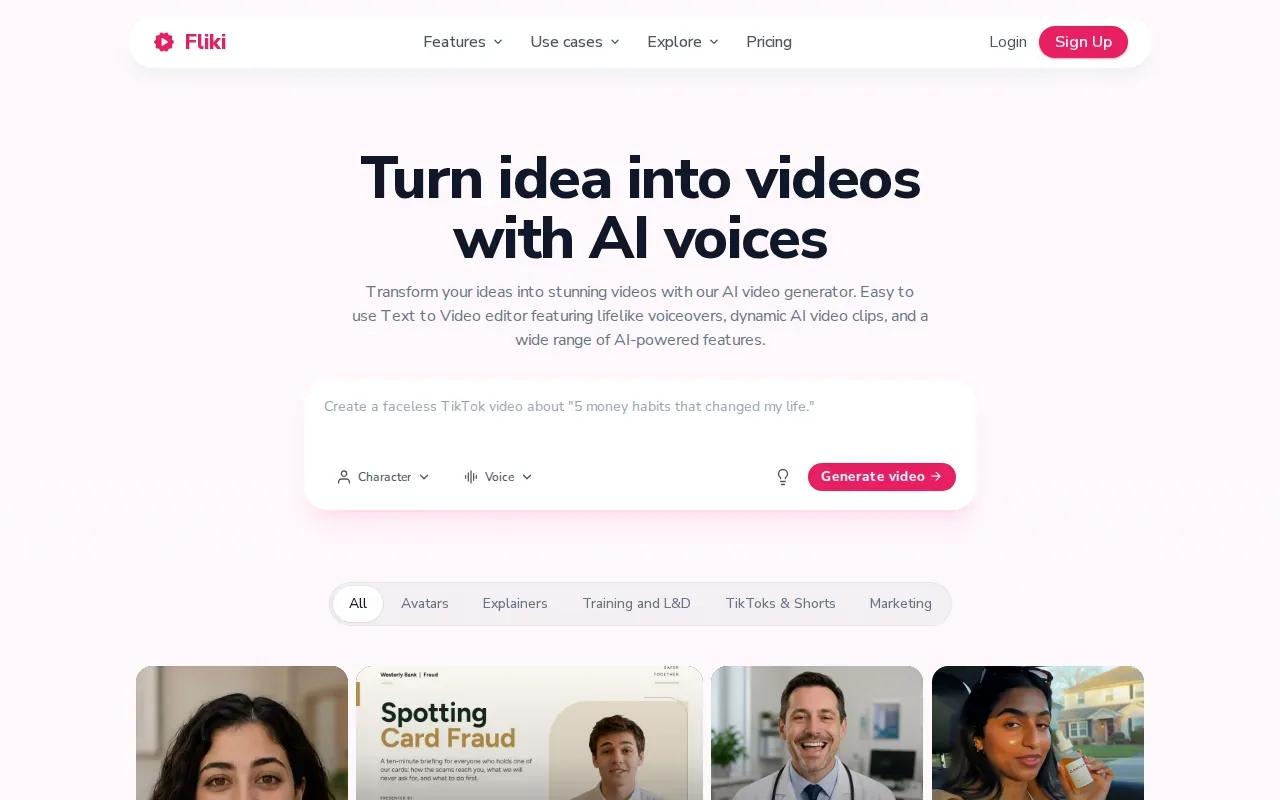
A prompt-led workflow is useful for repeatable topics. Describe the point of the video, then review the script before you accept the rest of the draft. If the opening takes too long to reach the point, rewrite it. The first line should tell viewers what they’ll get from the clip.
Check every export before publishing. Captions can land over a face or product even when they fit a format’s safe area.
Use Fliki when you want the script and narrated video drafted together. If your work needs dialogue generated in sync with a scene or consistent characters across shots, compare those needs with Veo Studio, an independent browser-based tool, which supports synchronized sound and dialogue and character consistency. For a platform-specific shortlist, see AI video generators for TikTok.
6. Renderforest: Branded promotional videos for teams
Renderforest suits teams that regularly make promotional videos, social content, presentations, or branded videos. The fit is strongest when you have recurring work and want a shared way to make content for a business.
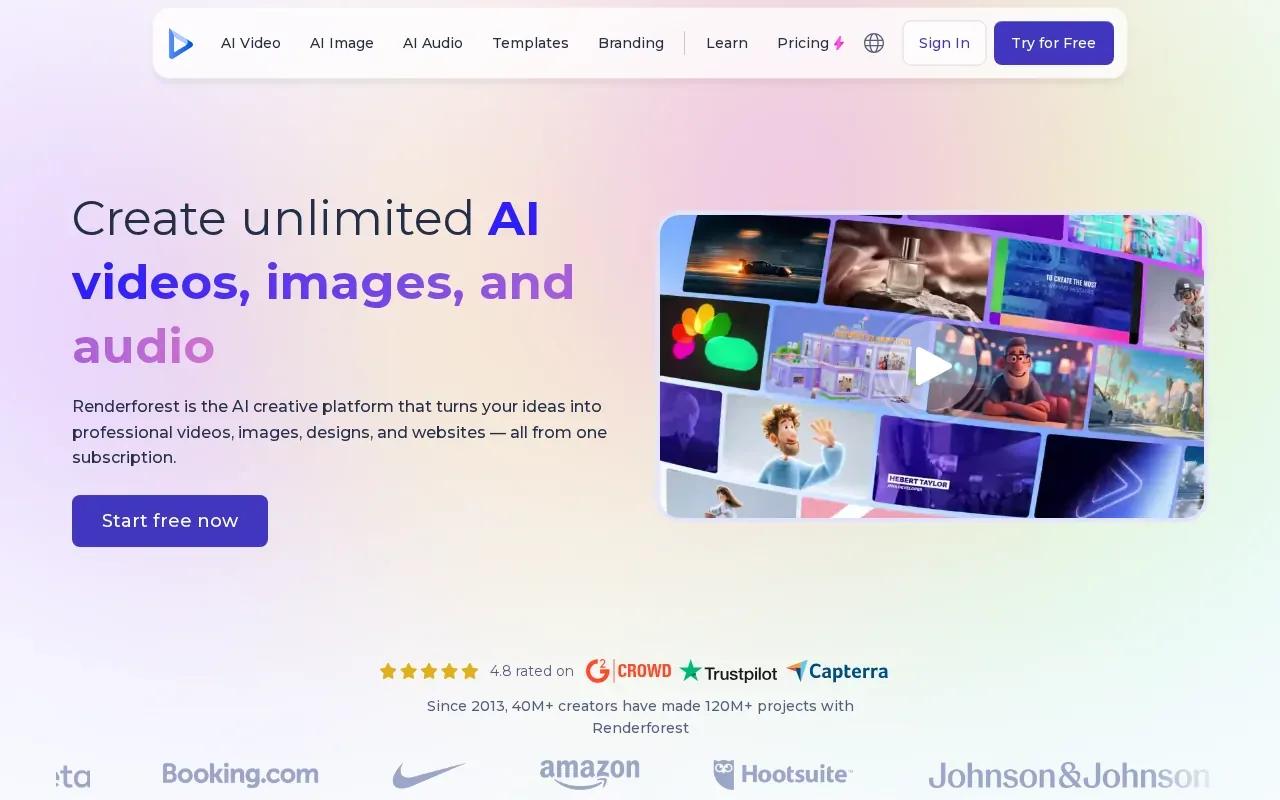
Think of a campaign with several posts tied to one launch. A team can plan each video around the same message, then check that the brand look stays consistent before publishing. Keep the script focused on one point per clip. A product announcement, a feature explanation, and a customer question usually need separate videos.
Renderforest’s maximum resolution is 4K. The resolution may suit teams preparing high-resolution output. But if your work depends on directing exact start and end frames, that control isn’t part of the capabilities.
For a repeat campaign, write down the shared visual choices before production starts. That gives teammates a clear target when they make separate assets. If the project instead calls for a generated scene with dialogue and a consistent character, consider Veo Studio’s reference images and synchronized sound.
7. Pictory: Turn scripts and blog posts into social videos
Pictory automatically turns blog posts or scripts into videos. It adds AI voiceover, auto-captions, and background music, which suits teams that have written content ready to adapt for social feeds.
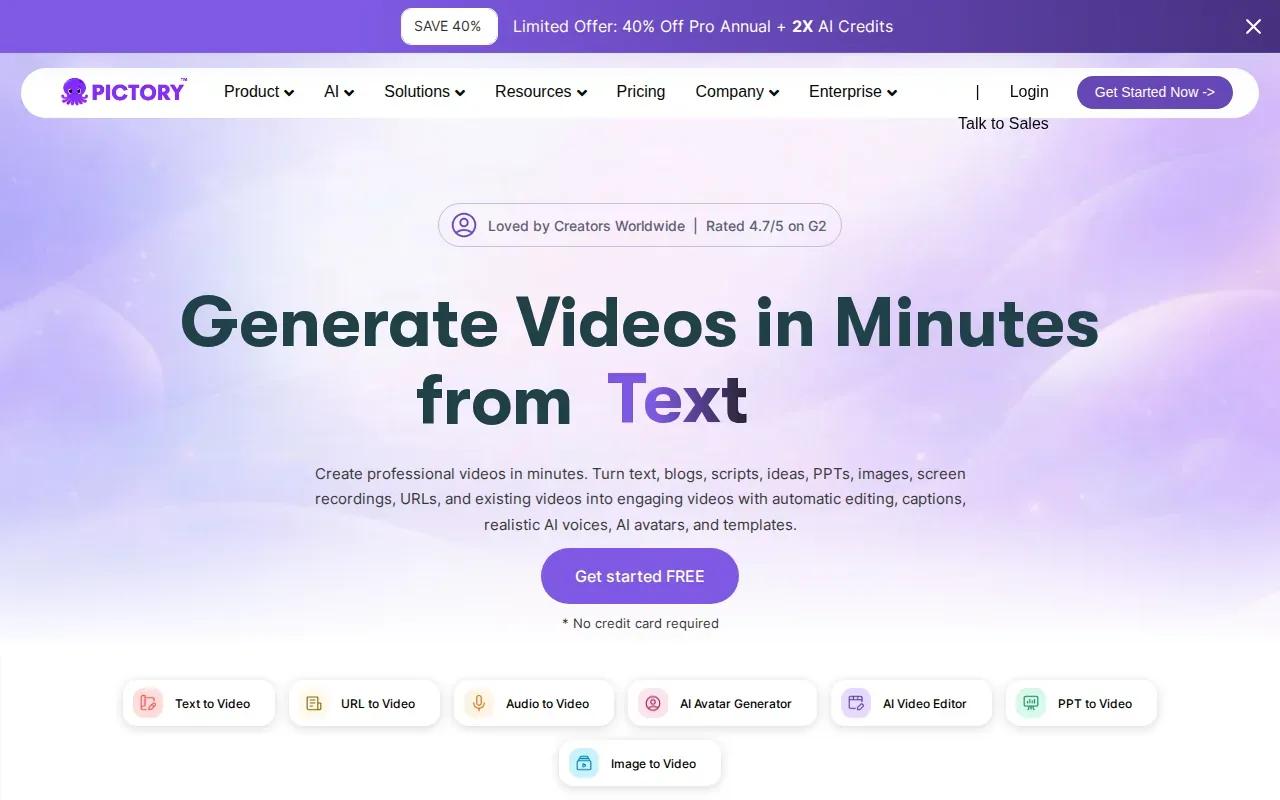
That workflow can help you reuse a useful article without simply posting a block of text. Choose one idea from the source, then make the video about that point. A long post may contain several possible clips, but a short video works best when its message stays narrow.
Captions matter when people watch without sound, and voiceover gives the script a spoken pace. Still, review the result line by line. A caption can be technically correct yet too long to read before the next shot. Break up dense wording and make sure the visuals support the point being spoken.
| What you’re adapting | Why Pictory may fit | What to check before posting |
|---|---|---|
| A blog post | Turns written content into a video draft | Keep the clip focused on one takeaway |
| A prepared script | Adds voiceover, captions, and background music | Check that the voice and captions match the final script |
| A short social post | Creates video output intended for social media | Review the framing and caption timing on a phone |
How to choose a social video tool
Start with the part of production that slows you down. If you need to generate a scene from a prompt or product photo, look for generation features. If you already have footage, editing and subtitle tools may matter more.
- Pick the format first. Use a vertical layout for TikTok, Reels, or Shorts. Choose a square or landscape crop only when it suits the placement.
- Build the opening around one hook. Put the main question, result, or product detail near the start. Cut any warm-up that delays the point.
- Use stock media with care. Stock footage can fill a gap in a narrated video, but a specific product or person may need a supplied reference image or original footage.
- Check captions and sound. Read captions at phone size. Listen for voiceover or dialogue that sounds out of step with the scene.
- Compare the plan with your output needs. Look at resolution, monthly limits, and commercial use before you pay. Veo Studio has a free 720p plan, with paid plans from $14 per month.
FAQ
What’s the best video format for TikTok, Reels, and Shorts?
Vertical 9:16 video is the common format for TikTok, Instagram Reels, and YouTube Shorts. It fills a phone screen and leaves room for captions within the frame. Check each platform’s current upload guidance before publishing, then preview the exported clip on a phone to catch text or key visuals covered by interface elements.
How long should a social media video be?
There isn’t one ideal length for every social video. Keep the clip only as long as it needs to make one point, then remove pauses or repeated lines. A short product hook may need only a few seconds, while a how-to clip needs enough time for its key action. Check the platform’s current limits before you export.
Can I make social videos from a blog post?
Yes. Tools such as Pictory can turn a blog post or script into a video with voiceover, captions, and background music. Pick one useful idea rather than trying to fit the whole article into one clip. Then check the script for clear wording and make sure the visuals support what the voiceover says.
Are free social video tools enough?
Free plans can be enough to test a workflow or make a small number of clips. Check the plan’s video limits and resolution before you build a regular posting schedule. Veo Studio’s free plan includes a couple of 720p videos each month without a card. Paid plans start at $14 per month and include higher resolutions.
Do I need captions on social media videos?
Captions help viewers follow a video when they watch without sound, and they can make spoken content easier to scan. Use automatic captions as a first pass, not a final proofread. Fix names and errors, break up long lines, and preview them on a phone to make sure they stay readable.
Conclusion
If you want prompt-led social clips with synchronized sound, character consistency, frame control, and up to 4K output, start with Veo Studio.


