
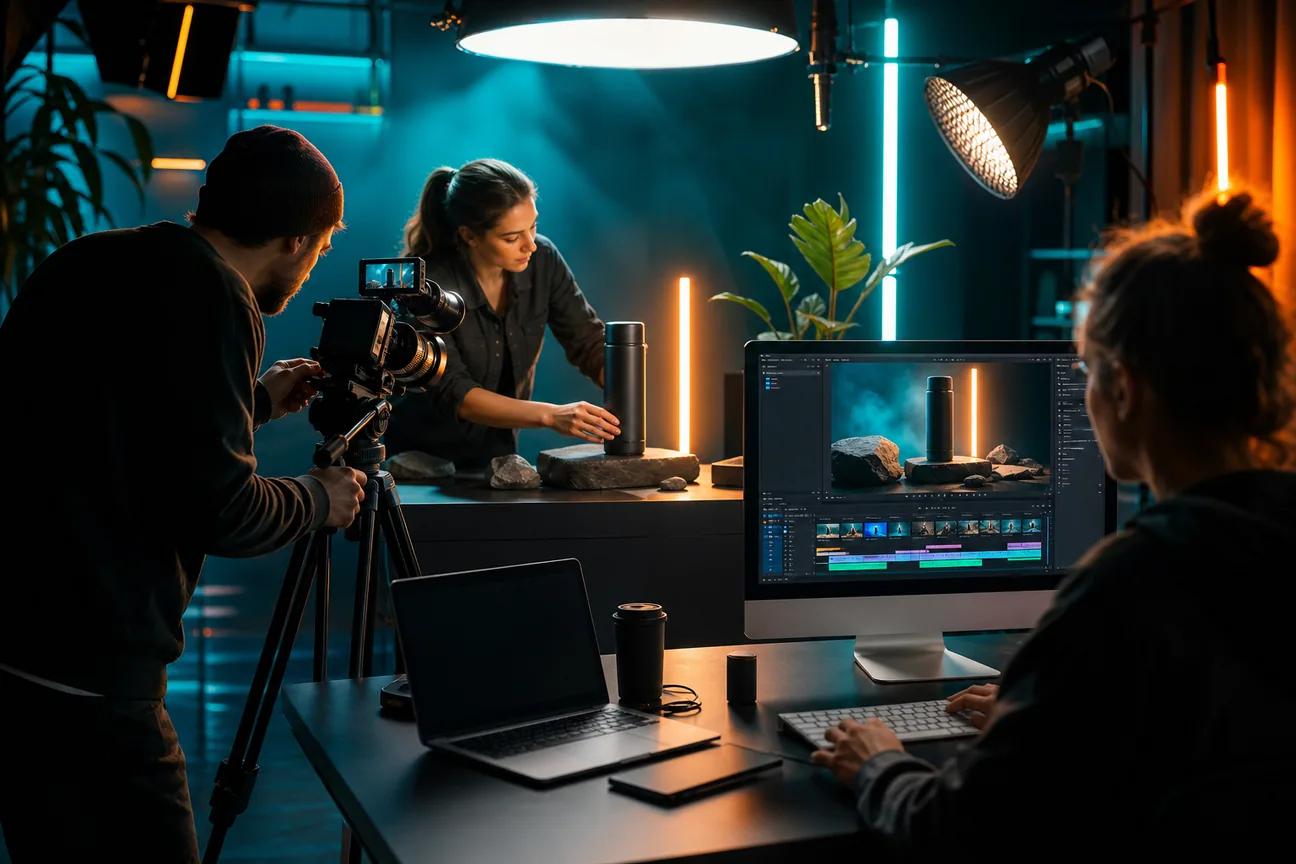
A still product photo can become a moving ad without a full shoot. The right product video maker depends on whether you need generated scenes, quick social edits, or a presenter explaining the item. Here are six named tools, with a clear look at where each fits.
We analyzed 52 comments and questions from YouTube and Quora about product video makers and found that 23% mentioned beginner-friendly tutorials.
1. Veo Studio
Veo Studio is an independent, browser-based AI video creation tool powered by Google's Veo 3.1 models. Add a prompt or reference image, then describe the product shot you want, such as a slow camera move around a watch or a close-up of a mug on a kitchen counter.
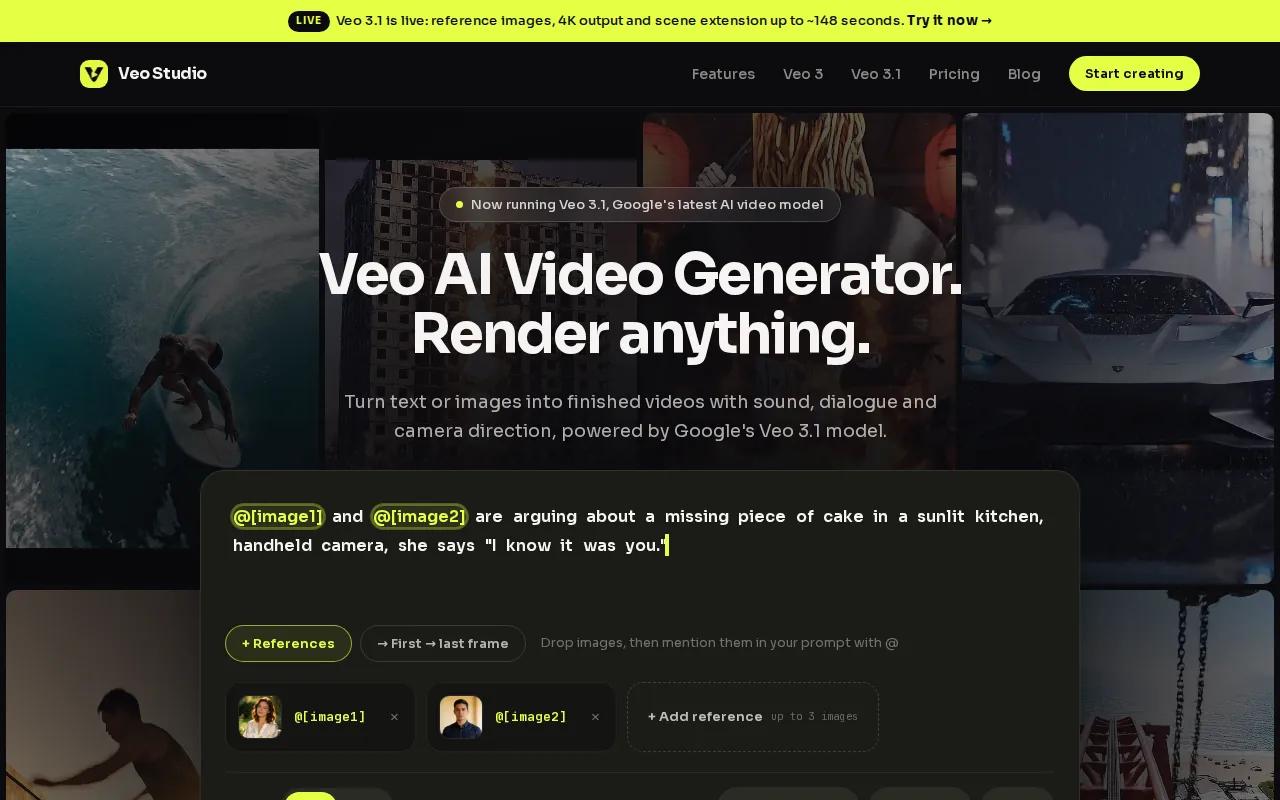
It suits creators who want the sound and picture generated together. Veo Studio supports synchronized sound and dialogue, character consistency, first- and last-frame control, scene extension, and output up to 4K. Reference images can guide the look of a product or character. If you provide a start frame and an end frame, the model generates the motion between them.
That control can help when a clip needs a clear beginning and finish. For instance, set the first frame on a closed box and the last on the item inside, then describe the reveal. You can also extend supported 720p clips in seven-second steps, up to roughly 148 seconds. The exact extension limit depends on the supported model and settings.
The free plan includes a couple of 720p videos a month, with no card required. Paid plans start at $14 per month and include higher resolutions and more video generation.
If your next project is an ad, see these AI-generated product spots and promotional assets for ideas on shaping a brief into a short campaign clip.
One trade-off to plan for: Veo clips start at four, six, or eight seconds. A longer story may need several generations or scene extension. For a short product reveal, though, a focused shot and a clear prompt can be enough.
2. CapCut: A familiar fit for TikTok and Reels
CapCut is a free-tier editor with AI video creation and editing tools. It fits creators who want to turn a script or idea into a social clip, then make hands-on changes before posting.
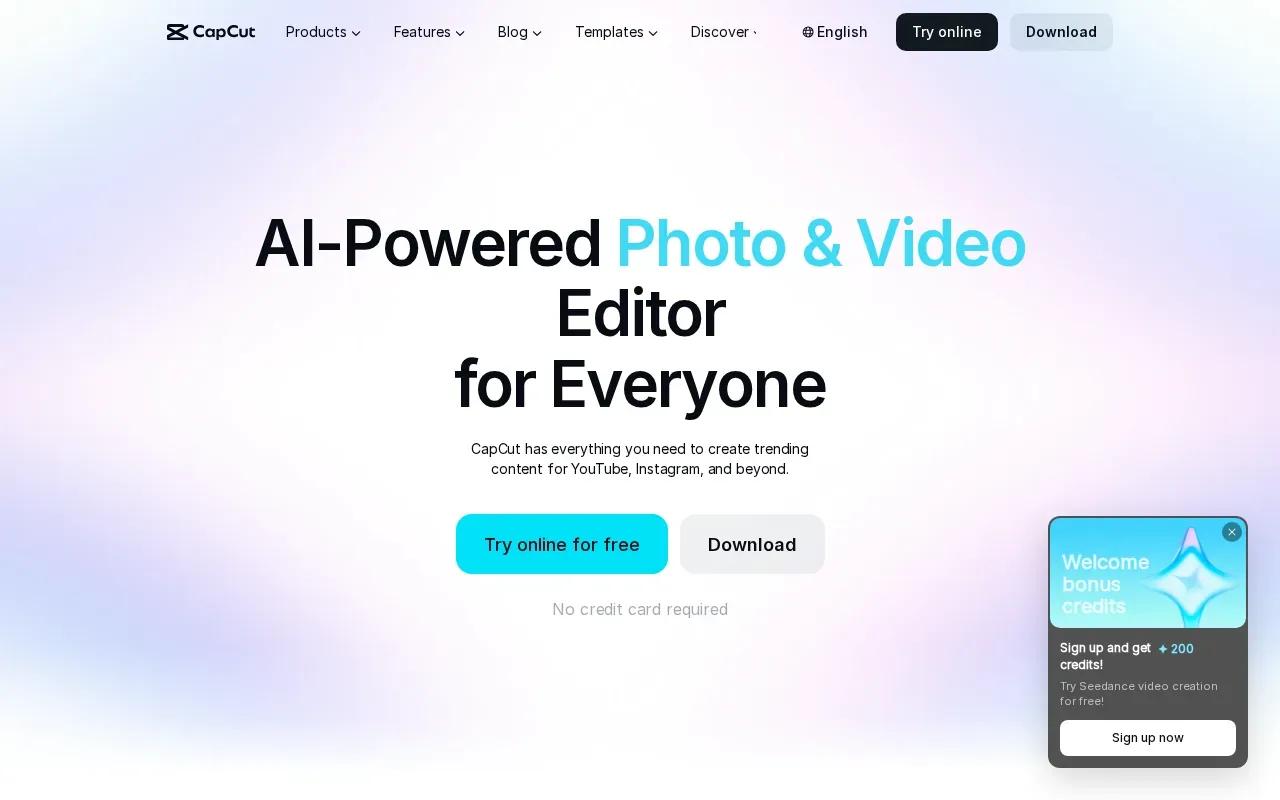
Its AI video generator can draft a video from a prompt and help write a script. You can choose a style and voiceover, then replace visuals or adjust scenes after generation. For a product post, that gives you a way to start with a short feature pitch and refine the visuals around the actual item.
CapCut also has editing tools for captions, music, text, effects, and aspect-ratio changes. Its auto-caption feature can turn speech into on-screen text, while text-to-speech can read a written line aloud. These are useful when you want a vertical cut for TikTok or Instagram and need the key detail to remain clear with the sound off.
The workflow is hands-on after the first draft. Review the product details in every scene, trim any slow opening, and check that captions don’t cover the item.
CapCut makes sense when you want to edit a social post directly. If your main need is native dialogue generated with a scene, compare that need with a tool built around synchronized video and sound.
3. OpenArt: A starting point for character-led product clips
OpenArt is an AI creation platform for making content with characters, stories, brands, and worlds. It can suit a marketer who wants a recurring character or spokesperson to appear in product clips with a more consistent look.
OpenArt supports character consistency. That can be useful when a small campaign needs several related pieces, such as an introduction followed by a short feature explanation. Save the character direction and use it as a reference for later creative work, rather than starting the look from scratch each time.
You can start for free, which gives you a way to test whether the tool’s character-led approach suits your product and visual style before spending on a larger workflow.
OpenArt’s credit use can vary by model and project. Plan a small test first: generate one short scene, check the character and product appearance, then decide if you want to build more clips. A character that stays consistent still needs a clear brief, especially if the item’s shape or color must remain accurate.
A product photo can also be the starting point for a straightforward demo. For a separate look at that format, this product demo video maker overview focuses on showing what an item does.
Choose OpenArt when the character or visual identity is central to the clip. If the product itself needs close, repeatable framing, check each generated shot carefully before using it in a listing or ad.
4. Kapwing: Prompt-to-project creation for channel-ready content
Kapwing can generate a full video project from one prompt. Its AI generator can work with uploaded video, reference images, or audio, and it can produce short scenes, edited videos with stock footage, or videos with AI avatars.
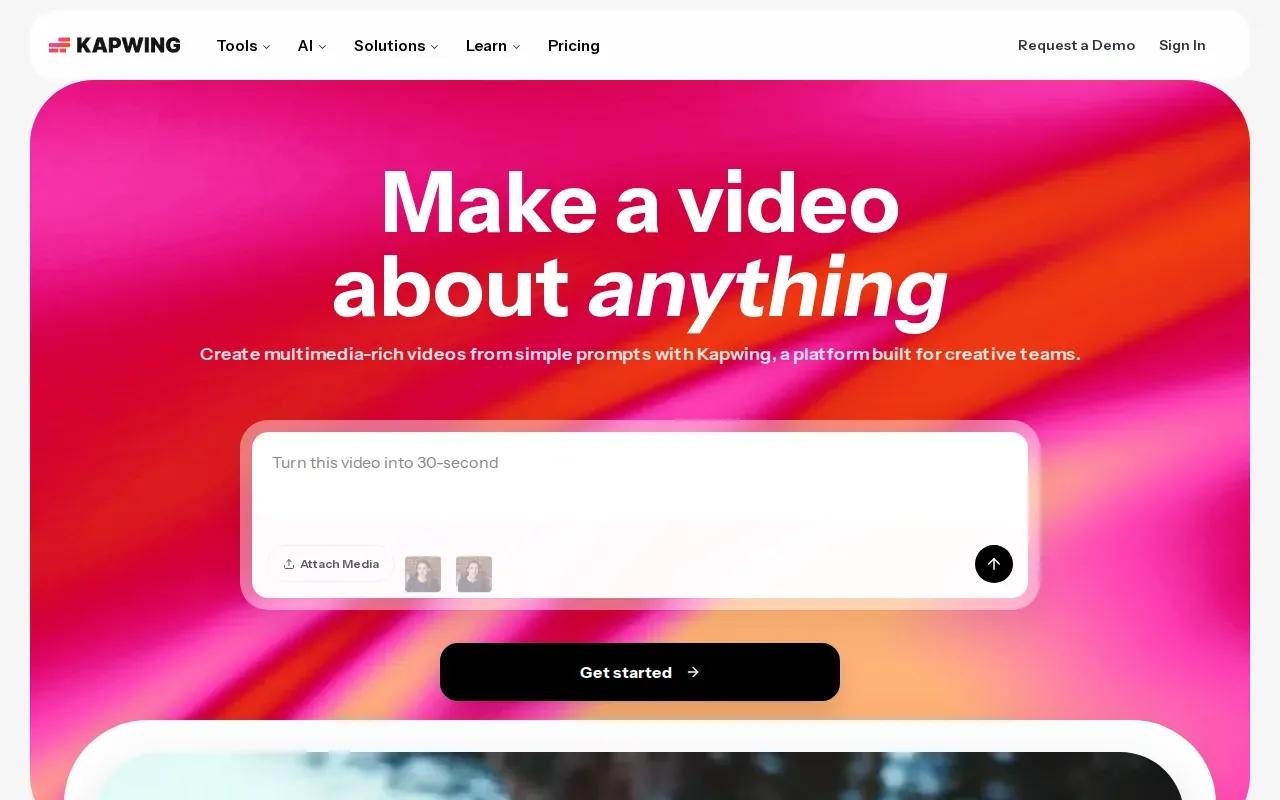
This is a fit when you have a rough idea but need a project draft with more than one piece. A prompt might describe a product problem, the item’s main benefit, and a short closing message. Then you can review the generated project and change its scenes, subtitles, or music in the editor.
For a product clip, describe camera movement and the subject’s focus in your prompt. Say whether the camera should pan across a surface or move closer to a specific feature. If you want multiple angles, describe how the camera switches between them.
Expect to review the first output. Treat the prompt as a first draft, then make targeted changes in the editor rather than repeatedly asking for a complete new project.
For a channel-ready handoff, check the aspect ratio before export and watch the whole file once. A project that reads well on a wide screen may need a different crop for a vertical feed.
5. Runway: A creative toolkit with high-resolution output
Runway combines AI video generation with tools for editing and extending footage. It suits creators who want to start from a prompt, image, or existing video, then make changes to the shot before export.
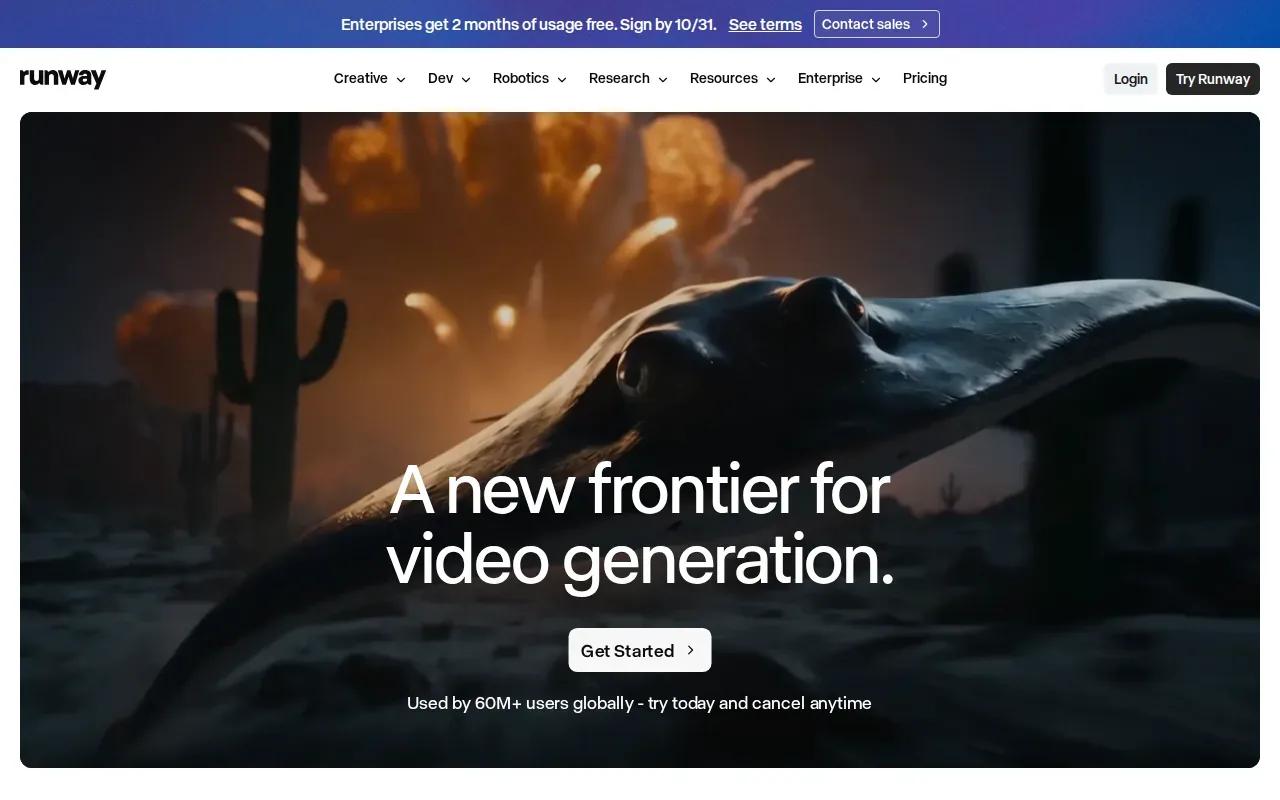
Its editing tools can change lighting, swap a backdrop, or add or remove an object in existing footage. For product work, that can help when a shot needs a new setting or a small visual fix. Runway also supports references for keeping a character’s look consistent across generated shots.
Runway’s supported video models include options with audio generation, and paid plans include 4K upscaling. The 125 credits in its free tier are a one-time amount, not a monthly refill. Use them to test a short concept and see how the editing workflow fits before planning a larger batch of content.
There’s more control here than in a prompt-only workflow, which can mean more choices to review. Start with one clear change, such as replacing the background, and inspect the result around the product’s edges. Then decide whether the shot needs another edit or is ready to export.
Runway is worth considering when you already have footage or still images and want to shape them into a more finished scene. If you’re making a fast social edit, a simpler timeline may suit your process better.
6. Synthesia: Presenter-led product explainers
Synthesia makes videos in which a synthetic presenter reads a script. It fits product explainers where a person speaking to camera can make a feature or use case easier to follow.
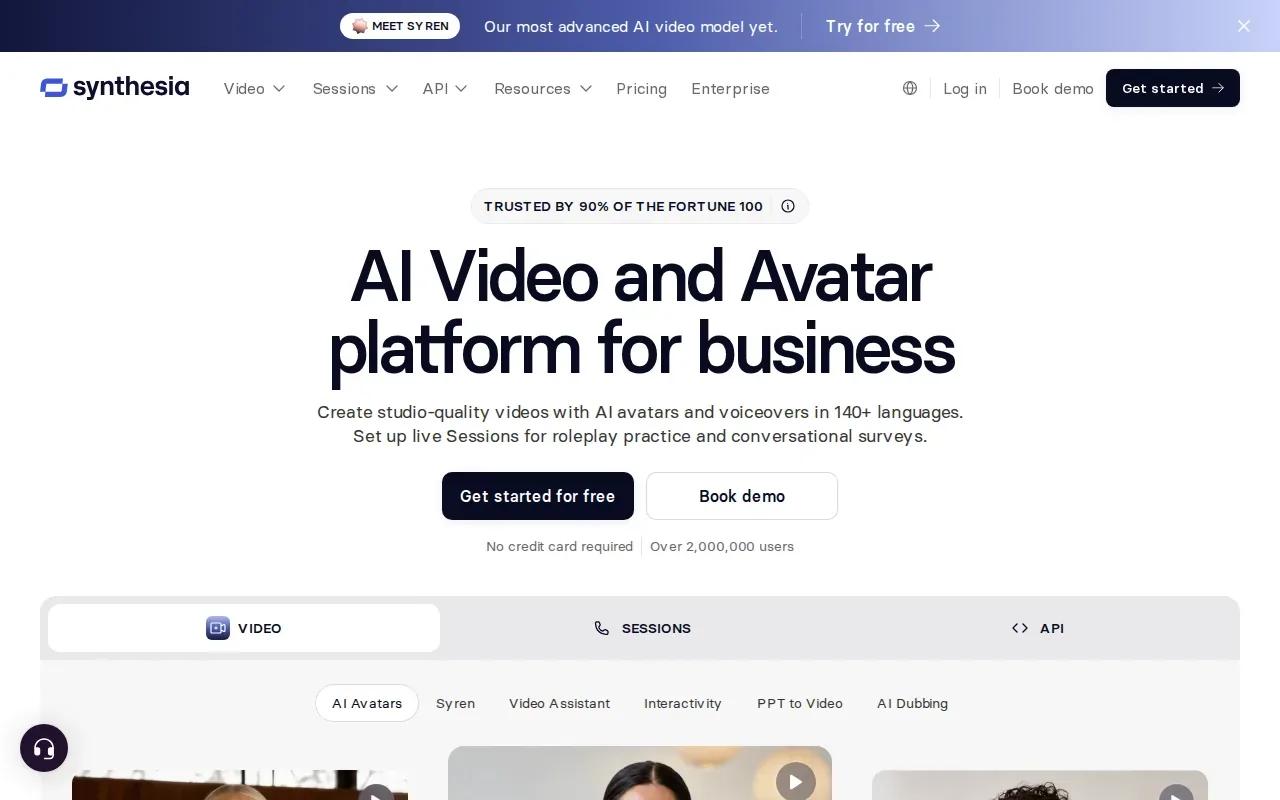
The presenter reads your script with a generated voice, and the dialogue is synchronized with the synthetic speaker. Synthesia’s free tier includes ten minutes of watermarked video per month. That can be enough to test a short explanation before deciding whether a presenter-led format suits your audience.
This format puts the spoken message first. Keep the script focused on one question a customer might have, then use supporting visuals to show the product or feature being described. If the item’s physical detail is the main selling point, pair the presenter with clear product footage rather than relying on the talking head alone.
| What you need | Tool to consider | Reason to look at it |
|---|---|---|
| Generated product scene with synced sound | Veo Studio | Supports synchronized dialogue and sound, reference images, and up to 4K output. |
| Quick social edit with captions | CapCut | Includes editing features such as auto-captions, music, and aspect-ratio changes. |
| Character-led creative | OpenArt | Supports character consistency and starts with free credits. |
| Prompt-led multi-part project | Kapwing | Can generate full video projects from a single prompt. |
| Edits to existing footage | Runway | Includes tools to change lighting or a backdrop and to remove objects. |
| Script read by a synthetic presenter | Synthesia | Creates presenter-led video with generated voice dialogue. |
Use this grid to narrow the shortlist, not to skip a test. A quick sample with your script or product image will show whether the tool’s output matches your brand’s needs.
FAQ: Product Video Maker Tools
What is a product video maker?
A product video maker is a tool for producing or editing video that shows an item, explains a feature, or promotes an offer. Some tools generate scenes from prompts or images. Others focus on editing, captions, or a presenter reading a script. Choose based on the format you need, then review the product details in the finished clip.
Can I make a product video from a photo?
Yes, some tools support reference images or image-led video creation. Veo Studio accepts reference images, while Runway can start with an image or existing video. Describe the motion you want and what the viewer should notice. Then check that the generated shot keeps the item recognizable and doesn’t alter important details.
Which tool works for short social videos?
CapCut is a fit if you want to edit a social clip with features such as captions, music, and aspect-ratio changes. Veo Studio can generate short clips with sound and dialogue. Before posting, check the framing for the target platform and make sure captions remain easy to read on a phone.
What does Veo Studio’s free plan include?
Veo Studio’s free plan includes a couple of 720p videos per month with no card required.
Conclusion
For product scenes where sound, dialogue, reference images, and frame control matter, start with Veo Studio. If your priority is editing an existing social clip or building a presenter-led explainer, compare the alternatives against that specific job. Try one short test with your product image or script, review the result, then build the version you’re ready to publish.


