
A good product demo shows what your product does before a viewer has to ask. But the right tool depends on the job: a quick social clip needs a different workflow from a narrated software walkthrough.
We analyzed 47 comments from YouTube and Reddit about product demo video makers and found that 30% mentioned unified screen-recording and zoom features.
Here are nine options, starting with Veo Studio, an independent browser-based AI video creation tool powered by Google's Veo 3.1 models. Use the shortlist to match your source material, output needs, and audience.
1. Veo Studio
Veo Studio turns text prompts and reference images into video with synchronized sound and dialogue. It suits social creators, brand marketers, small-business advertisers, and filmmakers who want to direct a scene in a browser.
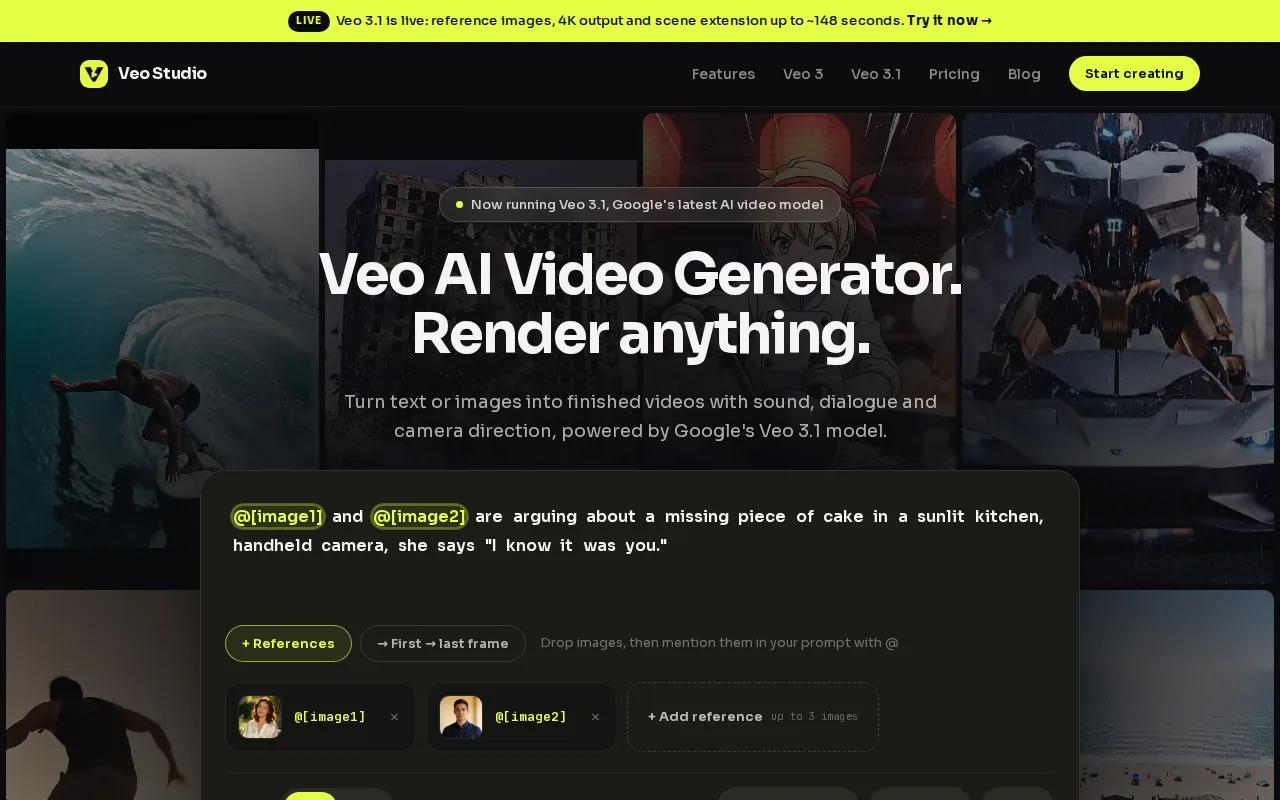
For a product clip, upload a reference image and describe the shot, camera move, and sound. You can attach up to three reference images to help keep a product or character consistent. First- and last-frame control lets you set the opening and ending image, while scene extension adds seven seconds at a time. Output can reach 4K on supported Veo 3.1 settings.
That mix helps when a short demo needs a spoken line or a clear visual start and finish. For example, describe a close-up of a product, then specify the movement and the line of dialogue. Veo Studio generates the picture and synced sound together. Its 9:16 output also suits TikTok, Reels, and YouTube Shorts.
A free plan includes a couple of 720p videos each month with no card required. Paid plans start at $14 per month and include higher resolutions and more video credits. Every plan includes a media gallery and a commercial licence. You can see the workflow and start from the Veo Studio video creation page.
Choose Veo Studio when your idea depends on a particular look, synced speech, or a scene that needs to continue beyond its first clip. Check the final render closely against your product photos before you publish.
2. CapCut: For Social-First Product Clips
CapCut is a fit for social, product, or portfolio creators who want to animate a still image or edit footage into a product clip. Its image-to-video workflow starts with a photo: upload it, describe the motion, then generate a clip.
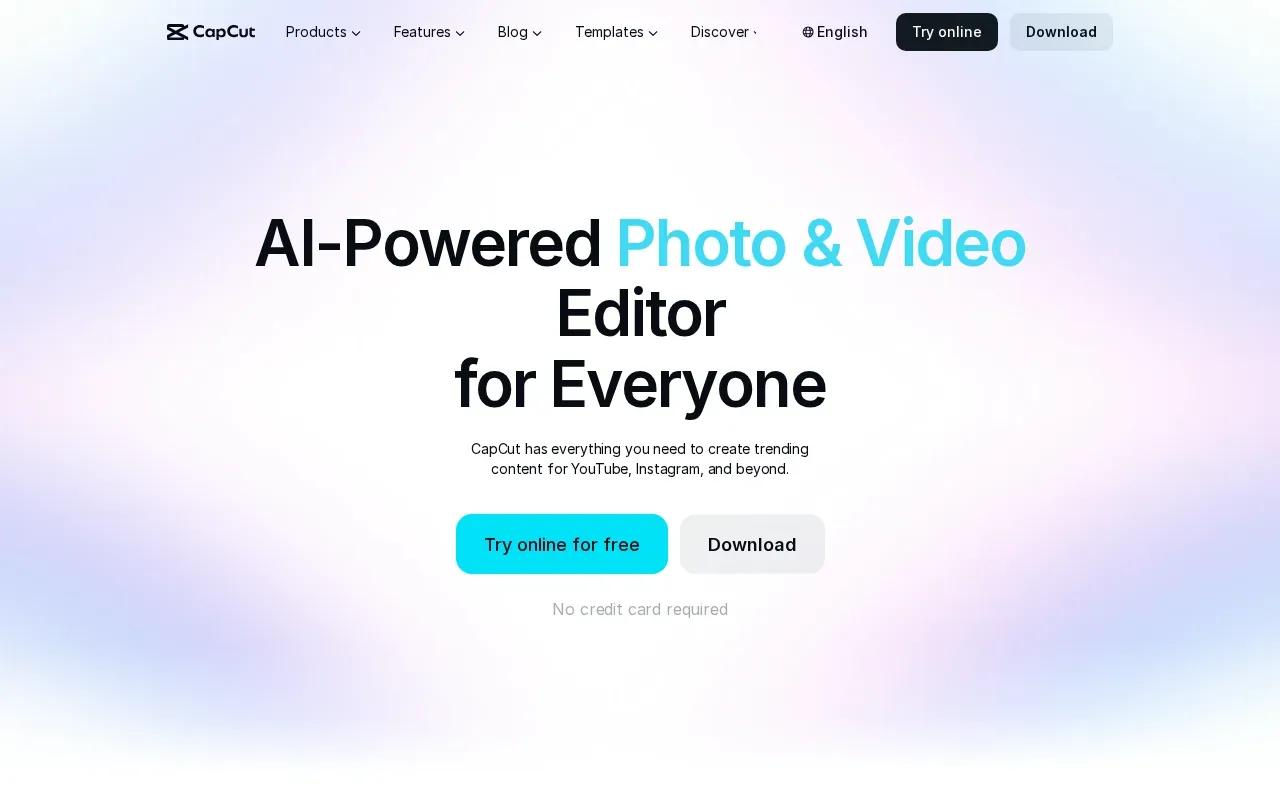
That can help when you have a clean product image but no filmed footage. A seller could start with a photo of a desk lamp and prompt a slow turn toward the shade. Keep the direction focused on what viewers need to see. A long prompt with several unrelated actions can make it harder to judge whether the result supports the product story.
CapCut's product-demo workflow also offers templates with footage, text, and graphic placeholders. After capture, you can trim footage, add captions or music, and refine the edit before exporting.
The fit is strongest when you want a direct path from product footage to a social-ready edit. If the video needs a fixed character across scenes or a longer, dialogue-led sequence, compare those needs against the features of each tool before you commit.
3. Kapwing: For Prompt-Based Marketing Videos
Kapwing can turn a prompt into a video project. It is aimed at marketers, educators, HR professionals, and corporate communications teams that want to start with an idea rather than a finished edit.
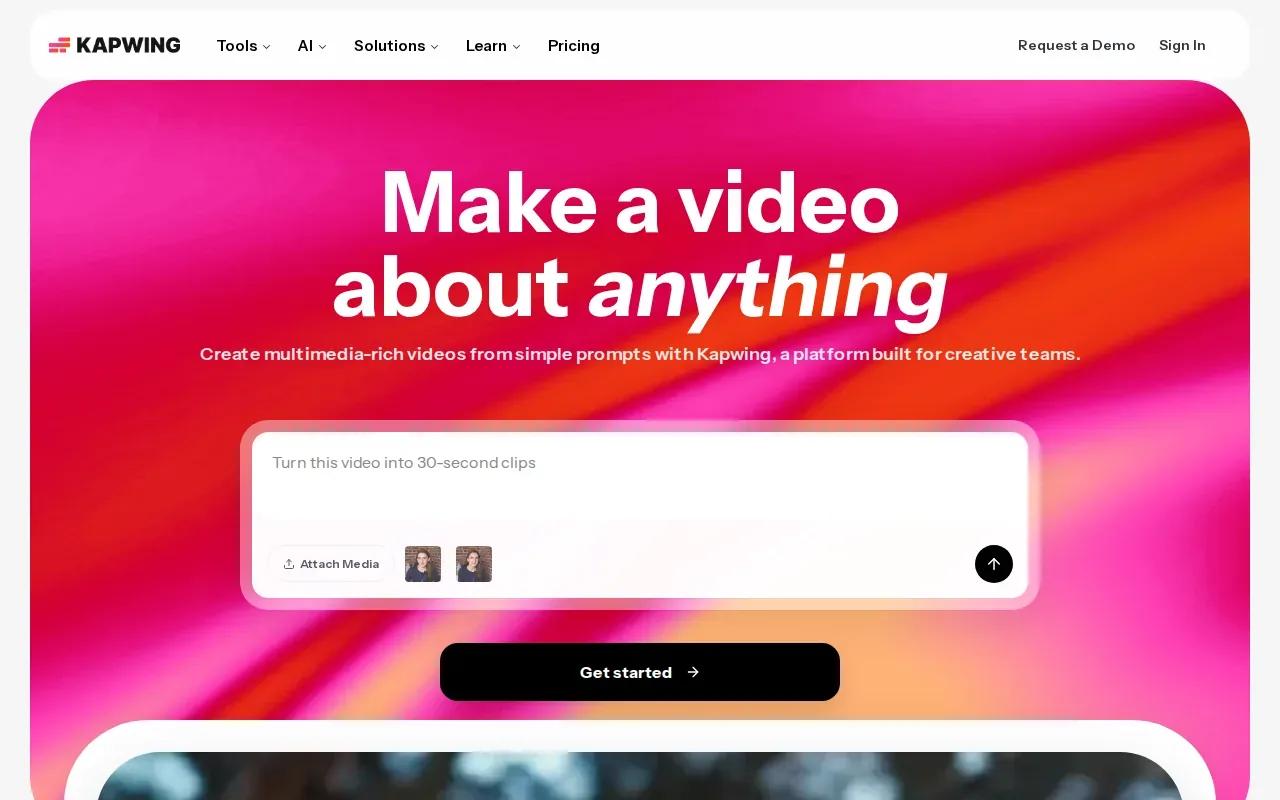
This prompt-led approach can be useful when you have a brief but not yet a shot list. Describe the product, the audience, and the main point the video should make. Then review the project before treating it as a final demo. Check that each scene supports the claim you want viewers to remember.
Kapwing's AI brings a prompt into a project, and more than 30 million creators use its tools. For a marketing team making content across channels, the ability to begin with a short brief can help get a first draft on screen quickly.
A prompt-generated project still needs a human review. Confirm the product details, wording, and sequence. If you need an exact interface walkthrough, make sure the draft shows the real product experience rather than a visual stand-in.
Use Kapwing when your starting point is a written concept and you want a project to shape. Keep your brief narrow: one audience, one use case, and one next action.
4. Veo3 AI: For Prompt-Generated Video With Native Audio
Veo3 AI generates video from text prompts, with native audio, realistic physics, and output up to 4K. It may suit a creator who wants to describe a scene in words and include sound in the generated result.
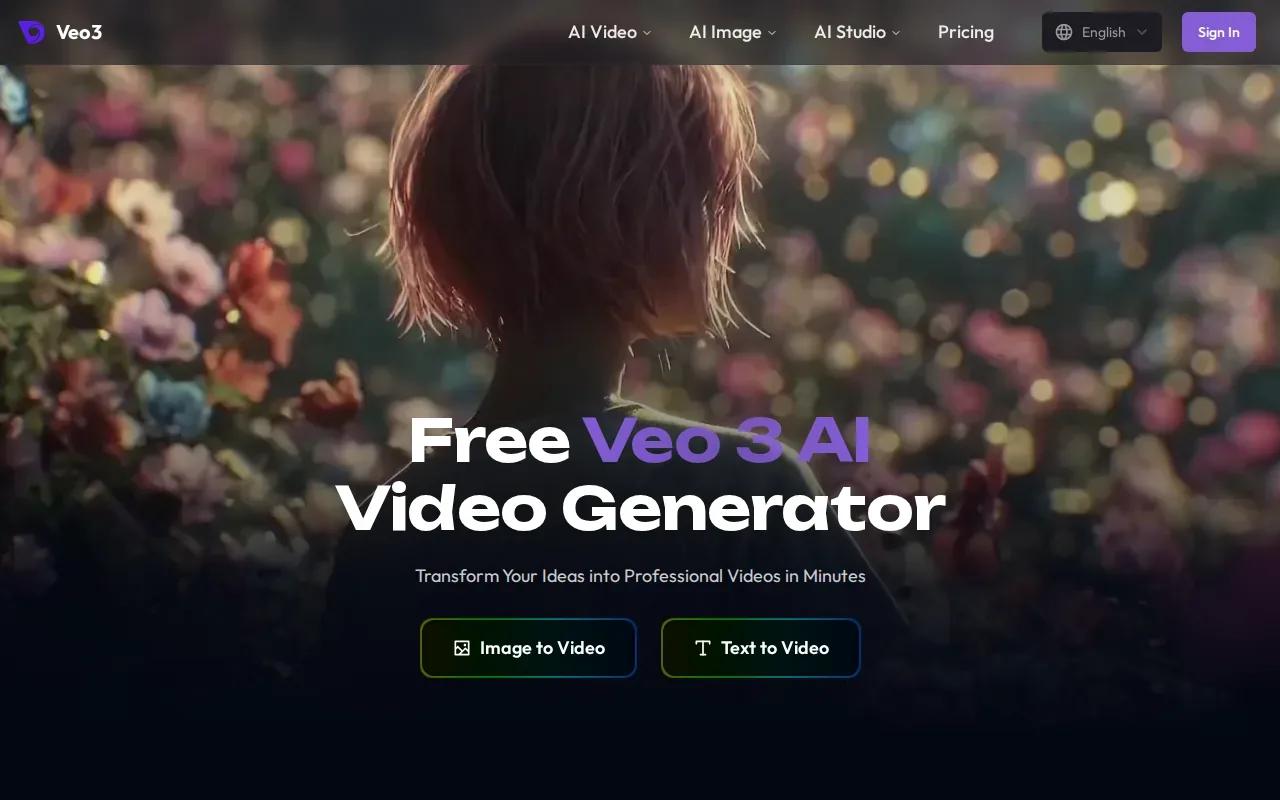
For a product demo, a prompt could describe the setting, the action, and the sound that should accompany it. Think of a close-up shot of a device being used on a workbench, with a clear sound cue as a part clicks into place. A precise prompt gives the model a narrower task than a broad request to make a polished ad.
The capabilities make it relevant for concept-led scenes where sound is part of the idea. Before using generated footage to explain how a real item works, compare each movement and detail with the actual product. A visual that looks convincing can still misstate how the item functions.
Veo3 AI lets users start free. Treat that as a way to test whether prompt-based generation suits your workflow, then check the terms and output settings that apply to your planned use.
This option is most relevant when you want to test a scene from a text prompt and native audio is part of the brief.
5. OpenArt: For Exploring Multiple AI Models
OpenArt brings image, video, and audio models together, with a product demo video maker that starts from a photo, screen recording, or text description. It suits teams that want to try more than one model while shaping a demo.
OpenArt's product demo workflow can build a guided walkthrough around supplied product images or real software screenshots. That can help when the same product needs different versions for different buyer concerns.
For example, a software team might lead one cut with a reporting feature and another with a setup flow. OpenArt also offers a storyboard view and a timeline view for reviewing a draft. OpenArt offers more than 100 models from Google, OpenAI, Seedance, and more, all in one place.
When exact product detail matters, use genuine screenshots or approved product imagery as inputs, then inspect the generated frames. OpenArt has options for adding a logo, saved character, or reference look. Its product video generator can export clips up to 15 seconds on most AI models, with resolution up to 4K.
OpenArt fits a workflow built around trying different visual approaches. It can also help teams make several cuts from a product photo, provided someone checks each version for accuracy and brand fit.
6. Higgsfield AI: For Reference-Led Creative Workflows
Higgsfield AI can create images, videos, and voice content from text prompts or references. It fits creative teams that want to start from visual material and keep related generation and editing tasks in one workflow.
Reference-led work is useful when the brief includes a look that is hard to capture in words alone. You might attach a reference image to guide the setting or visual style, then describe the movement you want. Higgsfield AI lets users edit and upscale media, as well as automate creative workflows with its AI agent.
For a product demo, that range can support a concept moving through more than one type of asset. Start with a reference, generate a video direction, then review the edit. Keep the product's actual features separate from creative choices such as lighting or camera movement. Those visual choices should not imply a function the product does not have.
Higgsfield AI is available on web and mobile. That may suit a team that reviews work across devices. Before adopting a reference-led workflow, decide who owns the approved source images and who signs off on the final cut.
Choose Higgsfield AI when your creative brief depends on references and you want generation, editing, and upscaling in the same broad workflow.
7. Fliki: For Script-Led Presenter Videos
Fliki turns scripts into talking-head videos with lifelike AI avatars. It suits brands and businesses that want a presenter to explain a product without filming a person for every version.
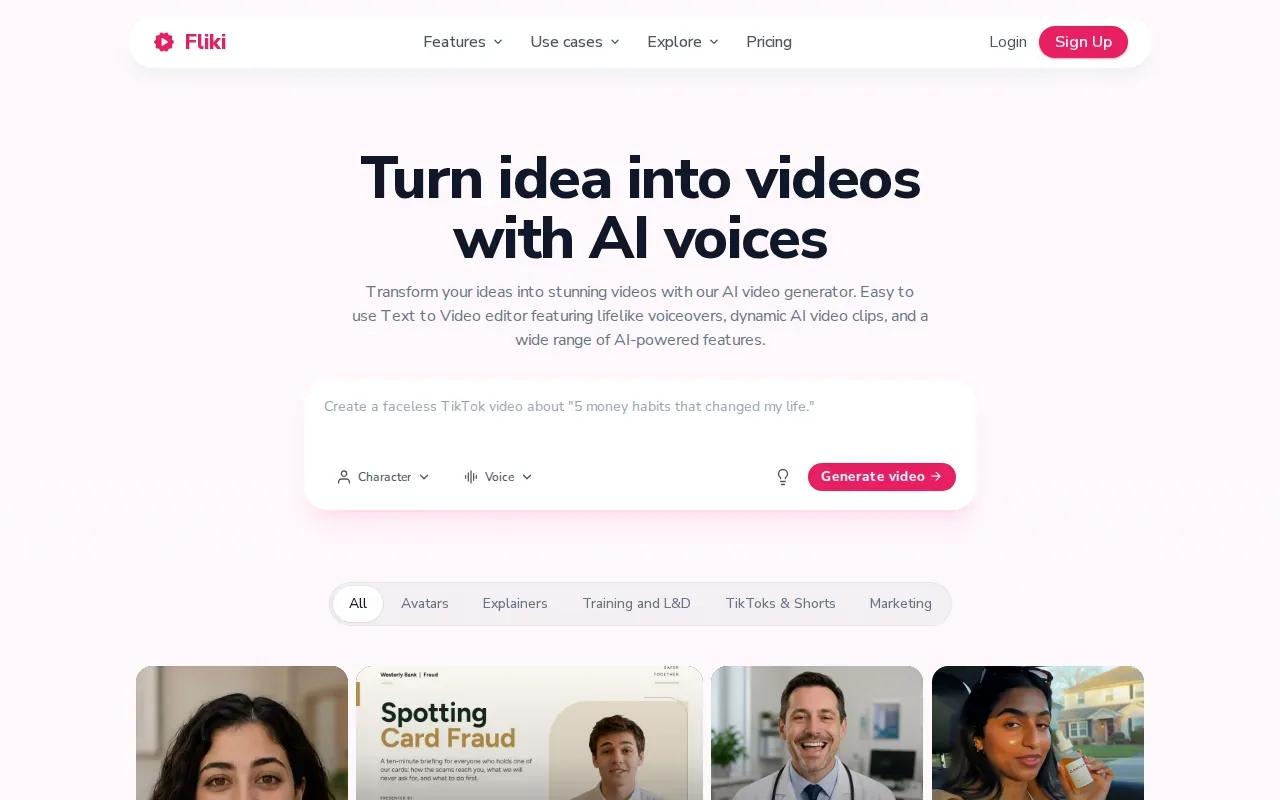
Its avatar or digital twin can keep the same face and voice across scenes, with digital-twin presentations available in 80+ languages. That can help when one message needs a presenter-led version for more than one audience.
A script-led demo needs a clear order. Start with the viewer's problem, show the product in use, then close with one next step. Keep the script grounded in product facts. A polished avatar cannot fix a claim that is vague or inaccurate.
Fliki is used for product demos and marketing videos by creators, brands, and businesses, and you can start free. If you need the same presenter identity across scenes, character consistency is a useful point to test with a short sample before building a full campaign.
Fliki is a natural fit when the spoken explanation leads the video. For a demo that depends on showing a software interface in detail, plan how the presenter and screen content will share the frame.
8. ImagineArt: For Collaborative, Multi-Model Creation
ImagineArt combines chat, workflows, and creative tools with more than 50 image, video, and audio models. Its infinite canvas supports real-time collaboration, which suits teams that want to shape a concept together.
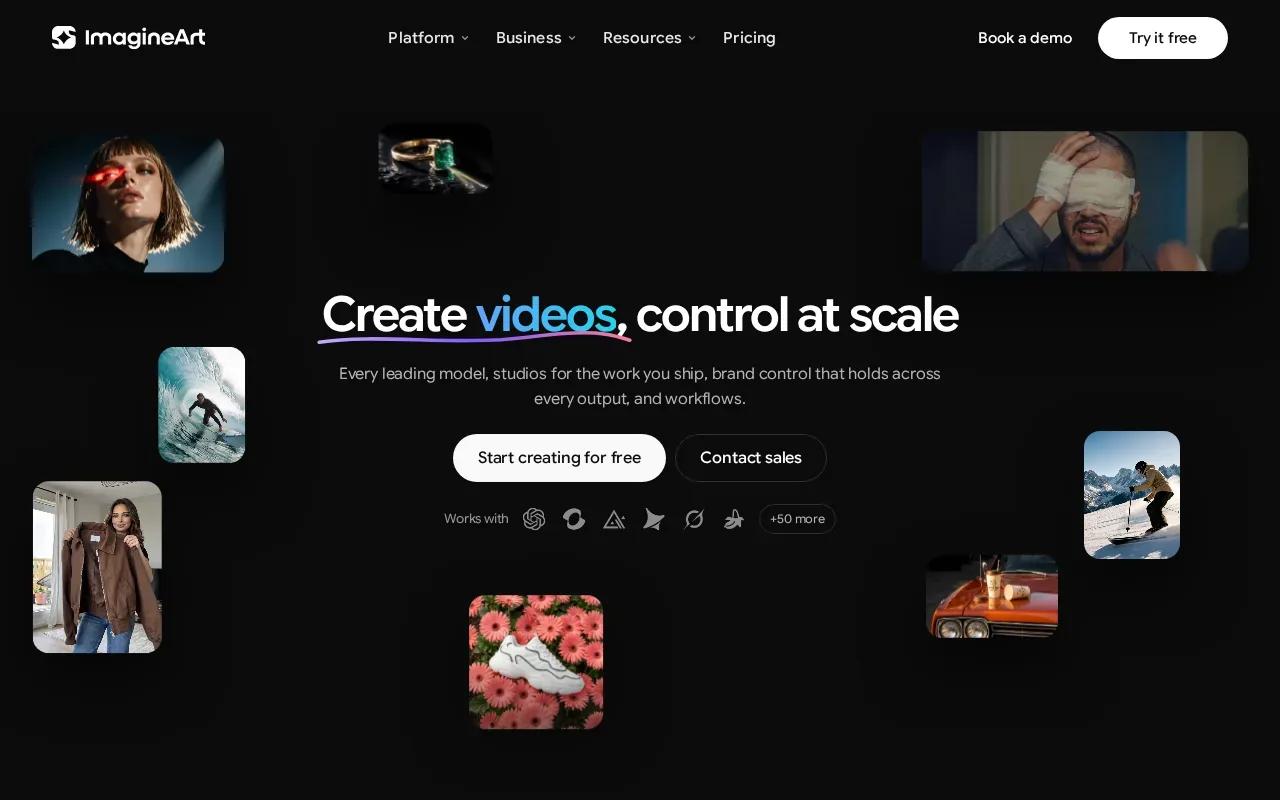
That setup may help when a product video begins as a shared creative brief. A team can discuss the direction, try different models, then work through a visual canvas. ImagineArt also has studios for ads, avatars, fashion, and film, giving creators focused spaces for different types of work.
For a product demo, the team still needs a single clear message. Decide which feature the viewer should see first, then keep the scenes tied to that goal. If several people are reviewing a draft, name one person to approve factual details and one to approve the creative direction. That keeps feedback from pulling the video in competing directions.
ImagineArt is worth considering when collaborative work and model choice matter more than a single fixed generation path. Its 50-plus model count refers to the platform's image, video, and audio models together, not just video generation.
Use the shared canvas to explore ideas, then narrow the brief before final production.
9. AKOOL: For High-Resolution Video Workflows
AKOOL is a generative AI platform for visual marketing and advertising. It can create 4K videos, which may suit teams working on high-resolution video tasks.
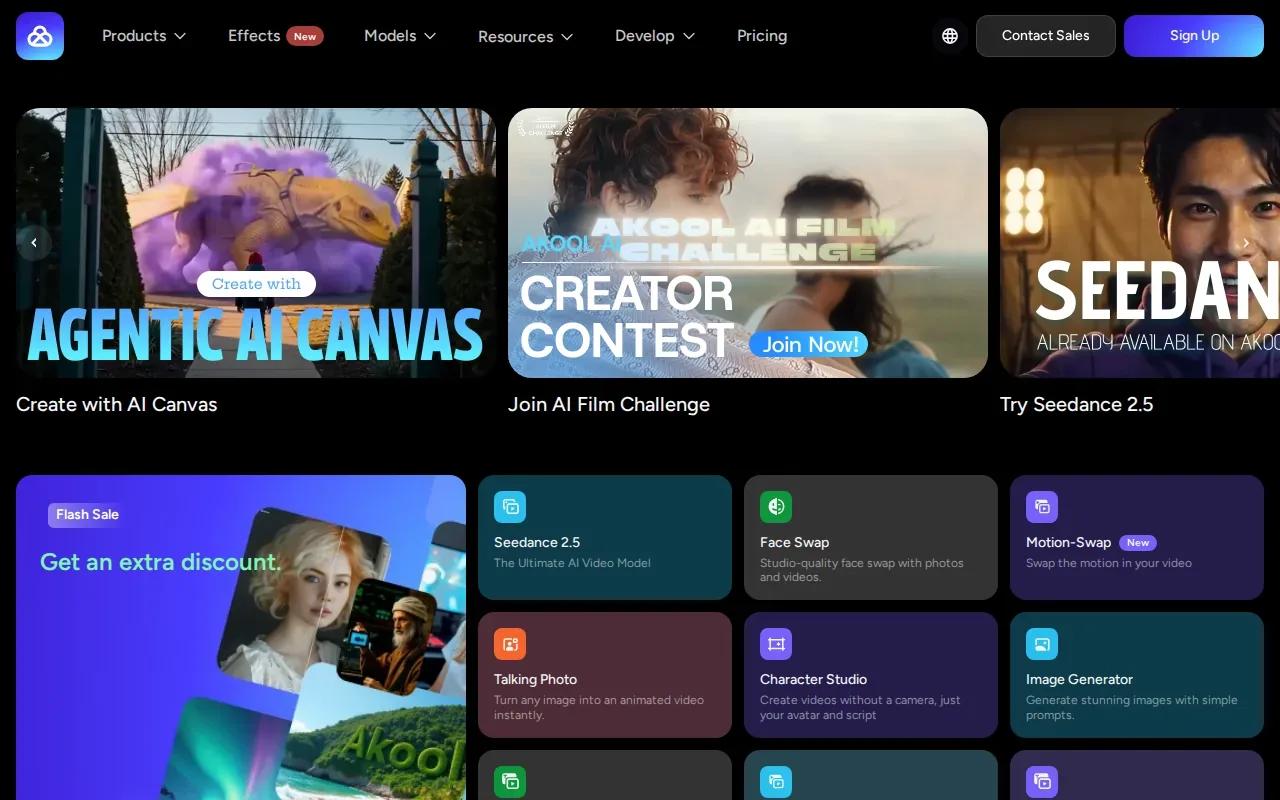
AKOOL also offers a Video Agent and Agentic Canvas. For a team considering a longer walkthrough, those details are worth checking against the exact production flow you need.
A longer runtime can make room for more explanation, but it does not automatically make a demo clearer. Break the video into sections that each show a distinct part of the product. If a viewer only needs to understand one feature, give that scene a clear start and end so it can work on its own.
Confirm the current plan terms and output settings before you build a workflow around AKOOL.
Consider AKOOL when the brief calls for high-resolution output. Match the export settings to where the audience will watch; the largest available file is not always the right one for a mobile feed.
Product Demo Video Maker Comparison: Which Tool Fits Your Use Case?
A tool is a better fit when its main workflow matches the material you already have. Start by asking whether your demo begins with a prompt, a product photo, a screen recording, or a script. Then check the output you need and how the viewer will watch it.
| Tool | Good fit when you need | Input or workflow to consider |
|---|---|---|
| Veo Studio | Prompt-led scenes with synchronized sound, dialogue, frame control, scene extension, or up to 4K output | Text prompts or reference images |
| CapCut | A social-first clip from a still image | Product photo |
| Kapwing | A first project built from a prompt | Written brief |
| Veo3 AI | Prompt-generated video with native audio | Text prompt |
| OpenArt | Exploring multiple models | AI models |
| Higgsfield AI | Reference-led creation with editing and upscaling | Prompt or reference |
| Fliki | A script-led presenter video with a consistent avatar | Script |
| ImagineArt | Collaborative work across multiple image, video, and audio models | Shared canvas and workflows |
| AKOOL | High-resolution output workflows | Video creation tools and agent features |
For a small business starting with product photos, compare image-to-video workflows first. For software, favor a tool that can use real screen content or support a clear walkthrough. For an avatar-led explanation, test how the voice and presenter feel with your own script.
Veo Studio is a useful place to start if your concept relies on synced dialogue, consistent visual references, or scene extension. If the goal is a paid or social campaign, the site's commercial video maker comparison looks at tools for ad workflows and output needs.
A Practical Checklist for Making Product Demo Videos That Convert
A product demo video shows how an item or service works, what it helps the viewer do, or how a feature fits into a task. Its job is to replace a claim with a clear view of the product in action. That can help a viewer understand the offer, build confidence in what they see, and decide whether to take the next step.
Plan the point before the visuals
Write one sentence that says what the viewer should understand. Then choose one audience and one feature or task to show. A demo that tries to explain every feature can bury the most useful proof.
- Name the viewer and the problem they want to solve.
- Pick the product action that proves your main point.
- Choose one call to action, such as viewing a product page or starting a trial.
Script and capture only what supports the point
Write a short opening, show the product doing the task, then close with the next step. For software, record the real interface and keep the cursor path easy to follow. For a physical item, show the part or action that explains its use. Use a prompt or reference image when generated visuals suit the concept, and check that they do not change the product's appearance or imply a feature it lacks.
Keep the demo as short as the message allows. A landing-page clip may need less detail than a sales walkthrough. Split a long explanation into separate clips if viewers need different parts.
Edit for clear viewing on the target channel
Use the aspect ratio that fits the placement. Check that key text stays readable on a phone. Add captions or subtitles so the message remains clear when sound is off, and review every line for spelling and timing. If you make versions for more than one language, have a fluent reviewer check the product terms and the spoken message.
Use a consistent logo, color, and visual style. Choose resolution based on the placement and the source footage, then watch the exported file from start to finish. Look for cut-off text, odd transitions, inaccurate interface details, and audio that starts or ends at the wrong moment.
Publish, then measure the action
Give the video a clear title and a description that says what the product does. On a video platform, use the words a likely viewer would search for, but keep the title readable. Add a direct link to the next step on the page where the video appears.
Track views alongside actions that matter to your goal, such as product-page visits, trial starts, or demo requests. Compare results across placements and versions. If a video gets views but few next steps, revisit the opening, the product proof, or the call to action before making more variants.
If you plan an interactive demo, check whether its player supports clickable links or branching choices. Confirm that those features work in the embed, since a downloaded video file may not retain them.
For a prompt-led product clip, Veo Studio can turn text or reference images into video with synchronized sound and dialogue, plus first- and last-frame control. Its AI product video generator comparison can help you think through how image-led and prompt-led tools fit different demo briefs.
Frequently Asked Questions
What is a product demo video?
A product demo video shows how a product works or how someone uses a key feature. It can use screen recording, filmed footage, animation, or AI-generated scenes. A useful demo focuses on one audience and one clear task, then ends with a next step. The goal is to help viewers understand the product through what they see.
How long should a product demo video be?
A product demo should be long enough to show the action and explain its value, but no longer. A short social clip may focus on one feature, while a sales walkthrough may need more context. Cut details that do not help the viewer understand the product or decide what to do next.
Can I make a product demo video from a photo?
Yes, some AI video tools can animate a product photo into a clip. CapCut describes an image-to-video workflow where you upload a photo and describe the motion. Veo Studio also accepts reference images. Review the result carefully to make sure the product still looks accurate and the motion makes sense.
What should a product demo video include?
A useful demo names the product or feature, shows it in use, and explains what the viewer can do with it. Keep the message focused on one audience. Add captions when they help viewers follow along without sound, then end with one clear action, such as visiting a product page or starting a trial.
How do I measure whether a product demo video works?
Start with the action the video should prompt, then track that action alongside views. Depending on the goal, useful measures may include product-page visits, trial starts, or demo requests. Compare versions or placements over the same period. If viewers watch but do not act, review the opening and call to action.
Which tool should I try first?
Start with the tool that matches the material you already have. Veo Studio is a fit for prompt- or image-led scenes that need synchronized sound, dialogue, frame control, scene extension, or up to 4K output. If you have a script for an avatar, consider Fliki. For a social edit from footage, compare CapCut's workflow.
Conclusion
Choose the tool around the proof your viewer needs to see. For a prompt- or image-led demo with synchronized dialogue, consistent references, and scene extension, start with Veo Studio. Create a free account, test one short scene, and check the result against your product brief before you build a full campaign.


