A still portrait can become a short scene, a talking presenter, or a playful social clip. The right portrait-to-video AI tool depends on whether you need speech, a distinct visual style, or more control over the shot.
We analyzed 71 YouTube comments about portrait to video AI and found that 32% mentioned detailed prompt instructions.
Here are eight named options, starting with Veo Studio, an independent browser-based tool powered by Google's Veo 3.1 models.
1. Veo Studio
Veo Studio is an independent browser-based tool powered by Google's Veo 3.1 models. It turns prompts and reference images into video with synchronized sound and dialogue. It suits creators who want a portrait to speak or act within a directed scene, rather than only add a simple motion effect.
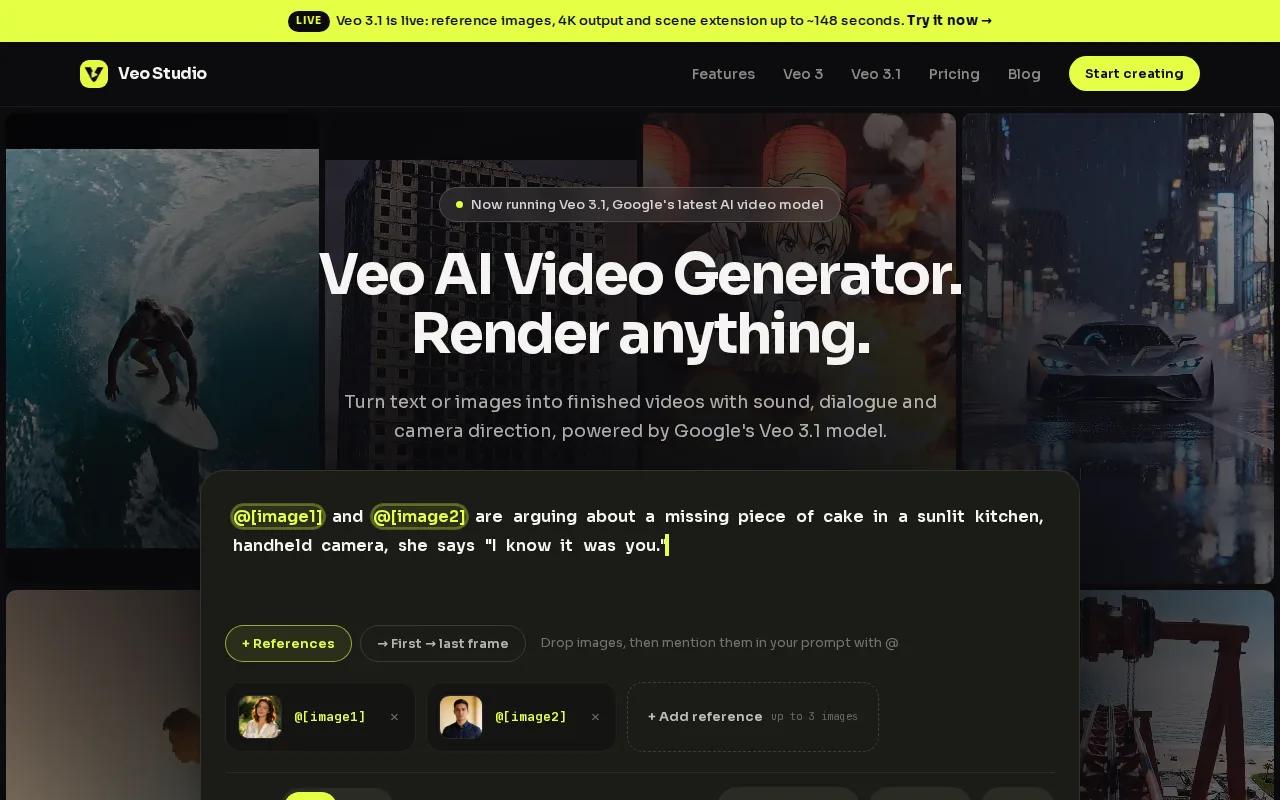
Attach a reference image and describe one main action, such as a person turning toward the camera. You can also guide the shot with first and last frames, then let the model generate the transition. For a short story beat, add a line of dialogue in quotes. Veo Studio can generate matching speech and lip movement with the scene.
Character consistency helps when the same person needs to appear in a sequence. Scene extension can add seven seconds at a time to supported 720p clips. Output can reach 4K on supported plans.
Veo Studio runs in a browser, with nothing to download. The free plan includes a couple of 720p videos each month without a card. Paid plans start at $14 per month and include a commercial licence. If you need a simple starting workflow, this photo-to-video walkthrough covers image choice, format, and review.
For a weekly content batch, use one approved portrait as a reference, then write a separate prompt for each short scene. Keep the face and message consistent while changing the setting or camera move. That's a useful setup for a series of Reels or product updates.
2. HeyGen: Personal-avatar videos using your face and voice
HeyGen creates presenter-style videos with a Personal Avatar based on your face and voice. It fits founders, educators, and teams that want a familiar speaker to deliver scripted updates without filming every take.
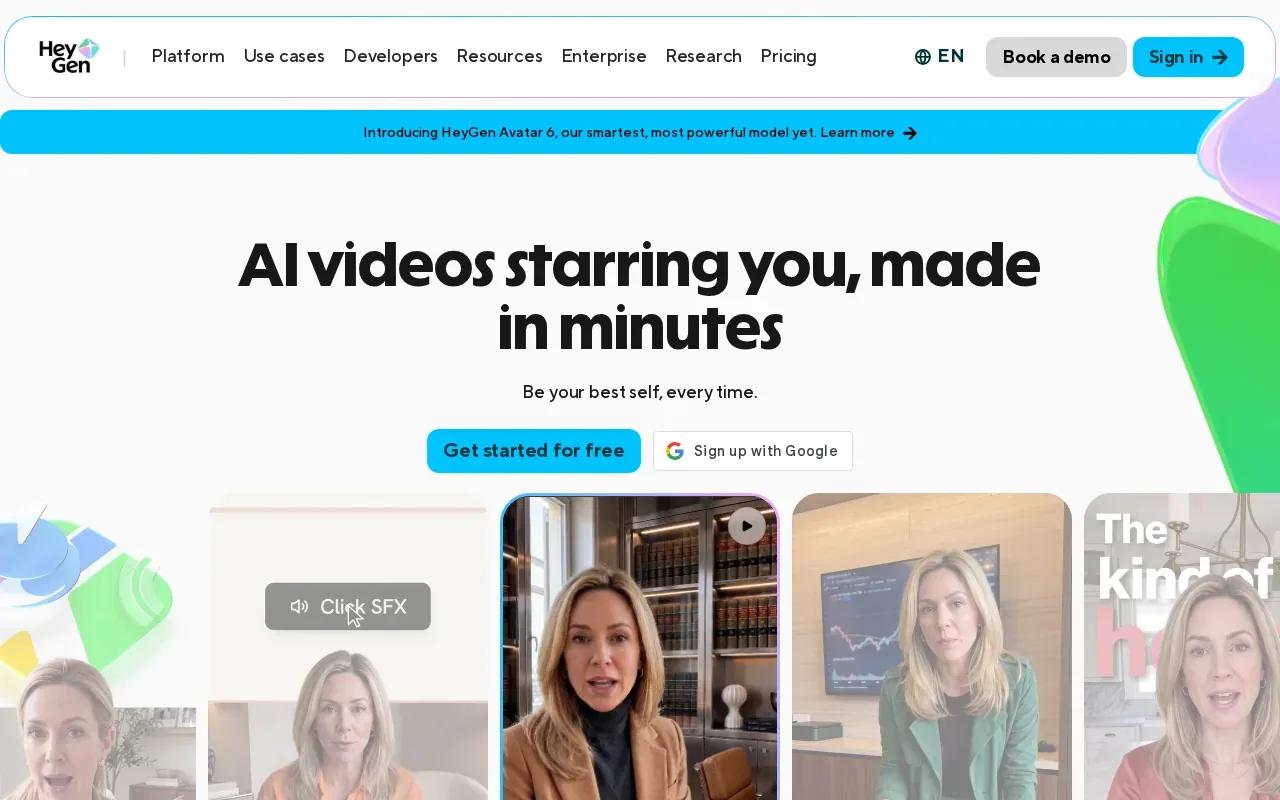
Start with a portrait and provide a script or audio. The avatar's lip movement is matched to the speech, so the photo becomes a speaking presenter. That can suit a short lesson, a product announcement, or a personal message for social media.
HeyGen is especially relevant when the speaker needs to stay front and center. For example, a small team could update a training clip by changing the script rather than arranging another on-camera session. Its Personal Avatar approach also gives creators a way to make presenter-led content with their own face and voice.
Think about the job before you choose. If the video needs a presenter to read exact words, an avatar-led workflow is direct. If you want a portrait to become a broader scene with camera direction and generated sound, compare that need with Veo Studio's reference and frame controls.
A clear source portrait makes a sensible starting point. Keep the script focused on one message, then check that the face and spoken words fit your intended use before publishing. You can compare more talking-head workflows in this overview of AI talking video tools.
3. PixVerse AI: Stylized and anime-inspired portrait animation
PixVerse AI includes stylized photo-to-video effects, including anime-inspired looks. It suits creators who want a portrait animation with a playful or clearly designed feel for a social post.
Instead of aiming for a presenter video, start with the visual style. A portrait might become an anime-style reaction clip or a comic-inspired character moment. That makes PixVerse AI a reasonable option when the look itself is part of the idea.
PixVerse AI can also create a talking avatar from an image and match a character's lips to speech. That gives you another route when the portrait needs to speak, while the stylized effects can keep the result from feeling like a standard talking-head clip.
Try a simple action first, such as a glance, a small turn, or a change in expression. A tightly packed prompt can pull attention in too many directions. If the result is meant for a phone feed, review the face at the final crop before posting.
For a campaign, keep the portrait and visual direction aligned with the rest of the brand assets. A highly stylized clip can stand out in a feed, but it may not fit a formal presenter message. Choose it for the effect, not just because it can animate a still.
4. Pika: Multi-model image-to-video creation
Pika is a creative platform for AI video, images, and audio that lets you work with several video models. It's a fit for illustrators joining related artwork or designers animating a sequence of images.
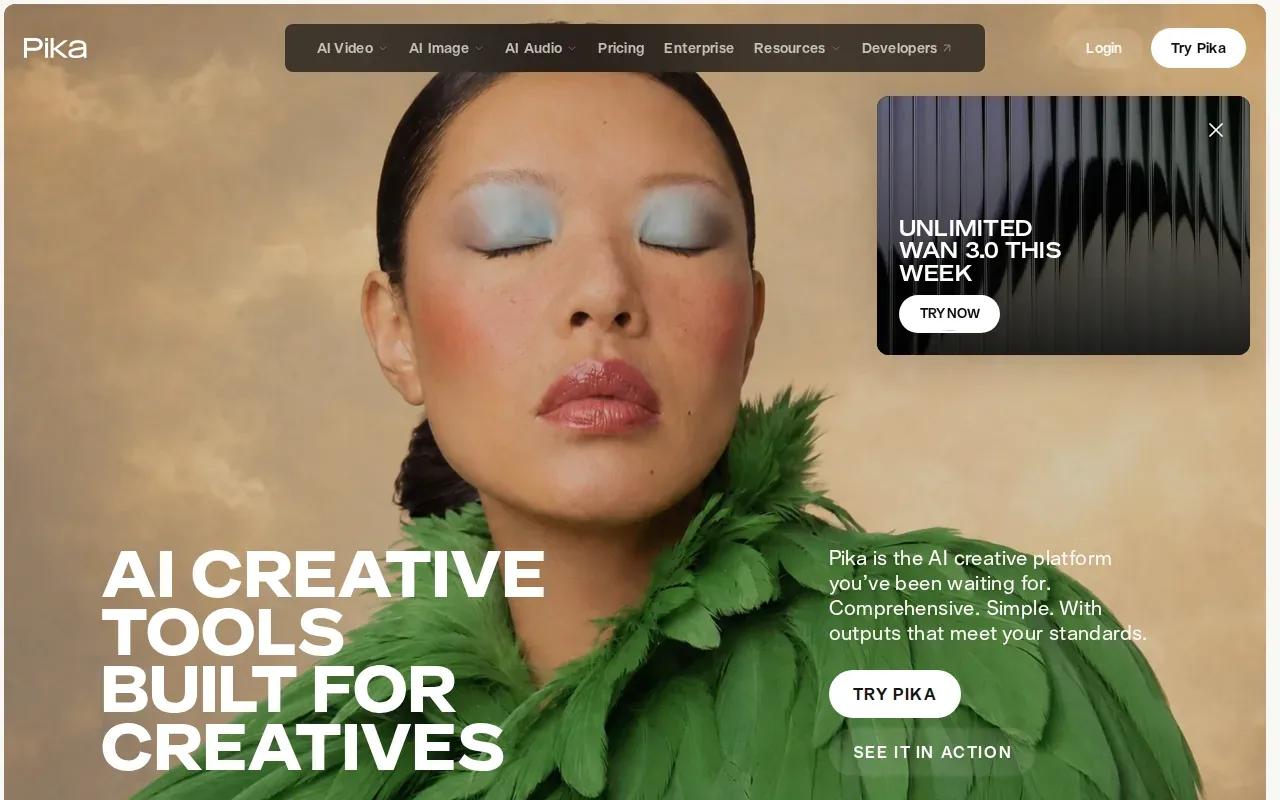
That makes Pika worth considering when the portrait is one frame in a visual set. For example, an illustrator could bring related artwork into a sequence, then see how motion connects the images. The process can help turn still concepts into a moving draft without hand-building every frame.
Pika's multi-model approach is useful if you want to explore different generation options within a creative workflow. Pika output reaches 1080p. Before you begin, decide whether your final destination is a vertical social post or a wider video, then make sure your source images suit that frame.
Keep the action simple at first. A subtle camera move or one change in the subject's pose gives you a clear test of how the artwork animates. If you're building a sequence, review each image transition for shifts in face shape or style before you use the clips together.
Pika is a better fit for image-led experimentation than for a tightly scripted presenter workflow. Use it when you want to connect related visual ideas and compare how a chosen model handles the motion.
5. Adobe Firefly: Video and image editing in Adobe workflows
Adobe Firefly turns uploaded photos or AI-generated images into video and supports editing within Adobe workflows. It suits teams that need short clips for an existing edit, such as B-roll or a transition between footage.
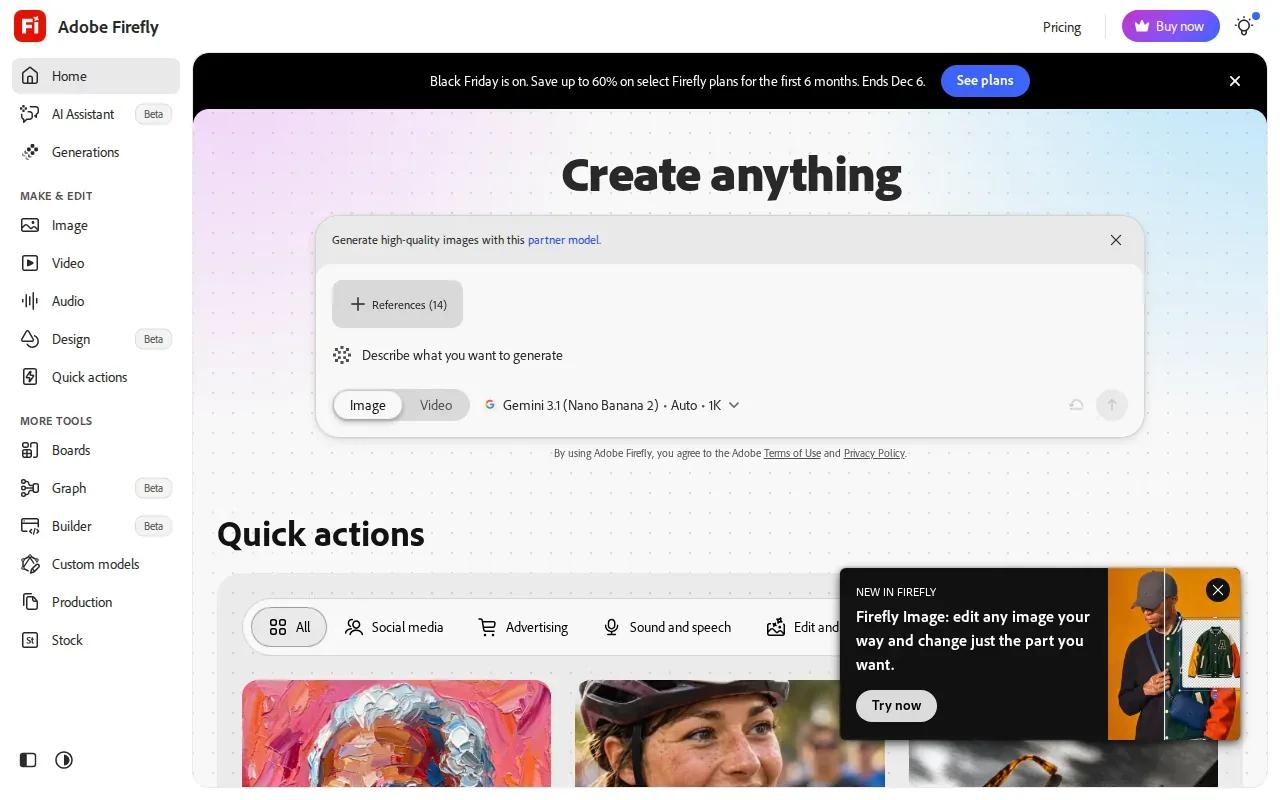
You can provide a starting image and, optionally, an end frame. Then describe the motion and choose a camera move, such as a pan or zoom. That gives you a way to guide a portrait's movement while keeping the source still central to the shot.
Firefly's image-to-video output can reach 4K. Adobe says its Firefly model is trained on licensed content and public-domain content whose copyright has expired.
This workflow makes sense when an editor already has footage and needs a missing shot. A marketer might animate a campaign portrait, export the clip, then place it beside existing footage. The generated video can become one piece of a larger cut rather than the whole deliverable.
For an agency team, the key question is where the generated clip will go next. Firefly's fit is strongest when image-to-video work sits alongside image and video editing in Adobe apps. Match the frame shape to the edit before you generate to avoid extra cropping later.
6. Higgsfield AI: Social clips with sound and lip-sync options
Higgsfield AI suits social editors who want to compare models before choosing a portrait or product clip. Its Lipsync Studio adds audio and lip sync, which can help when a person in the video needs to deliver a line.
You can start with a prompt or a photo, then choose a human-focused scene. That makes the tool relevant for short presenter clips, social ads, or a portrait with a spoken message. The sound and lip-sync options can keep speech tied to the visible face.
Picture a social editor preparing several versions of a campaign. They can test the portrait or product idea, then decide which clip direction fits the post. If the presenter needs to read a specific script, use the lip-sync workflow rather than relying on an unscripted visual effect.
Higgsfield AI's maximum output resolution is 1080p. For most short social posts, decide first whether speech or the visual motion is the main point. That choice helps keep the prompt focused and makes the final preview easier to judge.
A portrait clip still needs a human review. Check the mouth movement alongside the words, then watch the full clip at the size your audience will see. A face that looks fine in a still frame may feel different once it moves.
7. OpenArt: Reusable characters with synced speech and AI music
OpenArt lets you make videos with characters that speak with synced lip movements, alongside original AI music. It also supports character consistency, so you can create a character once and reuse the same face across videos.
That setup fits a creator building a recurring character or a brand that needs a familiar face in more than one clip. Save the character, then reuse it when you make another video. This can help keep a series visually connected without starting the character design from scratch each time.
OpenArt's videos can include synced voice-over and AI-generated music. Its listed maximum output resolution reaches 4K. These tools can suit a short story, a music-led social clip, or a character-led series where speech and soundtrack belong in the same workflow.
The main decision is whether you need a reusable character, a single talking portrait, or both. A recurring character can support a series of posts, while a one-off campaign may need only one portrait and one clear message. Keep the voice and music choices tied to the purpose of the clip.
Preview the generated video with its audio before sharing. Check that the face remains recognizable and the speech feels matched to the scene. That quick review can catch a mismatch before the clip becomes part of a larger content batch.
8. AKOOL: A broad resolution range for avatar and video workflows
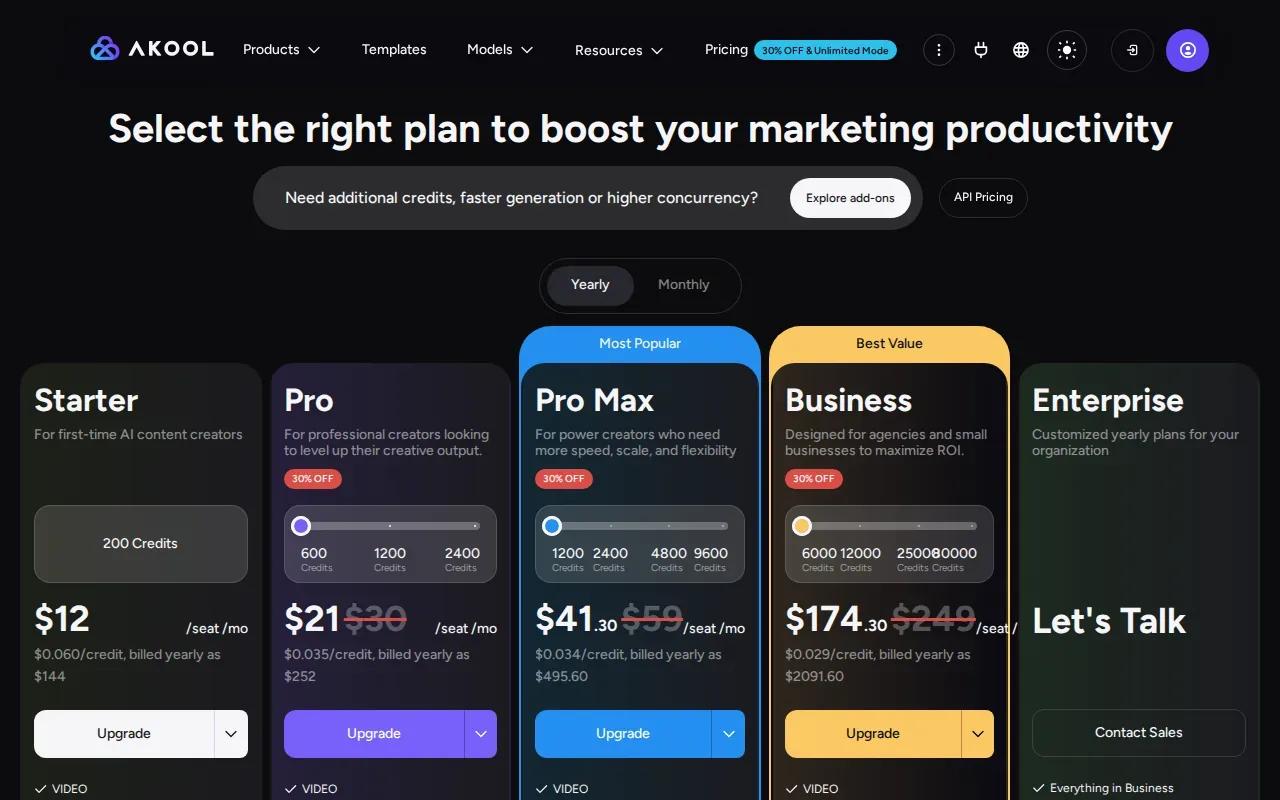
AKOOL supports video generation and avatar workflows, with plans and credit packages for different needs. Its listed maximum resolution reaches up to 16K. It may suit teams comparing output needs alongside tools for avatars, face swap, translation, or collaboration.
Use resolution as one part of the decision, not the whole decision. A very high-resolution export can matter for a large display or a detailed crop. For a quick social post, the key question may instead be whether the portrait moves and speaks the way the campaign requires.
AKOOL's subscription plans and credit packages are intended to cover uses such as video generation, avatars, face swap, translation, and team collaboration. The table below maps those workflow needs to what AKOOL offers.
| Workflow need | AKOOL detail | What to check in your project |
|---|---|---|
| High-resolution output | Up to 16K | Confirm the resolution fits the final display or crop. |
| Avatar or video work | Avatar and video workflows | Decide whether the portrait must speak or simply move. |
| Team use | Plans and credit packages include team collaboration as a use case | Match the plan structure to how your team will create. |
| Related media tasks | Face swap and translation are included among the plan use cases | Check which tasks belong in this particular production. |
Before you choose a plan, estimate how many clips you expect to make and what resolution each needs. A short portrait for a mobile feed has different demands from a video intended for a large screen. Treat those as separate production cases.
FAQ
Can AI turn a portrait photo into a video?
Yes, AI video tools can animate a portrait photo into a short clip. Some focus on stylized motion, while others can make the person speak or place them in a wider scene. Start with a clear image and a prompt that describes one main action. Then check the face and framing in the finished clip.
Which tool can make a portrait speak?
Several options here support speech or lip sync. Veo Studio can generate synchronized sound and dialogue with a scene, while HeyGen uses a Personal Avatar for presenter-style videos. PixVerse AI can create a talking avatar from an image, and Higgsfield AI has Lipsync Studio for audio and lip sync.
How do I write a prompt for portrait animation?
Describe one action first, such as a person turning toward the camera. Add a camera move only if it matters to the shot. If you want dialogue, include the line clearly in a tool that supports speech. A focused prompt is easier to assess than one that asks for several movements at once.
What resolution should I use for a portrait video?
Choose a resolution based on where the clip will appear. A social post may not need the same output as a large-screen video or a close crop. Check the tool's supported resolution, then review the exported clip at its intended size. Veo Studio, Adobe Firefly, and OpenArt support output up to 4K.
Can I use an AI portrait video in an ad?
That depends on the tool's licence terms and the rights you have to the portrait. Veo Studio's plans include a commercial licence. For any real person's image, get permission before animating or publishing it. Also review the generated clip for misleading speech or actions, especially when it looks like a real person.
Conclusion
For portrait clips that need synchronized dialogue, consistent characters, frame control, or scene extension, start with Veo Studio.