
A still photo can become a moving clip, a product spot, or a short scene with sound. The right picture-to-video maker depends on what you need after you upload the image: generated motion, a consistent subject, built-in editing, or a particular export size. Here are five tools, starting with Veo Studio.
We analyzed 42 YouTube comments about picture to video makers and found that 29% mentioned different feature possibilities.
1. Veo Studio
Veo Studio is an independent, browser-based AI video creation tool powered by Google's Veo 3.1 models. Upload a reference image and describe what should happen next, such as a slow camera move toward a product or a character turning toward the light.
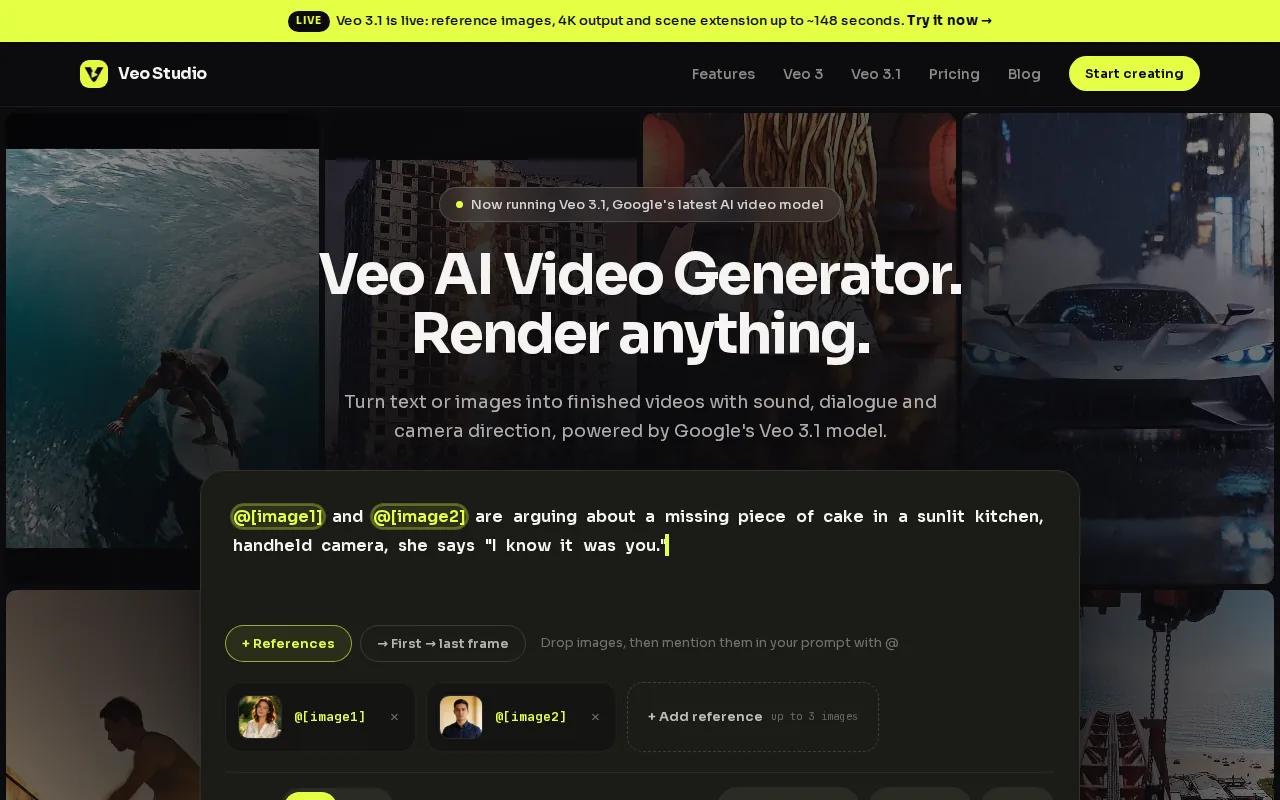
It suits social creators making vertical clips, marketers working from product photos, and filmmakers shaping dialogue-led scenes. Veo Studio can generate synchronized sound and dialogue with the image. You can also guide character consistency, set first and last frames, extend a supported clip, and choose output up to 4K on eligible settings.
Keep the prompt focused. Name one main action and one camera move. If you want a character to speak, put the exact line in quotation marks. For a product spot, attach a clear product image and describe the motion without changing the item’s key look.
The free plan includes a couple of 720p videos each month, with no card required. Paid plans start at $14 per month and add more video volume and higher resolutions. The image-to-video workflow for reference images is useful when you want to plan the source image and motion together.
| What you need | How Veo Studio fits | Useful check before export |
|---|---|---|
| A product clip | Use a product image as a reference and describe the camera move. | Check that the product shape and details stay clear. |
| A spoken scene | Write the dialogue in the prompt for synchronized speech. | Listen for timing and review the character’s mouth movement. |
| A longer sequence | Use scene extension on supported clips. | Review the new section where it joins the earlier footage. |
| A social post | Choose a vertical format for TikTok, Reels, or Shorts. | Check the frame edges and final resolution. |
2. AKOOL: Consistent faces, outfits, and products across shots
AKOOL is an image-to-video option for creators who need the same face, outfit, or product to remain consistent across shots. That can help when a short campaign uses one person or item in several scenes and the sequence should feel like one shoot.
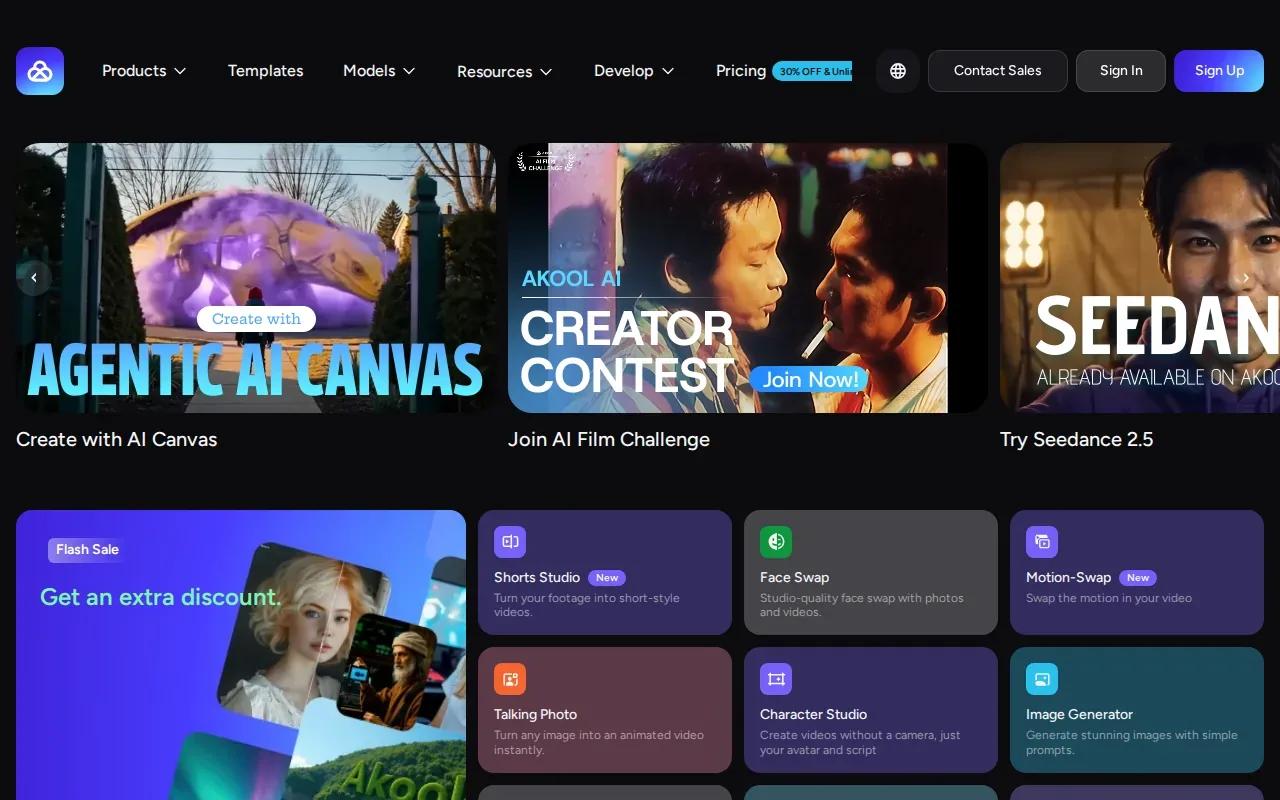
Start with a still image, then plan the set of shots around the subject you need to preserve. AKOOL’s character-consistency feature locks the face, outfit, and product across shots. For a three-shot sequence, that focus can help you keep the same visual identity while changing the scene or shot plan.
Describe how elements should move rather than asking for motion in broad terms alone. For example, a marketer might plan one shot that reveals a product, followed by another that keeps the same item in view.
AKOOL has a free plan with watermarked outputs and no card required. Keep the intended use in mind when you test a draft. A watermark can affect whether a clip is ready to publish or only useful for a review with your team.
AKOOL is a reasonable fit when continuity across shots is the central need. For a single still that only needs one moving scene, compare the workflow and output against your shot’s actual requirements before you build a batch around it.
3. Adobe Firefly: Short image-to-video inserts for B-roll
Adobe Firefly turns an uploaded photo or AI-generated image into a video clip with a prompt. It suits creators who need a moving insert or B-roll shot, especially when they plan to continue editing the clip alongside other footage.
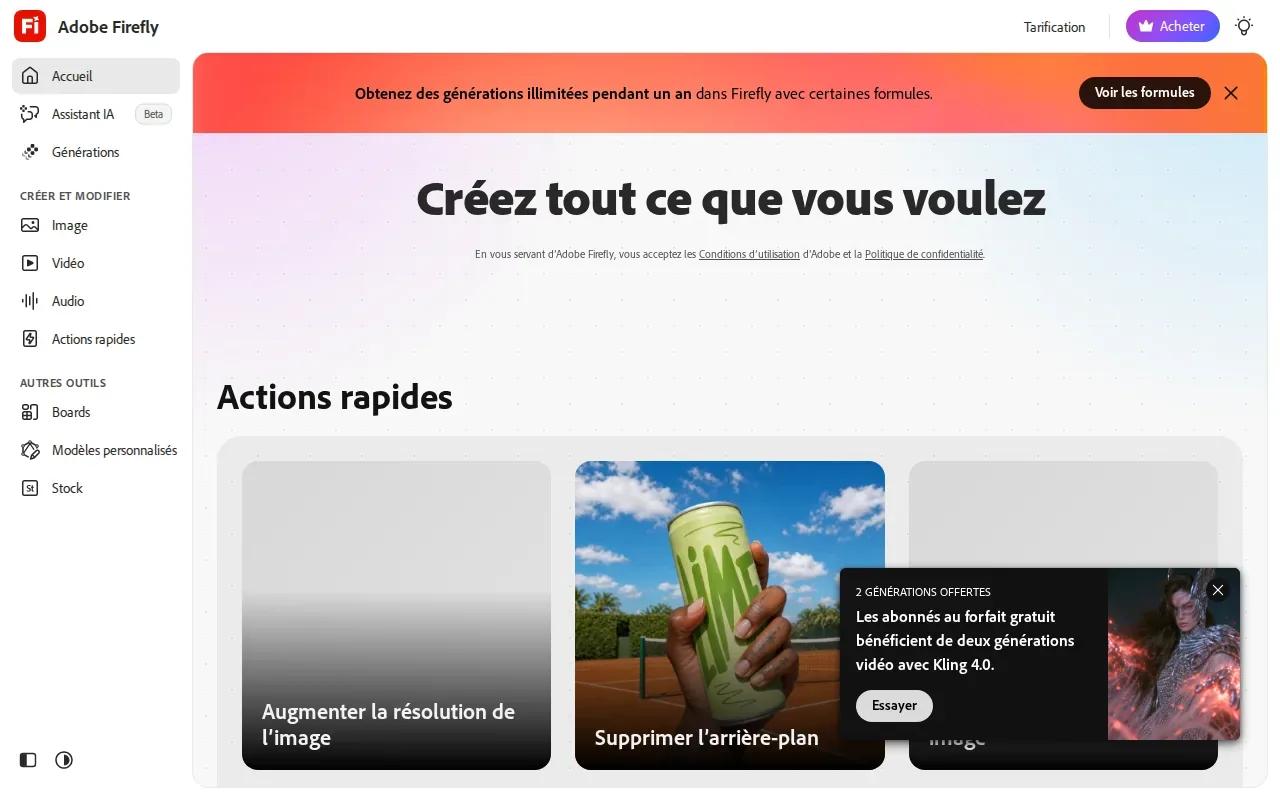
Before generation, you can guide camera movement. Afterward, Firefly lets you refine the result with effects or preset motion styles. Clip length and resolution depend on the AI model you pick. A short clip can work for a cutaway, transition, or product image that needs a brief moment of motion.
Firefly’s image-to-video workflow starts with your visual. Upload a photo or generated image, write a prompt that describes the motion, and review the result. Keep the request specific: a slow push toward a subject is easier to judge than a long list of unrelated movements.
Adobe trains its own Firefly model on licensed content and public-domain content where copyright has expired. Check the selected model and export settings before you commit a clip to a finished timeline, since model choice affects duration.
Firefly can fit a production workflow where the generated image is one piece of a larger edit. If you’re comparing workflows, the photo-to-video tool overview can help you distinguish generated motion from a slideshow built by arranging several stills.
4. Higgsfield AI: Reference-led creation with voice and editing tools
Higgsfield AI creates images, videos, and voice content from prompts or references. It also supports editing and upscaling media, with creative workflows available on web and mobile. That makes it a fit for creators who want reference-led generation and follow-up work in the same creative process.
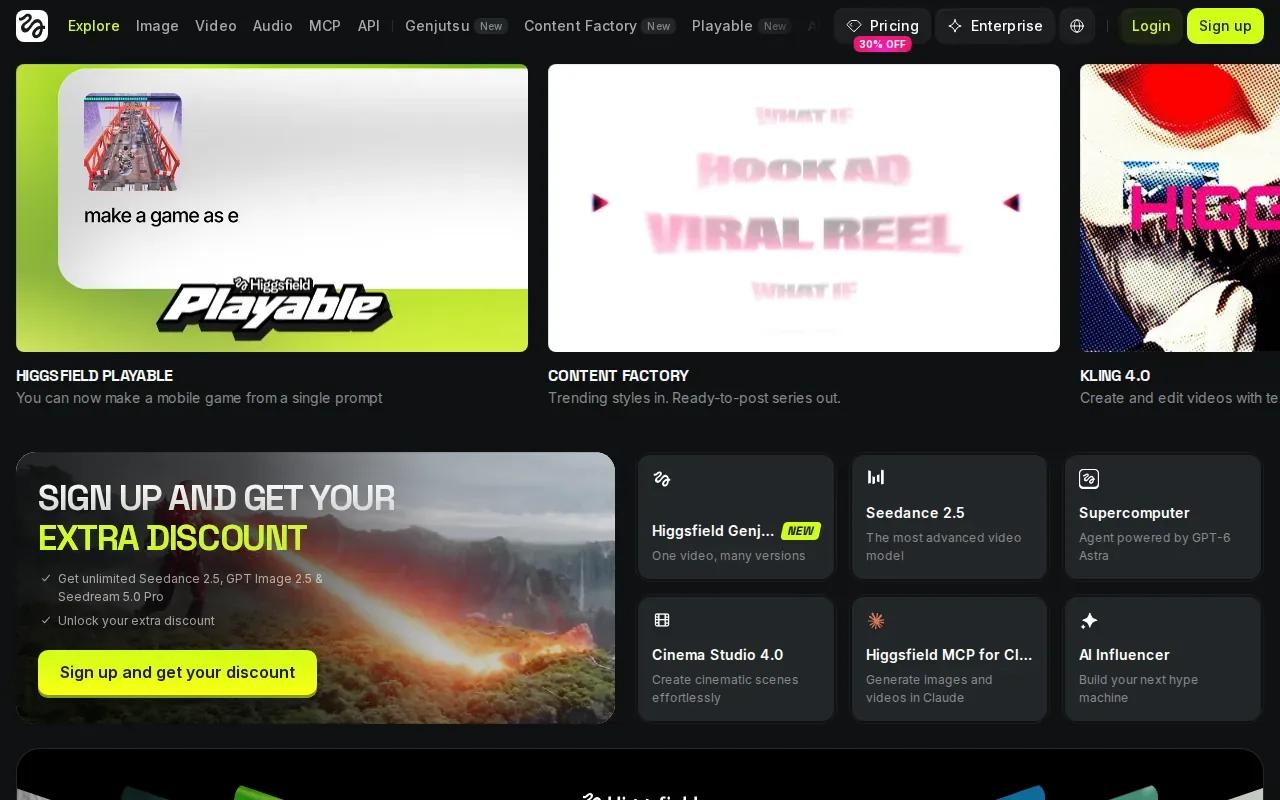
A reference image can set the look of a scene before generation. For a product post, begin with the image that establishes the subject, then write a prompt that describes the intended scene and action. For a story, use the prompt to set the pace or mood you want the generated shot to carry.
Its AI agent can automate creative workflows, which may suit a team producing multiple versions of a campaign, though the best fit depends on the specific process you want to run.
Use Higgsfield when you want to work with visual references and continue into edits or upscaling. Before generating a set, decide which details the reference should guide. A clear source image and a focused prompt make it easier to judge whether the result matches your intended scene.
5. VEED: A photo-to-video tool you can test for free
VEED’s Image-to-Video AI tool lets you upload a photo and generate a clip. It suits marketers and solopreneurs who want to make a video from an image, then keep working in an editing workflow.
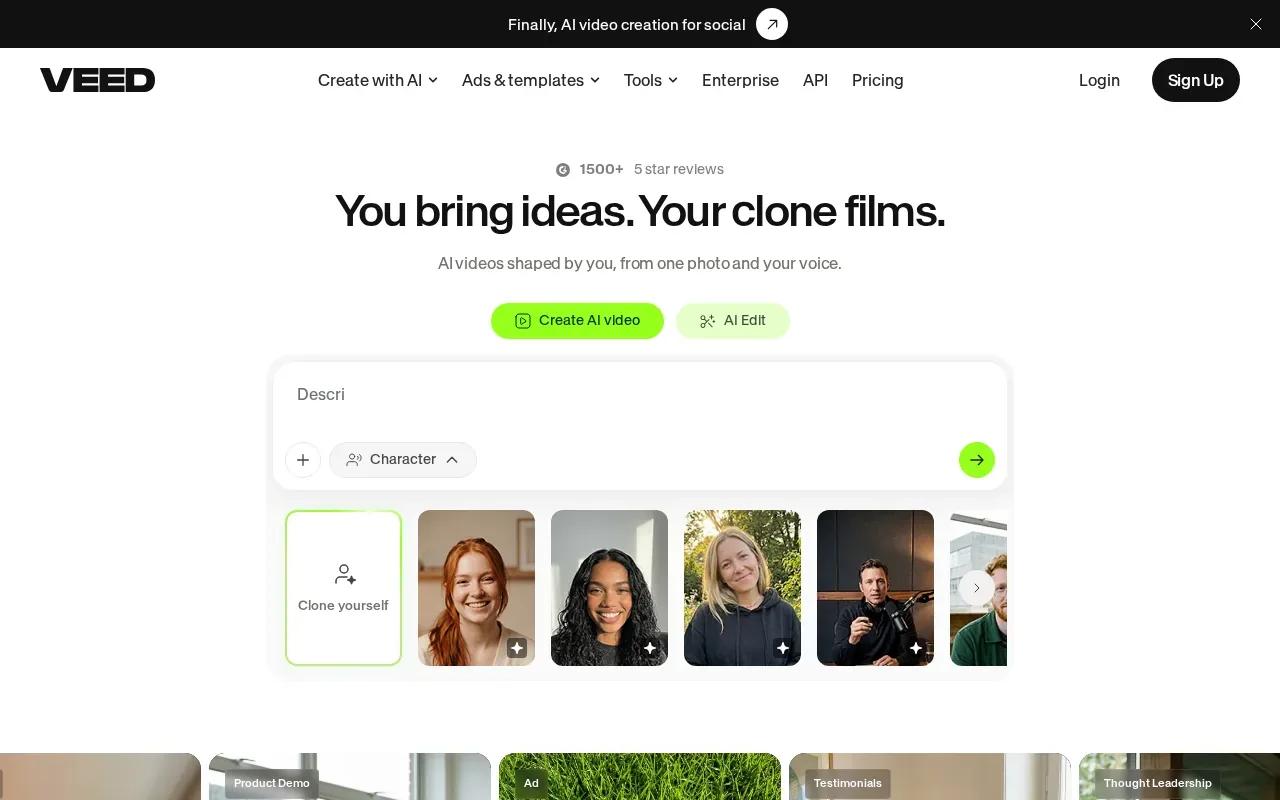
The image-to-video tool can be tested for free, and VEED combines generating and editing video in one workflow. Its other tools include talking-head creation, AI-assisted editing, dubbing, and subtitles.
That mix can be useful when a still image is only the start of the job. You might first generate movement from a photo, then edit the video for a social post or add subtitles to make spoken content easier to follow. Check the preview before export so the framing and text suit the channel where you’ll share it.
For any photo-based clip, start with an image that has a clear subject. Describe one main movement in the prompt, then review the result for changes to faces, hands, or small product details. If the subject shifts in a way you don’t want, simplify the motion request and try again.
VEED is worth testing when you want image generation and editing to sit in one workflow. If your priority is dialogue or longer scene control, compare the specific functions you need before settling on a tool.
FAQ: Picture to Video Makers
How do I turn a picture into a video with AI?
Upload a clear image, describe the movement you want, then generate a draft. Keep the prompt focused on one action and one camera move. Watch the whole clip before you export, especially around the subject’s face and the edges of the frame. If the motion looks wrong, simplify the prompt and generate another version.
Can I use a picture-to-video tool for social media?
Yes, you can use these tools to make short clips for social posts. Choose the frame shape that matches the platform before generating when that setting is available. A vertical clip can fit TikTok, Reels, or Shorts, while a wide frame may suit a website or landscape video. Review the final crop on a phone-sized screen.
Can AI animate a photo and add sound?
Some tools generate sound with the video, while others focus on image motion or editing. Veo Studio supports synchronized sound and dialogue with generated video. If your clip needs speech, write the exact line in the prompt and listen to the result. If sound is not part of the shot, a silent visual may be easier to review.
What should I check before downloading a generated video?
Check the subject, motion, framing, and sound before you download. Then confirm the export resolution and aspect ratio match where you plan to post. Look closely at faces and product details, since small changes can stand out in an ad. If the tool adds a watermark on its free plan, decide whether the file is for testing or publishing.
Can I make a video from several photos?
Yes. A traditional editor can arrange several photos on a timeline, add music, and set how long each image appears. An image-to-video generator takes a different route: it makes new movement from a still. You can also combine both methods by generating a moving shot first, then placing it into a larger edit.
Conclusion
Choose the tool that matches the shot you need: continuity, a short B-roll clip, or editing after generation. For a reference-led scene with synchronized sound and scene extension, Veo Studio is the place to start.


