
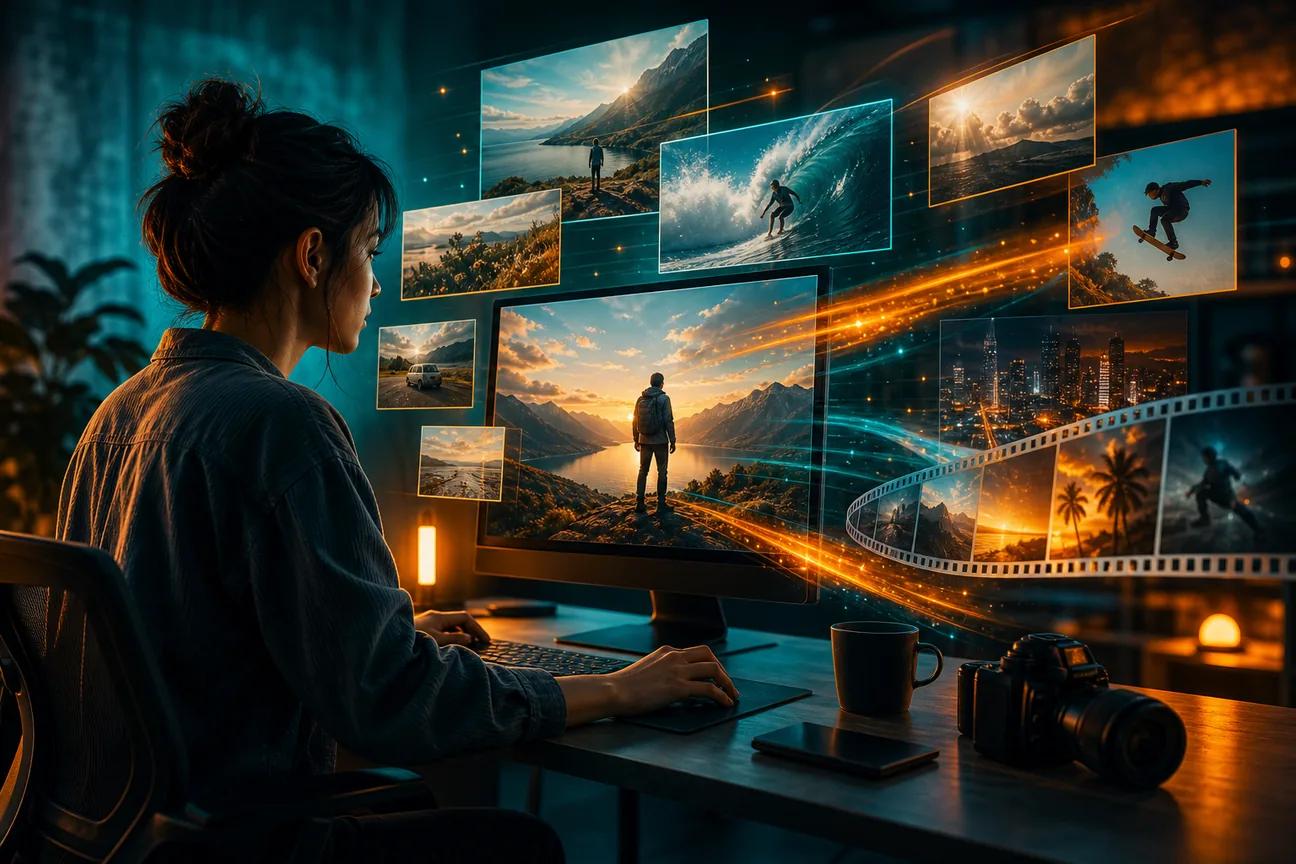
Got a still image you want to move? A photo-to-video maker can turn it into a social clip, product spot, or story scene. Here are six named tools, starting with Veo Studio, and the kind of work each one suits.
1. Veo Studio
Veo Studio is an independent, browser-based AI video creation tool powered by Google’s Veo 3.1 models. Upload a reference image and describe the action you want, such as a slow camera push toward a product or a portrait turning toward the light.
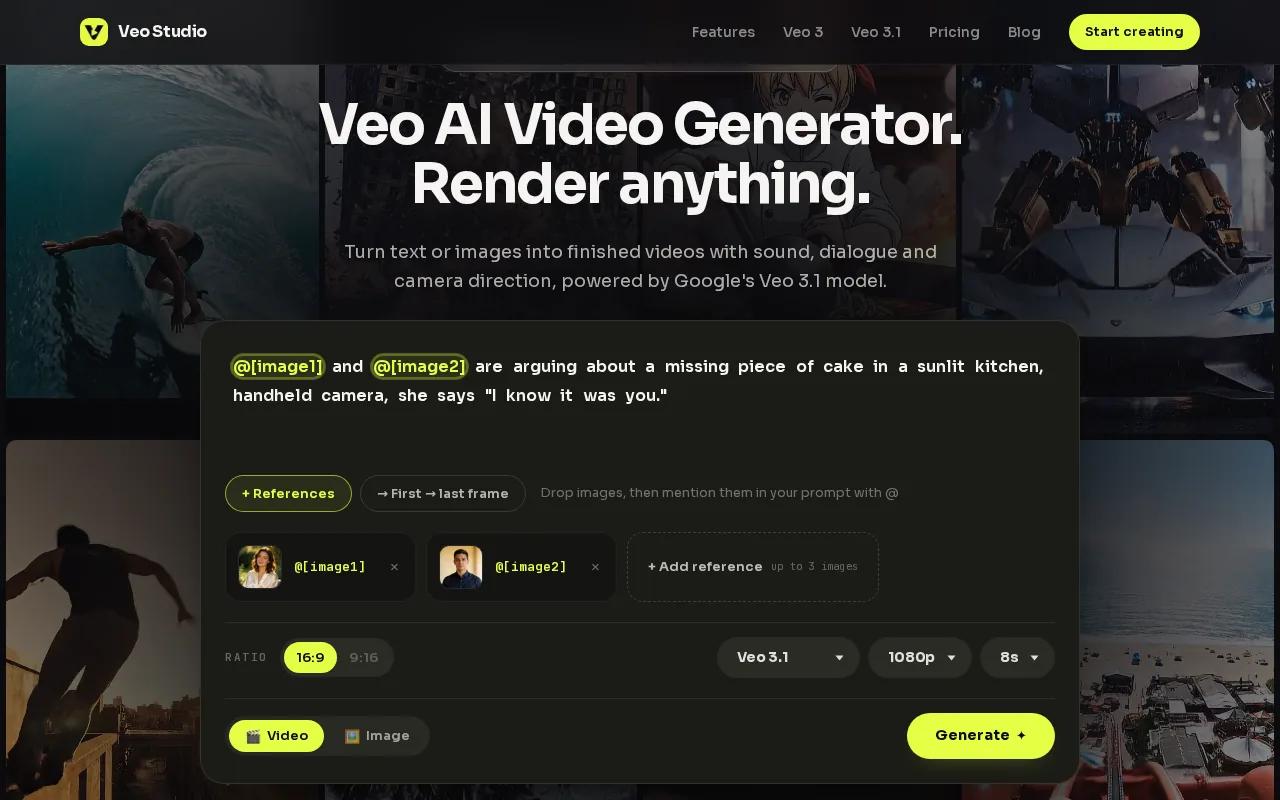
It suits creators who want motion and sound generated together. Veo Studio supports synchronized sound and dialogue, character consistency, first- and last-frame control, scene extension, and output up to 4K. Those controls help when a familiar face or product needs to stay recognizable, or when a short starting clip needs more time to tell its story.
For an image-led project, use the still as a visual reference, then write the prompt around the movement. State what should change and what should hold steady. If the clip needs a spoken line, describe the scene and dialogue in the prompt. For a longer cut, scene extension adds seven seconds at a time to supported 720p clips.
The free plan includes a couple of 720p videos each month and doesn’t require a card. Paid plans start at $14 per month and include higher resolutions. The tool runs in a browser, so there’s nothing to install before testing an image.
If you’re comparing image-led workflows, the image to video AI generator overview gives more context on turning a still into a moving shot.
One useful distinction: this workflow generates new motion from a still. It isn’t the same as arranging a set of photos on a timeline with music and transitions. That difference matters when you’re choosing between an animated scene and a slideshow.
2. Kling AI: for character consistency and native audio
Kling AI turns a text prompt or static image into video. It suits creators who want a person or other subject to stay recognizable while the image moves, especially when dialogue or sound belongs in the clip.
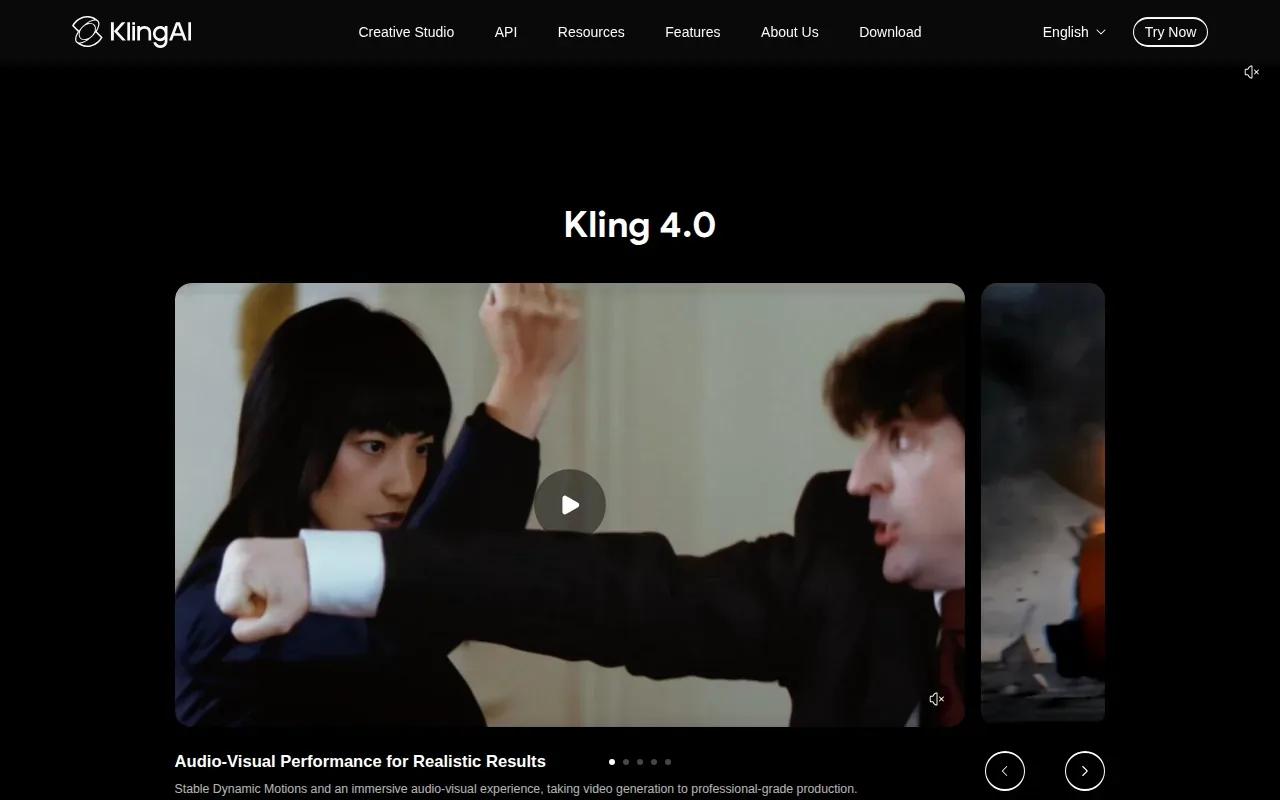
Kling AI supports character consistency and synchronized sound and dialogue. That gives you a way to build a talking portrait or a short scene with sound in the generation workflow rather than planning for a separate audio pass.
For a portrait, keep the action brief in your description. Ask for one clear movement, such as a small turn or a smile, and specify the camera move if it matters. If you’re making a product clip, describe how the camera should move around the item while keeping the product itself steady.
Kling’s image-to-video approach makes sense when the source image already carries the look you want. Check the output size before you generate, then judge the face and dialogue together during review. A clip can look convincing while still missing the spoken timing you need.
Pick Kling AI when character continuity and generated dialogue matter most.
3. Runway Gen-4: for consistent characters and high-resolution output
Runway Gen-4 is an image-to-video model built around consistent characters, objects, and settings across scenes. It suits creators working on a sequence where the same person or product must appear in more than one shot.
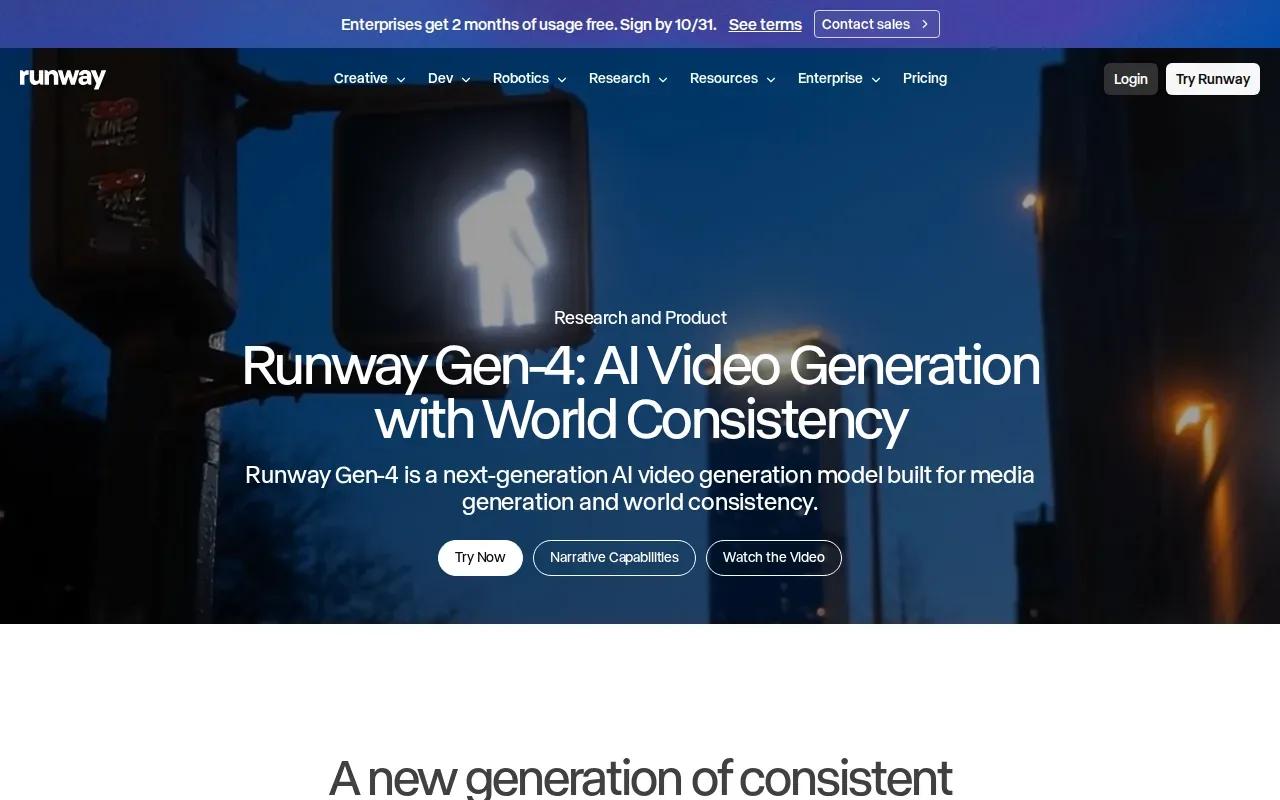
Its character consistency uses a single reference image. That can help when you’re planning several scenes around one character, or when a product needs to remain familiar across different settings. Runway paid plans include 4K upscaling, which can suit footage intended for a larger display or a detailed edit.
For each clip, let the reference image establish the subject and composition. Use the prompt to describe what should move. That makes the brief easier to check: the still says what the scene looks like, while the text tells the model what happens next.
If fine surface detail matters, inspect the object closely through the full clip before using it in a campaign.
Runway Gen-4 fits projects where consistency and high-resolution output are central. Review small details as carefully as the overall motion.
4. Pika: for expressive, social-first image animations
Pika suits social-first clips where personality matters more than photorealism. It can be a fit for an expressive post, a playful portrait animation, or a short piece meant to catch attention in a fast-moving feed.
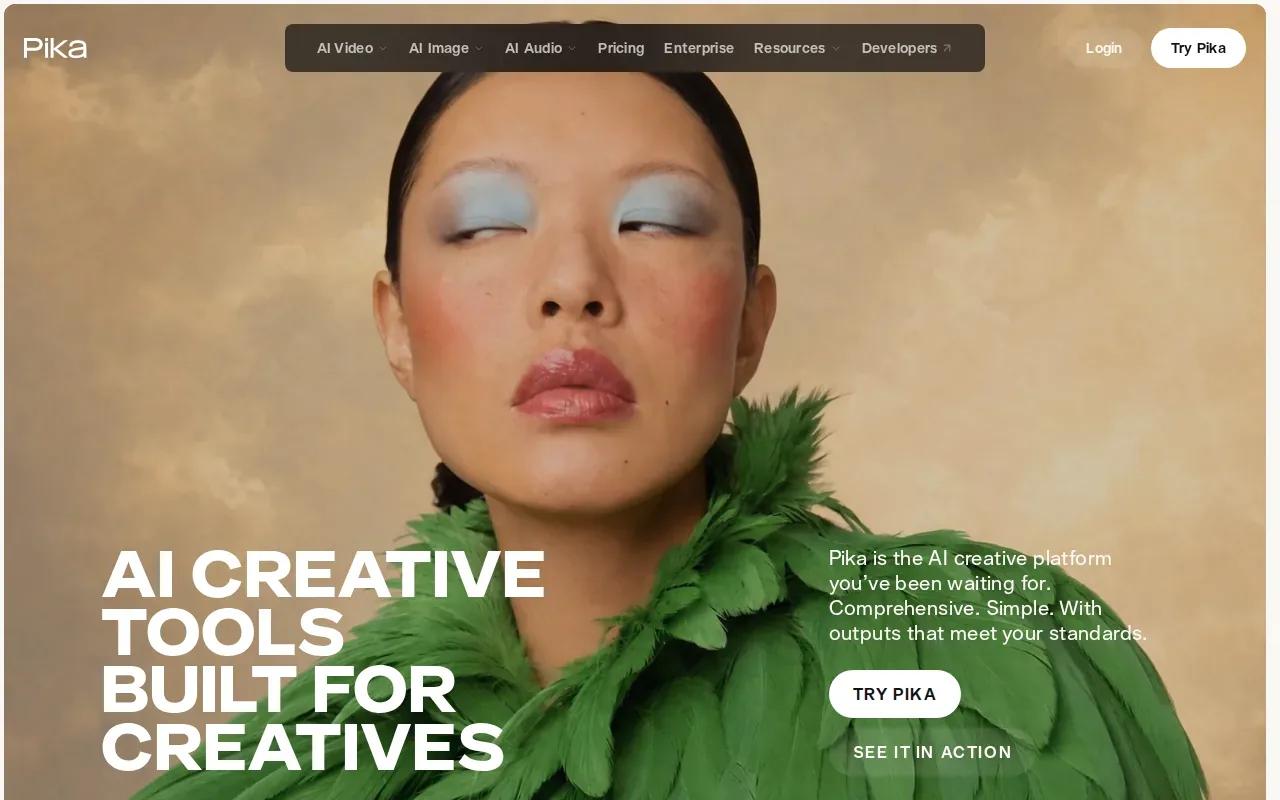
Pika offers lip-sync for work with faces. That is useful when a character’s spoken line is part of the idea, such as a short reaction or a direct-to-camera message.
Start with a still where the face is clear, then keep the requested movement focused. If you want a character to speak, make the line short enough to fit the clip. Watch the mouth movement and sound timing together before you export or share the result.
For a social post, pacing matters as much as the effect. A small expression or quick visual change can read more clearly than several actions competing in one short shot. If a campaign needs a lifelike product close-up, compare the actual output against your source image before you settle on this style.
Choose Pika when you want a lively social clip and facial expression is part of the hook. It isn’t the fit for every project that calls for restrained, photoreal motion.
5. PixVerse: for accessible effects and a generous free plan
PixVerse is an image-to-video option for creators and marketers who want to upload a photo, apply effects, and make dynamic social content. The workflow is built around a few simple steps.
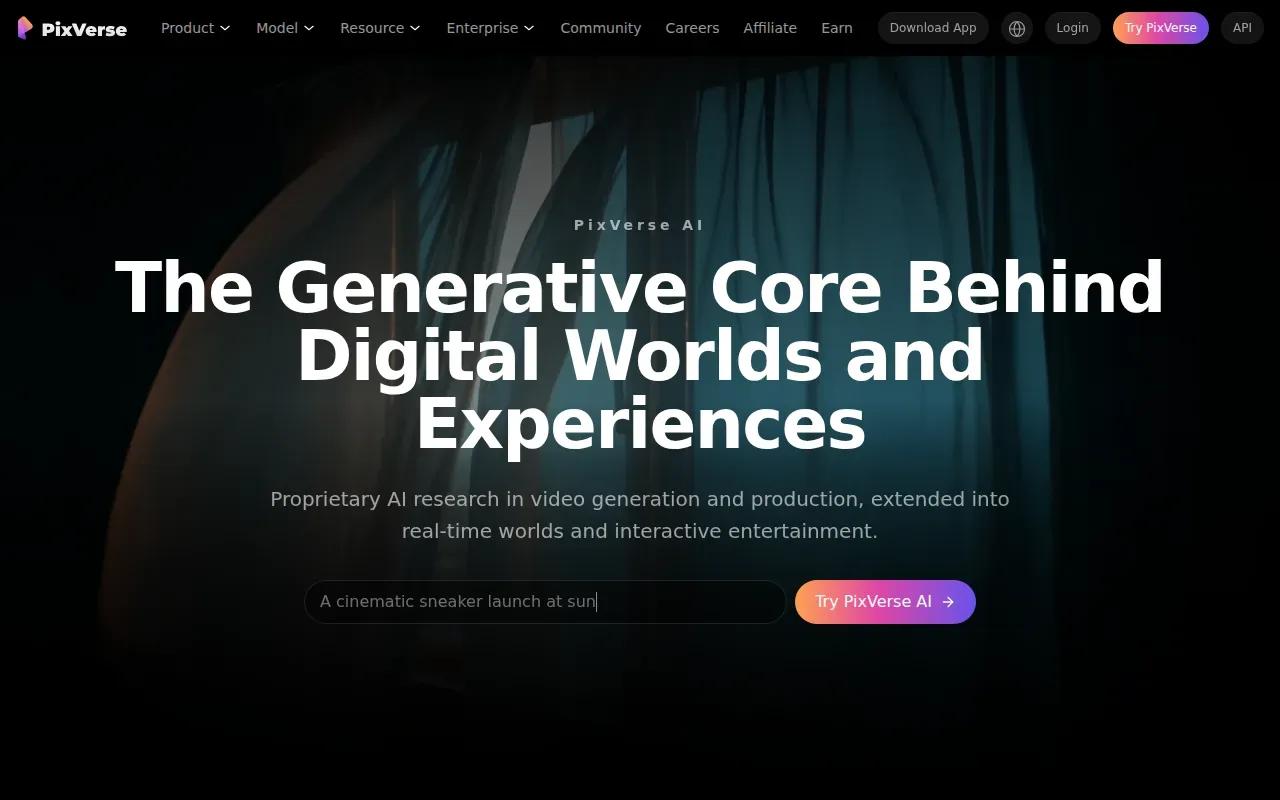
PixVerse V6 makes 1080p video with native audio. You can test a motion idea whether you’re starting with a portrait, a campaign still, or a product image. For a social post, you might try a subtle camera move first, then compare it with a more noticeable effect.
Use the source image to set the subject and composition. Then describe one main change, such as an object turning or a camera pushing in. This keeps the action easy to assess. If a detail shifts or the motion feels too strong, make a smaller adjustment on the next attempt rather than changing the whole brief.
PixVerse is a natural choice for fast visual experiments and social content. Check the finished clip at its intended size, especially if the image contains fine details that viewers should recognize.
Think of an effect as a draft, not the final edit. If the finished post needs a specific title, music bed, or precise cut, plan for an editing pass after generation.
6. CapCut: for a familiar social-video editing workflow
CapCut is a photo and video editor with a timeline workflow. It suits creators who want to arrange stills, add music and text, then shape a slideshow for YouTube, TikTok, or Reels.
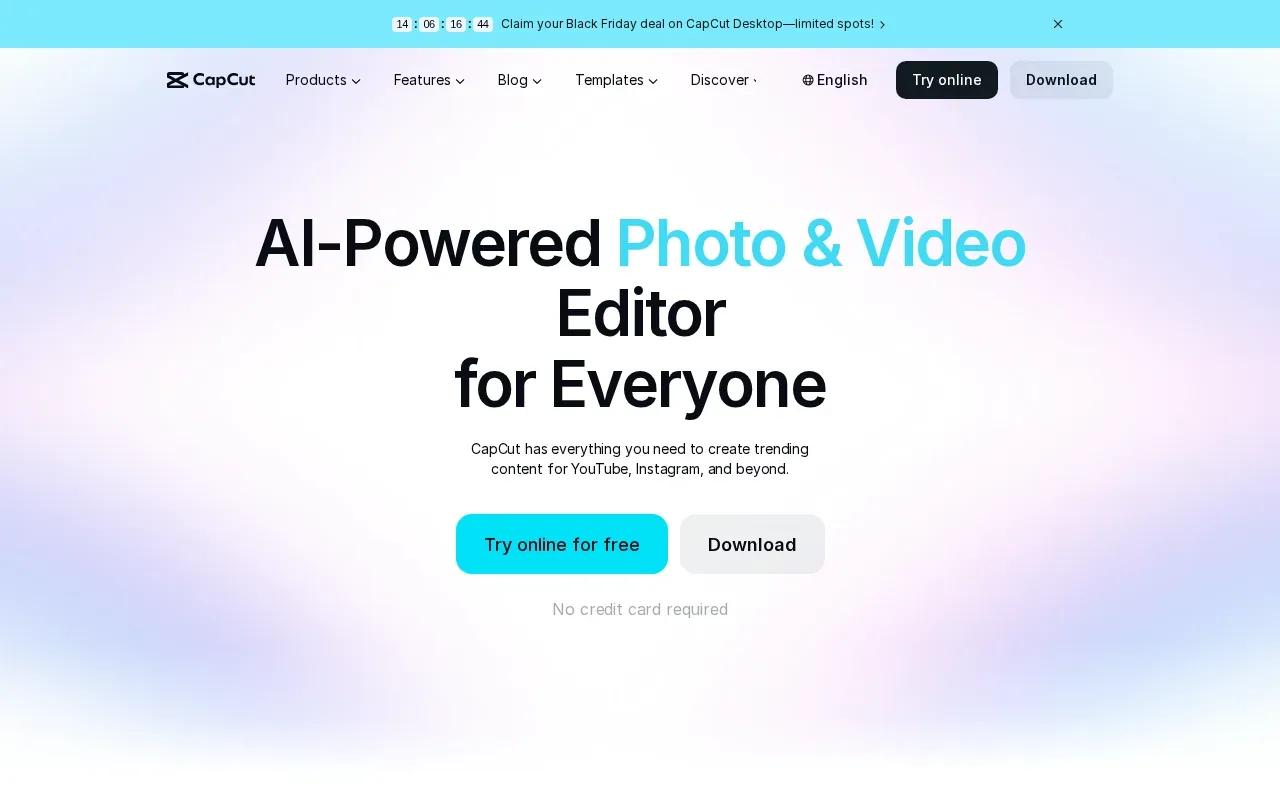
Import photos into the editor or start with a template. Arrange the images on the timeline, then set how long each one stays on screen. Give each image a few seconds on screen, depending on the pace you want.
Add music by placing a track on the timeline. You can adjust its volume and timing, then add text, filters, or transitions between images. Cropping and aspect ratio also deserve a check: a vertical social post needs a different frame shape from a widescreen video, and a crop can cut off a face or product if you don’t preview it.
When the sequence feels right, export in a format and resolution suited to the destination. CapCut supports sharing to social platforms. The editing process also makes it a fit for personal memory videos, business announcements, and posts built from a set of campaign images.
If you’re moving from a single still to AI-generated motion, compare that workflow with this guide to animating photos with AI. A timeline editor and an image-to-video generator solve different parts of the job.
Photo-to-Video Maker Comparison: Which Tool Fits Your Project?
Start with the output you need. A generated scene calls for image-to-video features; a montage of many stills calls for timeline editing. Sound, subject continuity, and resolution can help you make the next cut.
| Tool | Fits this project | What to check |
|---|---|---|
| Veo Studio | Reference-led clips with synced sound, dialogue, and scene extension | Free plan is 720p; paid plans start at $14 per month |
| Kling AI | Character-led video with synchronized dialogue | Check the output resolution before you generate |
| Runway Gen-4 | Consistent characters, with 4K upscaling | Inspect fine texture through the full shot |
| Pika | Expressive social clips with lip-sync | Check lip-sync timing on faces |
| PixVerse | Effects-led social drafts and 1080p output with native audio | Review the source details after motion is added |
| CapCut | Photo slideshows with timeline edits | Set image duration, crop, and export size |
For a slideshow, first put the images in the order that tells the story. Give each one enough time to read, then add music and restrained transitions. Add text only where it helps explain the image, such as a date or a short product detail.
For generated motion, start with one clear action and a source image with an easy-to-see subject. Watch the first and last moments for changes to faces, logos, or product edges. If you’re making a business post, export to the frame shape of the channel, then check captions and sound on a phone before sharing.
FAQ
What is the difference between a slideshow maker and an image-to-video tool?
A slideshow maker arranges photos on a timeline, while an image-to-video tool generates motion from a still image. Use a timeline editor when you want control over image order, text, music, and transitions. Choose image-to-video when you want the subject or camera to move in a newly generated scene.
Can I add music and text to a video made from photos?
Yes, a timeline editor such as CapCut lets you add music and text to a photo video. Place the images in order, set their duration, and add the audio track. Then add a title or caption where it helps. Preview the whole sequence so the words remain on screen long enough to read.
Which photo-to-video tool supports dialogue?
Veo Studio and Kling AI support synchronized sound and dialogue, while Pika offers lip-sync for videos with faces. The right fit depends on whether you need a spoken line, a recognizable character, or a social-first style. Watch the generated clip with sound on before using it in a post.
How do I make a photo video fit TikTok or Reels?
Choose a vertical frame before editing or generating the video. Keep faces and key objects away from the edges, then preview the crop on a phone-sized screen. For a slideshow, check that each image stays long enough to read. For an animated clip, make sure the main action is clear in the opening seconds.
Can I use a photo-to-video maker for business content?
Yes. A business can animate a product photo for a short promotion or arrange campaign images into a slideshow. Use a clear source image and check that the product still looks right after motion is added. Before publishing, confirm you have permission to use the source image, music, and any other material in the edit.
Conclusion
For image-led scenes with synchronized sound, character consistency, frame control, and scene extension, start with Veo Studio. Upload one reference image, describe one camera move, and test the free 720p plan before choosing a paid resolution.


