
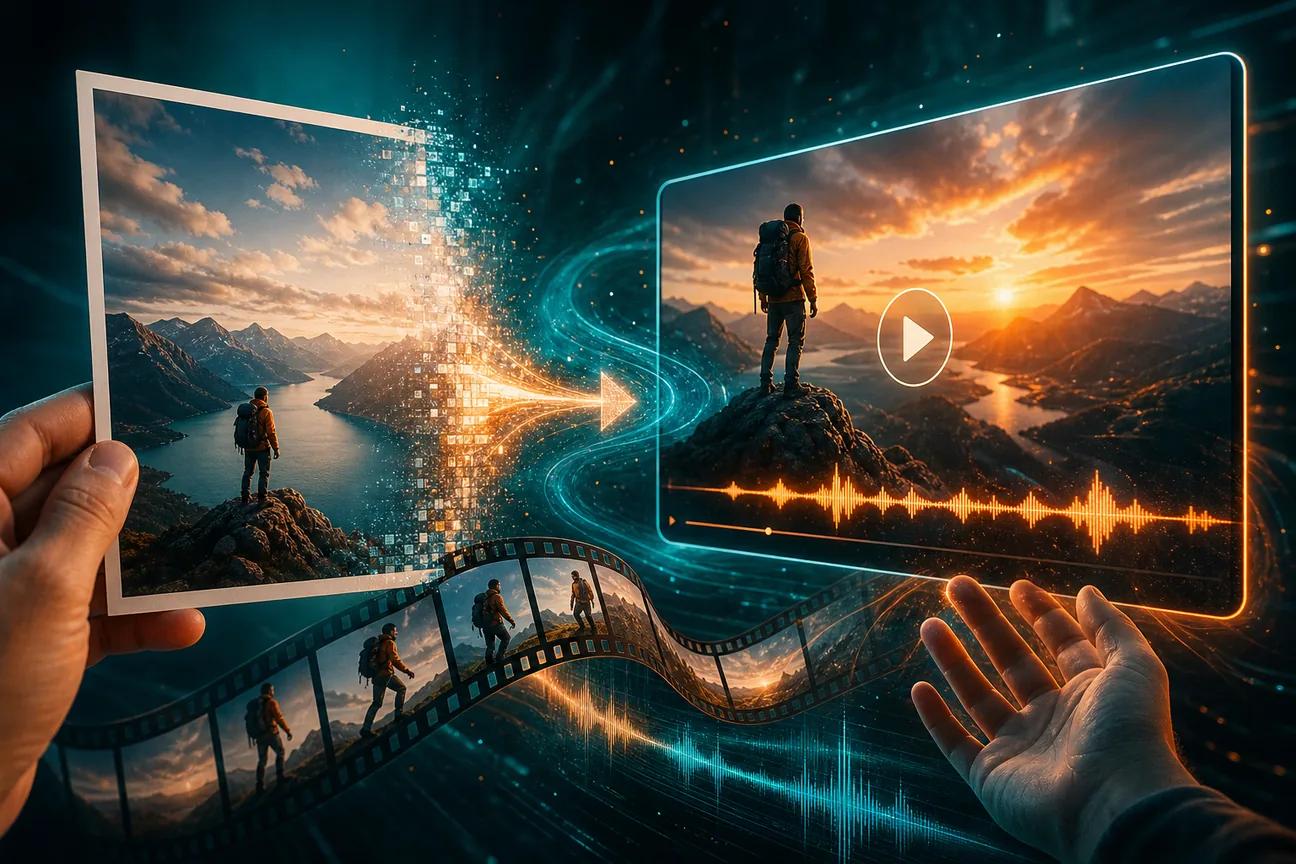
A still photo can become a moving scene with sound, but the tools handle speech, character detail, and output quality in different ways. Here are seven options, starting with Veo Studio, so you can match a tool to your next clip.
We analyzed 48 YouTube comments about photo to video AI with audio and found that 19% mentioned preferences for model selection and video quality.
1. Veo Studio
Veo Studio is an independent, browser-based video tool powered by Google’s Veo 3.1 models. Upload a reference image, describe the action, and generate a clip with synchronized sound and dialogue.
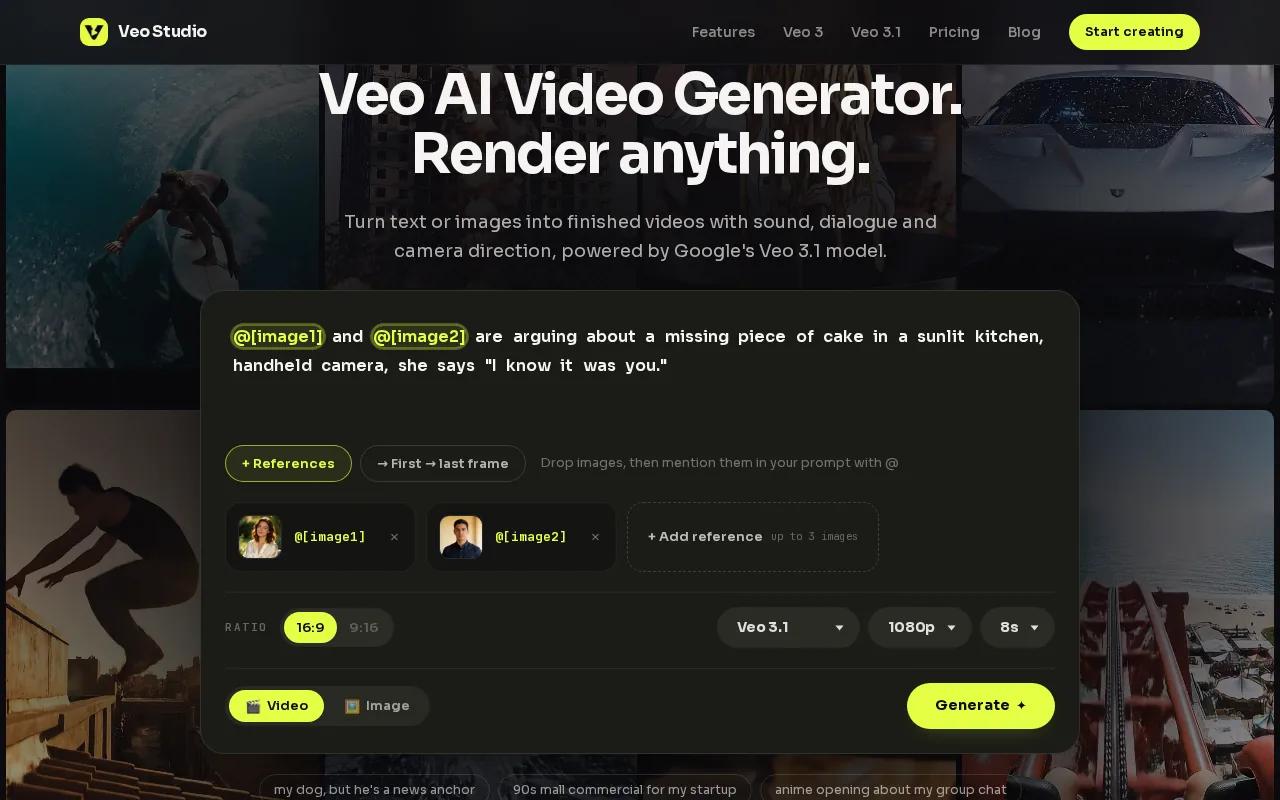
It suits creators who need a person or product to stay recognizable as the shot moves. You can attach up to three reference images on supported settings, or supply first and last frames to guide the transition. For a spoken line, put the words in quotation marks in your prompt. The model can generate lip-synced dialogue with the video.
For example, a small shop could start with a product photo and prompt a slow camera move, then add a short line of dialogue. Veo Studio also supports scene extension, which adds seven seconds at a time to eligible clips, and output up to 4K on supported settings. The browser workflow doesn’t require a download.
The free plan includes a couple of 720p videos each month with no card required. Paid plans start at $14 a month, with higher resolutions and a commercial license. For a broader comparison of audio features across tools, see Image-to-Video AI Tools With Audio Compared; for differences in image inputs, sound, resolution, and clip control, see AI Photo-to-Video Converter Tools Compared.
Veo 3.1 clips can be four, six, or eight seconds before extension. For a social post, choose portrait framing before generation. For a product spot, keep the main movement simple so viewers can see the item.
2. AI Video Generator by OpenArt: A flexible image-to-video creative suite
AI Video Generator by OpenArt is an online creative suite for generating video from prompts or reference images. It suits creators who want several kinds of video work in one place, rather than a single image-animation workflow.
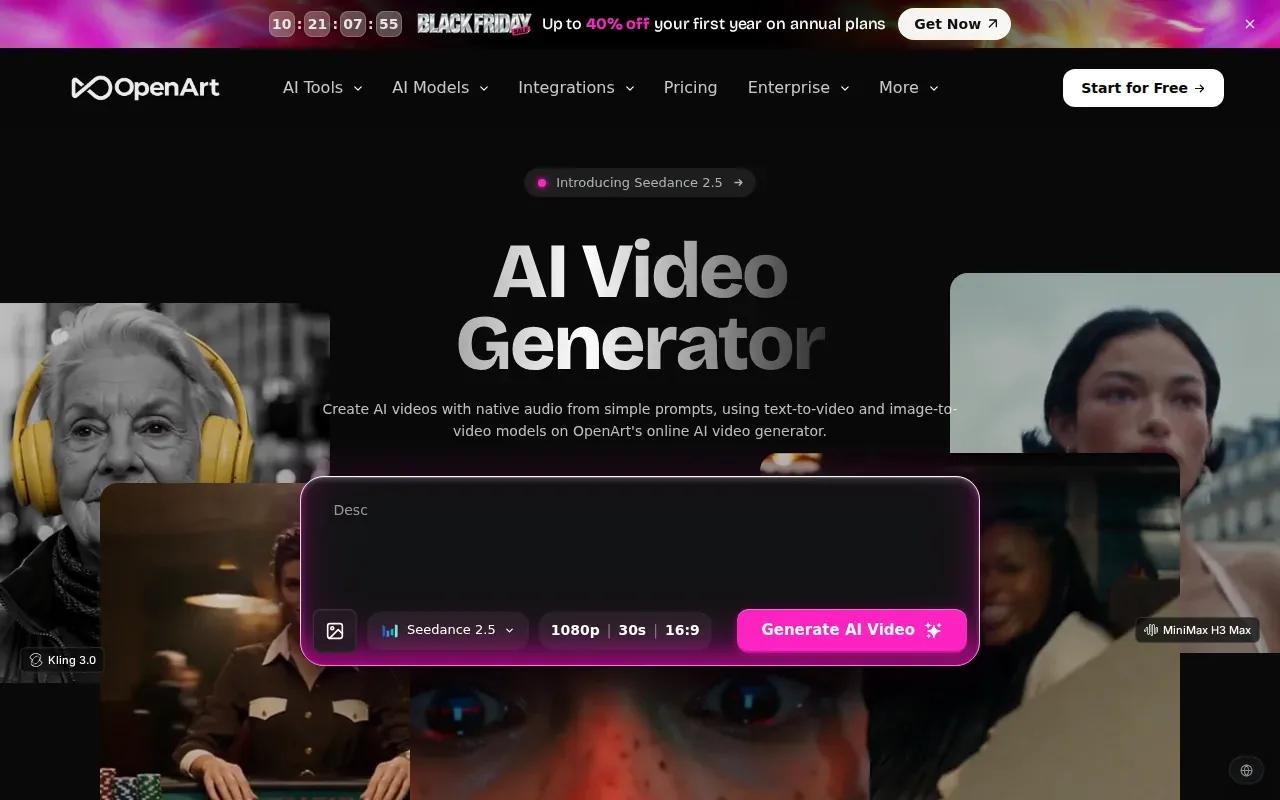
Upload a product shot or portrait and describe the movement and camera direction. OpenArt says its generator supports native audio on image-to-video and text-to-video models. Its broader set of tools includes character creation, motion transfer, lip sync, and video editing. Which features you can use depends on the selected model or workflow.
That model choice matters. A clip with a talking presenter needs a different setup from a product reveal with ambient sound. OpenArt describes lip sync for talking-head clips and motion transfer from a reference video. Those controls can help when you already have a performance or a character design you want to carry into a new scene.
The suite also includes multiple visual styles and camera directions. You can try a slow pan for an illustrated scene or a close move toward a product detail. Before you generate, check which model is active and whether it supports the sound and output settings your clip needs.
For a solo creator testing different looks, keeping image and video work together can cut down on app switching. For a campaign, treat each model as a separate choice rather than assuming every option has the same audio behavior.
3. Kling AI: Image animation with native audio generation
Kling AI supports image-to-video, and its model can produce clips with native audio. It suits creators who want to animate a portrait or product image.
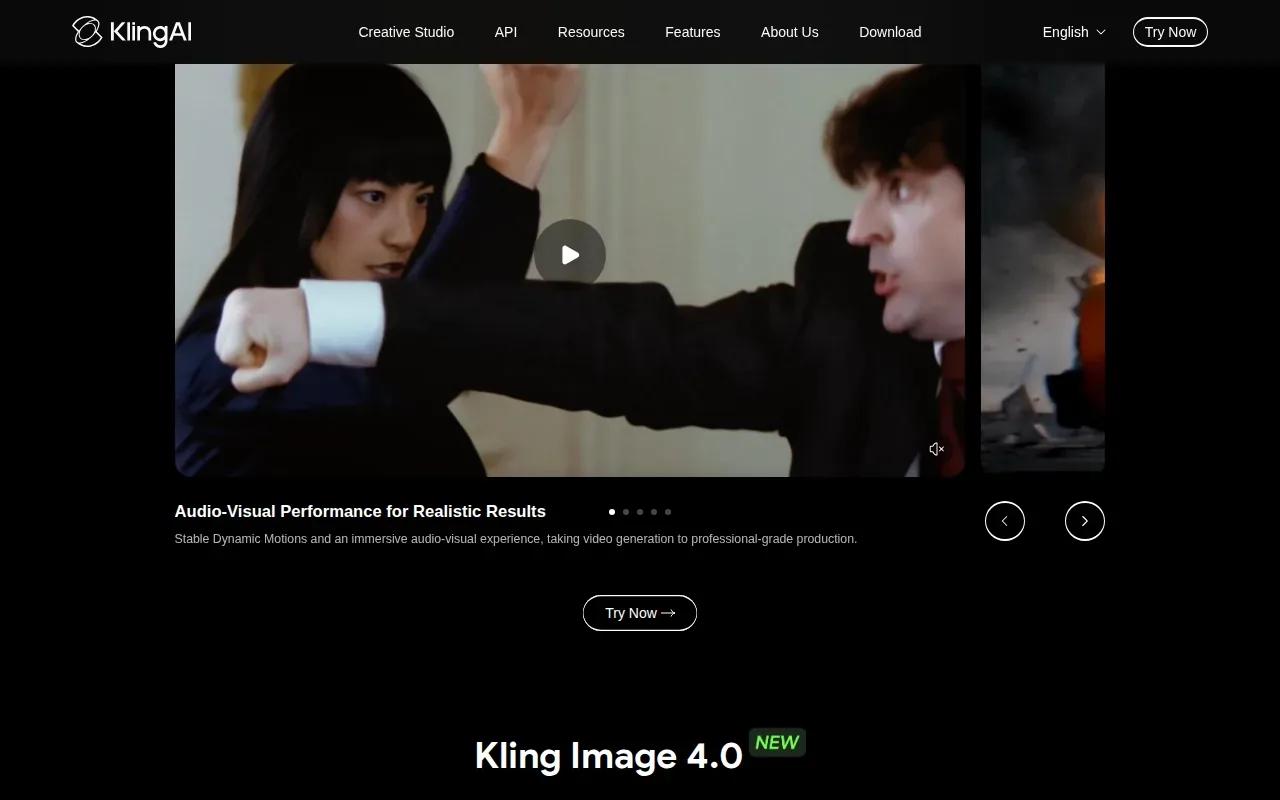
Start with a clear image, then describe one main action and the camera move. Kling’s image-to-video workflow lets you upload an image and add a prompt. A portrait or product photo can be a starting point. Keep the action and camera direction clear so you have a focused draft to review.
Kling’s model can produce clips with native audio, and its audio sync capability is listed as native. Give sound its own clear prompt detail. A short line or a single sound cue is easier to review against the action than several competing audio directions.
For a speaking portrait, inspect the mouth movement and timing before you use the clip. For a product scene, make sure the animation doesn’t obscure a label or key feature. Those checks matter even when the first render looks polished.
4. Gen-4 by Runway: Animate still images with a model-led workflow
Gen-4 by Runway supports image-to-video generation: upload a still image and the model animates it. It suits creators who already have a designed starting frame, such as a product photo, illustration, or storyboard image.
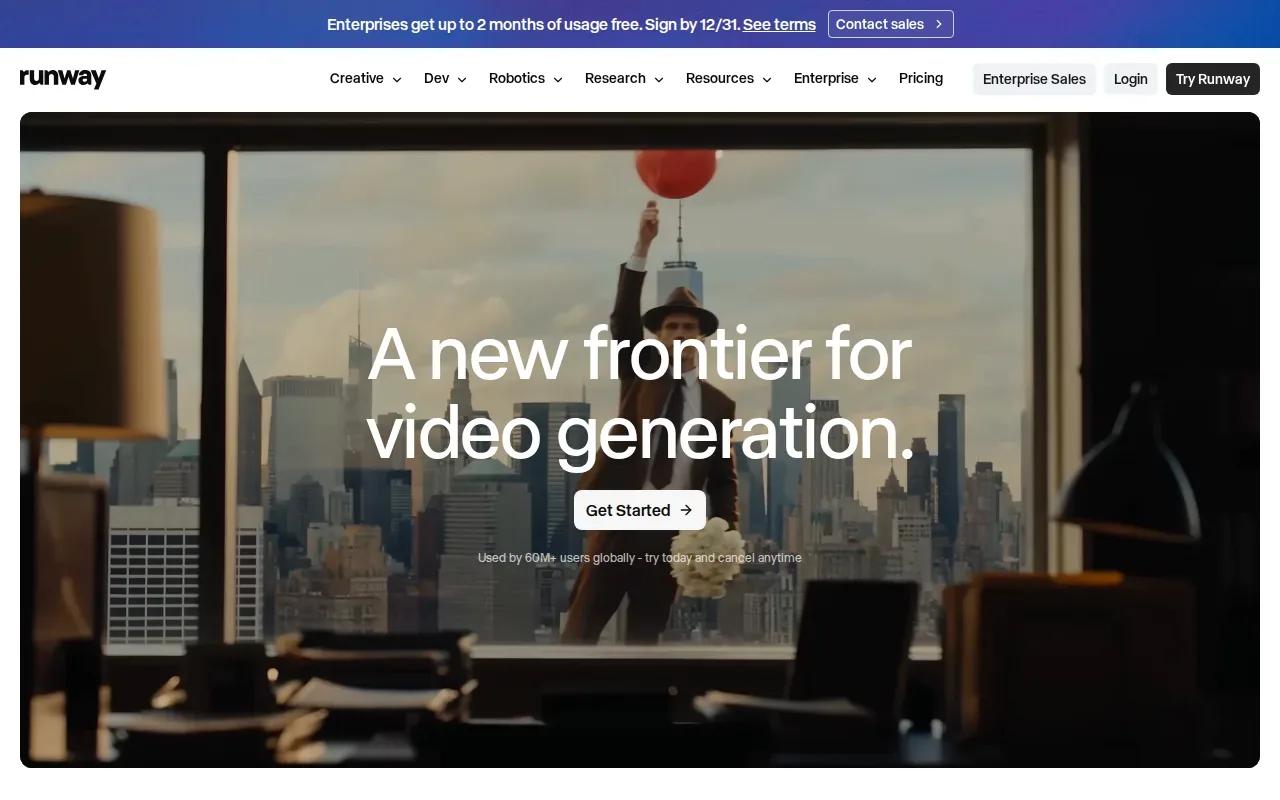
The image sets the scene. Your prompt can then focus on what should change, such as a person turning toward the camera or a slow push toward an object. If you’re making a set of related clips, begin with images that share the look you want to keep across shots.
This image-first approach is useful when the opening composition matters more than inventing a scene from text. A marketer might start with a finished product image and test a few motion prompts. A filmmaker could animate a storyboard frame to preview a camera move before planning the next shot.
Keep the prompt focused. If the first take moves the subject in the wrong direction, revise that instruction before adding more detail. Then review the full clip for changes to the face, object shape, or background as the camera moves.
Audio requirements should be part of your decision before you begin. If a clip needs spoken dialogue or tightly matched sound, check the specific model and workflow you’ll use.
5. Higgsfield AI: Compare image-to-video models and output options
Higgsfield AI lets you animate a photo or illustration with a text prompt. It suits creators who want to compare models or adjust a clip after generation.
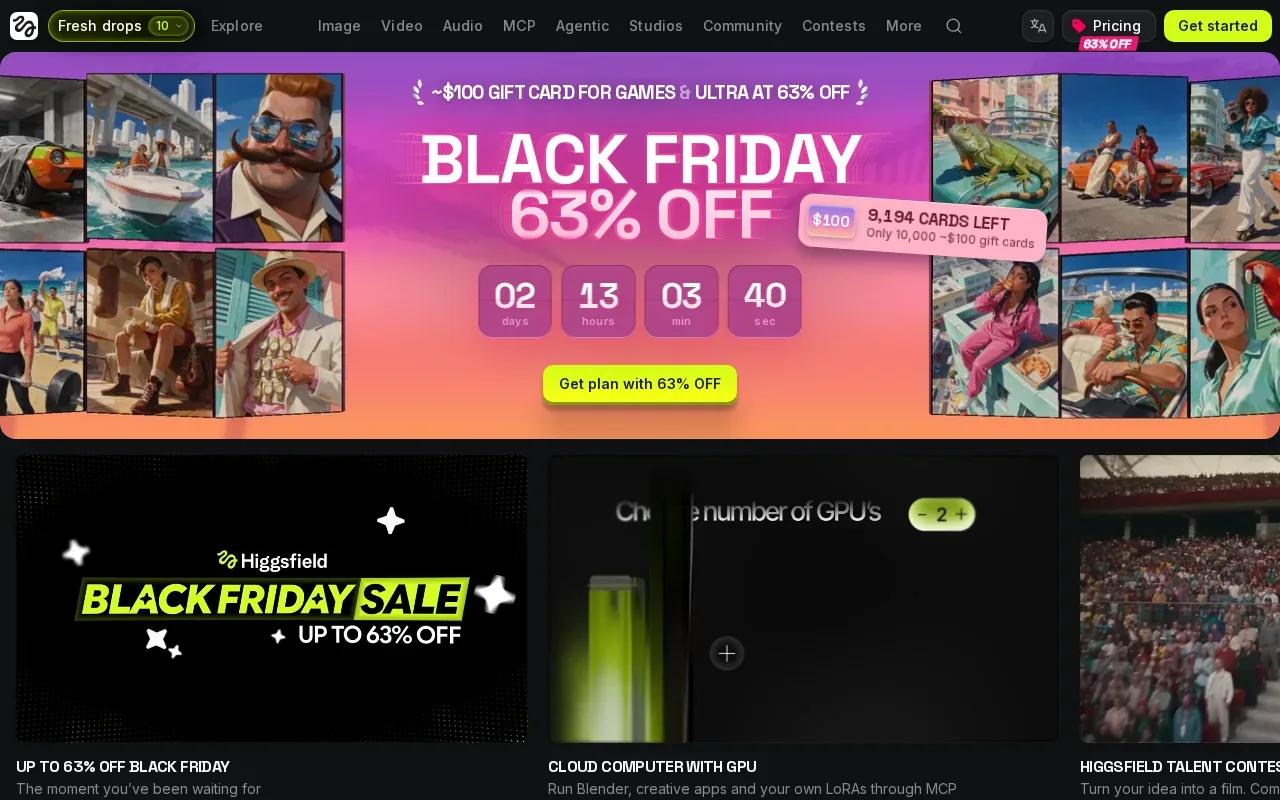
Upload a starting image, describe what should move, and guide the camera in the prompt. The source image can be a portrait, artwork, or product shot. For a simple product reveal, you might ask for a slow rotation. For a portrait, a small expression change can be a better fit than a large body movement.
Available clip lengths and output sizes depend on the chosen model. For model comparisons, Higgsfield AI supports image-to-video clips from three to 30 seconds at 720p or 1080p. Higgsfield’s separate tools include upscaling up to 4K, plus Lipsync Studio for aligning mouth movement with speech audio.
Keep generation and enhancement in mind as separate tasks. First check whether the selected model makes the motion you need. Then decide if the result needs an upscale or a lip-sync pass. This helps you avoid choosing a model based only on a feature that belongs to another tool in the suite.
For a character-led clip, preview the lip sync at normal speed. For product work, check the edges and fine details after any upscale. The selected model and preset affect the available output settings.
6. Freepik AI Video Generator: Create clips from product photos or scenes
Freepik AI Video Generator turns a picture or written scene into a video, with access to models that include Veo 3. It suits creators making product footage, social clips, or short visual stories.
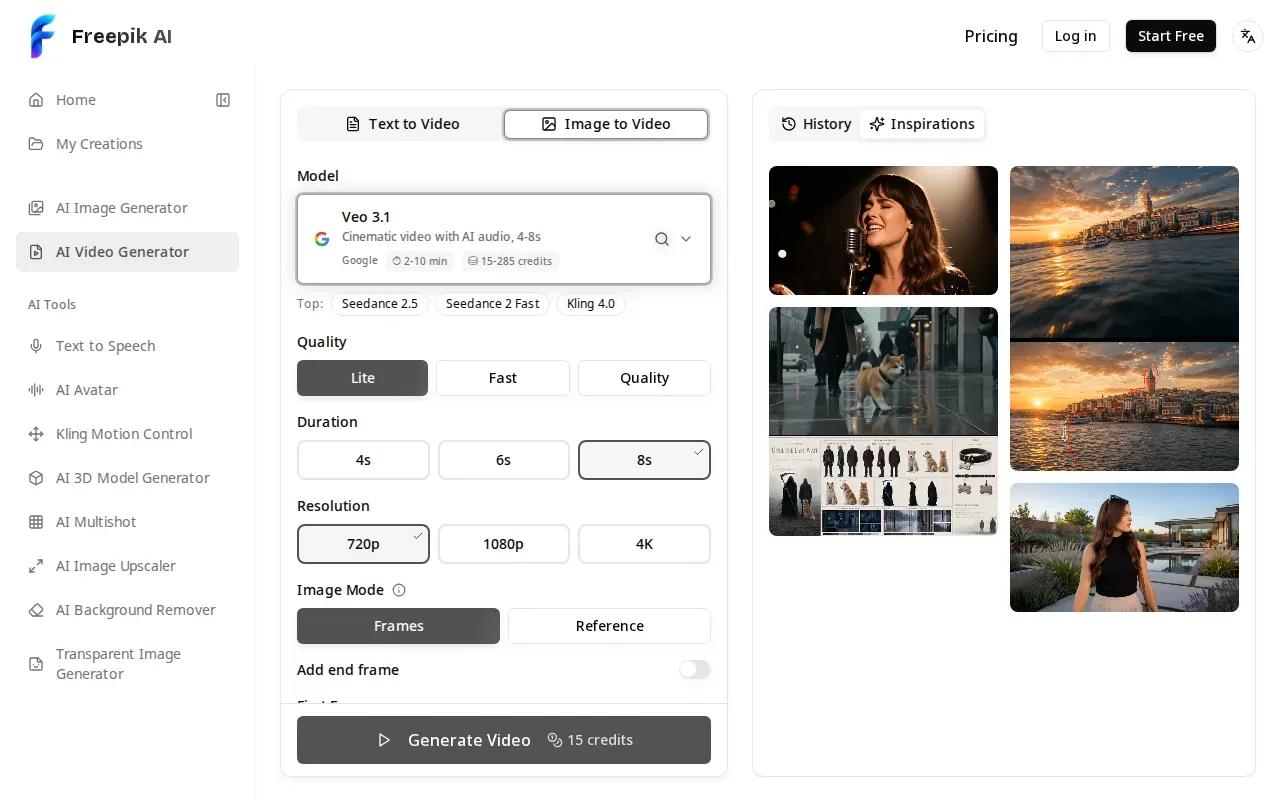
Choose image-to-video when you already have the opening look. Upload the photo, then describe what changes over time. A product photo might become a close-up reveal, while an illustration could gain a small movement such as drifting clouds. Keep the action clear so the starting image remains useful.
Freepik’s suite includes more than one model, so audio and reference controls depend on the option you pick. Check whether that model supports generated sound, a start or end frame, and the length you need. If a voiceover needs revisions later, making it as a separate track can give you more control over its timing.
For a social post, set the frame shape for its destination before generating. Vertical video needs room around the subject, especially if the action moves toward the edge. For a product clip, keep the camera move slow enough for people to see the detail you want to show.
Freepik can be a fit when you want model choice inside a broader creative suite. The tradeoff is that you need to check each model’s settings instead of treating the entire suite as one fixed video engine.
7. Google Flow: A filmmaking workspace for Veo image-to-video clips
Google Flow is Google’s filmmaking app for Veo and Omni models. It suits creators who want to build Veo image-to-video clips in a filmmaking workspace.
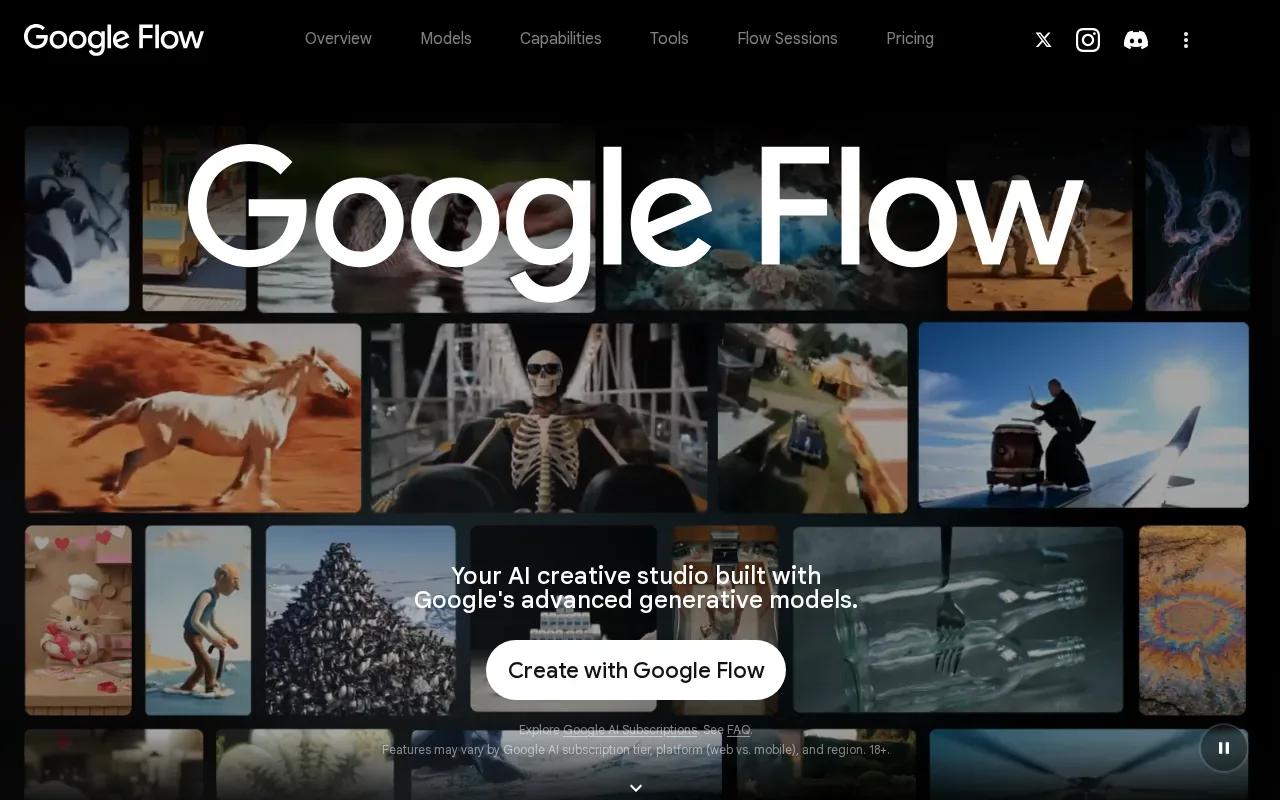
You can upload an image and describe the scene. Veo 3.1 Lite supports four-, six-, or eight-second clips at 720p. That gives you a clear fit for short drafts or social shots that don’t need a higher resolution.
If the finished clip needs dialogue that matches a visible speaker, check the available audio controls. Compare it with Veo Studio, which generates synchronized sound and dialogue with Veo 3.1, and supports up to 4K output on eligible settings.
| Need | Option to consider | What to check |
|---|---|---|
| Dialogue synced to a character | Veo Studio or Kling AI | Review lip movement and speech timing |
| Several model choices in one workspace | AI Video Generator by OpenArt or Freepik AI Video Generator | Confirm the selected model’s audio controls |
| Longer image-led clips | Kling AI or Higgsfield AI | Check the model’s duration and resolution |
| Veo image-to-video at 720p | Google Flow | Plan for the listed clip lengths |
| Higher-resolution output with scene extension | Veo Studio | Check supported plan and model settings |
Use the table as a first filter, then test with the actual photo you plan to publish. The same prompt can behave differently across models, and a test reveals whether the subject remains clear while it moves.
FAQ
How does photo-to-video AI work?
Photo-to-video AI uses an image as a starting point and generates motion around it based on a prompt. You describe the action or camera move, then the model produces a clip. Some models can also generate sound with the video. The broader term generative AI describes systems that produce new content, including media, based on inputs.
Can AI animate a photo and add synchronized dialogue?
Yes, some tools can generate dialogue with an animated image. Veo Studio supports synchronized sound and dialogue, including lip-synced speech on supported prompts. Kling AI also supports native audio generation. Check the selected model’s audio controls, then review speech timing and mouth movement before publishing.
How long does it take to turn a photo into a video?
There isn’t one fixed generation time for every tool and model. The options in this list differ in model, clip length, and workflow, so render time can vary. Plan time for a preview and a possible second attempt. A short, focused prompt makes it easier to judge whether the motion and sound fit.
What image should I use for an AI video?
Use a clear image where the main subject is easy to see. Leave room for the movement you want, especially in a vertical frame. If the subject is a person or product, check the full clip for changes in appearance. A small action, such as a turn or slow camera move, is a good first test.
Can I use AI-generated video in an ad?
Check the tool’s license and the rights tied to your source image, audio, and other assets before using a clip in an ad. Veo Studio’s plans include a commercial license. For synthetic media that could be mistaken for real footage, consider the context and whether viewers need a clear disclosure. A deepfake is media made or altered to misrepresent someone’s appearance or speech.
Conclusion
If your clip needs an image, synchronized sound, and dialogue in one workflow, start with Veo Studio.


