
A still photo can become a moving scene with a short prompt and an AI video tool. An AI photo-to-video converter uses your image to guide new frames, so the result can move beyond a simple zoom. Here are seven named options, plus Veo Studio, with the key differences that can shape your choice.
1. Veo Studio
Veo Studio is an independent, browser-based video creation tool powered by Google’s Veo 3.1 models. It accepts prompts and reference images, then generates video with synchronized sound and dialogue. It’s built for creators who want to direct a scene, not only add motion to a still.
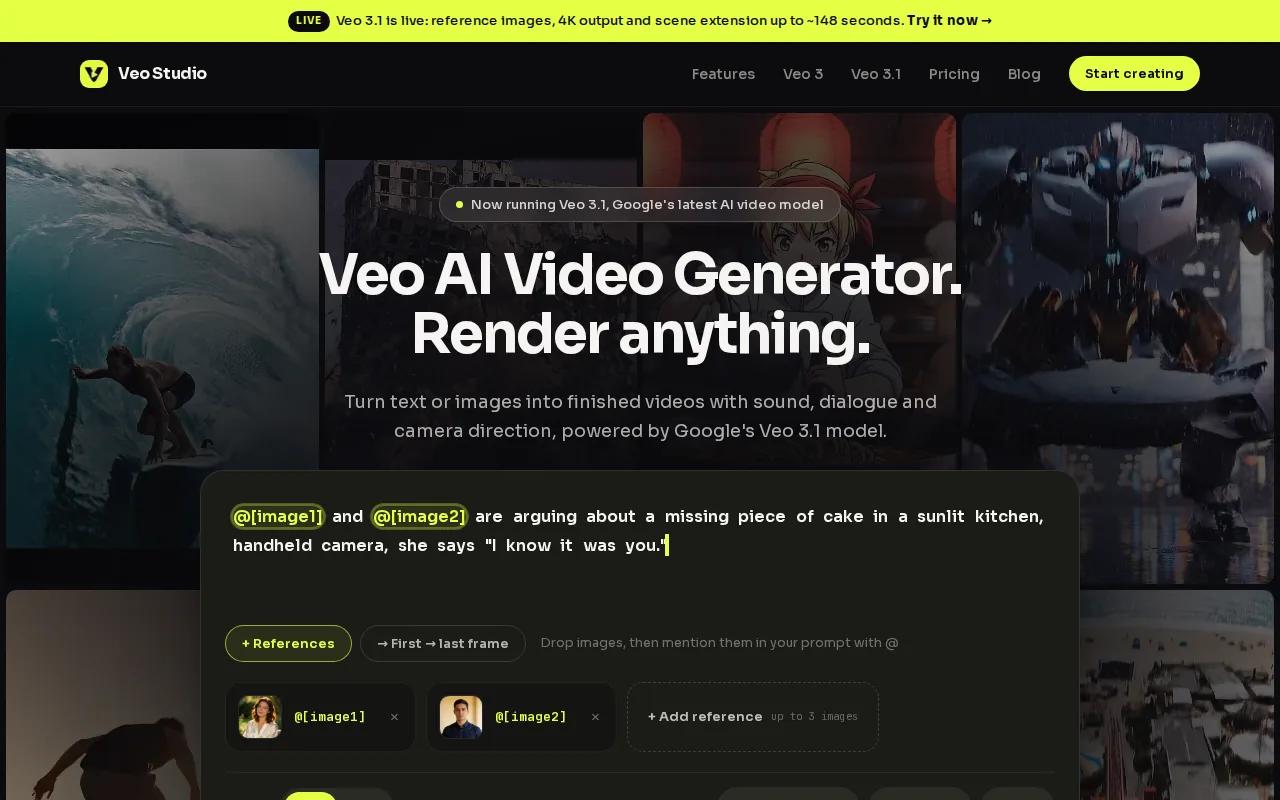
For a product spot, upload a clear product photo and describe one camera move, such as a slow push toward the label. You can also use first- and last-frame control to guide the start and end of a clip. Add reference images to help keep a character or product consistent.
If you’re shaping a prompt around one image, describe the action and camera move. Veo Studio supports output up to 4K on supported settings, and scene extension can add length to a finished clip.
There’s a free plan with a couple of 720p videos each month and no card required. Paid plans start at $14 per month.
2. Hailuo AI by MiniMax: reference-led clips with native stereo sound
Hailuo AI by MiniMax is a video app that accepts image, video, and audio references. It also generates video with native stereo sound, which can help when you want a clip to feel like a directed scene rather than a silent animation.
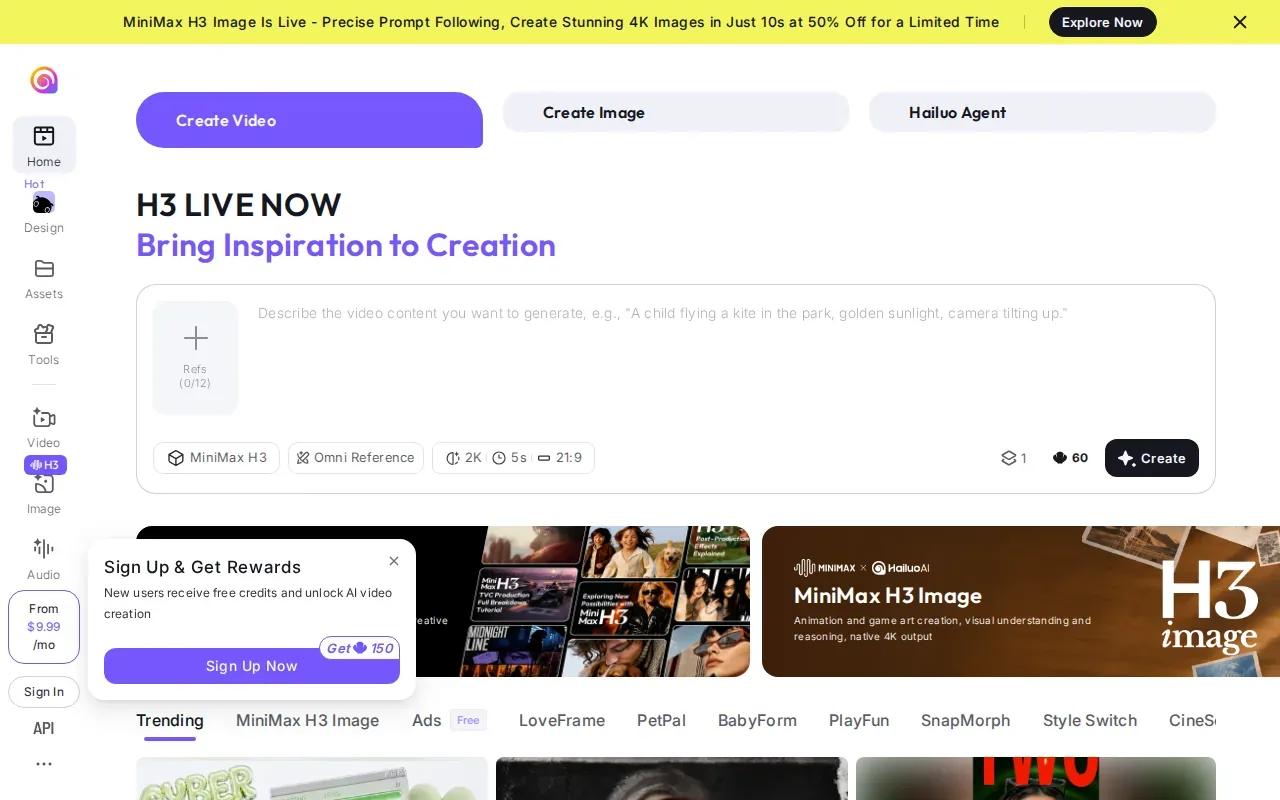
The reference inputs give you more than one way to guide a result. For example, a creator could use an image to guide the look, then use an audio reference to shape the sound. Hailuo also lists Lip Sync, Music Generation, and Audio Generation tools.
Its listed maximum resolution is 2K, and the Standard starting price is $14.99. That makes it worth considering for a sound-led social clip or a short scene where audio is part of the first draft. Check the model and settings you plan to use before building a larger project around them.
3. Runway: image-to-video generation in a video editing platform
Runway is a video platform with generation and editing models in one app. Its Gen-4.5 model can take a starting image and produce a clip from 2 to 10 seconds at 720p. Runway starts at $15 and accepts photo-only input.

This setup may suit a marketer who wants to animate a product still, then carry the result into a video editing workflow. A short clip can work as a draft for a social post or as one shot in a longer edit. The 720p ceiling is worth weighing if your final project needs more detail.
When you use a starting frame, keep the prompt focused on what should change. Describe a single action or camera move instead of restating every visible detail in the photo. That gives you a clearer way to judge whether the generated movement fits the source image.
Runway’s workflow is photo-led, so it’s a direct option when you already have the image and want to animate it.
4. Google Flow: a low-cost entry point with daily credits
Google Flow provides 50 daily credits and supports both prompt and image inputs. Veo 3.1 Lite generates 4-, 6-, or 8-second clips at 720p. Google Flow starts at $4.99.
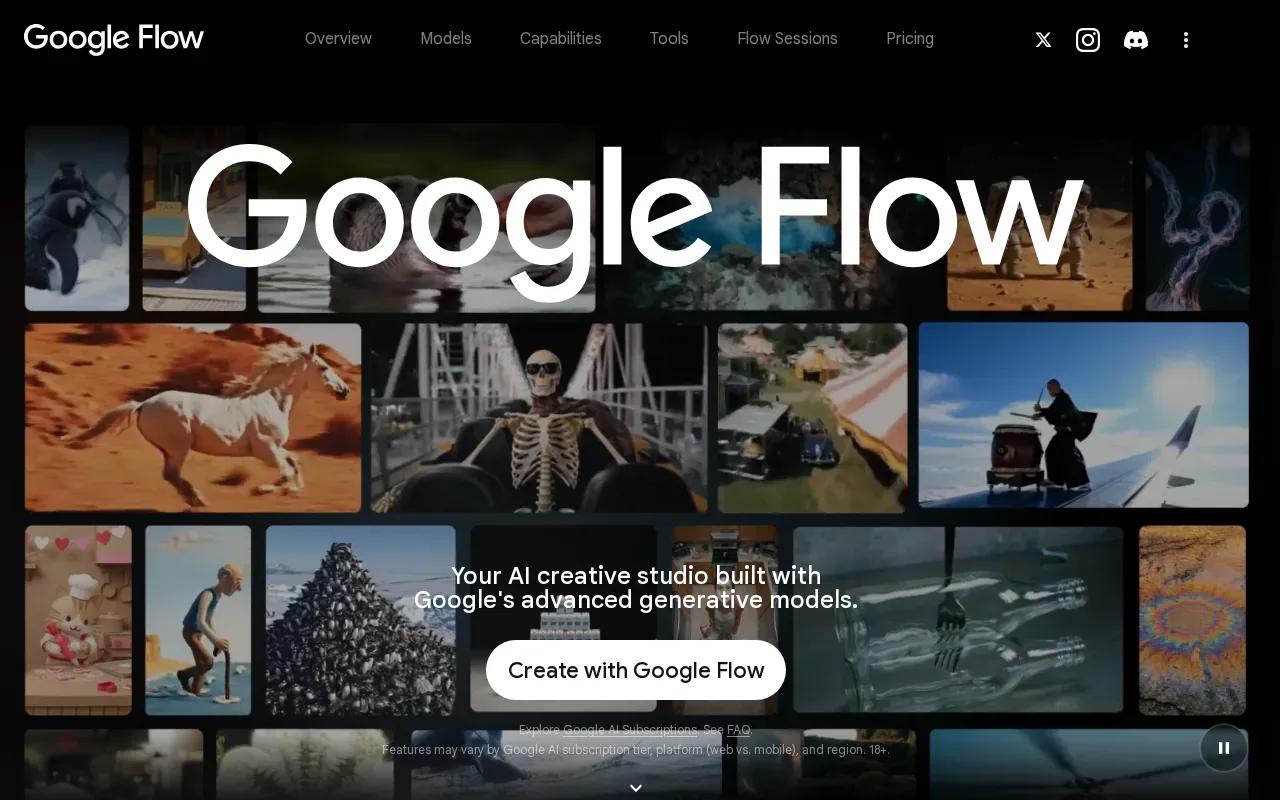
Flow may fit a creator who wants to test short clips on a smaller budget.
If you want to compare photo-led workflows, this page is available. In Flow, daily credits give you room to test an idea, while the 720p output cap for Veo 3.1 Lite may affect how you use the final clip.
Use a clean source image and a short motion direction for the first test. Then check whether the framing and movement hold up at the intended screen size.
5. Pikaframes: animate a sequence of ordered images
Pikaframes turns two to five ordered images into a video sequence. Each pair of images becomes a transition, and one optional prompt can guide the motion across the sequence. This makes it a fit when you already have a set of key images rather than one starting photo.
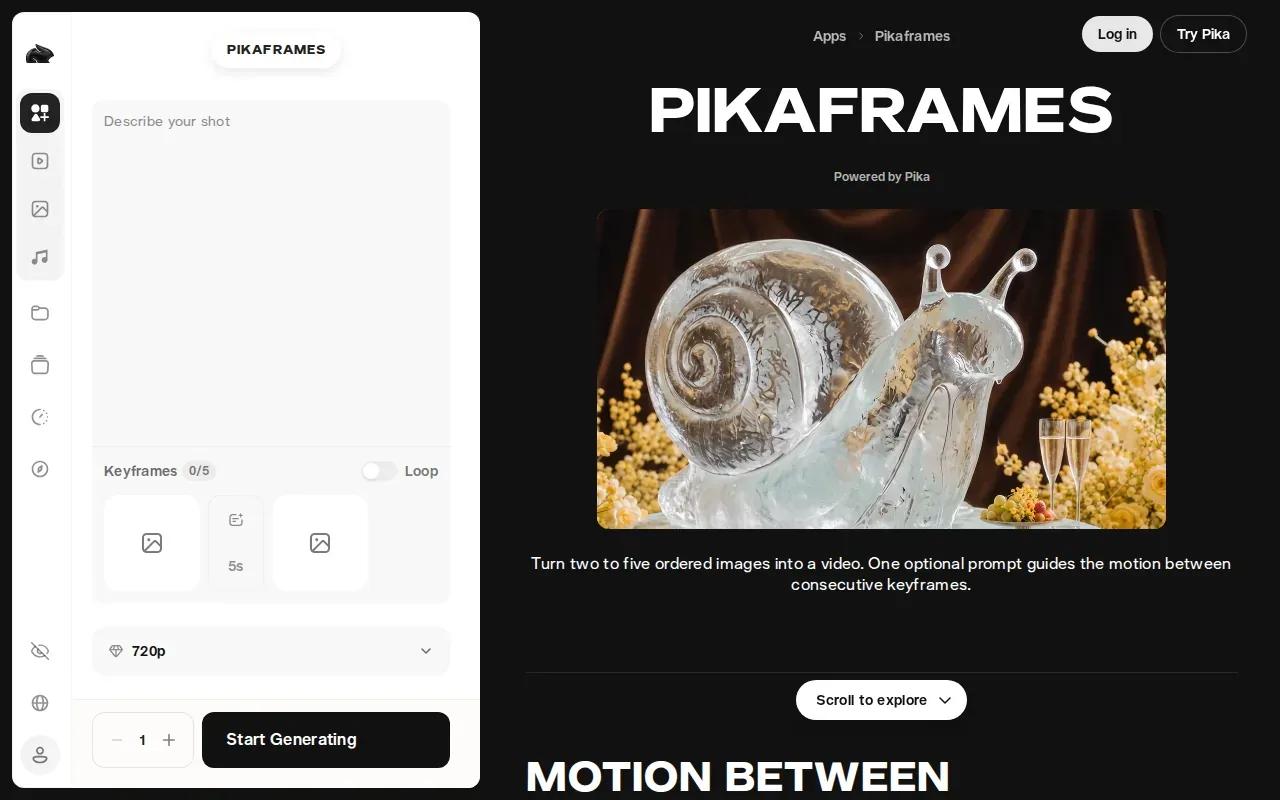
You can use one to five seconds for a transition. With exactly two keyframes, you can also choose a ten-second transition. The output can reach 1080p with up to four keyframes; a five-keyframe sequence renders at 720p.
Think of a simple product reveal: the first image shows a closed box, and the next shows the item inside. Arrange the frames in the order you want, then use the prompt to describe how the scene should move between them. The order matters because each adjacent pair becomes its own transition.
6. PixVerse AI: a video-generation option with an interactive-world focus
PixVerse AI is a video-generation option whose work extends into real-time worlds and interactive entertainment. Its image-to-video route may appeal to creators who want to test motion from a still while exploring a broader visual-generation workflow.
The available product information describes PixVerse as focused on video generation and production, with research that also reaches interactive experiences. That’s a different emphasis from a tool centered on a fixed sequence of key images or a video editor with a timeline.
For a social post or a visual concept, start by checking the specific generation mode and its output settings. The named option is a possible fit when interactive-world work is part of your interest, but the information here doesn’t support claims about its pricing, resolution, or sound controls.
7. OpenArt: reference-image generation with character consistency
OpenArt lets you type a prompt or add a reference image to generate video. Its listed maximum resolution is 4K, and its character tools are designed to keep a character’s look consistent across generations.
That combination can help when a story uses the same character in multiple short clips. OpenArt also brings several video models into one platform, so you can select among different generation options. Check the settings for the model you choose, since the platform’s maximum resolution doesn’t mean every model or workflow uses that output.
For a campaign with a recurring presenter or mascot, save the character reference and reuse it as you plan the next shot. Then review the face and key visual details in each result before you treat the clips as a matched set.
8. Higgsfield AI: compare models from the same source photo
Higgsfield AI lets you compare models using the same source photo. Higgsfield AI accepts both photos and prompts, with output up to 1080p. The starting price is from $15.
The same-photo approach gives you a useful comparison: keep the source image steady, then judge how each model handles the motion you describe. Kling 4.0 supports 720p or 1080p output.
| Workflow choice | What it supports | Useful when |
|---|---|---|
| Compare models on one photo | Same source image across model tests | You want to judge motion differences without changing the starting photo |
| Compare model motion | Same source image across model tests | You want to see how models handle the motion you describe |
| Plan the output size | 720p or 1080p | You need to match the clip to a specific delivery format |
For a fair test, keep the prompt and source photo the same when you compare model results. If you change both at once, it’s harder to tell what caused the difference.
Choose by the shot you need
Start with the job the clip must do. A product teaser, a character scene, and a sequence built from several stills call for different controls. Use this short checklist before you upload:
- Check the input: Confirm whether the tool takes a photo, a prompt, or both.
- Match the output: Check resolution and clip length against the place you plan to post or edit.
- Decide how much control you need: Look for reference images, keyframes, or character consistency if the shot depends on them.
- Review sound needs: If the clip needs music or dialogue, confirm that the tool supports generated audio.
- Use an approved image: Check the service’s terms before uploading someone else’s photo or a private image.
Then make a short draft. Look closely at the face, product shape, and any small detail viewers need to recognize. If the movement feels wrong, simplify the prompt before changing the image.
Frequently asked questions
What does an AI photo-to-video converter do?
An AI photo-to-video converter uses a still image as a guide for generating moving frames. Some tools also let you add a written prompt, reference images, or keyframes. The result is usually a short clip, so check its length and resolution before planning a larger edit around it.
Can I turn a photo into a video for free?
Yes, some tools have free access or daily credits. Veo Studio’s free plan includes a couple of 720p videos each month without a card. Google Flow provides 50 daily credits. Free access can have limits, so check the available resolution and generation settings before starting a project.
Which features matter most for product videos?
For a product video, look for image references and enough output detail for viewers to see the item clearly. A camera-move prompt can guide a slow push or reveal. If the clip needs narration or sound, check for audio generation. Review the label and product shape in the result before using it in an ad.
How do I make an AI photo-to-video clip look more natural?
Start with a clear image and describe one simple movement. A slight turn, a gentle camera push, or a small change in expression is easier to review than several actions at once. Watch the whole draft for changes to faces or key objects. If it misses, simplify the motion prompt and try again.
Conclusion
For a photo-led clip that may need synchronized sound, character consistency, frame control, scene extension, or 4K output, start with Veo Studio. Upload one clear image and try a short prompt with a single camera move, then review the draft before you build the rest of the edit.


