

Some AI video tools start with a prompt and hand you a finished Reel. Others help you edit clips you already have. Here are seven options for different jobs, starting with Veo Studio, an independent browser-based tool powered by Google's Veo 3.1 models.
1. Veo Studio: prompt-to-video Reels with synchronized sound
Veo Studio turns a text prompt or reference images into video with synchronized sound and dialogue. Veo Studio is an independent browser-based tool powered by Google's Veo 3.1 models, not a Google-owned service.
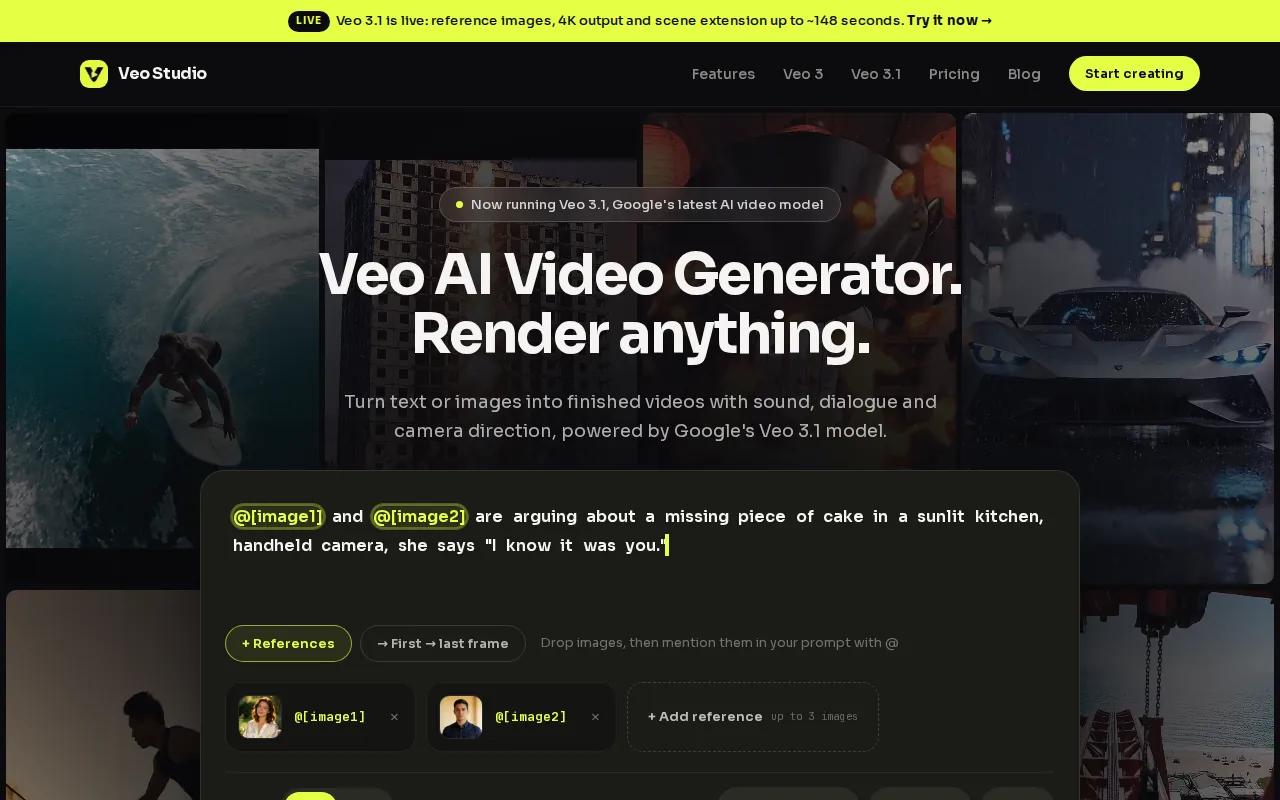
It suits creators who want to shape a scene before they edit. Describe the action and camera move in plain language, or upload reference images to guide the result. For a talking character, put the line of dialogue in quotes. The generated speech can match the character’s lip movement.
Character consistency helps when a brand needs the same person or product to appear across related shots. Veo Studio also supports first- and last-frame control, so you can provide two stills and guide the transition between them. If a supported 720p clip needs more room, scene extension adds seven seconds per step.
Output can reach 4K on supported paid plans. The free plan gives you a couple of 720p videos each month, with no card required. That makes it easy to test a product reveal, a short dialogue scene, or a vertical visual before deciding whether a larger plan fits.
For more ideas on planning short clips for social feeds, see the social Short-Form video guide. Veo Studio is a fit when the shot itself matters as much as the edit that follows.
2. Pexo: plain-language prompts for ready-to-post vertical Reels
Pexo builds a vertical, ready-to-post Reel from a plain-language description. You don’t need to write prompt syntax, which suits creators who want to describe an idea in everyday words and move on to review the result.
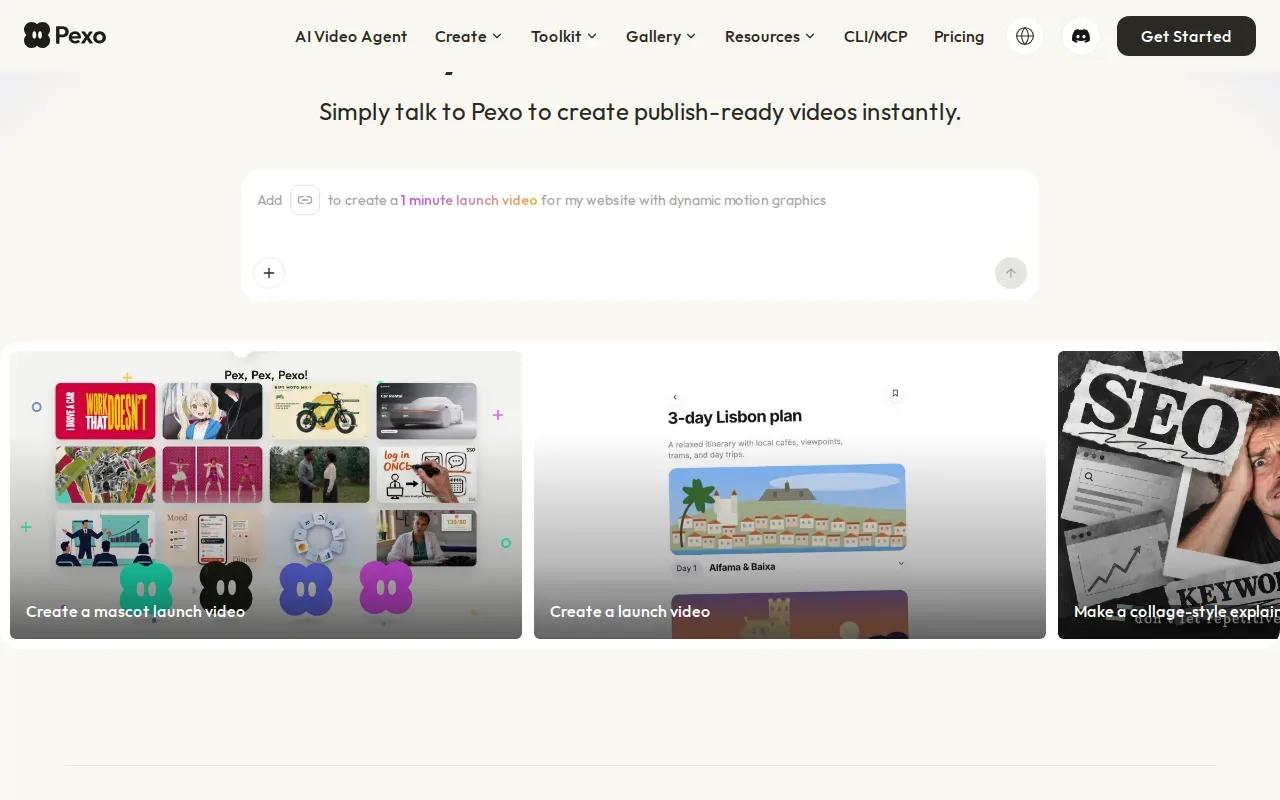
That workflow can help when the hard part is getting from a blank page to a first cut. A small business might describe a quick product teaser, while a creator could outline a short visual story. The aim is a Reel shaped for a vertical feed, rather than a loose set of clips you still need to assemble.
Keep your description focused. Name the main subject and the action you want the viewer to see. If the first draft misses the point, revise the description so the next attempt has a clearer direction. That’s a useful approach when you have an idea but don’t want to learn a specialized prompt format first.
Pexo has sign-up credits, so you can test the workflow before committing to a paid plan. Use that first try to judge the thing that matters for your account: does the generated Reel match your idea closely enough to be useful? A quick test can tell you more than a long feature list.
Choose Pexo if writing a prompt feels like extra work and you want the starting point to be a plain-language description. If you need more say over a character’s first and last frame, compare that need with Veo Studio’s frame controls.
3. InVideo AI: scripted voiceovers and 4K video output
InVideo AI is a prompt-led video tool for creators who want a script and voiceover in the same workflow. Its free plan is watermarked, and it offers a limited number of credits that reset weekly.
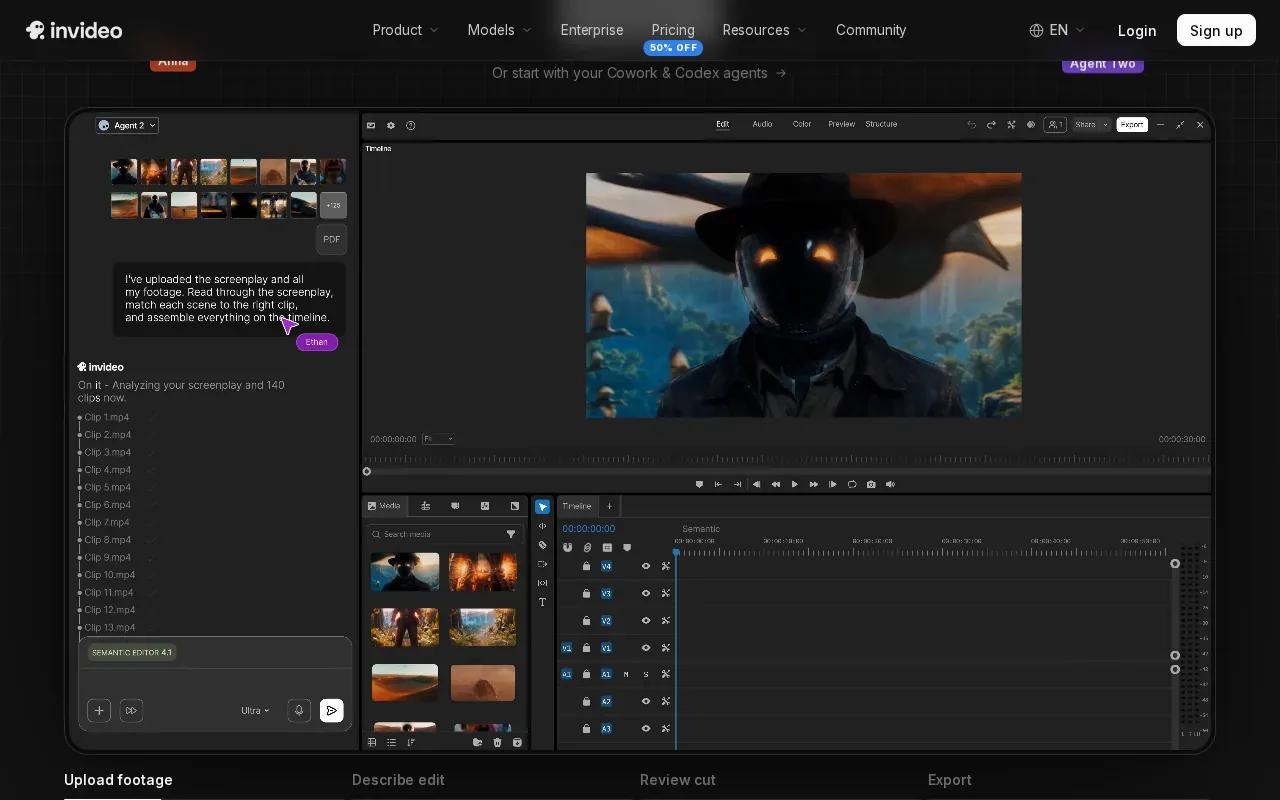
This setup suits a creator who has a topic but hasn’t written the narration yet. Start with a brief for a short explainer or product story, then review the script and voiceover as part of the draft. That can be useful for faceless Reels, where the narration carries the message while the viewer sees supporting video.
InVideo AI can export up to 4K. Resolution alone won’t make a Reel work, but it gives you room to choose a high-resolution file when that fits your publishing workflow. The tool also has an editing path for footage you already shot. You can trim clips, change their aspect ratio, add captions, and adjust the edit on a timeline.
That makes it worth considering if your team moves between generated videos and recorded footage. For example, you might generate a narrated draft for one post, then use the editor to cut a staff demo into a vertical version. Check the finished captions and narration before posting, since both shape what a viewer takes away.
InVideo AI is a sensible option when a written script and voiceover are the main need. Its watermarked free tier is best treated as a way to try the workflow, not as a promise of a clean final export.
4. Runway: a pick for cinematic-looking Reels
Runway is a video creation and editing tool with a focus on cinematic-looking output. It suits creators who have a clear visual idea and want to spend time shaping a scene, rather than asking for a fully scripted Reel in one pass.
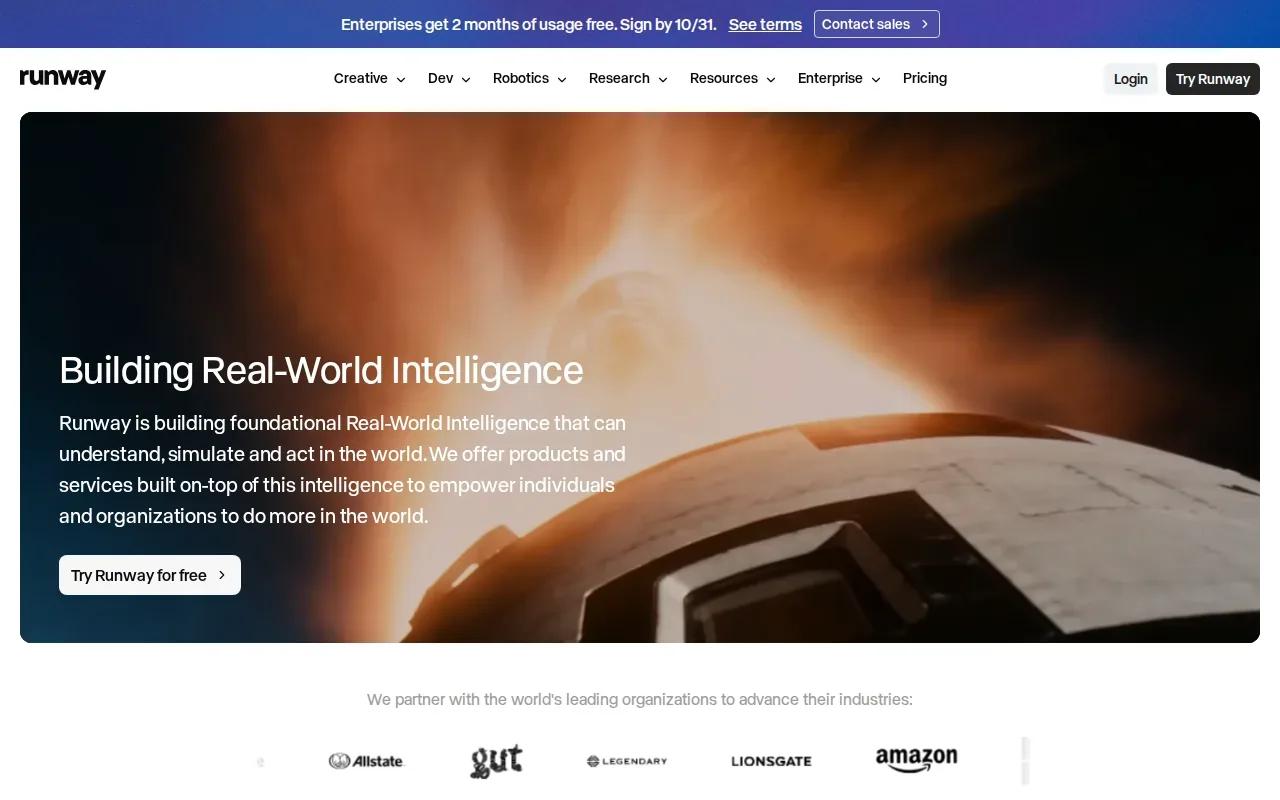
You can begin with a text prompt, an image, or existing video. Runway also supports edits to a clip, such as changing lighting or a backdrop, and lets users extend video before export. Those controls give a creator room to refine a visual after the first generation.
For a Reel, think in terms of one strong shot: a slow camera move toward a product, or a change in mood as a character enters a scene. A focused prompt makes it easier to judge whether the motion and framing serve the idea. If you need a voiceover-led post, a tool built around scripted narration may fit the job better.
Runway’s free access uses one-time trial credits, and the Standard plan costs $15 per month ($12 per month billed annually). Keep that in mind if you expect to generate often.
Runway can be a fit for creators who value a cinematic look and want editing controls after generation. For an Instagram post, check the vertical framing in the actual export before building a full series around the same setup.
Ready to test prompt-to-video Reels with synchronized dialogue? Veo Studio has a free plan with a couple of 720p videos per month and no card required.
5. Kling AI: lifelike motion with native audio
Kling AI is a video generation tool for lifelike motion. It also supports synchronized sound and dialogue through native audio, so the picture and sound can be generated together.
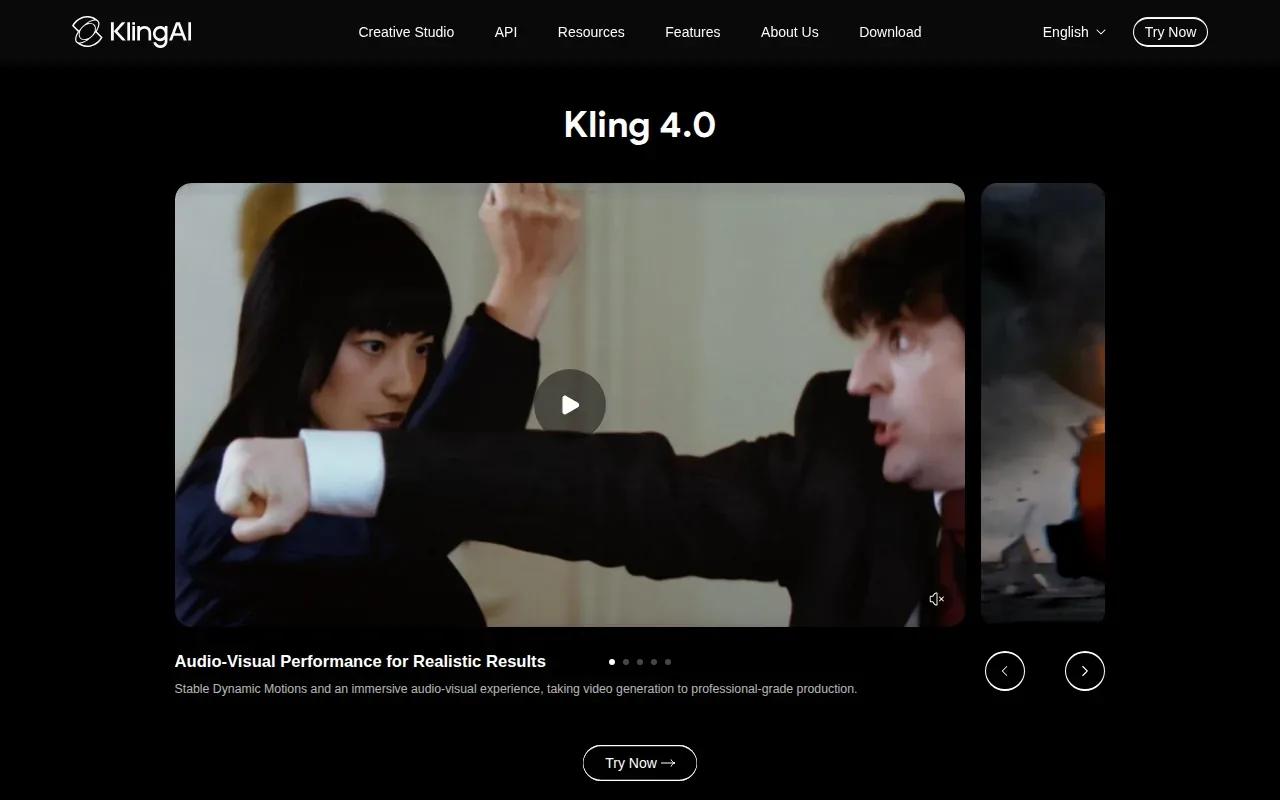
That pairing can help when the point of a Reel depends on a character speaking or reacting in the scene. You can describe what should happen, then review whether the motion and dialogue fit the message. For example, a short product scene may need a person to speak a line while handling an item, not just a silent close-up.
Kling AI has daily free credits. That gives you a way to test a scene without starting with a paid plan. Kling AI is suited to shots where motion or dialogue is central.
Before making a set of Reels, check whether the same visual identity holds across the shots you plan to use. Consistency matters for a recurring character or a series built around one look. If the clip only needs a quick visual moment, a simpler generation workflow may be enough.
Consider Kling AI when natural-looking motion and native audio are high on your list.
6. CapCut: a free editor with high-resolution exports
CapCut is a video editor with free editing and exports of up to 8K. It suits creators who already have clips and want to cut them into a Reel, rather than begin with a text prompt alone.
Templates give you a starting layout for a social clip. You can swap in your own photos or footage, then adjust text, effects, and timing. Auto-captions can help when the video includes speech, while background removal can help separate a subject from its original setting.
That’s a different job from generating a whole scene. Say you filmed a quick product demo on a shop floor. An editor lets you trim the lead-in, add captions, and set the clip up for a vertical post. If you need new footage that you haven’t filmed, look at a prompt-to-video option instead.
CapCut’s free tier includes editing without a watermark and supports exports up to 8K. That makes it a useful editing route when you want to shape your own footage without paying first. For a broader workflow that starts with footage, the social media video maker overview can help you think through the right starting point.
Choose CapCut for hands-on editing and templates. An 8K export limit is a technical ceiling, not a reason by itself to export every Reel at the highest setting. Match the export to the footage and where you plan to use it.
7. Kapwing: browser-based video generation and editing
Kapwing is a browser-based video tool that can generate full video projects from a prompt, then let you edit the parts on a timeline. It suits creators who want to move between a generated draft and hands-on changes without leaving the browser.
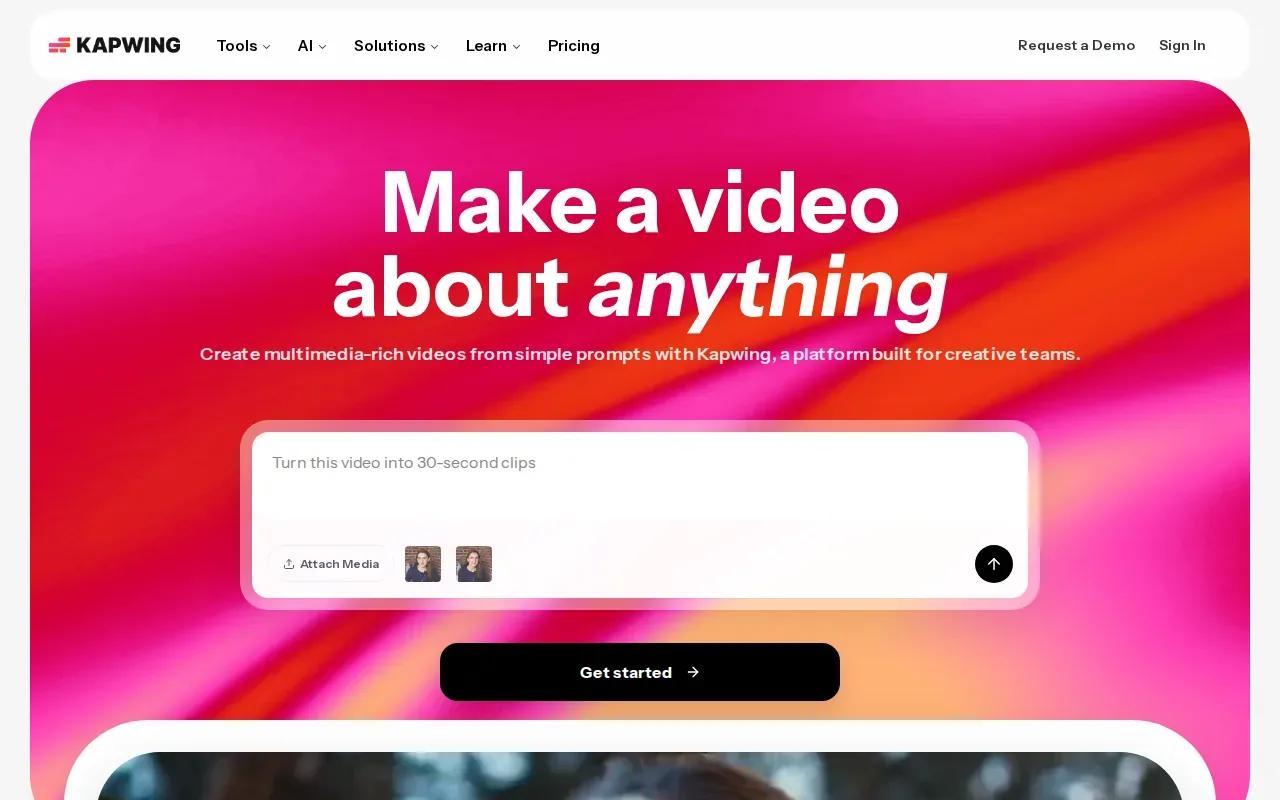
Its Instagram video workflow supports vertical video. You can review a plan before generating, then edit items such as subtitles or sound in the studio. That can help when a first draft is close but needs a change to the opening line or caption before you share it.
Kapwing can also help when you’re turning a prompt into a short informational clip or a product post. Its free plan is watermarked at 720p, while paid plans export in 4K. Pro is $16 per member each month when billed annually; Business is $50 per member each month when billed annually.
| What you need | Kapwing fit | What to check |
|---|---|---|
| A browser-based workflow | Generate and edit online | Review the draft before exporting |
| Prompt-led video | Make a full project from a prompt | Check whether the opening matches your brief |
| Free export | Watermarked, up to 720p | Decide if that file works for your test |
| Higher output resolution | Up to 4K on paid plans | Choose this if your workflow needs that ceiling |
The table’s main point is simple: Kapwing combines prompt generation with browser editing, while its free export has a watermark. If you need to make repeated changes with a team, test how the edit and review steps fit your day-to-day process before moving a full content schedule into it.
FAQ
What is an Instagram Reels generator?
An Instagram Reels generator is a tool that helps make vertical videos for Reels, often from a prompt, script, or image. Some tools generate scenes and narration. Others focus on editing clips you already have. Before choosing one, decide whether you need new video footage or a faster way to finish an existing edit.
Which Reels generator can make video with synchronized dialogue?
Veo Studio and Kling AI support synchronized sound and dialogue in this shortlist. Veo Studio also supports character consistency, frame control, scene extension, and up to 4K output on supported paid plans. Kling AI offers native audio. Test dialogue with a short sample before planning a whole series.
Can I make Reels with an AI video tool for free?
Yes. Several options here have a free tier or free credits, but the terms differ. Veo Studio gives you a couple of 720p videos per month without a card. Runway uses one-time trial credits, while Kling AI has daily free credits. Check the export limits and watermark before you settle on a workflow.
Should I use a generator or a video editor for Reels?
Use a generator when you need a new scene from a prompt or reference image. Use an editor when you already have footage and need to cut it, add captions, or prepare a vertical version. If you do both kinds of work, try one example of each before choosing a main tool.
Conclusion
For prompt-led Reels with synchronized dialogue and scene controls, start with Veo Studio. Open the free plan, make one short vertical clip, and check the sound and framing on your phone before you build your next post around it.


