A still image can become a moving clip with a short prompt and a few choices. The right image to video software depends on what you need next: synced dialogue, social edits, a free trial, or higher-resolution output.
We analyzed 58 comments from YouTube and Reddit about image to video software and found that 16% mentioned watermarks and usage restrictions.
Here are six options for creators and marketers, with a clear look at where each fits and what to check before you export.
1. Veo Studio
Veo Studio is an independent, browser-based AI video creation tool powered by Google’s Veo 3.1 models. Upload a reference image, describe the action, then set the shot’s frame shape and length. It suits social creators, marketers, small businesses, and filmmakers who want a still image to become a directed scene.
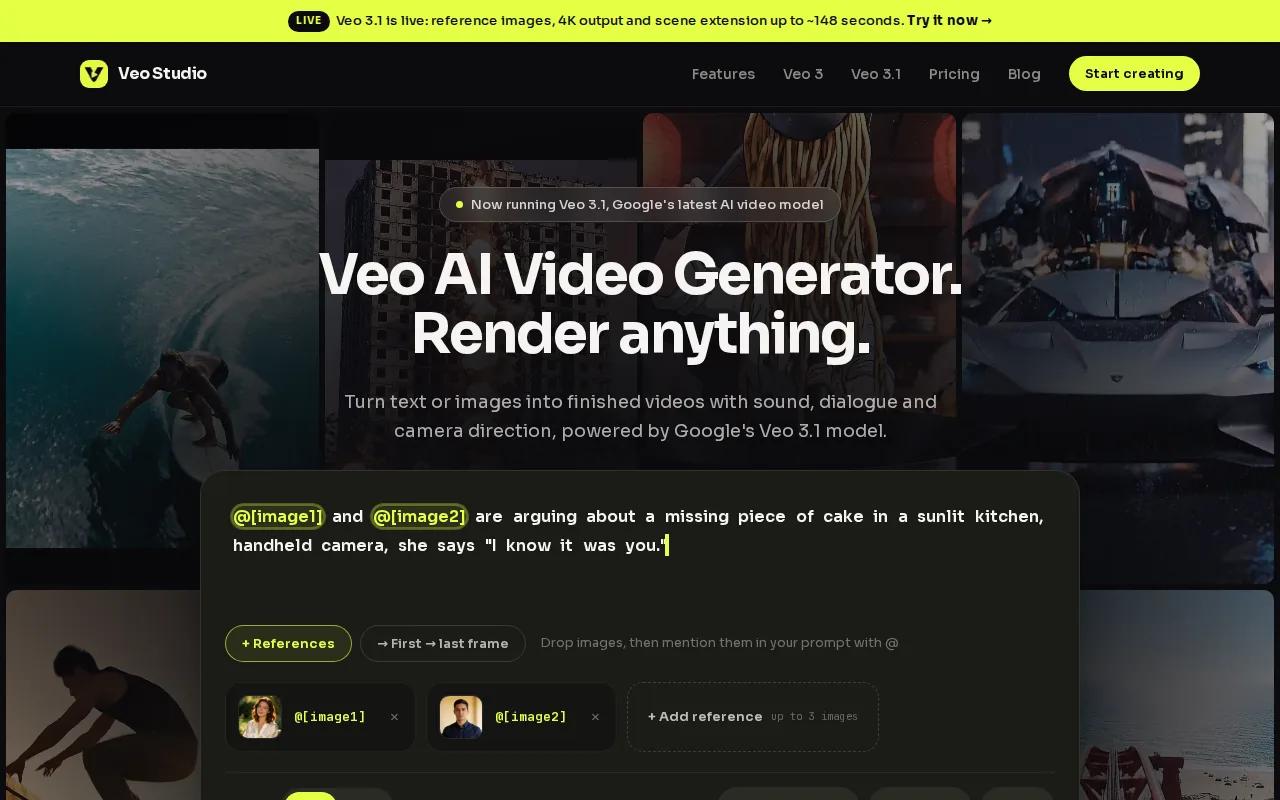
Picture a product photo that needs more than a slow zoom. You can describe a camera move, add spoken words in quotes, and generate the picture with synchronized sound and dialogue. Reference images can guide a character or product. First- and last-frame control can shape a transition between two stills, while scene extension can carry a supported clip further.
Veo Studio supports 16:9 and 9:16 video, with 4-, 6-, or 8-second generation lengths. Output can reach 4K on supported paid settings. The free plan includes a couple of 720p videos per month with no card required; paid plans start at $14 per month and include a commercial licence. For more ideas on photo-led clips, see free photo-to-video AI tools.
That mix of sound, continuity controls, and scene extension is useful when a short social clip needs to feel like a small scene, not a moving still.
2. Google Flow: a free option with scene extension
Google Flow is a browser-based creative tool with a free tier and scene extension. It fits creators who want to test image-led video without paying first, especially when they may want to build a longer scene from a generated clip.
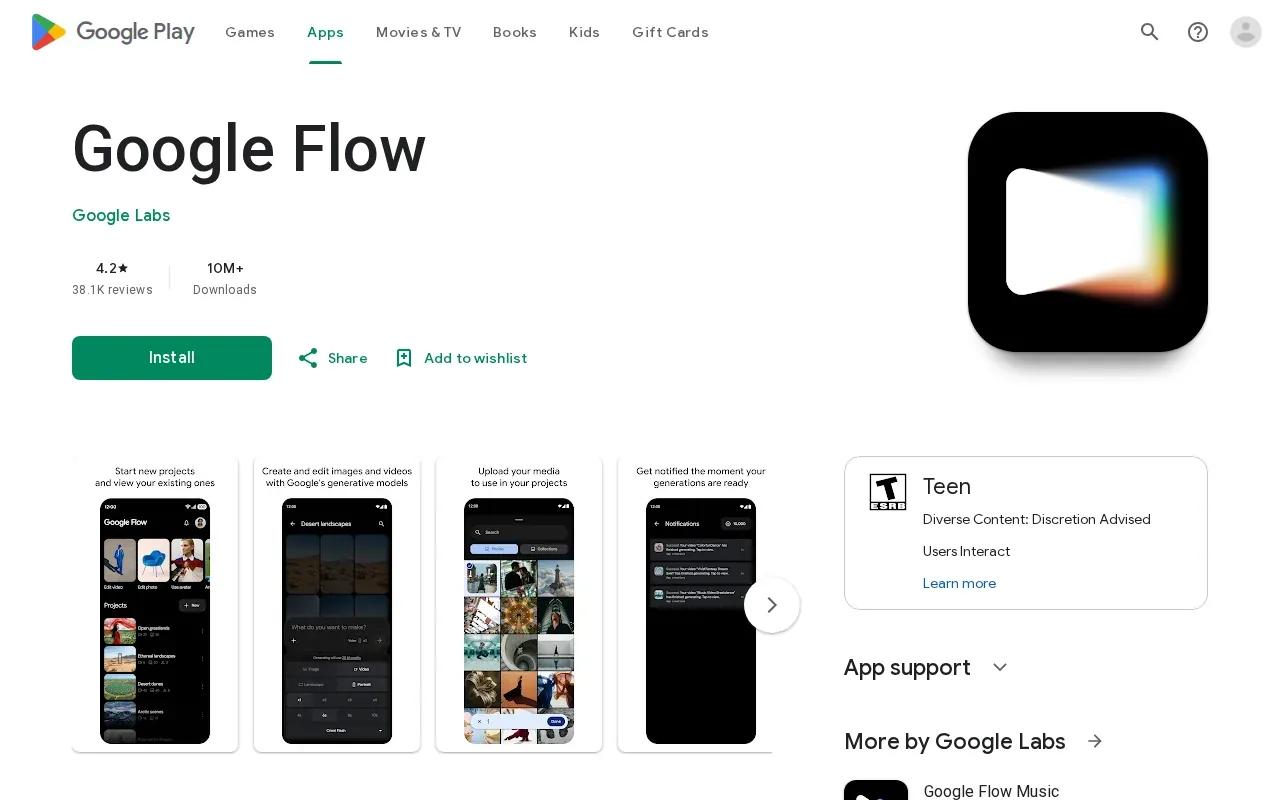
The free tier gives 50 credits per day and doesn’t require a payment card. That can make it a useful place to test a few prompts over time. Treat daily credits as a limit, though. A workflow that needs many versions in one sitting may call for a different plan or tool.
Start with one clear source image and a prompt that names the movement. For example, tell the model to move the camera closer while a curtain shifts in the breeze. Keep the prompt focused on what should change. The still already establishes the subject and setting.
Scene extension is the detail that sets this option apart in this shortlist. It can help when the first clip ends just as the action starts. Review the full sequence after extending it, since a continuation needs to match the earlier motion and framing.
Before you settle on Flow, confirm that the current generation settings fit your intended format and final file. Free access is useful for testing, but the finished export still has to suit your channel.
3. CapCut: a free option for quick social video workflows
CapCut is a free-to-try online editor with AI video tools and editing features. It’s a fit for creators who want to make a clip, then keep shaping it in a timeline before sharing it on social media.
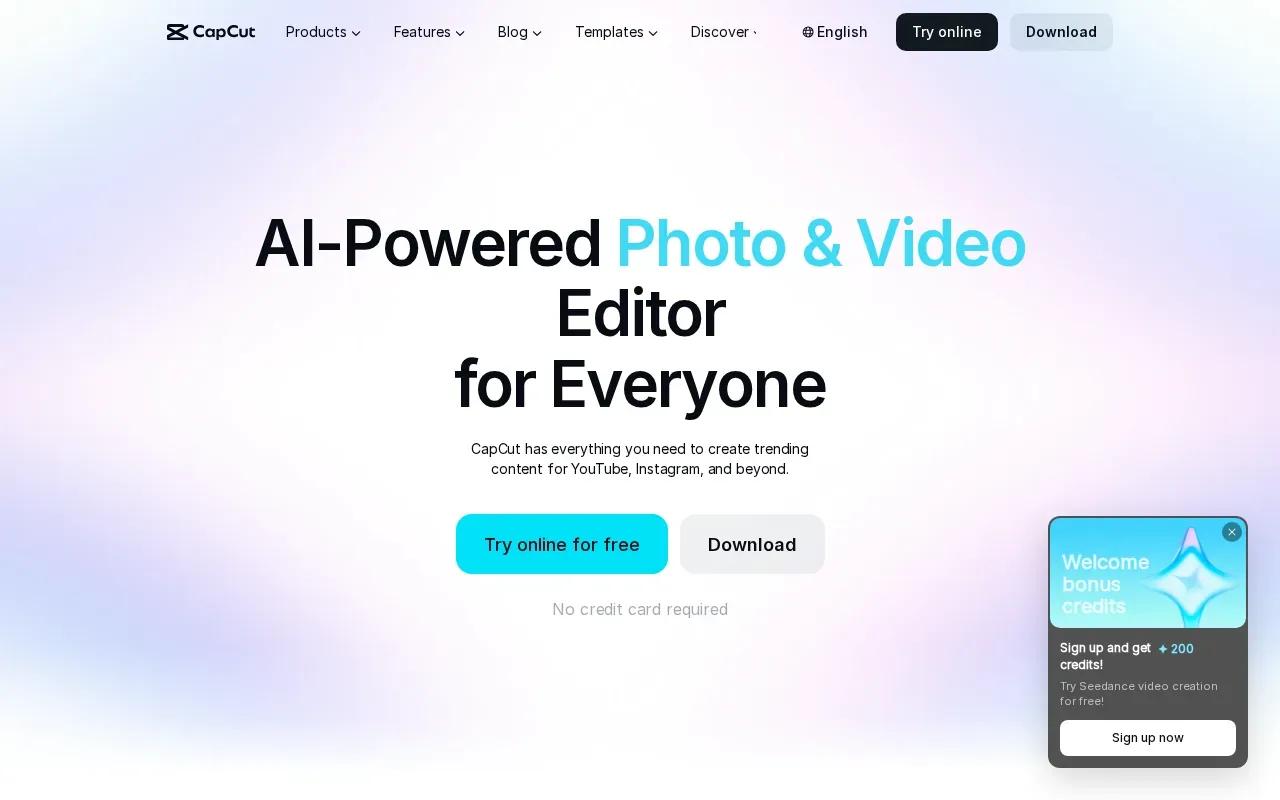
CapCut’s online tools include AI video creation from text or reference images. Its editor can also handle trimming, cropping, transitions, text, audio, and captions. That matters when the first generated pass needs a tighter opening or a caption before it’s ready to post.
For a simple workflow, upload an image and describe the motion you want. Once the clip is ready, place it on the timeline and review the full sequence. You can then add text or captions, adjust the crop, and export an HD file. CapCut’s online video editor is free to try, with no credit card required.
Think of CapCut as a useful choice when editing is part of the job, not an afterthought. It can help you move from a generated image-led clip to a social edit in the same browser workflow. The stated maximum output resolution is HD, so check that against your delivery needs before starting.
If you mainly need scene continuity or spoken dialogue generated with the video, compare those needs against Veo Studio’s supported controls. If your main task is assembling and polishing a short post, CapCut’s editing workspace may be the better fit. More on the animation side is in this guide to AI image animator tools for photo-to-video.
4. AKOOL: 4K generation with native audio
AKOOL supports cinematic 4K video generation with Seedance 2.5, region editing, and native audio. Its image-to-video tools are aimed at turning still visuals into moving clips, making it a fit for marketing teams and creators preparing campaign assets.
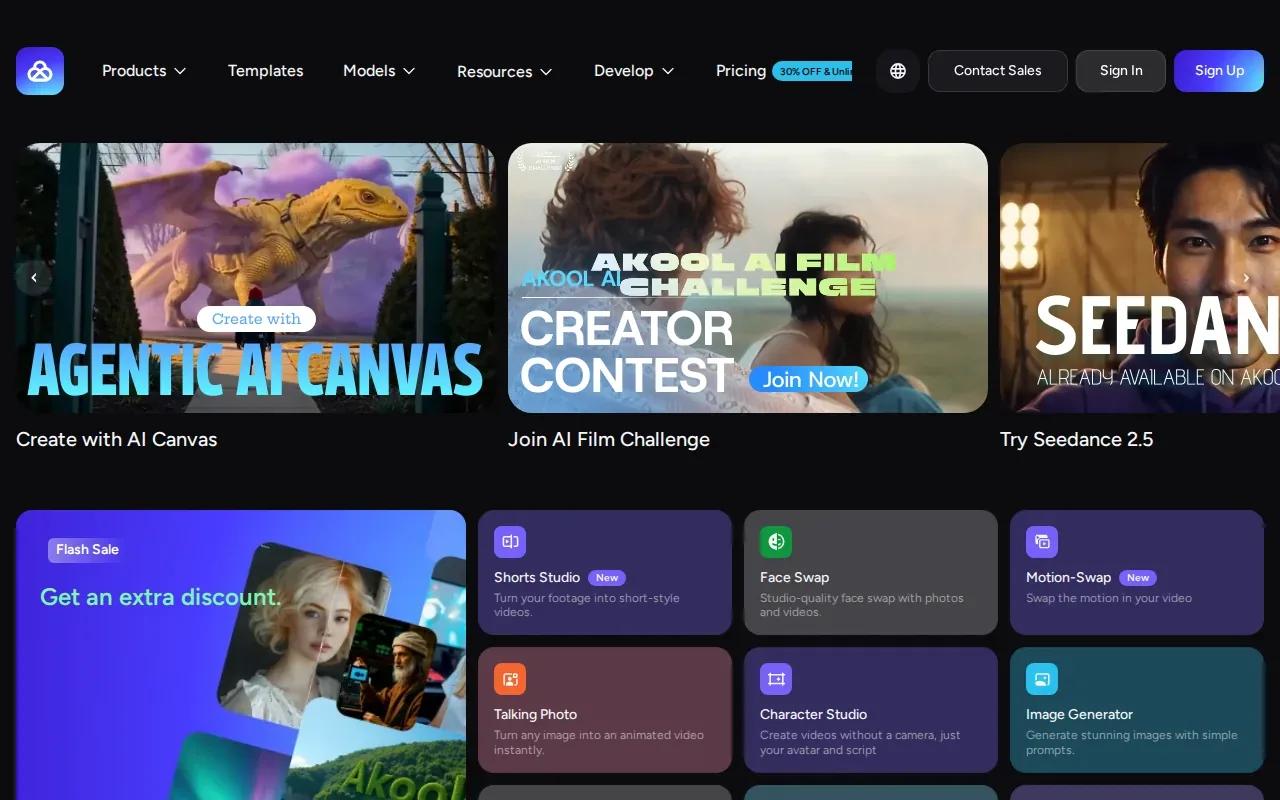
AKOOL’s image-to-video workflow starts with a still image. The product information describes motion controls for directing an element’s path and speed, as well as camera effects. Those controls can help when a product image needs a specific movement rather than a broad request to “make it dynamic.”
The platform also describes temporal consistency for character identity across frames. That can matter in a clip where a person or character remains on screen while the scene changes. For a marketing draft, give the model one main action and one camera direction, then inspect any small details that need to stay true to the source image.
AKOOL’s listed maximum output resolution is 4K, and its video generation is described as including native audio. Those details make it worth considering when both picture and sound need to be part of the generated asset. Still, test the actual output before building a campaign around it. High resolution alone won’t fix a motion choice that doesn’t suit the image.
5. Kling: a budget-conscious option to investigate
Kling is an image-to-video option with character consistency. It may suit creators who want to test a repeated character across generated shots and are weighing a lower-cost paid plan.
Character consistency can help when a person or character needs to remain recognizable as the action changes. That’s useful for a short sequence with the same subject in more than one shot. Start with a clear reference image, then keep each prompt focused on the new movement or camera direction.
Kling’s paid plans start at $6.99 per month for Standard. Free plan availability and daily credits vary by account and region, so check what your account can use before planning a batch of clips. That variability makes it sensible to test a single prompt first rather than assume a set number of free generations.
Kling video output doesn’t include sound or synchronized dialogue. If the final post needs speech or music, plan to add audio in a separate editing step, or consider a tool that generates sound with the image. That distinction can affect the time needed to finish a short ad or story clip.
Kling may be worth testing when keeping a character recognizable is the main requirement and a separate sound workflow is acceptable. For dialogue-led scenes, include audio capability in your shortlist criteria from the start.
6. Pika: a free tier for trying image-to-video creation
Pika has a free tier for trying image-to-video creation. It suits creators who want to test an idea with a limited allowance before deciding whether a paid plan fits their workflow.
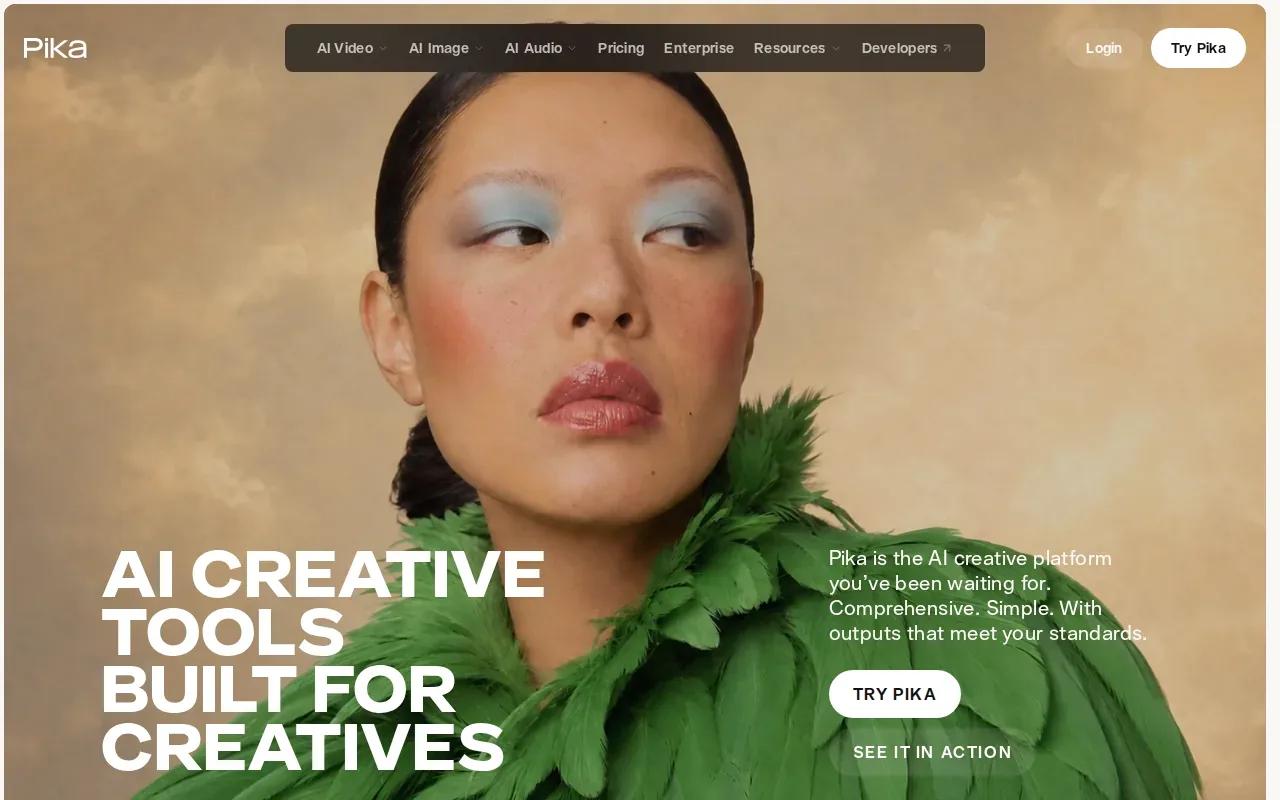
The free plan includes 80 credits per month, 480p output, and a watermark. Paid plans start at $8 per month; commercial rights require Pro. Those terms make the free tier more suitable for early experiments than for a finished commercial campaign.
Pika output doesn’t include audio sync or dialogue. If your concept needs a spoken line, you’ll need to account for sound separately. For a silent visual test, you can use the free credits to see how an image and motion prompt work together before choosing a paid route.
Use a simple prompt that names one subject action and one camera move. Then watch the beginning and end of the result for changes to the subject. If you plan to publish the clip, check the plan terms and watermark treatment before you spend time refining the edit.
| What you need | How Pika fits | Check before you publish |
|---|---|---|
| Try a prompt without paying | Free tier with 80 monthly credits | Credits are limited by the monthly allowance |
| Review output size | Free tier output is 480p | Choose a plan that fits your delivery needs |
| Use a clip in a campaign | Commercial rights require Pro | Confirm your plan covers the intended use |
| Add dialogue | Pika output doesn’t include audio sync or dialogue | Plan for a separate sound step |
Pika is a reasonable place to test a visual idea. For paid brand work, settle the rights and output requirements before you build a larger batch around it.
Frequently Asked Questions
What is image-to-video software?
Image-to-video software uses a still image as the starting point for a video clip. You upload a picture, describe the movement or scene, and generate new frames. Depending on the tool, you may also choose a frame shape, resolution, or clip length. Some tools generate sound with the video, while others need a separate audio step.
Can I turn a photo into a video for free?
Yes, several tools in this shortlist have free access. Veo Studio includes a couple of 720p videos per month without a card, while Google Flow has 50 daily credits. CapCut is free to try online, and Pika has a monthly credit allowance. Check each tool’s limits before planning repeated generations.
What should I put in an image-to-video prompt?
Describe what should move, then add a camera direction if it helps. For example, ask for a slow camera push while a person turns toward a window. Keep the first request focused. The image already shows the subject and setting, so you can use the prompt to explain what happens next.
Can these tools add spoken dialogue?
Some can generate dialogue with the video, while others in this shortlist don’t support synced speech. Veo Studio supports synchronized sound and dialogue. Pika and Kling don’t support audio sync or dialogue. If a clip needs a spoken line, confirm this feature before you choose a tool.
How do I save the finished video?
Use the tool’s export or download control after reviewing the generated clip. Check the frame shape and resolution before you export, then play the saved file all the way through. If you plan to post it, confirm the file suits that platform and check whether the selected plan adds a watermark or covers commercial use.
Conclusion
For a still image that needs sound, dialogue, character consistency, or scene extension, start with Veo Studio and test one reference image. Its free plan gives you a way to try a couple of 720p videos without a card; see the Veo Studio free plan details before you begin.