
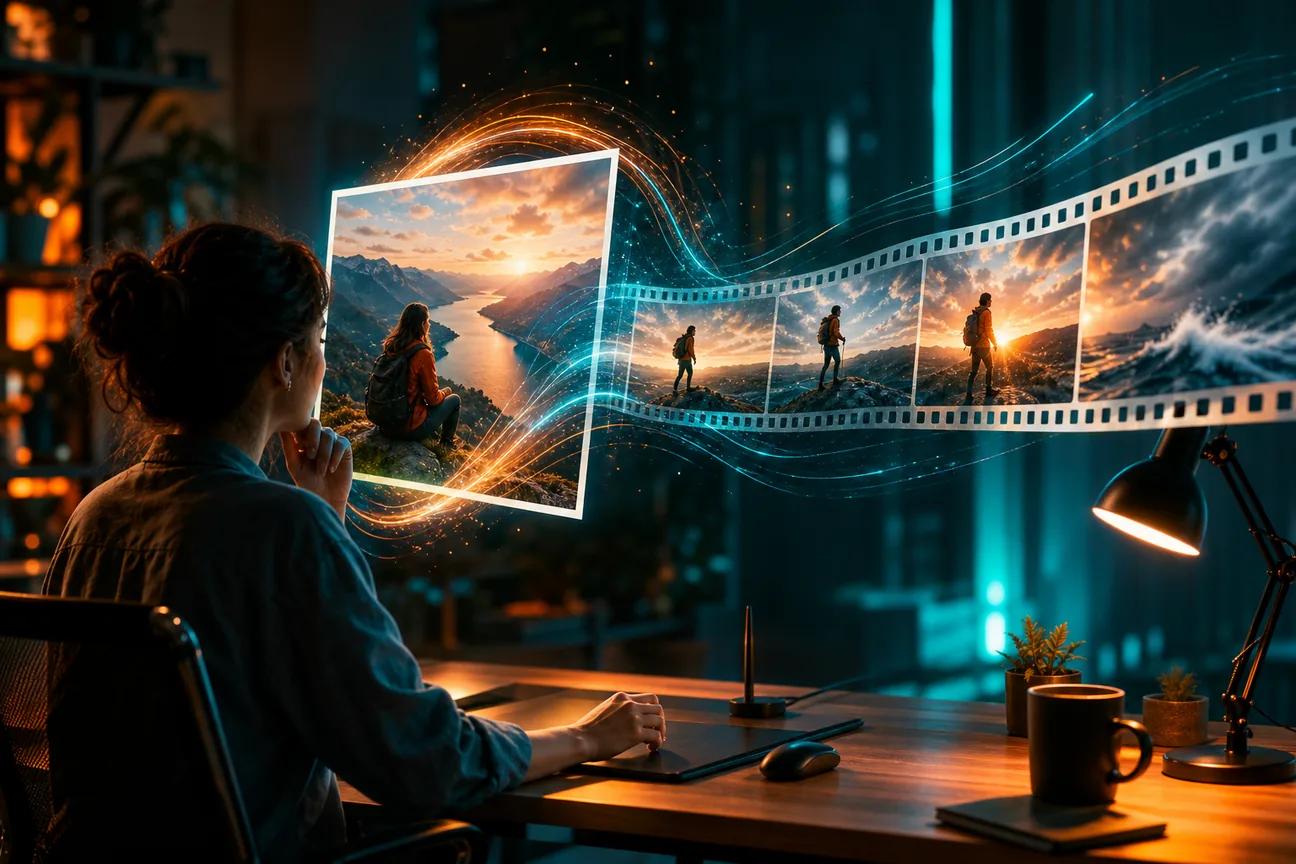
A still photo can become a moving clip without a video editor, but free plans come with different limits. Here are five photo-to-video AI tools, starting with Veo Studio, and what each one can do for your project.
We analyzed 48 comments and questions from YouTube and Quora about free photo to video AI tools and found that 19% mentioned output quality and watermarks.
1. Veo Studio
Veo Studio is an independent, browser-based video creation tool powered by Google's Veo 3.1 models. Add a reference image, describe the shot, and generate a video without installing software.
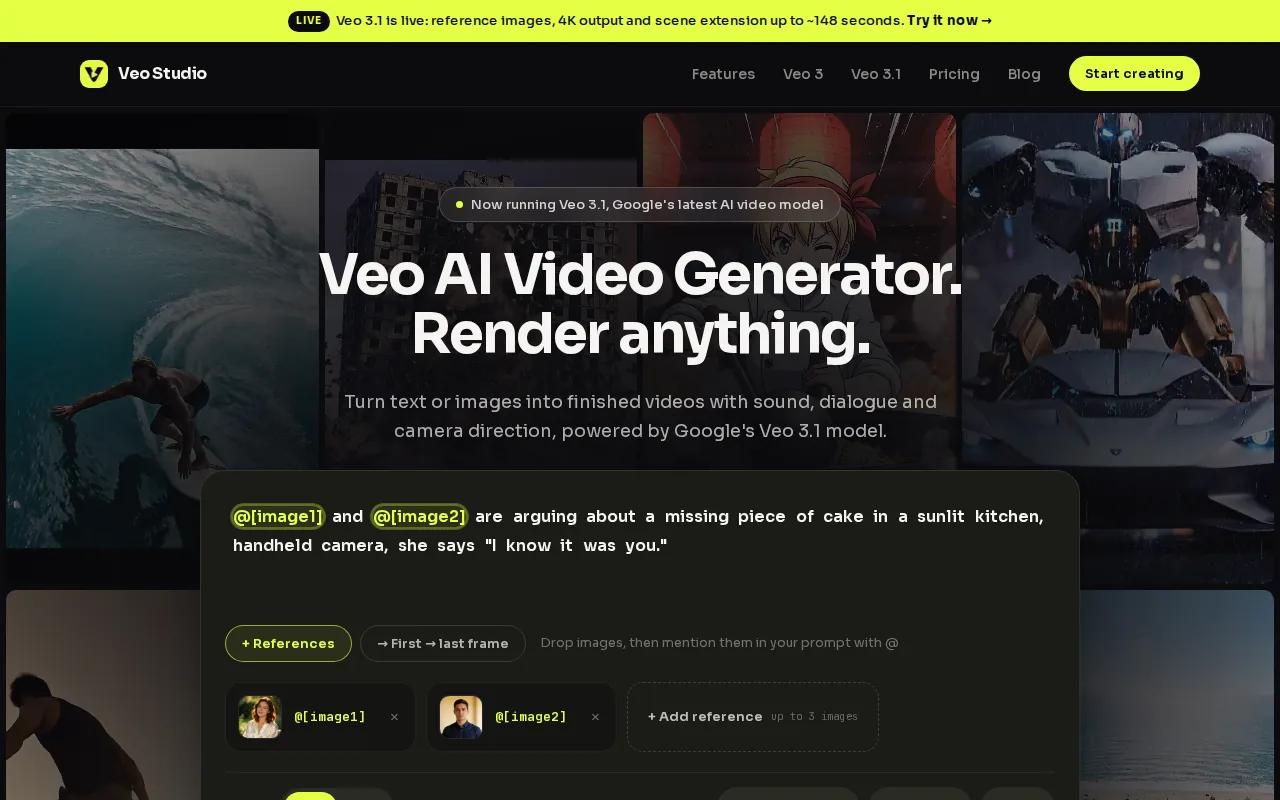
It’s a fit when your image needs more than a basic pan or zoom. Veo Studio supports synchronized sound and dialogue, character consistency, first- and last-frame control, scene extension, and output up to 4K on supported plans. For a product clip, you could attach a reference photo and describe a slow camera move. For a story scene, you could add a line of dialogue.
The free plan includes a couple of 720p videos a month, with no card required. Higher resolutions, including 4K, require a paid plan. Paid plans start at $14 per month. The plan’s modest video allowance makes it better for testing a few ideas than for making a steady stream of free clips.
If you’re comparing image-led workflows, this image to video AI generator guide explains how a reference image can shape a generated scene.
Veo Studio’s browser workflow also suits a quick first test: use one image, ask for one clear action, then review the motion before you build a longer idea around it.
2. Runway: Try a broad AI video toolkit with one-time credits
Runway is a video creation and editing toolkit with image-to-video generation. Its free plan gives you 125 credits once, so it suits a few planned tests rather than a recurring free workflow.
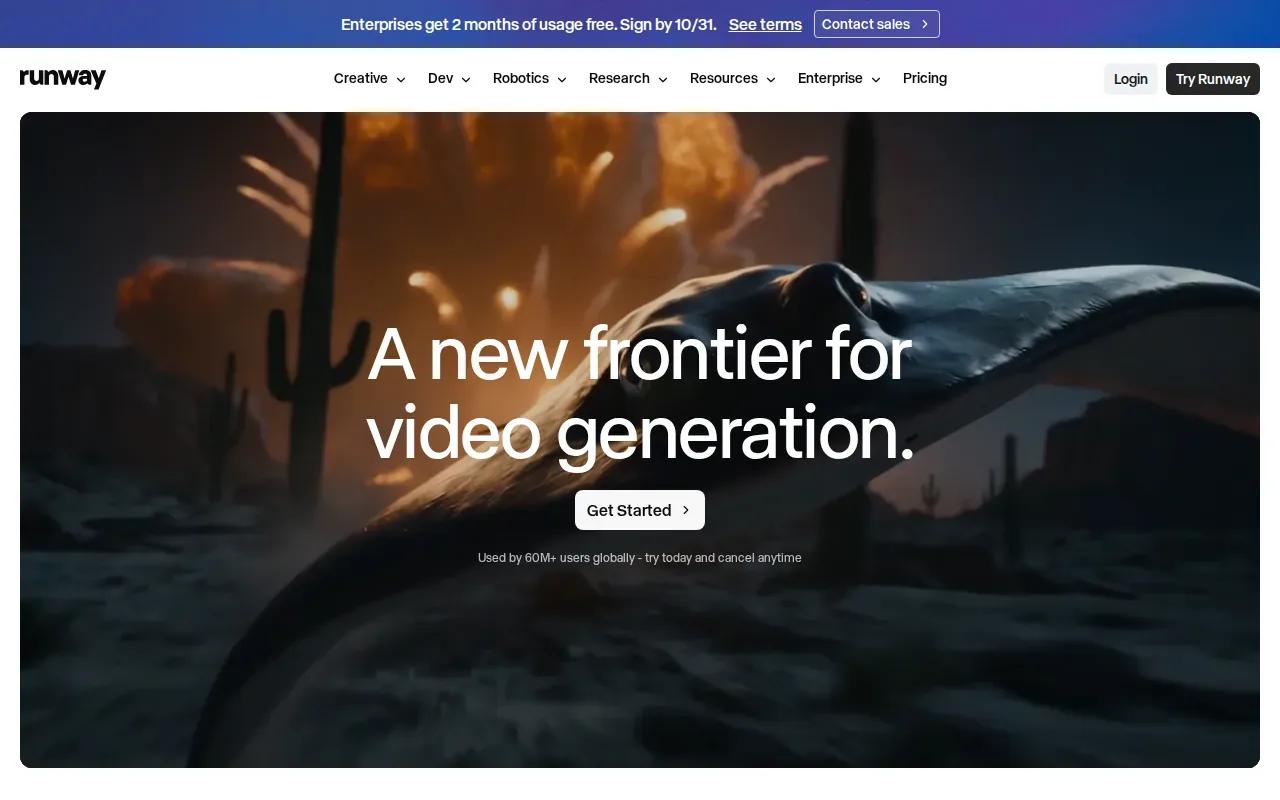
You can start with an image or a text prompt. Runway also has tools for editing existing footage, such as changing a backdrop or removing an object. That makes it useful when the job includes more than animating a still. For instance, you might test a product image, then use a separate edit to adjust the scene around the clip.
There’s a trade-off. Free-plan credits don’t refresh, and free-plan videos carry a Runway watermark. The credit pool can support a small experiment, but it won’t provide a monthly supply of generations. Save it for a prompt you’ve already thought through.
Choose Runway when you want to test a wider video workflow and can work within a one-time credit balance.
3. Vidu: Keep product details consistent across a generated clip
Vidu is an image-to-video option with character consistency for keeping a product’s look consistent across frames. Its free tier is generous enough to test the tool.
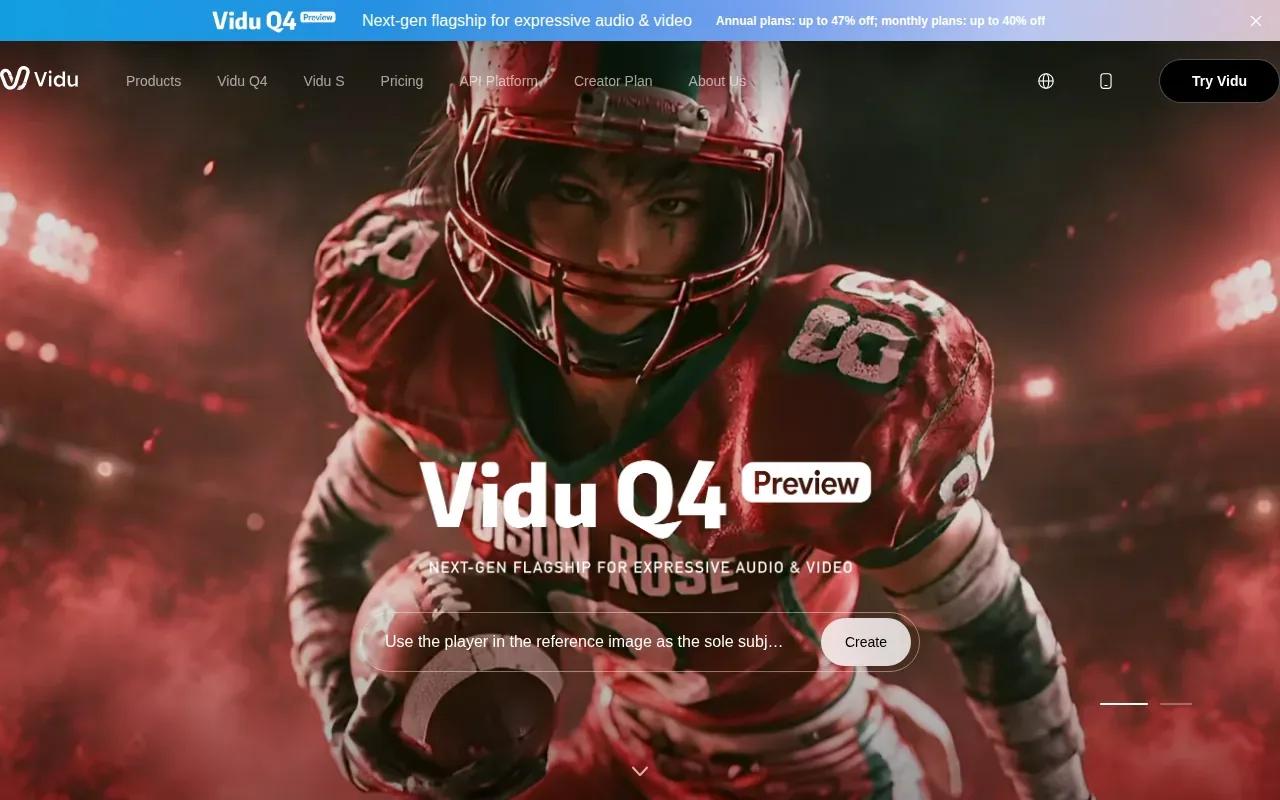
That consistency can matter when a small business starts with a product photo. A generated clip may move the camera or add motion, but the item still needs to look like the original. Use a clear source image, then watch the product’s shape and details as the clip plays. A draft that changes the item may need another prompt or a different approach.
Vidu’s product-video workflow also lets users add reference images and describe the intended action. That can help when you’re testing a product scene for a listing or social post. Treat the first generation as a draft to review, not as an automatic final ad.
If you need synchronized dialogue, first- and last-frame control, or scene extension, compare those needs with Veo Studio’s image-led workflow before choosing where to make your first test.
Vidu is worth considering when product appearance across frames is your main concern. Review every frame before using the clip in a product page or campaign.
4. PixVerse AI: Add stylized motion effects to still photos
PixVerse AI offers stylized AI photo-to-video animation effects and has a free tier. It may suit a creator who wants a more visibly animated look for a short post.
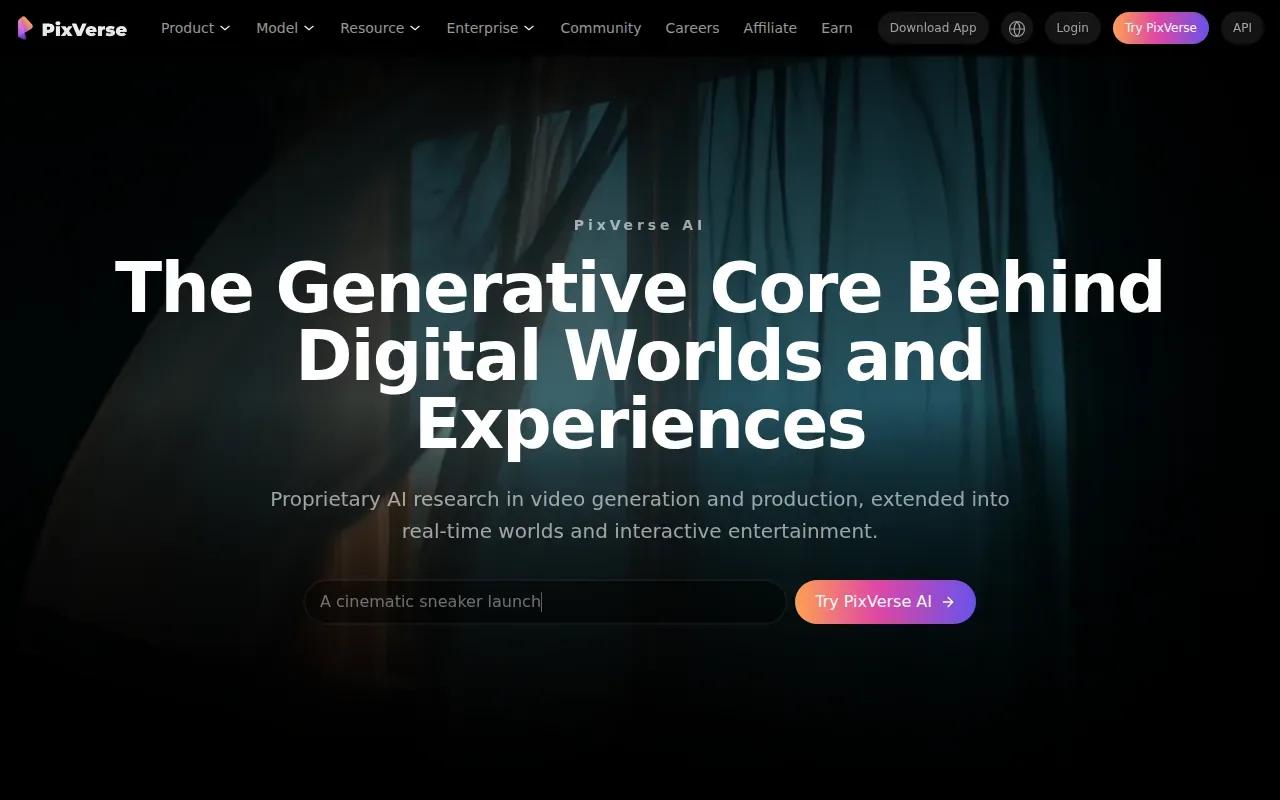
Try it when the goal is an effect or a stylized motion treatment, rather than a faithful product showcase. For example, an illustrated scene or a playful social visual may leave more room for creative changes than a close-up of an item where every detail needs to stay exact.
Realistic product shots need a close check, especially if you’re animating packaging, clothing, or another item where shape and surface details matter. Check the result against the original photo before you publish it.
For an expressive effect, PixVerse AI gives you a free way to test a still image. For a realistic product clip, inspect the details closely before deciding it fits.
5. CapCut: Turn photos into social-ready edits in a familiar editor
CapCut includes AI photo-to-video tools in its mobile app and has a free tier. It suits people who want to turn images into a social edit, then make changes in an editor.
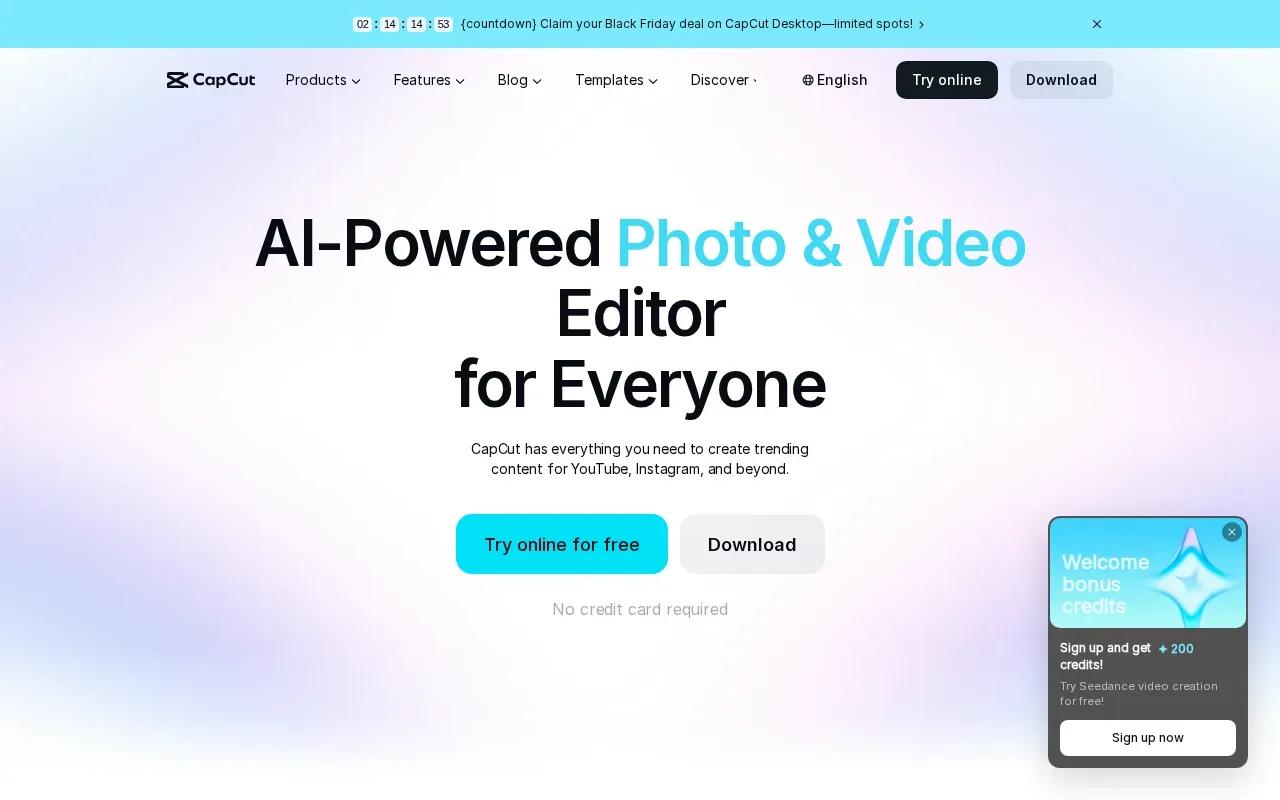
Its image-to-video workflow can help shape a sequence with generated script ideas, voiceover, transitions, and timing adjustments. That can be handy for a quick event recap, tutorial, or social post made from several photos. After generation, review the script and adjust the timing so the visuals match what you want to say.
Treat it as a quick editing route for social content, not a promise of a finished commercial or film-quality result. Check the final export at the size and aspect ratio you plan to post.
If your work ends with captions, music, or a short sequence of photos, CapCut may fit the edit. If the still needs controlled motion or a consistent subject, compare it with a dedicated image-to-video generator.
Free Photo-to-Video AI Tools Compared
The right free photo-to-video tool depends on what you need to keep in the final clip. Use this table to narrow the list by workflow, then test the result with an image you’re allowed to use.
| Tool | Free access | Useful fit | Limit to weigh |
|---|---|---|---|
| Veo Studio | A couple of 720p videos monthly | Reference-led scenes with sound, dialogue, or frame control | Higher resolution requires a paid plan |
| Runway | 125 credits once | Testing generation and editing tools | Credits don’t refresh; watermark on free videos |
| Vidu | Free tier for testing | Product clips where consistent appearance matters | Review the generated product details |
| PixVerse AI | Free tier | Stylized motion effects | Check detail on realistic product shots |
| CapCut | Free tier | Photo-based social edits | Built for quick social edits, not film-grade output |
For a quick test, upload a photo you can use, set the frame shape for your intended post, and describe one action. For smoother motion, say what should move and what should stay still. “The camera slowly moves closer while the subject stays still” gives clearer direction than a broad request like “make it cinematic.”
Then preview the clip before adding captions or music. Watch for changes to faces, product shape, or other details that matter to your message. A short draft can show whether the image and prompt work together before you spend more time on the edit.
For photo animation with sound or controlled scene motion, see Veo Studio for details about its reference-image workflow.
FAQ
Can I turn a photo into a video for free?
Yes, several tools in this list have free access or free tiers. The limits differ: Veo Studio includes a couple of 720p videos a month, and Runway gives 125 one-time credits. Check watermarks, clip length, and resolution before you plan to publish the result.
How long can an AI photo-to-video clip be?
It depends on the tool. Veo Studio supports short generations and scene extension on supported settings, while the other options may have different controls. Check the duration offered in your account before writing a prompt that needs several actions or a longer story beat.
Can I use free AI-generated videos for commercial work?
Check the terms for the exact tool and plan before using a clip in an ad, client project, or monetized post. Veo Studio’s paid plans include a commercial licence; for every other tool, read the licence for the plan you use. A watermark-free export alone doesn’t tell you what uses the plan allows.
Do I need to install software to animate a photo?
No, you can use browser-based options for photo-to-video work. Veo Studio runs in a browser, and CapCut has image-to-video features in its mobile app. Choose based on where you want to work, then check the export settings and review the finished clip before sharing it.
Conclusion
For a browser-based workflow with reference images, synced sound, and scene controls, start with Veo Studio’s free 720p allowance. Upload one photo, describe one clear motion, and review the result before deciding whether you need a paid plan or another tool.


