
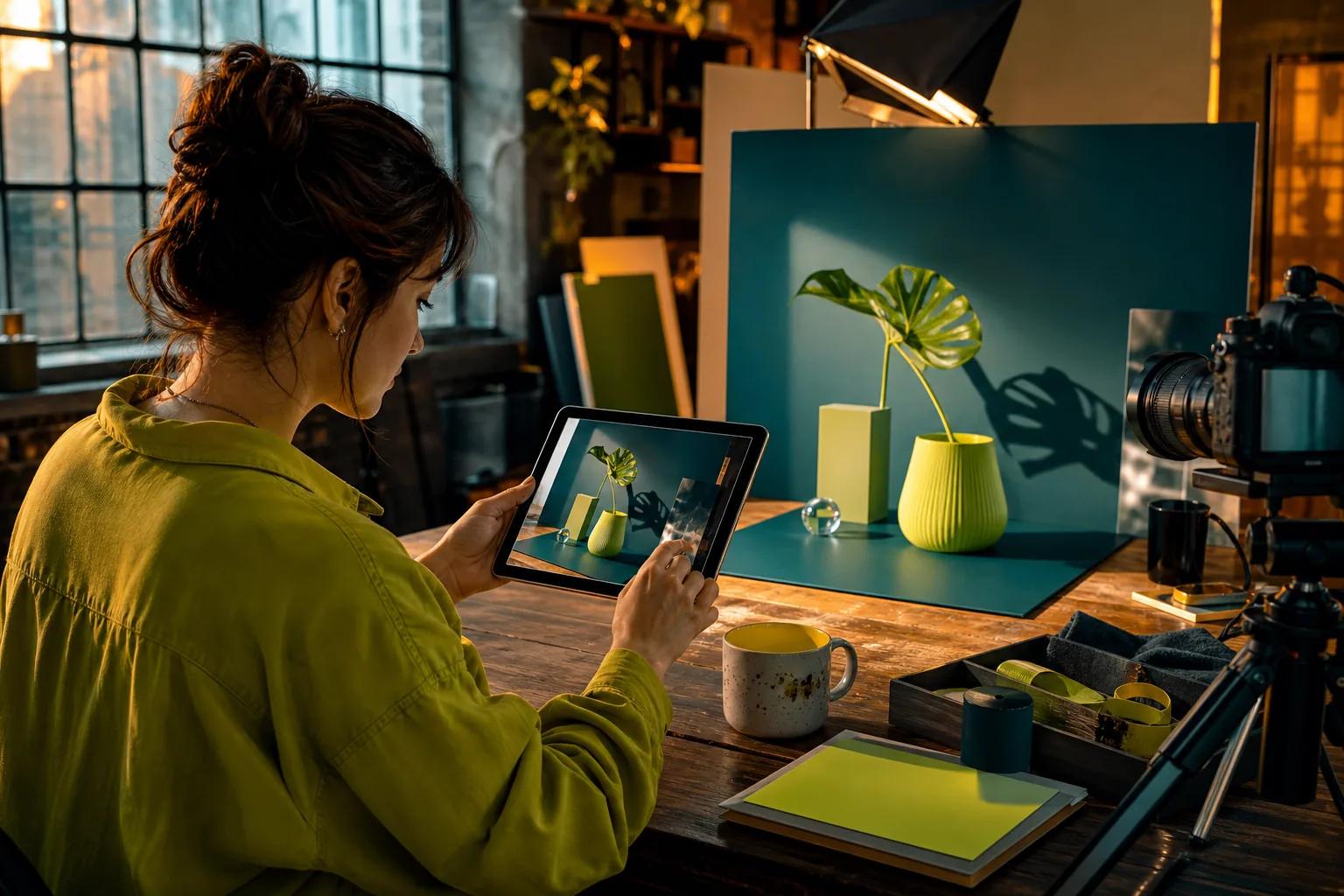
A still photo already gives an AI the subject and the starting look. The trick is to tell it what should move, what must stay the same, and how the camera should behave. These image-to-video prompt examples give you copy-ready starting points for product shots, social clips, character scenes, and cinematic transitions.
We analyzed 56 comments and questions from Reddit, YouTube and Quora about image to video prompts and found that 38% mentioned clear prompt structure and wording.
Image-to-Video Prompt Examples for Product Photos
For a product photo, focus your prompt on motion and protection. The image already shows the item, its color, the light, and the framing. Say what can change, then name the details that must stay fixed, especially a label, logo, shape, or package text.
Start with one main movement. A slow camera push or a small shift in light is easier to control than a rotating item, moving camera, and changing background all at once. This matters most when shoppers need to recognize the exact item in the clip.
Prompt for a clean product reveal: “Turn this product photo into a 6-second vertical ad. Keep the item’s shape, color, label, logo, and position unchanged. Add a slow camera push-in as soft studio light moves across the surface. Keep the background calm. Avoid new objects, warped edges, or changed text. Format as 9:16.”
Prompt for a hot drink or dish: “Use the uploaded image as the opening frame. Keep the cup, food, table, and composition still. Add a small curl of steam above the cup. The camera makes a gentle push-in under warm window light. Keep the steam light enough that it doesn’t cover the subject.”
Prompt for jewelry or glass: “Keep the ring’s shape, setting, stone, and color unchanged. Use a locked camera with a small, slow push-in. Let a soft highlight move across the visible surface. Preserve the reflections and avoid adding stones or changing the metal.”
A useful rule is to protect the details a customer would check before buying. If the label needs to stay readable, say so directly. For glass, jewelry, and reflective surfaces, use small movements. A full spin can ask the model to invent parts that the still image never showed.
For a repeatable workflow, creating video from product photos and still images starts with choosing a clear source image, then directing only the motion you need. Veo Studio is an independent, browser-based AI video creation tool powered by Google’s Veo 3.1 models. It accepts prompts and reference images, so you can describe movement without rebuilding the whole scene in words.
Once a draft renders, compare the opening, middle, and final moments. Check the product outline and any small lettering. If the item changes shape, shorten the camera move or ask the model to keep it stationary. For strict label accuracy, use the generated clip as a background layer and keep the original product photo in your edit.
Image-to-Video Prompt Examples for TikTok, Reels, and Shorts
Short vertical clips work best when one action reads at a glance. Pick a single visual beat, then choose a camera move that helps viewers notice it. Keep open space in the frame if you plan to add captions during editing.
Prompt for a portrait: “Animate this portrait with subtle natural movement. The person breathes gently as a light breeze moves a few strands of hair. Keep their face, expression, clothing, and gaze consistent. Use a mostly locked camera with a slight push-in. Soft afternoon light. Vertical framing.”
Prompt for a creator clip: “Use the uploaded image as the first frame. The person turns toward the camera and gives a small wave. Keep their face and outfit consistent. Use a steady medium shot with a gentle camera move forward. Bright, natural light. Leave clear space above the subject for captions.”
Prompt for food content: “Keep the plate and every visible ingredient in the same place. A little steam rises from the hot dish as the camera makes a slow close-up push. Warm café light, natural food texture, one continuous shot. Don’t add ingredients or change the portion.”
These samples use a simple structure: subject, one action, camera direction, then any guardrails. That’s usually enough for a first pass. Add sound or mood details only when they help the clip do its job. “Make it exciting” leaves the action open to guesswork. “The cyclist rides past as the camera tracks left” gives a clear direction.
Veo Studio supports vertical 9:16 output for short-form posts. Its free plan includes a couple of 720p videos each month, with no card required. If you’re testing a new concept, make one short draft before spending time on variations. Then adjust one instruction at a time so you can tell which change helped.
If you want to sharpen the wording before you generate, this guide to image-to-video AI with a prompt explains how to pair an image with clear movement instructions. Keep the first second visually simple. A face turning, a hand entering frame, or a light shift can give a short clip a clear opening without crowding it.
For social posts, review the full frame at the final aspect ratio. A crop that looks fine in a wide preview may cut off a hand or key detail in vertical format. Also check whether the first frame makes sense on its own, since many viewers see a clip before they hear its sound.
Image-to-Video Prompt Examples for Dialogue and Character Scenes
For a speaking character, give the model the exact line and say who speaks it. Put the words in quotation marks. Then keep the action short enough to fit the clip, and name what should stay consistent, such as the person’s face, clothes, or position.
Prompt for a quiet story moment: “Use the portrait as the starting image. The traveler looks toward the rain beyond the station roof, then turns slightly toward the camera and says, ‘I thought you’d be here.’ Keep the traveler’s face, coat, and expression consistent. Slow dolly-in. Rain taps on the roof, with a distant train rumble.”
Prompt for a short explainer: “The person in the reference image looks into the camera and says, ‘Check the chain before you ride.’ Keep their face and clothing consistent. Use a steady medium close-up in a bright workshop. Add a soft room tone. No extra people or sudden camera movement.”
Prompt for a character introduction: “The character takes one calm breath, looks toward the doorway, then says, ‘We should go.’ Keep the face, hairstyle, and clothing consistent with the reference image. Hold a medium shot with a slow push-in. Low, quiet room ambience. No music.”
Short dialogue gives the visual action room to breathe. If the line is long, split the idea into separate shots rather than asking a brief clip to carry a full speech. Make sound cues specific too: “soft rain on a window” gives a more useful direction than “dramatic sound.” Veo Studio generates synchronized sound and dialogue with the video, and quoted speech can be paired with lip movement.
Veo Studio lets you attach up to three reference images for supported generations. Use them to guide a character’s look across the clip, or to keep an object or visual style aligned with your source material. The tool is independent and browser-based, powered by Google’s Veo 3.1 models, not a Google-owned service. You can try the prompt-and-reference-image workflow on the Veo Studio video generation page.
Review the mouth movement and the full sound together. If a word feels rushed, shorten the line. If the scene looks busy, remove a background action before changing the character direction. That keeps the prompt focused on the speaking moment.
When building a sequence, treat each image as a shot rather than asking one prompt to tell the whole story. Generate the opening beat first. Use its final image or a planned still to guide the next beat, then keep the character description steady between prompts. Veo Studio also supports first- and last-frame control, which can guide the motion between two stills.
Image-to-Video Prompt Examples for Cinematic Motion and Scene Transitions
Cinematic wording works when it names a visible move. Use terms such as “slow dolly-in,” “wide shot,” or “camera tracks left,” then add one lighting or mood cue. Avoid stacking several camera moves in a short clip. The image gives the model a starting composition, so your text can focus on what happens next.
Prompt for a landscape: “Use the mountain image as the opening frame. Clouds drift slowly between the ridges as morning light moves across the valley. The camera makes a gentle forward glide. Keep the horizon steady and the scene calm. Natural travel-film look.”
Prompt for a rainy street: “The camera moves slowly forward along the wet street. Reflections shimmer in the pavement while rain falls lightly in the background. Keep the street layout and building shapes consistent. Cool evening light with a few warm window glows. One continuous shot.”
Prompt for a transition between stills: “Start with the first reference image and end with the second. Move the camera slowly toward the doorway as the light shifts from cool blue to warm gold. Keep the room layout stable. Make the change gradual, with no added objects or sudden cuts.”
First- and last-frame control is useful when a clip needs to land on a planned composition. Give the start and end stills clear visual differences, but don’t ask for a dramatic change in every part of the scene. Veo Studio can generate the movement between two stills, then extend supported clips seven seconds at a time. The model’s 4K output is available on paid plans for supported generations.
A strong image-to-video prompt names the subject’s movement, camera direction, and visual mood. A clear action and defined camera move can help guide a still-image animation.
When a scene feels artificial, reduce the motion before adding more style words. A still source can’t show every hidden side or object. If a camera move reveals new space, the model has to infer what belongs there. Use a wider source image, keep the camera fixed, or provide a planned end frame when the final composition matters.
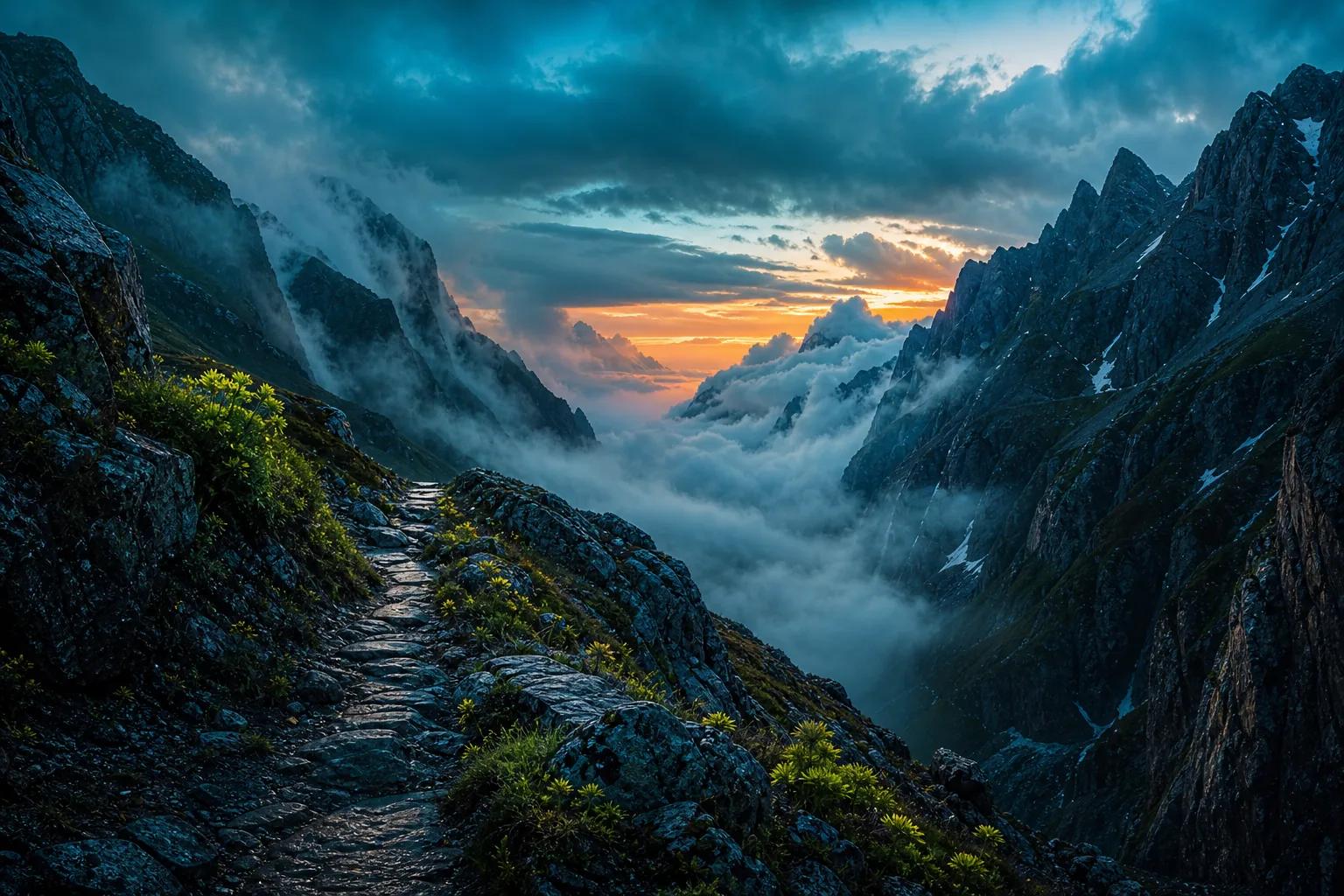
For a longer story, build the sequence one shot at a time. Let the final frame of one clip guide the next scene, then check the join for changes in light, camera direction, or character position. A transition feels intentional when the next shot continues a visible detail from the last one.
FAQ
What should I include in an image-to-video prompt?
Include the main movement, the camera direction, and the details that must stay unchanged. The uploaded image already sets the subject and starting composition, so you don’t need to describe every visible object again. Add a style or sound cue only when it helps shape the shot.
How long should an image-to-video prompt be?
Keep it as short as the shot allows. A few clear instructions often work better than a long list of unrelated actions. Start with one main movement and one camera move, then add a guardrail if the result changes a face, label, or key object.
How do I stop an AI video from changing the subject?
State which details must remain consistent, such as face, product shape, label, color, or clothing. Use a small motion request and avoid asking for a view that the source image cannot show. If the subject still drifts, lock the camera or add a suitable reference image.
Can image-to-video AI make dialogue and sound?
Some tools generate sound and dialogue with the video. In Veo Studio, you can describe sound in the prompt and put spoken words in quotation marks. Name the speaker and keep the line brief. Then review the audio with the full clip to check timing and lip movement.
How do I make a clip fit TikTok, Reels, or Shorts?
Choose vertical 9:16 framing before you generate, and keep the main subject near the center of the image. Leave room for captions if you’ll add them later. Review the finished clip in its full vertical frame, since a cropped preview can hide a cut-off hand or other detail.
Conclusion
Start with a clear image and one specific movement. Protect the details viewers need to recognize, then generate a short test and change only what missed the mark. For your next draft, try one of these prompts in Veo Studio, then adapt another example from this page for your next shot.


