A clip can be almost right, then end a beat too soon. To extend a video with AI, continue the action from a clean endpoint and give the model a clear idea of what happens next. This guide shows how to choose a clip, set the extension, write a useful prompt, review the result, and prepare it for your platform.
Step 1: Choose and Upload a Clip That Can Continue Naturally
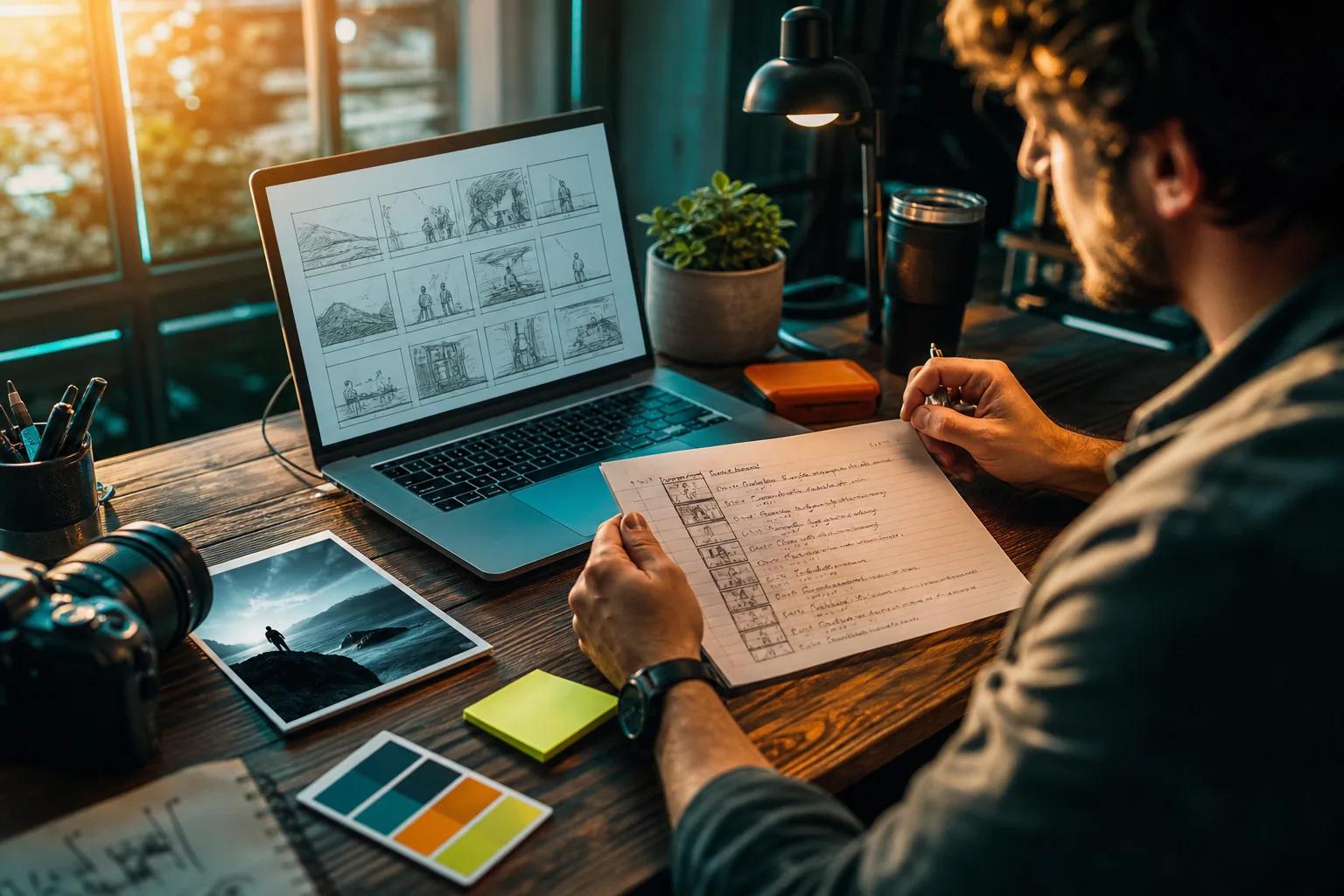
Start with footage that gives the model an easy next move. A person finishing a turn, a product rotating slowly, or a camera moving steadily across a room is easier to continue than a fast cut or a crowded scene.
Use the original, highest-quality file you have permission to edit. Keep a copy untouched, then find a clean endpoint near the end of the clip. Avoid a frame with a blink, sudden light change, heavy blur, or a subject halfway through a fast move. The last clear frame gives the model a better handoff.
Veo Studio is an independent, browser-based video tool powered by Google's Veo 3.1 models. Its scene extension works on eligible clips at 720p. So, begin by generating or choosing a supported clip in Veo Studio, rather than assuming any uploaded phone video can be extended there. You can try Veo Studio in your browser; its free plan includes a couple of 720p videos each month, with no card required.
Before extending, ask what the extra seconds need to do. A social clip may need a clear final gesture. A product ad may need one more view of the item. A short film may need a pause for a character's reply. That goal will shape your prompt later.
For other video workflows, compare the AI video generators for creators by the kind of clip you need to make. The key here is to use a source with readable movement and a specific stopping point.
Step 2: Set the Extension Direction, Duration, and Frame
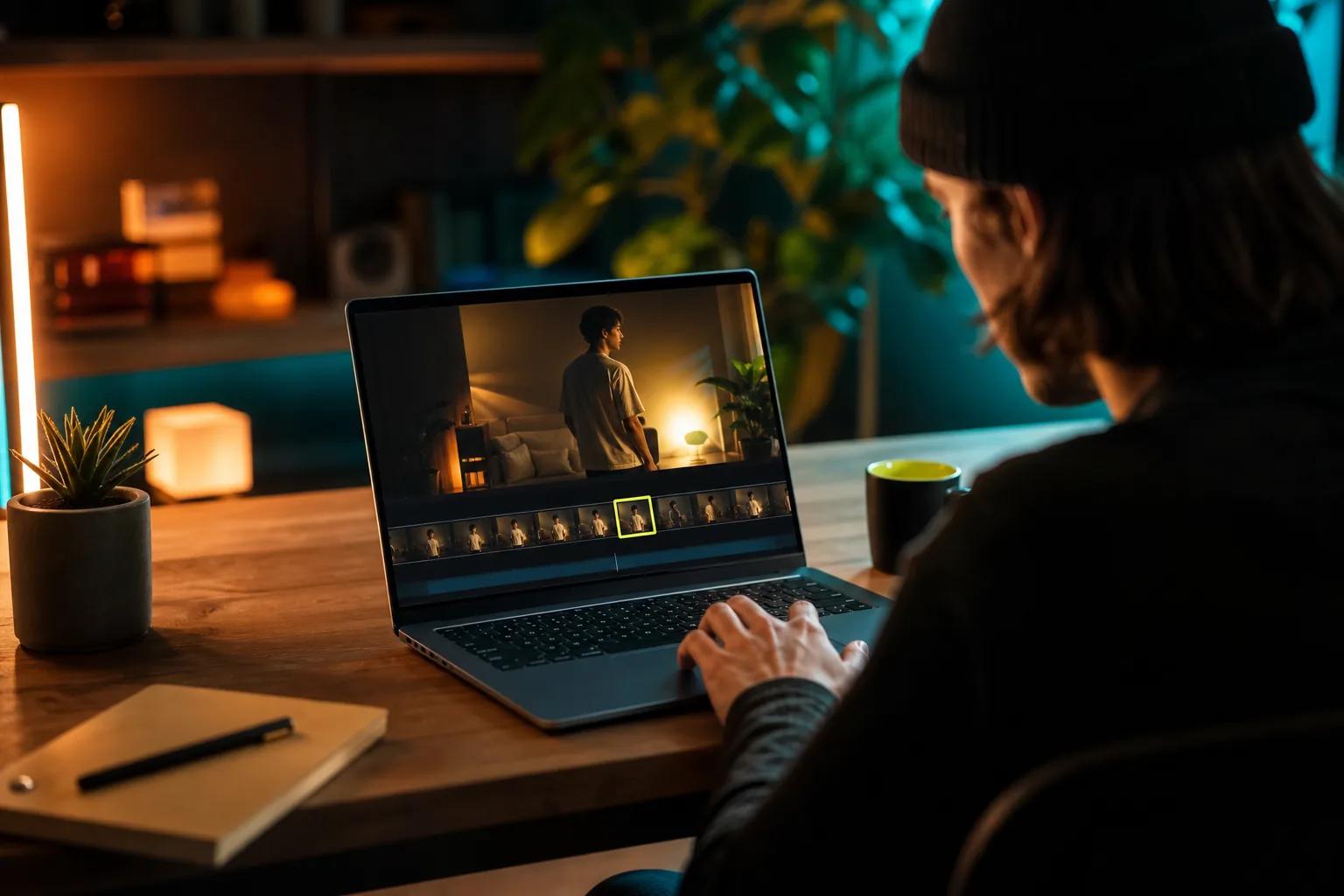
Choose the direction and length before you spend credits. A forward extension continues after the clip's last frame. A backward extension imagines what happened before the first frame, which can be useful for a reveal or an opening beat. These are different story tasks, so decide which one you need before writing the prompt.
Veo Studio's scene extension adds seven seconds per step to eligible 720p clips. You can extend a Veo 3.1 clip or another eligible clip for up to roughly 148 seconds of continuous video, within 48 hours of generation. Each extra segment adds new generated material, so a longer total does not guarantee that every later frame will match the source equally well.
Keep your first test short. If the only missing moment is a hand lowering or a product settling, one extension may be enough. If the scene needs a new location or a new character action, plan that as a separate beat. That gives you more control over the edit and makes a mismatch easier to spot.
Match the frame to the place the video will run. Veo Studio supports 16:9 landscape and 9:16 portrait video. A vertical social post needs the subject placed where captions or interface controls won't cover the key action. For a landscape edit, leave room for movement across the frame instead of letting the subject drift to an edge.
Veo Studio also supports first- and last-frame control when generating a clip. You can set two stills as endpoints, then let the model create the motion between them. That gives you a way to guide a planned transition, though a large jump between frames can still produce an awkward morph.
If you're adapting a clip for Reels or Shorts, think about framing separately from duration. The AI Reels generator comparison can help you consider sound, style, and editing needs for vertical content.
Step 3: Write a Prompt That Directs the Next Moment
A useful extension prompt tells the model what continues, what changes, and what should stay steady. Start with the visible action. Then add one camera direction and any details that must remain consistent, such as the character's clothing, product shape, light, or room tone.
For example: Continue from the final frame. The baker sets the tray on the counter and looks toward the window. Keep the camera locked and preserve the warm morning light. No cut or new person.
That prompt gives the scene one action. It also tells the model not to invent a new camera move or add another character. Avoid piling on several events at once. A character who opens a door, crosses a room, picks up a bag, and starts speaking gives the model too many chances to change the scene.
For a sequel, describe the next beat after the clip ends. For a prequel, say what happens before the opening action. If the moment needs dialogue, include the exact line in quotation marks and describe who says it. Veo Studio can generate synchronized sound and dialogue, including lip-synced speech, so specify the sound you want rather than leaving it to chance.
Keep camera language direct. Say the camera slowly pushes in, or that it stays still. Don't ask for a locked frame and a sweeping orbit in the same prompt. If camera motion is a key part of the shot, this guide to automated camera moves for short videos covers how to describe movement clearly.
Veo 3.1 supports reference images, which can help keep a character, product, or visual style aligned across a clip. Veo Studio lets you attach up to three reference images for supported generations. Use a clear image of the exact subject you want to preserve, not a group of unrelated looks.
Think of the prompt as a short handoff note to an editor. If a person walks out of frame, say whether the camera follows or holds. If a drink is being poured, describe whether the pour ends or continues. Specific direction helps keep the extension focused.
Step 4: Generate, Review Continuity, and Fix Artifacts
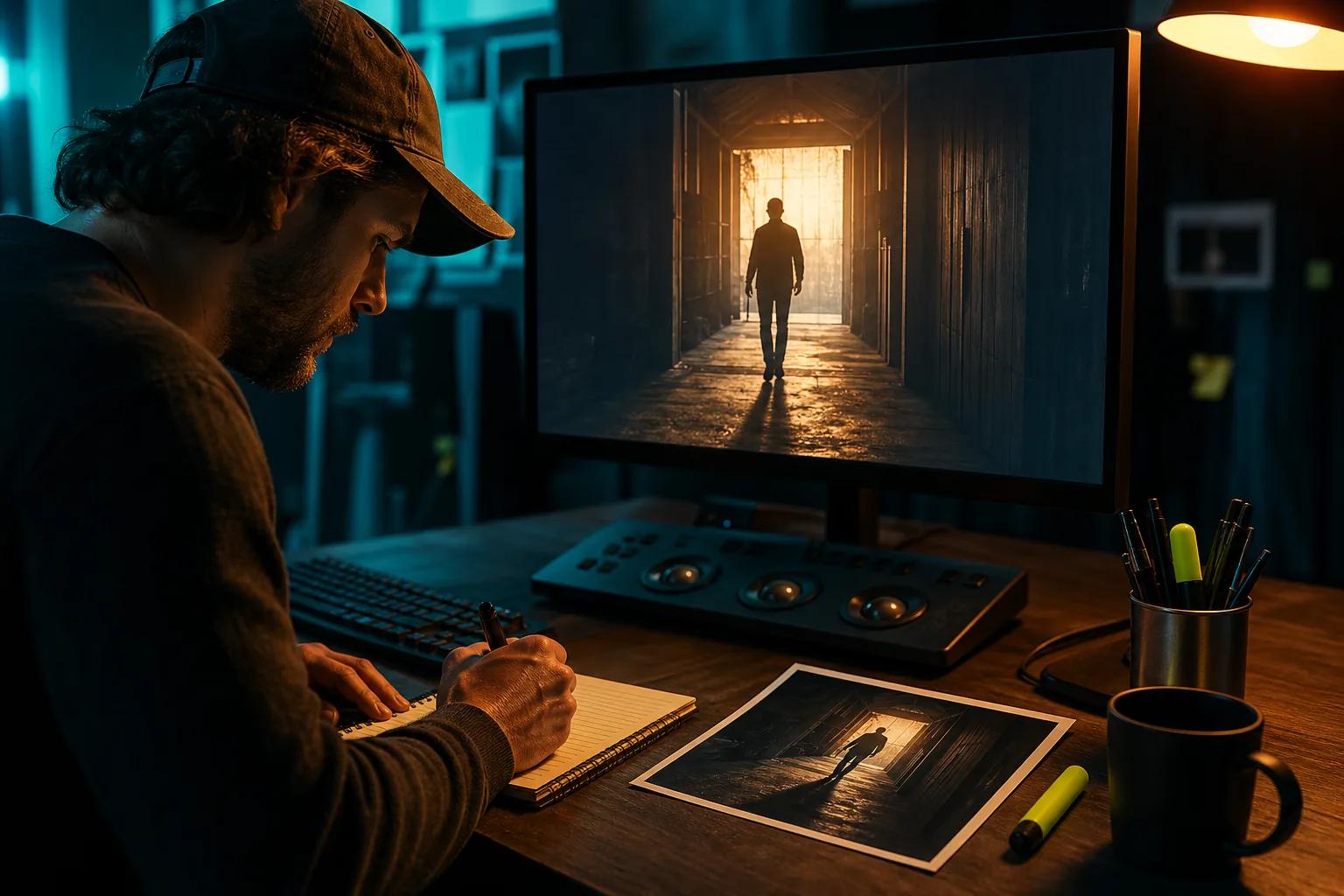
Generate the extension, then check the join before judging the whole clip. Watch the final second of the source and the first second of the new segment together. Look for a change in face, clothing, object shape, camera speed, light, or background position.
Pay close attention to hands and small objects. A cup may change shape as it moves. Fingers can merge during a gesture. A logo may shift or become hard to read. These errors can happen even when the rest of the shot looks strong, and higher resolution won't repair a shape or identity change created during generation.
If the join feels wrong, identify the first visible mismatch. Then adjust only the part of the prompt tied to it. If the camera suddenly moves, make the camera instruction simpler. If a character changes, add a reference image when the workflow supports it. If the subject's gesture becomes hard to track, reduce the action to one clear movement.
Try a shorter extension if the model drifts later in the shot. Repeated extensions can build a longer scene, but each new segment starts from generated footage. Small differences in a face, prop, or lighting can add up over several passes. Save each version and use the cleanest endpoint for the next step.
Veo Studio's browser workflow includes a gallery where you can find and download finished generations. Its model family can generate picture and sound together, but listen to the handoff as well as watching it. A sudden change in room tone or dialogue timing can make an otherwise smooth join feel abrupt.
For a character-led scene, Veo Studio brings scene extension together with character consistency and synchronized dialogue in the same tool. That can reduce the number of separate workflows you need to manage, though you should still review each take. A useful result is the one that holds up at the seam, not simply the one that finishes rendering.
Step 5: Export for Your Platform and Check the Final File
Choose the output that fits the final use, not just the largest number available. Veo Studio supports 720p, 1080p, and up to 4K output, with 4K available on eligible Veo 3.1 clips for eight-second clips. Higher resolutions require a paid plan. Its scene extension workflow is for 720p clips, so check that requirement before you build an edit around a longer extension.
For TikTok, Reels, or Shorts, set the project to vertical 9:16 and check that the subject stays clear of captions and app controls. For a website or a landscape video, 16:9 may fit better. Resolution can't fix an awkward crop, so play the full clip in the target frame before exporting.
Veo Studio plans include a commercial licence. The free plan provides a couple of 720p videos each month without a card. Paid plans start at $14 per month and include higher resolutions, more video volume, and a commercial licence. Check the current guide to AI video generators with no watermark if a visible watermark is part of your export checklist; Veo Studio says its videos have no visible watermark.
After downloading, play the file outside the editor. Confirm the full duration, framing, picture quality, and sound. Check that dialogue starts at the right moment and that music or room tone doesn't jump at the seam. If the platform you plan to post on compresses the video, review a test upload before sharing a full campaign asset.
Keep the source clip and the final extended version as separate files. That makes it easier to shorten the ending, replace a weak extension, or make a new crop without losing the original. For a small business ad, save a vertical version for social and a landscape version for a site or presentation only when each one serves a clear use.
Frequently Asked Questions
Can AI extend any video?
No, support depends on the tool and the clip. Veo Studio's scene extension applies to eligible Veo 3.1 clips at 720p. It isn't a general upload-and-extend feature for any camera or phone video. Check the selected model and the clip's extension controls before planning your edit.
How long can an AI-extended video be?
It depends on the model and workflow. Veo Studio adds seven seconds per extension step and supports up to roughly 148 seconds of continuous video for eligible 720p clips, within 48 hours of generation. Longer sequences may show more visual drift, so review every added segment before extending again.
Can I extend a video backward with AI?
Some extension tools can imagine what happened before a clip's first frame, but that isn't the same as continuing forward. Veo Studio's documented scene extension adds time to eligible clips. If you need a prequel, describe the earlier moment in a separate generation, then edit the two clips together.
How do I keep a character consistent in an AI video extension?
Use a clear endpoint and keep the next action simple. When the model supports reference images, attach a clean image of the character. In your prompt, name the details that must stay the same, such as clothing or hair. Veo Studio supports up to three reference images for supported generations, along with character consistency features.
Can AI add dialogue when it extends a video?
Yes, some tools generate dialogue with the extended scene. Veo Studio supports synchronized sound and dialogue, including lip-synced speech. Put the exact spoken line in quotation marks and state who says it. Then listen to the join, because sound timing can feel off even when the image looks continuous.
Conclusion
For a smooth extension, start with a clear endpoint and ask for one next action. Veo Studio is worth trying when you want scene extension alongside character consistency and synchronized dialogue in a browser-based workflow. Make a free account, generate a supported 720p clip, and test one seven-second continuation before committing to a longer edit.