

A video ad has seconds to earn attention before someone scrolls past. If you want to know how to make video ads that give viewers a clear reason to act, start with one goal, then build each shot around it.
We analyzed 37 comments and questions from YouTube and Quora about making video ads and found that 24% asked about video ad creation tools.
Use these five steps to plan, make, edit, and test an ad for social feeds or product campaigns. You can film it yourself or use Veo Studio, an independent browser-based video tool powered by Google's Veo 3.1 models.
Step 1: Set Your Ad Goal, Audience, and Offer
Goal: Know who the ad is for, what you want them to do, and what you’re offering before you make a shot list.
Pick one goal for this ad. It might be a product page visit, a purchase, a sign-up, or a brand introduction. Choose the metric that matches that action. For a sales ad, track purchases or revenue. For a lead ad, track qualified inquiries rather than clicks alone.
Now describe your audience in one plain sentence. For example: “People who pack lunch for work and want an easy way to carry snacks.” Name the need or question that brings them to your product. That gives you a message to build around, instead of a string of features.
Write the offer in one line. Include only details you can support, such as what the product does, what it costs if price is part of the pitch, or what the viewer gets next. Don’t add a claim just because it sounds persuasive. Check the product facts and any offer terms before you put them on screen.
Keep a short brief beside your camera or prompt box: goal, audience, offer, one main benefit, and the next action. If you’re hiring a creator for a first-person ad, set the message and claim limits before the shoot.
Veo Studio can turn a prompt or reference image into a short video with synced sound and dialogue. For a product spot, attach a clear product photo and describe one action you want shown. Review the result closely before using it, especially if the ad needs to show an exact product detail.
Step 2: Choose a Format and Plan the Storyboard
Goal: Choose a format that fits the placement, then map each shot to a job in the story.
A product demo works when people need to see how an item works. A problem-solution ad opens on a familiar frustration, then shows the product as the answer. A founder or spokesperson can explain a service that needs more context. Pick the format based on what your audience needs to understand, not on what looks fashionable.
Plan for the platform before filming or generating footage. Vertical video in a 9:16 frame suits full-screen placements such as Reels, TikTok, and YouTube Shorts. A landscape 16:9 cut may fit a wider YouTube placement. Square or 4:5 crops can suit feed placements. Check current platform specifications before export because ad limits and safe areas can change.
Draw a simple storyboard with three to six panels. Each panel needs only the shot, the key action, and the words or sound attached to it. A compact product ad might open on the item, show it being used, then end on the benefit and call to action. Keep faces, labels, and key text away from the edges where platform controls may cover them.
Plan your production around the footage you can get. If you’re filming, use a steady phone or camera, clean the lens, and choose a quiet room. Put the subject near a window or use a soft light facing them. Avoid a bright window behind the speaker, which can leave their face dark. Record a short test clip and check exposure, focus, and sound before shooting the rest.
When a product photo is your starting point, write down the camera move and the single action the clip should show. Veo Studio supports reference images and first- and last-frame control, so you can guide the product or character and shape the transition between two stills. Its AI video ad creation workflow also gives examples of describing a product shot in a prompt.
Keep one storyboard per placement. A crop that works in a vertical feed may cut off the subject in a square version.
Step 3: Write the Script and Create Your Footage
Goal: Give viewers one clear message, support it with a visual, and tell them what to do next.
For a short social ad, draft the opening first. Use a question, a specific problem, or a clear product result. Then add a line that explains the benefit, a shot or proof point that supports it, and one call to action. Don’t start with a greeting or a long setup. Viewers should see or hear the point before they decide to keep watching.
Write for speech, not for a product page. Read the script out loud and cut words that sound stiff. For a 15-second ad, keep the message tight enough to say at a natural pace. If it needs a longer explanation, make a longer version and test it against a shorter cut.
Make several opening options while keeping the rest of the script steady. One might show the product in use; another might start with the problem; a third could lead with the main benefit. Change one main element at a time. That way, the test can tell you whether the opening or the whole concept needs work.
If you’re filming, use a real product demonstration when the ad depends on exact appearance or proof. Clean the product and clear the background. Frame the action so it reads on a phone screen. Capture a few extra seconds before and after each take, then record room tone and any needed voice-over in a quiet space. If a customer or creator appears, get permission for the footage and the ad use.
AI footage can help you draft a scene from a prompt or a reference image. Veo Studio can generate a clip with synchronized sound and dialogue; put spoken words in quotation marks in your prompt, then check that the line and lip movement match. It also supports character consistency, which can help when you need the same on-screen character across related cuts. The video ad creator workflow has more prompt-based guidance.
For platform guidance on opening with motion and focusing an ad on one benefit, the platforms’ own ad guidance is a useful reference. Treat the draft as a starting point, not proof. Check every visual and spoken claim against the facts you can verify.
Step 4: Edit for Sound, Captions, and a Clear Call to Action
Goal: Make the ad easy to follow with sound on or off, and make the next step clear.
Start by removing pauses, repeated points, and shots that don’t support the message. Keep the first few seconds active, but don’t cut so fast that viewers can’t see the product or read the text. Use a close-up when a detail matters. Hold the shot long enough for the viewer to understand what changed.
Mix the voice so it’s easy to hear over music or background sound. Music should support the mood, not compete with the message. If the sound carries a key detail, repeat that point in on-screen text. Captions help the ad make sense to people watching on mute; proofread them, especially product names and offer terms.
Put the brand in view early enough for people to connect the message with the business. Show the logo or product naturally in the opening shots rather than saving every brand cue for the end. Keep text large and brief. Check it at phone size, then make sure platform controls won’t cover it.
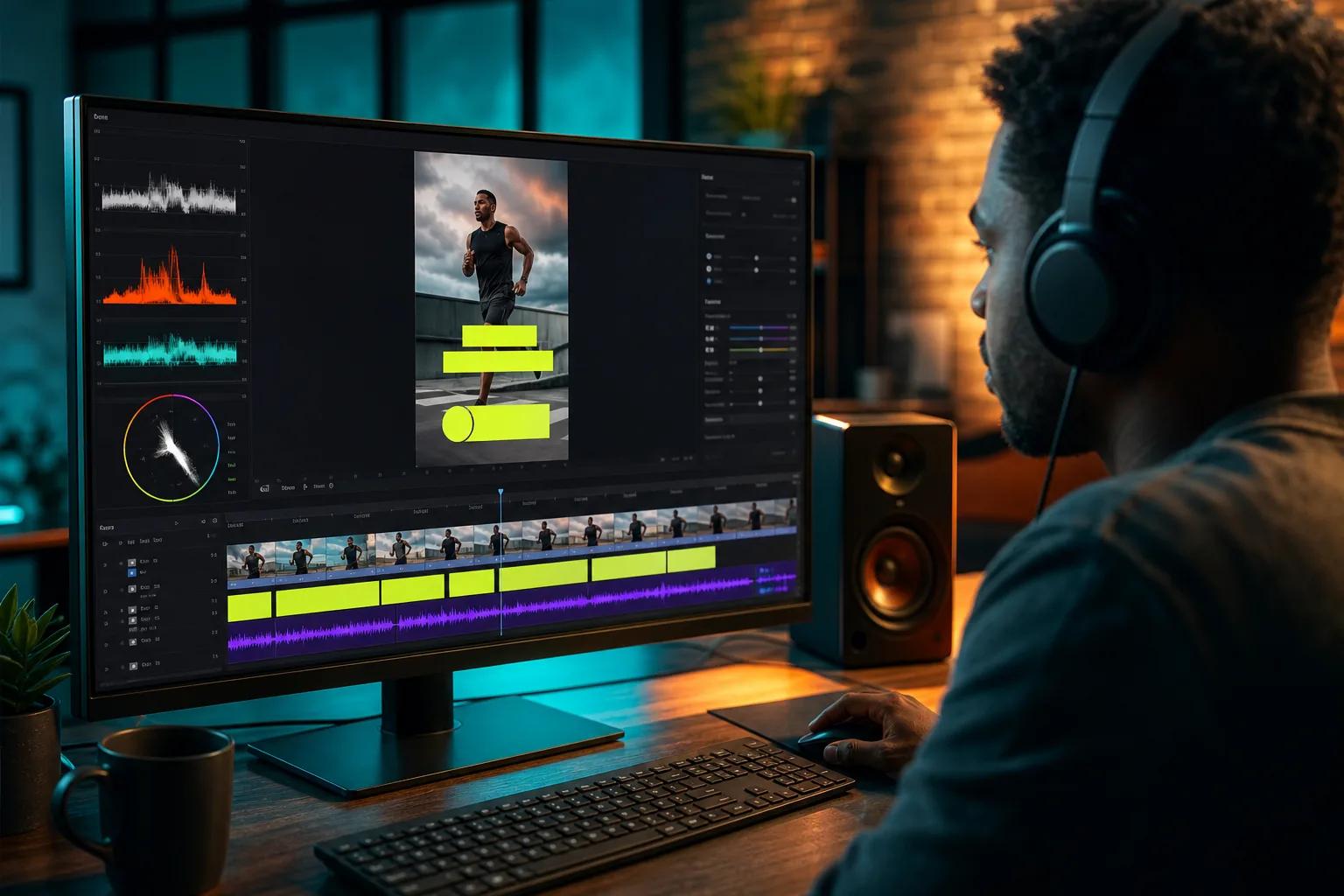
Use one call to action that matches your goal. “Shop now” fits a product purchase. “Get the guide” fits a download. “Learn more” can work when the viewer needs details before deciding. Keep the button text, spoken line, and landing page aligned. If the ad promises a discount, the page should show the same terms.
For a browser-based edit, use an online video editor. Whatever editor you use, export a review copy and watch it once with sound, then once muted.
Veo Studio can generate sound with the video, including dialogue and sound effects. Still, listen through the full clip and read the captions before publishing. AI-generated audio or visuals can miss a detail, so a human review belongs in the workflow.
Step 5: Export, Publish, and Improve the Ad
Goal: Publish a file that fits its placement, then use campaign data to decide what to change.
Export a separate file for each placement you plan to use. Set the aspect ratio and resolution to match the platform’s current requirements. Check the file from beginning to end after export; confirm that the image is sharp, the sound plays, captions stay in frame, and the final card doesn’t get cut off.
Before launch, check that the destination page matches the ad’s promise. Confirm product details, price, offer dates, and any required disclosures. If a real person gives an endorsement, use their words accurately and confirm you have permission to use their image and statement. Don’t use generated visuals to imply a customer result or product proof that you can’t support.
Set the campaign budget and bidding approach around the goal and the amount you can afford to learn. If you’re testing a new concept, avoid spreading a small budget across too many audiences and versions. Choose a clear test window, then compare each ad on the metric tied to your goal. A purchase campaign needs purchase data; a traffic campaign needs more than a view count.
Start with a small batch of versions. Change one thing between them, such as the opening shot or the first line. Keep the offer and the rest of the ad stable. Track results in a simple sheet with the version name, audience, spend, and key result. Once you see a consistent difference, make the next batch based on what the test taught you.
Don’t call a version a winner because it got more views if your goal was sales. Look at click-through rate alongside completed actions, cost per result, or revenue, depending on the campaign. If people stop watching early, try a new opening. If they click but don’t act, check whether the offer, audience, or landing page matches the ad.
For longer scenes, Veo Studio’s scene extension can add to a finished clip in seven-second steps, up to roughly 148 seconds under supported settings. Its paid plans start at $14 per month, and the free plan includes a couple of 720p videos each month with no card required. Check the current plan details before you build a regular production workflow.
Keep the first version simple. A short ad with one clear message is easier to assess than a polished video that tests five ideas at once.
FAQ
How long should a video ad be?
A video ad should be only as long as it needs to make its point and ask for one action. Short social ads often use a tight hook, one benefit, and a clear next step. Check the placement’s current time limits, then make a shorter cut if the story still works without a secondary detail.
How do I make a video ad with no footage?
You can start with a product photo, a written prompt, or a simple storyboard. Describe the scene and the action you want to show, then review the generated clip for accuracy. Veo Studio can make video from prompts and reference images, with synchronized sound and dialogue on supported generations.
Should video ads have captions?
Yes, captions help viewers follow the message when they watch without sound. Keep them brief and easy to read, and proofread the final export. The ad should still make sense when muted, while its spoken version should sound clear when captions aren’t being read.
What should I measure after publishing a video ad?
Measure the result tied to your campaign goal. For sales, review purchases, revenue, or cost per purchase. For lead generation, look at qualified leads rather than clicks alone. Watch time and click-through rate can help explain behavior, but they don’t replace the outcome you set before launch.
Conclusion
Make one short ad around one audience, one offer, and one action. Then publish a few versions that change a single element, and use the goal-based results to plan your next cut. If you’re starting with a product photo, try a draft in Veo Studio and review every frame before it goes live.


