

A free AI video generator with no watermark can save you from branded exports, but free plans differ in what they let you make. These five options cover prompt-led video, image animation, blog-to-video conversion, and visual experiments. Check each tool’s free access and export rules before building a project around it.
We analyzed 45 comments from Reddit and YouTube about free AI Video generators without watermarks and found that 22% mentioned desired output quality and customization options.
1. Veo Studio
Veo Studio is an independent, browser-based AI video creation tool powered by Google’s Veo 3.1 models. Its free plan includes a couple of 720p videos each month, with no card required and no visible watermark added.
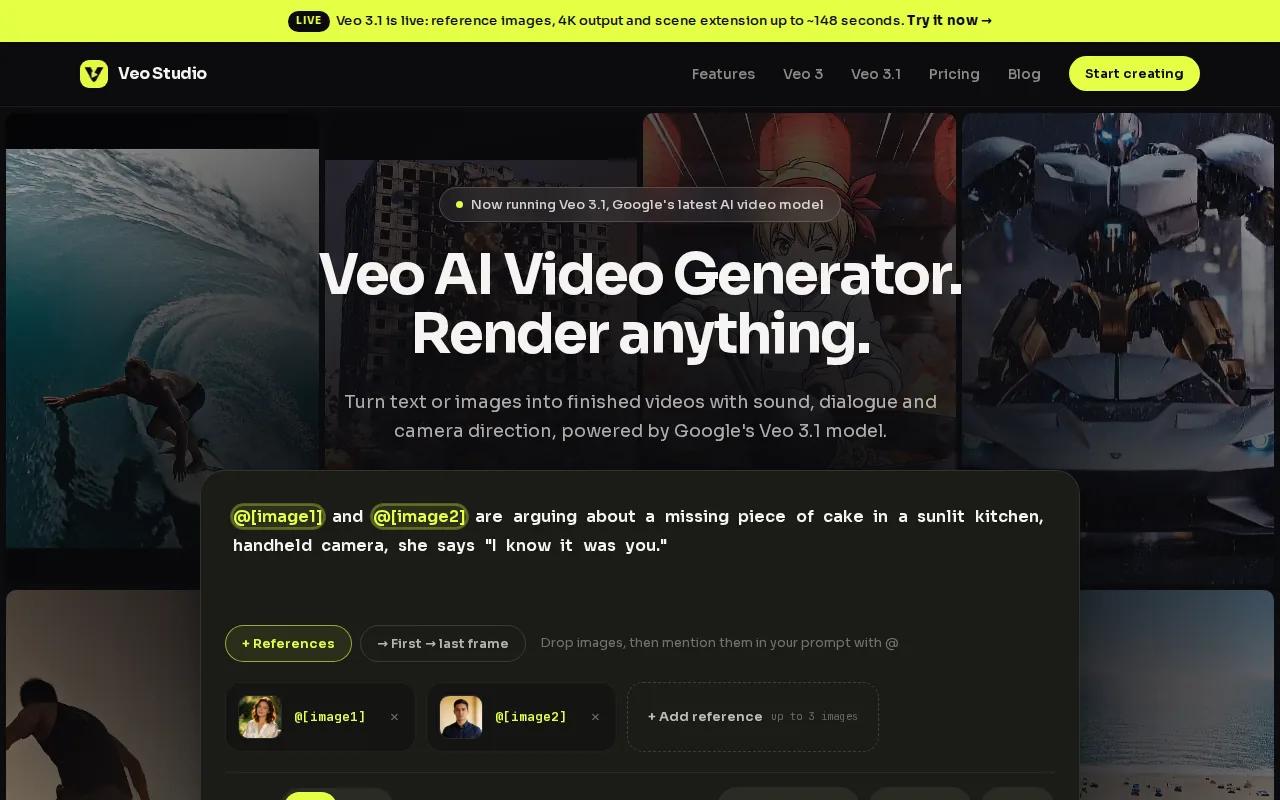
It’s a good fit when you want to describe a scene in a prompt or start with reference images. Veo Studio can generate synchronized sound and dialogue with the video. Reference images help keep a character consistent, while first- and last-frame control lets you set the shot’s opening and ending images.
Those controls can help with a short social clip or a scene that needs a clear visual match between shots. You can also extend eligible clips, adding length in stages. For a product video, for example, use a reference image to guide the look, describe the camera move, then check whether the generated sound fits the scene.
The free plan is limited to 720p and a couple of videos per month. Up to 4K output is available on paid plans, not the free tier. Veo videos may include an invisible provenance mark, which isn’t a visible logo on the export. See Veo Studio’s plans and pricing if you need more generations or higher resolution.
2. FlexClip: A straightforward free option with no-watermark HD exports
FlexClip is a browser-based video editor with AI tools, stock media, and templates. Its free tier is a fit for people assembling short social videos, slideshows, or YouTube content who want an editor-led workflow.
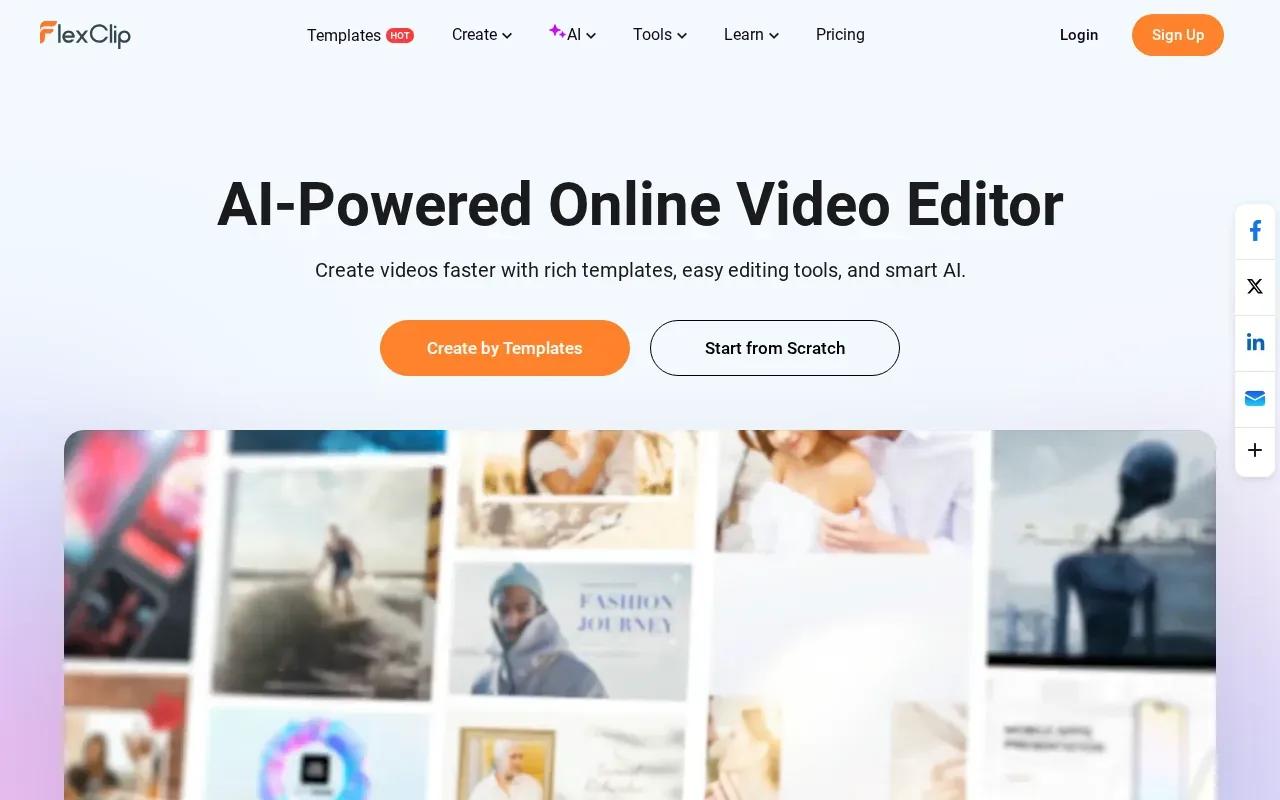
The free plan includes HD exports, including 1080p. FlexClip also has thousands of templates, including YouTube-specific templates. That can give you a ready-made structure when you have a topic or script but don’t want to build every scene from a blank canvas.
For example, you might pick a template for a short explainer, replace its sample content with your own, then export the finished video. Templates can help set a visual rhythm, while the editor gives you a place to assemble the parts of the video. It’s a different starting point from generating a whole scene from a text prompt.
FlexClip is worth testing when you care more about template-based editing than character-driven generation. Before you spend time on a project, confirm the export resolution and watermark setting in the free account itself. Free-plan details can change, and the export screen is where you’ll see what applies to your file.
Use it for a repeatable social format; choose a prompt-led generator when you need a new scene that doesn’t exist as footage or a template.
3. DomoAI: An image-to-video pipeline with no-watermark exports
DomoAI is a creative tool for generating images, animating them, adding a talking avatar, restyling video, and upscaling output to 4K. It suits creators who want to start with a still image and carry it through several video tasks.
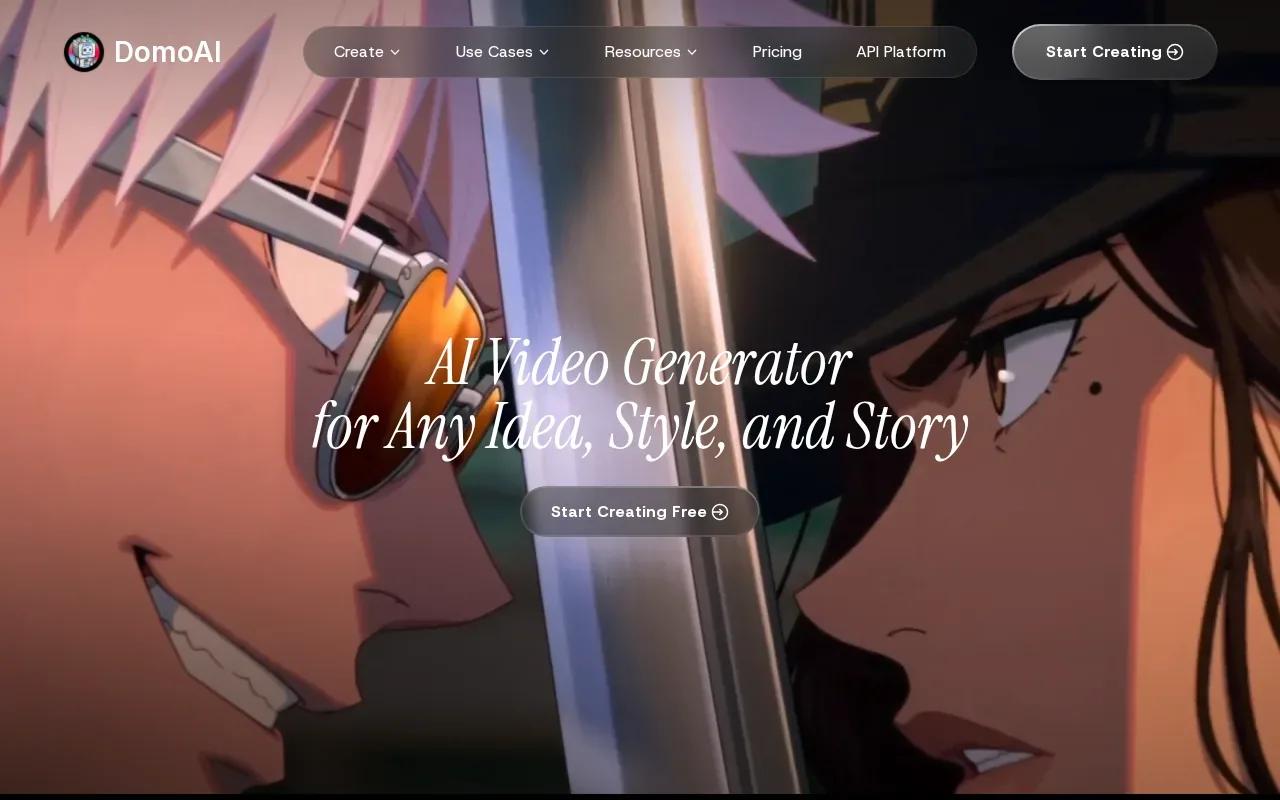
That image-first path is useful when you already have a portrait, illustration, or product photo. You can make or choose a still, describe the motion you want, then animate it. A prompt such as “the subject turns toward the camera” gives the motion direction; the original still helps anchor the look.
DomoAI’s free tier is available. Check the export screen to confirm whether a free export carries a watermark. Its feature set also includes talking avatars and video restyling. If you need a sharper final file, the workflow can include upscaling to 4K. These are separate jobs in a production flow, so check the settings and allowance for the exact task you plan to run.
Try a simple source image first. Small motion, such as a turn or a gentle camera push, gives you a clear test of whether the animation suits your subject. If the result needs spoken delivery, test the avatar step separately instead of assuming one generation will handle every part of the edit.
DomoAI makes sense when the source image is central to the clip. For a project that needs a consistent character across generated shots, compare how each tool handles references and scene continuity before you commit to a larger batch.
4. Lumen5: A no-watermark pick for turning blog content into video
Lumen5 converts blog posts and articles into videos through a text-to-video workflow. It’s a natural match for publishers, content teams, and marketers who already have written material they want to adapt for video.

Start with an article or a section of a longer post. The text gives the video a clear subject and source material, rather than asking you to invent a scene from scratch. Review the result before publishing: written paragraphs often need to be shortened or reshaped for a viewer watching a video.
Lumen5 has a free tier. Confirm on the export screen whether a free export carries a watermark. That makes it a candidate for testing whether an article can become a usable video without adding a visible brand mark to the file. It’s aimed at text-to-video conversion, so it’s a better fit for repurposing content than for directing a cinematic scene with frame-level controls.
A sensible test is to use one short article section, then review whether the video keeps the point clear. If the source text has several ideas, split it into smaller parts before conversion. That gives each clip one main message and makes it easier to decide what needs a human edit.
Choose Lumen5 when your written content is the starting point. If you need fresh visuals with generated dialogue or controlled character continuity, a different kind of video tool may fit better.
5. Krea: A daily-refreshing free workspace for AI video experiments
Krea brings image generation, video generation, a real-time canvas, and upscaling into one workspace. It’s suited to creators who test visual ideas and want to work with images and video in the same place.
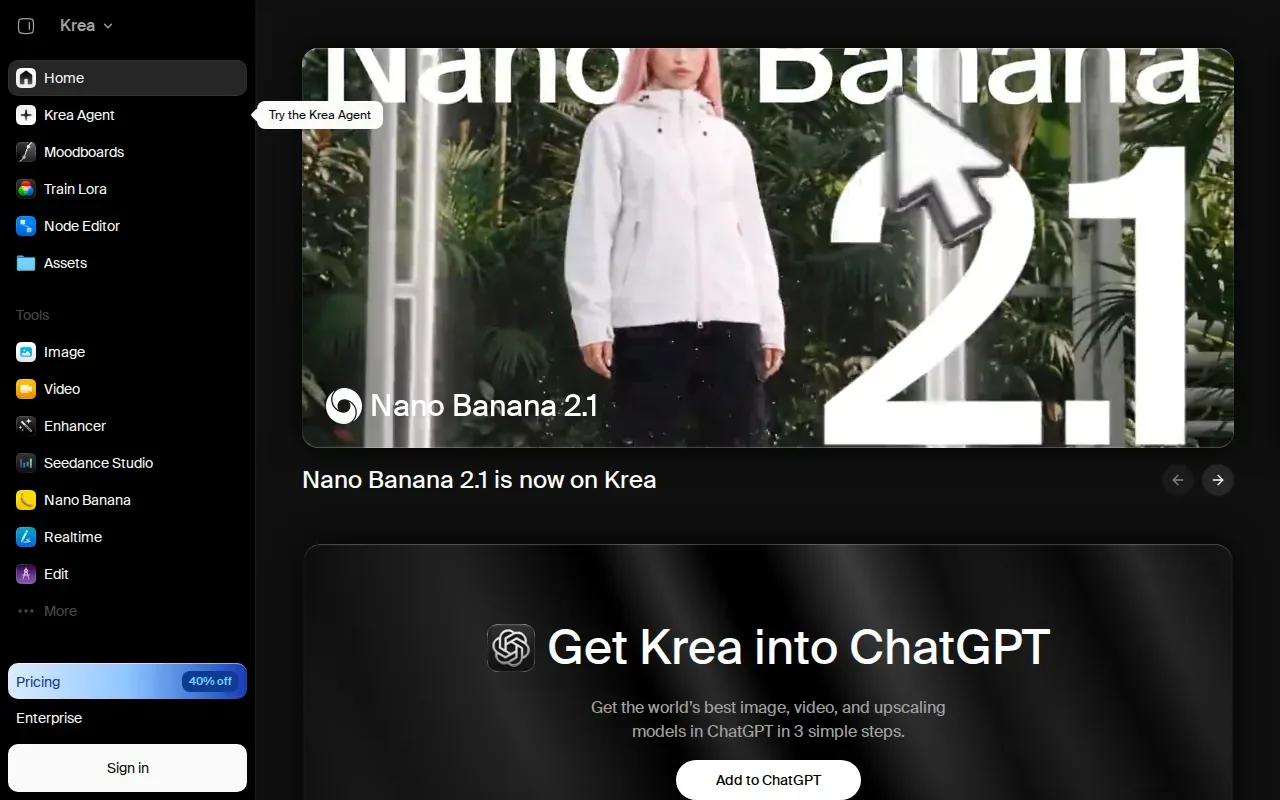
The free plan includes 100 compute units that refresh every 24 hours, with limited video access. Krea also lists tools such as LoRA training, lip sync, 3D, real-time iteration, and upscaling. The daily unit refresh gives you a recurring allowance to explore, but video access is limited, so check the current account view before planning a regular publishing schedule.
A visual creator might use the canvas to work through a look, then test a video idea once the still feels right. That sequence can help separate visual planning from motion testing. It’s especially useful when the point is to explore an art direction or develop storyboard frames, rather than produce many finished videos in one session.
One important check: confirm the exact video model and export settings available to your free account. A free plan’s units do not tell you by themselves how many video generations you can make. Check the cost shown for the task before you start, and leave room for a revision if you’re testing a prompt.
Krea is the flexible workspace pick in this group. For a finished clip under a tight free allowance, make sure the task you need is available on your current plan.
If you’re still deciding which workflow suits your project, the broader comparison of AI video generators can help you weigh prompt-led creation against editing and repurposing tools.
Free AI video generators compared: access, watermark policy, and best fit
Use this table to narrow the list by starting point and free-plan details. A watermark-free export is only one part of the decision; your source material and the kind of control you need matter too.
| Tool | Free access and watermark | Useful for | Check before exporting |
|---|---|---|---|
| Veo Studio | Free plan; no visible watermark; a couple of 720p videos monthly | Prompt- or image-led scenes with synced sound and dialogue | Free output is 720p; up to 4K is on paid plans |
| FlexClip | Free tier; no-watermark exports | Template-based social videos and YouTube content | Confirm free export settings in your account |
| DomoAI | Free tier; confirm watermark on export | Animating still images and working through image-to-video tasks | Check the allowance for the chosen task |
| Lumen5 | Free tier; confirm watermark on export | Turning articles or blog posts into video | Review the video output against the source text |
| Krea | Free plan; limited video access; 100 units refresh daily | Visual iteration across image and video work | Check video access and unit cost before generation |
For a first test, prepare one short script or one image, then use the same source material in the tool that fits its format. Set the output size before generating. Afterward, play the downloaded file and look for a visible mark, check its resolution, and listen to the sound if the clip has audio. The project workspace and the final export may not show the same details.
Ready to make a clean, sound-synced clip? Veo Studio supports synchronized sound and dialogue, character consistency, first/last-frame control, scene extension, and up to 4K output.
For stronger prompts, an AI video prompt generator can help you shape the subject, action, and camera direction before you render.
FAQ: Free AI Video Generators With No Watermark
Can I make an AI video for free without a watermark?
Yes, several tools in this shortlist have a free tier with no-watermark exports. Veo Studio’s free plan includes a couple of 720p videos each month without an added visible watermark. FlexClip, DomoAI, and Lumen5 offer free access. Check the export settings in your account before using a file for a final post.
Which free AI video generator has the best quality?
There isn’t one quality winner for every type of video. Veo Studio’s free videos are 720p and include synchronized sound and dialogue. DomoAI lists upscaling to 4K, while FlexClip lists HD exports. Compare the result using your own image or prompt, then inspect the downloaded file at the size and format you plan to publish.
Do free AI video generators require a credit card?
Veo Studio’s free plan doesn’t require a card. FlexClip, DomoAI, Lumen5, and Krea offer free access. Check the sign-up screen before entering payment information, and make sure you know whether the allowance renews or applies only to a trial.
Can I use a free AI-generated video for commercial work?
Check the terms for the specific tool and plan before using a video in an ad or client project. A free account and a clean export don’t, by themselves, confirm commercial usage rights. Every Veo Studio plan includes a commercial license, but you should still review the terms that apply to your account and intended use.
What should I check before downloading a free AI video?
Check the exported file, not only the preview. Confirm there’s no visible watermark, verify the resolution, and play the video with sound if audio matters to your project. Also check the free plan’s generation limit and the settings used for that specific export. A short test clip can reveal problems before you build a longer edit around it.
Conclusion
For prompt-led video with synced sound, dialogue, and no added visible watermark, Veo Studio is a strong place to start; its free plan is limited to a couple of 720p videos each month. Try one short prompt in the browser, review the export, and move to the pricing page only if you need more output or higher resolution.


