

A good AI video prompt generator can turn a rough idea into a shot you can review, refine, and use. But tools differ: some build a whole narrated video, while others focus on directing a single scene. Here are nine options plus Veo Studio, with a clear look at what each can do.
We analyzed 41 YouTube comments about AI video prompt generators and found that 34% mentioned tutorials and workflow extensions.
1. Veo Studio
Veo Studio is an independent, browser-based video creation tool powered by Google's Veo 3.1 models. You can write a prompt or upload reference images, then generate video with synchronized sound and dialogue. It suits creators who want to direct a short scene without installing software.
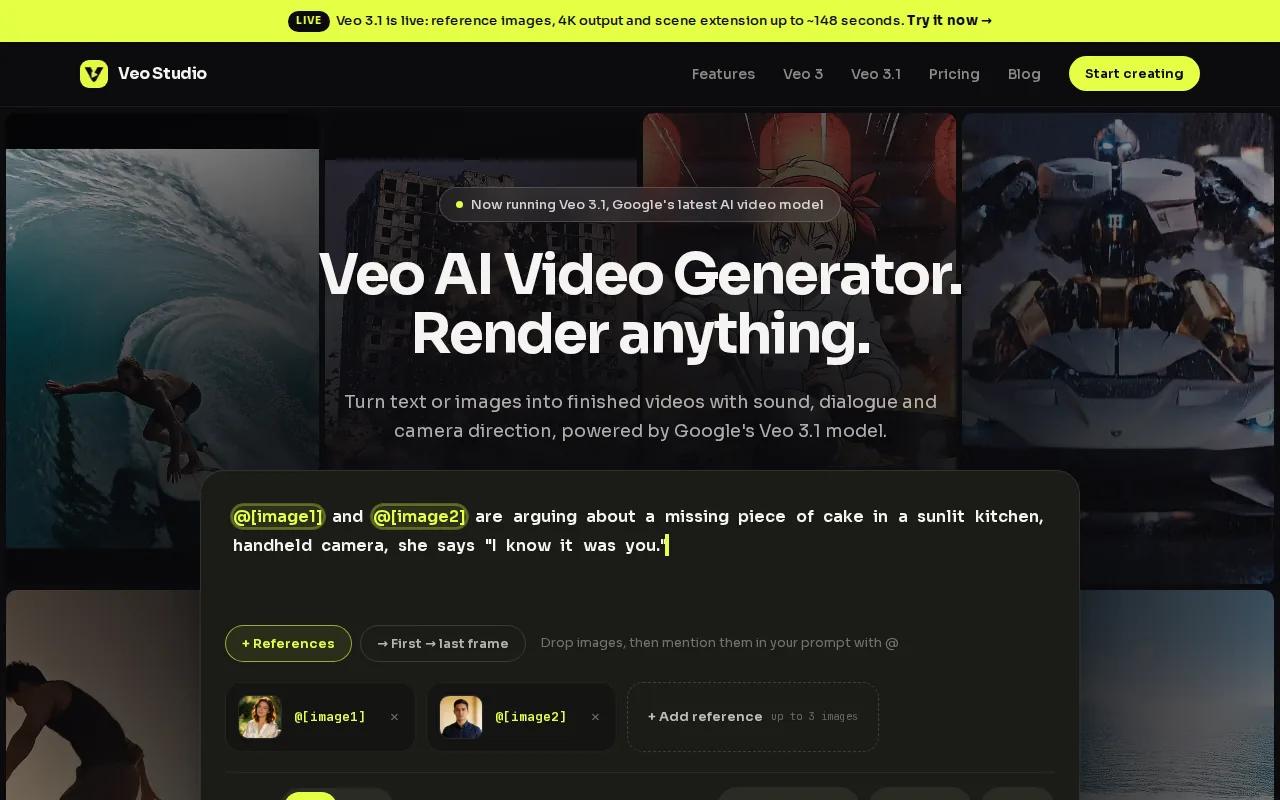
Use plain language to set a camera move, lighting, and mood. Attach up to three reference images to guide a character or product. First- and last-frame controls can shape a transition, while scene extension lets you continue supported clips. Veo Studio supports up to 4K output on paid plans. Its free plan includes a couple of 720p videos each month, with no card required; paid plans start at $14 per month.
For a product spot, you might upload a photo, describe a slow camera push, and add a short spoken line in quotes. The model generates the picture and synced audio together. That can cut out a separate dialogue-sync step when the clip is close to your brief.
Start with one clear shot rather than a long scene packed with actions. For prompt patterns and examples, see these AI video prompt templates.
Choose Veo Studio when sound, continuity, frame direction, and high-resolution output all matter to the same project.
2. CapCut: fast prompt-to-video creation for social content
CapCut can build a video from scratch through a quick chat with its AI video editor. That makes it a fit for creators who want to move from an idea to a social-ready draft without writing a detailed shot plan first.
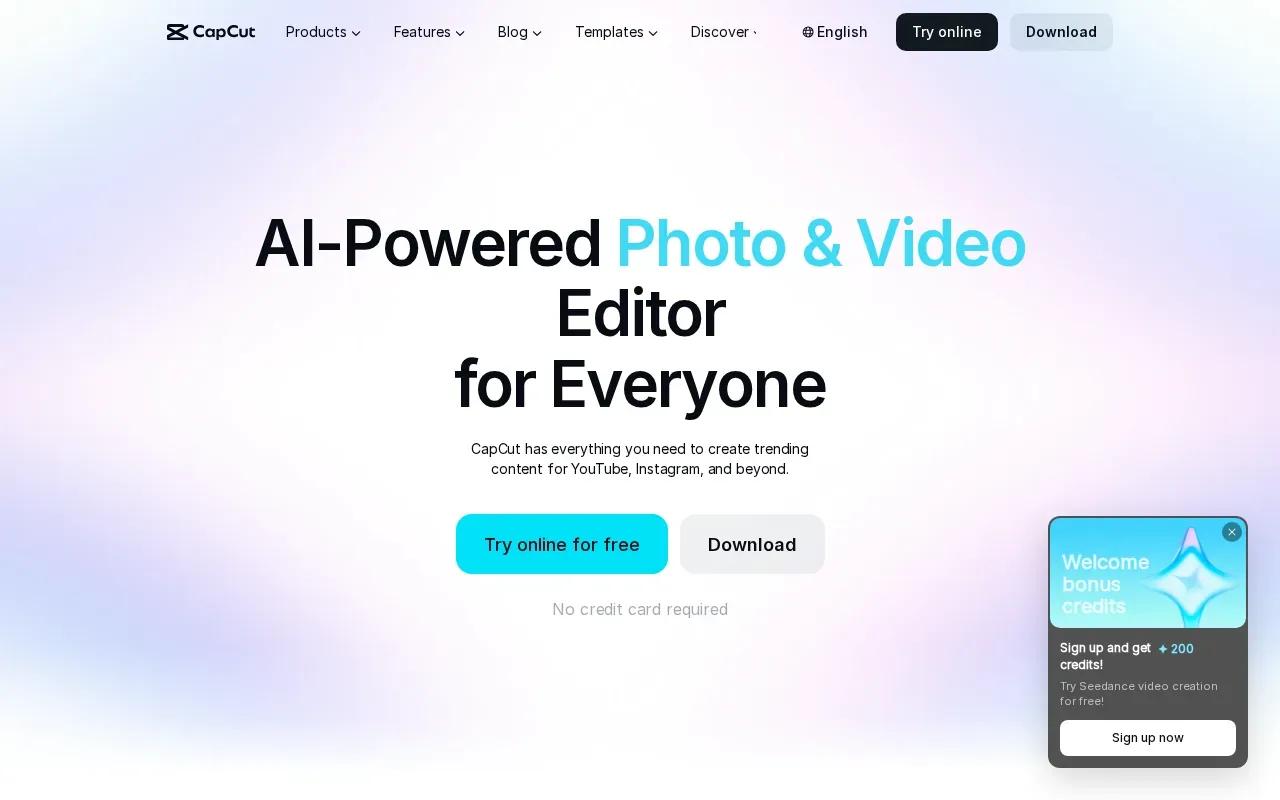
Its stated maximum resolution is 1080p. That gives you a clear choice when you need a standard social export and don't need a 4K file. A prompt-led draft can help you test a hook or visual direction before spending time on a more involved edit.
Keep the request focused. For example, describe one product, one action, and the mood you want. Then review whether the result tells the right story in the first few seconds. If it misses, change one part of the prompt at a time, such as the setting or camera movement. That makes it easier to see which instruction changed the output.
CapCut fits quick-turn social work where starting from a short chat is more useful than fine control over each shot. For a broader look at social workflows, compare these AI video generators for TikTok.
3. Higgsfield: a multi-model workspace for marketing and UGC
Higgsfield puts more than 50 models in one workspace, including Seedance 2.5, Seedance 2.0, and Kling 3.0. It also has UGC Builder and Marketing Studio. That combination suits marketers who want several model choices alongside tools framed for ad and creator-style content.
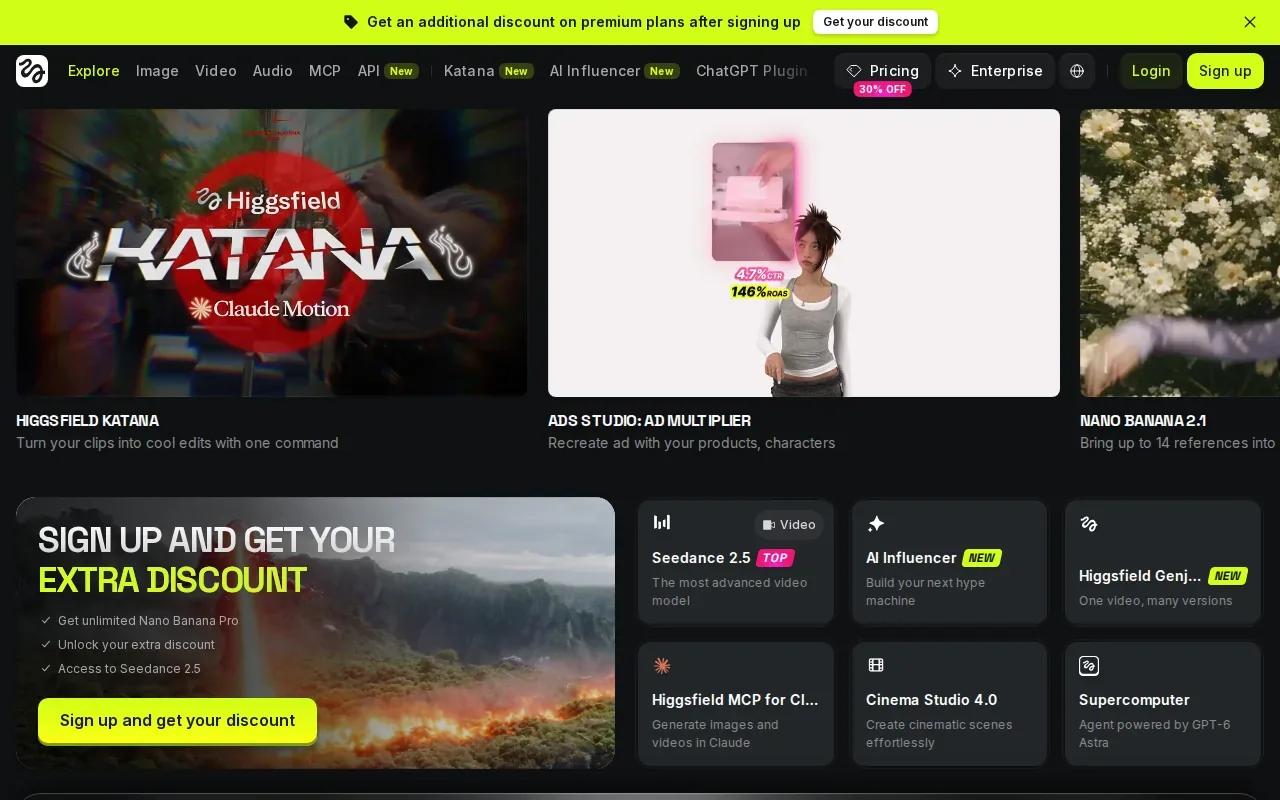
You can create images, videos, and voice content from text prompts or references. The workspace also supports editing and upscaling media, plus an AI agent for workflow automation. It runs on web and mobile, so a team can work with creative assets across those settings.
Think of the multi-model setup as a way to test different directions in one place. A brand team could use a reference image to set the look, then compare outputs from different models before settling on a shot. The value depends on whether your work benefits from switching models, rather than building every project around one generation style.
Higgsfield is a useful candidate when marketing and UGC tasks sit alongside image and voice work. If you need one fixed model and a narrowly defined workflow, compare the workspace against that specific need before you move a whole team into it.
4. Veo3 AI: a 4K option with native audio
Veo3 AI generates videos from text prompts and is described as supporting 4K output, realistic physics, and native audio. It may suit creators who want a high-resolution generated scene with sound included in the output.
Native audio can be useful when the prompt calls for ambient sound, effects, or dialogue. Put the sound you want into the scene description, then check whether it fits the action and tone. For example, a quiet café scene needs a different sound direction from a fast product reveal. A clear cue gives the model a more useful target than simply asking for cinematic sound.
Resolution alone doesn't tell you whether a generated clip is ready to publish. Review motion, scene details, and audio together. If the clip needs a spoken line, check that the words match the intended speaker and that the timing works for your edit.
This option is worth considering when the brief puts 4K and generated audio near the top of the requirements. Compare the resulting clip with your actual platform needs before choosing a resolution for the full project.
A short test clip can show whether the tool’s look and sound suit your project before you build around it.
5. TryVeo3.ai: a browser-accessible Veo-based option
TryVeo3.ai is built on Google Veo video technology and can generate video from text or images. Its listed maximum resolution is 1080p, and it supports scene extension. The service describes synchronized dialogue, sound effects, and ambient sound as a strength.
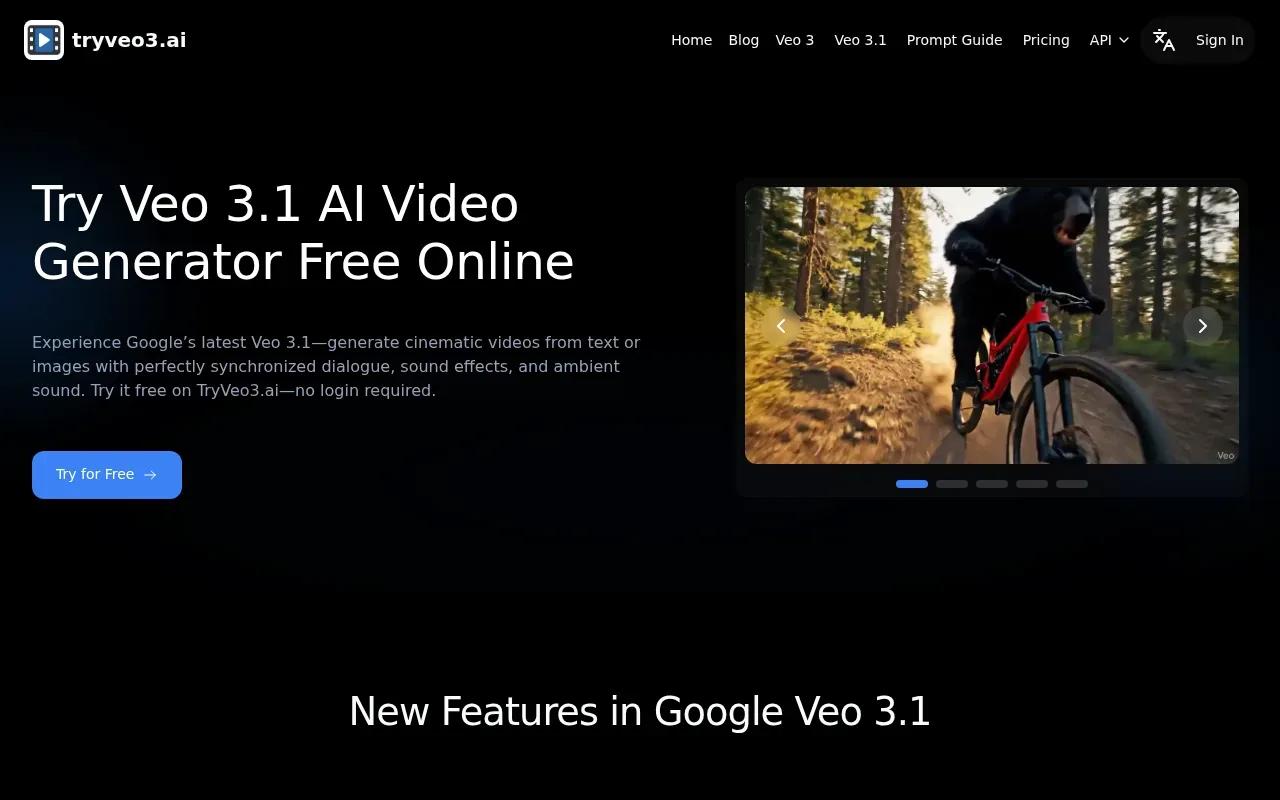
That mix may suit a creator who wants to try prompt-led video with sound and the option to continue a scene. For a short story, you can describe the next beat after the opening clip, then see whether an extension keeps the scene moving in a way that works for your edit.
It also supports first- and last-frame inputs and up to three reference images, according to its product information. These controls can help you guide how a shot starts and ends, or give the model visual cues for a subject. Treat each input as direction, not a guarantee: review the render for changes in the subject or scene.
TryVeo3.ai may be a fit for quick browser-based tests when 1080p meets your delivery needs. If the project depends on a specific look, dialogue line, or scene handoff, check those details in the generated result before moving to a longer sequence.
6. Google Veo: strong all-around video and sound generation
Google Veo generates video with sound paired to the visuals. It is a sensible option to consider for scenes where the audio should feel connected to the action, such as a character speaking or a location with clear ambient sound.
A useful prompt can break a video idea into parts such as the subject, action, setting, and camera direction.
Try a compact structure: name the subject, state the action, set the location, then add a camera move and sound cue. For example: "A ceramic mug sits on a kitchen counter as steam rises; slow close-up push-in, soft morning light, a kettle clicks off in the background." That gives the model a subject and a single main action rather than several competing events.
Google Veo is a broad option for prompt-led scenes with sound. Veo Studio is a separate independent browser-based tool with controls for references, frames, and scene extension.
7. Runway: detailed control over shots and frames
Runway is suited to creators who want frame-level control over a shot. Its maximum resolution is listed as 4K, and it supports scene extension. Those controls are useful when you have a specific shot in mind and want to shape how it develops.
Instead of asking for a whole video at once, define a single moment. Describe what the subject does, what the camera does, and what needs to stay in view. A frame-led approach can help when the composition matters as much as the subject’s action.
For instance, a director might hold the subject near the left side of the frame while the camera slowly tracks right. The prompt can state both movements in plain words. Once you have a draft, inspect the beginning and end of the shot to see if the movement lands where you intended.
Runway makes sense when direct shot control is a priority. It may take a few focused prompt revisions to get the desired timing, so change one instruction per test. That keeps your review clear and avoids losing a good composition while trying to fix a separate detail.
8. Fliki: prompt-led videos with voice and captions
Fliki builds a video from a single prompt, including a script, visuals, voiceover, music, and captions. It suits people who need a narrated draft rather than a single generated scene. Its voice library includes more than 2,000 voices across over 80 languages.
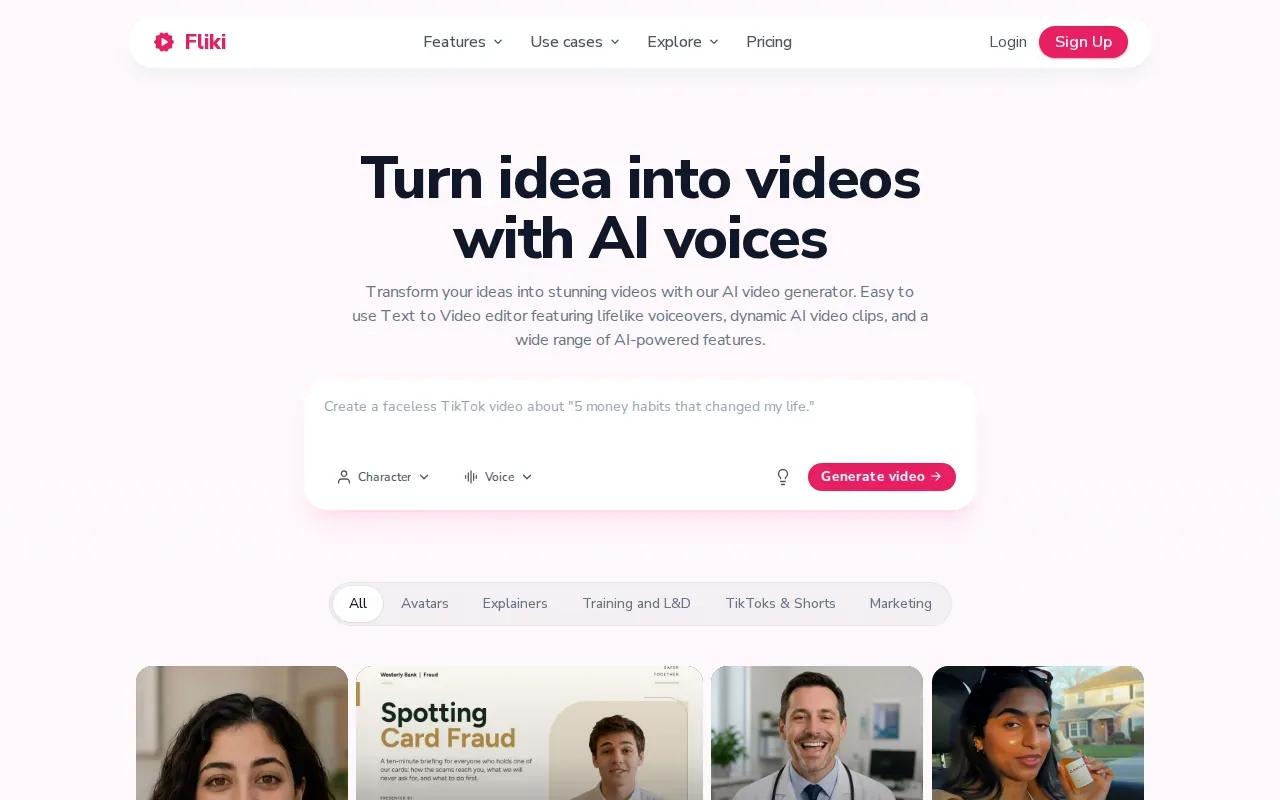
The workflow is useful for explainers, lessons, or social clips where narration carries the message. Give the tool a clear topic and intended tone. Then check whether the script says what you mean before you focus on the visuals. A polished voice track won't fix a script that wanders away from the point.
Fliki also supports character consistency. That can help when a video uses a recurring presenter or character across multiple scenes. Review the captions for accuracy and timing, especially when the voice track includes names or terms that viewers need to understand.
Choose Fliki when you want the prompt to produce a more complete narrated video with voice and captions. If the main goal is a cinematic scene with synchronized character dialogue, compare how its finished-video workflow fits that brief.
9. Kapwing: prompt-to-video with voiceover and subtitles
Kapwing turns a text prompt into a video project with voiceover, visuals, subtitles, music, and characters. It works in a browser, and you can keep editing scenes in the same workspace after generation.
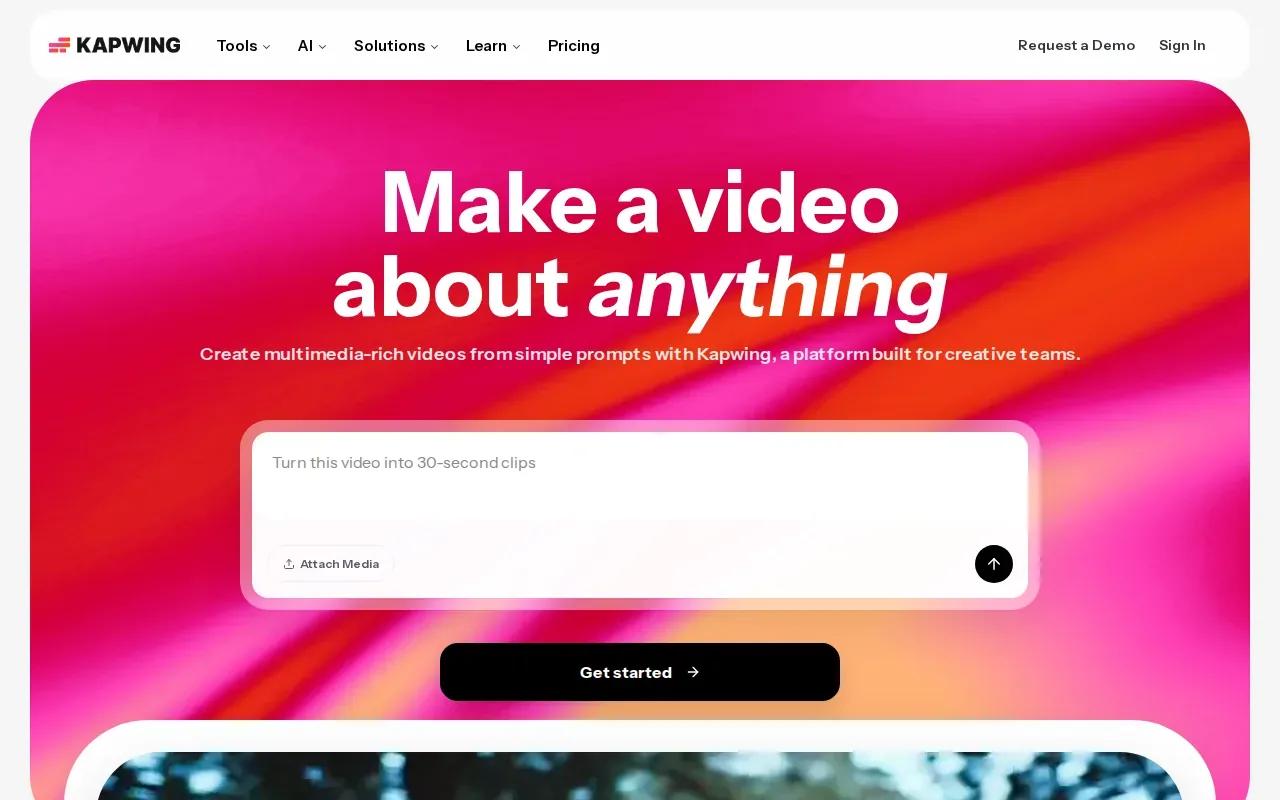
Its AI assistant can help expand a short prompt or work from more detail, including camera angles and movement. You can also give it reference media. That can help when the video needs to follow a product photo, a character design, or a planned start and end frame.
After generation, continue in the timeline to adjust the video and add or refine subtitles and voiceover. That makes the workflow relevant to social teams that want to generate a draft and make finishing edits in one place. For a short product clip, start with the product image and a single clear action, then check that the voice and captions support the same message.
Kapwing fits projects where prompt-led generation and timeline editing belong together. If frame-level direction matters, specify the movement in the prompt and review each scene before exporting.
10. ImagineArt: a broader creative suite for video and more
ImagineArt is a creative suite for generating images, videos, shorts, and voice from text prompts. It also includes editing tools, a background remover, an upscaler, and custom models. That range may suit creators who want video work alongside other visual tasks.
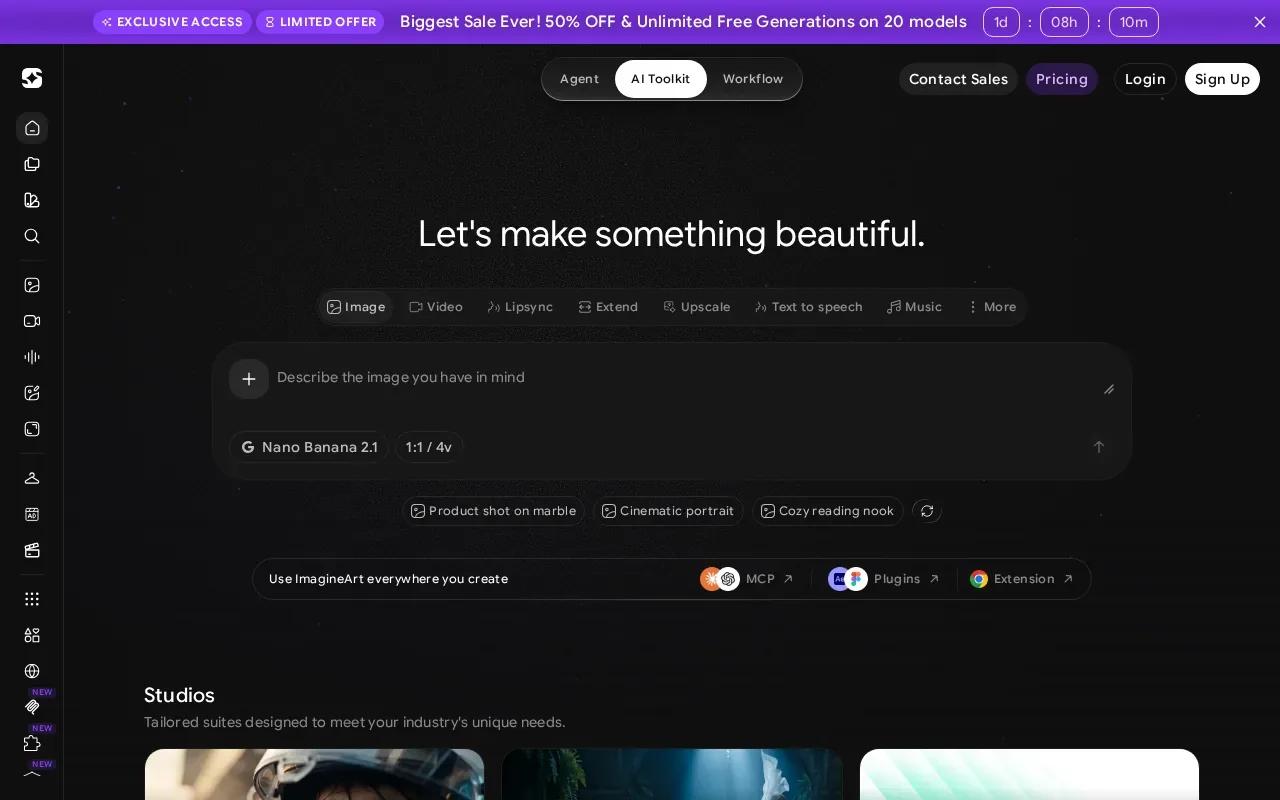
For a short, start by describing the main subject and what it should do. Keep the request focused on one scene. If the video starts from a still image, be precise about the movement you want to add and the parts of the image that should remain recognizable.
The broader tool set can help when a project moves between image creation and video work. It also gives you editing tools for later changes. Review the generated video on its own before adding more effects: check whether the motion reads clearly, then decide if any finishing tool is needed.
ImagineArt is worth a look when your prompt-based video work sits inside a wider creative process. It may be less relevant if your main need is a particular scene-control feature, so compare the controls that matter to your next brief.
How the AI video prompt generator tools compare
These tools approach prompt-led video in different ways. A useful comparison starts with the job the finished file must do, not a feature count. The table below highlights the clearest fit for each option based on the capabilities above.
| Tool | Good fit when you need | Standout workflow | Check before choosing |
|---|---|---|---|
| Veo Studio | Directed scenes with sound and continuity | References, frame controls, scene extension, up to 4K | Free output is 720p; paid plans start at $14 per month |
| CapCut | A quick prompt-led social draft | Chat-based video creation | Listed maximum resolution is 1080p |
| Higgsfield | Marketing work across model choices | More than 50 models, plus UGC Builder and Marketing Studio | Decide if a multi-model workspace suits your process |
| Veo3 AI | High-resolution video with generated sound | 4K video with native audio | Review sound and motion in the rendered clip |
| TryVeo3.ai | Browser-based tests with scene extension | Synced dialogue, effects, and ambient sound | Listed maximum resolution is 1080p |
| Google Veo | Prompt-led scenes with paired sound | Sound generated with the visual scene | Use specific prompts and review camera results |
| Runway | Shots that need frame-level direction | Frame control and scene extension | Check timing and composition on each draft |
| Fliki | Narrated videos with captions | Prompt to script, voice, visuals, music, and captions | Review the script and captions before export |
| Kapwing | Prompt generation plus timeline edits | Voiceover, subtitles, and scene editing | Plan the edit you expect after generation |
| ImagineArt | Video alongside other creative work | Video, images, shorts, voice, and editing tools | Check that its controls suit your specific scene |
A prompt pattern you can reuse
A video prompt is a plain-language direction for what the model should show and how the shot should feel. The strongest starting point is often a clear subject and action, followed by the setting and camera direction. Add style or sound only when those details help the shot.
Try this template: "[Subject] [one action] in [setting]. [Camera angle or move]. [Light or visual style]. [Sound cue or exact dialogue, if needed]."
Example: "A red bicycle rolls slowly along a wet city street at dusk. Low tracking shot beside the front wheel. Cool blue light with warm shop windows in the background. Tires hiss on the pavement." Keep the clip focused on one moment. If the result misses, change one prompt detail, generate again, and compare the same part of the scene.
For Veo Studio’s plan details, including its free tier and paid options, check the Veo Studio pricing page before choosing a setup for ongoing work.
Ready to make a scene with sound and frame controls?
Frequently asked questions
What is an AI video prompt generator?
An AI video prompt generator turns a written description into video, or helps shape a prompt for a video model. Depending on the tool, it may produce a short scene or a fuller draft with narration, music, and captions. The prompt tells the model what to show, what should happen, and how the shot should look or sound.
What should I include in a video prompt?
Include the subject, one main action, and the setting. Add a camera angle or move when it matters to the shot. Then include lighting, visual style, and sound cues only when they add useful direction. A focused prompt is easier to review and revise than a long list of unrelated details.
Can AI video tools generate dialogue and sound?
Yes, some tools generate dialogue or other sound with the video. Capabilities vary by tool, so check whether sound is created with the image or added as a separate voiceover step. Review the final clip for dialogue accuracy, timing, and whether the sound fits the scene.
Which tool should I use for a narrated video with captions?
Fliki is built to turn a prompt into a video that includes a script, voiceover, visuals, music, and captions. Kapwing also generates prompt-led video projects with voiceover and subtitles, with timeline editing in the browser. Choose based on whether you prefer a full narrated draft or a project you’ll refine in an editor.
How do I improve an AI-generated video?
Change one instruction at a time. If the camera move is wrong, keep the subject and setting fixed while revising that move. If a character changes, try reference images in tools that support them. Watch the clip with sound, then check the framing and the action before you export.
Conclusion
For prompt-led scenes that need synchronized sound, dialogue, character continuity, frame controls, and up to 4K output, start with Veo Studio.


