A photo-to-video generator turns a still image into a moving clip, but each tool gives you different control over the result. This 2026 shortlist starts with Veo Studio, an independent browser-based tool powered by Google’s Veo 3.1 models, then compares four other options by the work they suit.
We analyzed 57 YouTube comments about photo to video generators and found that 18% mentioned limitations on realistic content and restricted subjects.
1. Veo Studio
Veo Studio is an independent, browser-based AI video creation tool powered by Google’s Veo 3.1 models. Upload a reference image, describe the action, and generate a clip with synchronized sound and dialogue. It suits creators who want the photo to guide a scene, not just a basic pan or zoom.
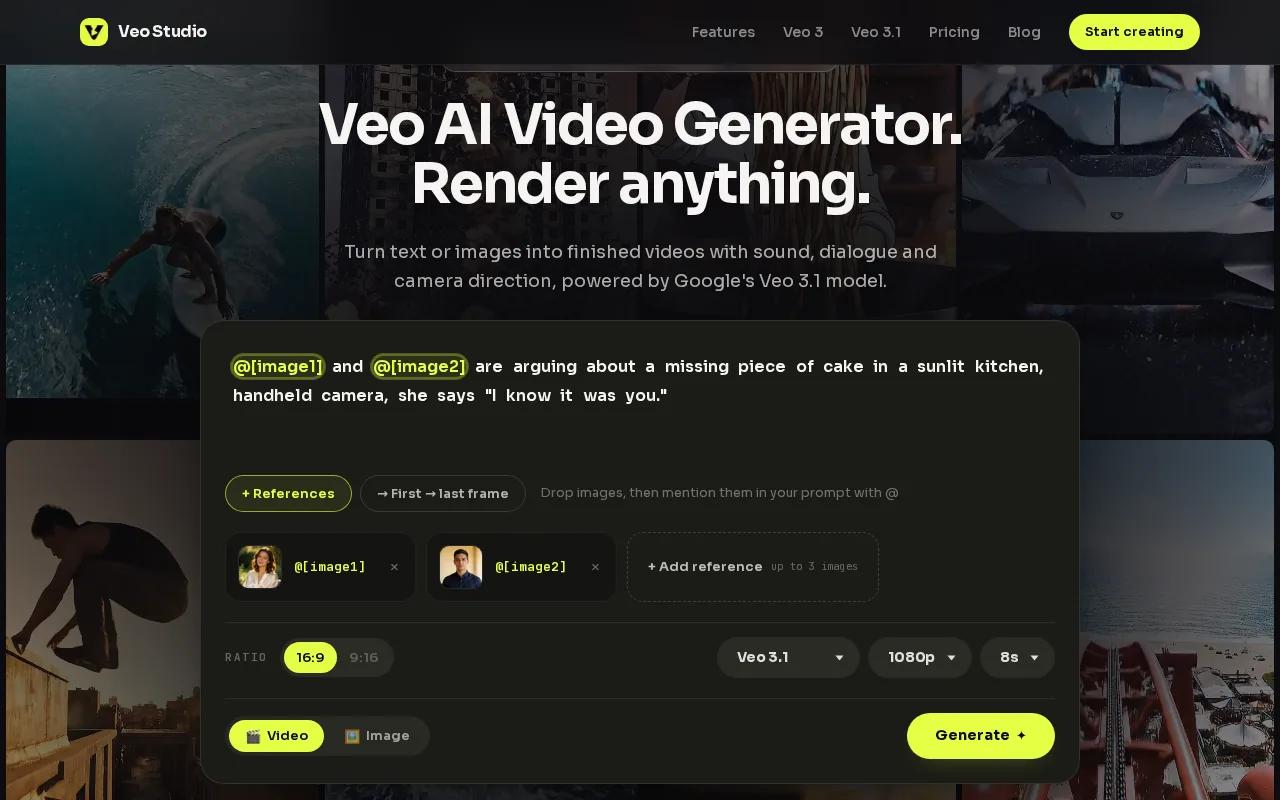
For a product photo, you might prompt for a slow camera move toward the item while soft room tone plays. For a character shot, you can add a quoted line of dialogue and use reference images to help keep the character consistent. Veo Studio also supports first- and last-frame control, scene extension, and output up to 4K on supported settings.
Those controls can help when one still needs to carry a clear beginning and end, or when a short clip needs to continue into a longer scene. The browser workflow also means you can start without installing editing software. If you’re comparing broader video workflows too, this comparison of AI video generators for creators looks at different kinds of projects.
Veo Studio has a free plan with a couple of 720p videos each month and no card required. Paid plans start at $14 per month, with higher resolutions and a commercial licence. Before you make a batch, test one image and check the movement, sound, and subject details in the finished clip.
2. Runway: A production workspace for image-to-video and finishing
Runway is a video production workspace with image-to-video generation and tools for editing and finishing. It suits professionals who want to keep working on a generated clip in the same workspace rather than export it to another app right away.
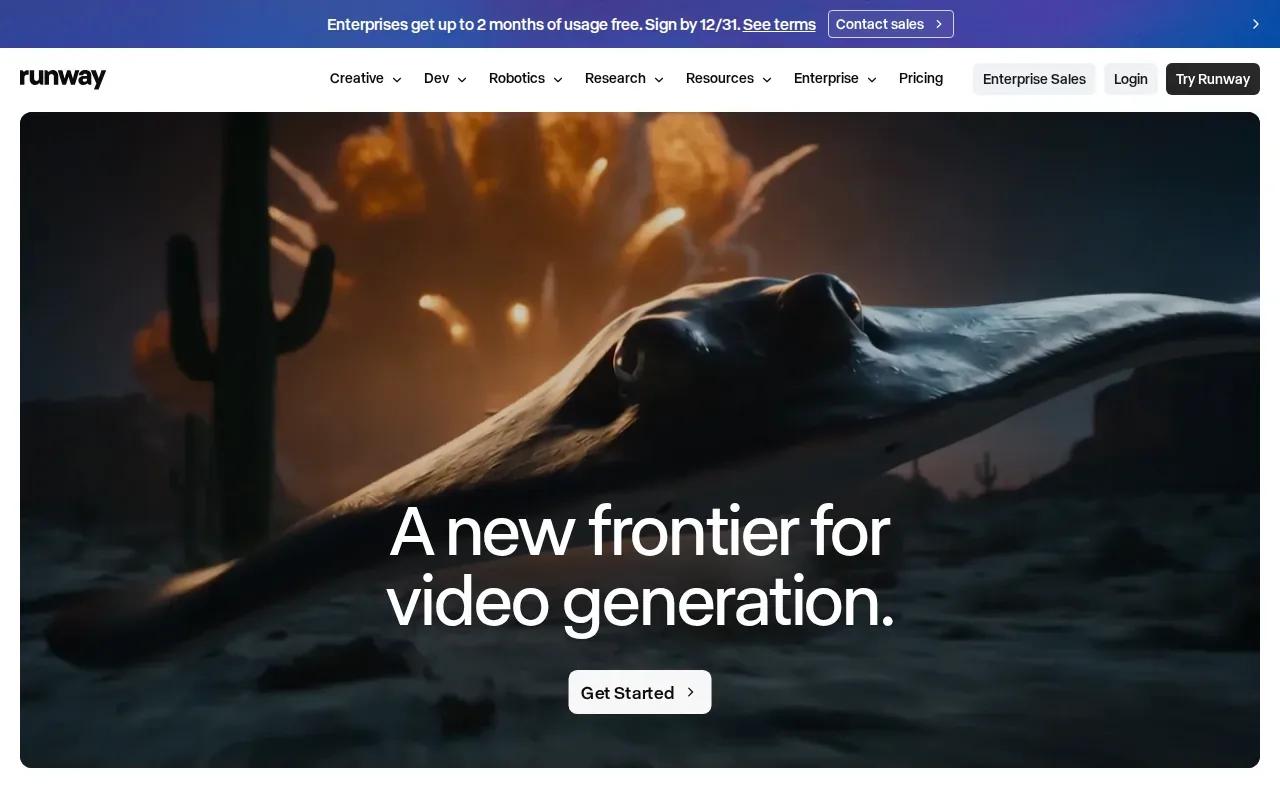
Its main draw is the work around the generation itself. Runway includes editing, upscaling, background work, and finishing in one workspace. That can matter when a generated shot needs a cleanup pass before it joins a larger edit.
Runway has also built its name around direct control of camera motion. You can describe a move such as a pan, dolly, or zoom to shape the shot. That direction is useful when a still has a clear subject and you want the motion to support a specific beat, rather than let the camera drift without purpose.
For example, a marketer might start with a product image, generate a slow push toward the subject, then continue refining the clip in the same workspace. This approach makes Runway a sensible fit for production work where finishing is part of the task. Compare the exact model and settings you plan to use, since features can vary across models.
3. Kling AI by Kuaishou: Detailed shot control with keyframes
Kling AI by Kuaishou gives image-to-video creators a way to guide what happens at specific moments. It suits a solo filmmaker who has a longer scene in mind and wants to set key visual beats instead of relying on a single opening image.
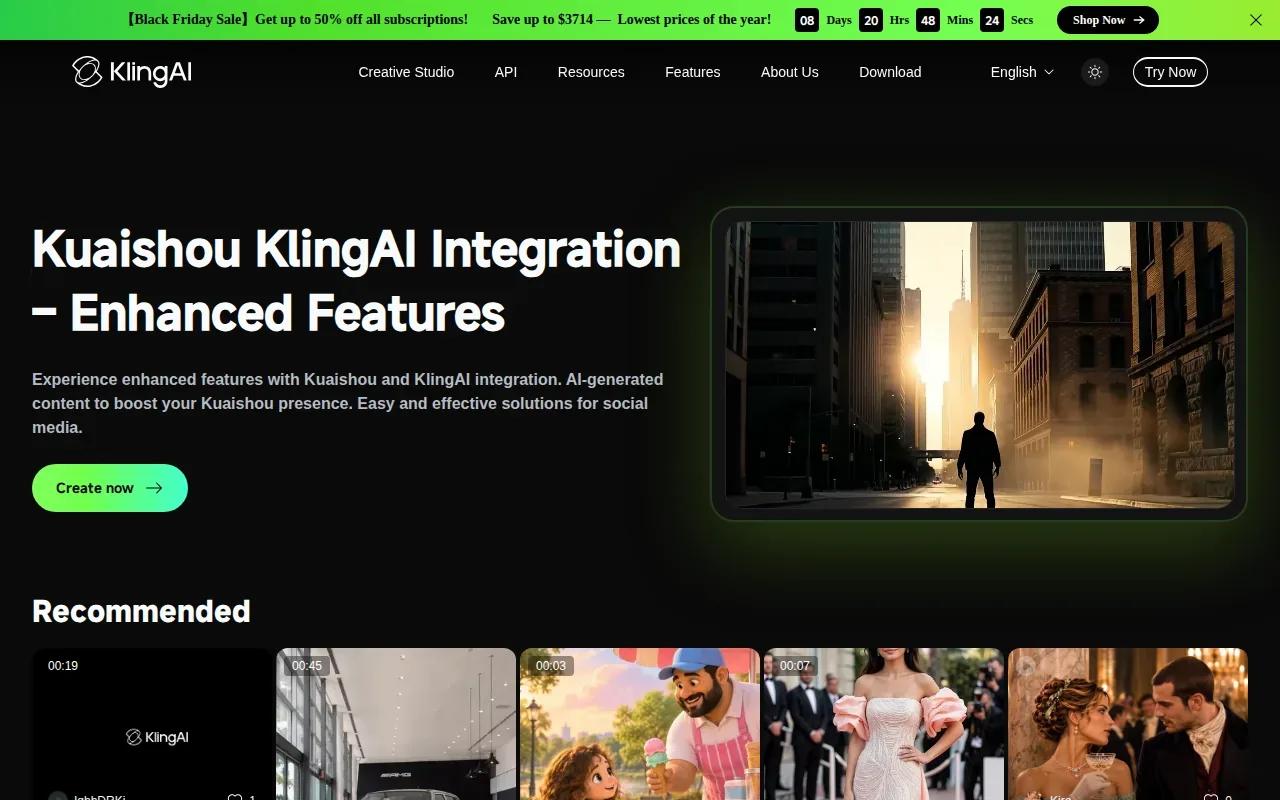
Kling 4.0 generates clips from 3 to 30 seconds and supports up to 10 keyframes. Its maximum output is up to 4K. Keyframes can help map a sequence: the opening image establishes the scene, later frames set changes in pose or composition, and the prompt describes motion between them.
That kind of control is useful for a short story scene or a product moment with a planned reveal. You can decide what the image should look like at key points, then use the prompt to explain how the subject or camera moves between those points. It gives you more structure than a prompt that only says to animate the image.
Still, keyframes don’t remove the need to review the result. Check whether the action connects clearly between each planned moment, and whether the final shot matches your intended framing. Kling’s longer generation range may fit a scene that needs room for a setup and payoff in one clip.
4. invideo: Image-to-video clips on an editable timeline
invideo turns an image into a clip that lands on an editable timeline. It suits people who want to animate a photo and then keep editing the result, rather than treating the generated clip as a final export.
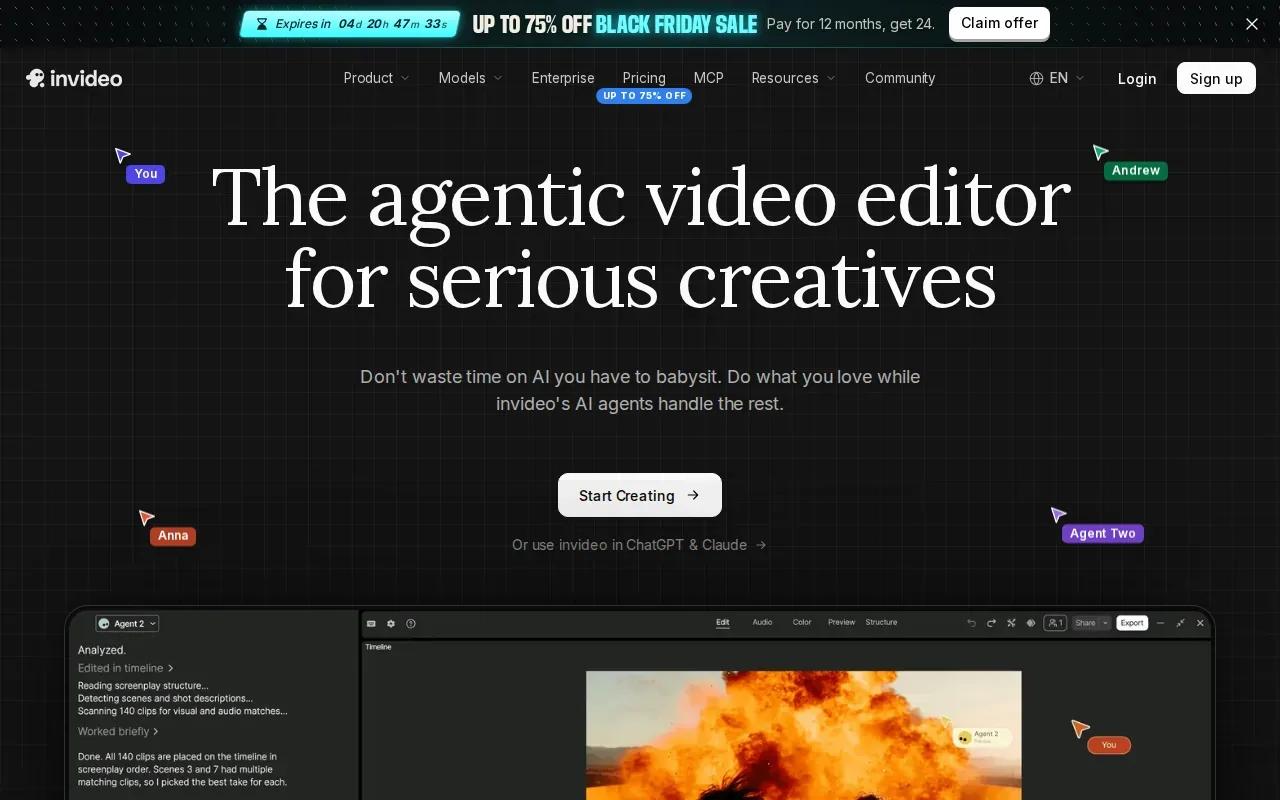
You can start with a JPG, PNG, or WEBP image, then describe the movement you want. The image-to-video workflow can suit product photos, portraits, or listing images. For example, a small business could upload a product photo and request a slow zoom before continuing to adjust the clip on the timeline.
The timeline is the useful distinction here. After generation, you can continue shaping the video in invideo’s editor. Its product-photo workflow also describes using free effects and keyframes to move an exact product image, which may help when a package label or product shape must remain faithful to the source photo.
That doesn’t mean every generated shot will preserve every detail. Review the product throughout the clip, especially if its label or shape is important. For campaigns with several shots, the editable timeline gives you a place to work on the final sequence after the image animation is ready.
5. PixVerse: Quick social clips and visual effects
PixVerse is a candidate for quick social clips and visual effects. It suits creators who want to animate a still or apply an effect for short-form content, where a fast visual idea may matter more than a longer scene plan.
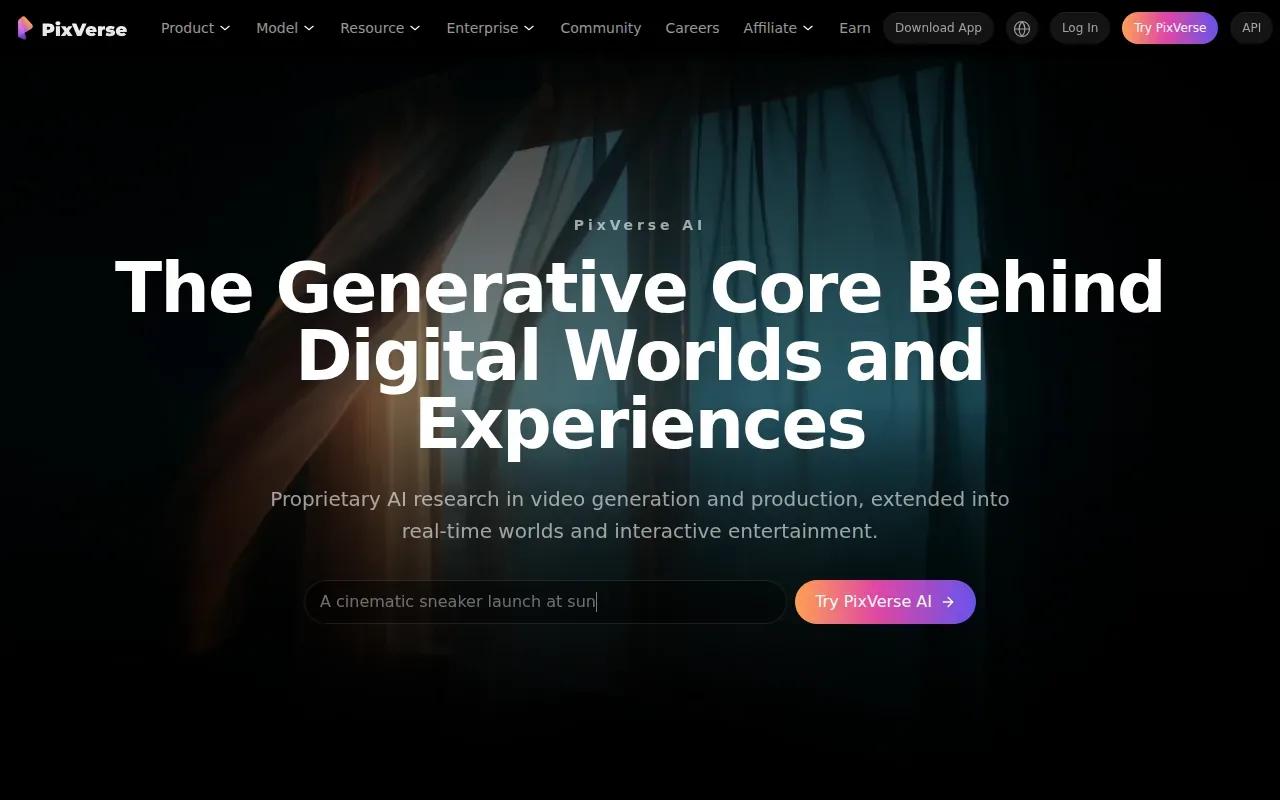
PixVerse leans toward short clips, effect-led motion, and social-friendly concepts. That makes it worth considering for a portrait or piece of artwork that needs a stylized change in motion. PixVerse also describes proprietary AI research in video generation and production, with work extending into real-time worlds and interactive entertainment.
A focused prompt can help keep a social clip on track. Name the subject, say what should move, and describe the visual effect you want. Then review the result at the size and crop you expect to post. The source photo still matters: a busy image can make it harder to judge whether the motion reads clearly on a small screen.
PixVerse belongs on a shortlist when the goal is a quick, effects-led post. If you need dialogue, detailed keyframe planning, or an editable timeline after generation, compare those needs against the other tools here before choosing.
Photo-to-video generators compared by use case
The right choice depends on the work that happens before and after generation. Motion control shapes the shot; editing tools affect what you can change afterward. Sound matters when a clip needs spoken lines or a scene atmosphere, while output size matters when the file must fit a specific delivery brief.
| Tool | Good fit | Useful distinction | Check during review |
|---|---|---|---|
| Veo Studio | Dialogue-led scenes, social clips, and ads | Synchronized sound, character consistency, frame control, scene extension, up to 4K on supported settings | Sound, motion, and subject details |
| Runway | Professional generation and finishing | Editing, upscaling, background work, and finishing in one workspace | Camera move and final polish |
| Kling AI by Kuaishou | Longer scenes with planned visual beats | 3 to 30 seconds; up to 10 keyframes; up to 4K output | Transitions between keyframes |
| invideo | Photo animation followed by timeline editing | Generated clip continues into an editable timeline | Product and label details |
| PixVerse | Quick social clips and effects | Focus on short-form effects-led motion | Crop and effect clarity |
Use this short workflow to compare results with your own image, rather than relying only on sample clips:
- Choose a clear photo with a subject you can identify at a glance.
- Write one prompt that names the subject, the action, and one camera move.
- Set the aspect ratio and output size for the place you plan to post.
- Generate a first clip, then check the subject’s shape and movement from start to finish.
- If sound or dialogue matters, listen to the whole clip before you share it.
- Revise one part of the prompt at a time, then compare the new result.
For free access, check the limits before you plan a full batch. Veo Studio’s free plan includes a couple of 720p videos per month with no card required. If you’re testing no-cost workflows, this roundup of free AI image-to-video tools covers why free access can differ from tool to tool.
Also check the rights for both the source image and the generated video before using a clip in an ad. Veo Studio states that its plans include a commercial licence. For the other tools, review the terms that apply to your account and selected model instead of assuming that a generated clip is cleared for every use.
FAQ
What is a photo-to-video generator?
A photo-to-video generator uses an image and an AI model to make a moving video clip. You usually upload a photo, describe the motion, then review the result. Some tools focus on quick effects, while others add controls for keyframes, sound, or editing after generation. The best fit depends on how much direction your shot needs.
Which tool can add sound and dialogue to a photo-led video?
Veo Studio generates synchronized sound and dialogue with the video. Its independent browser-based service is powered by Google’s Veo 3.1 models. You can add a line of dialogue in your prompt and use reference images to support character consistency. Check the finished clip for timing and sound quality before using it in a campaign.
Can I turn one product photo into a social video?
Yes. Upload the product photo, describe a simple movement such as a slow push toward the item, and set a crop that fits your social post. invideo supports an editable timeline after generation, while Veo Studio can add synchronized sound and supports output up to 4K on eligible settings. Review the item’s shape and details across the clip.
Which tool supports keyframes for image-to-video?
Kling AI by Kuaishou’s Kling 4.0 supports up to 10 keyframes and generates clips from 3 to 30 seconds. Keyframes let you define visual points in the shot, while the prompt describes movement between them. Review the transitions as well as the key images, since the connecting motion shapes how the scene feels.
Can I use AI-generated photo videos in ads?
You can use a generated clip in an ad when you have the rights and licence needed for your use. Veo Studio says its plans include a commercial licence. For any tool, check the terms for your account and model, and make sure you have permission to use the original photo, logos, or other material in it.
Conclusion
For photo-led scenes that need synchronized sound, dialogue, or frame control, start with Veo Studio. Try one reference image and a clear motion prompt, then review the clip before planning a larger batch. If you’re comparing more photo-led workflows, the image-to-video maker options for creators can help you assess what each tool does after the upload.