
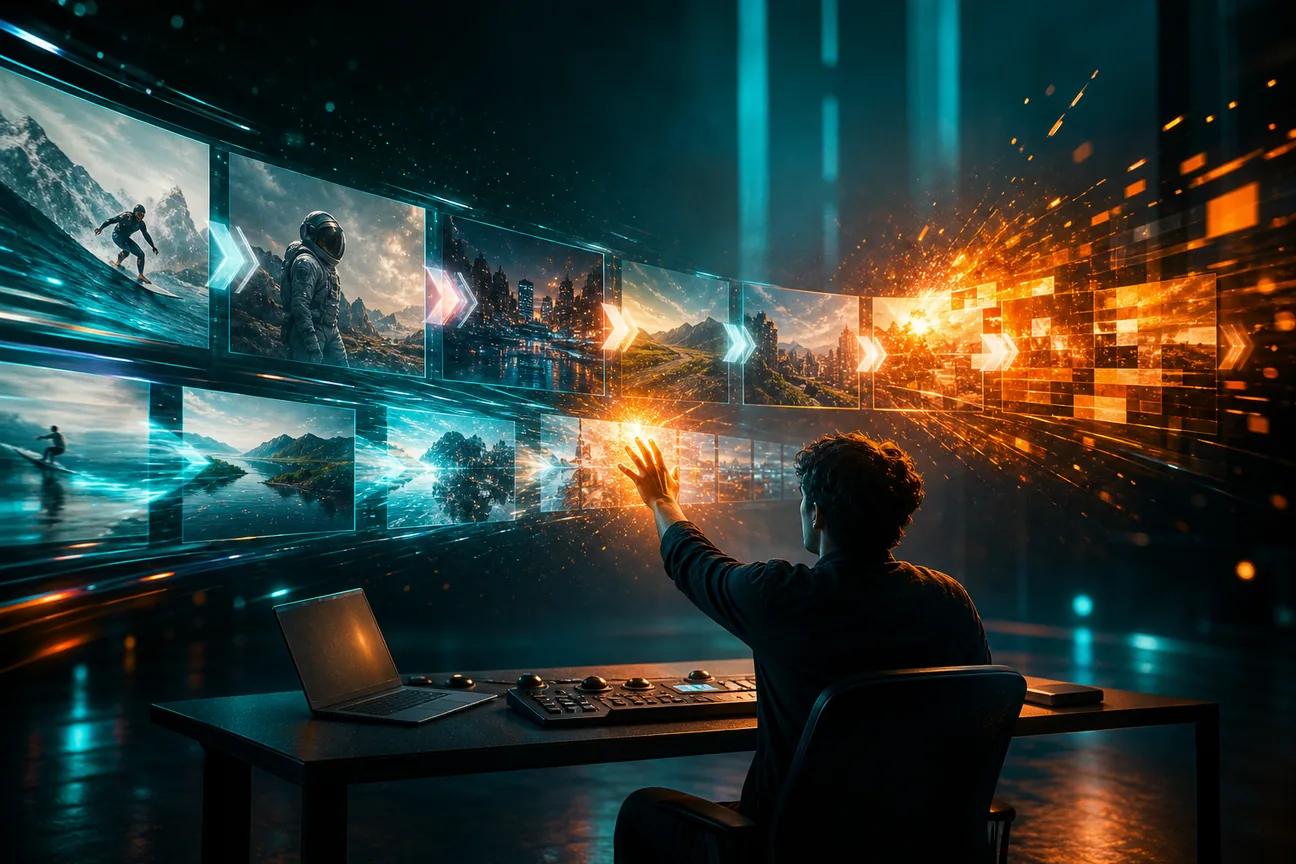
A good transition makes a change feel intentional, not like a clip simply stopped. An AI video transition generator can build motion between stills, scenes, or planned start and end frames. Here are six tools, starting with Veo Studio, and the type of transition work each supports.
We analyzed 41 YouTube comments about AI Video transition generators and found that 22% mentioned guidance on creating custom prompts.
1. Veo Studio
Veo Studio is an independent, browser-based AI video creation tool powered by Google's Veo 3.1 models. It suits social creators, marketers, small businesses, and filmmakers who want to direct a short scene rather than only add an effect between clips.
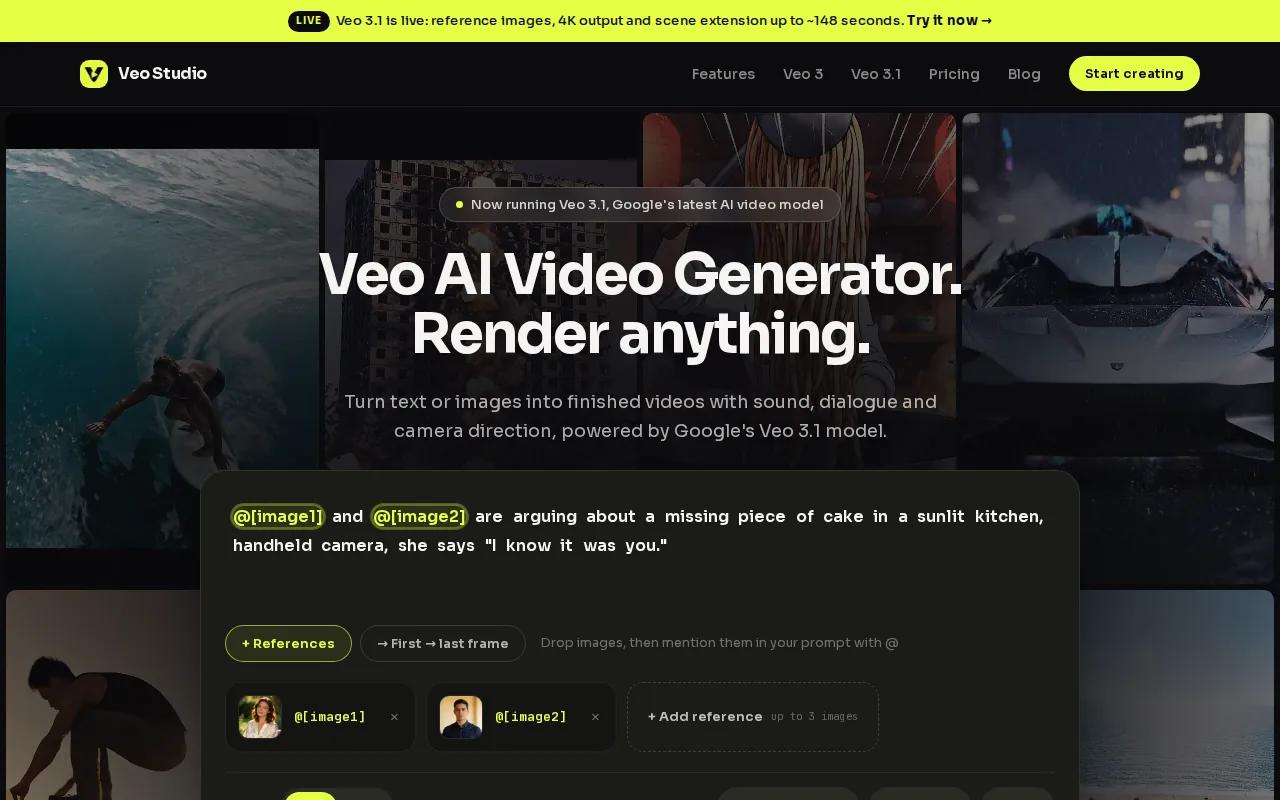
For a planned reveal, upload a starting image and an ending image. Veo Studio's first- and last-frame workflow generates the motion between them, so you can guide where the transition begins and where it lands. Add up to three reference images on supported generations when a character, product, or visual style should stay consistent.
That control can help with an outfit change, a product reveal, or a shift from a quiet room to a finished set. You can describe the camera move in plain language. Veo Studio can also generate synchronized sound and dialogue, support character consistency, and produce video at up to 4K on supported settings. Veo Studio supports first- and last-frame generation, reference images, video extension, and native audio for Veo 3.1.
For example, set the first frame on a plain package and the last on the product in use. Then describe one clear movement and what must stay the same. For further ideas, see image-to-video prompt examples.
Veo Studio has a free plan with a couple of 720p videos a month and no card required. Paid plans start at $14 per month and include higher resolutions, more video volume, and a commercial license. If the transition needs to continue into a longer shot, eligible clips can also use scene extension.
2. Pika: keyframe-led transitions with Pikaframes
Pika's Pikaframes turns ordered images into a video with transitions between each consecutive pair. It fits creators who have a sequence of still images and want the change between them to follow a chosen order.
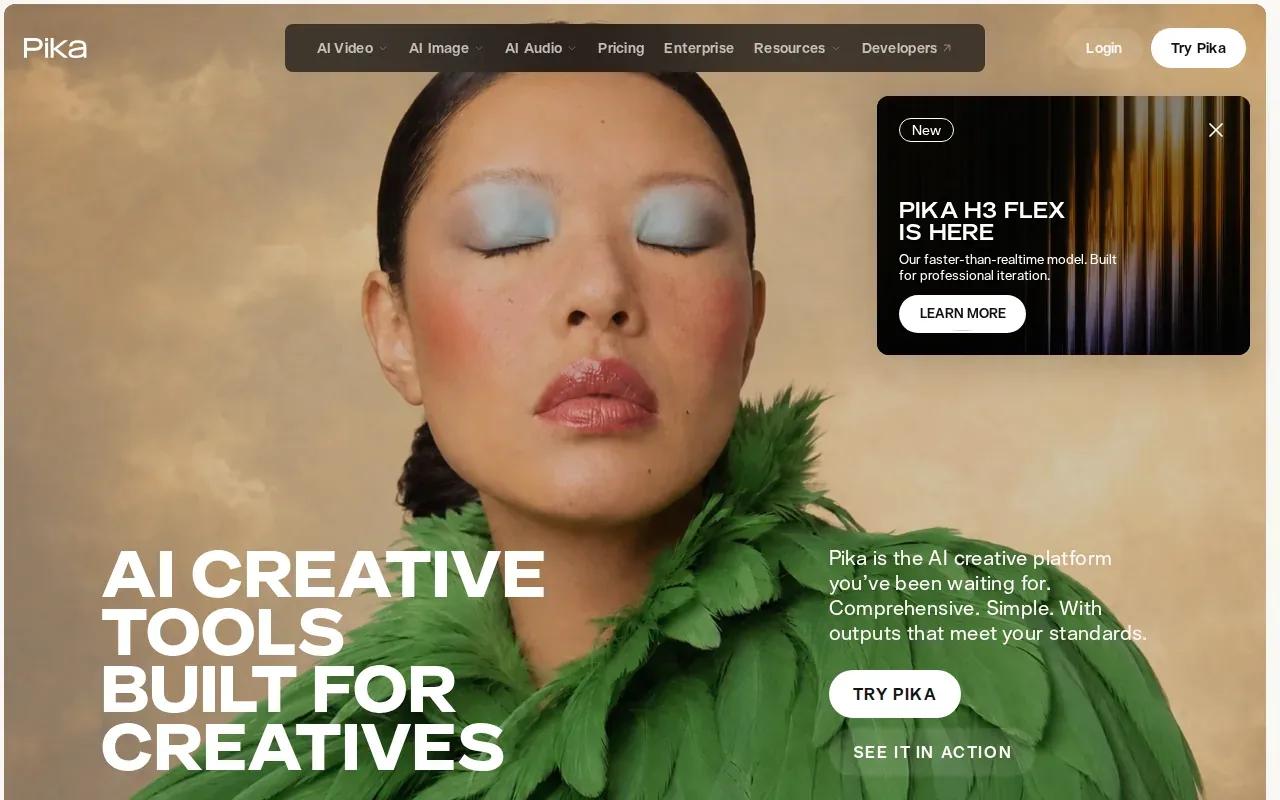
You can use two to five images as keyframes. A prompt can guide the motion across the sequence, and the current creation flow supports clips from one to five seconds. With exactly two keyframes, you can also choose a ten-second transition.
Imagine a fashion creator with three stills: a neutral outfit, a mid-change pose, and a final look. The images set the visual beats; a motion prompt describes how the change should happen. If the images are meant to connect smoothly, keep the subject's position and the camera view reasonably close across adjacent frames.
This is a different approach from setting only a start and end image. Keyframes let you add visual waypoints, while first-and-last-frame control focuses on the two endpoints.
For a quick social post, a two-image transition may be enough. A longer sequence gives you more places to guide the motion, but it also asks you to prepare and order more visual inputs before generating.
3. Runway: transitions inside a built-in video editor
Runway combines AI video creation with editing tools in one workflow. It suits creators who need to generate or adjust footage, then assemble and refine clips without switching to a separate editor.

Its built-in editor lets users cut, extend, and assemble clips. Runway also offers Camera Control for cinematic movement. That makes it useful when a transition depends on the shots around it, such as a camera move that leads from a product close-up into a wider scene.
Runway can start from a prompt, an image, or existing video. It also supports edits to footage, including changes to lighting or background. For story work, plan a narrative and break it into shots before generation.
Suppose you are making a short film. Draft the scene order first, then generate the shots that carry the story. Assemble them in the editor and check whether each cut has a clear reason. A transition effect can smooth a change, but it won't fix a scene that lacks a visual link to the next one.
Check your output needs before building a workflow around higher-resolution delivery.
Pick Runway when editing and generation belong in the same project. For a long narrative, plan the sequence before generating; short clips still need careful assembly.
4. OpenArt: scene swaps designed to preserve continuity
OpenArt is an all-in-one platform for creating AI images and videos. Its transition-related tools suit creators who want to change a scene while keeping key visual details steady.
OpenArt supports auto-cut and scene swaps designed to preserve continuity. It also lists consistent character support, AI-generated music, and lip-sync. Those functions can help when a social clip or short story needs the same person to appear through a scene change.
Think of a creator moving from a bright daytime scene to a night-time version of the same setting. The transition should change the surroundings without making the subject look like a new person. Describe what should change, then review the result for shifts in clothing, face, or placement that could break the sequence.
AI scene changes still need review. Watch the start and end of the transition, where motion can reveal a sudden shift in a face or object. If a detail matters to the story, make it explicit in the prompt and check the rendered clip before publishing.
5. InVideo AI: prompt-generated videos with transitions included
InVideo AI turns simple text prompts into videos, generating scripts and adding clips, subtitles, music, and transitions. It fits marketers and creators who want a prompt-led first draft rather than a transition between two hand-picked stills.
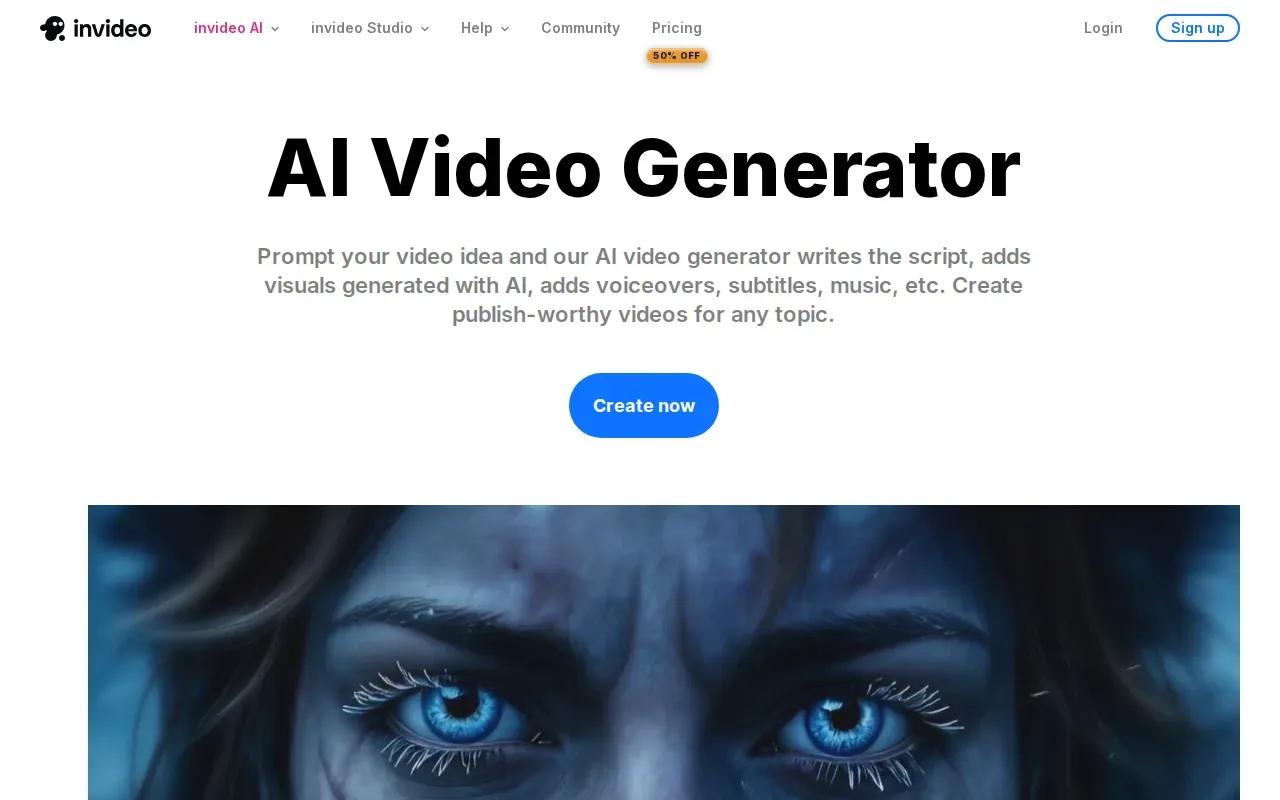
That workflow can be useful when the brief is a short product explainer or social post. Describe the idea, then review how the script and selected clips express it. Since transitions arrive as part of the generated edit, check whether each one supports the message or merely adds motion.
The generated edit gives you a starting point for reviewing how transitions connect the selected clips. Check the joins after the first pass to see whether they support the message.
For example, if a generated promo jumps from a product close-up to a customer scene, decide whether a direct cut feels clear or a short wipe better signals the change. Preview the join at normal speed. A transition that looks neat in a still frame may feel too slow once the full clip plays.
Use the prompt-generated route when speed matters and you want the tool to assemble an initial edit. Review the pacing before the video is ready to share.
6. FlexClip by PearlMountain: straightforward transitions and text animation
FlexClip by PearlMountain can add transitions, text animation, and basic animation. It suits social posts and marketing videos where a photo transition needs a light edit around it.
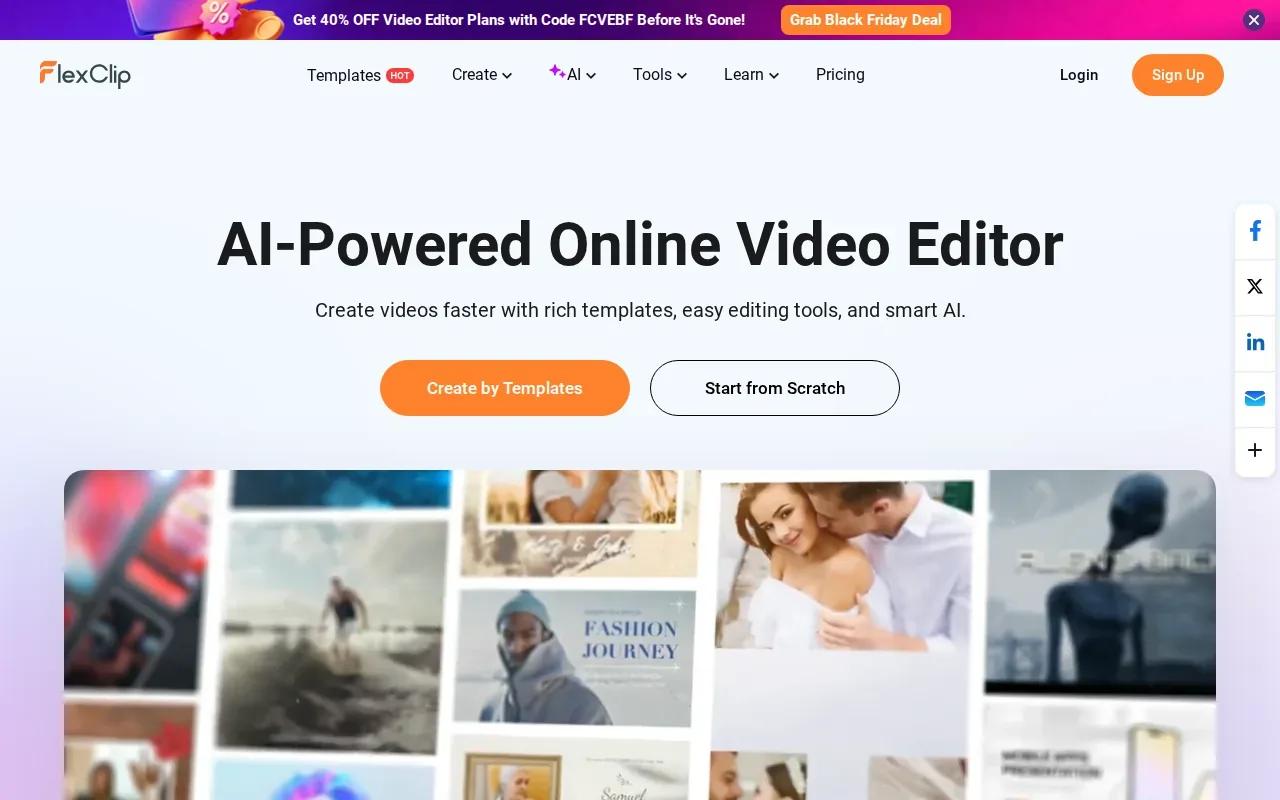
Its AI transition generator blends two uploaded photos. Add a start image and an end image, then describe the style or effect you want. The tool creates motion between the photos, and you can continue editing with text, music, sound effects, stickers, or overlays.
The workflow can also handle a transition between two video clips, with an extra step: export the last frame of the first clip and the first frame of the next. Use those stills to generate the transition, then bring the result back into the editor. This is handy when you need a bridge between recorded clips, but it means the transition is made from frames rather than directly from the two video files.
| What you need | Useful FlexClip workflow | Check before export |
|---|---|---|
| Photo-to-photo reveal | Upload start and end images, then describe the change | Does the final frame match the next shot? |
| Transition between clips | Export the two joining frames, generate a bridge, then import it | Does the bridge fit the timing of both clips? |
| Social or marketing finish | Add text animation or other editor effects after generation | Can viewers read the text at normal playback speed? |
When testing a transition, change one input at a time so you can tell what improved the result.
FAQ: AI Video Transition Generators
What is an AI video transition generator?
An AI video transition generator makes motion that connects two images, frames, or scenes. Some tools use images as endpoints, while others add transitions to a larger video edit. The key question is how much control you need over the visual start and finish, and whether you want to edit footage you already have.
Can AI make a transition between two photos?
Yes, several tools can generate motion between two photos. Upload the opening and closing images, then describe the change you want. For a cleaner result, keep the subject and framing similar where possible, and avoid asking the model to change many unrelated details at once.
Should I record a transition or generate one with AI?
Record it when the transition depends on a specific real action, such as a hand covering the lens or a camera move in a real place. Generate it when you have stills or want a visual change that would be hard to film. You can also combine both: record the main footage, then make a generated bridge from its joining frames.
How do I make an AI transition look smoother?
Use clear start and end images, then describe one main change. Keep the subject's position and the lighting close if continuity matters. If the result still feels abrupt, shorten the distance between the visual states or adjust the duration. Review the clip at full speed before adding more effects.
Can AI transitions include sound or dialogue?
Some video generation tools can create sound with the image, while others focus on visual transitions or editing. Veo Studio supports synchronized sound and dialogue with generated video. If you need exact timing for a voice line or music cue, play the exported clip through and check the audio against the visual change.
Conclusion
Choose the tool around the transition you need: planned frame control, a sequence of keyframes, or edits on a timeline. For scenes that need first and last frame control alongside synchronized sound, dialogue, character consistency, or up to 4K output, start with Veo Studio. Try one short transition with your actual opening and closing images, then review the result before building the full edit.


