

An AI video script generator can help you move from a rough idea to words you can use. But the next step matters: some tools turn a script into a full video, while others generate scenes or presenter-led clips. Here are ten options, with a clear look at the kind of work each fits.
We analyzed 21 YouTube comments about AI video script generators and found that 33% mentioned support for newer AI models.
1. Veo Studio
Veo Studio is an independent, browser-based AI video creation tool. It turns prompts and reference images into short videos with synchronized sound and dialogue, character consistency, frame control, scene extension, and output up to 4K.
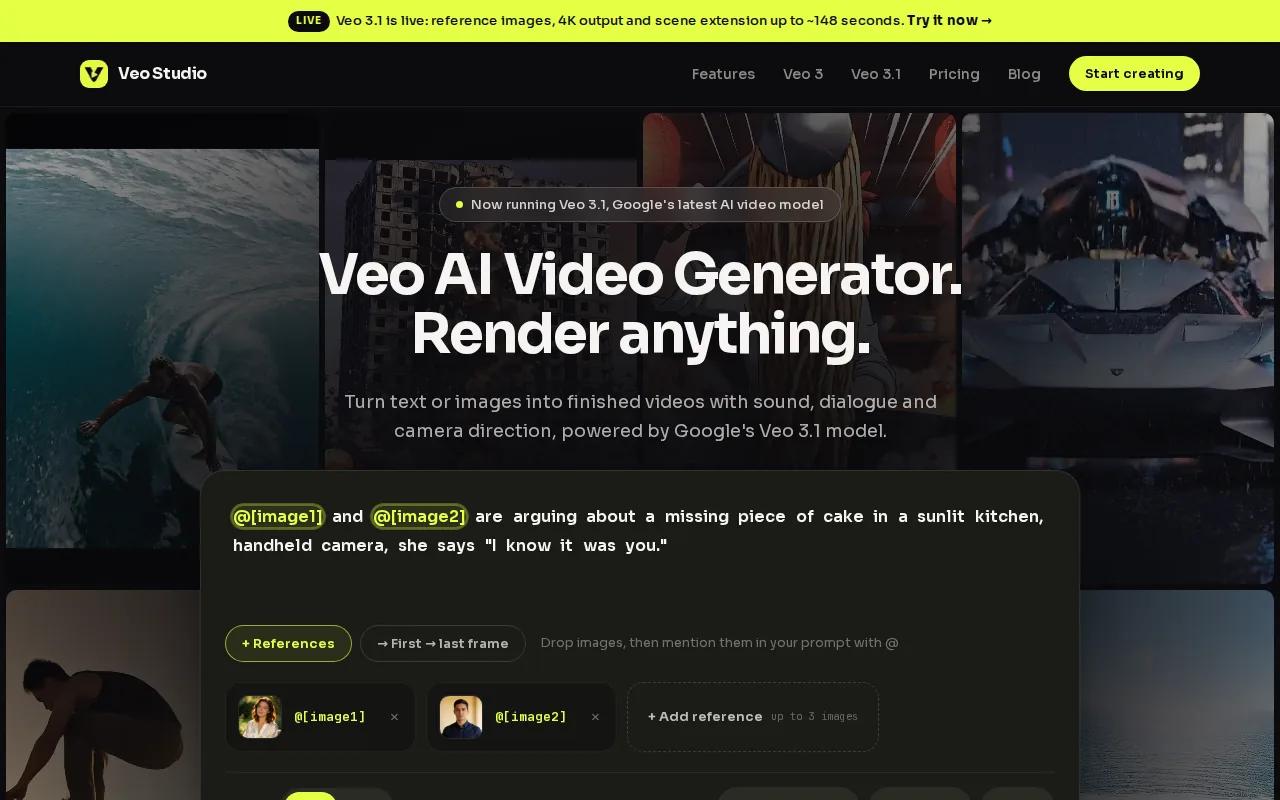
It’s a fit when your script needs a specific visual scene, not just narration laid over stock footage. Break the script into shots, then describe the subject, action, setting, and camera move for each one. Add a reference image when a character or product needs to stay recognizable. The model can generate quoted dialogue with matching lip movement.
The free plan includes a couple of 720p videos each month, with no card required. Paid plans start at $14 per month and include higher resolutions. For a longer piece, scene extension adds to a clip in seven-second steps. A short prompt can still work, but a clear shot plan gives you more control over what the video needs to show.
When turning a rough idea into a scene prompt, this AI video prompt generator guide can help you describe the shot before you generate it. Veo Studio is the option to consider when sound, dialogue, and visual continuity need to come from the generated scene.
2. Fliki AI Script Generator: scripts with a video-and-audio workflow
Fliki AI Script Generator is aimed at creators who want a script to become a narrated video. You can start with an idea, a script, or a blog post. Fliki can assemble visuals with voiceover, music, and captions, which suits faceless social clips and explainers.
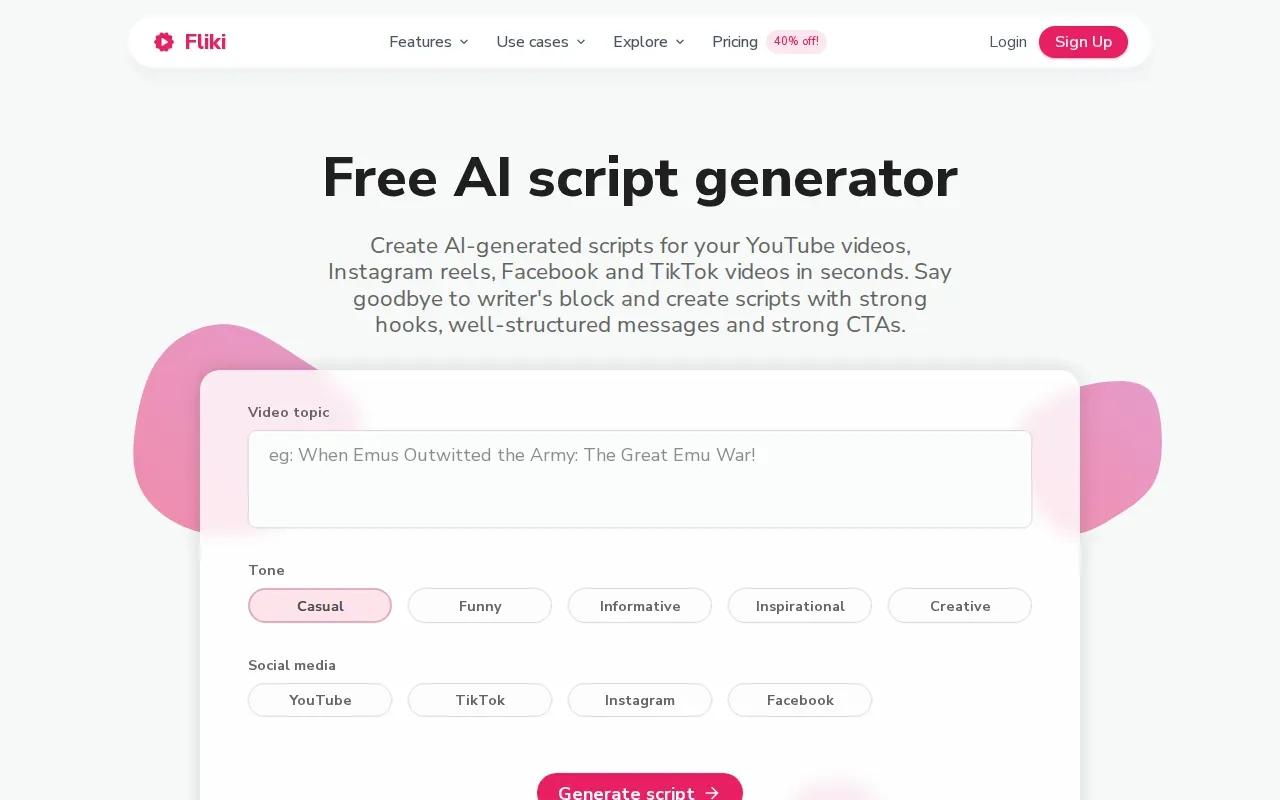
Its free tier includes five minutes of audio and video content per month. That gives you room to try a short draft before deciding whether the workflow fits. For a YouTube explainer, you could start with the topic and intended viewer, review the script, then check whether the chosen visuals support each point.
Fliki is built for an end-to-end draft. Read the narration aloud before export, especially when a line carries a key fact or a call to action. That quick check can catch wording that looks fine on screen but sounds stiff when spoken.
3. Kapwing AI Script to Video: editable videos from scripts
Kapwing AI Script to Video turns a script into a storyboarded video that you can edit. It can pair script sections with B-roll, voiceover, subtitles, sound effects, and music. You can review settings such as the shot list and aspect ratio before generation.
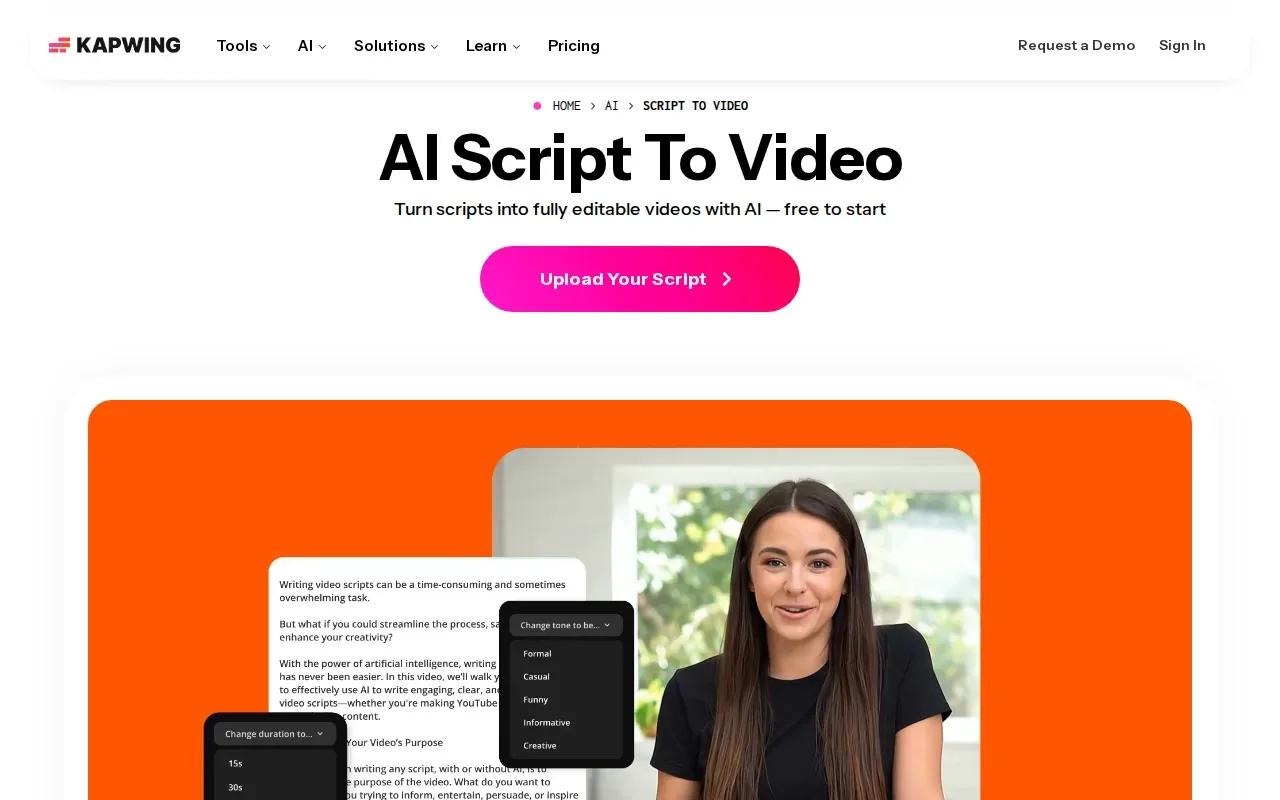
This workflow can suit a marketer preparing an explainer or a learning team making training clips. After the first draft, you can adjust layers in the editor, swap footage, change the voiceover, or revise subtitles. Kapwing supports exports up to 4K, while extended AI usage requires a paid subscription.
If you’re writing for several scenes, a video storyboard plan can help connect each spoken line to a visual beat. That matters when a script describes a process: viewers should see the action being explained, not unrelated footage.
4. InVideo AI: prompt-to-video assembly for repeatable content
InVideo AI turns prompts or scripts into assembled video content. Its workflow can draft a script, select visuals, add voiceover and subtitles, then give you a video to review. The editor also accepts plain-language requests for changes, such as removing a scene or changing a voiceover accent.
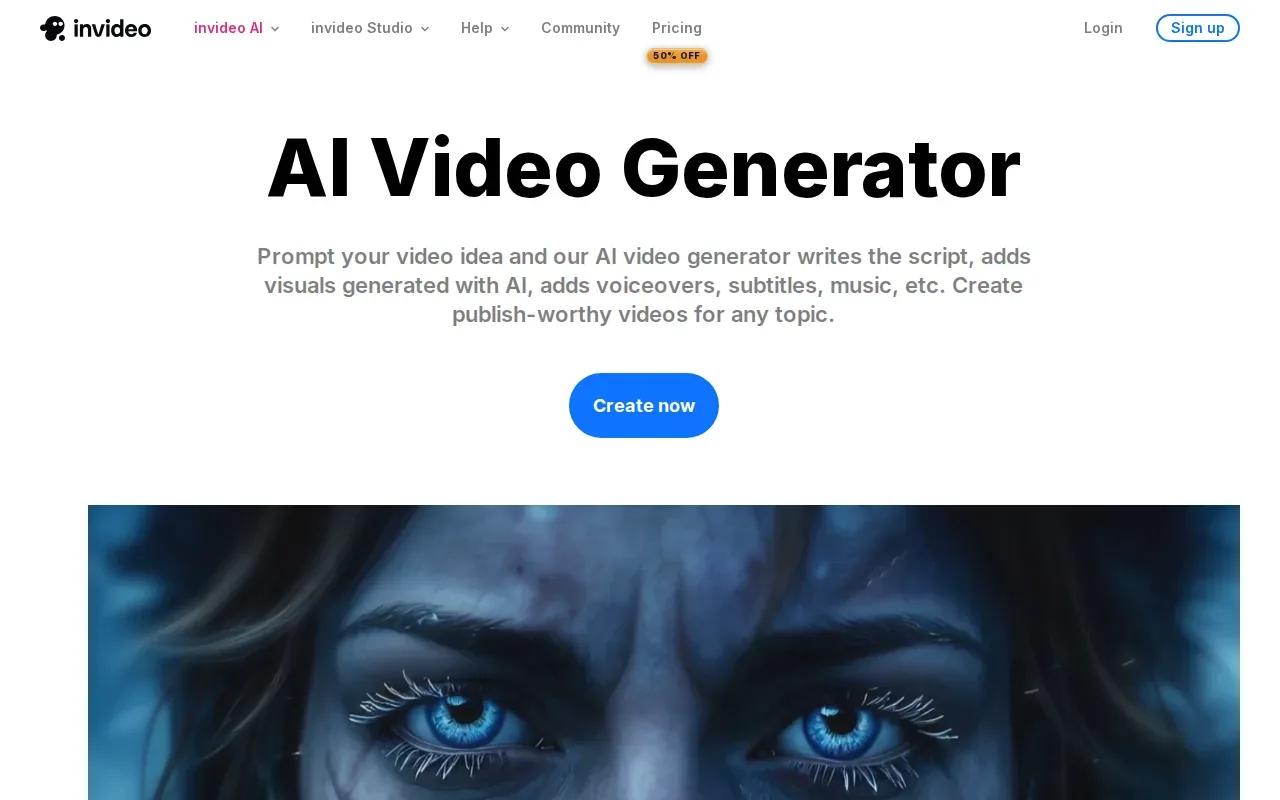
That makes it worth considering for repeatable explainers or social posts where a team starts with a brief instead of a finished shot list. InVideo’s described credit plans include 400 credits per month for first-time creators, 2,000 for everyday use, and 8,000 for larger projects. Character and story consistency is also a stated focus for series work.
Use the first draft as a working cut. Check each image against the line it accompanies, then make changes before you export or share it.
5. Synthesia: presenter-led scripts with AI avatars
Synthesia helps you make presenter-led videos with AI avatars and scripts. That makes it a natural fit for onboarding, training, internal updates, and product education, where a clear speaker can guide the viewer through the message.
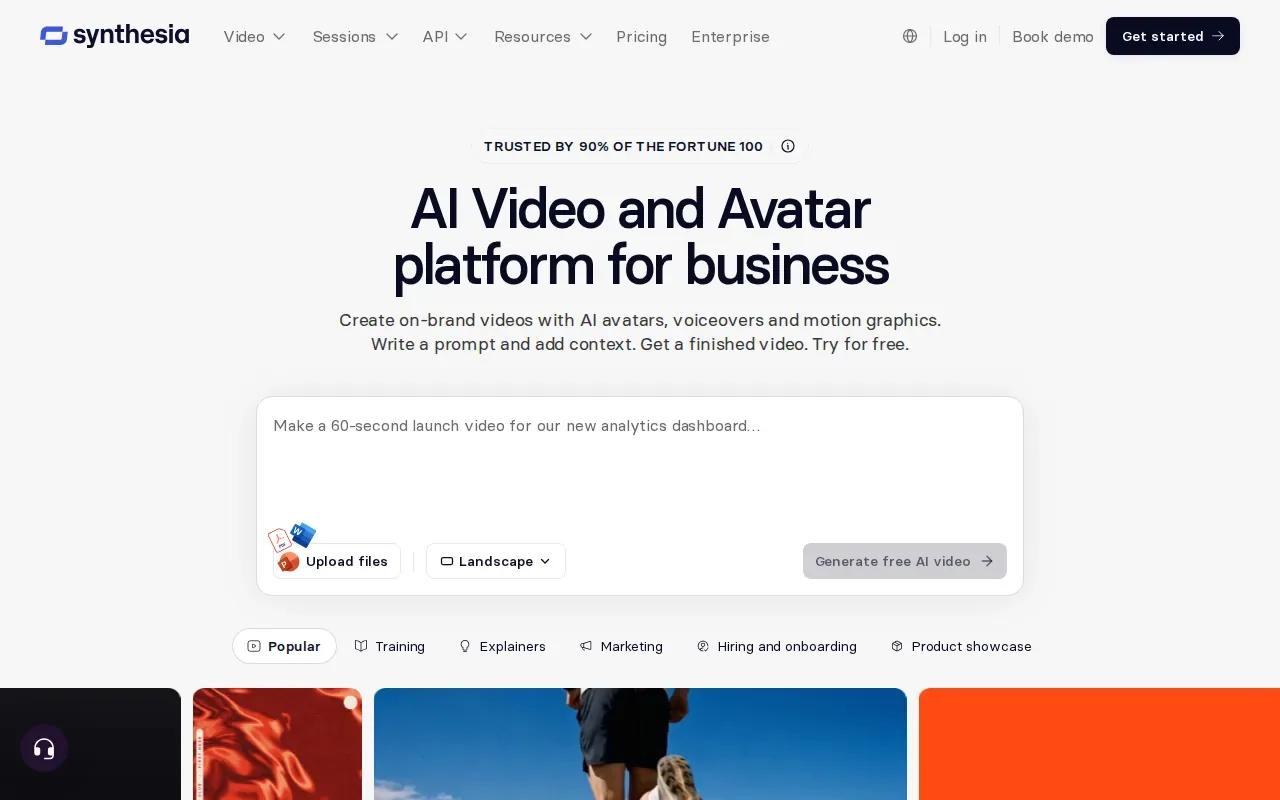
You can start with a prompt, file, or URL, then make a video draft with avatars and voiceovers. Synthesia supports video in more than 140 languages. For a team that updates policies or course material often, an edited script can be used to update the video without arranging a new camera shoot.
The free plan includes ten minutes of video per month. Paid plans start at $18 per month with annual billing, or $29 monthly. Pick this format when the script needs a presenter to explain the content. It’s a different job from generating a cinematic scene.
6. VEED: script, edit, subtitle, and dub in one workflow
VEED connects script drafting with video creation and editing. You can enter a prompt, review and change the draft, set up the video, then generate it. If you already have a script, you can skip the drafting part.
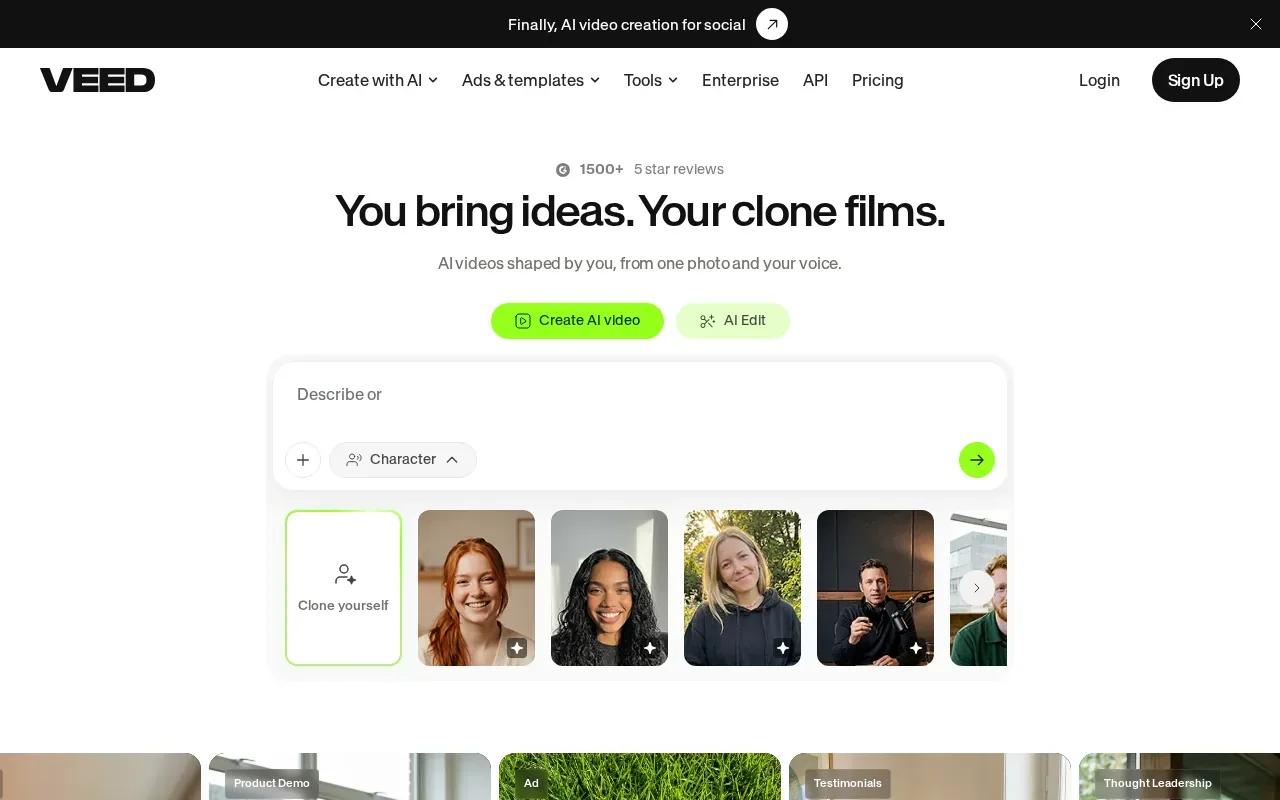
This workflow suits marketers and small teams making social content without a dedicated video crew. After generation, you can continue editing the video. The estimated AI credit cost appears before generation, which helps you plan a batch of posts.
VEED’s script tool also supports drafts for explainers, marketing, and educational videos. A useful brief names the topic, target audience, and goal. Then check the opening hook and read the script aloud before turning it into a video.
For the next step after an approved script, this guide to creating AI videos covers how prompts, reference images, and sound can shape a finished clip.
7. MoneyPrinterTurbo: an open-source route to short-video automation
MoneyPrinterTurbo is an open-source project for generating short videos from a topic or keyword. Its workflow can write copy, match footage, add voice, subtitles, and background music, then render a video in portrait or landscape format.
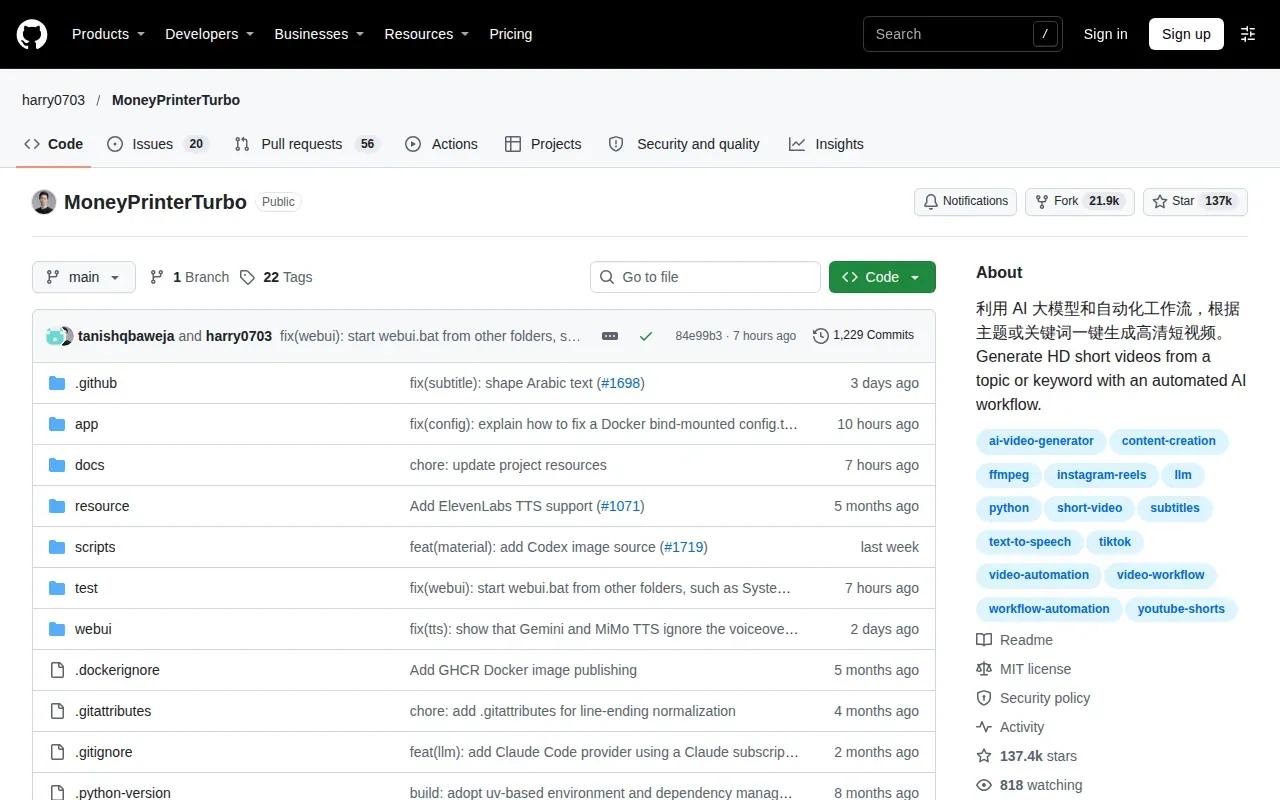
It’s aimed at people who want to automate a straightforward short-video workflow. The open-source version may suit users comfortable with local setup. The browser-based version handles the runtime in the backend, so you can submit a task without setting up Python or Docker on your own machine.
Before you render, check the script and footage choices. If you need a very specific product shot or scene, uploading your own image or clip can give the workflow a clearer visual starting point.
8. AI Video Script Generator by HeyGen: scripts for avatar videos
HeyGen is a fit for scripts that need a presenter or avatar on screen. Its video tools can turn an idea into a video, and a text-based editor lets you guide tone, delivery, gestures, and emotion through the script.
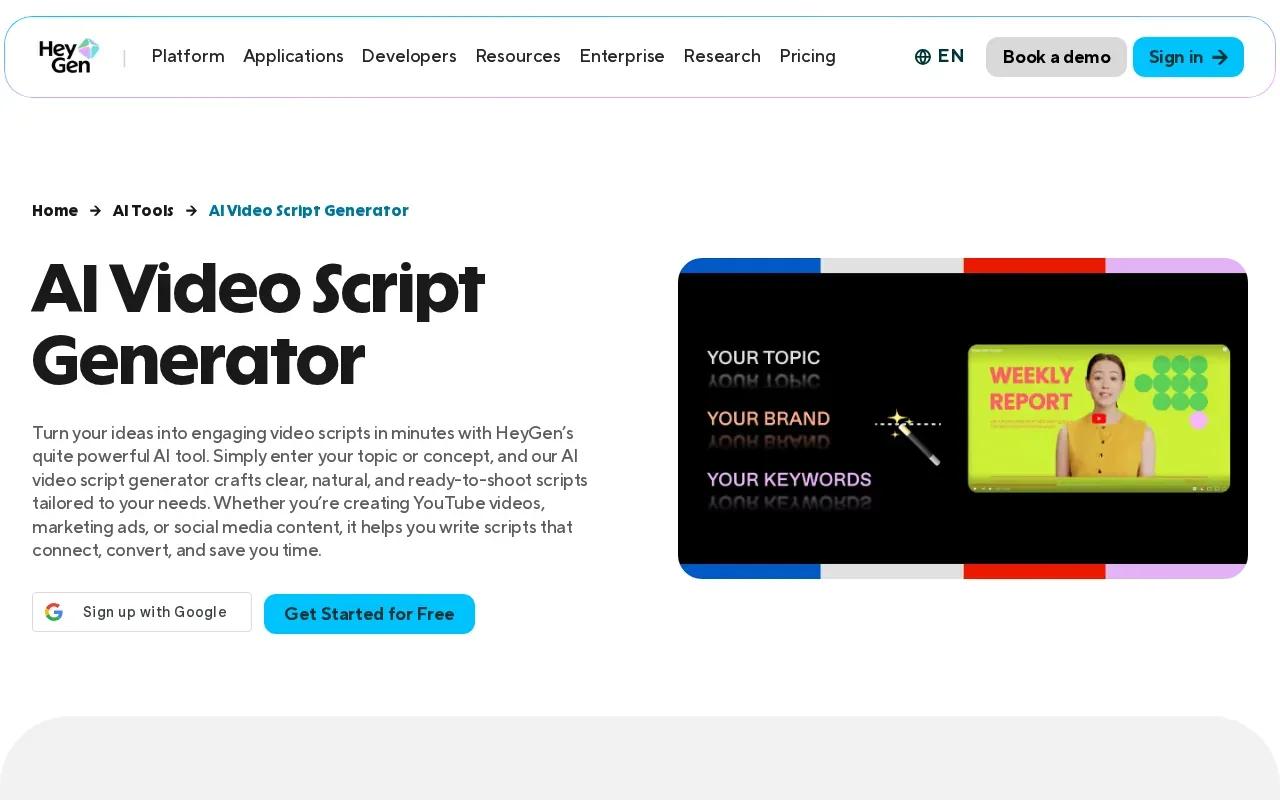
HeyGen also describes lip-sync across more than 175 languages and dialects. That can help when the same message needs to reach viewers in different languages. Its avatar tools focus on keeping an identity consistent across videos, which makes it useful for a presenter-led lesson or product message.
Choose this approach when a person speaking is central to the script. If the story depends on several locations, actions, or cinematic shots, compare it with a scene-generation workflow before you commit to a format.
9. AI Script Generator by Clipfly: a lightweight option to evaluate
When evaluating an AI script generator, consider whether it fits your workflow and the kind of video you plan to make. Compare how its output would fit into your production process before deciding whether to use it.
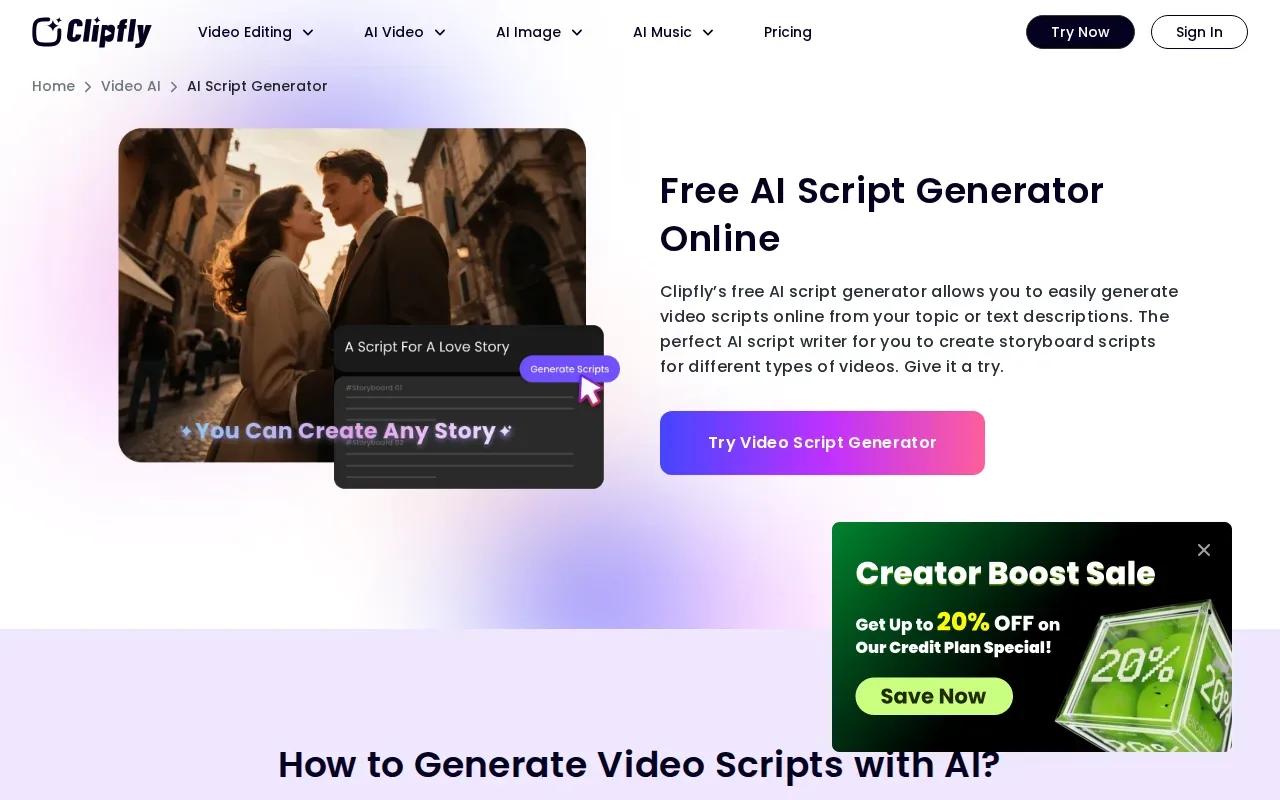
Review any generated material for accuracy, tone, and audience fit. A draft should be checked and revised to match your message before it moves into production.
You may also want to consider how much editing the result needs and whether the workflow suits your team. These checks can help you decide if the tool is appropriate for your project.
10. Runway: a broader AI video creation toolkit
Runway is a broader creative toolkit for generating and editing video, images, and audio. It can take text, images, video, or audio as inputs. Its tools include multi-shot video generation, footage extension, and edits guided by prompts.

That makes it a possible fit when scriptwriting is one part of a wider production process. For example, a creator might write a short scene, generate multiple shots, then adjust the look or edit footage with a text prompt. Runway also supports custom node-based workflows for users who want to connect steps.
It’s less of a script-only choice. Consider it when the work needs broader media tools, not just a quick script draft.
AI Video Script Generator Comparison: Use Case Fit
The right fit depends on what you want after the script is written. A few tools assemble narration and visuals, while others focus on avatars or generated scenes. Start with the output you need, then check how much editing the workflow gives you.
| Tool | Fits best when you need | Check before you start |
|---|---|---|
| Veo Studio | Generated scenes with synced sound, dialogue, and continuity | Plan shots and prompts for the scene |
| Fliki AI Script Generator | A narrated video with captions and visuals | Review the voiceover and visual match |
| Kapwing AI Script to Video | An editable storyboard-style video | Review export and usage needs |
| InVideo AI | Prompt-led video assembly | Check each scene against the script |
| Synthesia | Presenter-led training or business content | Decide if an avatar fits the message |
| VEED | Drafting and editing social videos in one workflow | Review the credit estimate before generation |
| MoneyPrinterTurbo | Automated short videos from a topic or script | Choose between local setup and browser access |
| AI Video Script Generator by HeyGen | Avatar-led videos and multilingual delivery | Check that a presenter is the right format |
| AI Script Generator by Clipfly | Review the script before making a video | |
| Runway | Script work alongside broader video and media tools | Decide which parts of the workflow you need |
For a useful draft, give the tool the audience, the goal, the tone, and the target length. Ask for a hook, a short body with one main point, and a clear close. If the video relies on visuals, add a shot note beside each key line. Then copy or download the script, edit it in your own voice, and review the generated video before sharing.
AI Video Script Generator FAQ
Can AI write a script and make the video too?
Yes, several tools on this list can draft or accept a script, then help assemble a video. Fliki and InVideo AI combine script-led workflows with visuals and voiceover. Kapwing creates an editable storyboard-style video. Veo Studio focuses on generating scenes from prompts and reference images, so a shot-based script can guide what each clip should show.
Are AI video script tools free?
Some have free access with limits. Veo Studio’s free plan includes a couple of 720p videos per month, and Fliki’s free tier includes five minutes of audio and video content per month. Synthesia includes ten minutes of video a month on its free plan. Check the current limits before planning a full batch.
Do I need writing experience to use one?
No. Start with a clear topic and tell the tool who the video is for and what viewers should learn or do. The first draft still needs your review. Check facts, remove stiff lines, and make sure the wording sounds like something you’d say aloud. Writing experience helps, but a focused brief is enough to begin.
Can I edit a script after the AI writes it?
Yes. Editing is part of the workflow for tools such as VEED, Kapwing, and other script-to-video tools. You can revise lines before generating a video or edit the project after. For any tool, check whether it lets you change the script itself, the scenes, or both. The amount of control differs by product.
What should a short video script include?
A short script needs a clear opening, one main idea, and a close that tells viewers what to do next. Write for the ear, not the page. Pair each key line with a visual or action when the video depends on generated scenes. Keep dialogue brief enough to fit the shot, then listen to the finished clip before publishing.
Conclusion
Choose the workflow that matches the finished video you want. For generated scenes with synchronized sound, dialogue, frame control, and scene extension, start with Veo Studio.


