

A Reel can start with a sentence, a product photo, or footage you already shot. The right AI video generator for Instagram depends on what you want to control: the scene, the sound, or the final edit.
We analyzed 49 YouTube comments about AI video generators for Instagram and found that 18% mentioned generation errors and reliability issues.
Here are six options for different Reel workflows, starting with Veo Studio, an independent browser-based tool powered by Google’s Veo 3.1 models.
1. Veo Studio
Veo Studio turns a text prompt or reference images into video with synchronized sound and dialogue. It’s a fit for creators who want to direct a scene, keep a character recognizable, or make a short product spot without filming each shot.
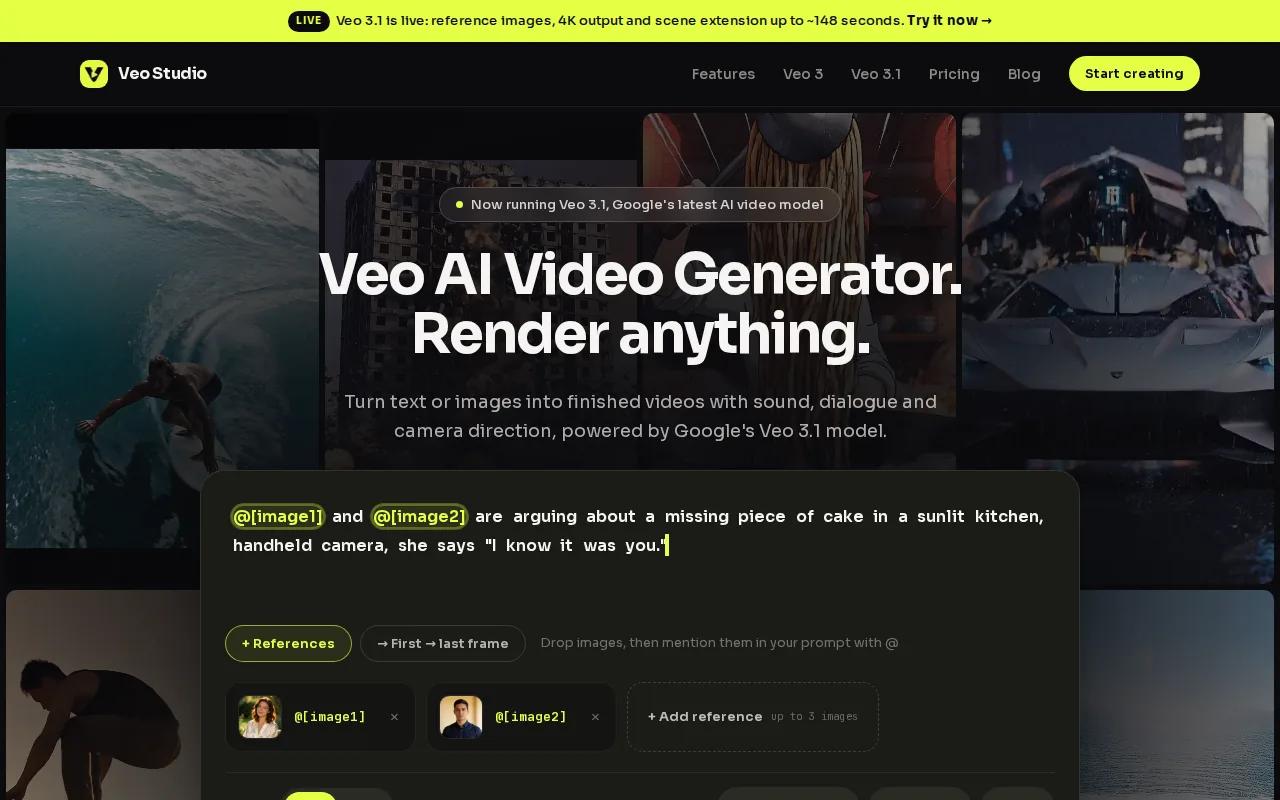
For a Reel, set the frame to vertical 9:16, then describe the subject, action, and camera move in plain language. Add reference images when a person, product, or look needs to stay consistent. Veo Studio supports up to three reference images on supported settings, plus first- and last-frame control for guiding how a clip begins and ends.
Sound comes with the generated picture. You can describe music or scene sounds, or put a line of dialogue in quotes to guide a speaking character’s lip movement. That’s useful for a short scene with a spoken hook, though you should still watch the result and check that the words and mouth movement feel right.
Veo 3.1 supports output up to 4K on supported settings. A generated clip can run for 4, 6, or 8 seconds; scene extension adds time in 7-second steps to supported 720p clips. That gives you room to build a longer sequence without treating one generation as a full-length edit.
The free plan includes a couple of 720p videos a month with no card required. Paid plans start at $14 per month; every plan includes a commercial licence. For more approaches, see this page.
2. InVideo AI: Prompt-led video creation with 4K export
InVideo AI generates video from a text prompt and can build a draft with a script, clips, subtitles, music, and transitions. It suits marketers or small teams that want a narrated promotional video without assembling every part from scratch.
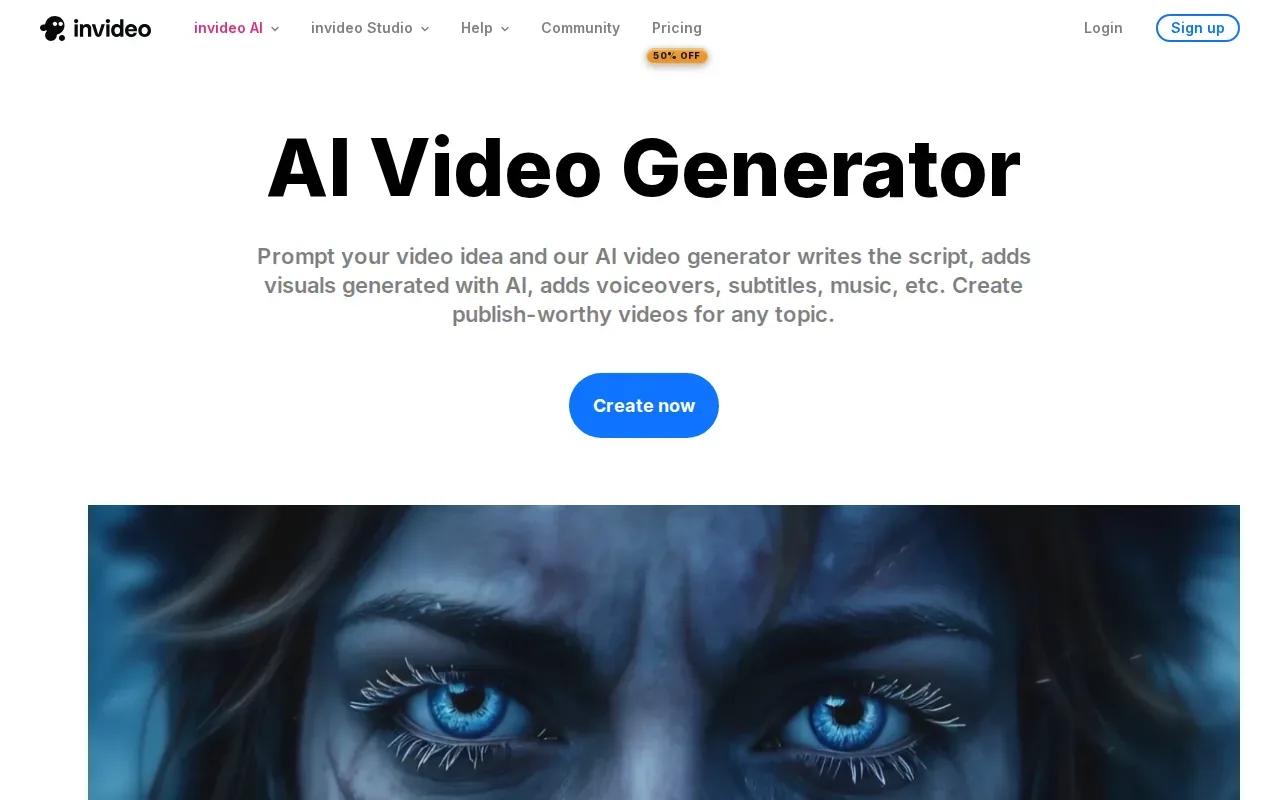
For an Instagram ad, describe the product and the moment you want the viewer to see. The tool can generate a script and add clips, captions, music, and transitions. InVideo AI can export up to 4K, which gives you a higher-resolution option when the project calls for it.
This prompt-led approach can be useful for a quick first version of a launch announcement or an explainer. You’ll still want to review the result closely. Check that the selected visuals match the product, that any claims in the script are accurate, and that captions don’t cover the key action.
If a character needs to speak on camera with matching lip movement, compare that requirement with the other options before choosing. For a narrated Reel where the voice sits over visuals, the generated script and supporting clips may be a better fit.
InVideo AI is worth considering when the story matters more than directing every camera move. Give it a clear brief, then refine the language and footage before export. For example, a shop could describe a new item, its main use, and the one detail viewers should remember.
3. Higgsfield: Character consistency and camera-motion control
Higgsfield creates images, videos, and voice content from text prompts or references. Its character-consistency tools and camera-motion presets suit creators making a recurring character or a series with a deliberate camera style.
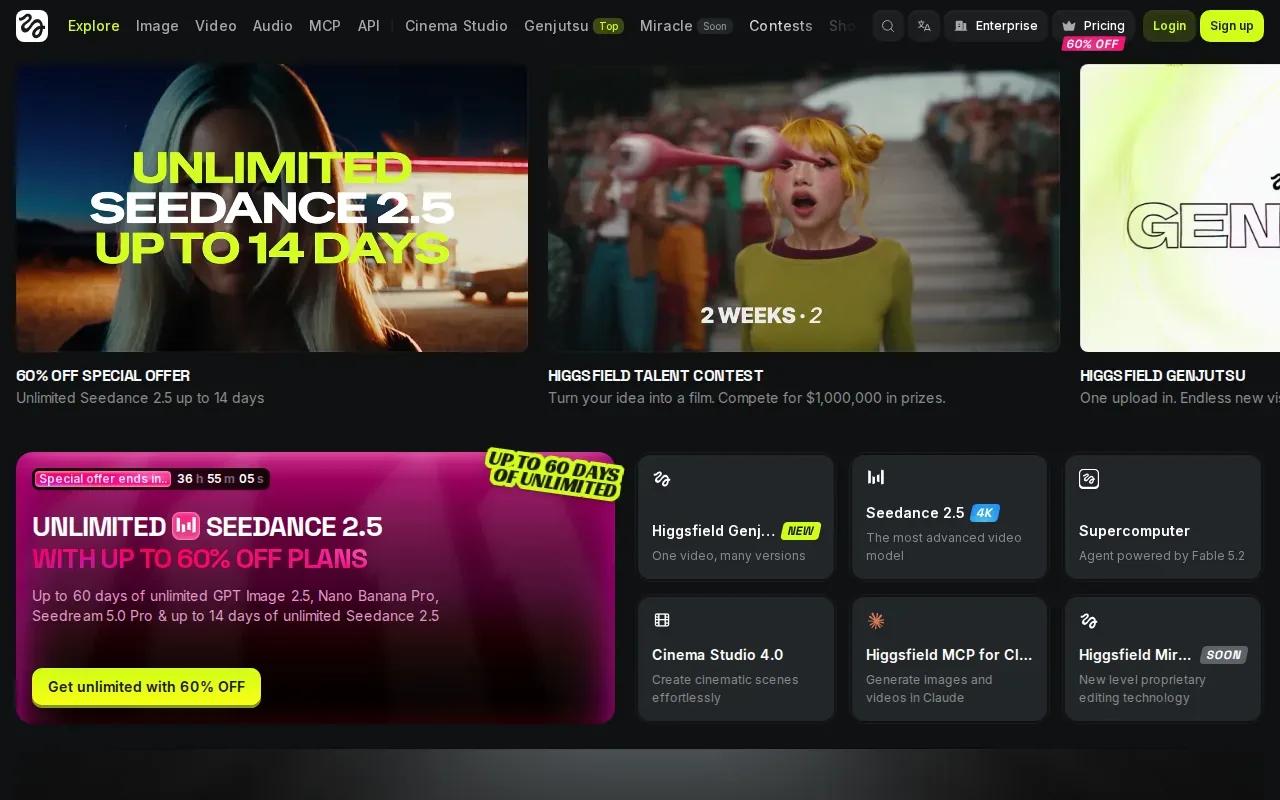
That distinction matters when you’re planning several related Reels. A character or visual style that shifts between clips can make an episodic series feel disconnected. Higgsfield’s consistency tools are designed to help keep the character’s look aligned, while camera-motion presets give you a way to shape how the footage moves.
Start with a reference or a prompt that spells out the subject and the shot. Then choose a camera move that fits the action, rather than adding motion for its own sake. A slow push can keep attention on a product detail; a more active move may suit a dance or challenge clip.
There’s also an AI agent for creative workflows, and the product supports media generation on web and mobile. That can help if you want to begin an idea on a phone and return to it in a browser.
Choose Higgsfield when continuity and camera direction are central to the concept. If you mainly need a script-led video with captions, a prompt-to-project tool may be a closer match.
4. CapCut: AI creation paired with hands-on timeline editing
CapCut combines AI video creation with a full timeline for hands-on editing. It’s a natural fit if you already have clips or generated footage and want to fine-tune cuts, effects, and timing before posting.
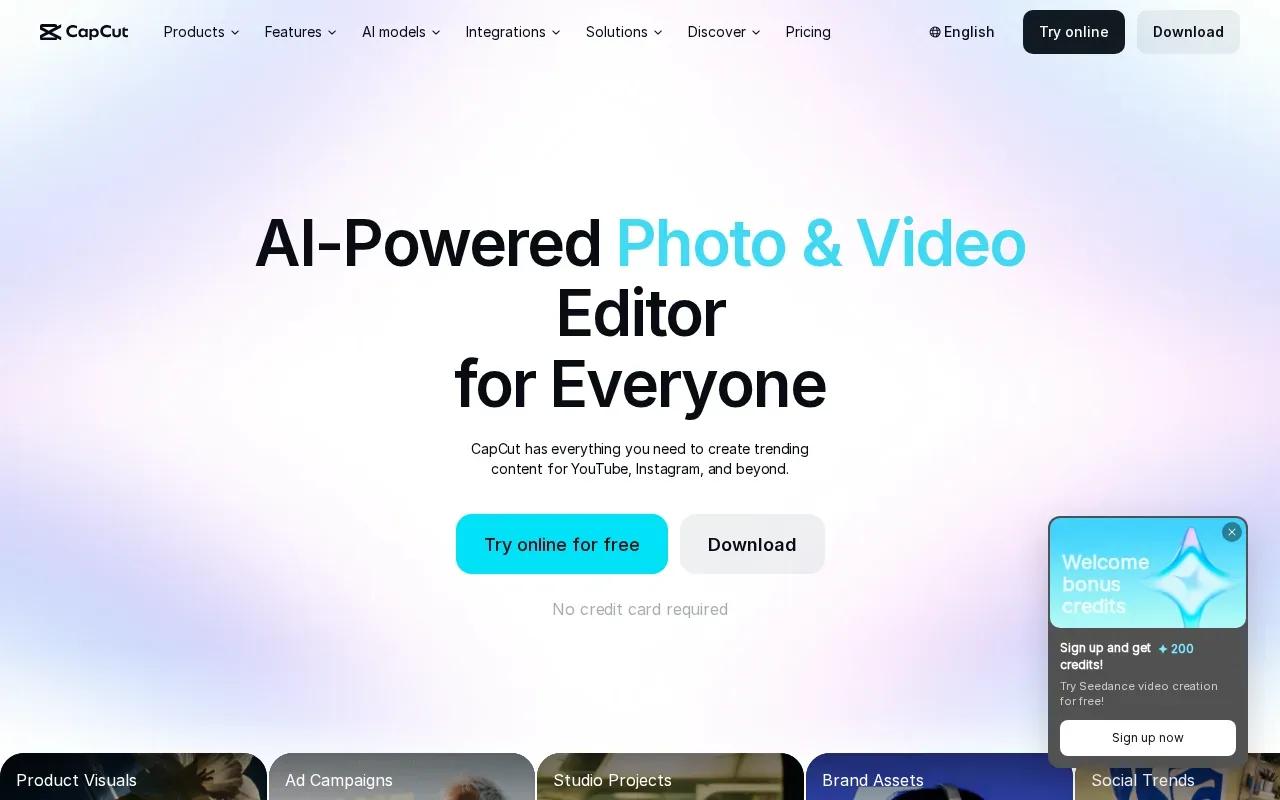
Its timeline lets you make specific edits instead of accepting a generated clip as the finished Reel. CapCut also has 54-plus visual styles. For a trend-led post, you can try a style, then adjust the cut or effect to fit your own footage rather than forcing every clip into the same template.
CapCut’s free tier includes editing without a watermark and supports exports. Its editing control is useful when the final result needs precise timing, but timeline editing is different from first- and last-frame direction in a generated scene.
For a simple workflow, generate or import a clip, cut it to the moment that earns attention, then check the captions and effects on a phone-sized preview. A travel creator could trim a sequence of street scenes into a quick opening, followed by one clear detail such as a local dish or a view.
Travel posts often pair a destination clip with trip-planning context. For example, a travel-planning resource may help shape a destination idea before you write the video prompt.
5. OpenArt: Speaking characters, synced lip movements, and AI music
OpenArt can make videos where characters speak with synced lip movements and add AI-generated music. That combination may suit creators planning a character-led Reel with speech and music in the same video. Review the finished clip to make sure the dialogue is clear alongside the music.
OpenArt also offers character consistency. This can be useful when a recurring character appears in a series of Instagram posts, helping keep the character consistent across clips.
For a planned sequence, consider how the character, dialogue, and music work together from one clip to the next.
OpenArt’s supported capabilities include character consistency, synced lip movements, and AI-generated music. These features may help creators shape character-led scenes for Reels; listen through the finished export before posting so speech remains clear alongside the music.
6. Kapwing: Prompt-generated projects with 4K exports on paid plans
Kapwing can turn a prompt into a full Instagram video project, then let you edit the parts in its browser-based studio. It suits creators who want a generated starting point but also need control over captions, B-roll, and the final timeline.
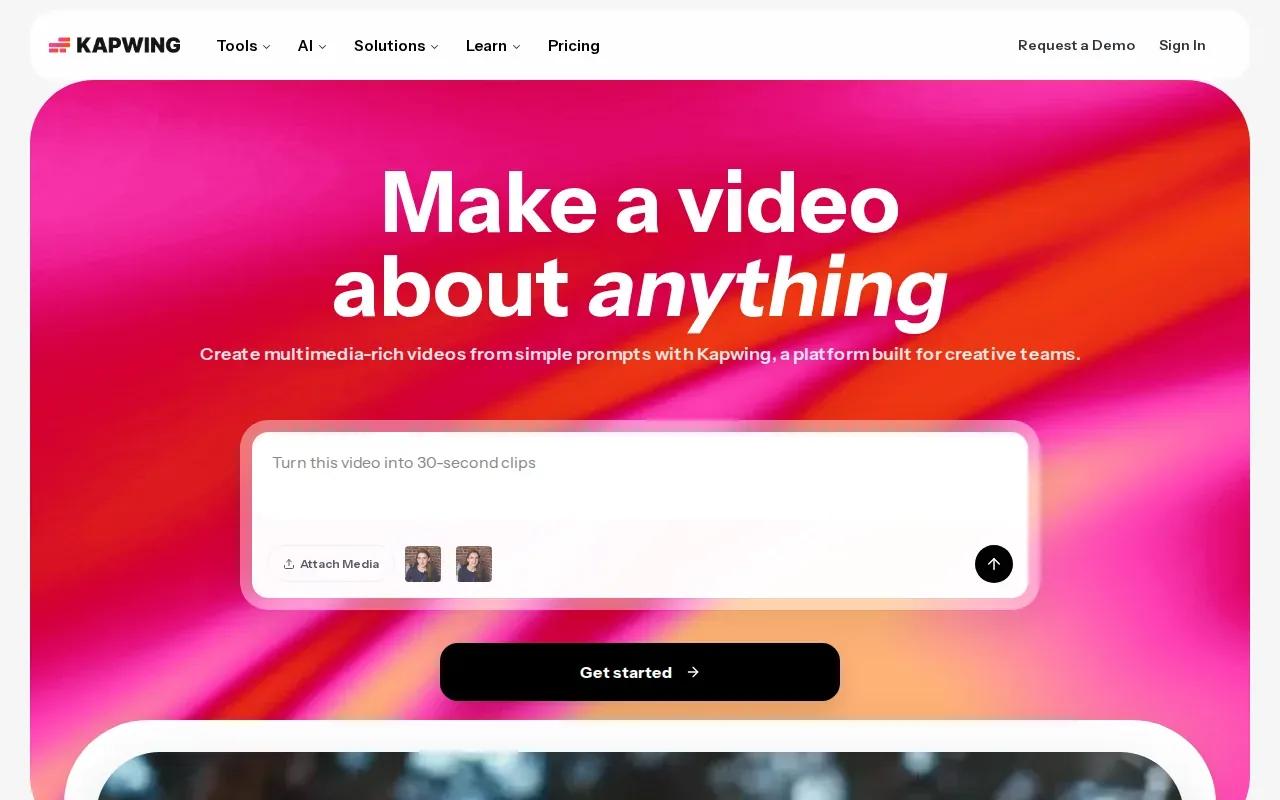
Its Instagram workflow supports 9:16, 4:5, and 1:1 formats. The generator can include a hook, voiceover, captions, and B-roll; you can also review and edit the storyboard before generation. That review step gives you a chance to catch a weak opening or a visual that doesn’t fit before the project is built.
After generation, you can move assets onto the editing timeline and adjust elements such as a subtitle or sound effect. Kapwing also supports safe-zone overlays, which help you see whether captions or calls to action sit too close to the edge of the frame.
Paid plans export in 4K. For prompt-led video with captions and editable parts, though, that distinction may not matter.
| Reel task | Useful Kapwing detail | Decision point |
|---|---|---|
| Start with a prompt | Generates a project with a hook, voiceover, captions, and B-roll | Review the storyboard before generating |
| Fit the Instagram frame | Supports 9:16, 4:5, and 1:1 | Choose the aspect ratio for the post type |
| Polish the result | Editable timeline and safe-zone overlays | Check caption placement on a phone preview |
| Export at higher resolution | Paid plans export in 4K | Confirm the plan fits your output needs |
Kapwing is a sensible choice when the project needs both a prompt-based draft and edits to individual assets. Its separate parts make it easier to change one caption or clip without rebuilding the whole idea.
FAQ
Which AI video generator is best for Instagram Reels?
The right choice depends on the part of production you need help with. Veo Studio is a fit for prompt-led scenes with synchronized sound, character consistency, frame control, and supported 4K output. CapCut suits timeline edits, while Kapwing builds prompt-led projects with editable assets. Compare the workflow against your next Reel before you pay.
How long can an AI-generated Instagram video be?
Clip limits depend on the tool and the generation settings. Veo Studio supports 4-, 6-, or 8-second clips, with scene extension for supported 720p clips. OpenArt says its AI video generator can make videos up to 15 seconds. Check the selected tool’s current output settings, then edit the final duration for your post.
What format should I export for an Instagram Reel?
A vertical 9:16 frame is the format used in the listed Instagram video workflows for Reels. Kapwing also supports 4:5 and 1:1 for other post layouts. Before export, check the crop and caption placement on a phone-sized preview. A high-resolution export won’t fix text that sits under the app’s interface.
Can AI-generated videos include synced dialogue?
Yes, some tools can generate dialogue with matching lip movement. Veo Studio supports synchronized sound and dialogue, and OpenArt lists synced lip movements for speaking characters. Watch the finished clip to confirm the words and mouth movement line up.
Can I use AI-generated music and visuals in a sponsored Reel?
Check the tool’s current licence terms and Instagram’s rules before using generated assets in a paid post. Veo Studio’s plans include a commercial licence, according to its site. For any tool, keep records of the assets and prompts you used, and review rights for any reference material, music, or footage you add yourself.
Conclusion
Veo Studio supports synchronized sound and dialogue, character consistency, first/last-frame control, scene extension, and up to 4K output. If your main job is cutting existing clips, open CapCut instead and test its timeline on one short draft.


